 netkingZ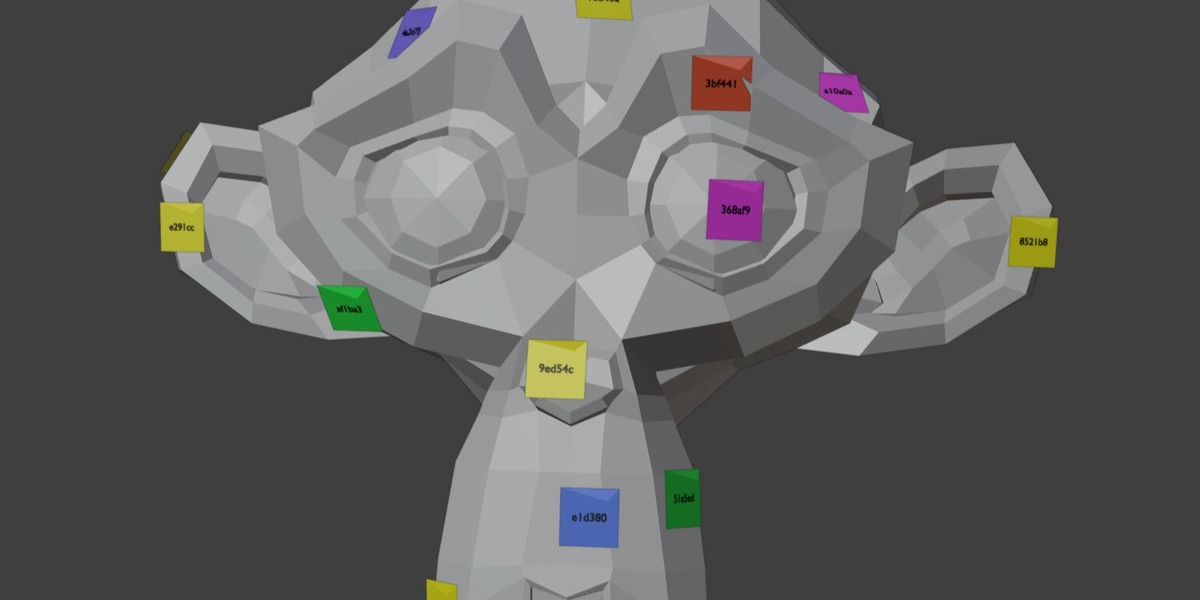
REVIEW ADD-ON · BLENDER 4.4+
Pin the feedback
right where it belongs.
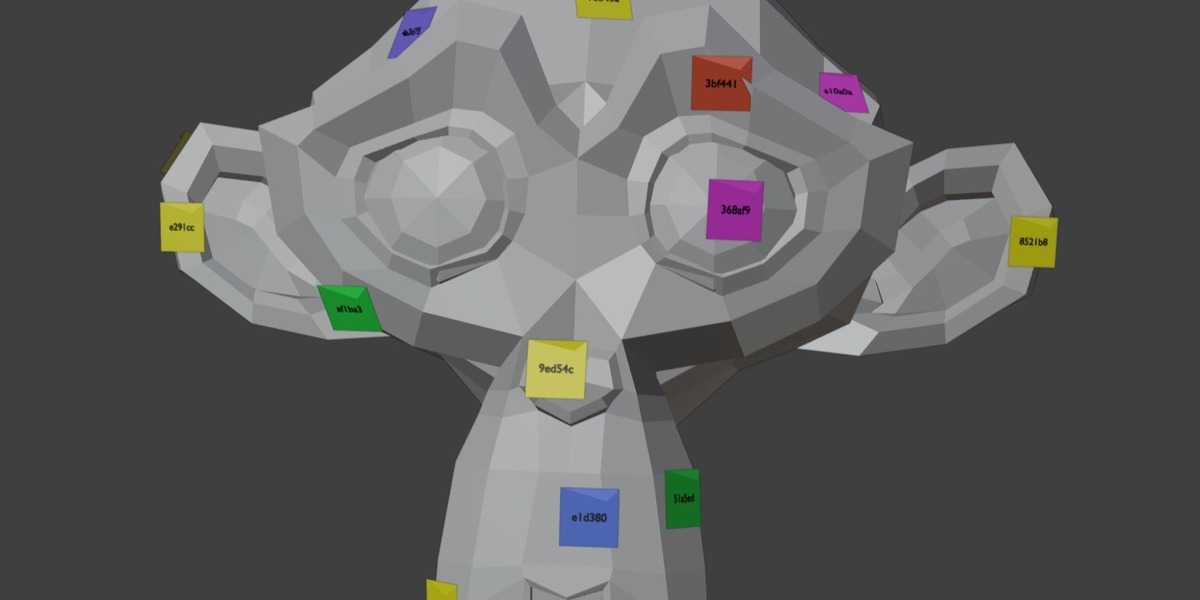
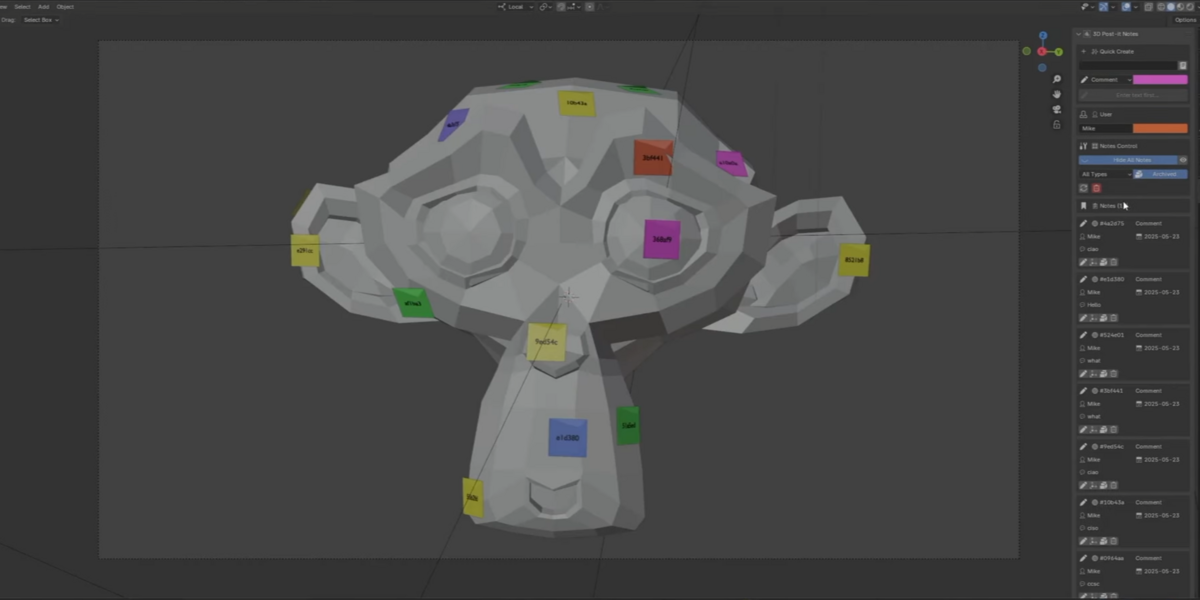
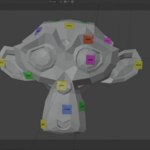
NKZ Post-it3D places sticky notes directly on the surface of your 3D models. Comments, issues, suggestions and questions live on the exact spot they refer to — visible in the viewport, never in your renders.
4 NOTE TYPES SURFACE ALIGNED NEVER IN RENDERS SAVED AUTOMATICALLY
◆ CLICK THE SURFACE. LEAVE THE NOTE.
Feedback that points at the model, not at a screenshot.
PLACE
Interactive Surface Placement
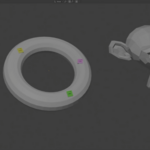
Click directly on any 3D surface to place a note. It snaps to the point you clicked and turns to match the surface normal automatically.
PLACE
Smart Visibility
Notes show up in the viewport while you work and are automatically hidden in every render — no cleanup before the final frame.
◆ FOUR TYPES. ONE GLANCE.
Every type has its own icon and default colour, so you read the model before you read the text.
COMMENT
💬 Comment
General comments and observations. Default colour: yellow.
ISSUE
🔴 Issue
Problems that need to be solved. Default colour: red.
SUGGESTION
💚 Suggestion
Improvement ideas for the model. Default colour: green.
QUESTION
🔵 Question
Questions that need an answer. Default colour: blue.
◆ MANAGE EVERY NOTE
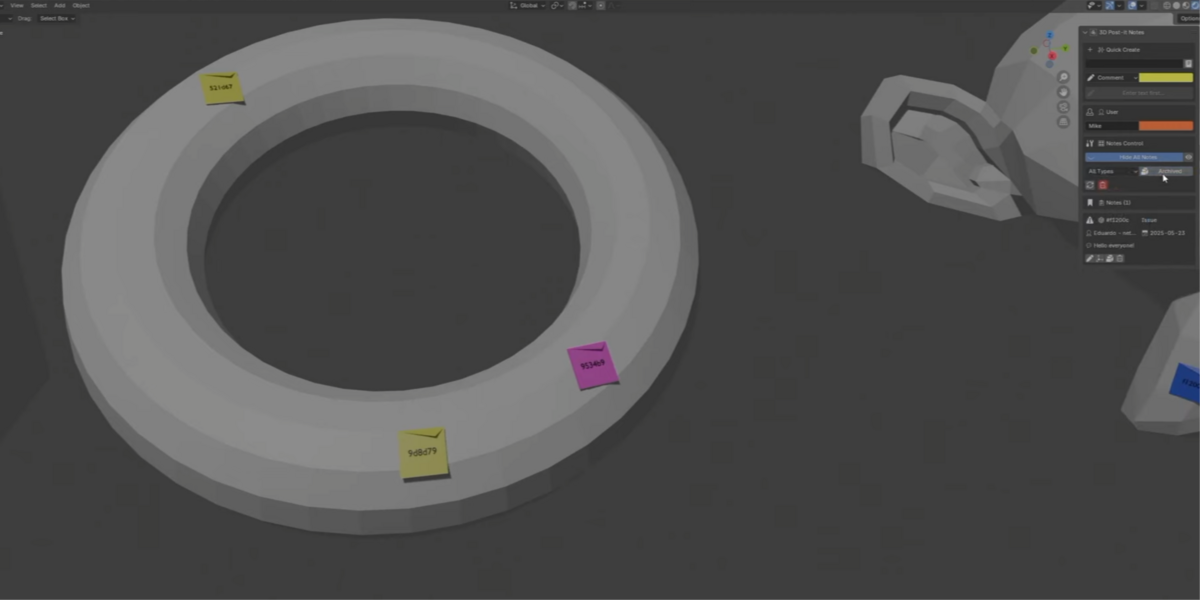
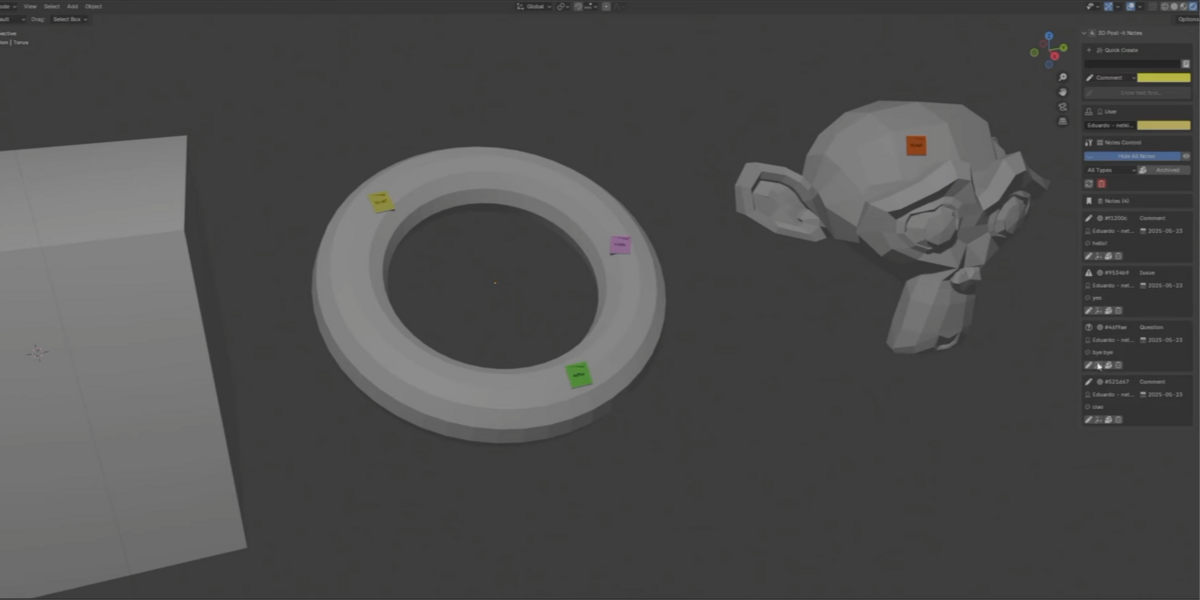
Create, edit, move, archive, delete — every note has its own quick buttons in the panel.
Authors & colours — set your username and a personal colour, so everyone knows who wrote what.
Filters — show one note type at a time, and show or hide archived notes.
Bulk operations — delete all notes, or only the ones of a type, with a confirmation first.
Persistent storage — notes are saved automatically and are still there in the next Blender session.
◆ INSTALLATION
1Download NKZ Post-it3D as a .zip file.
2In Blender go to Edit › Preferences › Get Extensions.
3Open the ⌄ menu at the top right and choose Install from Disk, then select the .zip.
4The add-on is enabled right away. You find it in the 3D View sidebar, Notes tab.
◆ ADDING NOTES
1Open the 3D View sidebar (press N if it is hidden).
2Go to the Notes tab.
3Write the note text in Quick Create.
4Choose the note type and colour (optional).
5Click 📌 Place Note, then click on any 3D surface. Right-click or Esc cancels.
◆ MANAGING NOTES
▸ Edit — the pencil icon changes text, type or colour.
▸ Move — the origin icon lets you place the note on a different surface.
▸ Archive — the package icon archives notes you have completed.
▸ Delete — the trash icon removes a note permanently.
◆ USER & VISIBILITY
▸ Username — used to sign every note you create.
▸ User colour — your personal colour, applied to your notes.
▸ Show / Hide All Notes — toggle every note in one click.
▸ Type filter — the dropdown shows only the type you choose.
▸ Archived — show or hide archived notes.
◆ GOOD TO KNOW
✓ Notes are viewport-only: they are never rendered.
✓ On the note in the viewport you see its 6-character ID, to keep the model readable. The full text is in the panel.
✓ A note needs a surface to attach to: it cannot be placed in empty space.
Requirements
Blender 4.4.0 or newer.
Uninstall
Use the Uninstall button in Preferences › Add-ons › NKZ Post-it3D.
License
GPL-3.0-or-later.
FEEDBACK THAT STAYS ON THE MODEL
Stop describing the spot. Pin it.
NKZ Post-it3D · by Eduardo Bartali · NETKINGZ — netkingz.com