 netkingZ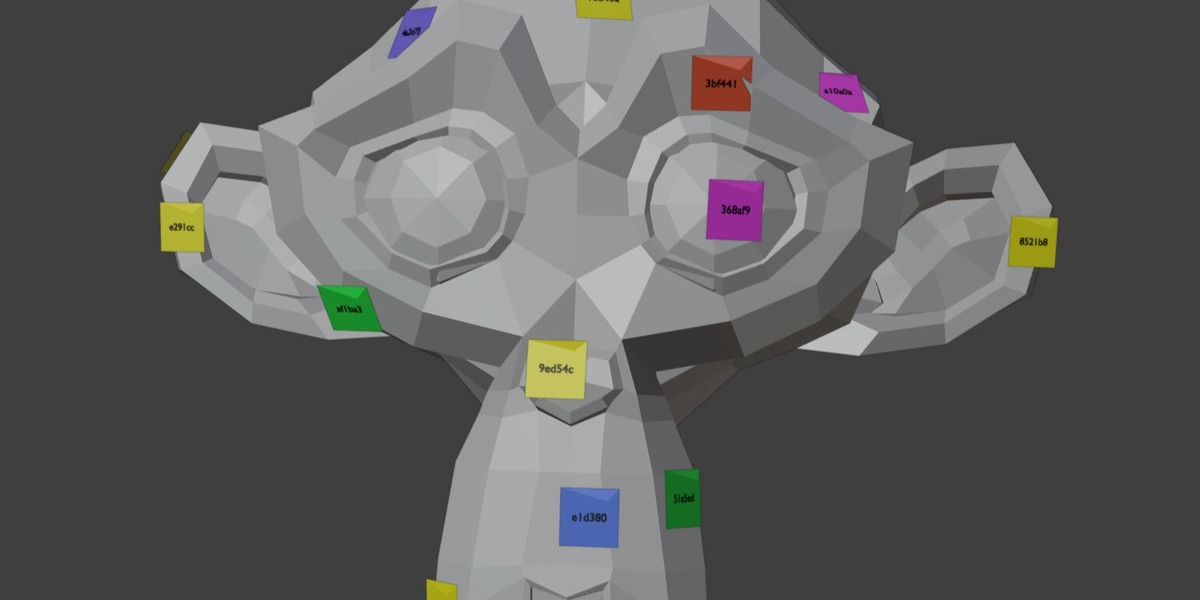
NKZ POST-IT3D · DOCUMENTATION
Everything you need, note by note
Install, place your first note, and keep every comment, issue and question organised on the model.
◆ WHAT IT DOES
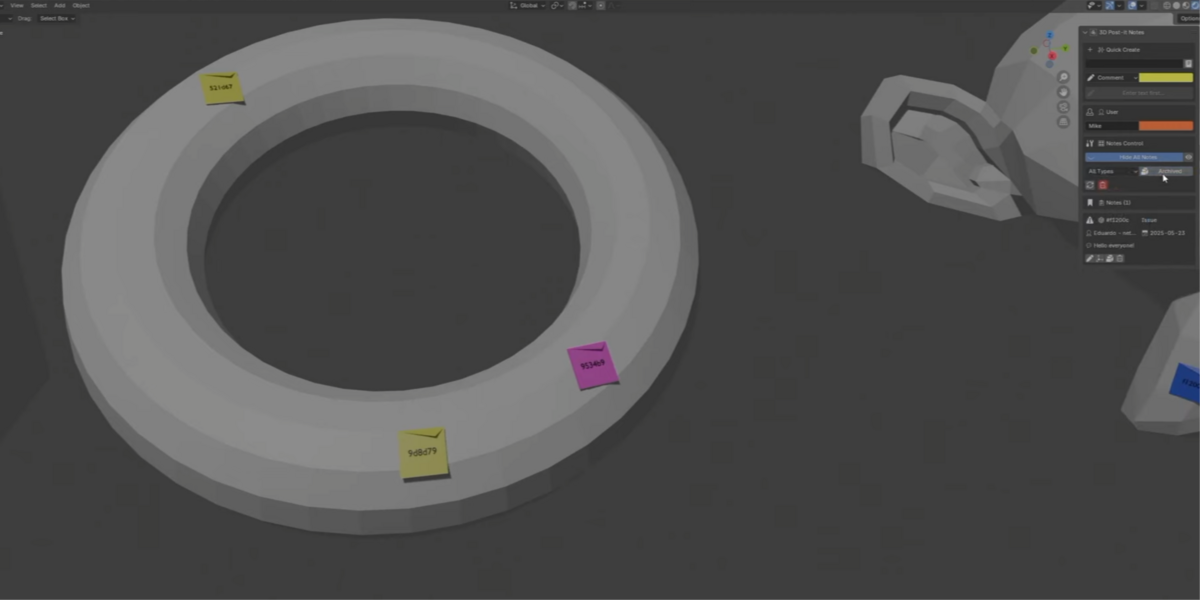
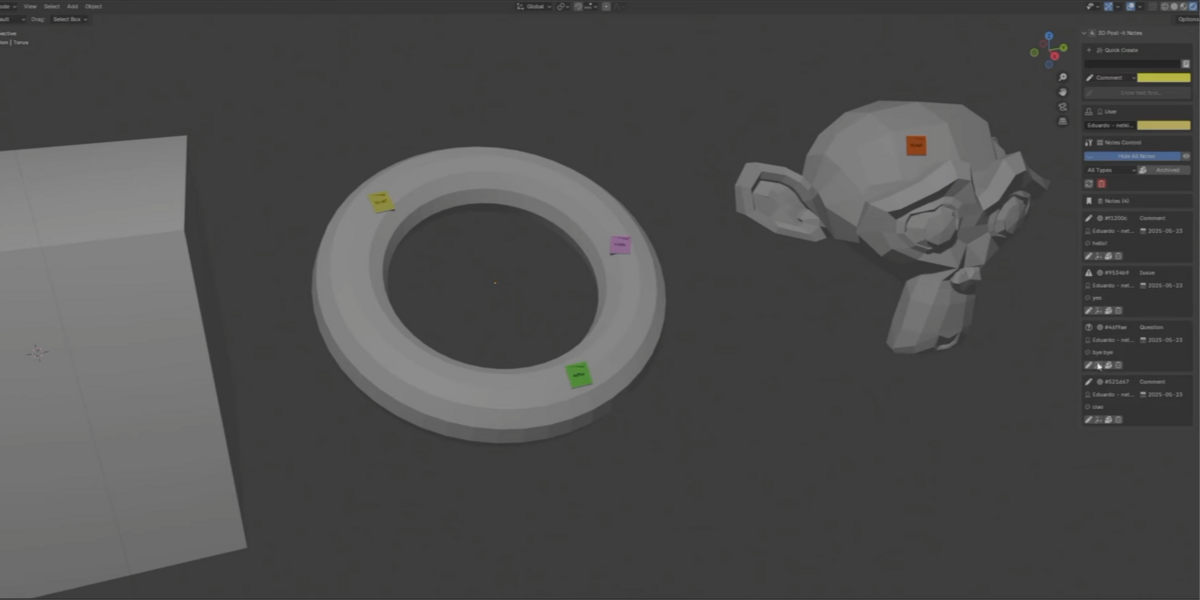
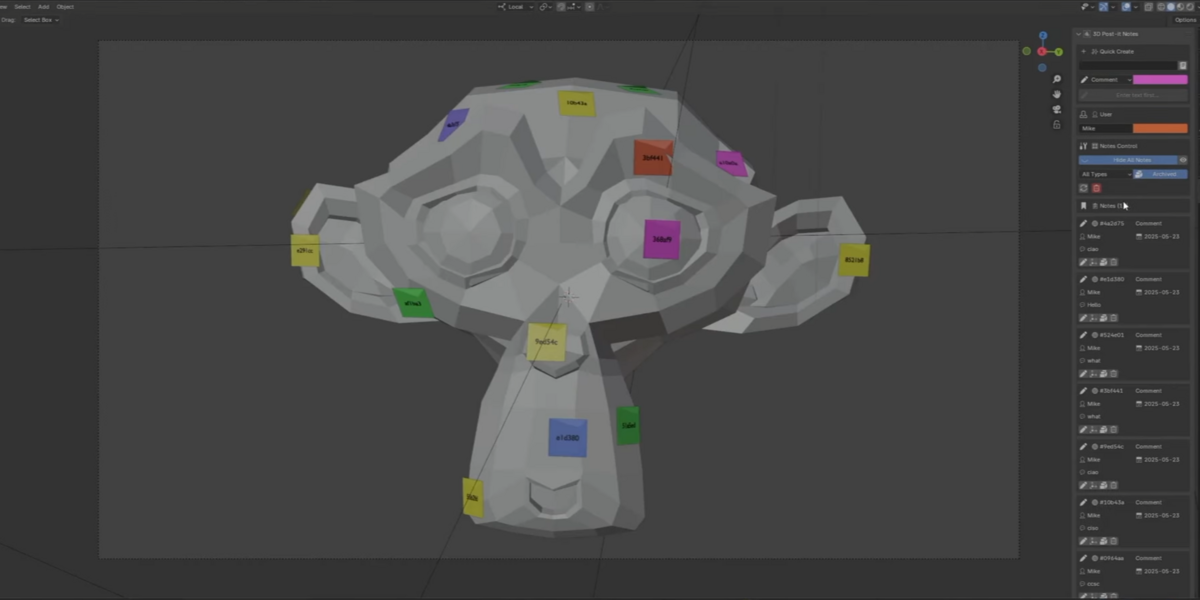
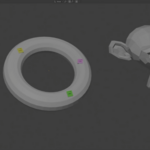
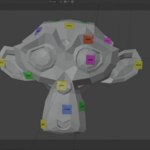
NKZ Post-it3D places sticky notes directly on the surface of your 3D models. Notes can be positioned anywhere on a surface, are visible in the viewport and are never rendered — a simple way to leave and collect feedback right on the model.
◆ FEATURES
▸ Interactive Surface Placement — click on any 3D surface to place a note, aligned to the surface normal.
▸ Multiple Note Types — Comment, Issue, Suggestion and Question, each with its own icon and default colour.
▸ Note Management — create, edit, move, archive and delete notes.
▸ User System — track who wrote each note, with a personal colour per user.
▸ Smart Visibility — visible in the viewport, automatically hidden in renders.
▸ Persistent Storage — notes are saved automatically and persist between Blender sessions.
▸ Surface Alignment — notes orient themselves to match the surface they sit on.
▸ Filtering — filter by type or status, show or hide archived notes.
▸ Bulk Operations — delete all notes, or all notes of one type, with a confirmation dialog.
◆ INSTALLATION
1Download NKZ Post-it3D as a .zip file.
2In Blender go to Edit › Preferences › Get Extensions.
3Open the ⌄ menu at the top right, choose Install from Disk and select the .zip.
4The add-on is enabled right away. Find it in the 3D View sidebar, Notes tab.
◆ ADDING NOTES
1Open the 3D View sidebar (press N if it is hidden).
2Go to the Notes tab.
3Write the note text in Quick Create.
4Choose the note type and colour (optional).
5Click 📌 Place Note, then click on any 3D surface.
While placing — move the mouse to position the note, Left-click to confirm, Right-click or Esc to cancel.
◆ MANAGING NOTES
Every note in the list has its own buttons.
▸ Edit — the pencil icon changes text, type or colour.
▸ Move — the origin icon repositions the note on a different surface.
▸ Archive — the package icon archives completed notes.
▸ Delete — the trash icon removes the note permanently.
◆ USER SETTINGS
▸ Username — set your name for note attribution.
▸ User colour — choose a personal colour applied to your notes.
◆ VISIBILITY CONTROLS
▸ Show / Hide All Notes — toggle the visibility of every note.
▸ Type filter — the dropdown shows only one note type.
▸ Archived — the checkbox shows or hides archived notes.
▸ Refresh — rebuilds the notes in the viewport if something looks out of sync.
◆ NOTE TYPES
COMMENT
💬 Comment
General comments and observations. Yellow.
ISSUE
🔴 Issue
Problems that need to be solved. Red.
SUGGESTION
💚 Suggestion
Improvement suggestions. Green.
QUESTION
🔵 Question
Questions requiring answers. Blue.
◆ KNOWN LIMITATIONS
✓ Notes are viewport-only and cannot be rendered.
✓ The text shown on a note in the viewport is its 6-character ID, for clarity. The full text is in the panel.
✓ Notes need a surface to attach to: they cannot be placed in empty space.
Requirements
Blender 4.4.0 or newer.
Uninstall
Click Uninstall in Preferences › Add-ons › NKZ Post-it3D. The version number and the About links are shown there too.
License
GPL-3.0-or-later.
NKZ Post-it3D · by Eduardo Bartali · NETKINGZ — netkingz.com
Have questions about this product?
Login to message
| Blender Extension Compatible | Yes |
| Published | about 12 hours ago |
| Blender Version | 4.2 - 5.2 |
| Extension Type | Add-on |
| License | GPL |