Precision Holes & Inserts
 Sonneblom Digitaal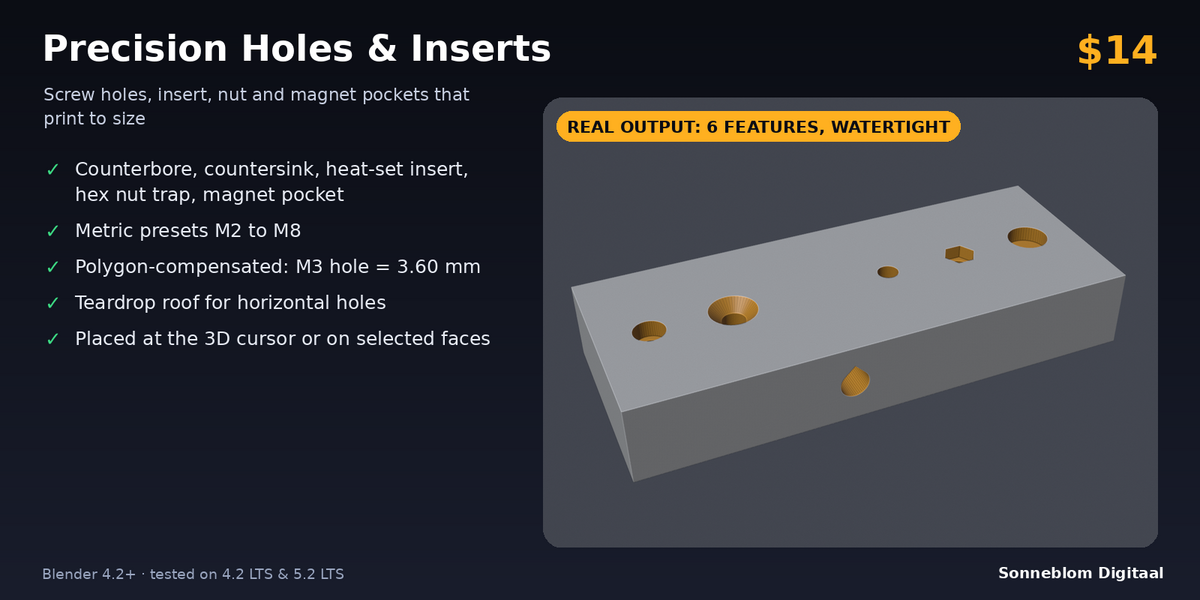
Precision Holes & Inserts 1.0.0
Cut screw holes, counterbores, countersinks, heat-set insert pockets, hex nut traps and magnet pockets into a part, sized so they print true. Blender 4.2 LTS or newer, tested on 4.2 LTS and 5.1 (and on 5.2 LTS).
Install
-
Extension zip (recommended):
precision_holes-1.0.0.zip. Drag it into Blender, or go to Edit > Preferences > Get Extensions, open the drop-down at the top right and choose Install from Disk. -
Legacy zip:
precision_holes-1.0.0-legacy.zip. Go to Edit > Preferences > Add-ons > Install from Disk, then tick Precision Holes & Inserts.
The panel is in the 3D Viewport sidebar. Press N and open the Holes tab.
Cut a hole, step by step
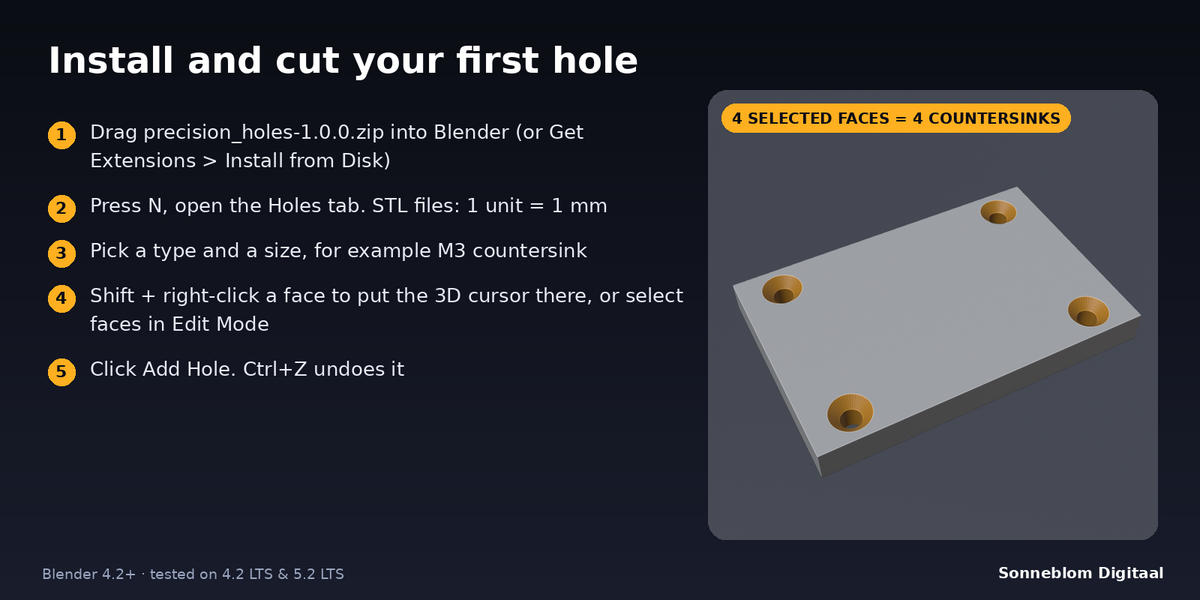
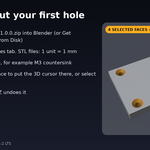
- Import or model your part. It must be a closed mesh.
- Set 1 Blender unit =. STL files are almost always in millimetres, so choose 1 mm. The line under it shows how many millimetres one unit is now.
- Choose the Type and the Size (or the diameter for a round hole, or your magnet's diameter and thickness). The panel lists the exact sizes that will be cut, compensation included.
- For screw holes, counterbores, countersinks and nut traps choose Through the wall (default) or switch it off and set Hole depth for a blind hole.
- Put the 3D cursor on the face: Shift + right-click on it in the viewport. The hole goes into the face at the surface point nearest to the cursor. For several holes at once, set Place at to Selected faces, go to Edit Mode and select the faces: you get one hole at the centre of each.
- Make the part the active object and click Add Hole. The report shows the sizes, the wall thickness, the volume removed and watertight. Press Ctrl+Z to undo.
- With Keep editable on, each hole stays a Boolean modifier with a wire cutter object (in the collection "Precision Holes Cutters", parented to the part). Move a cutter to adjust its hole, then click Apply Holes to make them permanent and remove the cutters. Apply them before you export.
Settings
| Setting | Default | What it does |
|---|---|---|
| 1 Blender unit = | Auto (scene units) | Auto reads Scene > Units: Blender's default scene counts 1 unit as 1 m, unit scale 0.001 means 1 unit = 1 mm. You can also choose 1 mm, 1 cm, 1 m or 1 inch. |
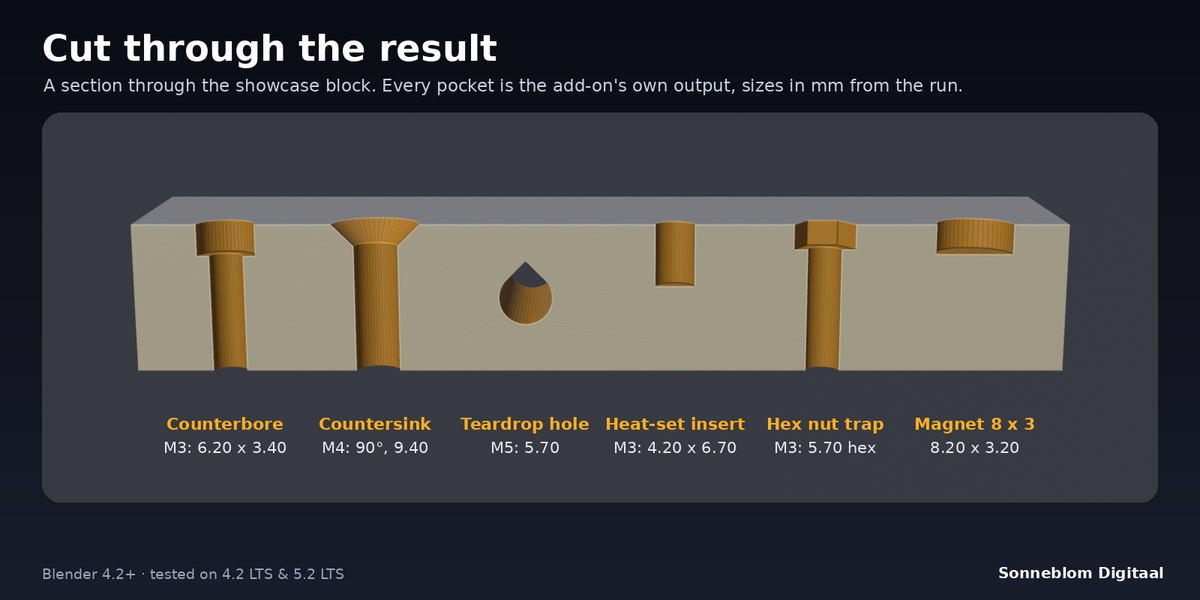
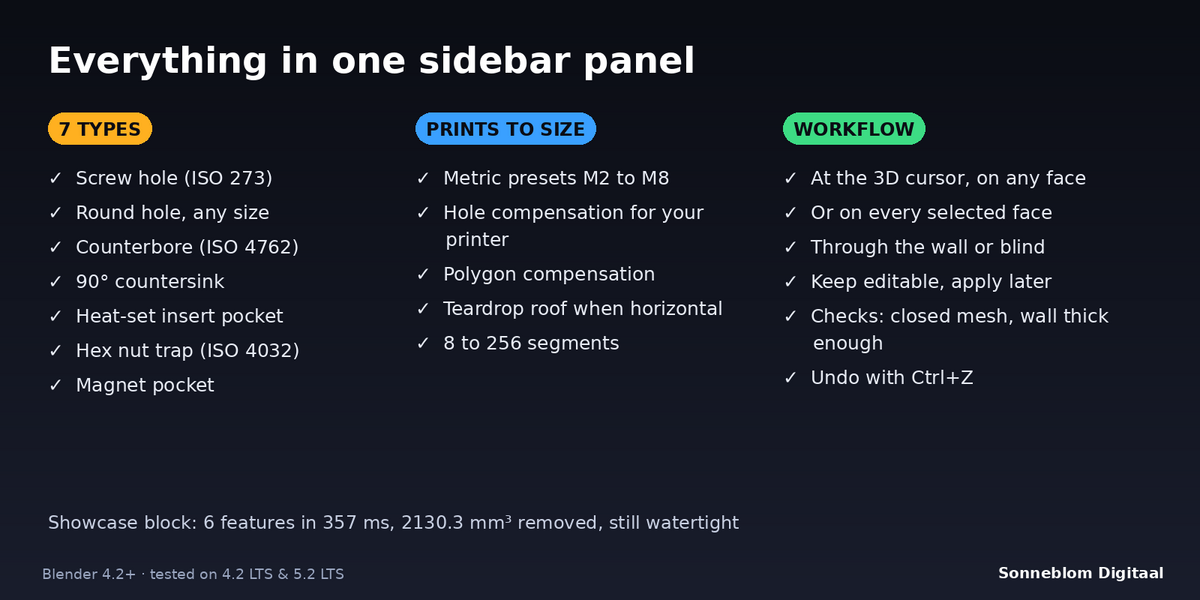
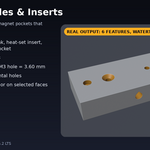
| Type | Counterbore | Screw hole, Round hole (any size), Counterbore, Countersink, Heat-set insert, Hex nut trap or Magnet pocket. |
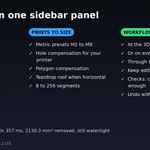
| Size | M3 | Metric size M2, M2.5, M3, M4, M5, M6 or M8 (see the size table). |
| Diameter (mm) | 5.00 | Round hole only: its diameter. |
| Magnet diameter / thickness (mm) | 6.00 / 3.00 | Magnet pocket only. The pocket is 0.2 mm deeper than the magnet. |
| Through the wall | On | The screw hole goes to where its axis comes out of this wall. Off = blind hole of Hole depth. |
| Hole depth (mm) | 10.00 | Total depth from the surface of a blind hole. |
| Hole compensation (mm) | 0.20 | Added to every hole, pocket and hex width (0-1 mm). 0 = the table sizes exactly. |
| Polygon compensation | On | The polygon's flats (its narrowest width) are on the diameter instead of its corners. |
| Segments | 32 | Sides of round holes (8-256). |
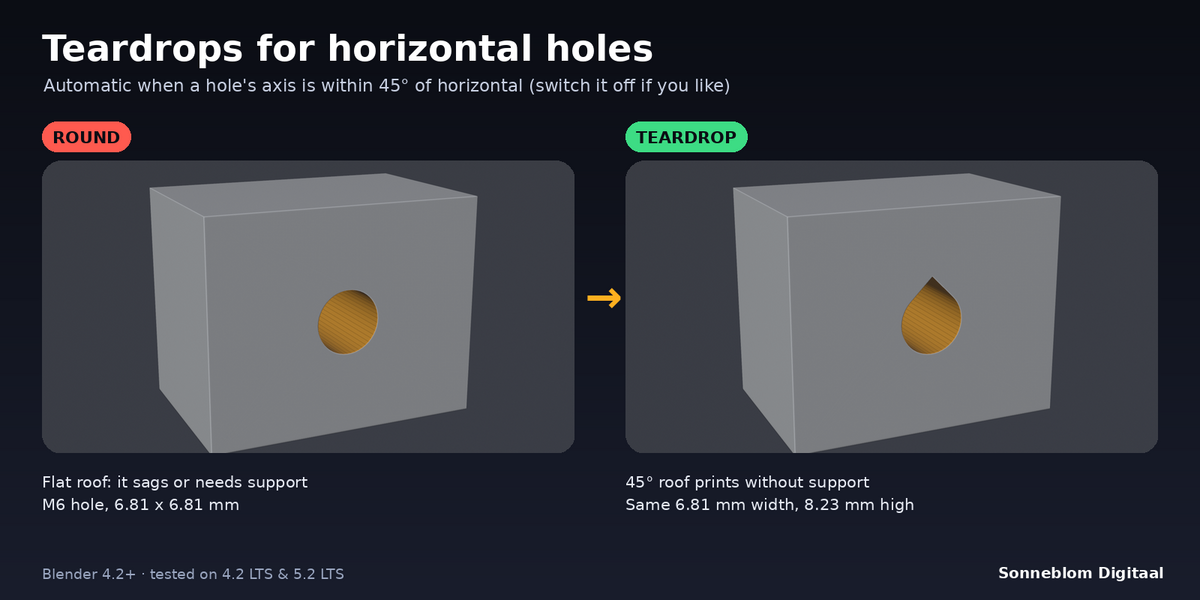
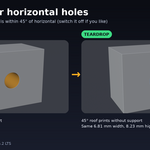
| Teardrop for horizontal holes | On | Round holes within 45° of horizontal get a pointed 45° roof. |
| Place at | 3D cursor | 3D cursor, or Selected faces (one hole per selected face). |
| Keep editable | Off | Leave holes as Boolean modifiers with movable cutters until you click Apply Holes. |
Size table (mm, before the hole compensation)
| Size | Screw hole | Counterbore (dia x depth) | Countersink (90°, top dia) | Nut trap (across flats x depth) | Heat-set insert (dia x depth) |
|---|---|---|---|---|---|
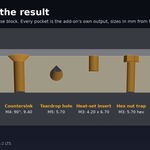
| M2 | 2.4 | 4.3 x 2.4 | 4.1 | 4.0 x 1.9 | 3.2 x 4.0 |
| M2.5 | 2.9 | 5.0 x 2.9 | 5.0 | 5.0 x 2.3 | 3.6 x 5.0 |
| M3 | 3.4 | 6.0 x 3.4 | 6.9 | 5.5 x 2.7 | 4.0 x 6.7 |
| M4 | 4.5 | 8.0 x 4.4 | 9.2 | 7.0 x 3.5 | 5.6 x 9.1 |
| M5 | 5.5 | 10.0 x 5.4 | 11.5 | 8.0 x 5.0 | 6.4 x 10.5 |
| M6 | 6.6 | 11.0 x 6.4 | 13.7 | 10.0 x 5.5 | 8.0 x 13.7 |
| M8 | 9.0 | 15.0 x 8.4 | 18.2 | 13.0 x 7.1 | 9.7 x 13.7 |
Screw holes: ISO 273 medium. Counterbores: for ISO 4762 socket head screws. Countersinks: flush for ISO 10642 (M3-M8) and ISO 7046 (M2, M2.5) heads. Nut traps: ISO 4032 nuts, 0.3 mm deeper than the nut. Heat-set inserts: common brass inserts, 1 mm deeper than the insert. Check your insert's datasheet.
Tips
- Find your hole compensation: print a test plate with an M3 screw hole and a 10 mm round hole, measure them with calipers or a drill bit, and use the difference.
- Heat-set inserts need plastic to melt into: keep at least 1.5 mm of wall around the pocket.
- For horizontal screw holes leave the teardrop on: the roof prints without support and the screw still fits.
- Put holes on many faces at once: in Edit Mode select the faces (for example four corner faces of a lid) and use Place at: Selected faces.
- Use 48-64 segments for big holes (over 10 mm) and 32 for screw sizes.
Limits
- Only closed (watertight) meshes. Open meshes are refused, nothing is changed.
- The hole is always perpendicular to the face. On a curved face it follows the normal of the face nearest the 3D cursor.
- Pockets that would break through a thin wall, and counterbores, countersinks or nut pockets deeper than the wall, are refused with the wall thickness.
- Holes are cut into the base mesh. A mesh shared by linked duplicates must be made single user first (or use Keep editable).
- The cutter reaches 0.5 mm plus a quarter of the hole width above the face; anything of the same object in that space is cut too.
Licence
GPL-3.0-or-later. Made by Sonneblom Digitaal.
Have questions about this product?
Login to message
| Blender Extension Compatible | Yes |
| Published | about 3 hours ago |
| Blender Version | 4.2 - 5.1 |
| Extension Type | Add-on |
| License | GPL |
Discover more products like this
3d printing nut trap holes countersink heat-set inserts tolerance screws