PrefabForge — Your Geometry Nodes Scatter, Particles and Collection Instances in Unity as Real Prefabs, Every Copy in Its Place, Measured
 Skava

PrefabForge — documentation
Requirements
Blender 4.2 or newer. Unity 6, tested with the Built-in pipeline and URP (PrefabForge places geometry; the materials are made by Unity's own FBX import). No Python packages, no cloud, no account, no AI model.
Why
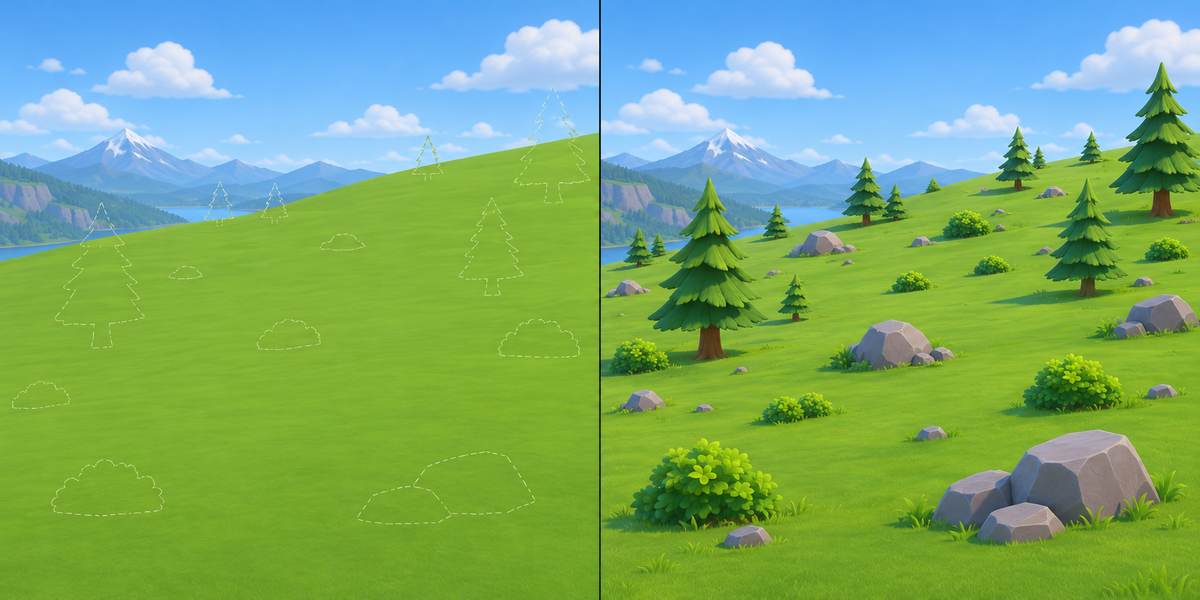
Blender's FBX and glTF exporters write the copies made by Geometry Nodes as nothing: on our test scene 160 of 203 copies were silently missing in the FBX, and the scatter surface arrived as a bare plane. Realizing the instances bakes every copy into one heavy mesh, with no prefabs left to edit.
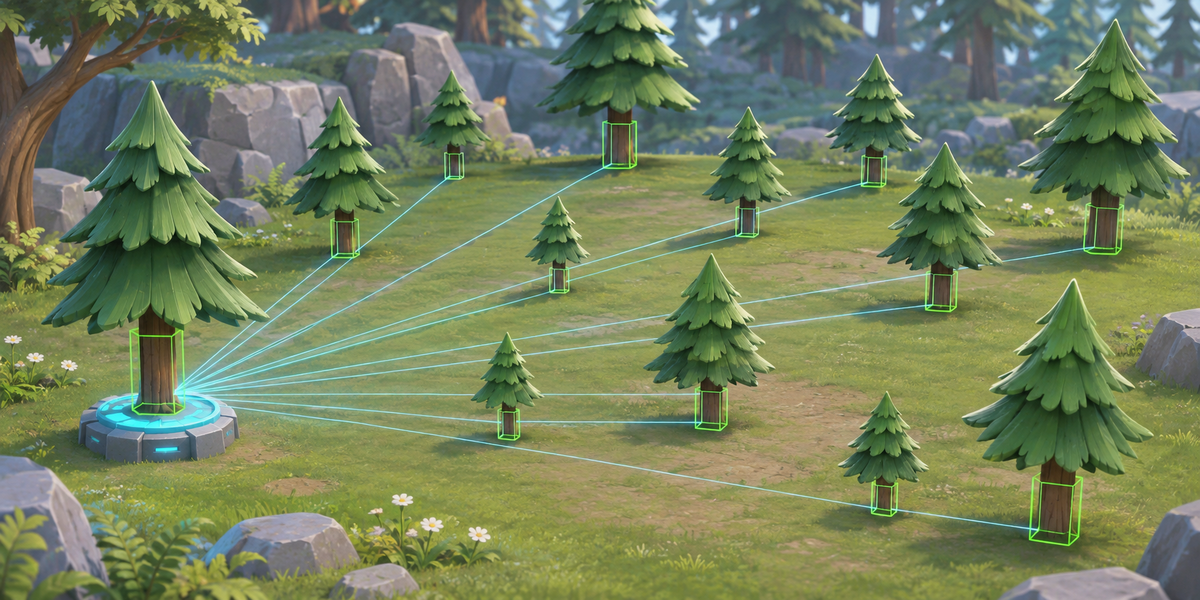
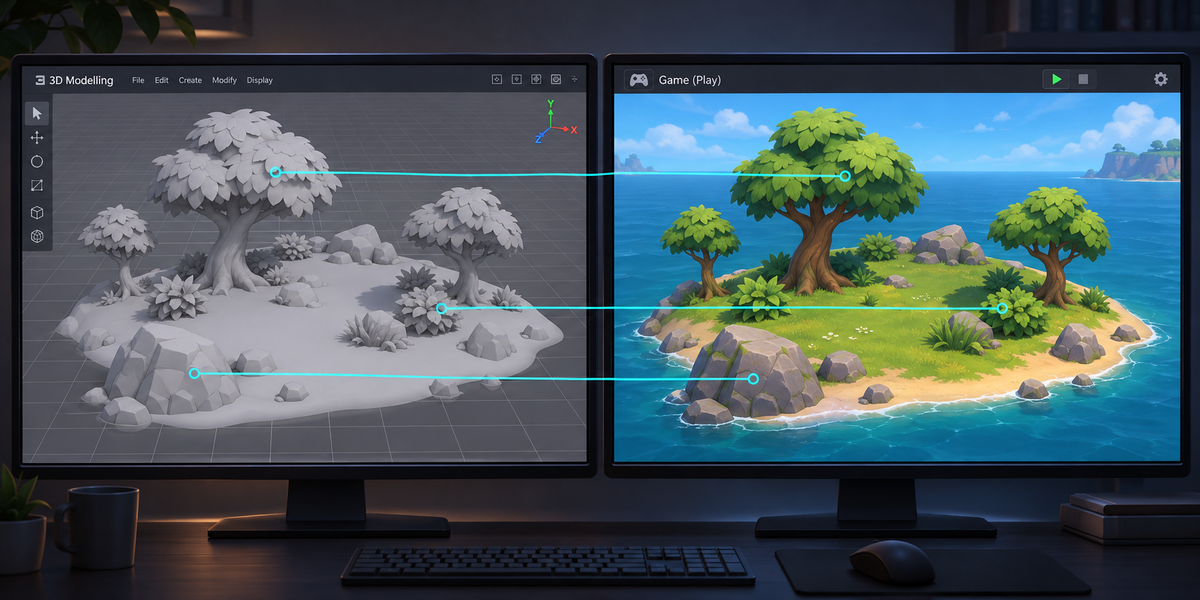
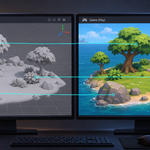
PrefabForge writes each repeated thing once, and a passport of where every copy stands; in Unity it makes one prefab per source and places one prefab instance per copy, then measures every copy against Blender in millimetres.
Install
- Keep this archive zipped. Do not unpack it.
- In Blender open Edit, then Preferences, then Add-ons.
- Press the arrow button in the top right corner of that window and choose Install from Disk.
- Pick the archive from your purchase page and tick PrefabForge.
Press N in the 3D Viewport; a tab named PrefabForge appears in the sidebar.
In Blender
- Open your scene. PrefabForge carries the copies the viewport draws: Geometry Nodes instances (objects, collections, and geometry built inside the node tree), particle systems that render objects or collections, collection instances, vertex and face instancing, copies inside copies, mirrored copies (negative scale) and skewed copies. Tick "Only highlighted objects" to carry only the copies made by the objects highlighted in the viewport (scatter surfaces, emitters, collection instance empties); off, the whole view layer is carried. Hidden objects cannot be highlighted, so in this mode Scan does not name them.
- Press Scan. The panel lists each source, how many copies it has, and notes on anything that does not come along.
- Choose a folder (inside your Unity project's Assets is easiest), a name (empty = the scene's name) and press Export for Unity. Your scene is not changed.
Export writes, in a folder of that name:
- Sources: one FBX per source at its own origin, and each texture its materials use, once.
- name.prefabforge.json, the passport: where every copy stands, and proof points on every source.
- name_markers.fbx: four markers that tie Blender's space to Unity's.
- The PrefabForge folder with the Unity scripts (a later export updates the scripts where they already are in the project).
Export again into the same folder, under the same name, after you change the scatter: each source keeps its file name, so the prefabs made from it stay linked. A source is known by the name of the object it repeats (rename it and it becomes a new source with a new prefab) or, for geometry built in a node tree, by its shape, UVs and materials (change the shape and it is a new source). With the Name field empty the scene's name is used: renaming the scene starts a new folder.
In Unity
- Let Unity import the files, then click name.prefabforge.json in the Project window.
- Tools > PrefabForge > Set Up Copies makes Prefabs/<source>.prefab for every source (once: Set Up never writes over a prefab again, so add your colliders, LODs and scripts to it) and places every copy under one object named "name (PrefabForge)", grouped by the Blender object that made it. Run it again after a new export: the copies are placed anew. Your prefabs stay, and so do your own objects under the set. Objects you hung under a single copy (a light under a lamp, a trigger) move, in the same place, under "Kept from earlier copies" in the set (under a skewed copy they keep their place and turn, not the skew). Changes you made to one copy alone (moved it, added a component to it) are not kept: make them on the prefab, or keep such objects outside the set. If you move the export folder inside Assets, Set Up finds the set it placed before.
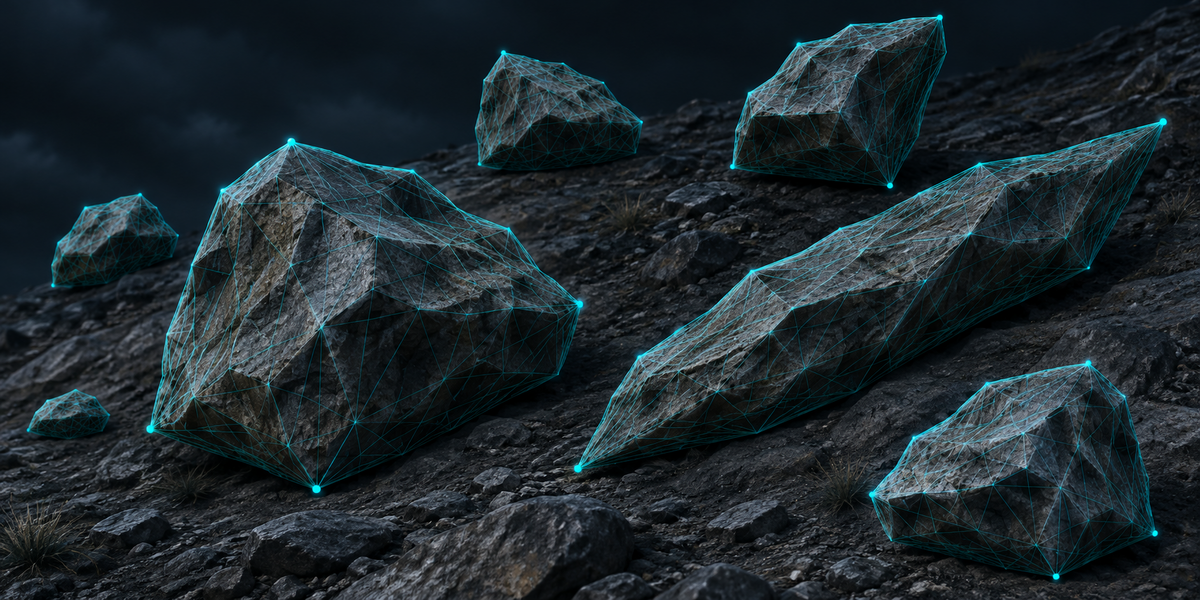
- Tools > PrefabForge > Check Copies measures every copy: its prefab's vertices at Blender's far points of the source, against where Blender draws them. A copy passes within 0.5 mm. The report goes to the Console and to name.check.txt next to the passport. Check measures up to ten far points of every source, not every vertex, and the limit is in millimetres: on a copy 10 cm across it sees a turn of about half a degree; on a pebble 1 cm across a turn of a few degrees still passes. Check is not OK when a copy is moved, turned or scaled away from Blender, is missing from the set, when the set holds copies Blender no longer has, when a copy is not an instance of its own prefab or draws another mesh than its prefab, when a copy is switched off (the object or its renderers), when an instance of these prefabs stands under the set without being one of Blender's copies (duplicated by hand, or one you hung under a copy and Set Up moved to "Kept from earlier copies"), when the prefab has no mesh left to measure, when a copy has an empty material slot, or when one Blender metre does not come in as one Unity unit. Moving the whole set is fine: Check measures inside it.
Skewed copies
A copy scaled unevenly and then turned (or a scaled parent with a rotated child) is skewed. One Unity Transform cannot skew, so Set Up puts each such copy inside a holder object named "<source> (skew)" whose rotation and scale, with the copy's own rotation, draw exactly the same shape.
What does not come along
- Copies of empties, lights and cameras, of Curves (hair), point clouds and volumes, of geometry with no faces (loose edges and points: Unity draws only faces) and copies scaled to zero are counted and named, not carried.
- PrefabForge carries what the viewport shows. Scan names what makes it differ from the render: objects hidden in the viewport, particles displayed as anything but Rendered or with a viewport Amount below 100%, fewer child particles in the viewport than in the render, Simplify's child particles and its Subdivision limit on repeated objects' Subdivision modifiers, a particle system switched off in the viewport, objects or collections disabled in viewports inside what collection instances and particles repeat, a Subdivision modifier of a repeated object lower (or off) in the viewport than in the render (Multires and the Subdivision Surface node are not checked), and Geometry Nodes modifiers on for one and off for the other.
- Curves and text with thickness are carried as the mesh Blender draws of them, when something repeats them; on their own they are your models, not copies, and are left alone.
- Blender's FBX exporter carries a texture only when it is wired straight into the Base Color of a Principled BSDF. When a material mixes its colour (Mix nodes, a Principled inside a node group, a Mix Shader), PrefabForge writes a simple stand-in with the same images under the same name, and names the material: tints and blends between textures stay in Blender.
- Per-copy attributes (a random colour per instance) are not carried: every copy of a source uses the source's materials.
- The scatter surface itself is not exported: export your models as usual.
Uninstall
In Blender: Edit, Preferences, Add-ons, PrefabForge, Uninstall. In Unity: first remove the Prefab Forge Set component from each placed set (the object named "name (PrefabForge)"), then delete the PrefabForge scripts folder. The prefabs, the copies in your scenes and the exported folders stay and work without it; only Set Up and Check need the scripts.
Licenses
The Blender add-on is GPL (LICENSE.txt). The Unity scripts are MIT (LICENSE-PrefabForge-Unity.txt, written next to them): you may ship them in your games, closed source or not. They contain no Blender source code.
Have questions about this product?
Login to message
| Published | 1 day ago |
| Blender Version | 4.2 - 5.2 |
| Extension Type | N/A |
| License | GPL |
Discover more products like this
Export collection instance geometry nodes unity Game Engine prefab game-dev particles scatter instances Level Design fbx