 Skava
Skava


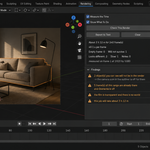
Preflight — Documentation (v1.0.1)
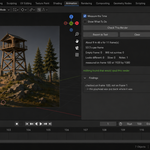
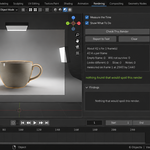
Goes through the reasons a render comes out wrong, and measures how long the job will take. Nothing in the scene or in the render settings is changed.
1. Install
Download the zip and leave it zipped. In Blender open Edit, then Preferences, then Add-ons. Use the arrow button in the top right corner of that window and choose Install from Disk, then pick the zip. Tick the checkbox next to the add-on name. Press N in the 3D Viewport and the Preflight tab appears in the sidebar.
2. Quick start
- Set up your render the way you intend to run it.
- Press Check This Render.
- Read the findings, worst first.
- Read the time at the top: that is what the job will cost.
3. The four kinds of finding
Nothing will be visible — the frame will be empty or nearly so.
It will not look like this — it will render, but not the way you see it now.
The result will not survive — it will render correctly and then be lost, overwritten or stripped of transparency.
It will take longer than you think — the device, persistent data, and the measured length of the job.
4. The time measurement
With Measure the Time on, Preflight renders a quarter-size frame first. If that was quick, it renders a full-size frame twice and takes the faster of the two — that is your per-frame time, measured, not estimated. If the quarter-size frame was already slow, the full frame is not rendered and the reported number is scaled up from the quarter and labelled as a lower bound. The panel always says which of the two happened.
5. What it changes while measuring
Resolution percentage, output path, output format, overwrite and placeholder flags and the current frame. The render border is left as it is, so a border render is measured as a border render. All of them are restored afterwards, including when the probe fails halfway. The panel reports whether the fingerprint of your settings came back identical.
6. Going to the object
Findings that are about a specific object carry a button that selects it.
7. What it does not do
It does not change your settings for you, it does not render your final frames, and it does not touch files outside the temporary folder it uses for the probe.
8. Report to Text
Writes the findings and the measured time into a text block inside your file — useful when someone else runs the render.
9. Compatibility
Blender 4.2 and later, Cycles and EEVEE. Tested live on 5.1 and 5.2.
10. License
GPL-3.0.
Have questions about this product?
Login to message
| Published | about 2 months ago |
| Blender Version | 4.2 - 5.2 |
| Extension Type | N/A |
| Render Engine Used | Cycles, Eevee |
| License | GPL |