Primal 1.0
 Egret Studios LLC



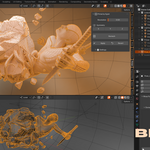
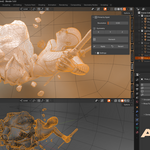
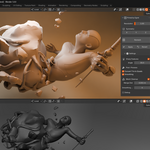
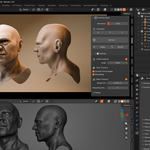
Primal — User Documentation
Primal is a powerful quad remesher for Blender that converts triangulated meshes into clean, quad-dominant topology for better modeling, sculpting, animation, and optimization workflows.
📦 Installation
Getting started only takes a minute.
-
Download the Primal
.zipfile. - Open Blender and go to Edit → Preferences → Add-ons.
- Click Install.
-
Select the downloaded
.zipfile. - Enable the checkbox next to Primal.
✅ Done — Primal is now installed and ready to use.
🧭 Opening the Primal Panel
- Select any mesh object in your scene.
-
Open the N-Panel inside the 3D Viewport (
Press N). - Click the Primal tab.
You’ll now have access to all remeshing controls.
⚡ Basic Workflow
Using Primal is simple and fast.
1️⃣ Select Your Mesh
Choose the object you want to remesh.
2️⃣ Adjust Resolution
Set the Resolution value to control mesh density and detail.
3️⃣ Enable Symmetry (Optional)
If your model is symmetrical, enable the desired symmetry axes.
4️⃣ Click “Remesh”
Primal will generate a new quad-based mesh.
5️⃣ Review the Result
After remeshing, you can:
- ✅ Apply — Keep the remeshed result and permanently delete the original.
- ↩️ Revert — Restore the original mesh and discard the remeshed version.
🎛️ Controls
🔹 Resolution
Controls the density and quality of the output mesh.
💡 Lower values generally produce cleaner topology and better quad flow.
Recommended Ranges
| Value | Result |
|---|---|
| 0.5 – 0.8 | ⭐ Best quality, cleaner quads, better surface flow |
| 1.0 | Default behavior, roughly preserves polygon count |
| Above 1.0 | Fewer polygons, larger quads, less detail |
| Below 1.0 | Denser topology with improved surface accuracy |
✅ Recommended Starting Point
Start with 0.7 for most models and adjust from there.
🔹 Symmetry
Enable mirroring across one or more world axes.
Available axes:
- X
- Y
- Z
When enabled:
- The mesh is bisected along the selected axis.
- A Mirror Modifier is automatically added after remeshing.
Perfect for characters, vehicles, weapons, and other symmetrical models.
🔹 Remesh
Runs the remeshing operation on the selected mesh.
During the process:
- The original object is safely backed up.
- The backup is moved into the Primal — Originals collection.
- The remeshed version replaces the original in the scene.
🔹 Apply
Permanently keeps the remeshed result.
⚠️ The original backup mesh will be deleted permanently.
Use this only once you are satisfied with the output.
🔹 Revert
Restores the original mesh and removes the remeshed result.
Useful when experimenting with settings or testing different resolutions.
ℹ️ Apply and Revert only appear after a remesh operation has been performed.
⚙️ Settings
Open the Settings section for additional controls and advanced remeshing options.
🔹 Sharp Features
Helps preserve hard-surface details during remeshing.
When enabled:
- Sharp edges are detected automatically.
- UV seams, boundaries, material borders, and face-set boundaries are also preserved.
Angle
Defines the edge angle threshold considered “sharp”.
Default: 35°
Recommended Values
| Mesh Type | Suggested Angle |
|---|---|
| Hard Surface | 15° – 30° |
| Organic Models | 35°+ |
🔹 Post-Process
Additional cleanup and optimization steps applied after remeshing.
✅ Convert Tris to Quads
Attempts to dissolve remaining triangles into quads.
Equivalent to Blender’s built-in Tris to Quads operation.
✅ Smoothing
Applies Laplacian smoothing to relax and smooth the mesh surface.
Useful for organic meshes and noisy topology.
🔹 Mesh Cleanup
Automatically performs cleanup operations after remeshing.
Includes:
- Merging nearby vertices
- Removing degenerate geometry
- Recalculating normals
Merge Dist
Distance threshold used for merging vertices.
Default: 0.001 m
🔹 Smoothing Passes
Controls how many smoothing iterations are applied.
| Value | Result |
|---|---|
| Lower | Preserves more detail |
| Higher | Produces smoother surfaces |
Default: 4
Range: 1 – 20
🔹 Debug Mode
Prints remeshing statistics directly into Blender’s system console.
Includes:
- Vertex count
- Quad count
- Triangle count
- Polygon statistics
Open Blender Console
Go to:
Window → Toggle System Console
🗂️ Outliner Organization
Primal automatically keeps your scene organized.
Every time you remesh:
- The original object is moved into a hidden collection called:
📁 Primal — Originals
This helps keep your outliner clean while safely storing backups.
After Applying
Once you click Apply, the backup mesh is permanently removed from the collection.
💡 Tips & Best Practices
⭐ Use Lower Resolution Values
Values between 0.5 – 0.8 usually produce the cleanest topology.
🏗️ Hard-Surface Models
Enable Sharp Features and use lower angle values (15° – 30°) to preserve creases and edges.
🌿 Organic Models
Disable Sharp Features and increase Smoothing Passes for smoother edge flow.
🪞 Applying Symmetry
The generated Mirror Modifier can be applied afterward using:
Ctrl + A → Apply All Modifiers
📊 Inspect Output Quality
Enable Debug Mode to monitor quad/triangle ratios and remeshing statistics in Blender’s console.
🚀 Final Notes
Primal is designed to make remeshing fast, clean, and artist-friendly while staying fully integrated inside Blender.
Whether you're working on:
- 🎮 Game assets
- 🧍 Characters
- 🏗️ Hard-surface models
- 🌿 Organic sculpts
- ⚡ Optimization workflows
Primal helps generate cleaner topology with minimal setup and fast iteration.
Have questions about this product?
Login to message
| Blender Extension Compatible | Yes |
| Sales | 10+ |
| Published | 5 months ago |
| Blender Version | 4.0 - 5.1 |
| Extension Type | Add-on |
| Render Engine Used | Cycles, Eevee |
| License | GPL |
