 DUCKLABO
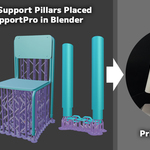
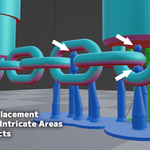
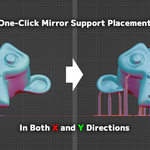
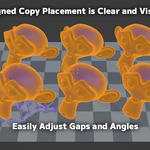
How to Use PrintSupportPro
Contents• Introduction ◦ Installation Guide • Placing Support Pillars on Objects ◦ Overview of the Workflow • Object Placement and Replacement ◦ Copy Placement (Updated Aug 9, 2026) • Platform Settings ◦ Display Range • License & Disclaimer |
Introduction
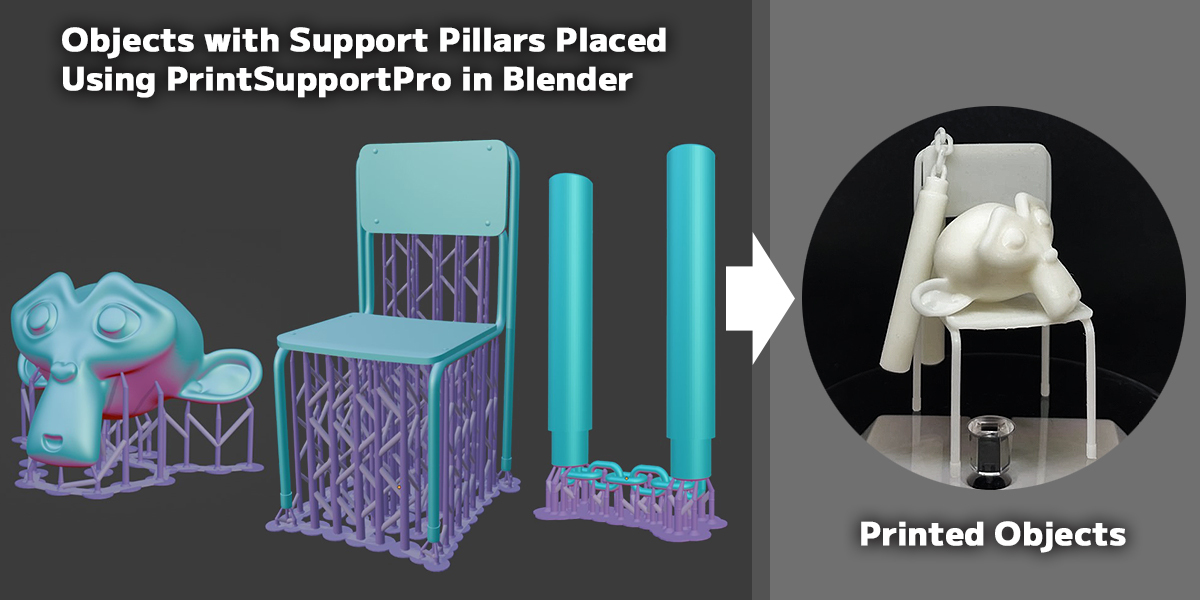
PrintSupportPro is a revolutionary tool that allows you to easily place support pillars, bridge between pillars, and duplicate objects directly within Blender for SLA/DLP 3D printing.
Installation Guide
How to Install the Add-On
The installation method for the addon is the same for Blender versions 3.6 to 4.2. Starting from Blender 4.2, it can also be installed from the [Get Extensions] tab.
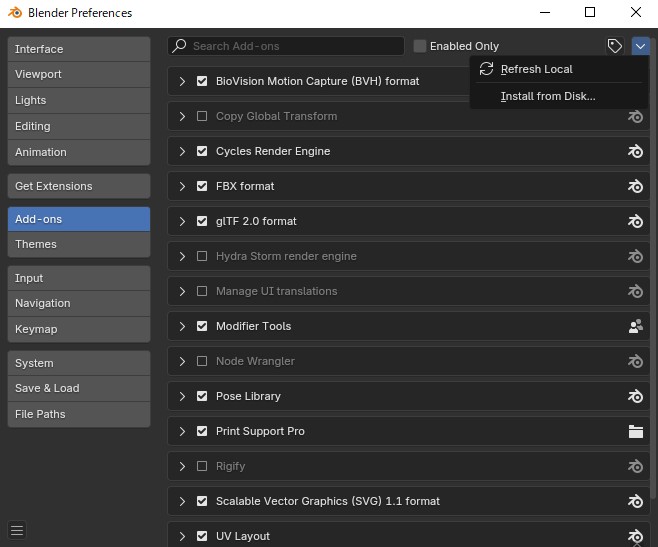
Go to the [Edit] menu > [Preferences] > [Add-ons] tab > in the top-right corner, click [Install from Disk...], and select the PrintSupportPro.zip file to install.
______________________________
Update Instructions: PrintSupportPro v1.3.0
PrintSupportPro v1.3.0 can be installed like a standard Blender add-on or extension.
In most cases, installing the new version will overwrite the existing version without issue.
However, if you encounter any problems after installation, we recommend the following steps:
1. In Blender 3.6, open Preferences > Add-ons and search for "PrintSupportPro".
In Blender 4.2 and later, open Preferences > Extensions > Installed Extensions and search for "PrintSupportPro".
2. In Blender 3.6, remove the current add-on.
In Blender 4.2 and later, open the menu on the right side and run [Uninstall].
3. Restart Blender.
4. Install PrintSupportPro v1.3.0 from the ZIP file.
5. Reopen your Blender file if needed, and enable the add-on.
Scenes created with older versions may still contain old materials or Geometry Nodes data.
If a Geometry Nodes group with the same name already exists in the scene, it will not be overwritten automatically when the add-on is updated.
If the overhang display, pillar shape, Base Connection, or Geometry Nodes behavior looks incorrect after updating, please work in a new scene, or delete the old node groups and reload them.
We recommend saving a backup copy of important Blender files before updating.
______________________________
Overview of PrintSupportPro
It is generally easiest to use PrintSupportPro within the [Layout] or [Modeling] tab.
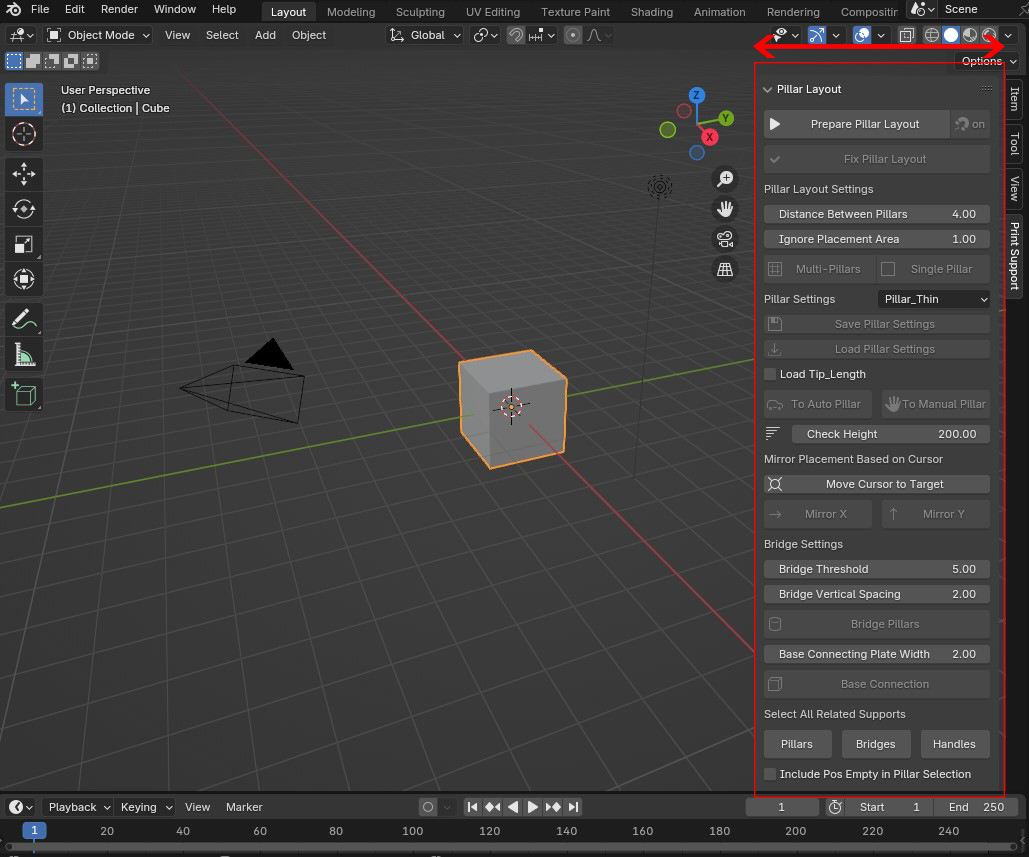
Once the add-on is installed correctly, a [Print Support] tab will be added to the right side.
The [Print Support] tab is divided into three sections: [Pillar Layout], [Object Placement], and [Platform Setting]. Please expand the tab horizontally so that all text within the buttons is fully readable.
Placing Support Pillars on Objects
Overview of the Workflow
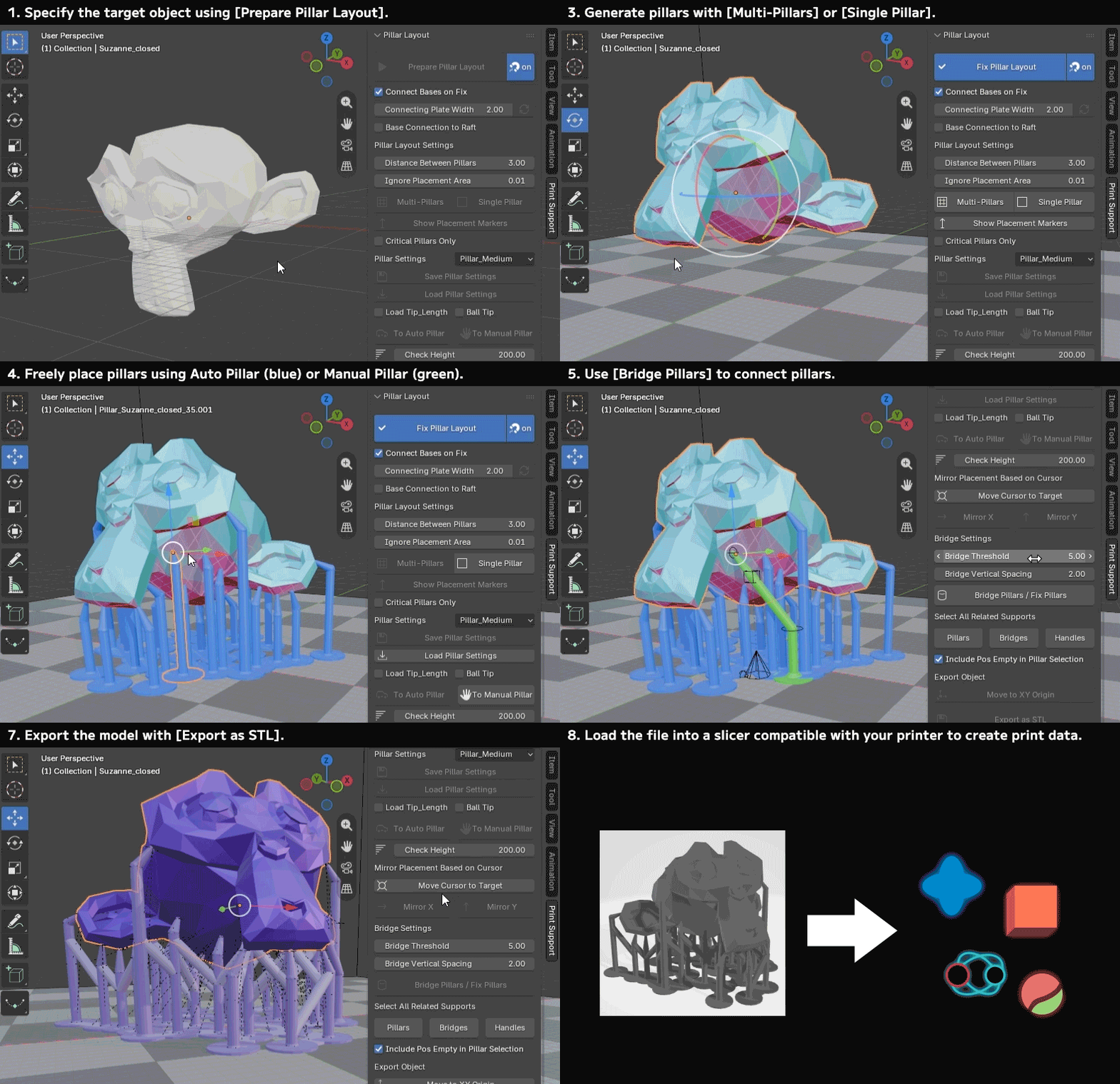
Steps 1 to 8 below outline the process of placing pillars on the target object, bridging them, setting them to a FIX state, exporting as an STL file, and creating print data.
- Specify the target object using [Prepare Pillar Layout].
- Rotate and move the target object as needed.
- Generate pillars with [Multi-Pillars] or [Single Pillar].
- Freely place pillars using Auto Pillar (blue) or Manual Pillar (green).
- Use [Bridge Pillars] to connect pillars.
- Set the target object and placed supports to a FIX state with [Fix Pillar Layout].
- Export the model with [Export as STL].
- Load the file into a slicer compatible with your printer to create print data.
Preparing Pillar Placement
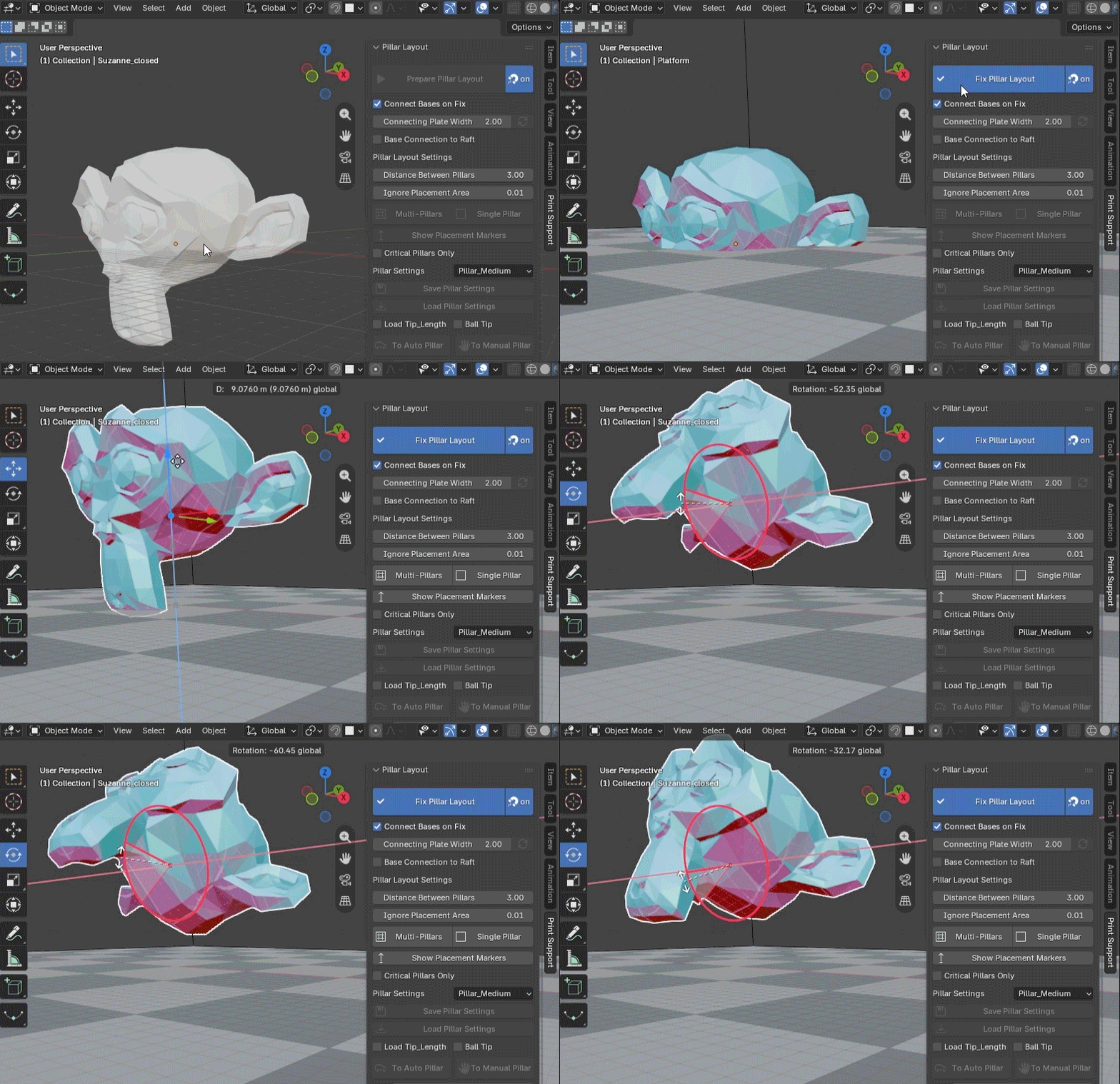
Select an object and click the [Prepare Pillar Layout] button to set it as the target object.
The red gradient surface indicates the overhang areas. Before placing pillars, you can freely rotate the object to observe changes in the overhang areas.
Note: Only one target object can exist in a scene. If you want to place pillars on a different object, you must set the current target object to a FIX state using the [Fix Pillar Layout] button. (Even if the target object is hidden, you cannot set another object as the target.)
Special Snap Explanation(Updated Aug 9, 2026)
The [Prepare Pillar Layout] button activates the special snap function. This feature is necessary for moving pillars along the surface of the object.
You can turn off Special Snap by switching the Special Snap button to OFF. To enable Special Snap again, press the Special Snap button to turn it ON.
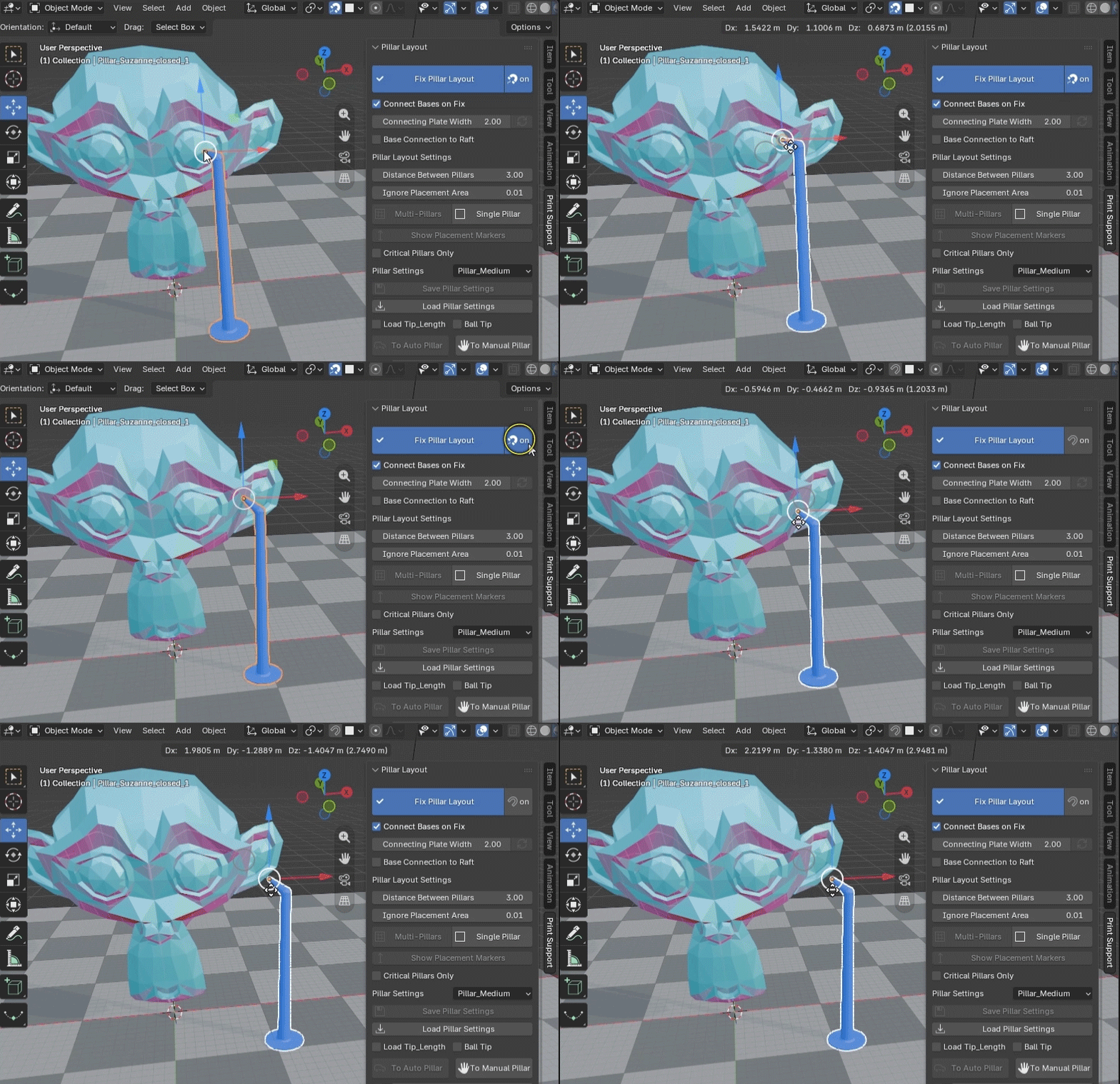
Note: When reopening a file that is in the middle of placement editing, the special snap will be disabled. To resume editing, select the object and click the [Prepare Pillar Layout] button before starting.
Pillar Placement
Multiple Pillar Placement(Updated Aug 9, 2026)
Clicking the [Multi-Pillars] button will automatically place multiple Auto Pillars (blue) on the overhang areas of the target object.
If there is no object below the placement point, an Auto Pillar (blue) is placed.
If there is an object below the placement point and enough free space diagonally downward, a Manual Pillar (green) is placed.
If there is an object below the placement point but there is not enough free space diagonally downward, an Auto Pillar (blue) is still placed.
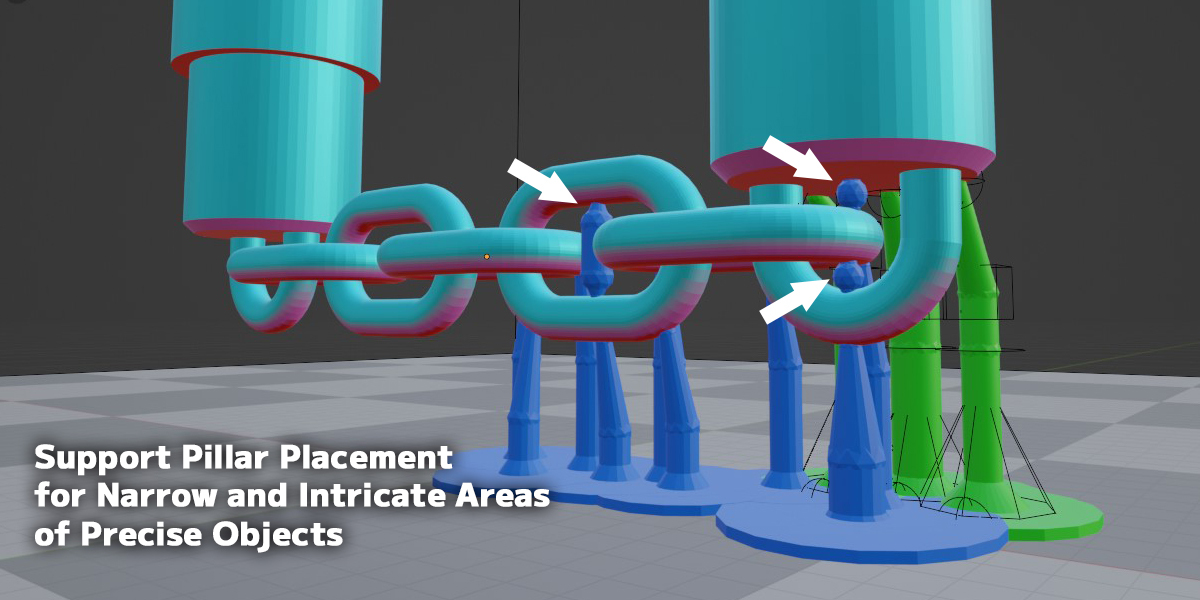
If there is an object below the placement direction and the gap is narrow, a thinner Auto Pillar (blue) for narrow areas is placed.
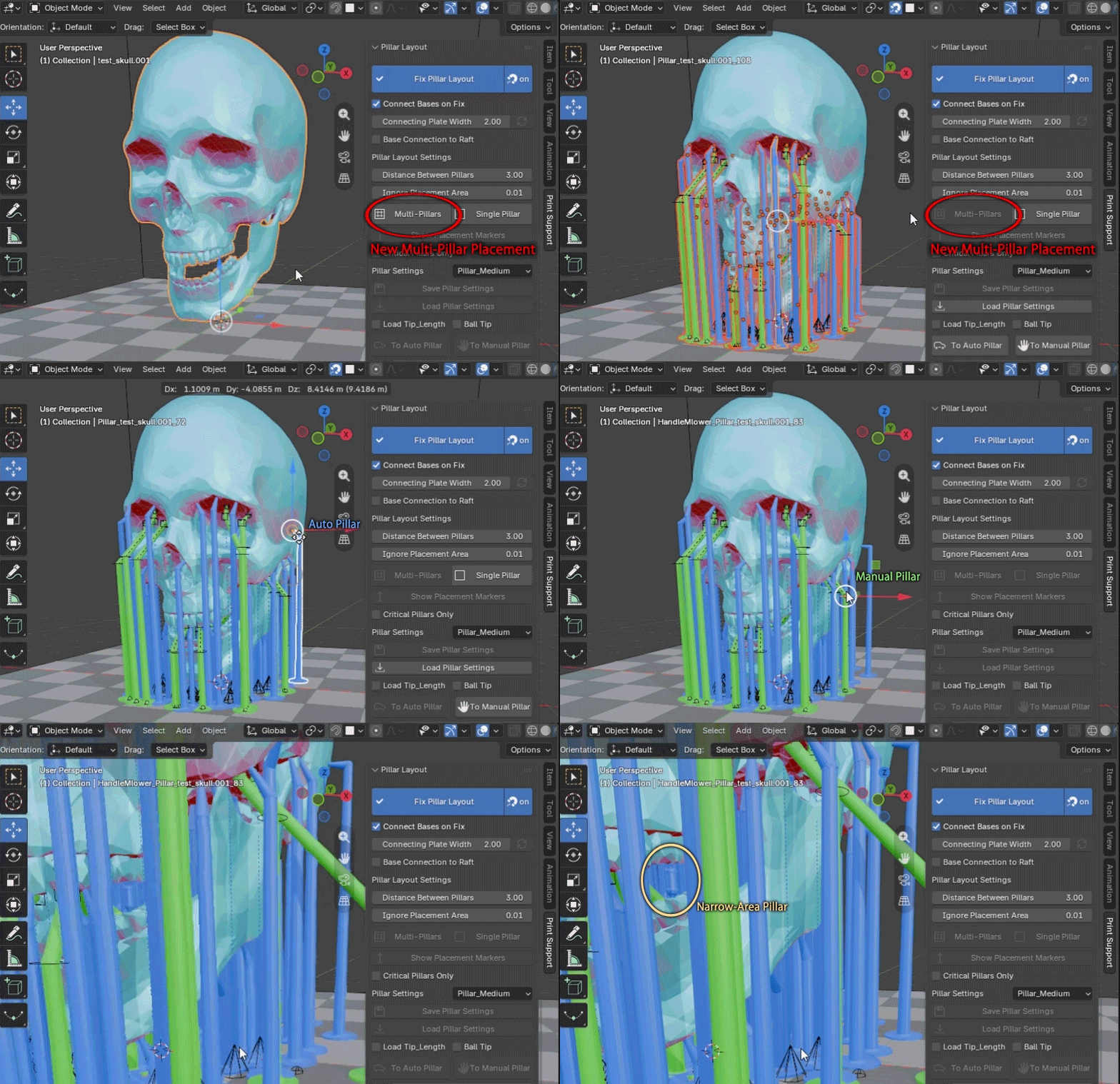
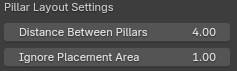
The spacing between pillars can be adjusted with the [Distance Between Pillars] value. A larger value will result in fewer pillars.
If you want to ignore small areas, adjust the value of [Ignore Placement Area].
Distance Ruler Feature (Added Aug 23, 2026)
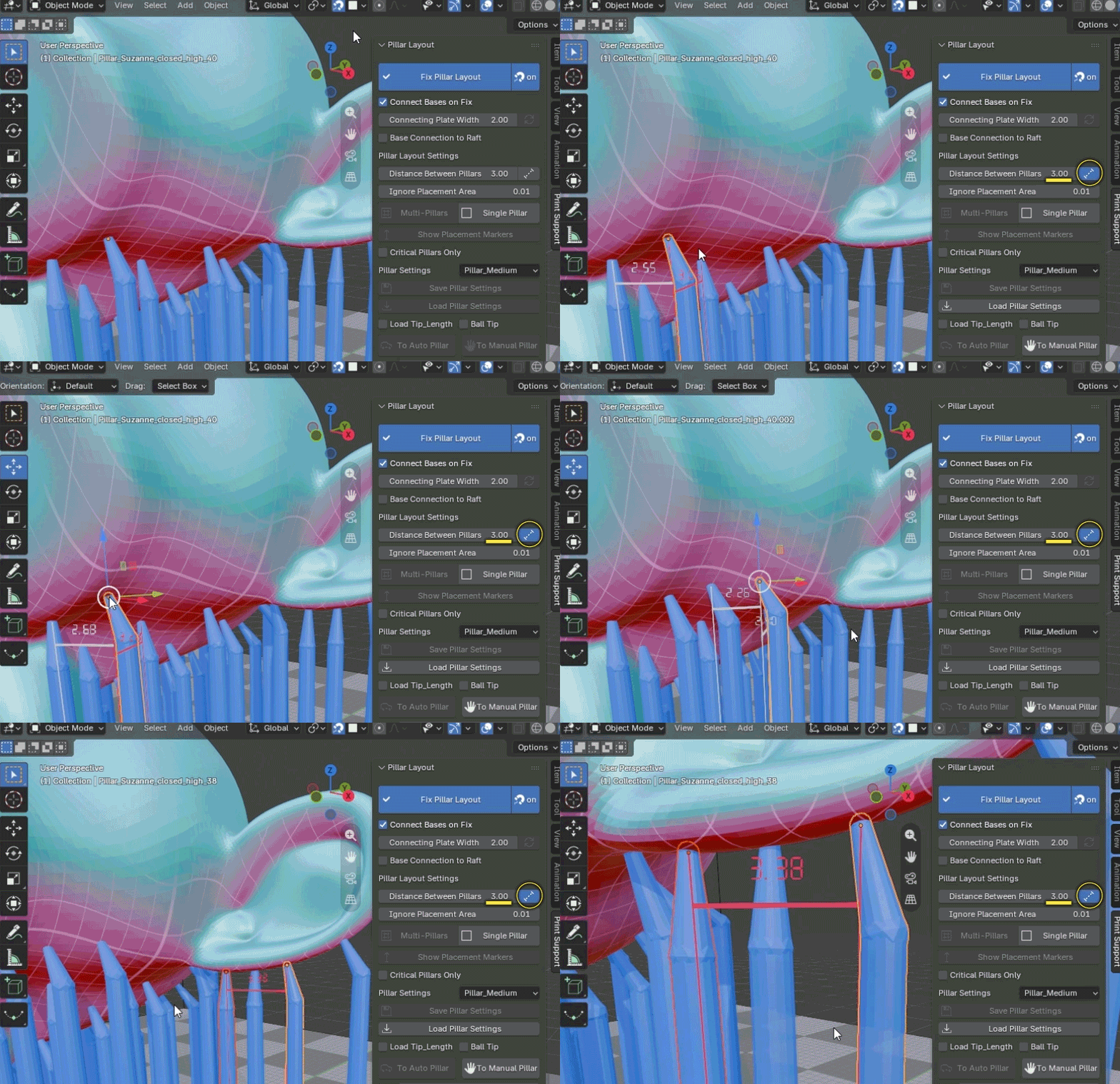
When the button to the right of the [Distance Between Pillars] input field is turned ON, the distances from the selected pillar to the two nearest pillars are displayed.
If the distance is within the [Distance Between Pillars] setting, it is shown in white. If it is farther than the setting, it is shown in red.
When two pillars are selected, the distance between those two points is displayed.
Turning the button OFF hides the ruler display.
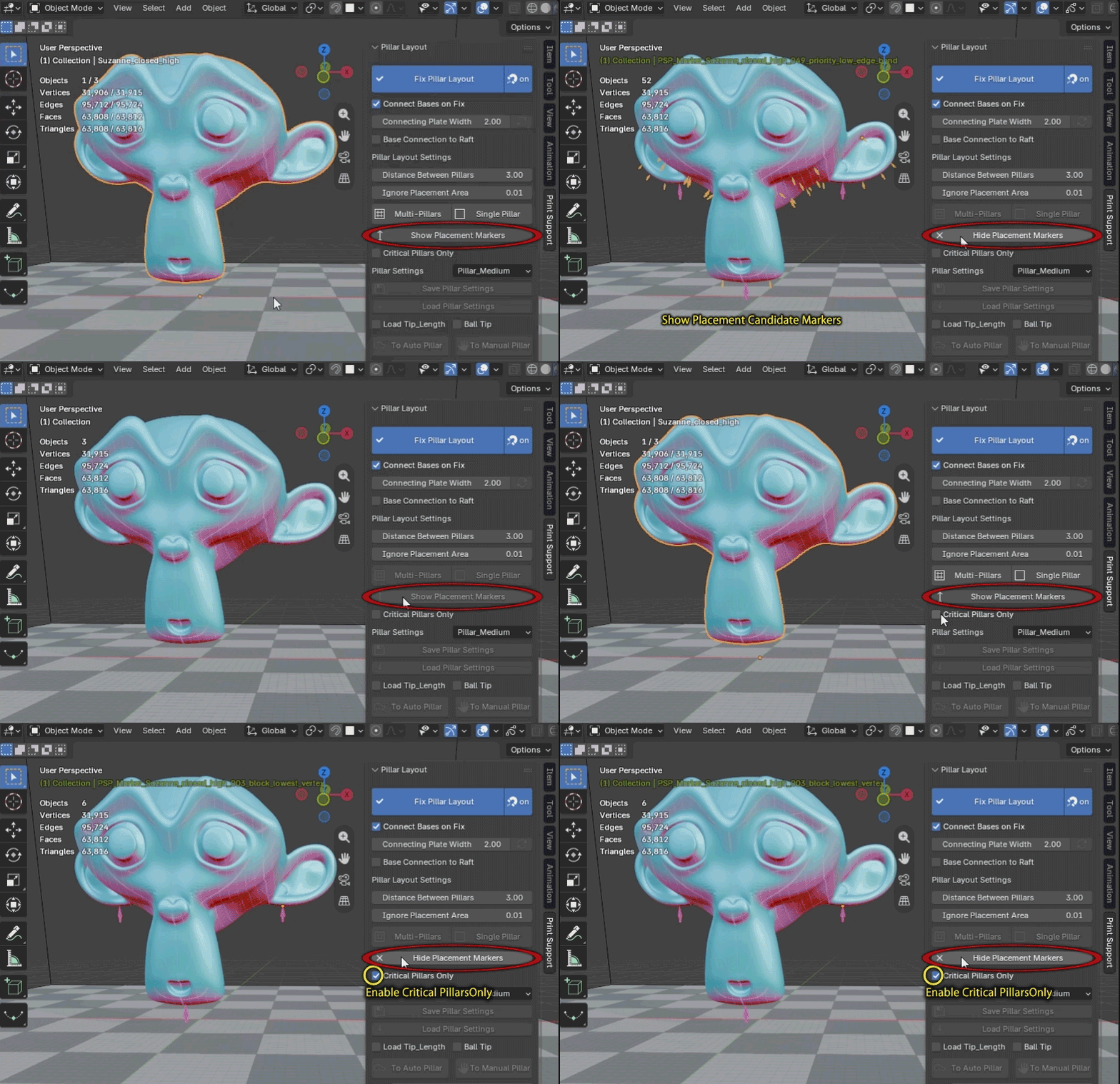
Critical-Only Multi-Pillar Placement(Added Aug 9, 2026)
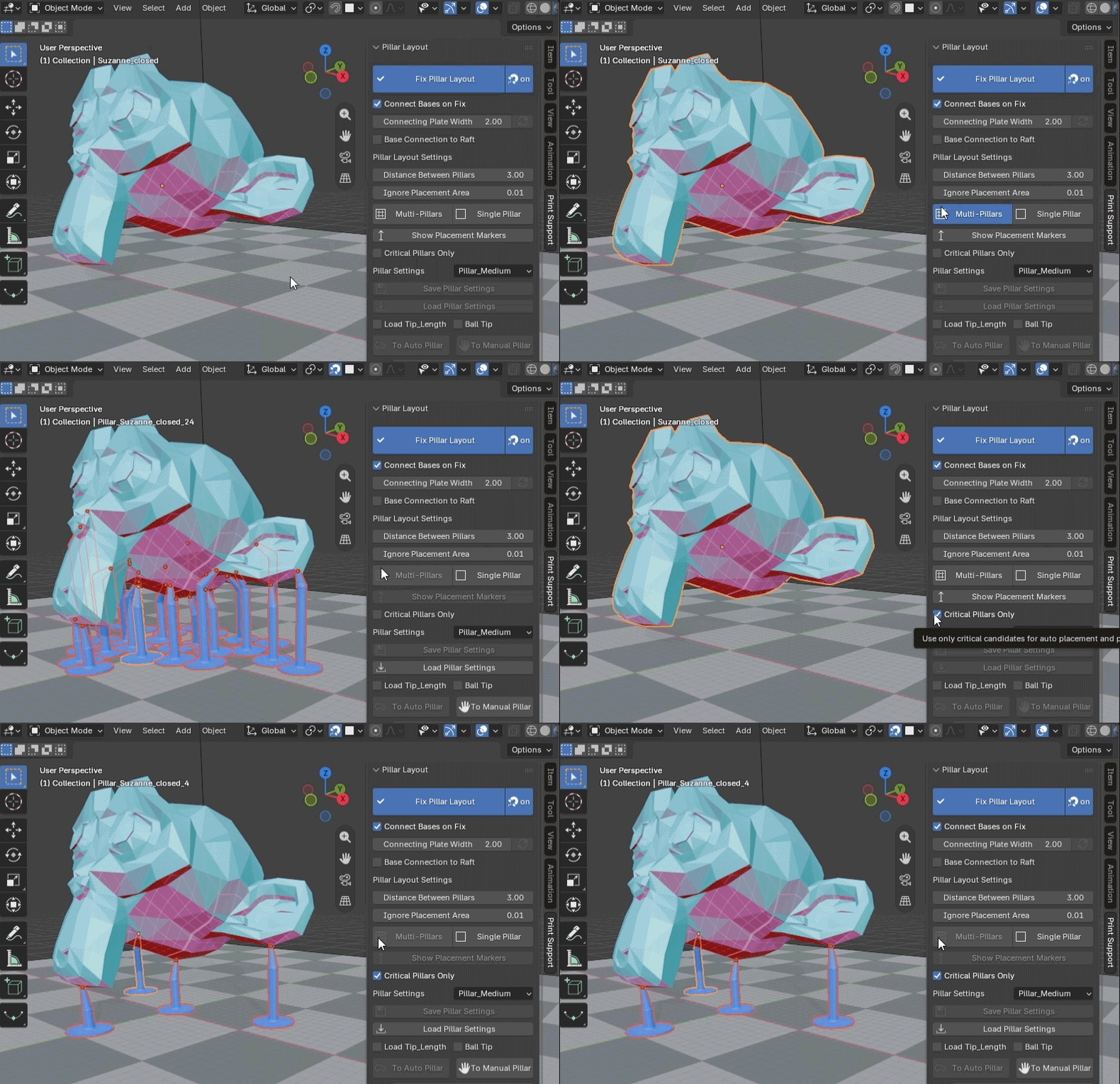
In Print Support Pro, pillars placed on downward-facing protrusions where support is essential are called Critical Pillars.
Enable the [Critical Pillars Only] checkbox and press the [Multi-Pillars] button to place only Critical Pillars.
About Error Pillars(Updated Aug 9, 2026)
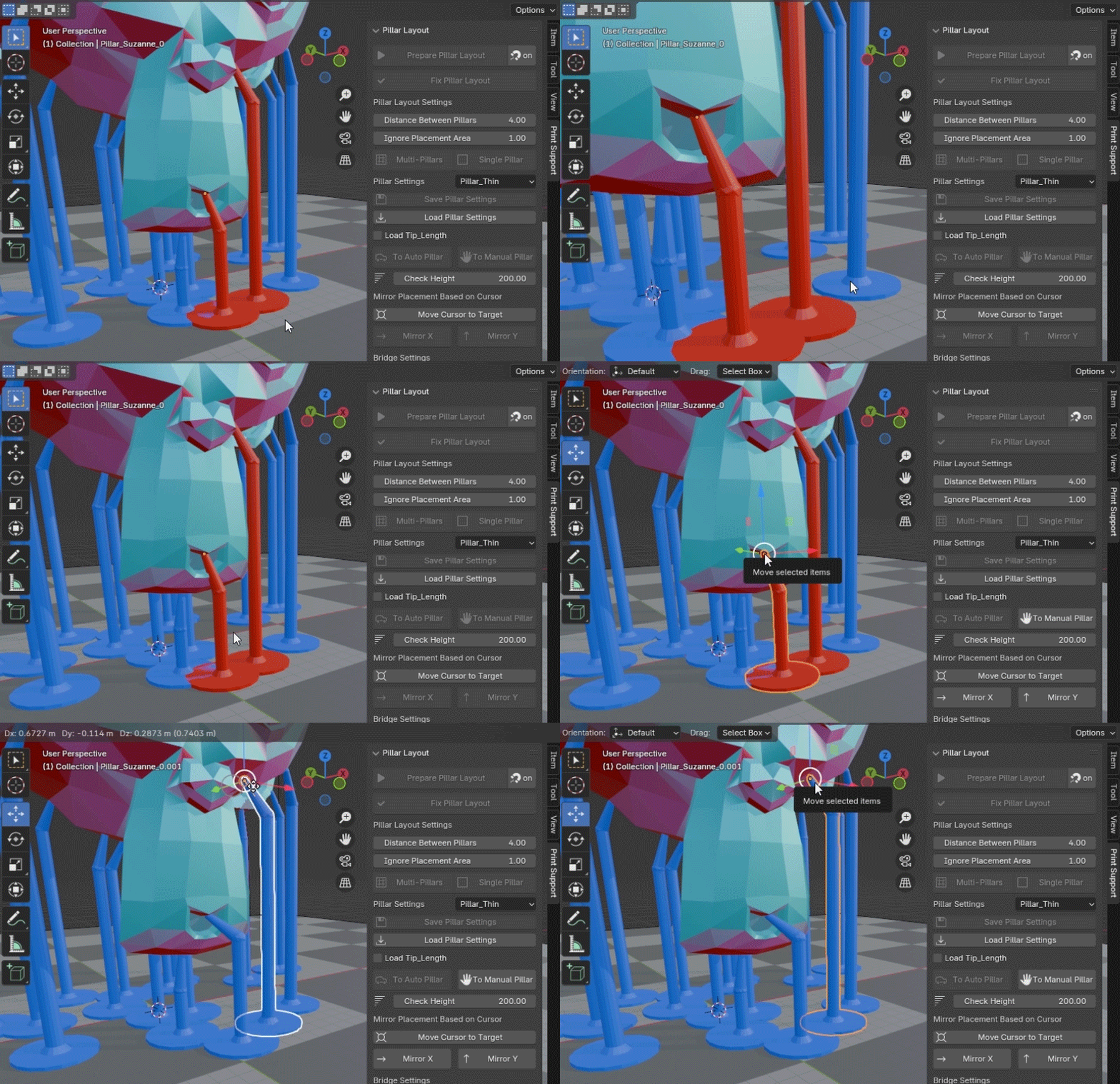
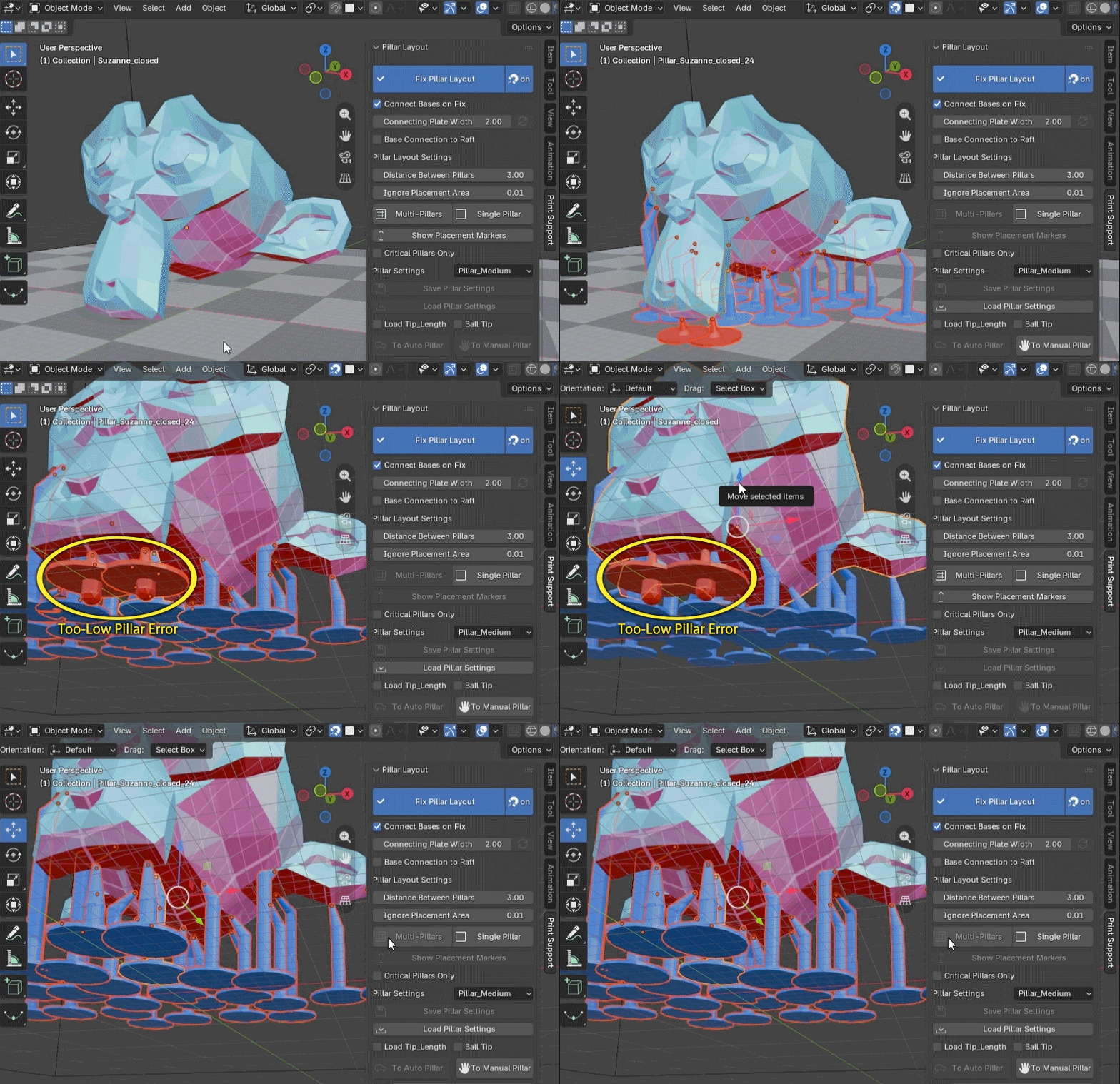
Pillars that adhere to the target object will be displayed in red. Please either delete them or adjust their positions.
Too-Low Error Pillars(Updated Aug 9, 2026)
Pillars placed too close to the ground are shown as errors because the pillar body may protrude below the build plate. Reduce the Tip_Length value, or raise the object slightly and place the pillars again.
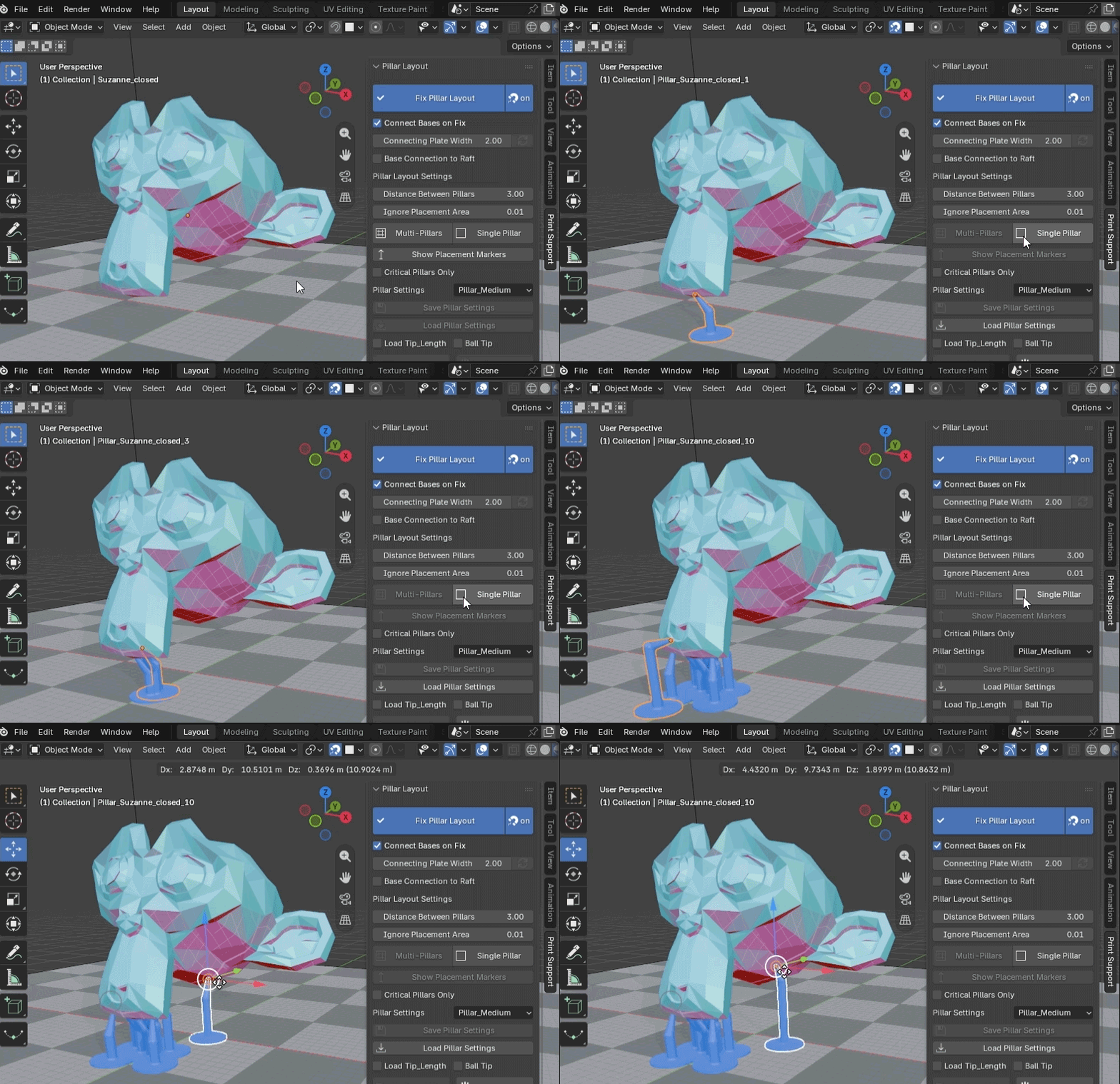
Single Pillar Placement(Updated Aug 9, 2026)
Clicking the [Single Pillar] button will place a single pillar at the lowest position of the target object.
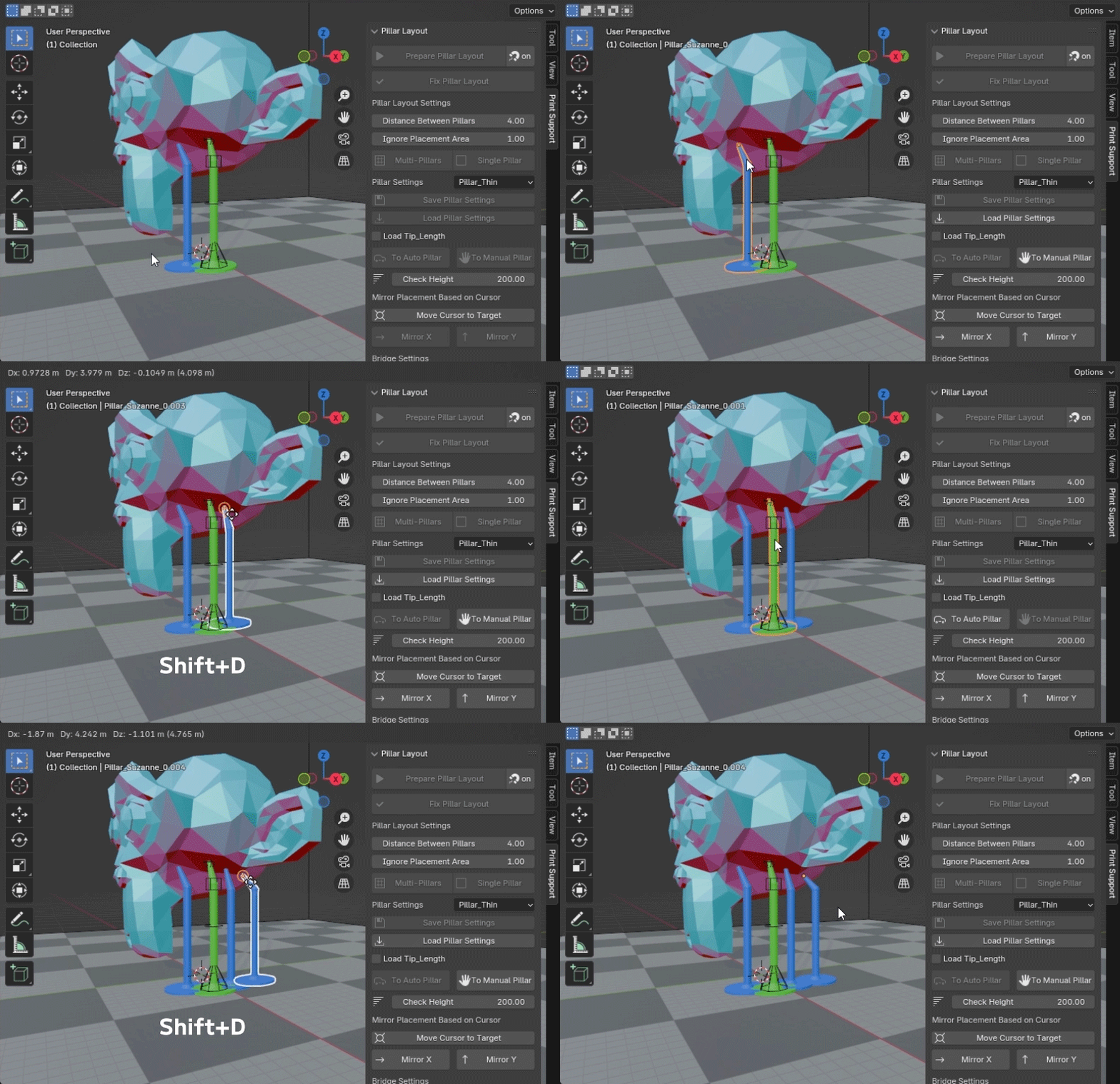
While selecting a blue or green pillar, you can duplicate it by pressing Shift + D. The duplicated pillar will always be an Auto Pillar (blue).
Show Placement Markers(Added Aug 9, 2026)
Press the [Show Placement Markers] button to preview the planned pillar positions as markers before generating the pillars. Critical-only marker display is also supported, making it easier to check important support points while adjusting pillar placement. Press the [Hide Placement Markers] button to hide the markers.
Loading and Saving Pillar Settings
From the [Pillar Setting] dropdown menu, select the desired pillar characteristics and click either the [Multi-Pillars] or [Single Pillar] button to place pillars with those settings.
By selecting a placed pillar and clicking the [Load Pillar Settings] button, the characteristics selected in the dropdown menu will be applied to the pillar.
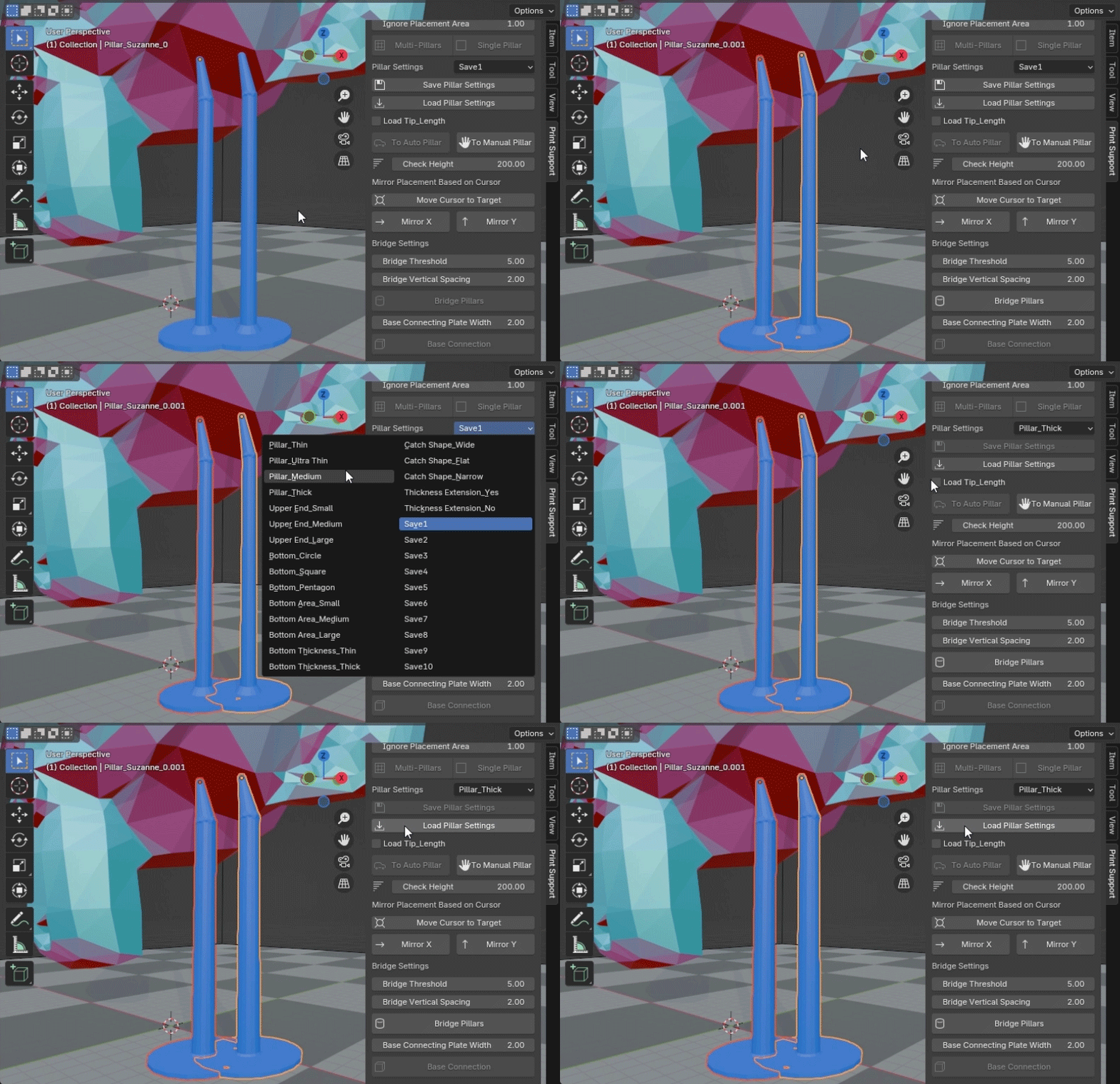
[Pillar_Thin], [Pillar_Ultra Thin], [Pillar_Medium], and [Pillar_Thick] are comprehensive preset pillars, while the others load only specific characteristics.
In the dropdown menu, Save1 to Save10 allow you to save all characteristics of the currently selected pillar using the [Save Pillar Settings] button. You can also set values directly within the Geometry Nodes for more detailed custom settings and save them.

By checking [Load Tip Length], the tip length of the pillar will also be loaded when loading settings. The image below shows an example of loading the [Save1] setting, which includes a specific Tip Length setting, with and without the checkbox selected.
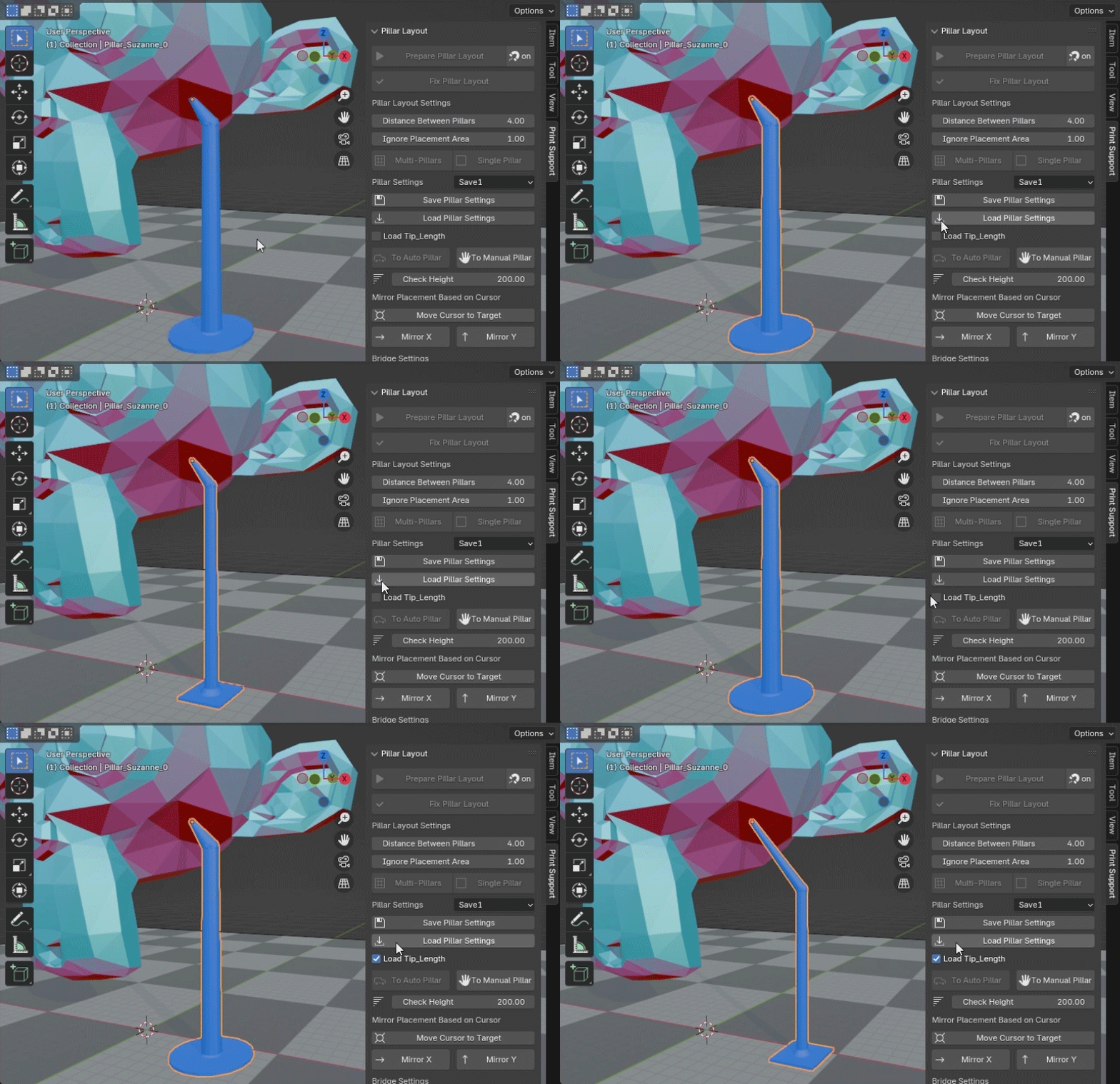
Note: Auto Pillars created with the [Multi-Pillars] or [Single Pillar] buttons will appear in the most recently loaded Pillar Setting state. After loading partial settings, such as the base shape, other values will revert to default.
Ball Tip(Added Aug 9, 2026)
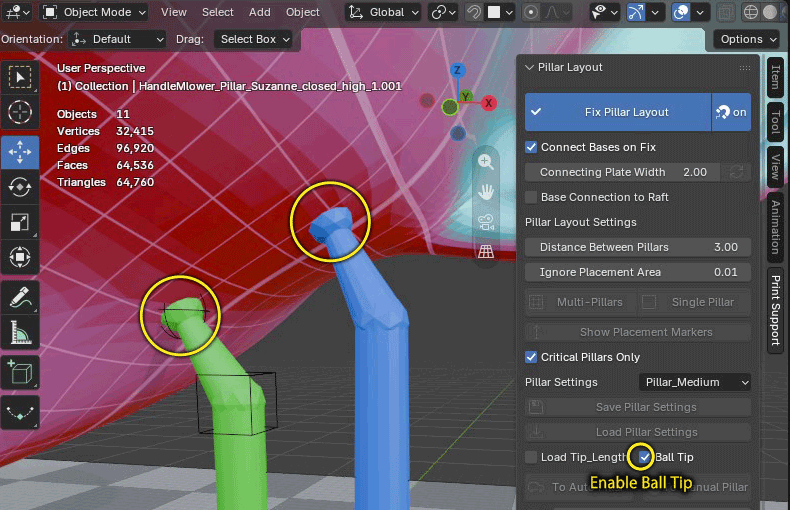
When [Ball Tip] is enabled, pillars with rounded, enlarged tips are generated when loading pillar settings, or when creating pillars with [Multi-Pillars] or [Single-Pillar].
Types of Pillars
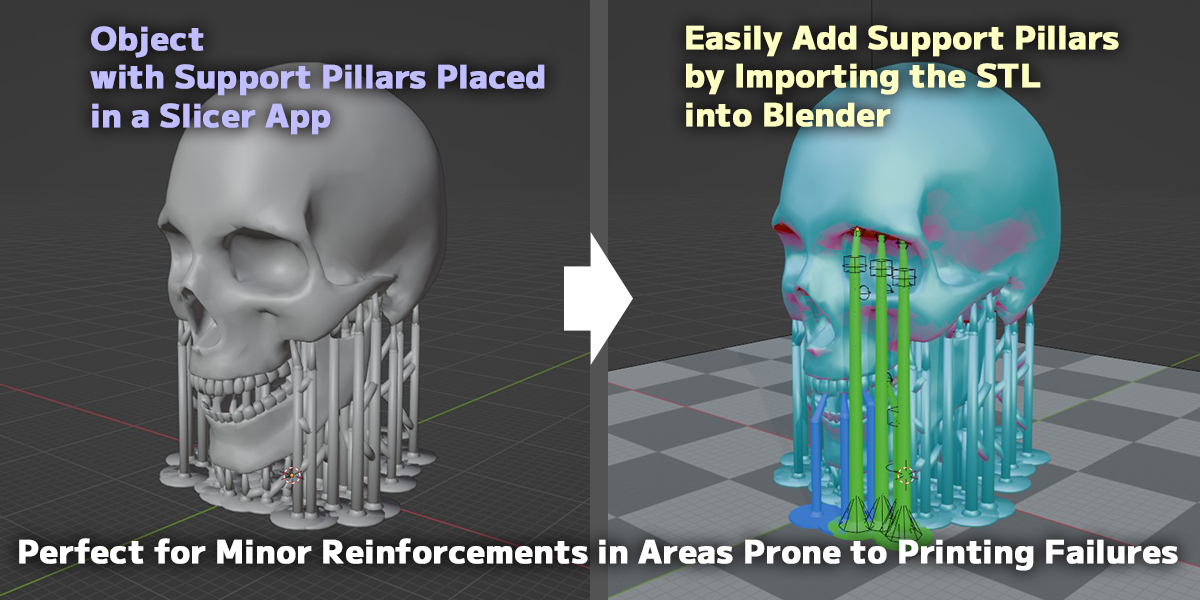
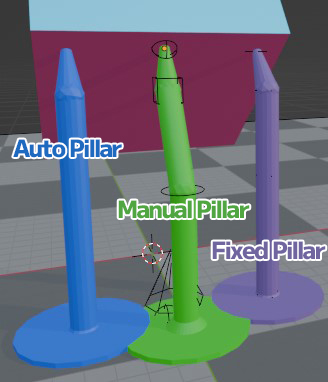
There are three types of pillars: Auto Pillar (blue), which follows the angle of the target object's surface; Manual Pillar (green), which can be bent at any angle; and Fixed Pillar (purple), which has fixed movement.
About Auto Pillar
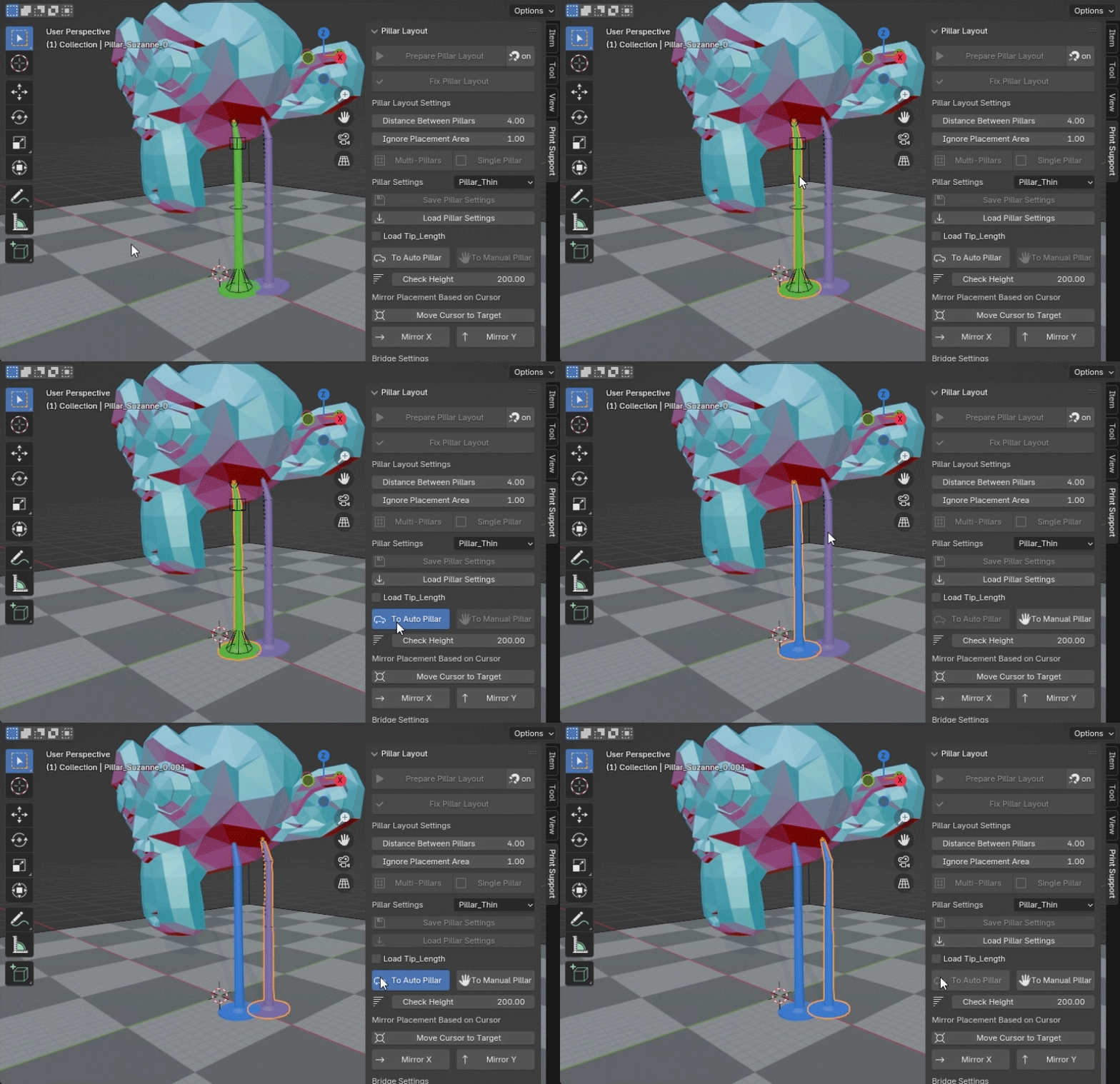
When a green or purple pillar is selected, pressing the [To Auto Pillar] button will change it to a Manual Pillar (green).
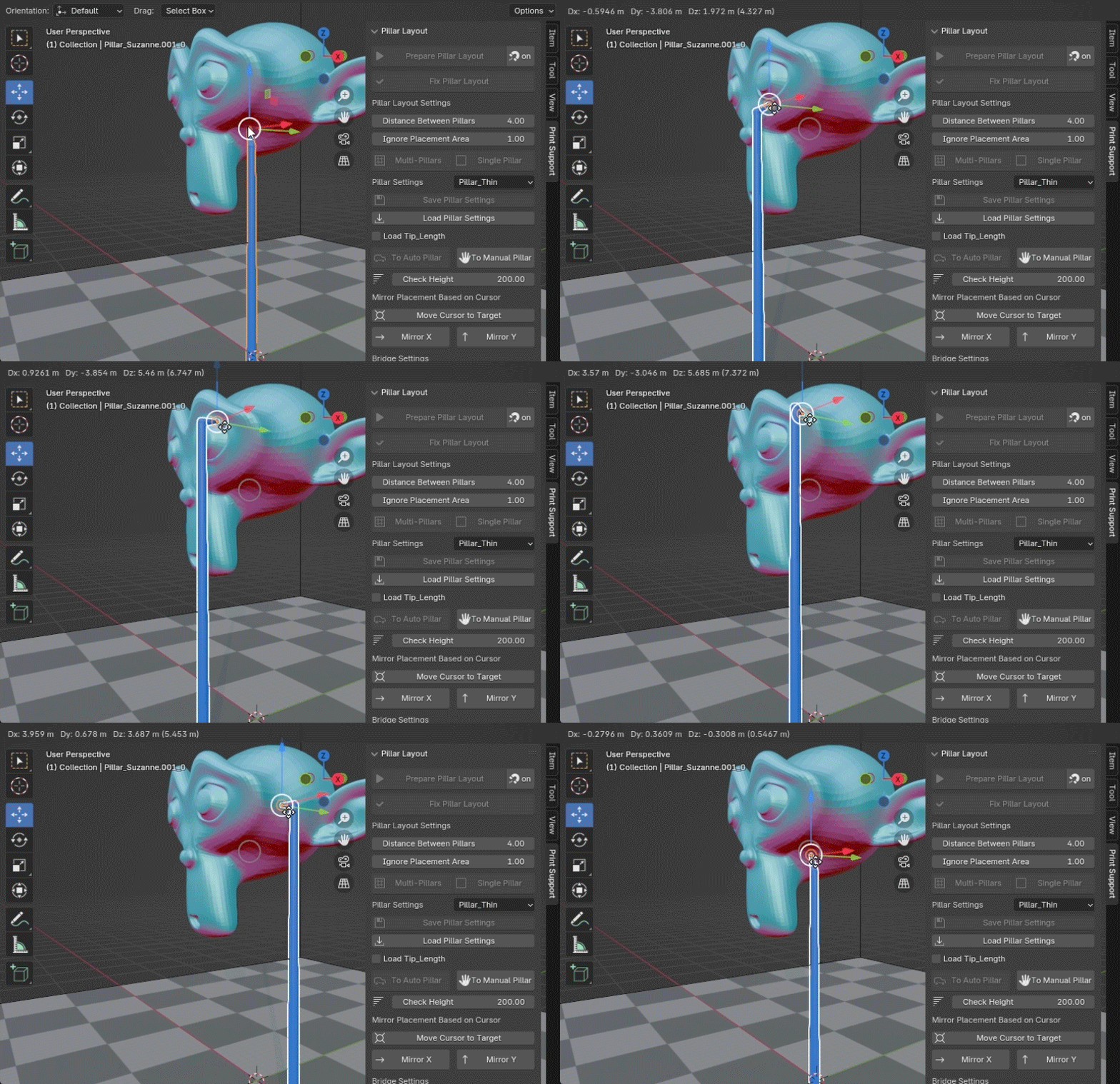
The tip angle of an Auto Pillar (blue) aligns with the angle of the object's surface. (If it doesn’t align properly, try reselecting the pillar on the surface a few times.)
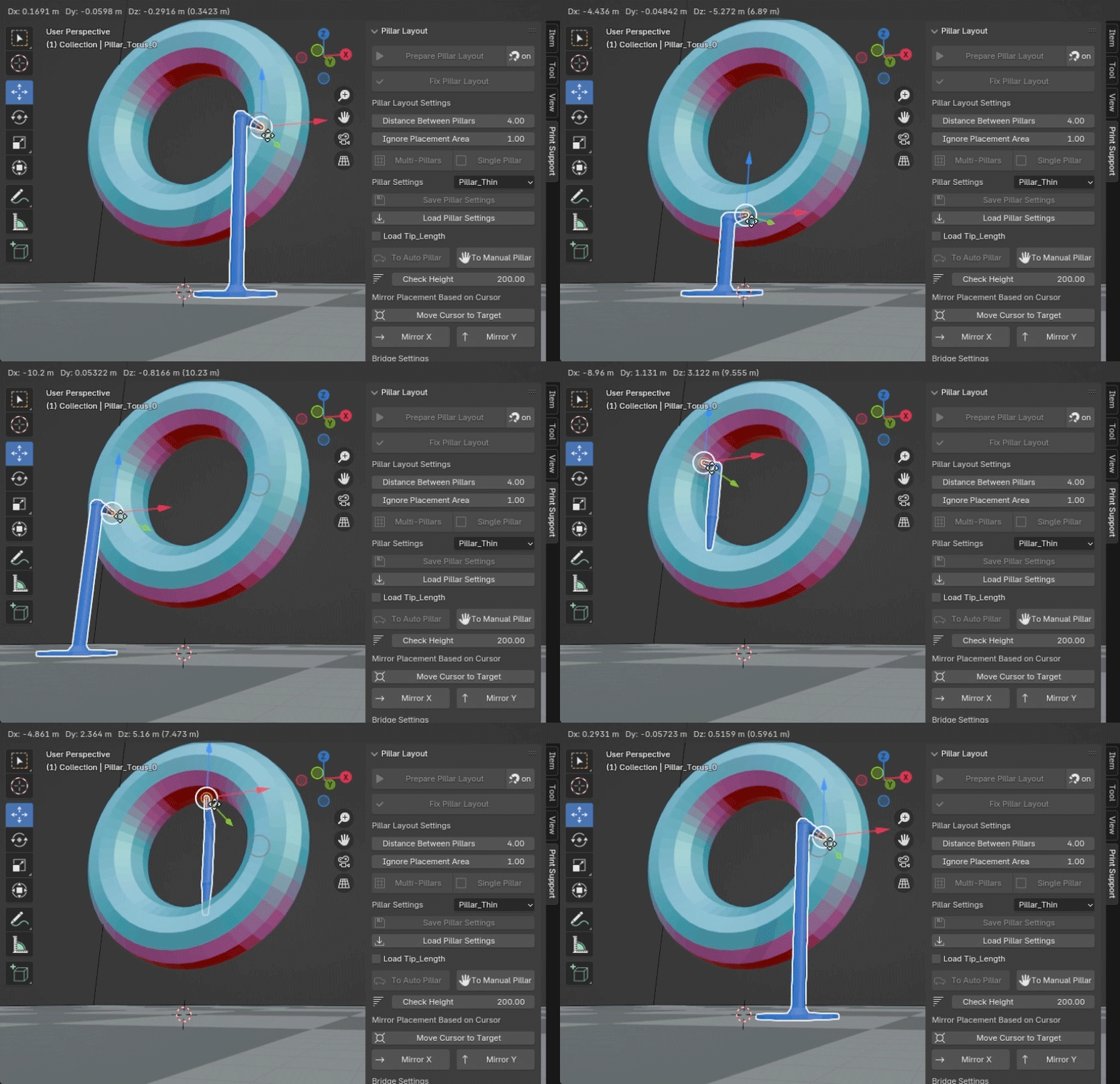
If the bottom end does not reach the ground, the pillar will automatically connect between surfaces of the target object.
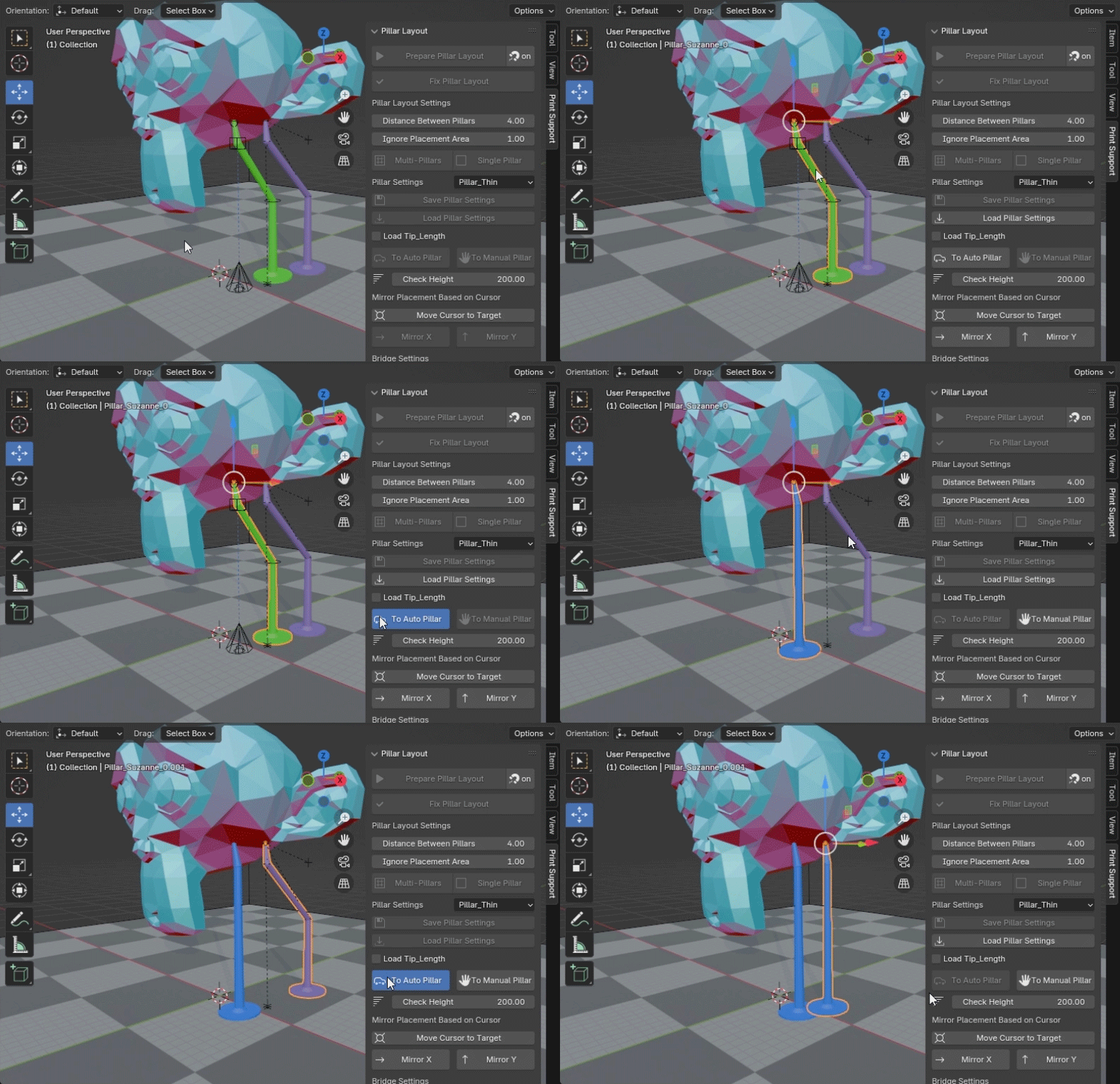
Note: When changing a Manual Pillar (green) or Fixed Pillar (purple) to an Auto Pillar (blue), any bends at intermediate points will be removed.
When a blue or purple pillar is selected, pressing the [To Manual Pillar] button will change it to a Manual Pillar (green).
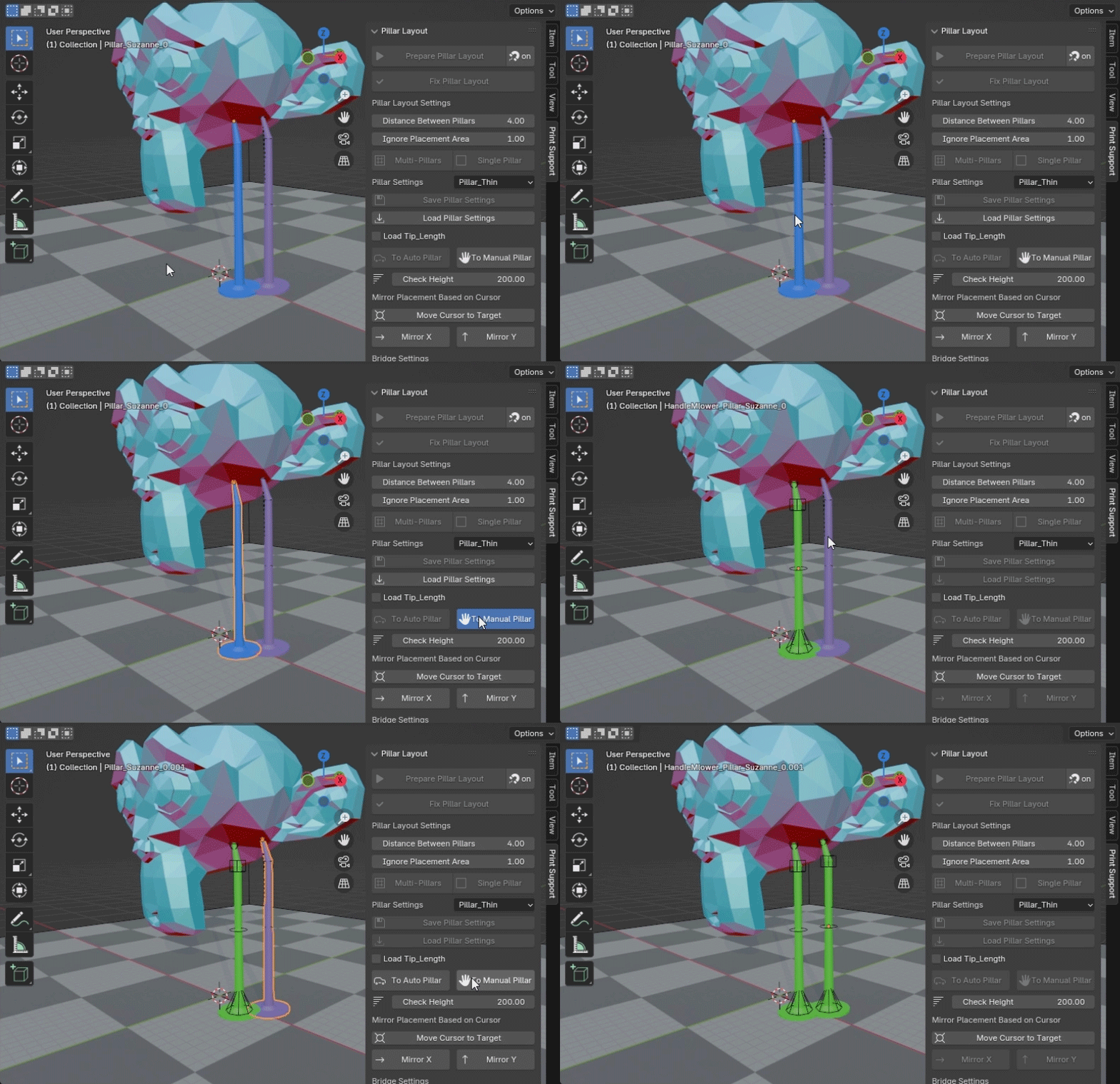
About Manual Pillar
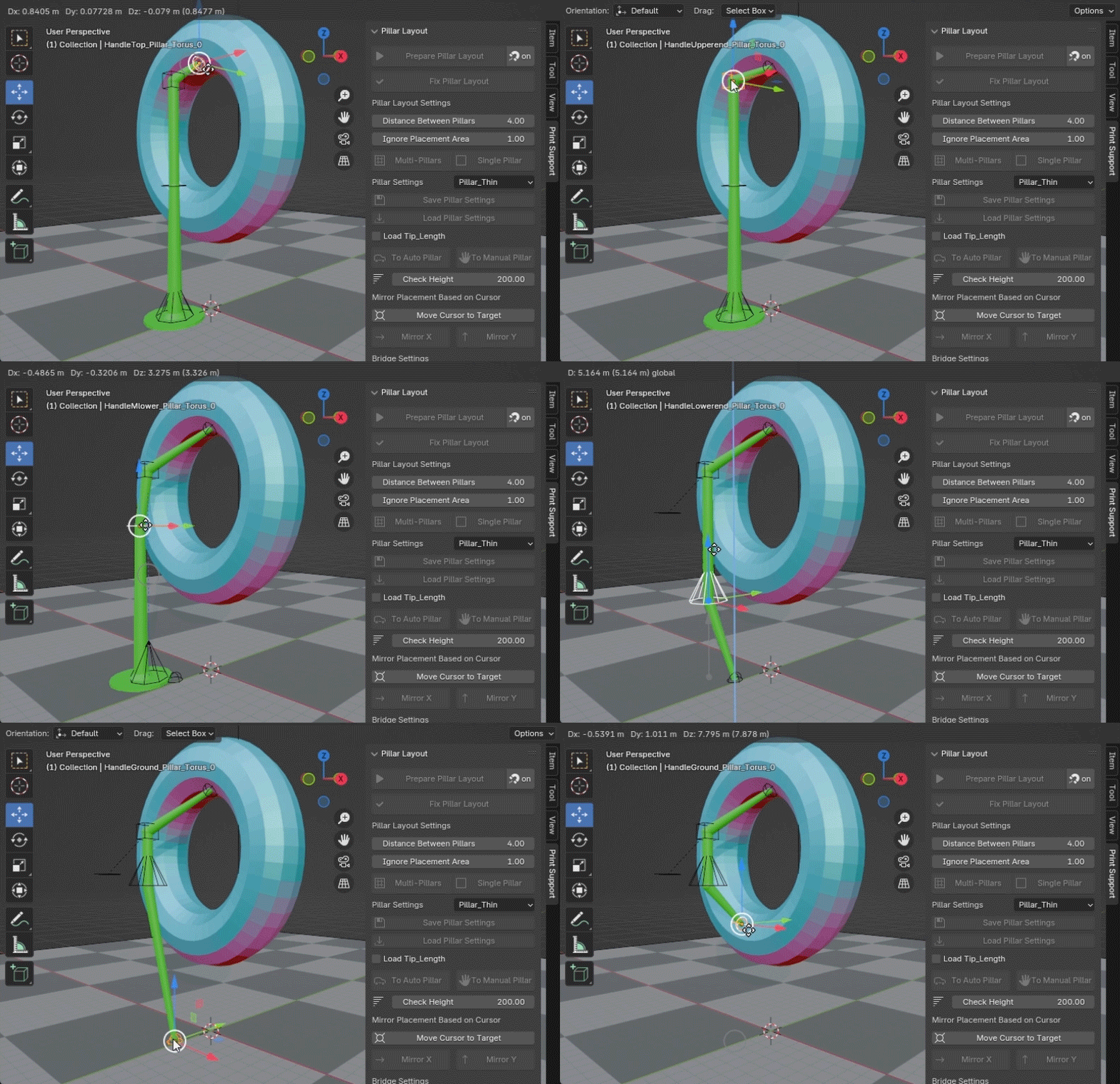
A Manual Pillar (green) has five handles: 1. Top Handle, 2. Upper Handle, 3. Intermediate Handle, 4. Lower Handle, and 5. Bottom Handle.
- The Top Handle allows you to freely position the top end along the surface of the target object.
- The Upper Handle is used to move the main body of the pillar, excluding the tip and bottom ends.
- The Intermediate Handle allows you to bend the main body of the pillar. (This is only effective when the Lower Handle is grounded.)
- The Lower Handle, when not grounded, allows the pillar to connect between surfaces of the target object.
- The Bottom Handle enables free positioning of the bottom end along the surface of the target object. (This is only effective when the Lower Handle is not grounded.)
Note: When changing a Fix Pillar to another type using the [To Auto Pillar] or [To Manual Pillar] buttons, any bridging around that pillar will be automatically removed.
Regenerate Multi-Pillars(Updated Aug 9, 2026)
If you press the [Multi-Pillars] button while pillars are already placed, the existing pillars are deleted and regenerated based on the current settings. Pillars that have already been converted to FIX pillars using the [Bridge Pillars / Fix Pillars] button or similar operations will remain.
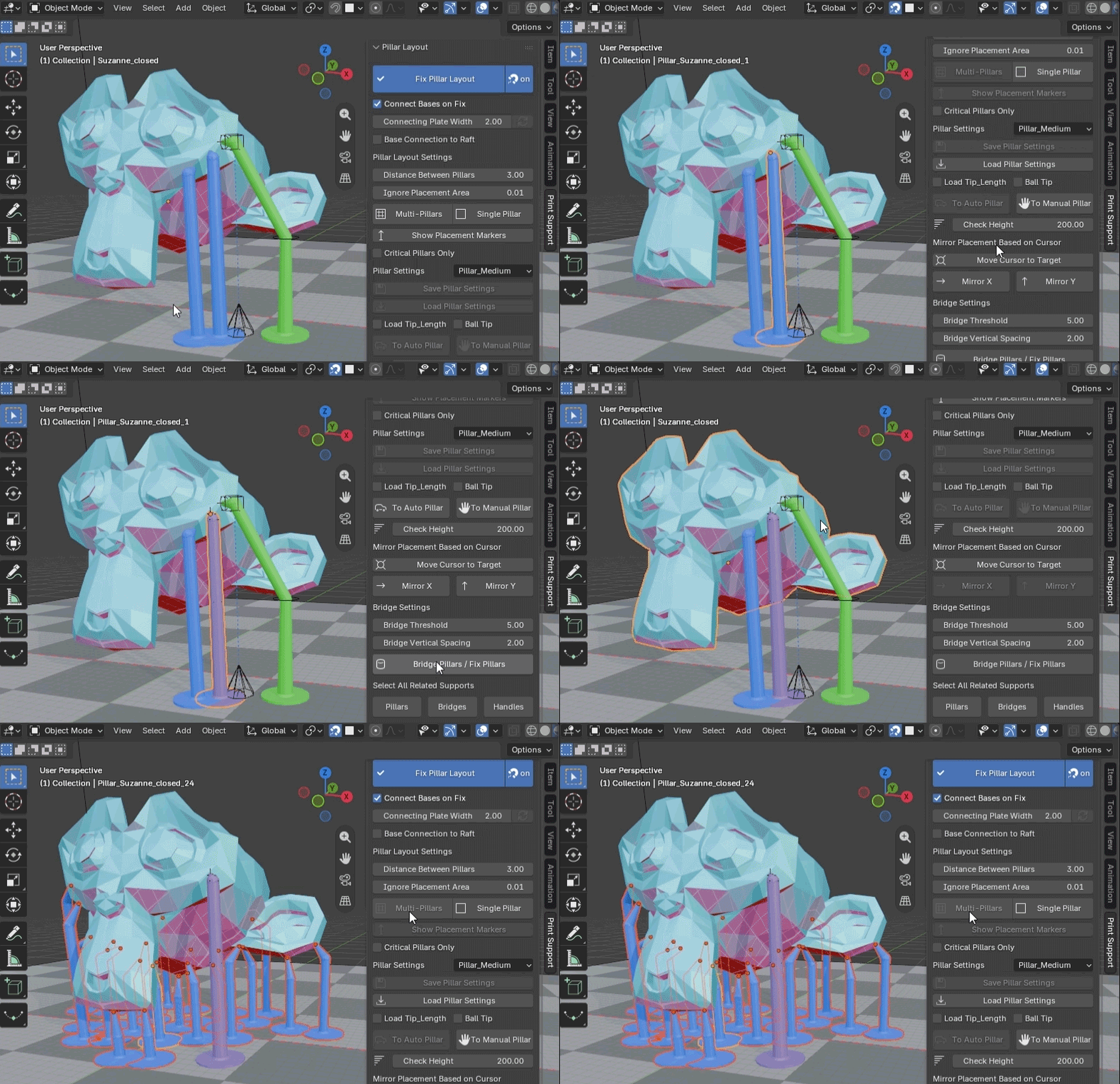
Checking Print Surface Height
[Check Height] allows you to view the print surface at a specified height. This is useful for examining how pillars are embedded within the target object.
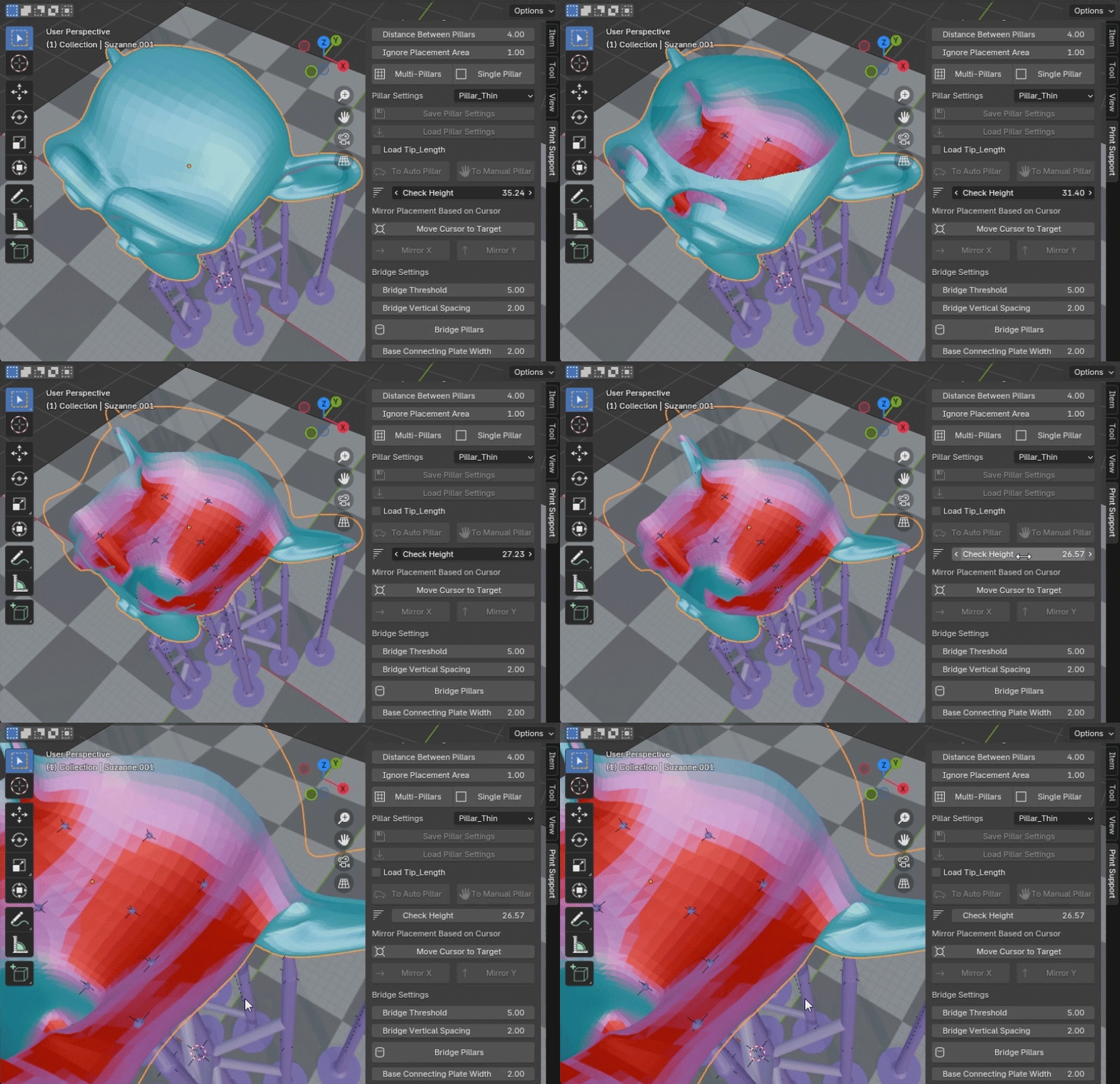
Mirroring Pillar Placement
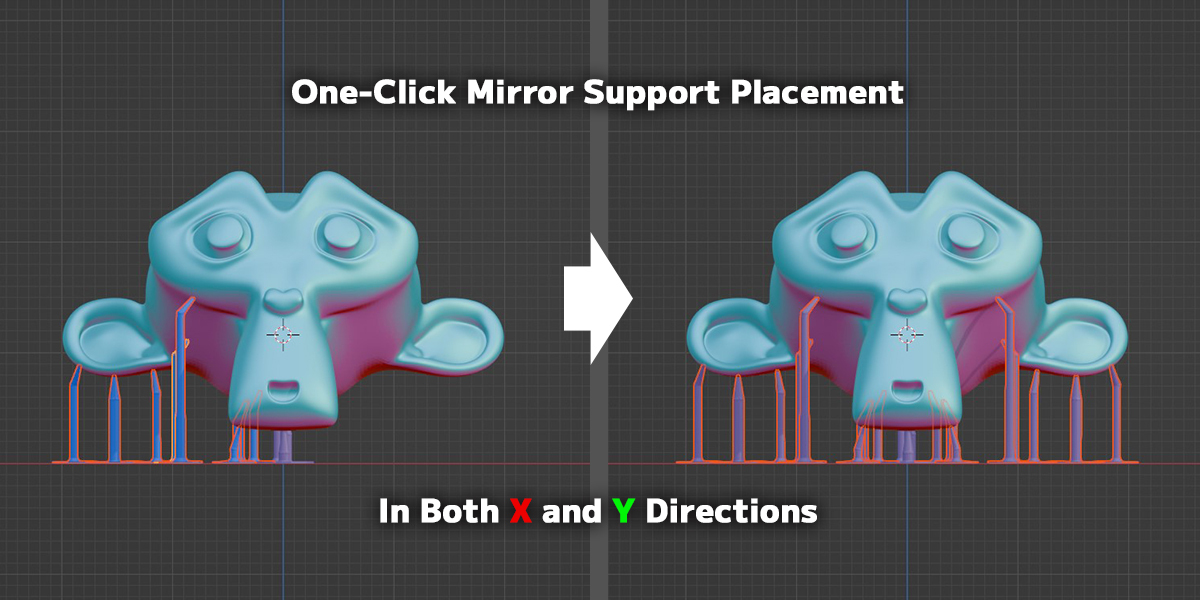
Select the target object and click the [Move Cursor to Target] button to move the cursor to the target object's origin.
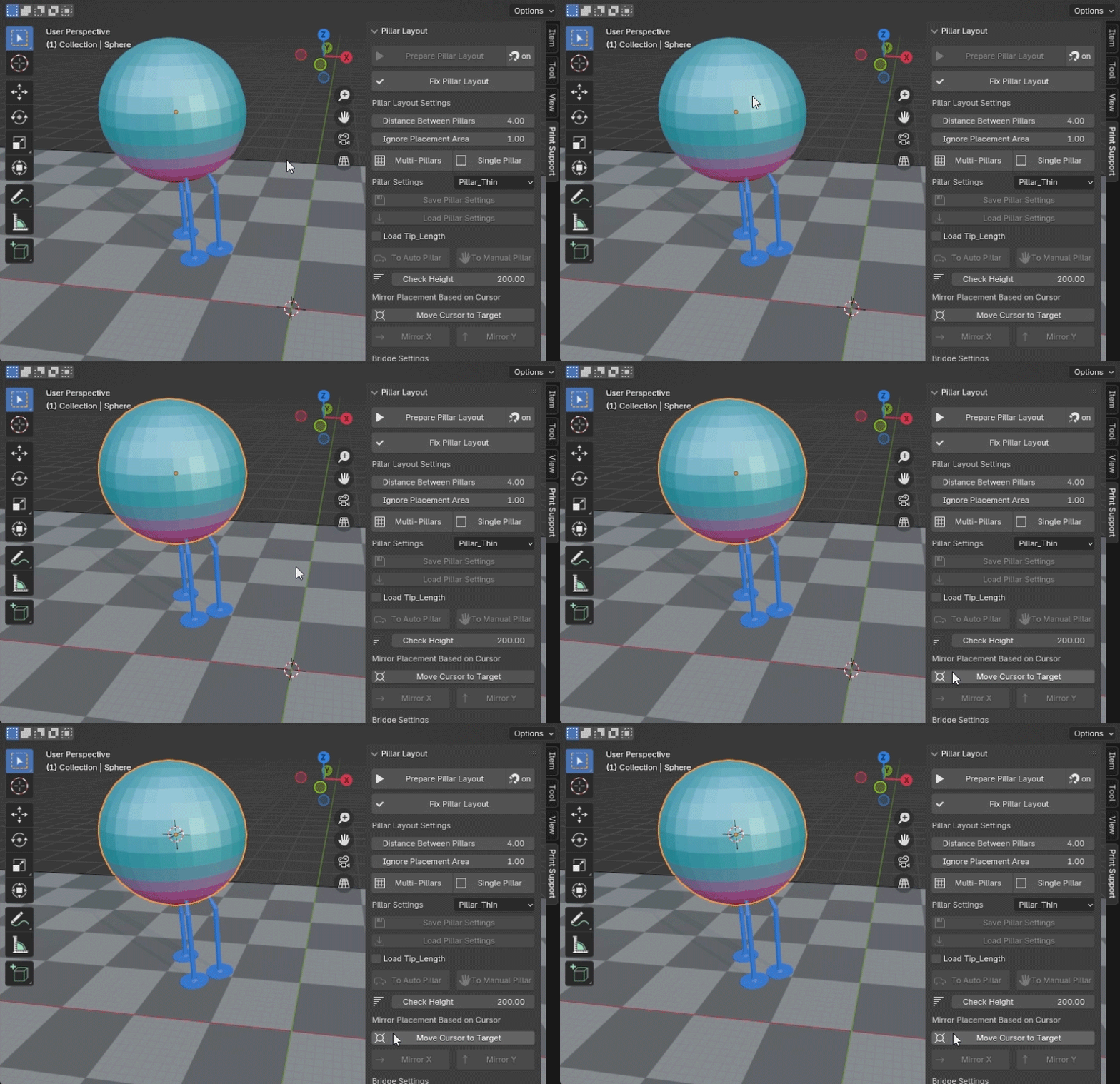
Note: For accurate mirroring, the object must be completely symmetrical along the X or Y axis, and the object’s origin should be set on the central axis.
Select a pillar and click the [Mirror X] or [Mirror Y] button to mirror the pillar along the X or Y axis, using the cursor as the center.
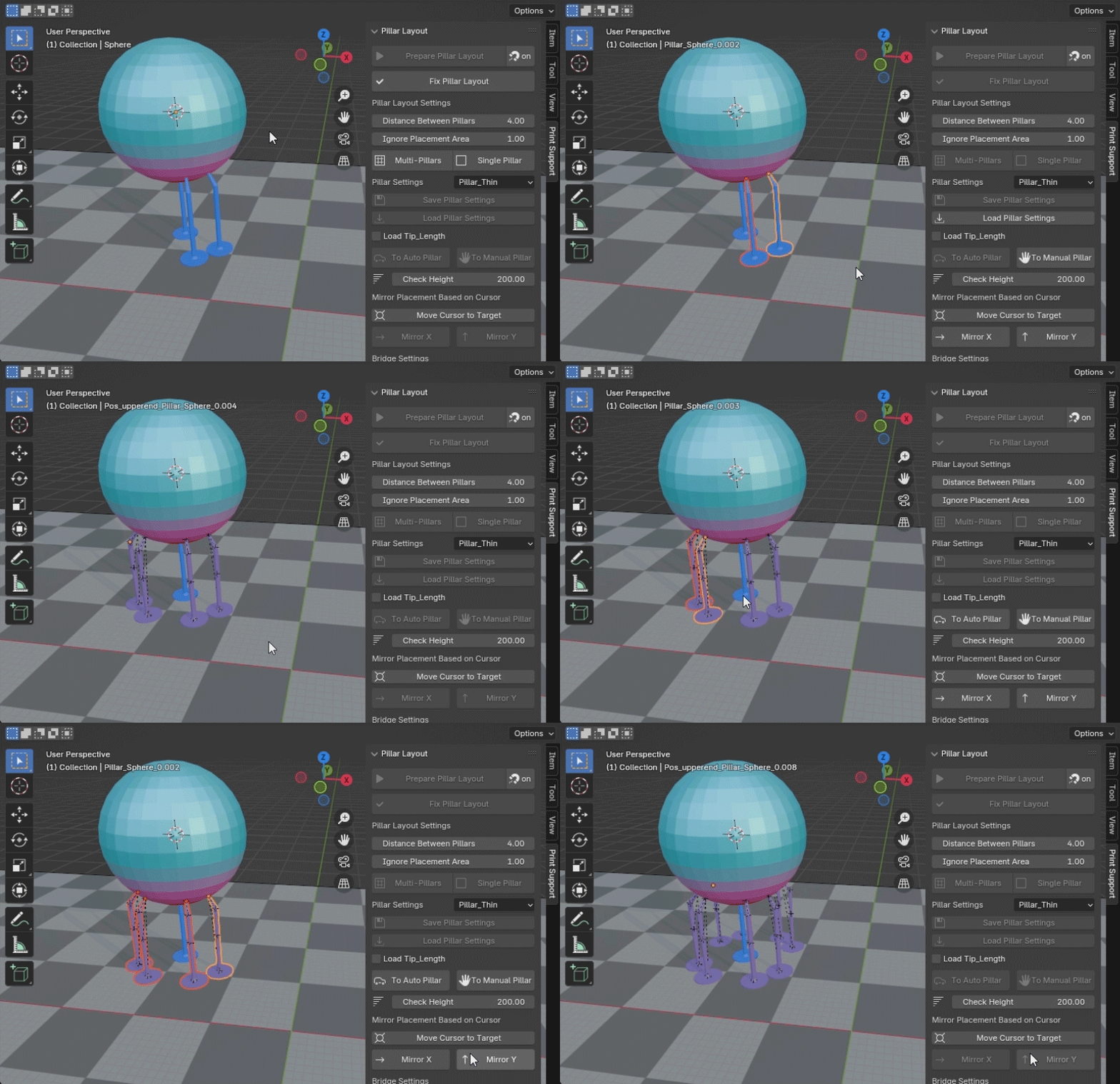
Note: Avoid selecting pillars near the center, as they may duplicate.
Bridge Settings(Updated Aug 9, 2026)
Select the target object or multiple pillars you want to bridge, then click the [Bridge Pillars] button to create a bridge between them.
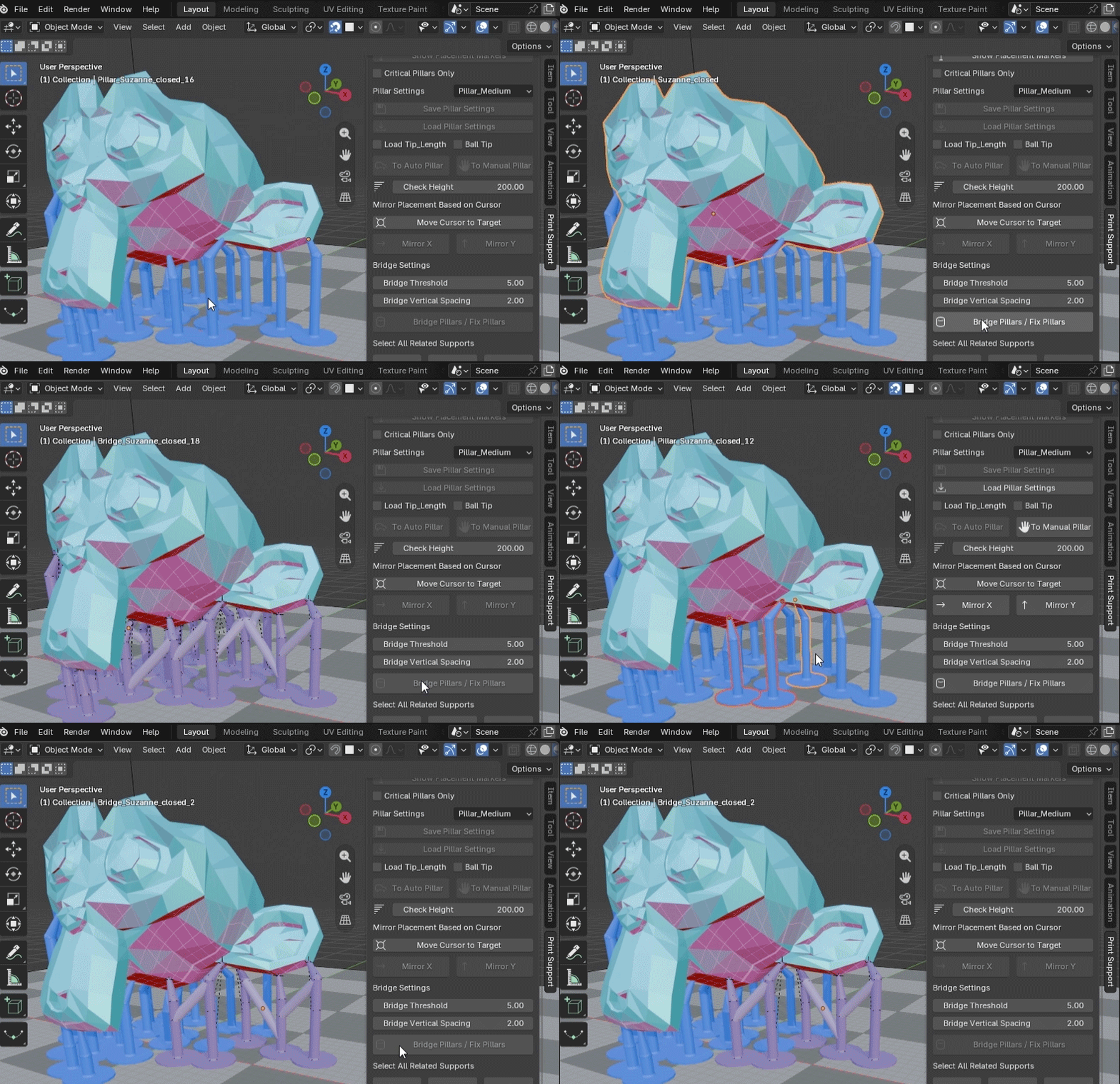
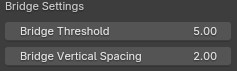
The [Bridge Threshold] value adjusts whether or not to bridge pillars based on the distance between them.
The [Bridge Vertical Spacing] value adjusts the vertical spacing of the bridge.
Base Connection(Updated Aug 9, 2026)
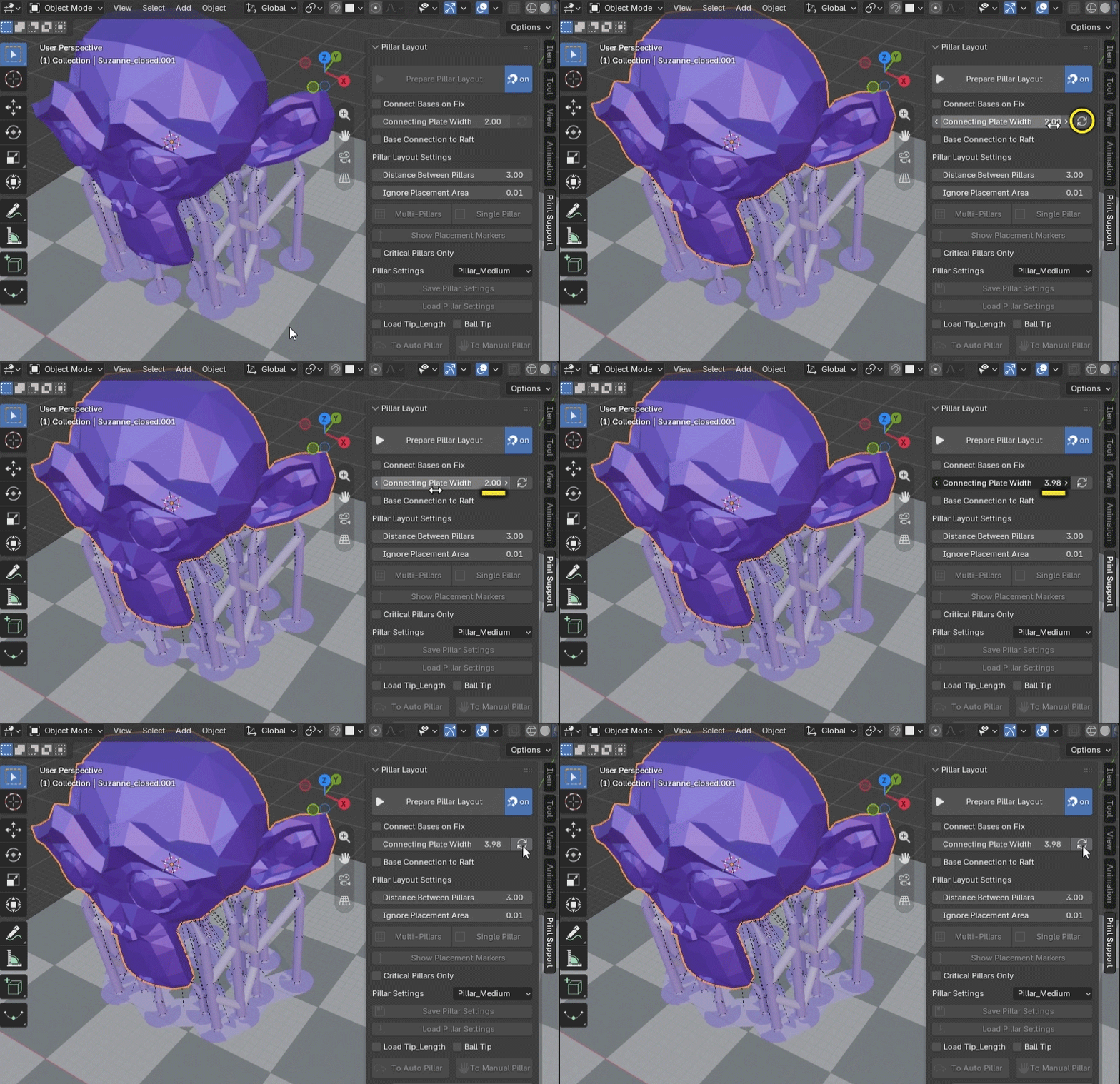
Connecting the bases makes it easier to remove the printed object from the build platform.
After completing the pillar layout with the [Fix Pillar Layout] button, adjust the base connection thickness using the [Base Connecting Plate Width] value, then press the update button on the left to connect the bases.
Base Connection to Raft (Added Feb 3, 2026)
When Base Connection to Raft is enabled, the base connection is generated as a single unified raft instead of individual base links. This creates a solid plate under all connected pillars, improving stability and ease of removal from the build platform.
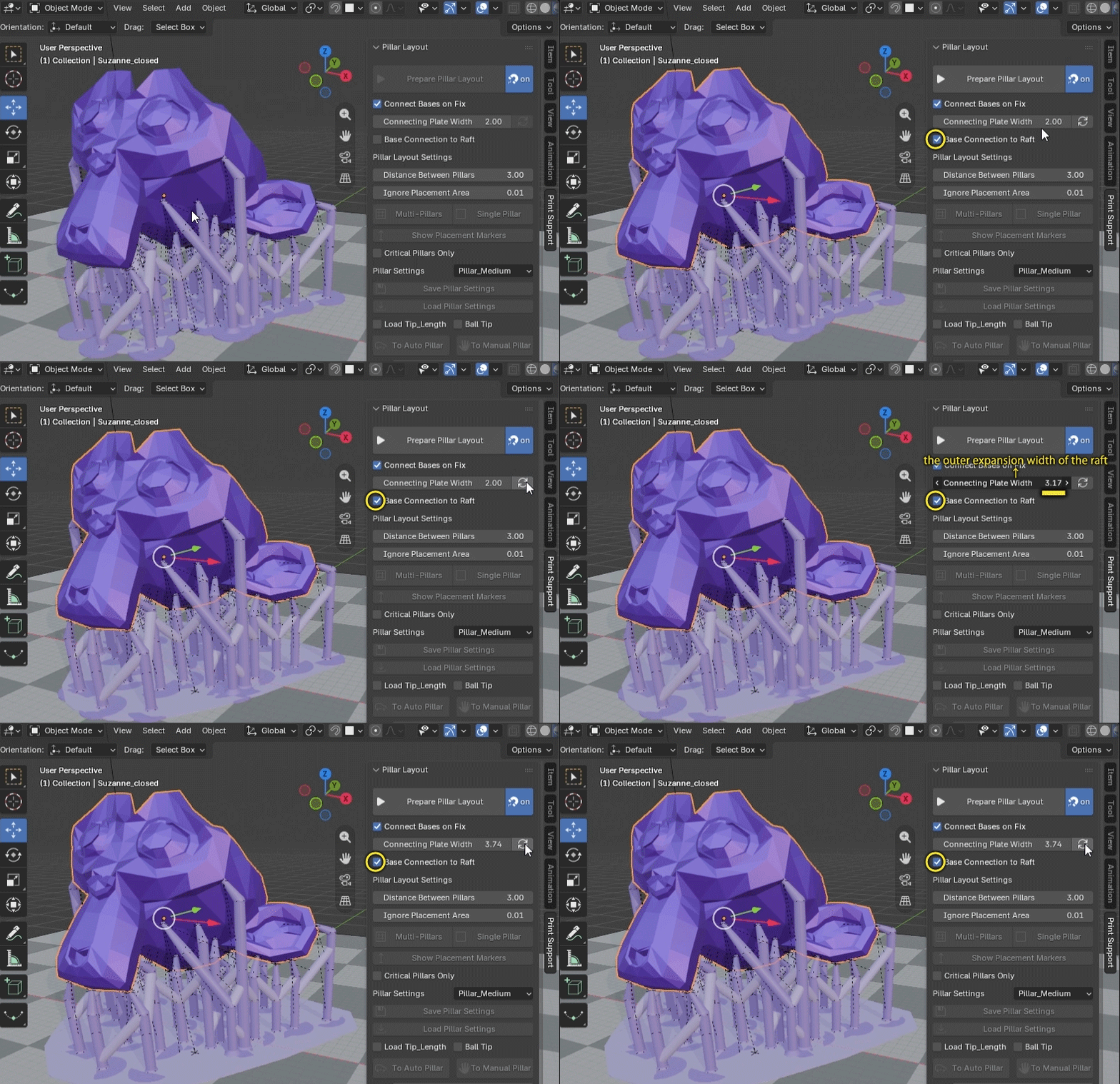
The Base Connecting Plate Width value is used as the outer expansion width of the raft.
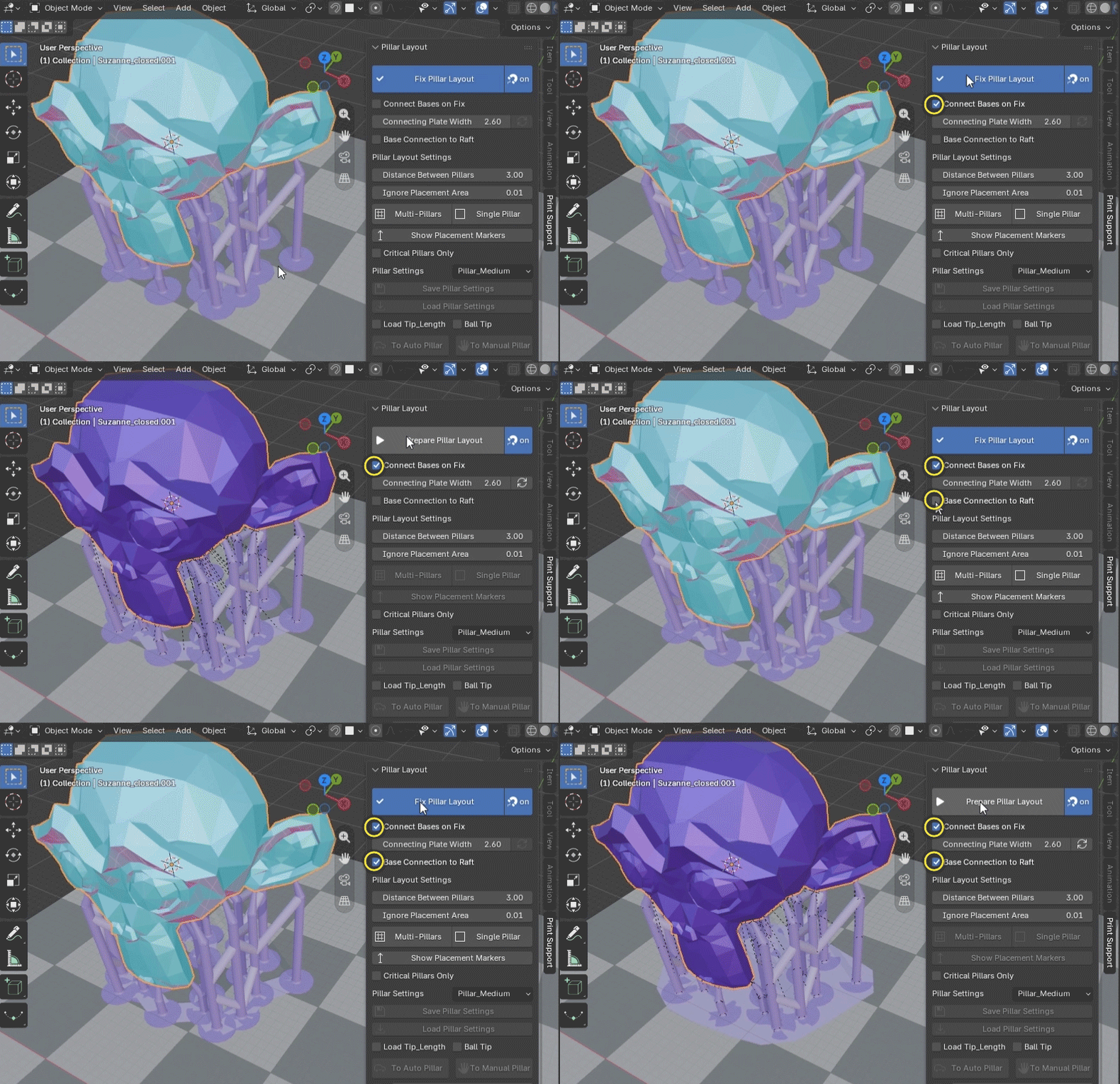
Auto Base Connection on Fix(Added Aug 9, 2026)
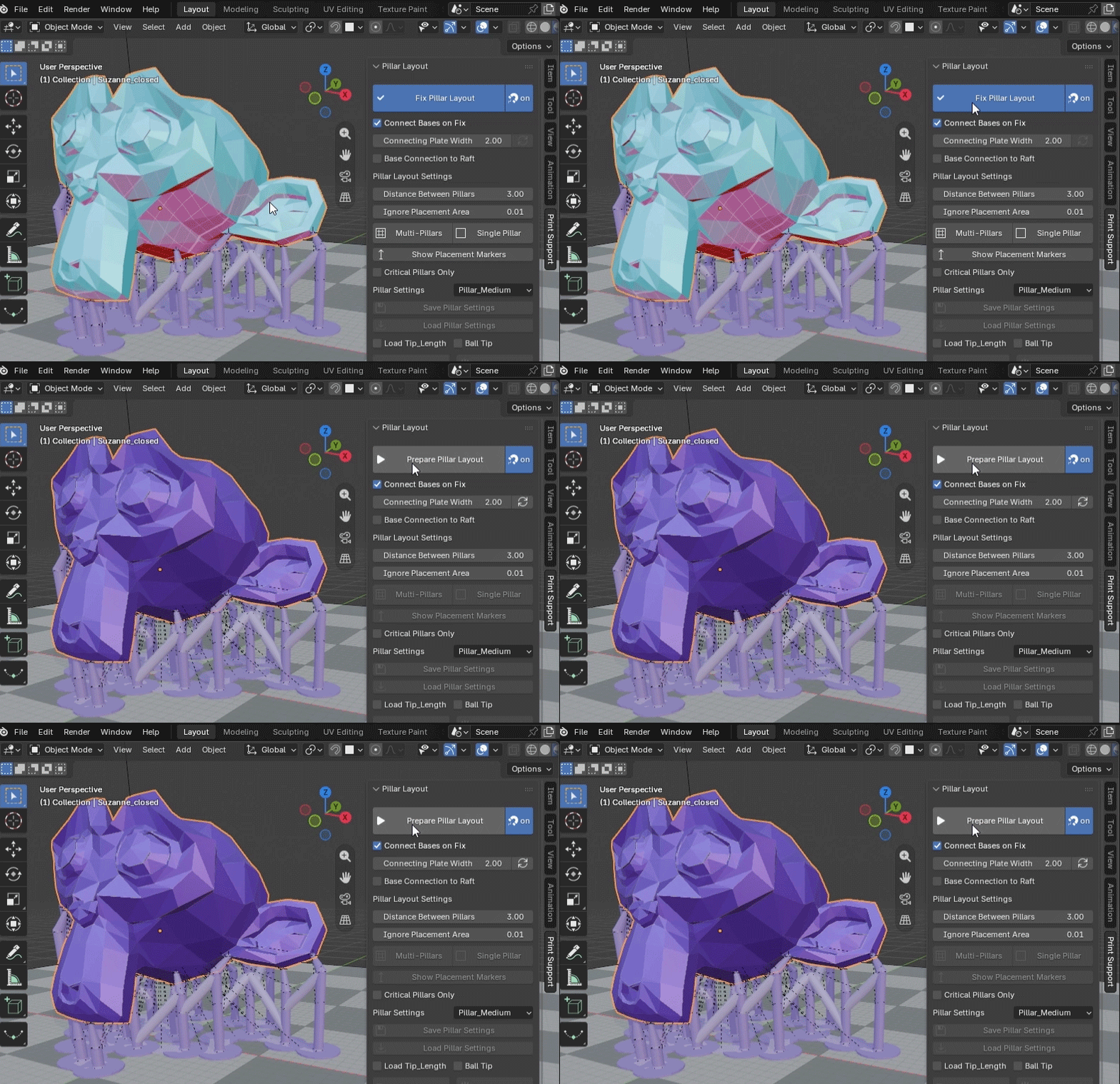
Enable [Connect Bases on Fix] to automatically run Base Connection when [Fix Pillar Layout] is executed. If [Base Connection to Raft] is enabled, the raft-style base connection will also be applied during Fix.
Selecting Related Supports in Bulk
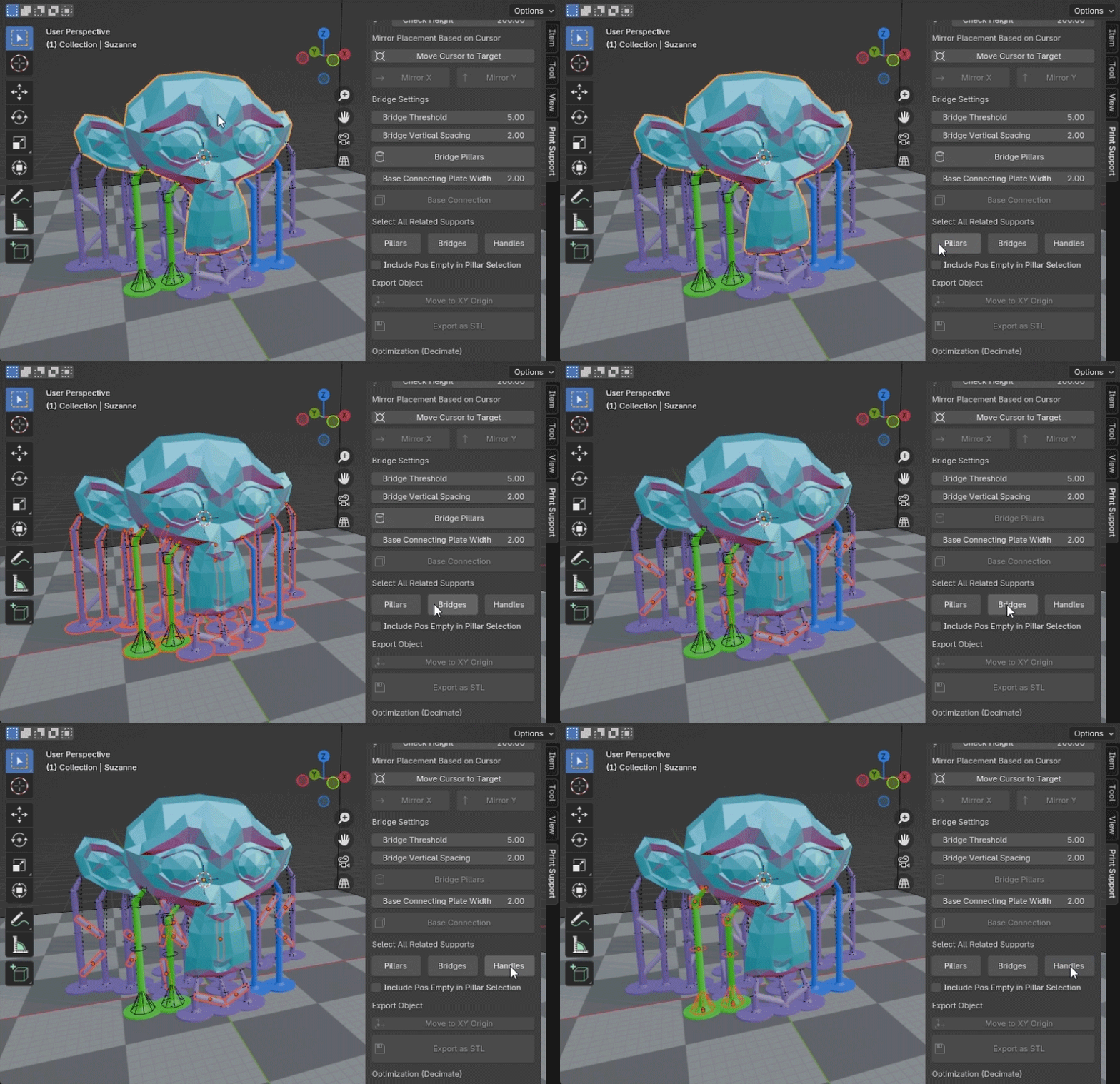
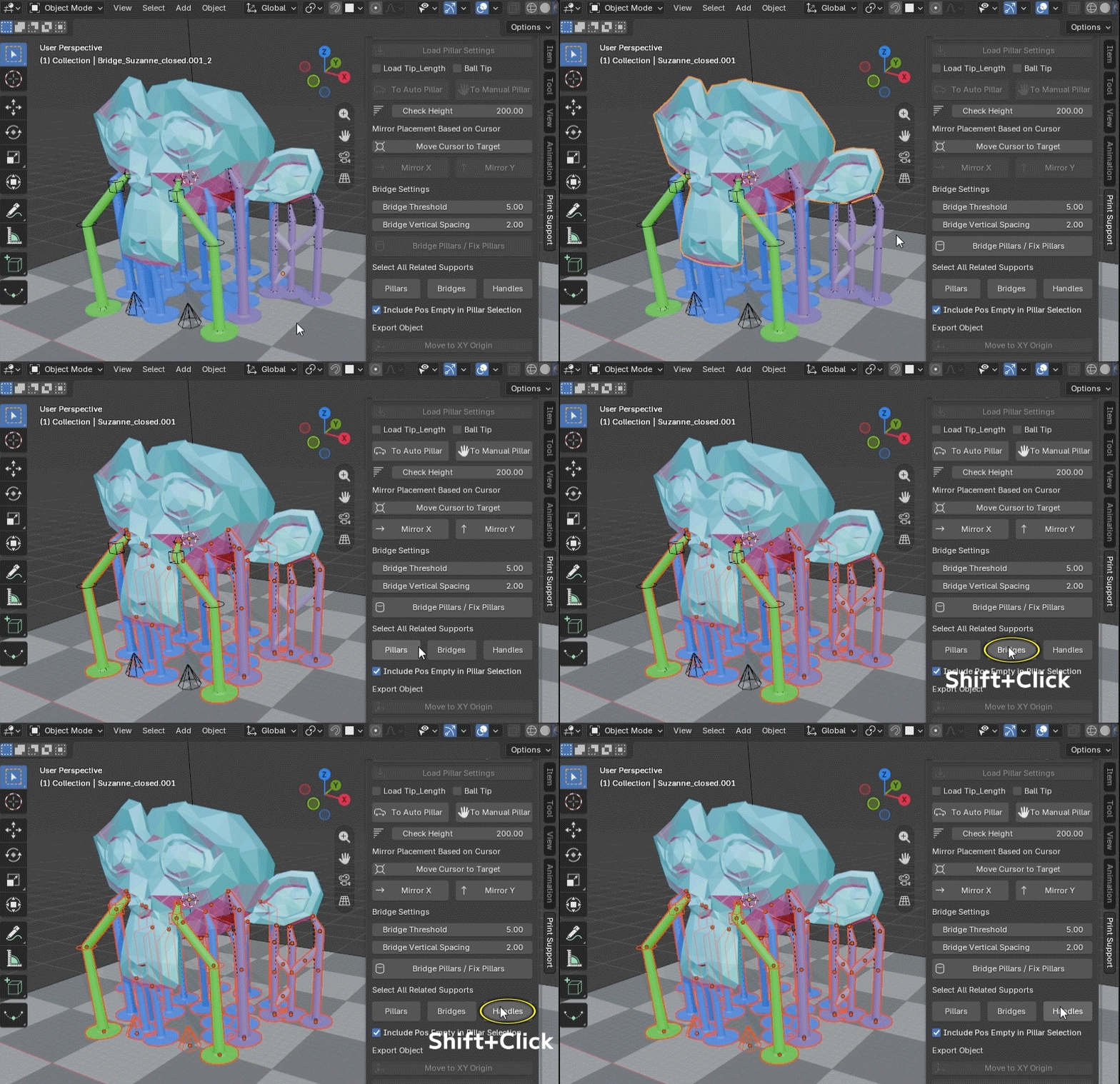
While selecting either the target object or any related support pillar:
- Press the [Pillars] button to select all related pillars.
- Press the [Bridge] button to select all related bridges.
- Press the [Handles] button to select all handles for the related Manual Pillars (green).
Shift-Select Related Supports(Added Aug 9, 2026)
Hold Shift while pressing each selection button to add related objects to the current selection.
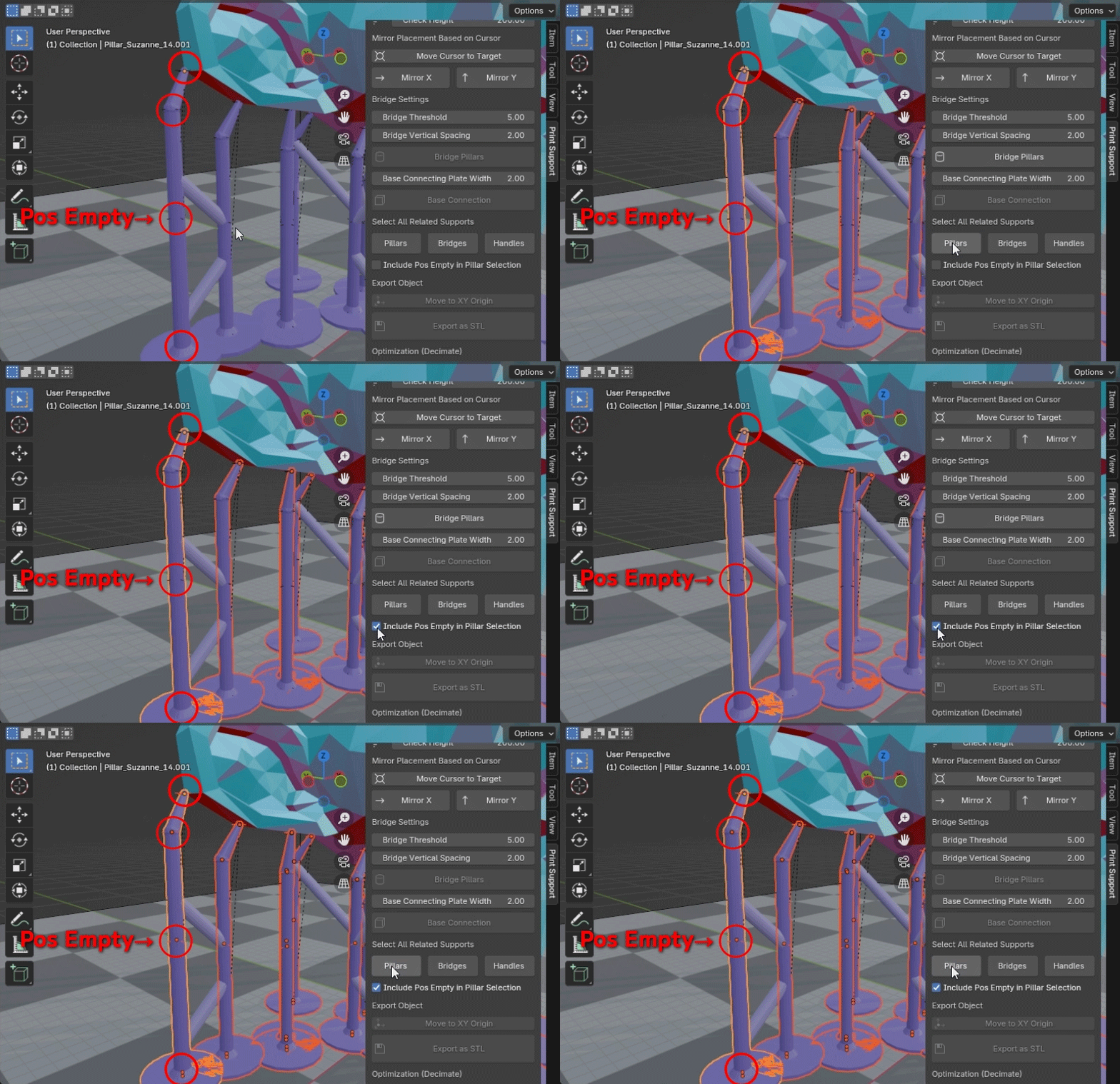
When deleting in bulk, including Fix Pillars, if any empties placed inside the pillars remain, check [Include Pos Empty in Pillar Selection] to select the empties within the Fixed Pillars as well. (These empties exist to retain internal movement values for the pillars.)
Completing Pillar Placement and Exporting the Object
Preparation for Export(Updated Aug 9, 2026)
Select the target object, which has been fully set up with bridges, and press the [Fix Pillar Layout] button to set it to the FIX state.
Moving to the Scene Origin Axis
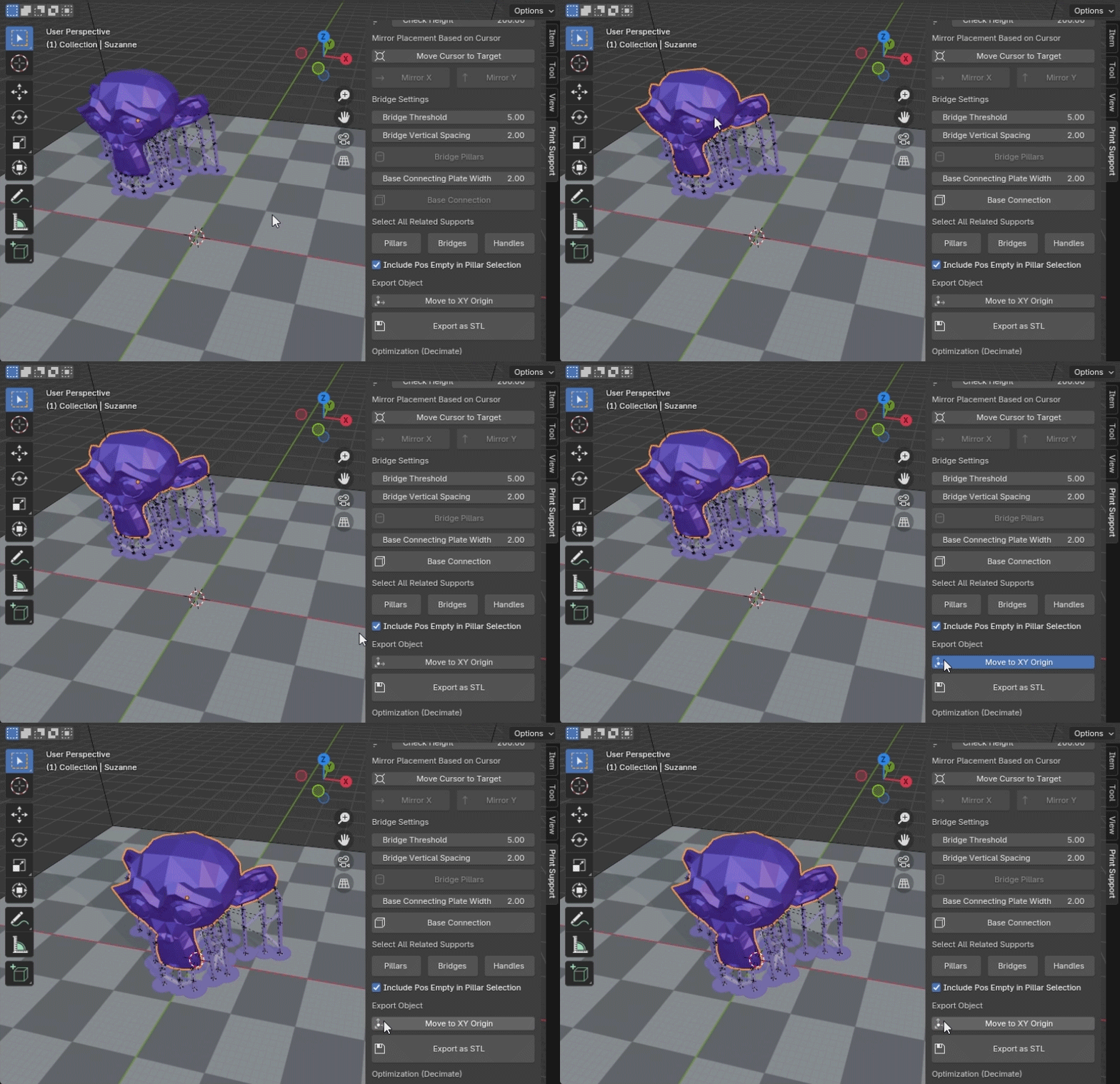
Select the object in the FIX state and press the [Move to XY Origin] button to move the object to the scene’s origin axis.
Exporting as an STL File
Select the object in the FIX state and press the [Export as STL] button to export it as an STL file.
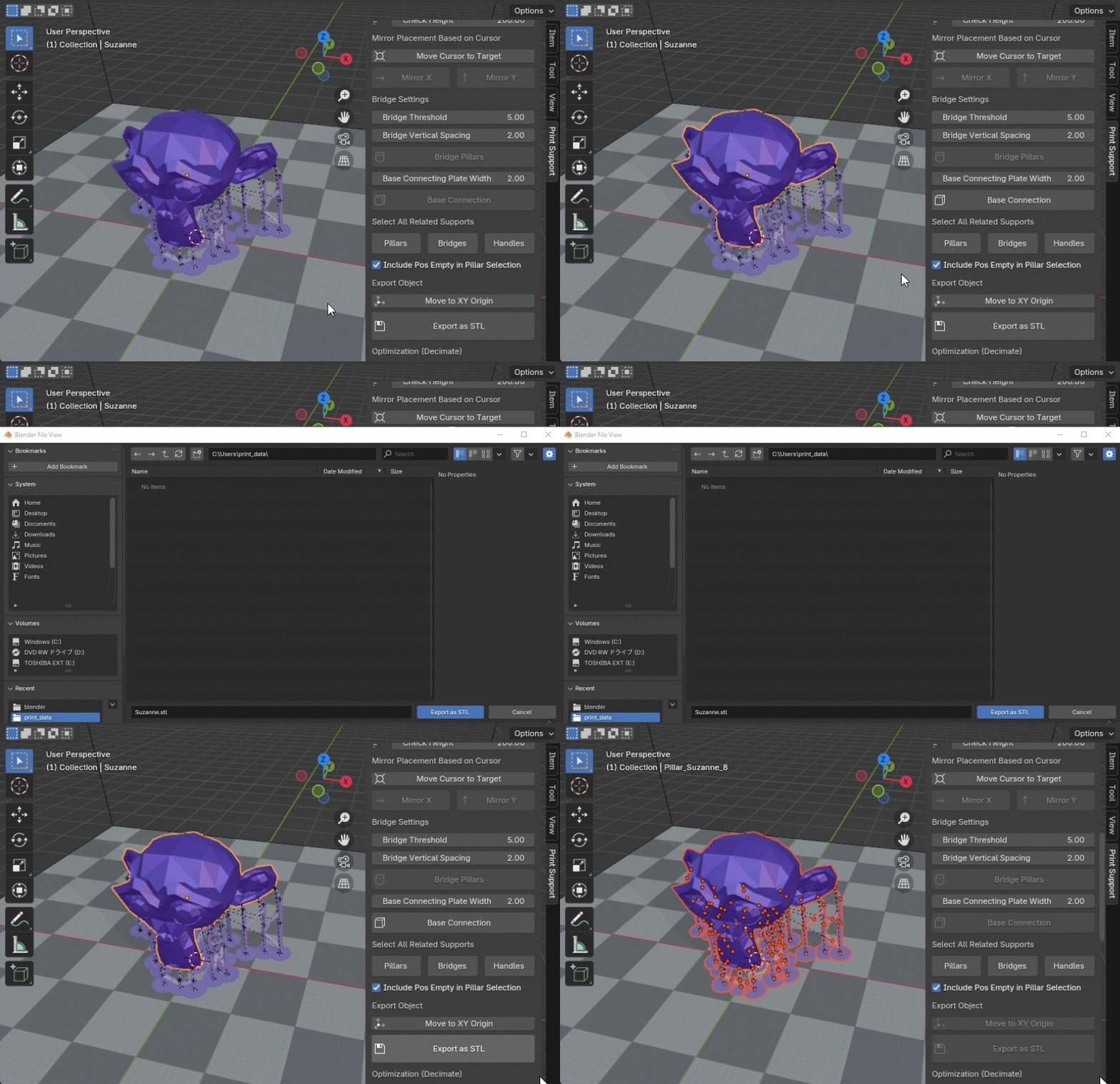
If multiple objects in the FIX state are selected, they can be exported together as an STL file in their current arrangement.
Batch STL Export for Multiple Objects (Added Jan 26, 2026)
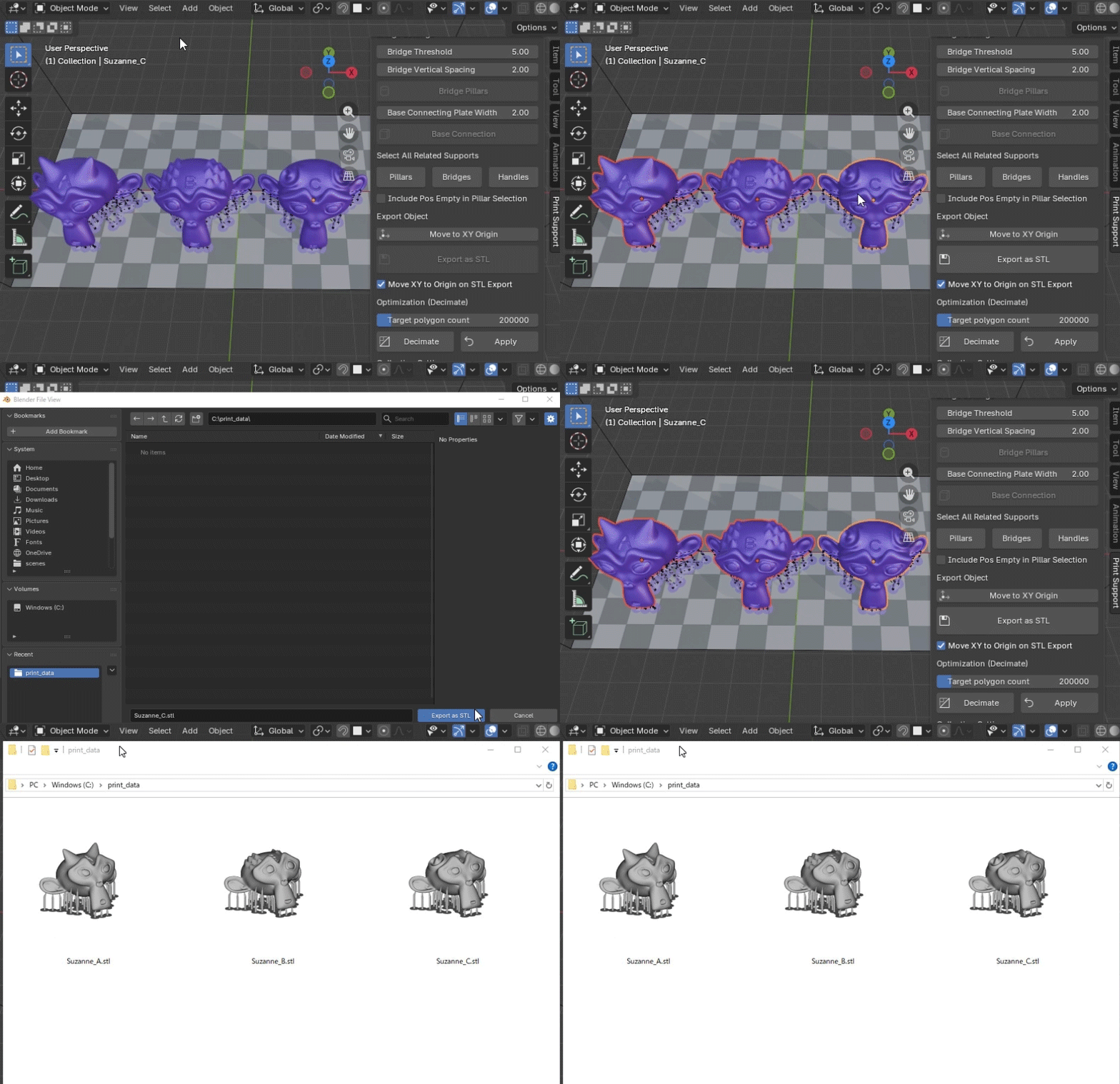
Multiple supported objects can be batch exported as separate STL files into a single folder, using each object's name as the file name.
When the "Move XY Origin on STL Export" checkbox is enabled, all objects are exported with their XY positions moved to the origin.
(This option is also effective when exporting a single object.)
Reducing Polygon Count with Decimation
Depending on your environment, editing high-polygon objects for tasks such as pillar placement can become resource-intensive. In such cases, it can be effective to first decimate (reduce the polygons of) the object, complete the pillar placement, and then replace it with the original high-polygon object afterward.
You can set the target polygon count after decimation using the [Target Polygon Count] value.
Select the object and press the [Decimate] button to reduce it to the target polygon count using the Decimate modifier.
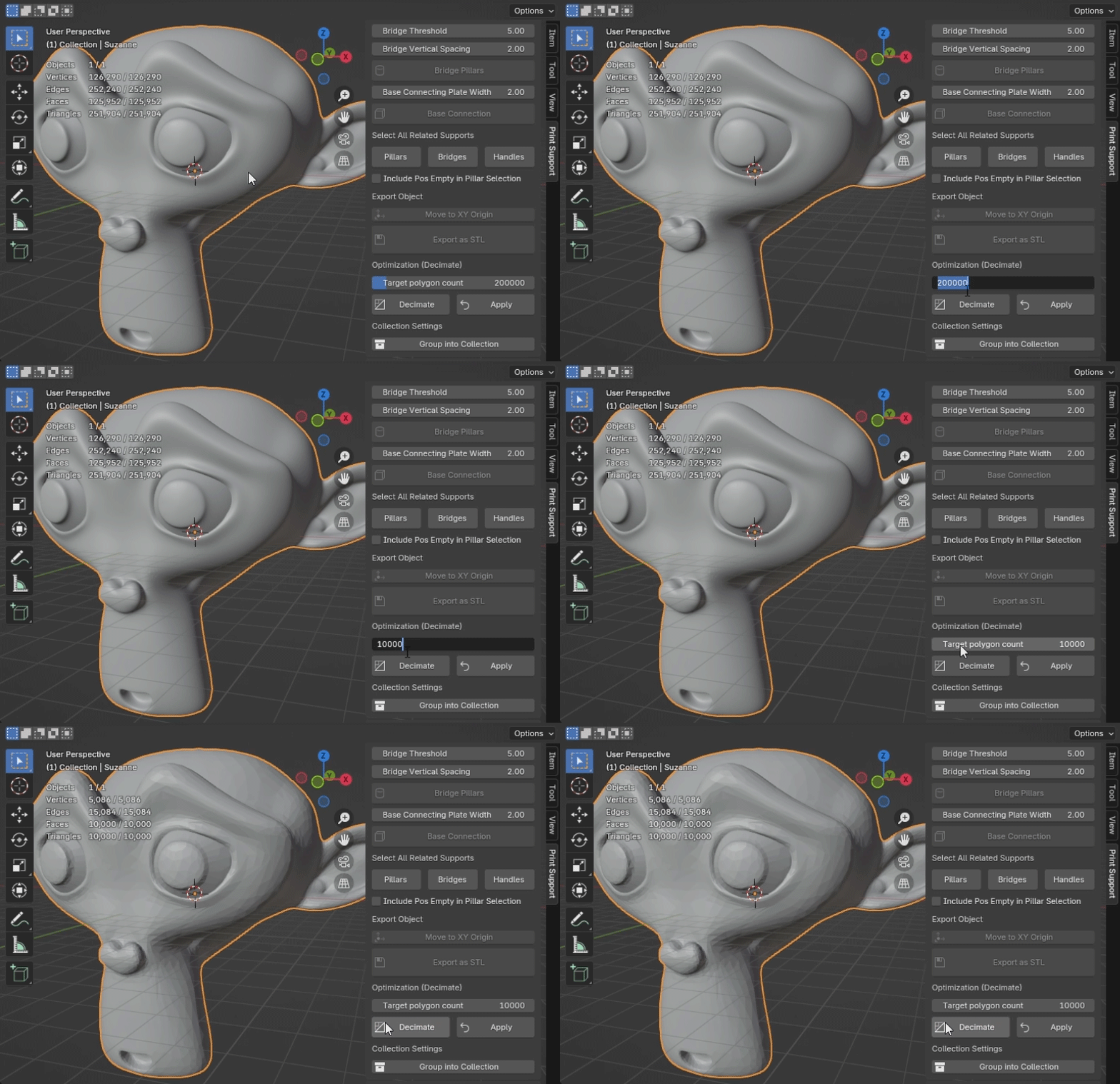
Note: The surface position of the object after decimation becomes less accurate as the target value deviates further from the original polygon count. Set a reasonable target value based on your environment to avoid excessive reduction.
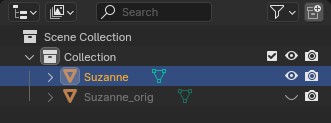
After verifying the object and ensuring there are no significant shape distortions, you can apply the decimation by clicking the [Apply] button. At this time, a backup of the original object will be generated with the name [ObjectName_orig].
The target value input for decimation is a versatile feature that can be used not only for 3D printing objects but also in various other scenarios.
Auto Decimate During Pillar Layout(Added Aug 9, 2026)
If the model has more polygons than the [Target Polygon Count] value and pillar layout editing becomes slow, enable [Auto Decimate on Prepare] before starting [Prepare Pillar Layout]. A lightweight working model will be generated automatically at the target polygon count and used only during pillar layout editing.
The original polygon count is restored when the layout is fixed.
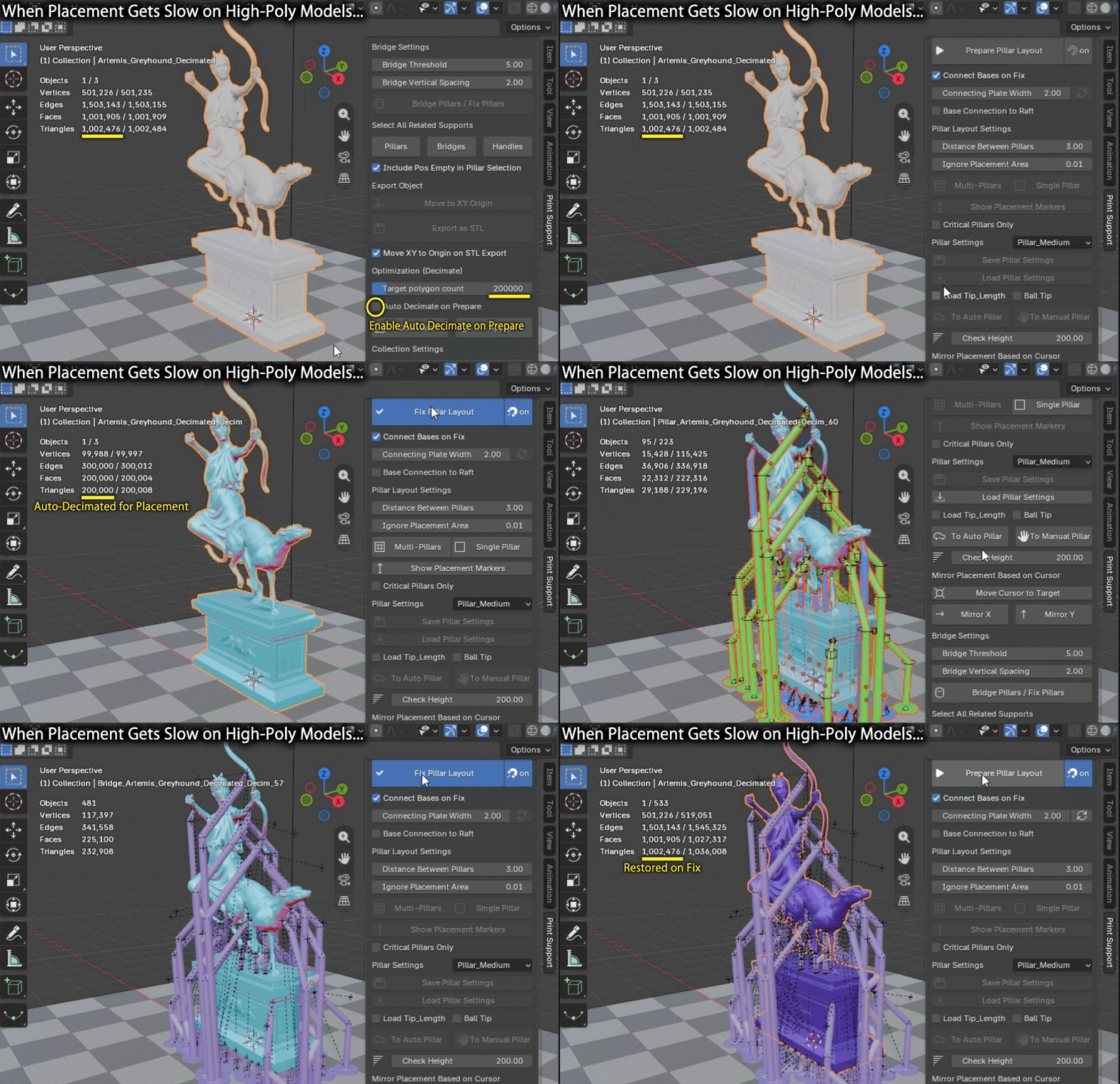
Note: If the model is heavily decimated, placement positions may differ slightly from the original model. Please check the placement result as needed.
Object Placement and Replacement
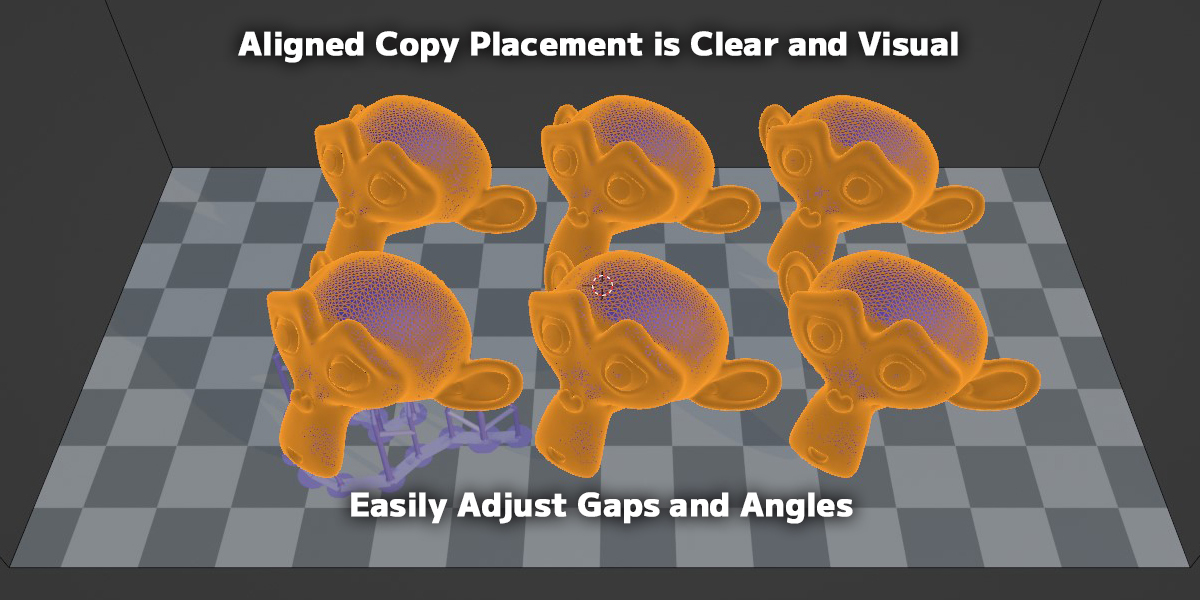
Copy Placement(Updated Aug 9, 2026)
Select the object in the FIX state and press the [Start Copy Placement] button to begin copy placement mode.
Note: While in this mode, pillar placement editing will be disabled until you press [Confirm Copy Placement].
Use the [Number of X Copies] value to set the number of copies in the X direction, and [Number of Y Copies] to set the number of copies in the Y direction.
Press the [Confirm Copy Placement] button to complete copy placement mode.
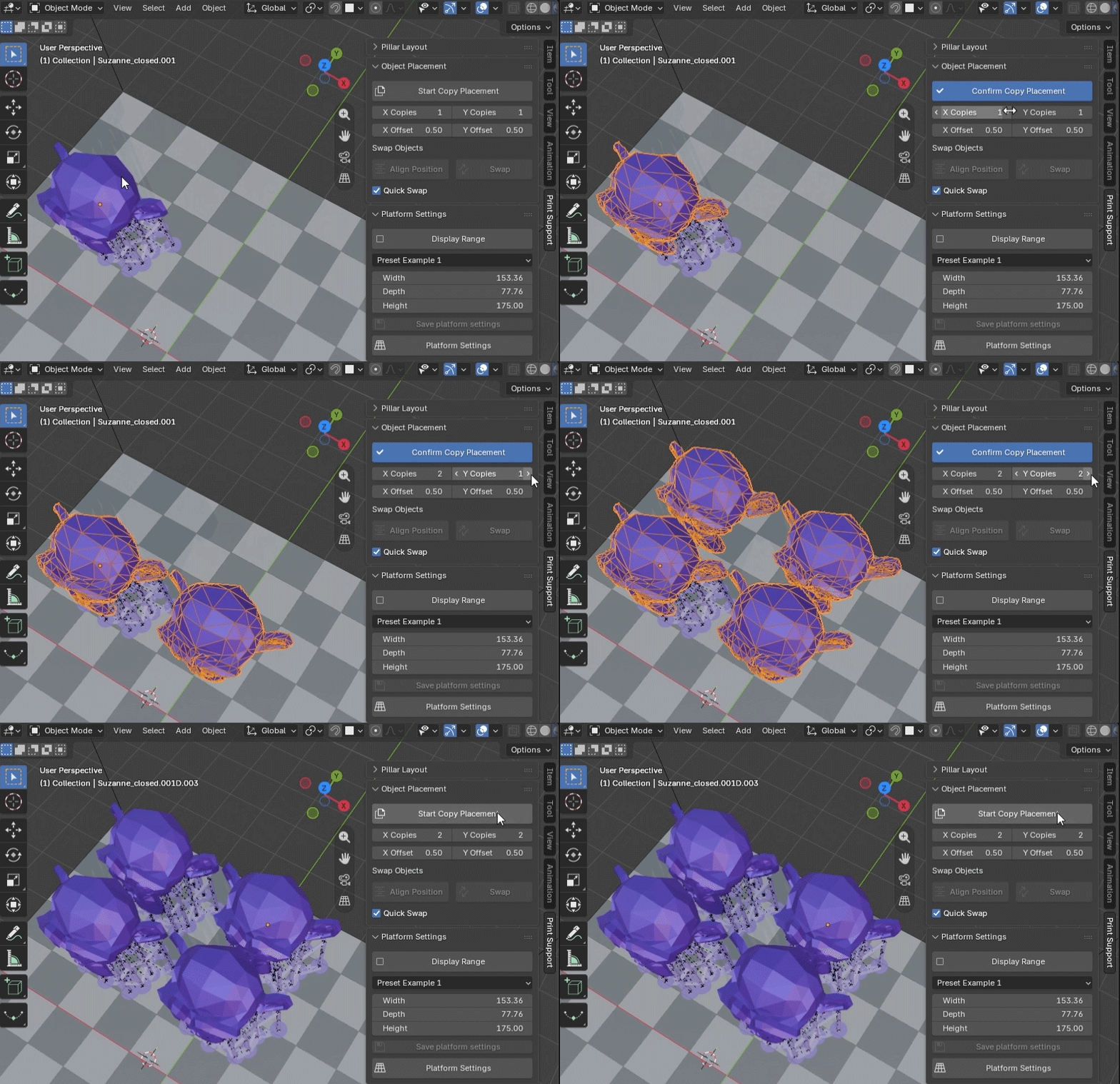
The [X Placement Offset] and [Y Placement Offset] values adjust the spacing distance in the X and Y directions, respectively.
While in copy placement mode, rotating the object along the Z-axis will automatically adjust the placement positions while maintaining the offset values.
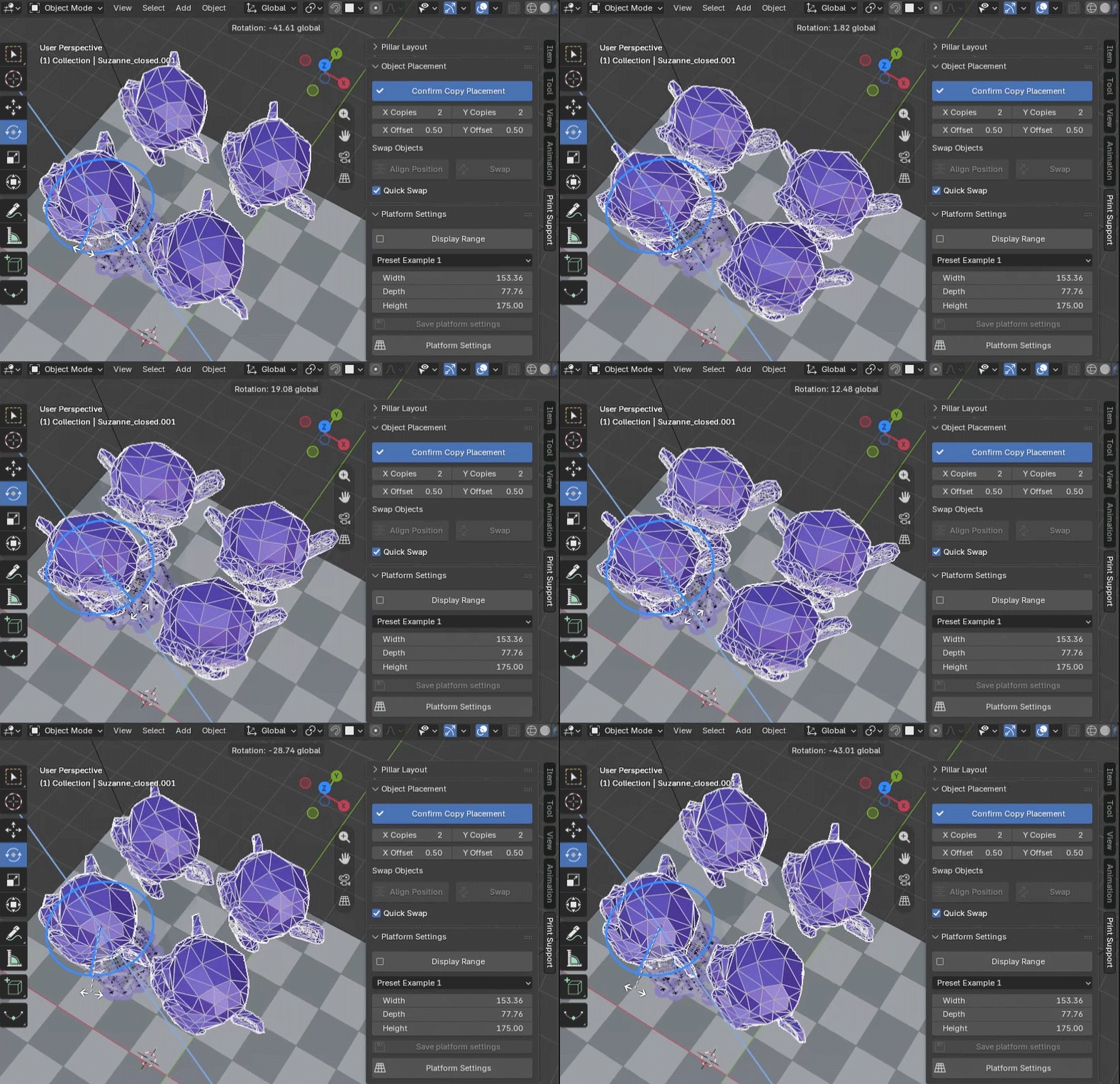
Alignment and Replacement
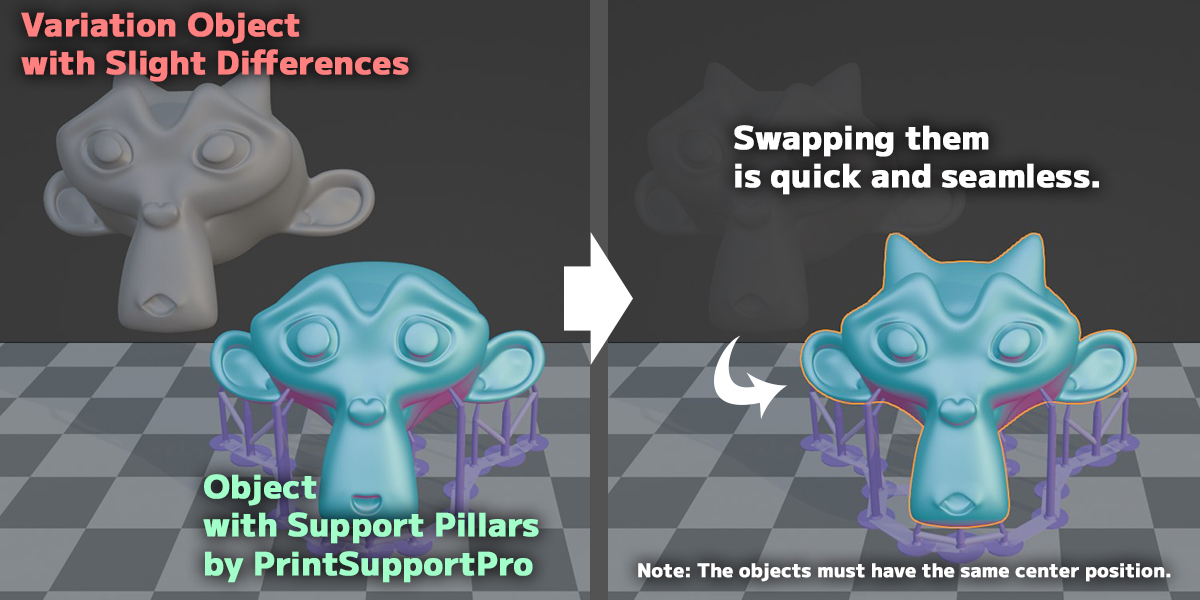
You can replace an object with an existing object that has support pillars placed by following these steps after making fine adjustments to the shape, etc.
- If the replacement object is in the FIX state, set it as the target object in advance by pressing the [Prepare Pillar Layout] button.
- First, select the object you want to replace.
- Next, select the target object as the replacement.
- Press the [Align Position] button to move the object to the same position.
- If the position is aligned correctly, press the [Swap] button to complete the replacement.
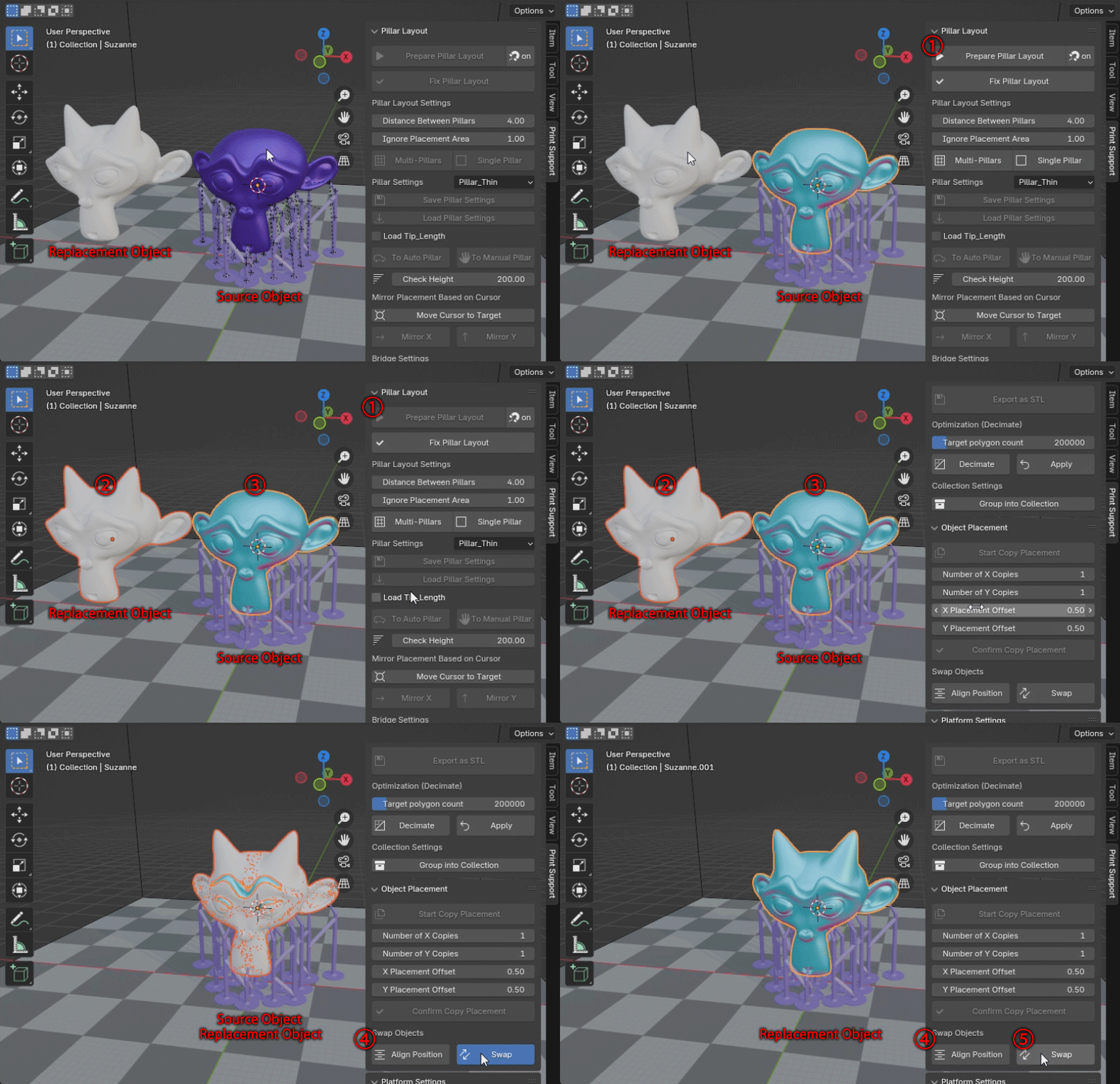
Note: The origin positions of both the object to be replaced and the replacement object must match exactly. Additionally, after completing the replacement with the [Swap] button, the original replacement object will be deleted.
Quick Swap (Added Jan 26, 2026)
With the newly added Quick Swap feature, you can swap any object with a pillar-attached object in just three steps.
1.Enable the Quick Swap checkbox.
2.Select the object you want to swap. (This object should have the same initial position, orientation, and scale as the pillar-attached object you are swapping with.)
3.Select the pillar-attached object you want to swap with. (Either a target object or a fix object can be used.)
4.Press the Swap button.
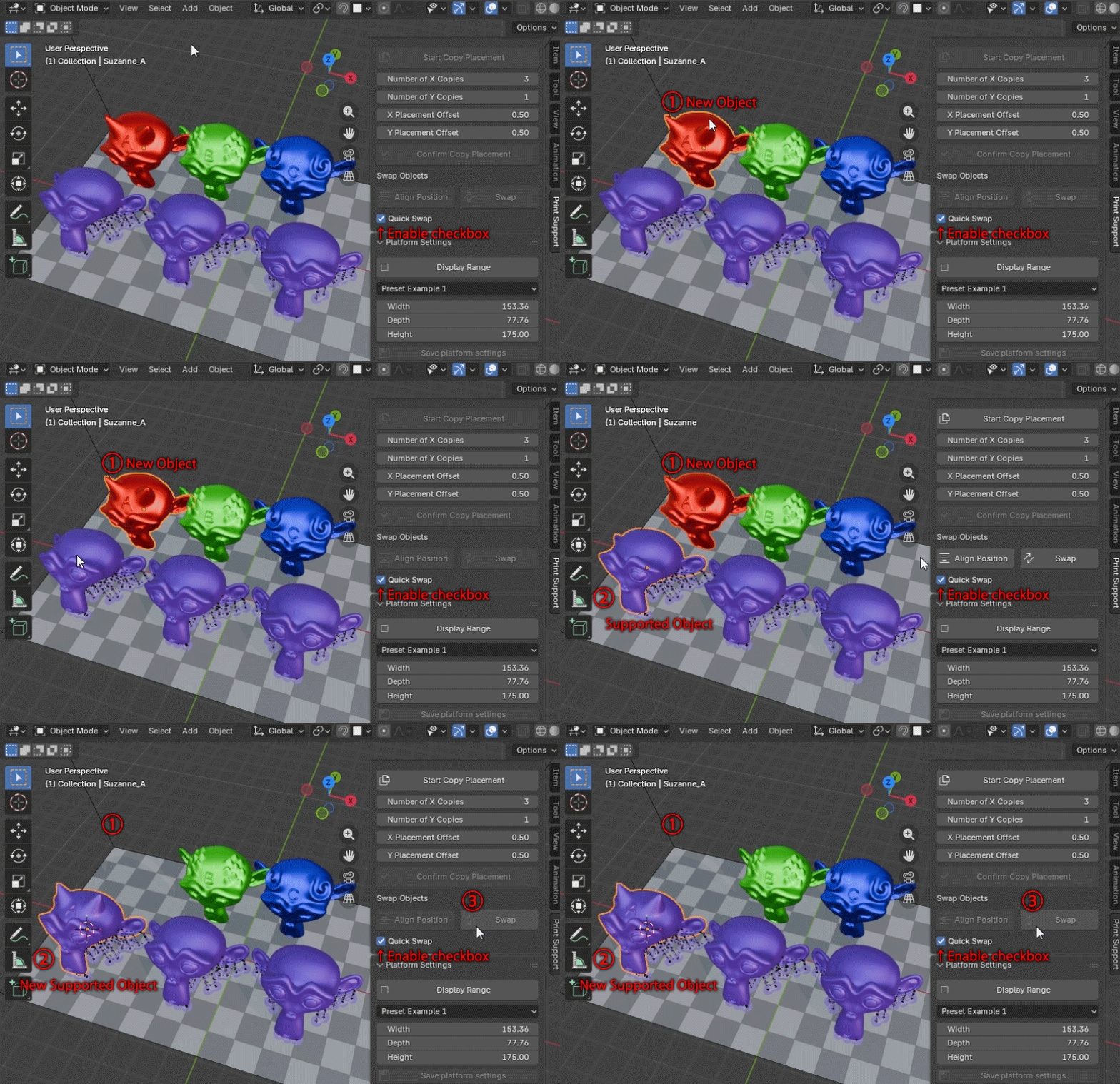
Note: To swap multiple objects, please prepare multiple pillar-attached objects in advance using the Copy Placement feature, then apply Quick Swap to each object individually. (Batch swapping of multiple objects at once is not currently supported.)
Platform Settings
Display Range
Press the [Display Range] button to show a cage indicating the print range from the ground upward, allowing you to check for any overhangs beyond the range. Press it again to hide the cage.
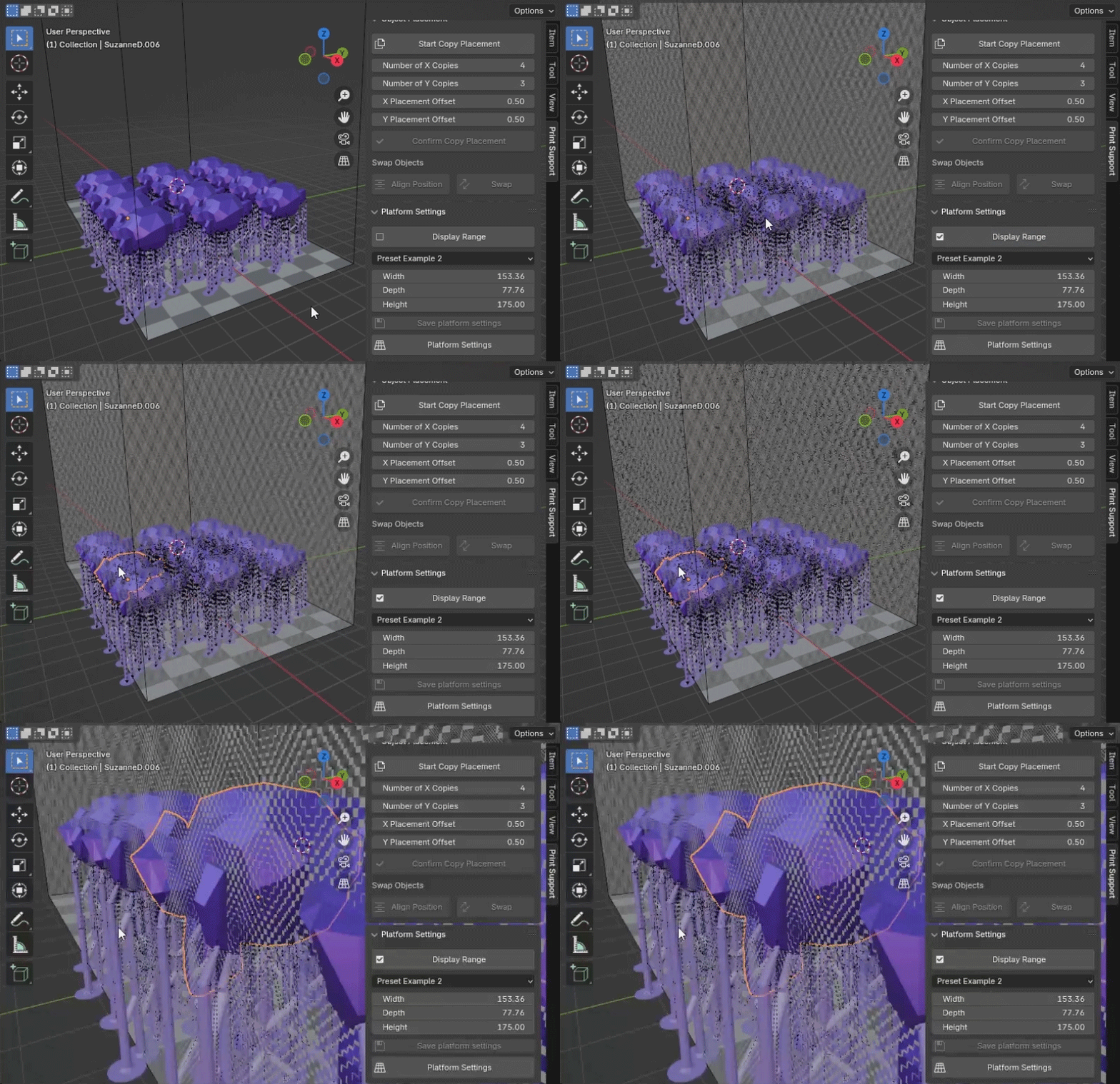
Switching Platforms, Inputting Values, and Saving
The [Preset Example1–5] options in the dropdown menu contain values based on actual SLA printers.
By pressing the [Platform Setting] button, the platform corresponding to the selected preset in the dropdown menu will be displayed.
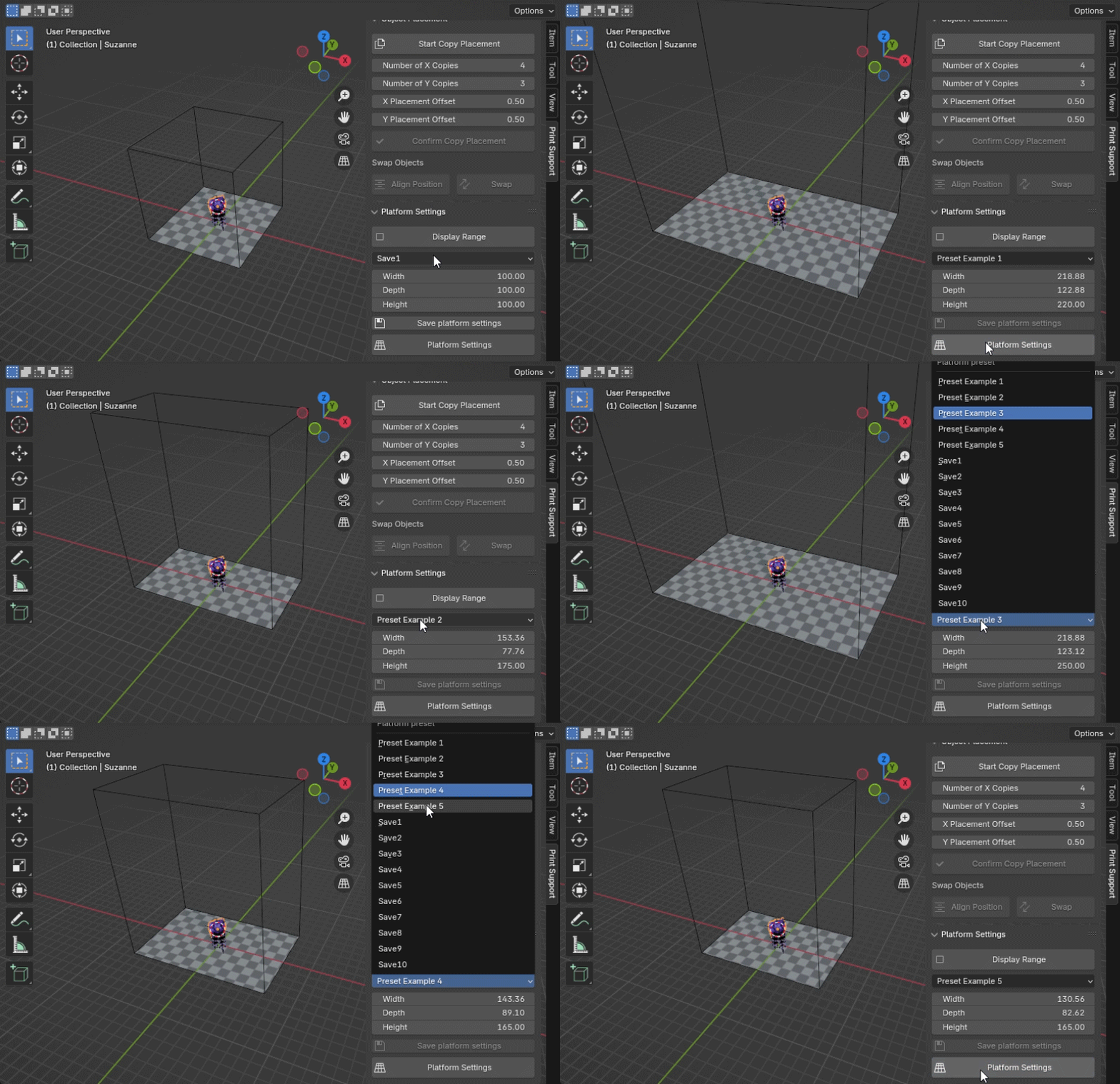
[Save1 to Save10] can be used to save values for [Width], [Depth], and [Height] by entering the numbers and pressing the [Save Platform Settings] button. Save the values for your own SLA printer for convenient use.
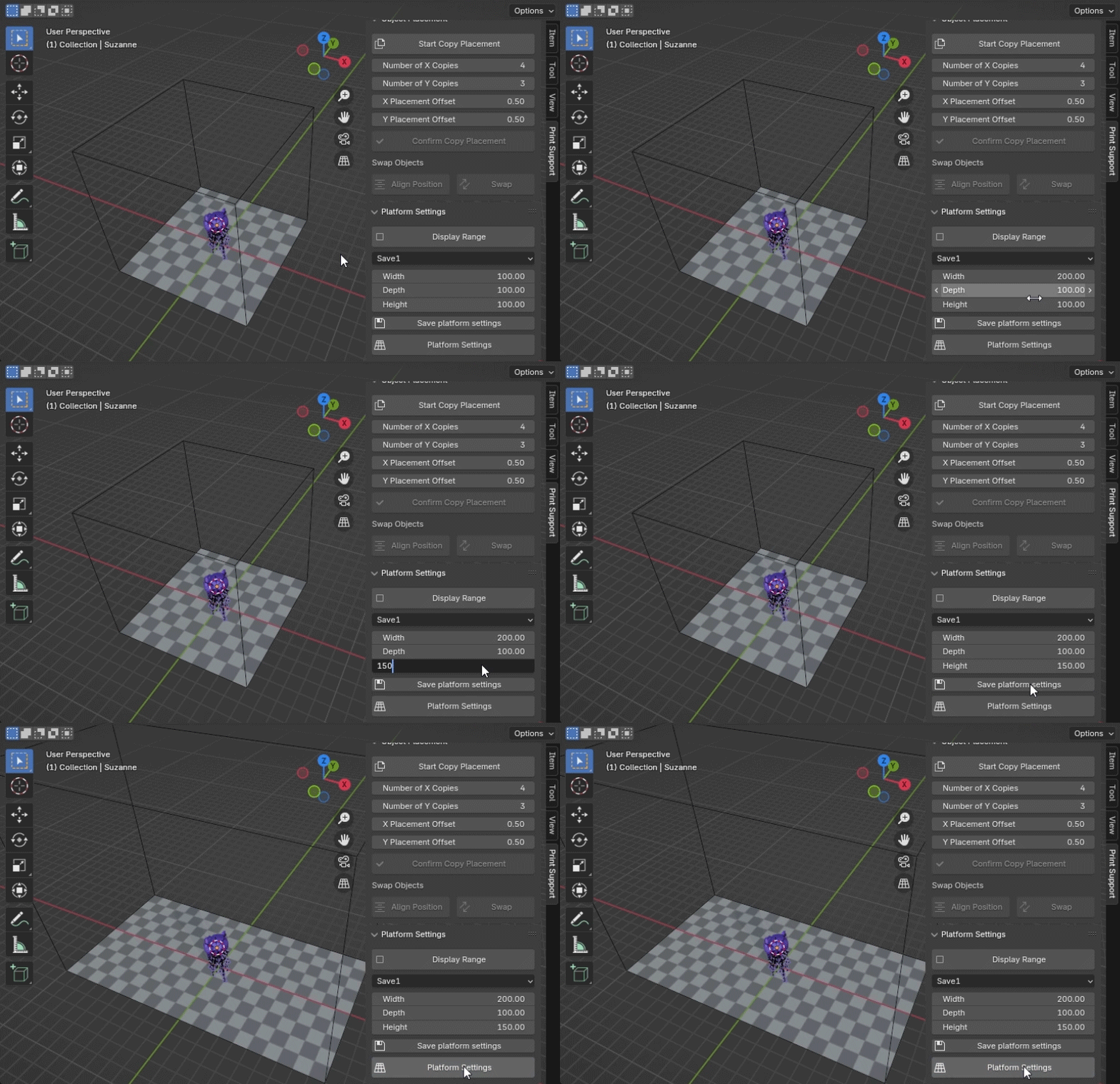
License & Disclaimer
LICENSE for PrintSupportPro
PrintSupportPro is provided under a combination of multiple licenses.
Code
The source code of PrintSupportPro (Python scripts) is distributed under the GNU General Public License, version 3 (GPLv3). In accordance with GPLv3 terms, modification and redistribution of the code are permitted.
Assets
Non-code assets, such as .blend files and CSV files, are provided under a royalty-free license, and some are under CC0. These assets are intended for use within PrintSupportPro and cannot be redistributed individually.
Note: Although the source code is distributed under GPLv3, different licenses apply to the assets, and unauthorized redistribution of PrintSupportPro as a whole is prohibited.
Disclaimer
DUCKLABO assumes no responsibility for the quality or safety of prints created using PrintSupportPro.
Have questions about this product?
Login to message
| Blender Extension Compatible | Yes |
| Sales | 70+ |
| Published | almost 2 years ago |
| Blender Version | 3.6 - 5.2 |
| Extension Type | Add-on |
| License | GPL |
Discover more products like this
Resin Printing Symmetry Tools DLP Printing Print Preparation Support Pillars SLA Printing 3d printing STL Editing