 DUCKLABO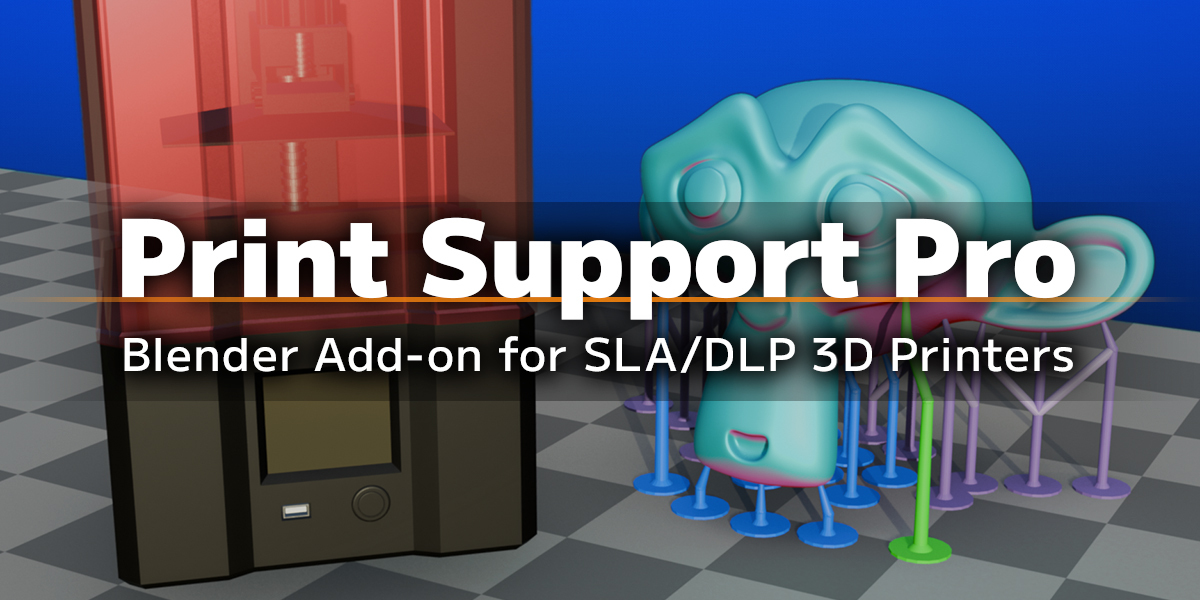

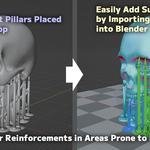
What is PrintSupportPro?
Do you face these challenges every time you use an SLA/DLP 3D printer?
- Endless post-processing to sand and remove countless support pillar marks after printing.
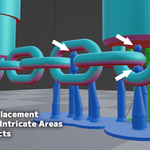
- Struggling to precisely place support pillars on small and intricate models, like architectural miniatures.
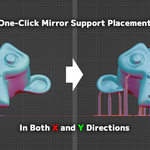
- Repeating the same adjustments on the other side of a symmetrical model after finishing one side.
PrintSupportPro was created to eliminate these frustrations and streamline your workflow.
What Print Support Pro can do:
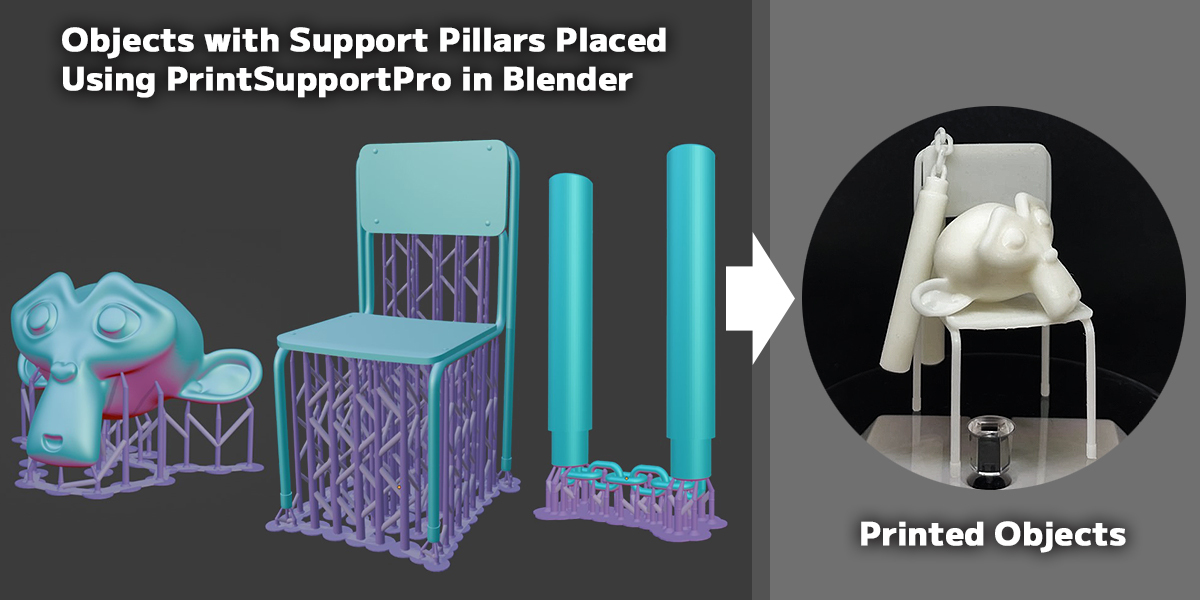
- Easily place support pillars in Blender: Configure pillar placement, bridging, and duplication seamlessly within Blender.
- Reduce post-processing stress: Fine-tune pillar placement to minimize visible marks on your prints.
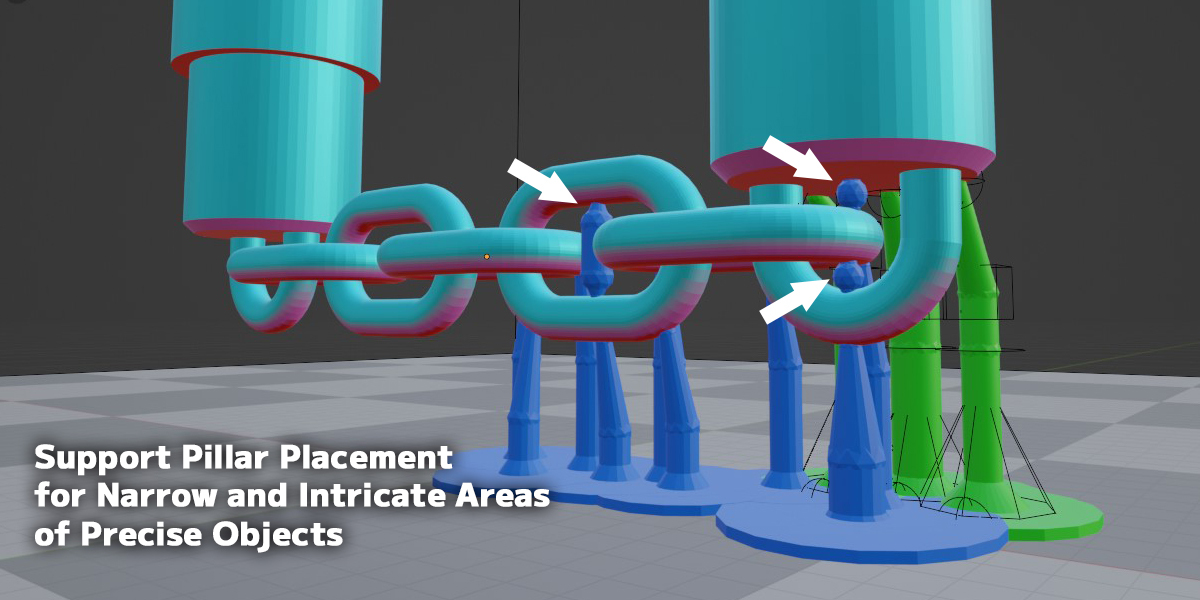
- Handle delicate models with precision: Achieve stable prints, even with small and intricate objects.
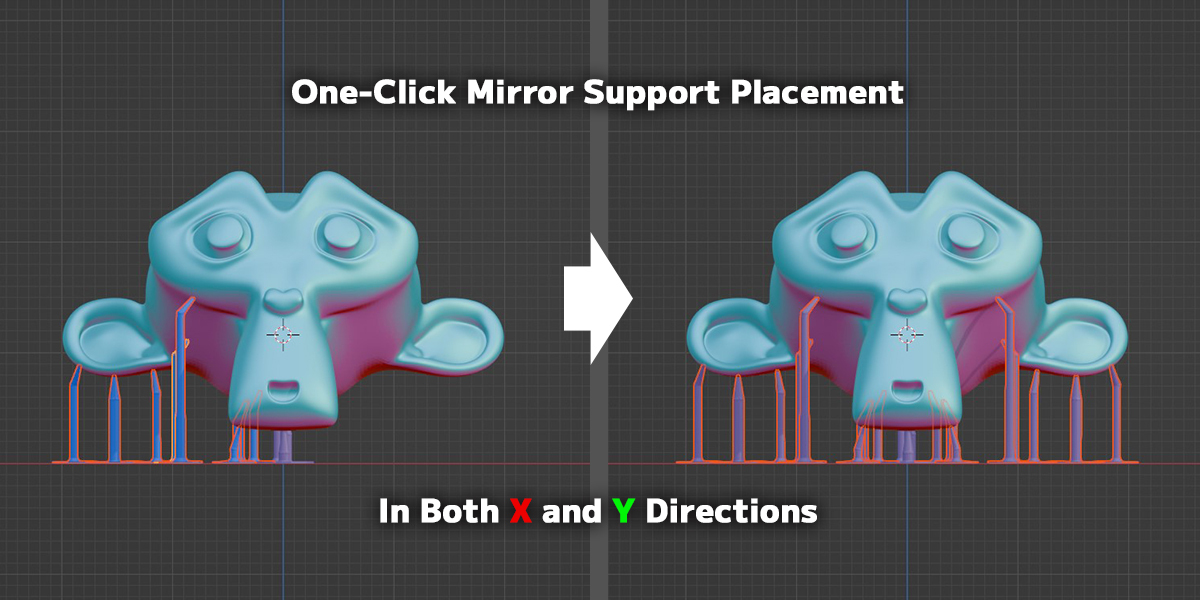
- Boost efficiency for symmetrical models: Adjust one side, then mirror the placement to the other with a single click.
PrintSupportPro dramatically enhances the efficiency and flexibility of your 3D printing workflow.
Transform your print preparation into a smoother, more creative experience.
______________________________
New in Version 1.3.1 (Aug 23, 2026)
New:
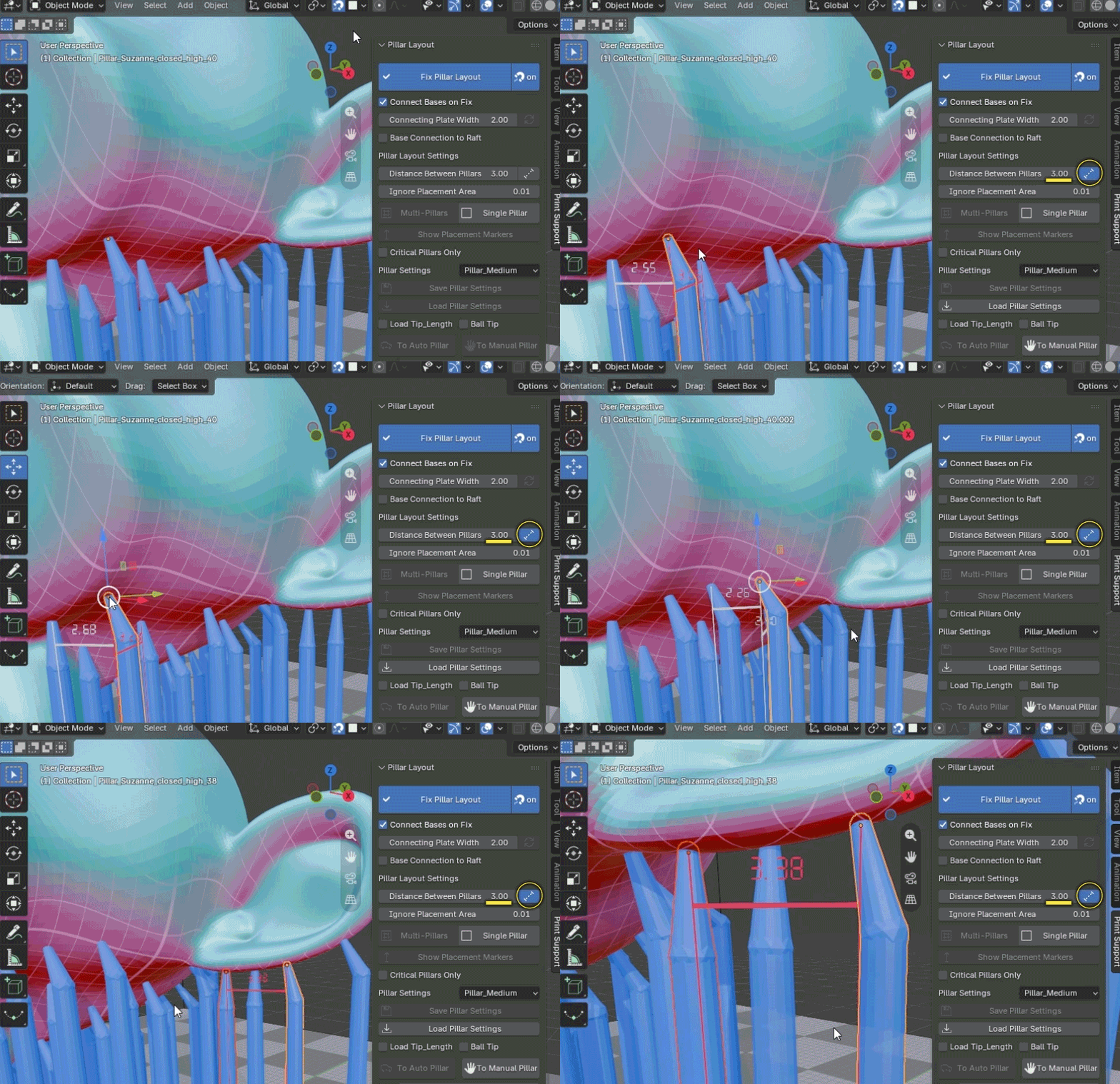
- Added Distance Ruler
A new Distance Ruler feature has been added to help check spacing between pillars.
When enabled, it displays the distance from the selected pillar to nearby pillars, making it easier to adjust pillar spacing during manual placement or duplication.
Improved:
Improved the Multi-Pillar placement algorithm to reduce cases where pillars are generated too densely, as well as cases where unintended internal pillars are generated.
Fixed:
Fixed an issue in Blender 5.1 and later where mirrored pillars could have flipped normal directions when using Mirror Placement.
______________________________
New in Version 1.3.0 (Aug 11, 2026)
Now supports Blender 5.2 LTS
Print Support Pro now supports Blender 5.2 LTS while maintaining compatibility with Blender 3.6 and later.
New:
- New Multi-Pillar Placement Algorithm
The Multi-Pillar candidate generation has been redesigned to place pillars more naturally in areas that are likely to need support.
In addition to standard Auto Pillars, the new system can initially generate Manual Pillars and Narrow-Area Pillars based on the model shape, greatly reducing the need for manual cleanup after placement.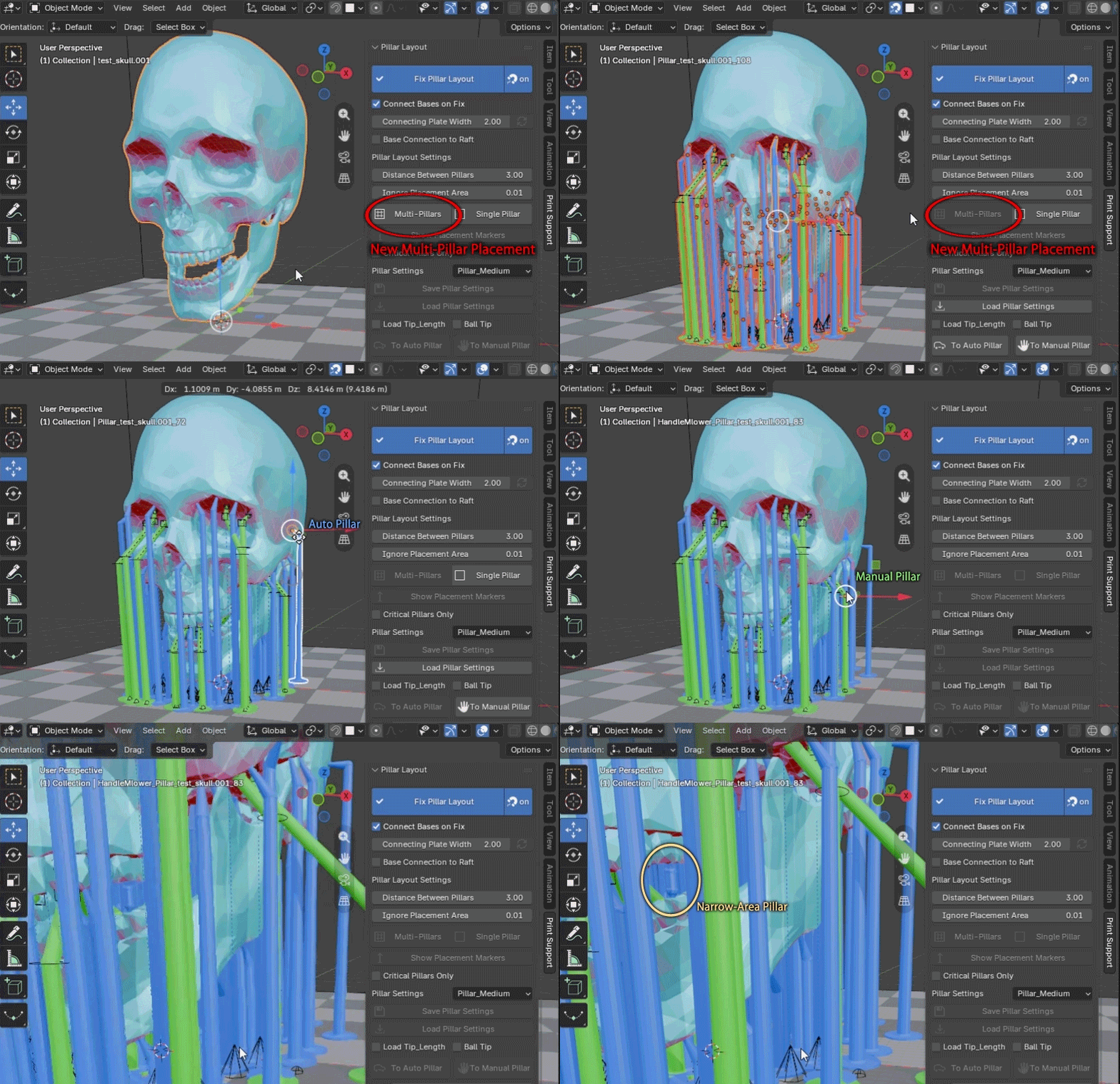
- Placement Marker Display
You can now preview planned pillar positions as placement markers before generating pillars.
Critical-only marker display is also supported, making it easier to check important support points and adjust pillar placement.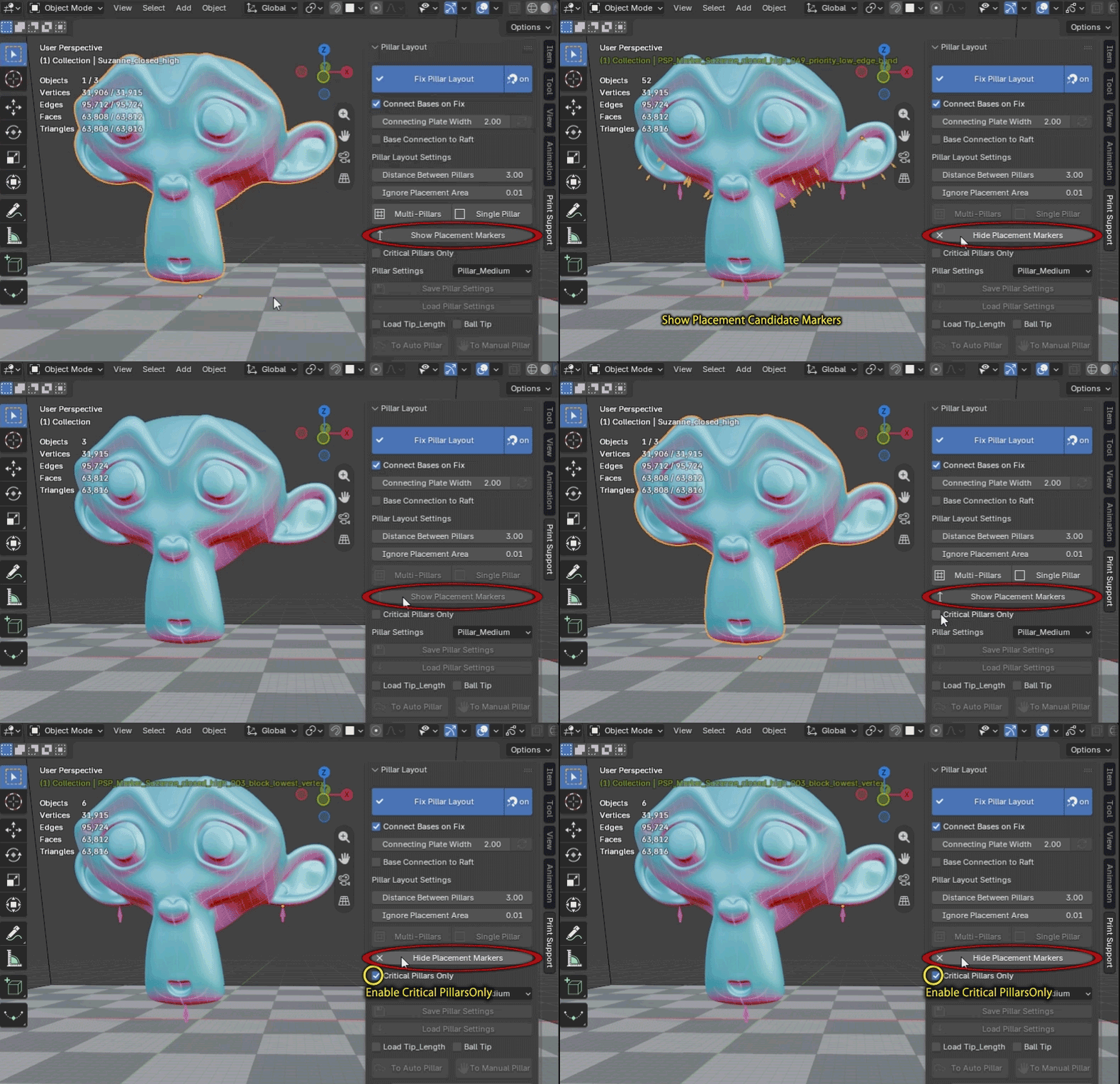
- Auto Decimate for High-Polygon Models
When pillar placement becomes slow on high-polygon models, a lightweight working model can now be generated automatically during the pillar layout workflow.
The original model is restored on Fix, making it easier to work with high-polygon models.
If the model is heavily decimated, placement positions may differ slightly from the original model. Please check the placement result as needed.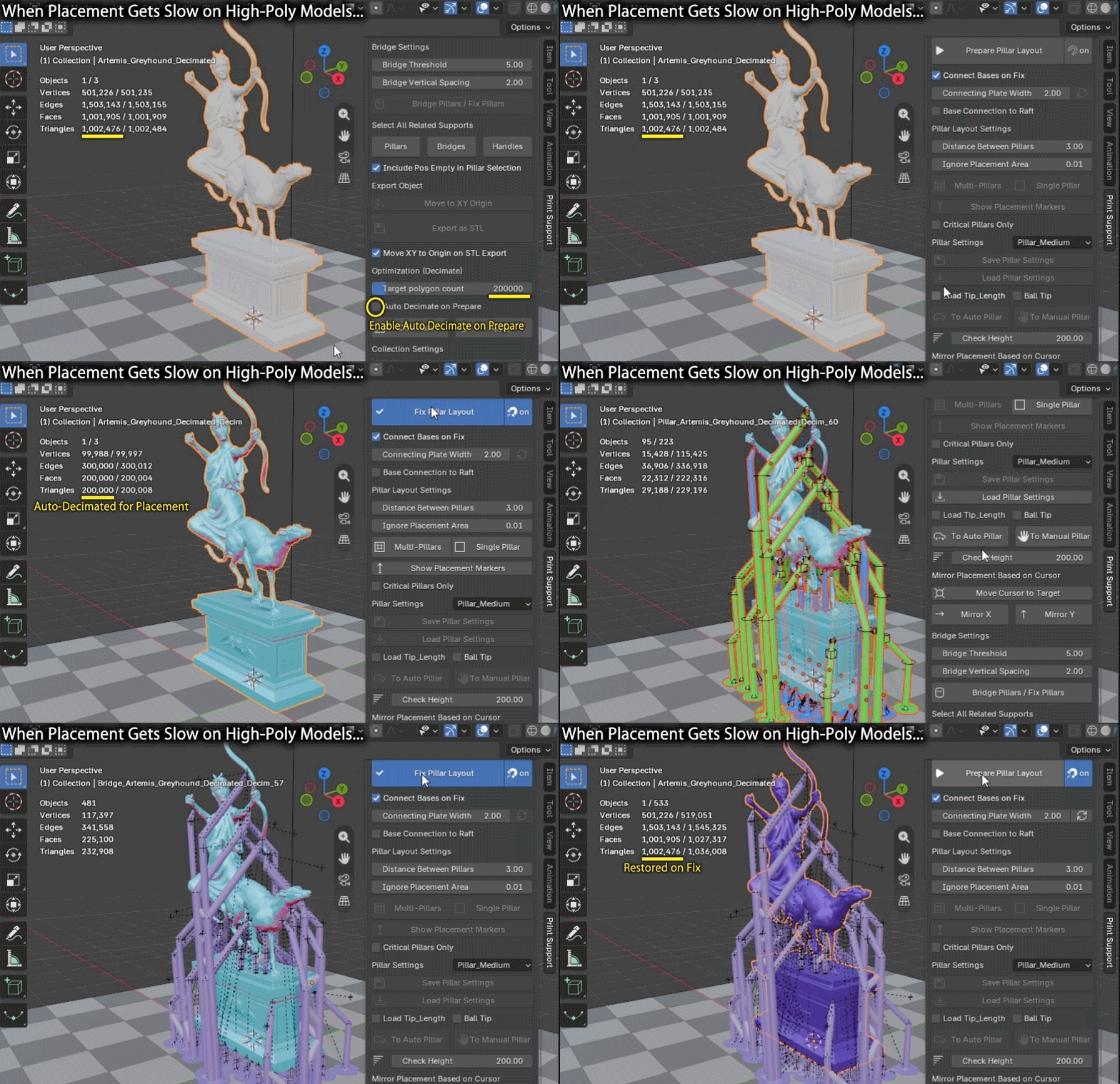
- Ball Tip Option
Added a Ball Tip option that rounds and enlarges the pillar tip.
This can improve contact strength, but may leave larger removal marks than the standard tip.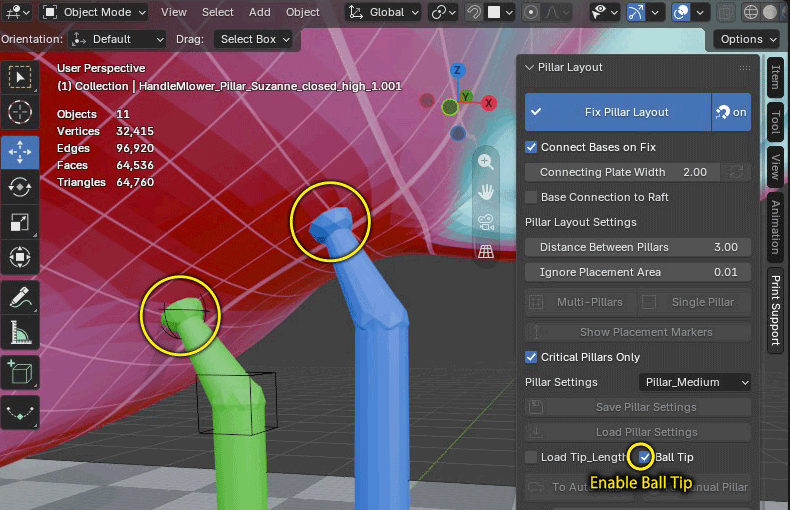
- Auto Base Connection on Fix
Added an option to automatically run Base Connection when Fix Pillar Layout is executed.
This makes it easier to complete base reinforcement after pillar placement.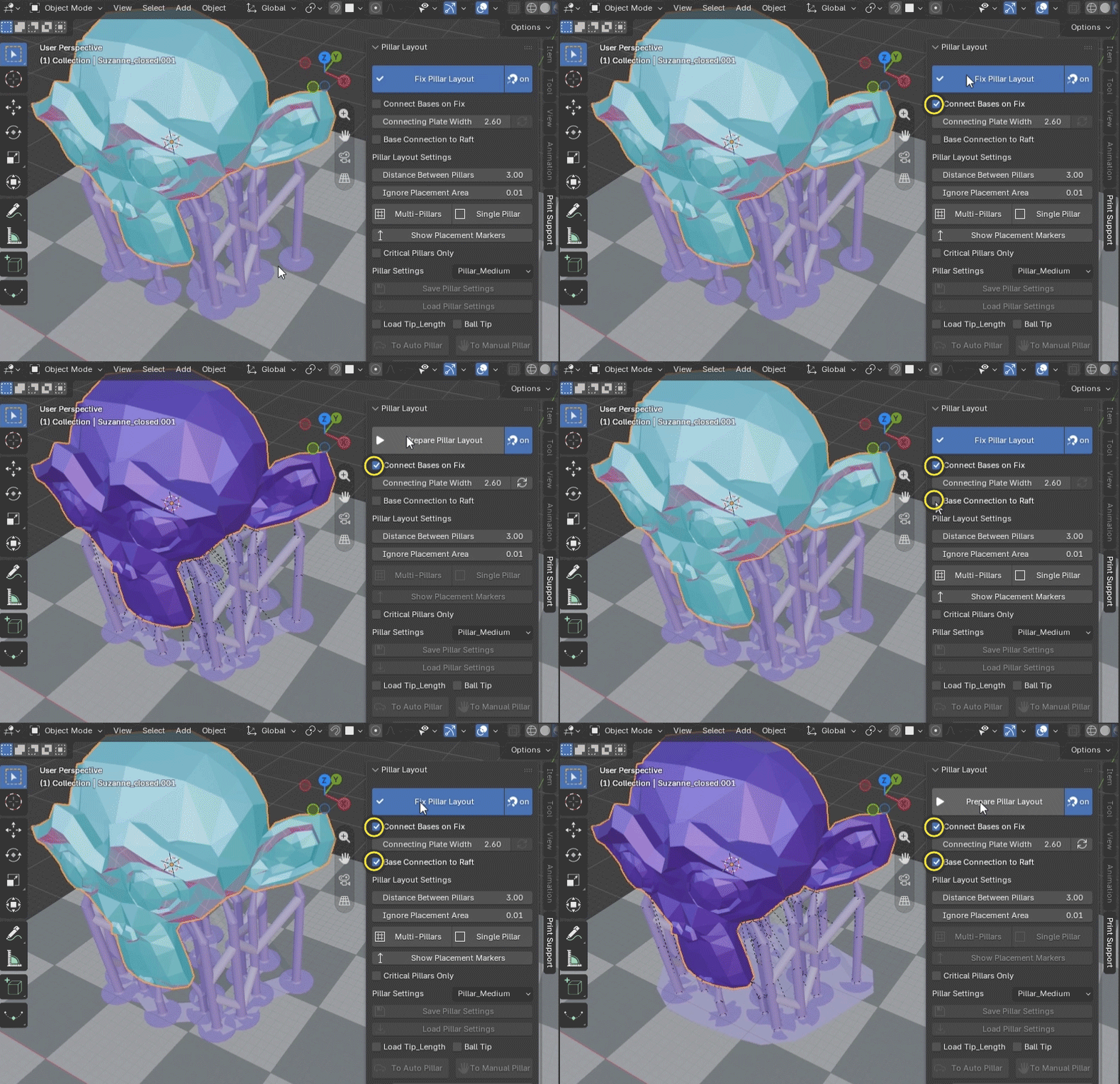
______________________________
New in Version 1.2.0 (Jan 25, 2026)
New:
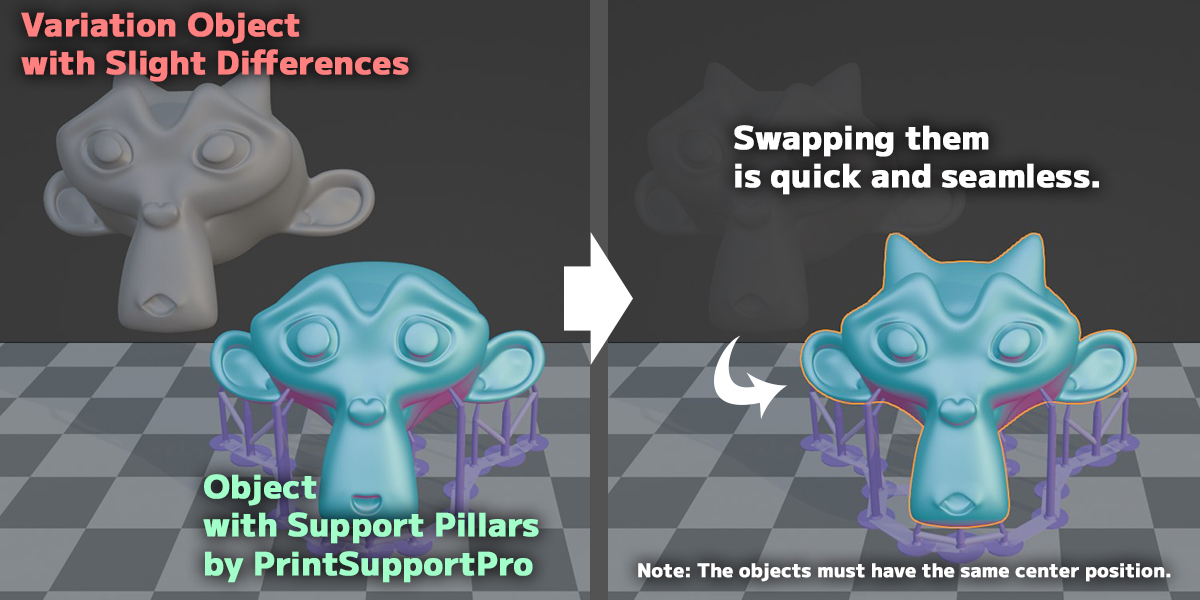
- Added Quick Swap feature
Quick Swap can now be done in just 3 steps : any object → pillar-attached object → Swap button.
By preparing multiple swap targets in advance using the fix object copy feature, it becomes easy to apply pillars to multiple part variations efficiently.
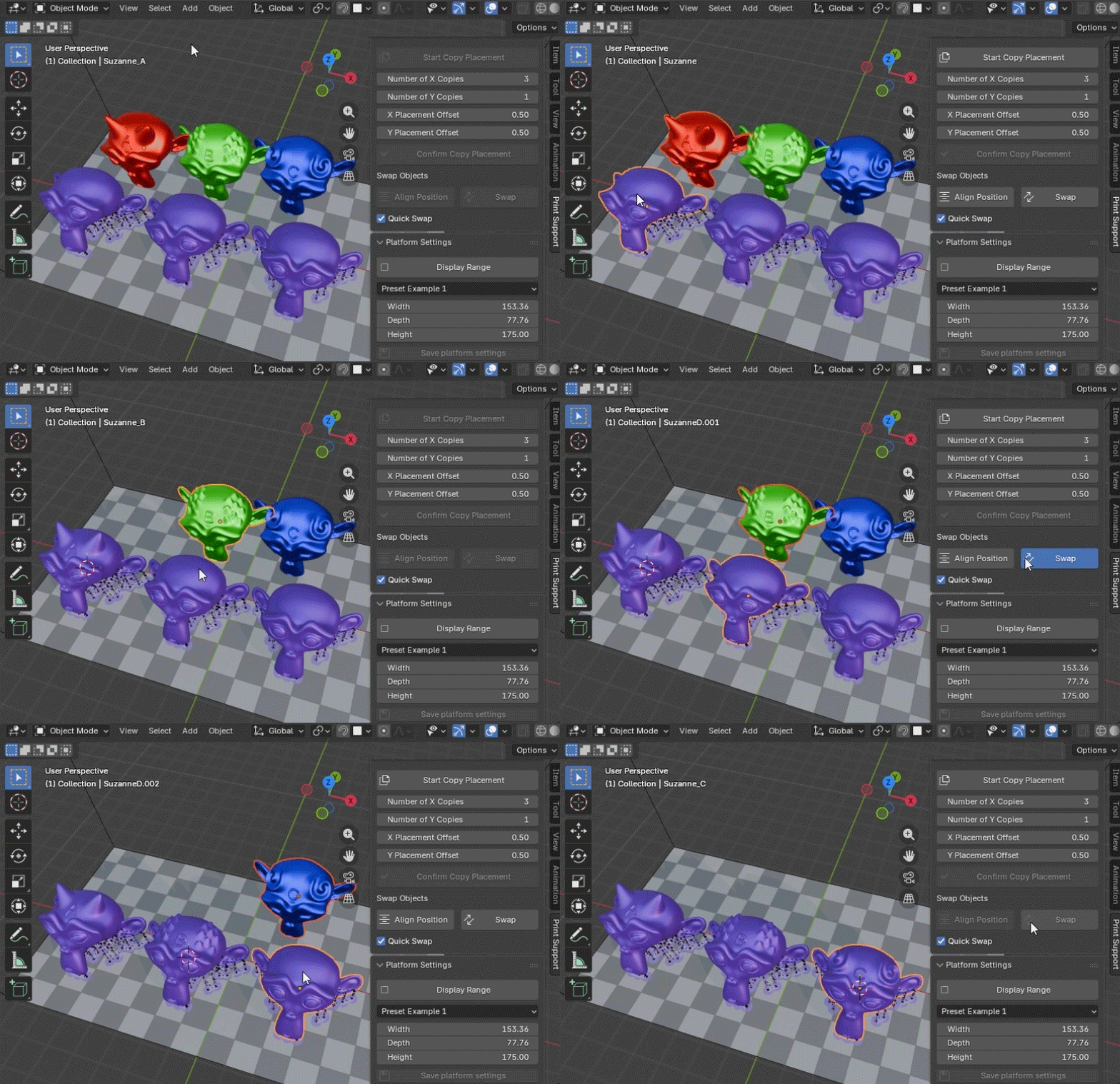
When the checkbox is enabled, swapping and alignment are executed together with a single button press.
(If the checkbox is disabled, objects can be swapped while keeping their manually adjusted positions.)
-Support for batch STL export of multiple objects
Multiple selected fix objects can now be exported as separate STL files into a single folder.
Each file is automatically named after its corresponding object, greatly improving STL export efficiency.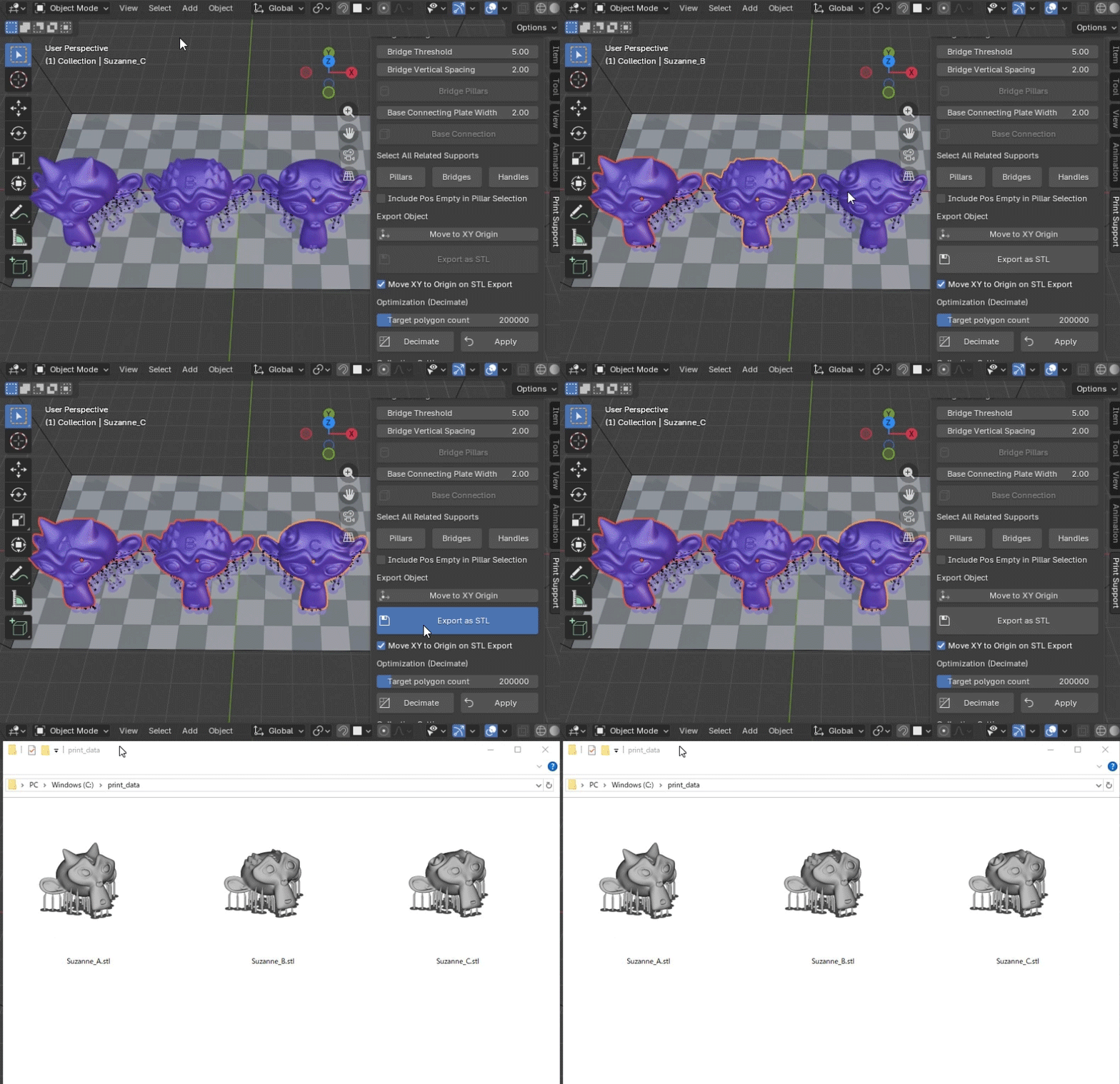
When the checkbox is enabled, all objects are exported with their XY positions moved to the origin, which is convenient for repositioning and arrangement in slicer software.
-Base Connection to Raft (Added Feb 3, 2026 in Version 1.2.1)
When enabled, Base Connection is generated as a unified raft. This creates a solid plate under all connected pillars, improving stability and ease of removal from the build platform.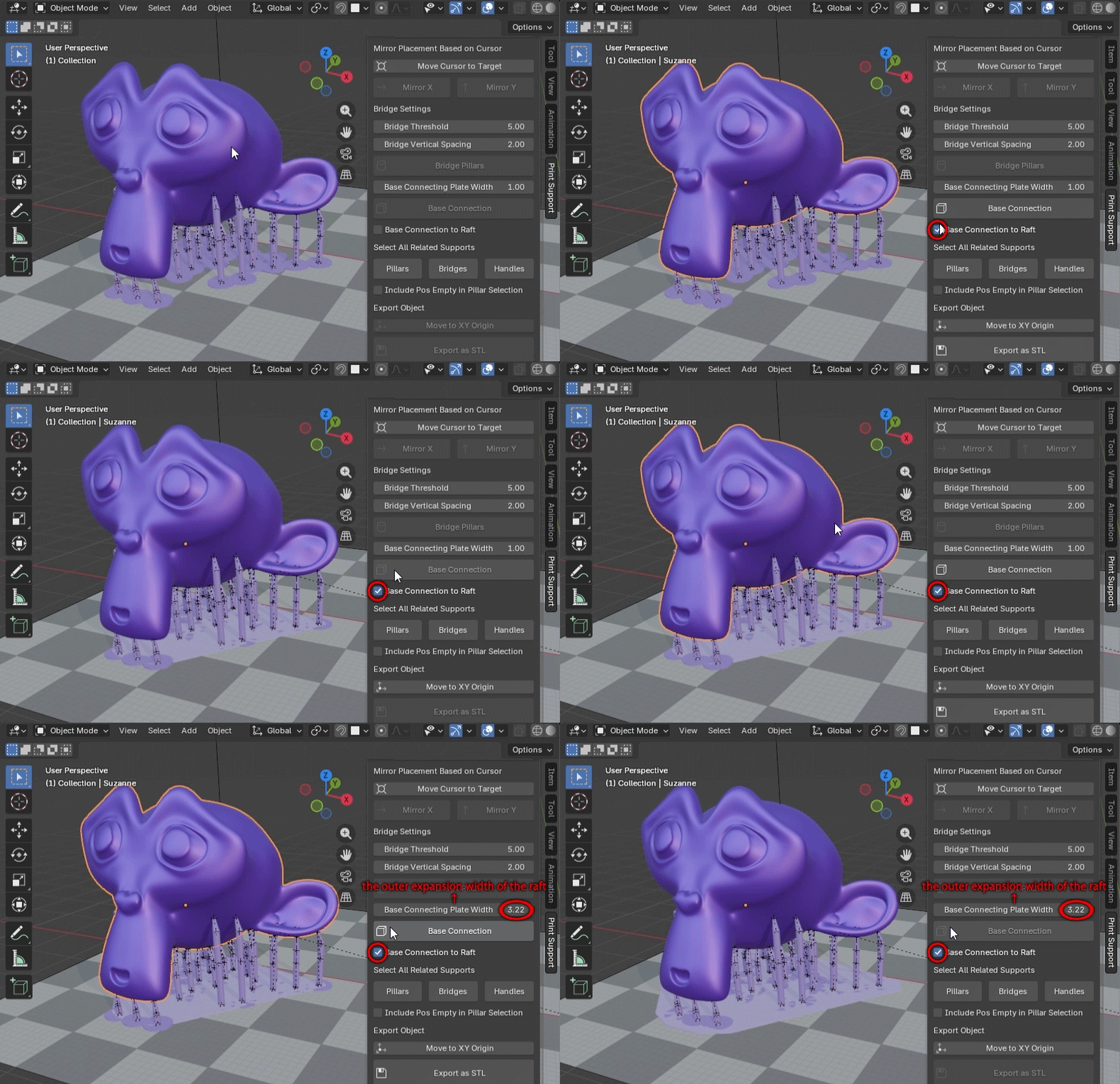 ______________________________
New in Version 1.1.0 (May 20, 2025)
New:
- Added a grid overlay to the overhang areas during [Prepare Pillar Layout] mode. This visual aid shows millimeter spacing, making it easier to align and position pillars accurately.
Improved:
- [Load Pillar Settings] now supports multi-selection even when no active object is set. As long as all selected objects are valid pillars, the operation can be executed. This allows smoother workflows when using the [Pillar] selection button for batch setup.
______________________________
Intuitively Position Support Pillars!
With just one click, support pillars can be automatically placed, and manual adjustments are straightforward and graphical, making customization easy.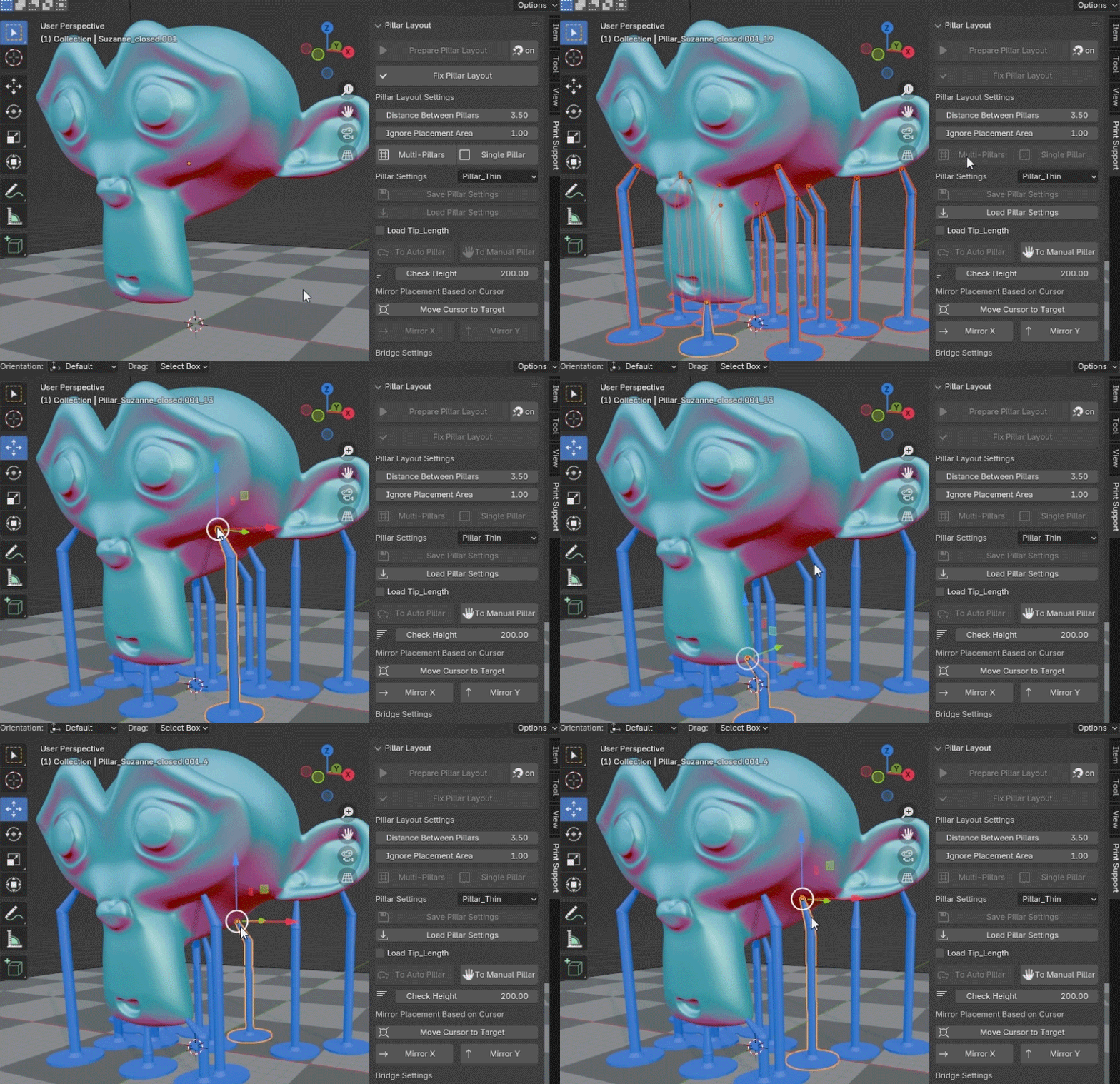
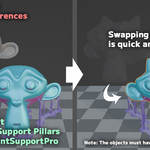
Flexible Replacement Even After Placement!
Ever wanted to re-edit after placement? With Print Support Pro, you can easily swap edited objects with those that already have supports placed, allowing for flexible adjustments anytime.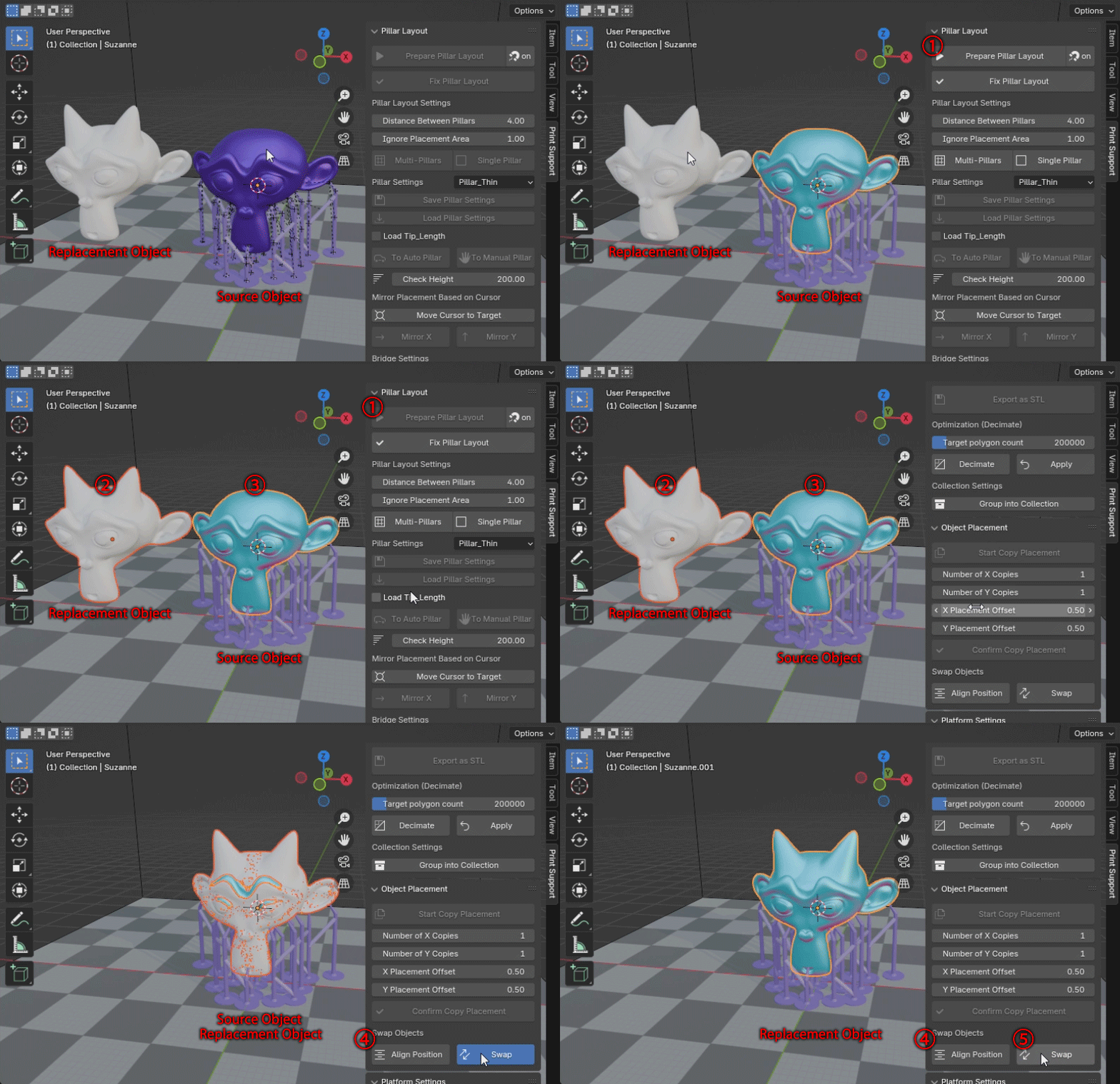
Three Types of Pillars to Suit Every Situation!
Achieve precise placements with three customizable pillar types: the Auto Pillar (blue), which adjusts angles based on contact surfaces; the Manual Pillar (green), which can be bent as desired; and the FIX Pillar (purple), which stays firmly in place. You can switch pillar types anytime to match each placement area.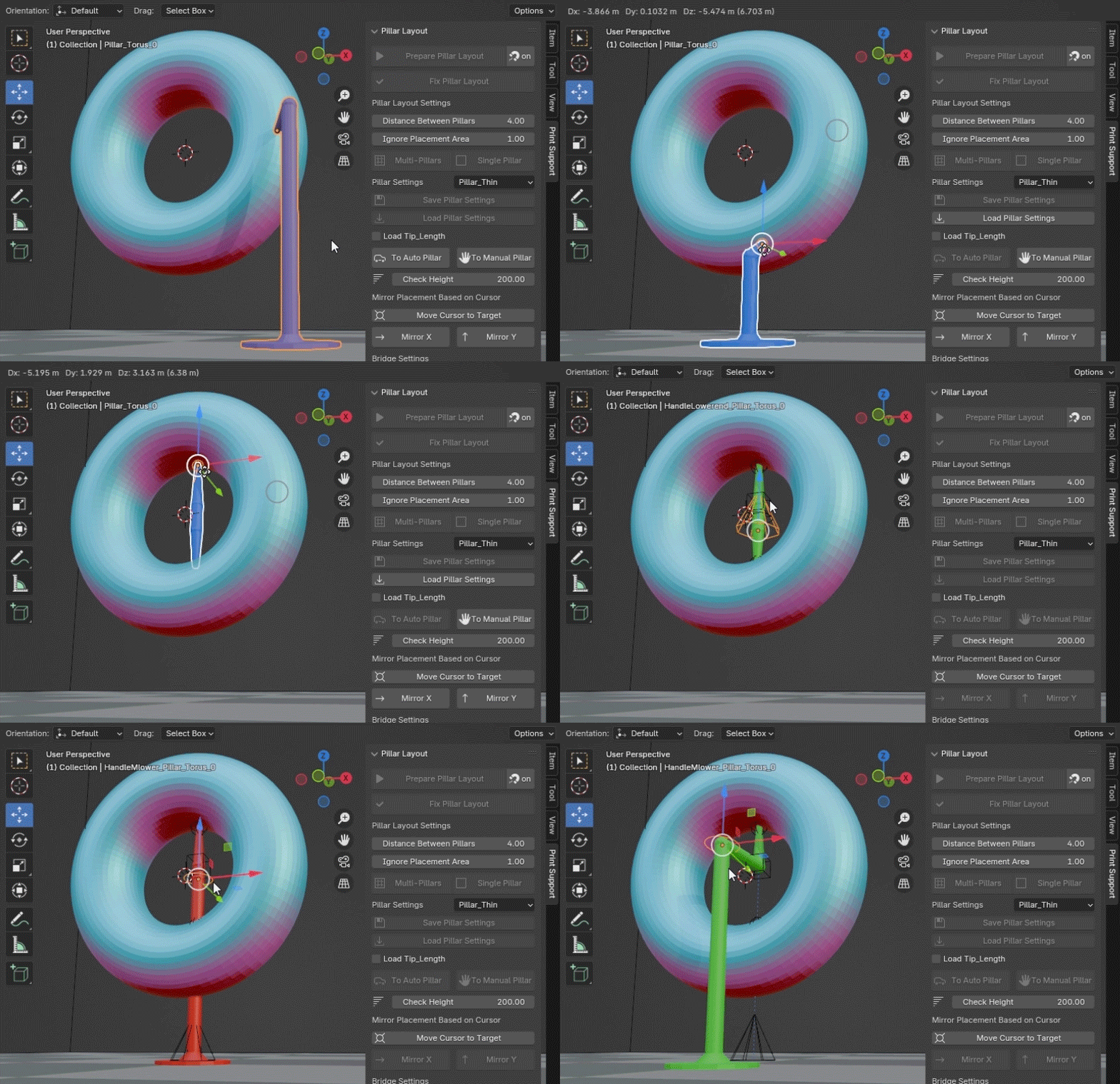
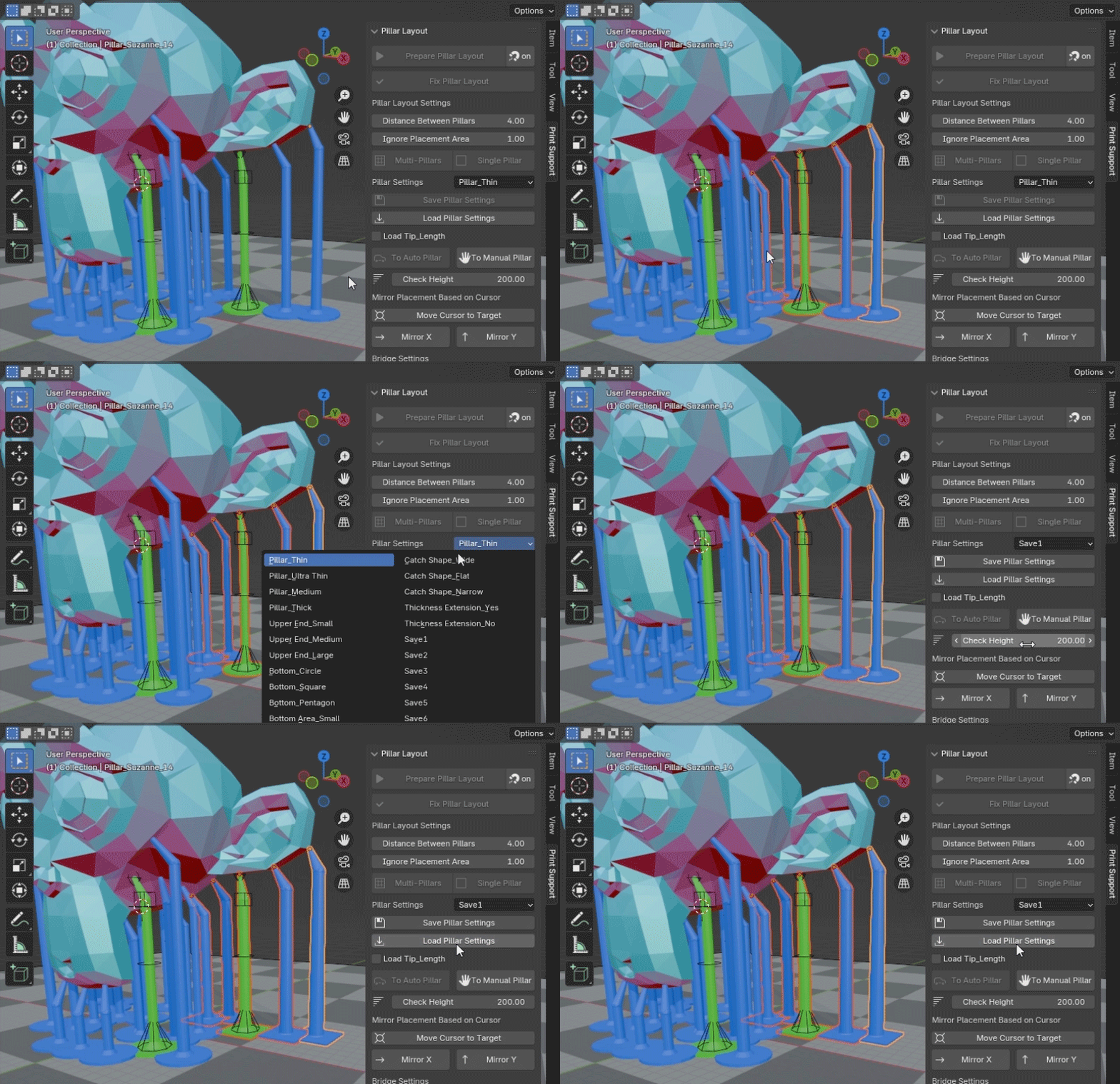
Quickly Adjust Pillar Thickness and Base Shape in Bulk!
Easily make bulk adjustments to pillar thickness, base shape, and more at any time.
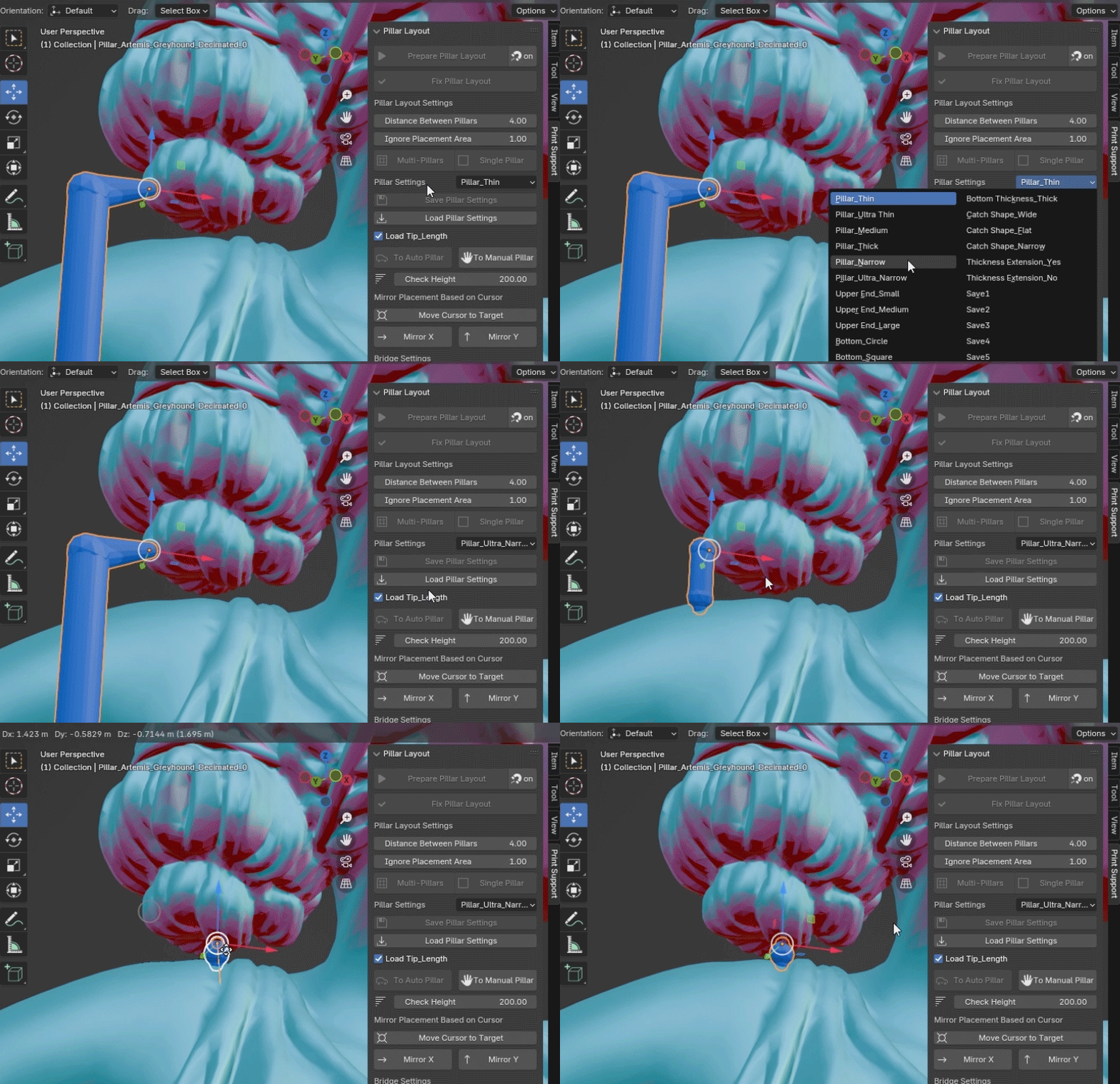
Reinforcement for Narrow Gaps
You can add reinforcement pillars as narrow as 0.5mm in width.
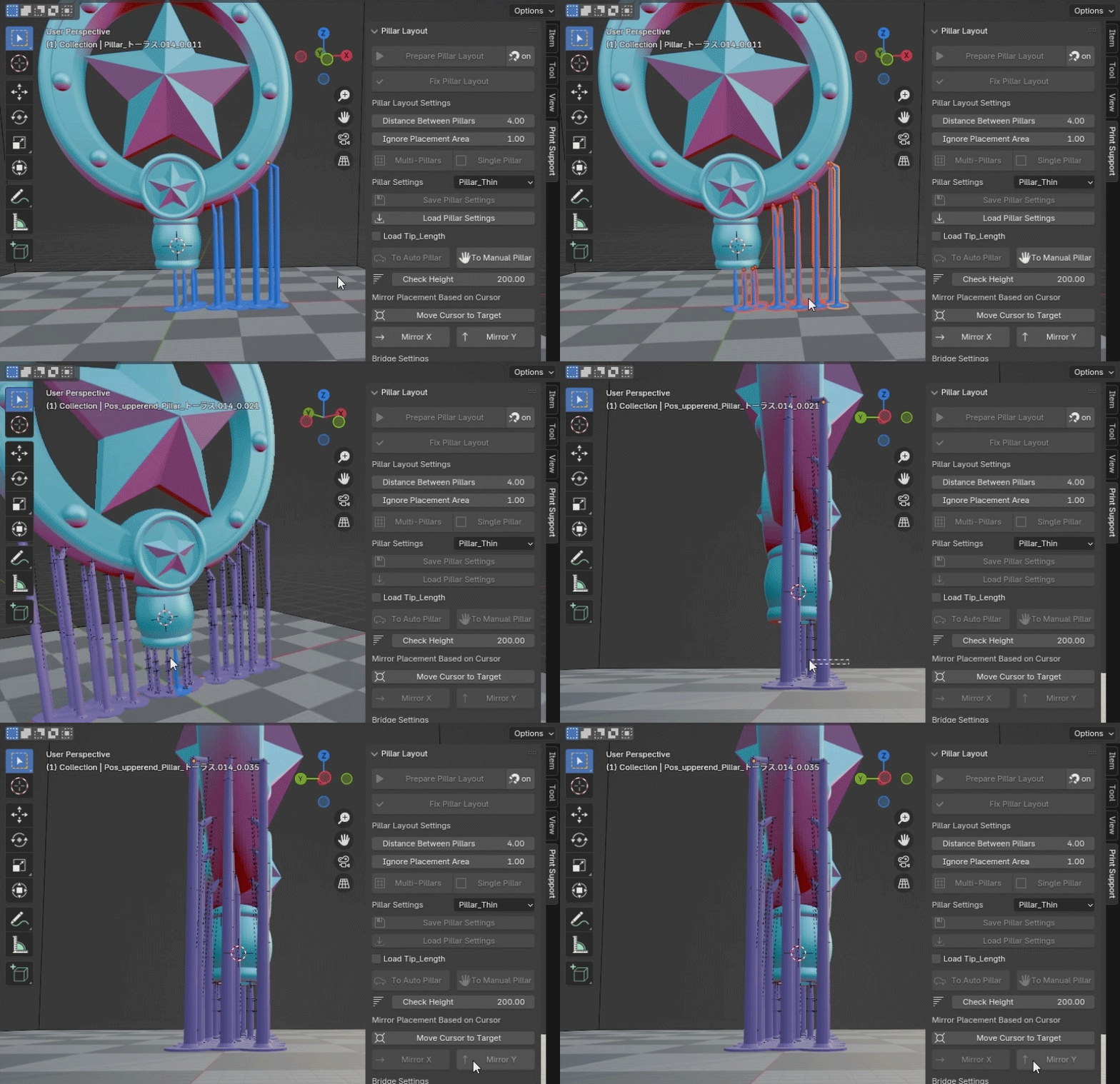
Instantly Achieve Symmetrical Placement!
Need symmetrical pillar placement for your object? Simply mirror selected pillars in the X and Y directions for perfect symmetry.
Freely Bridge Pillars and Connect Bases in Bulk!
Easily bridge selected pillars, or connect all pillars on an object at once. You can even link pillar bases for added stability.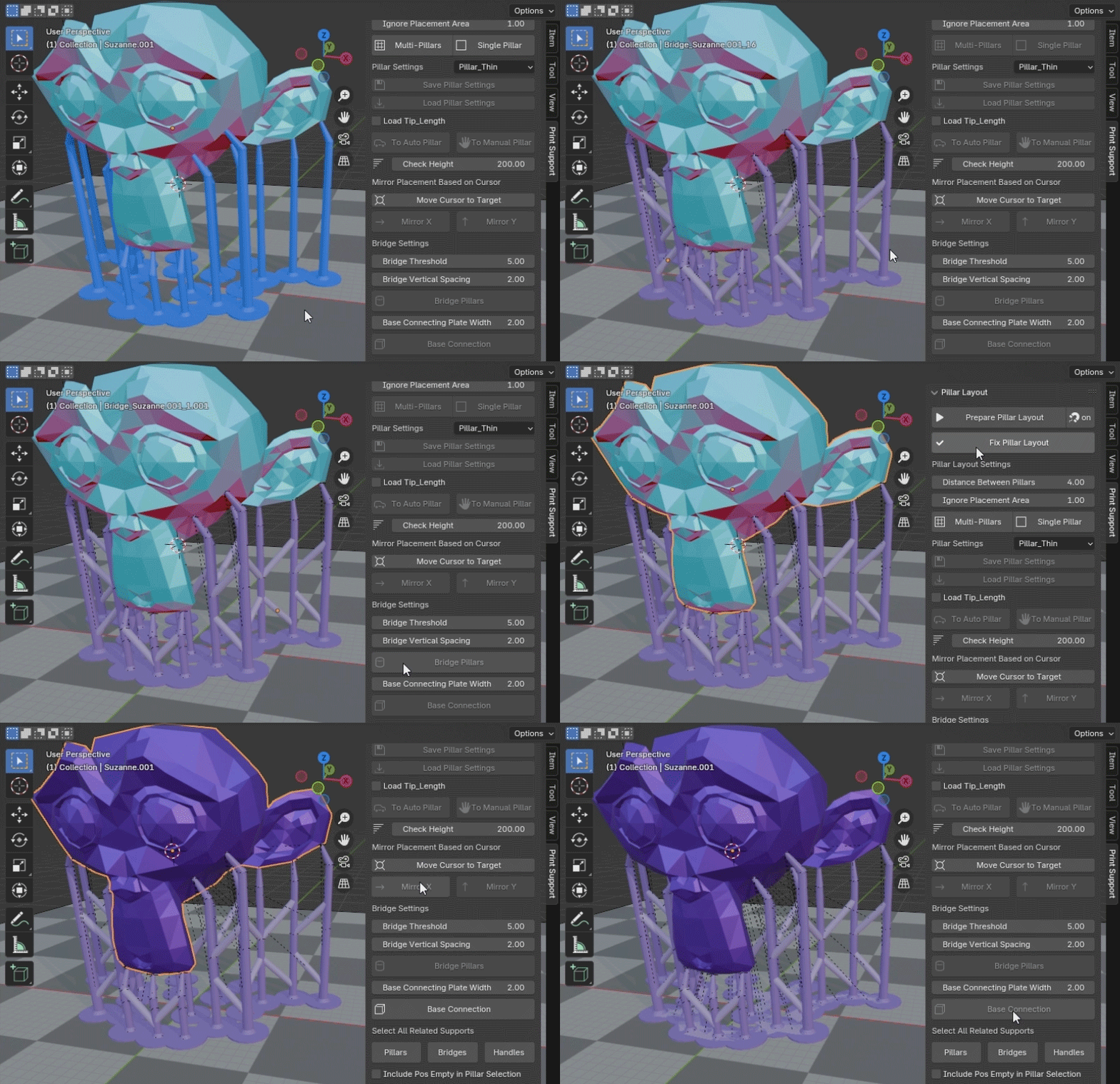
Easily Reduce Load! Smooth Editing with Target Value Decimation
When editing becomes heavy, simply set a target value and decimate (reduce polygons) for smoother performance. After placement, you can easily swap with the original object.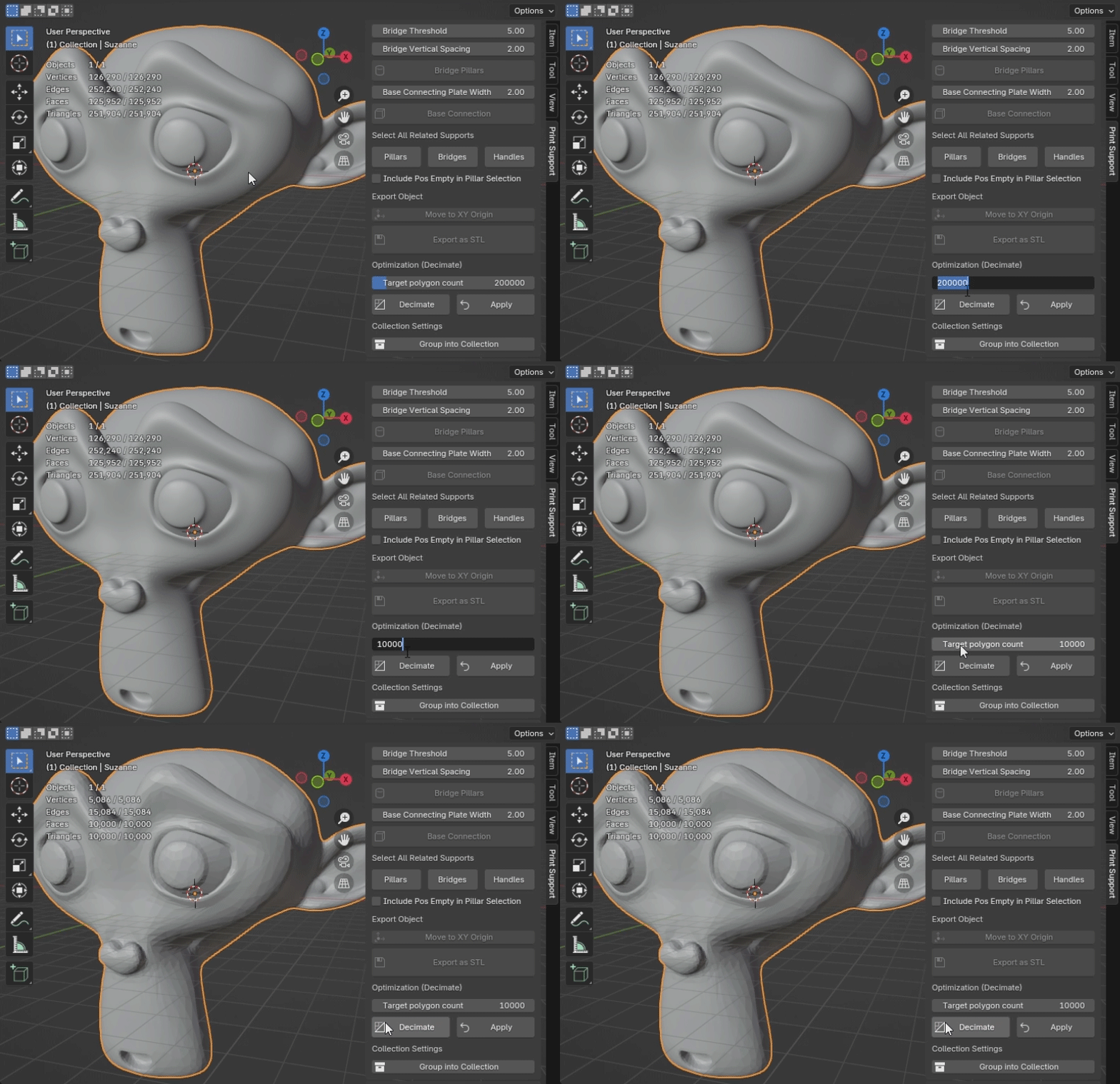
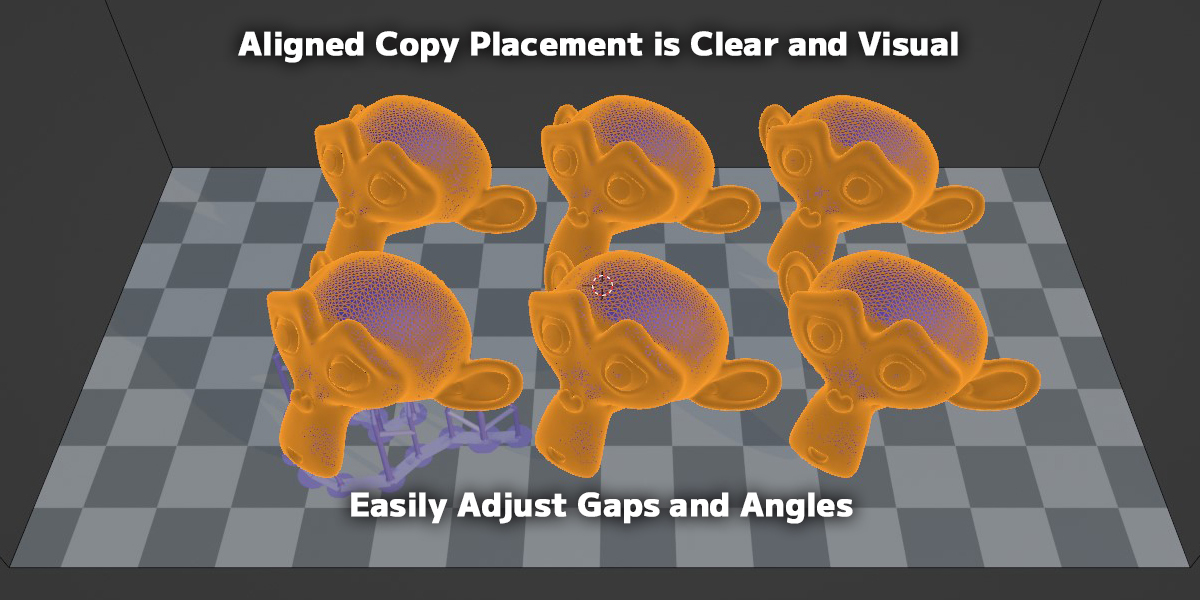
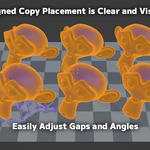
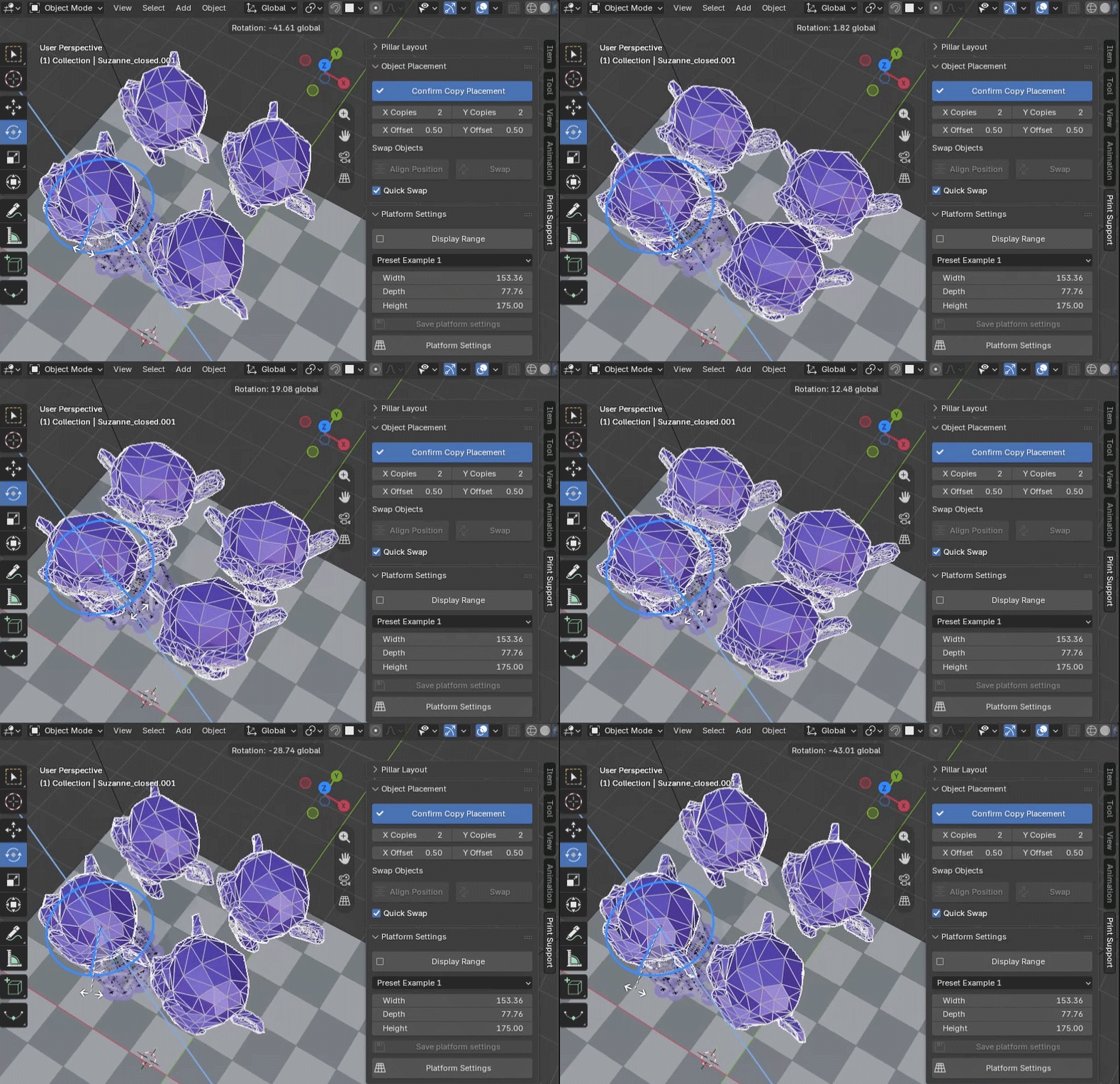
Streamline Multiple Prints! Automatic Alignment and Rotation Adjustments
Easily copy and align objects in any quantity. Gaps from rotation are automatically adjusted, and re-editing is possible even after copying. This feature enhances efficiency for multiple prints and supports flexible object swaps and pillar adjustments, fitting a wide range of needs.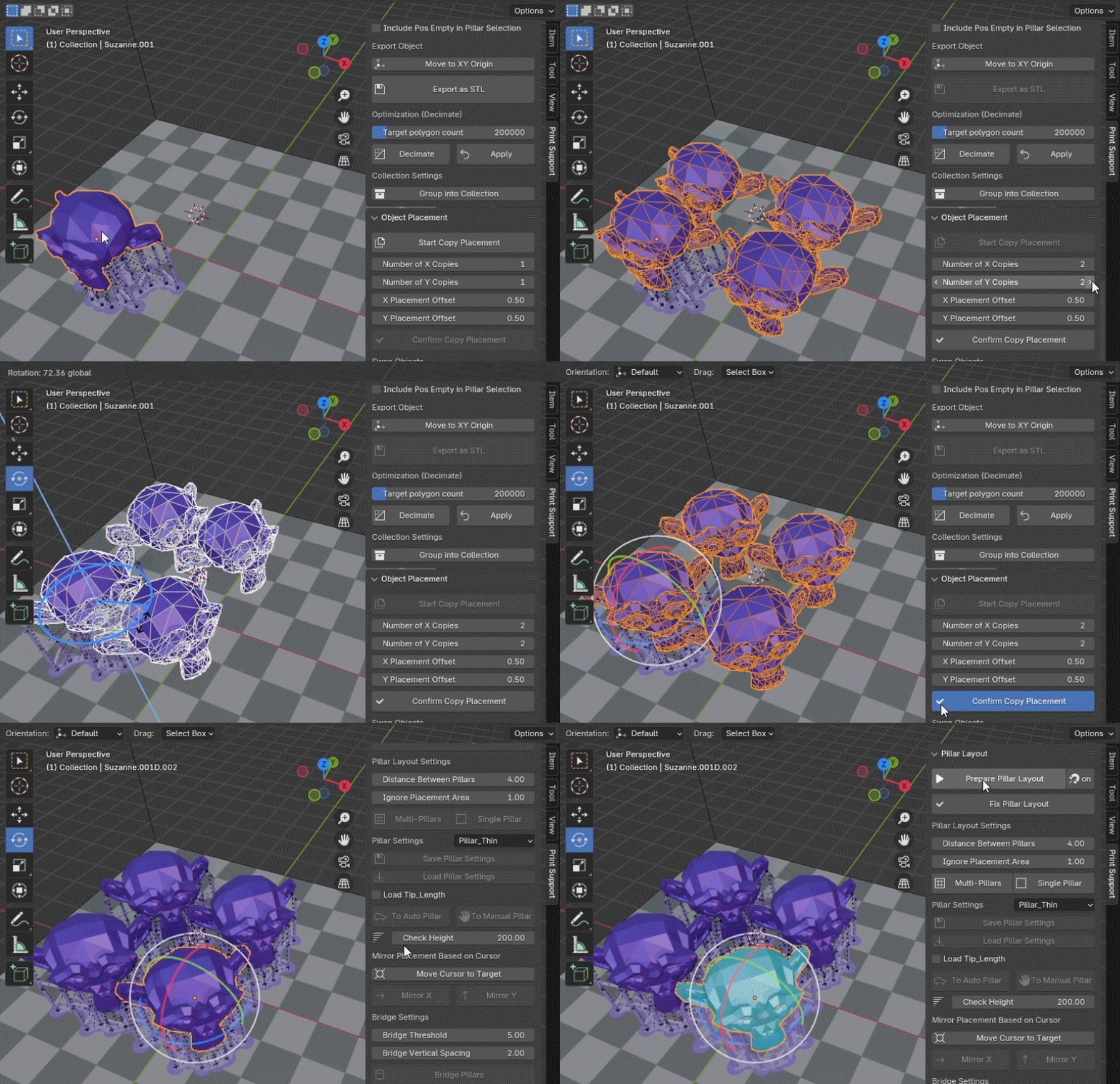
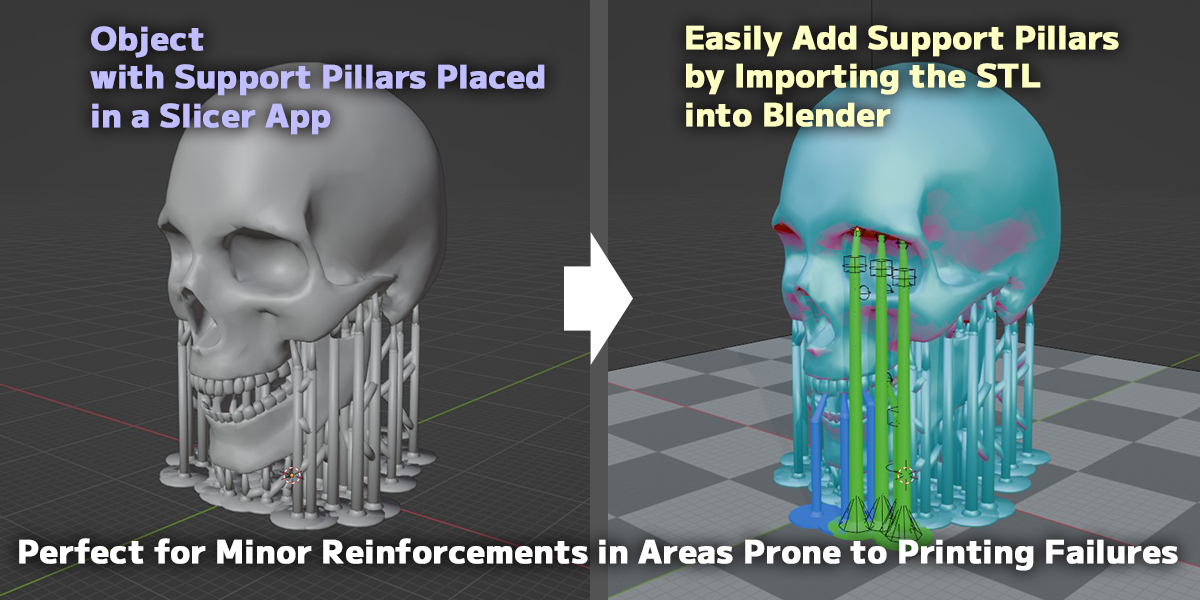
Add Pillars to Existing STLs and Customize Supports Freely
Import an STL and easily add pillars or bridging, allowing you to enhance objects that already have supports placed in other applications.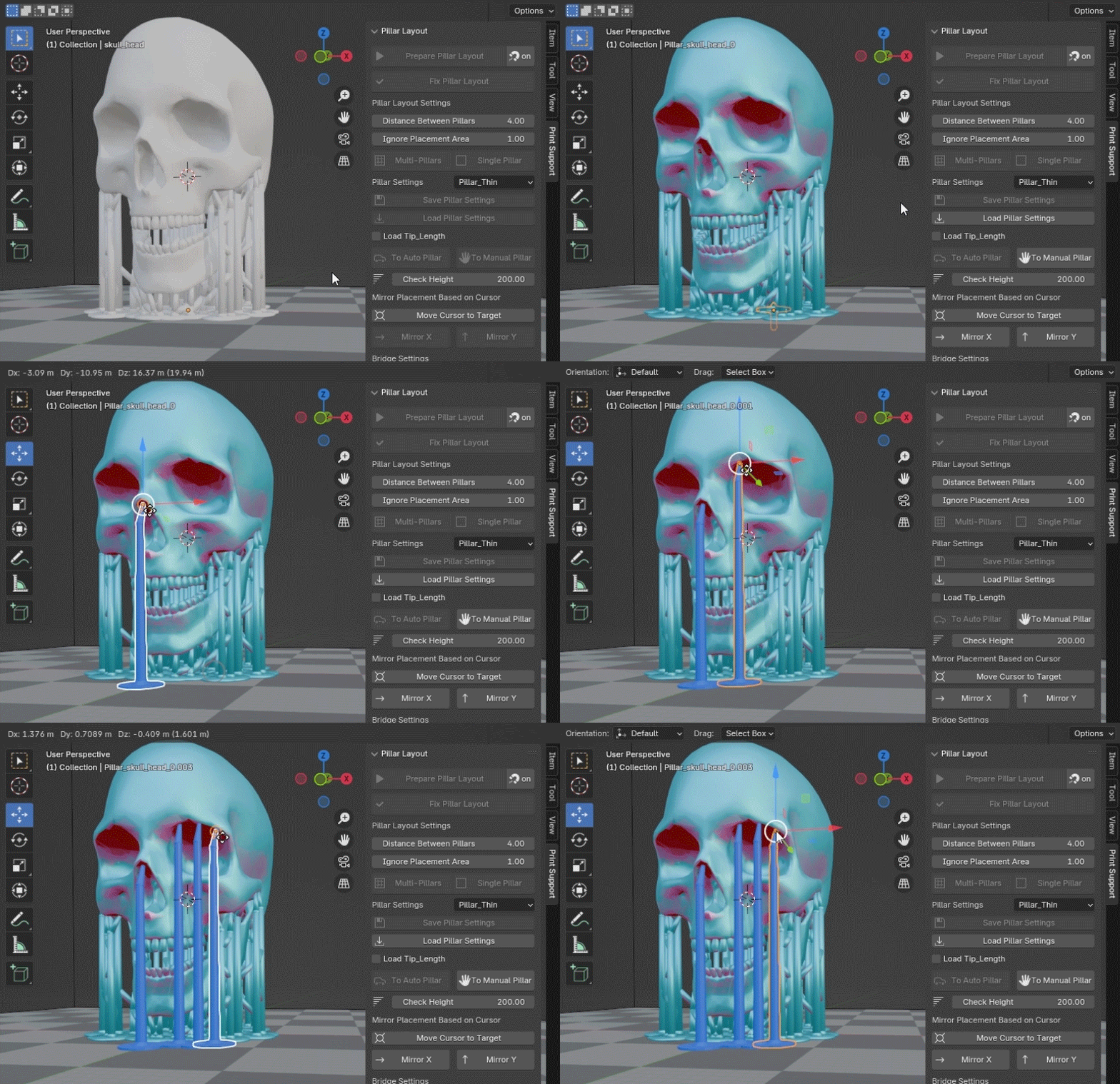
Customizable Platform Display to Match Your 3D Printer
Easily adjust platform display settings and save dimensions tailored to your specific 3D printer for a seamless fit.
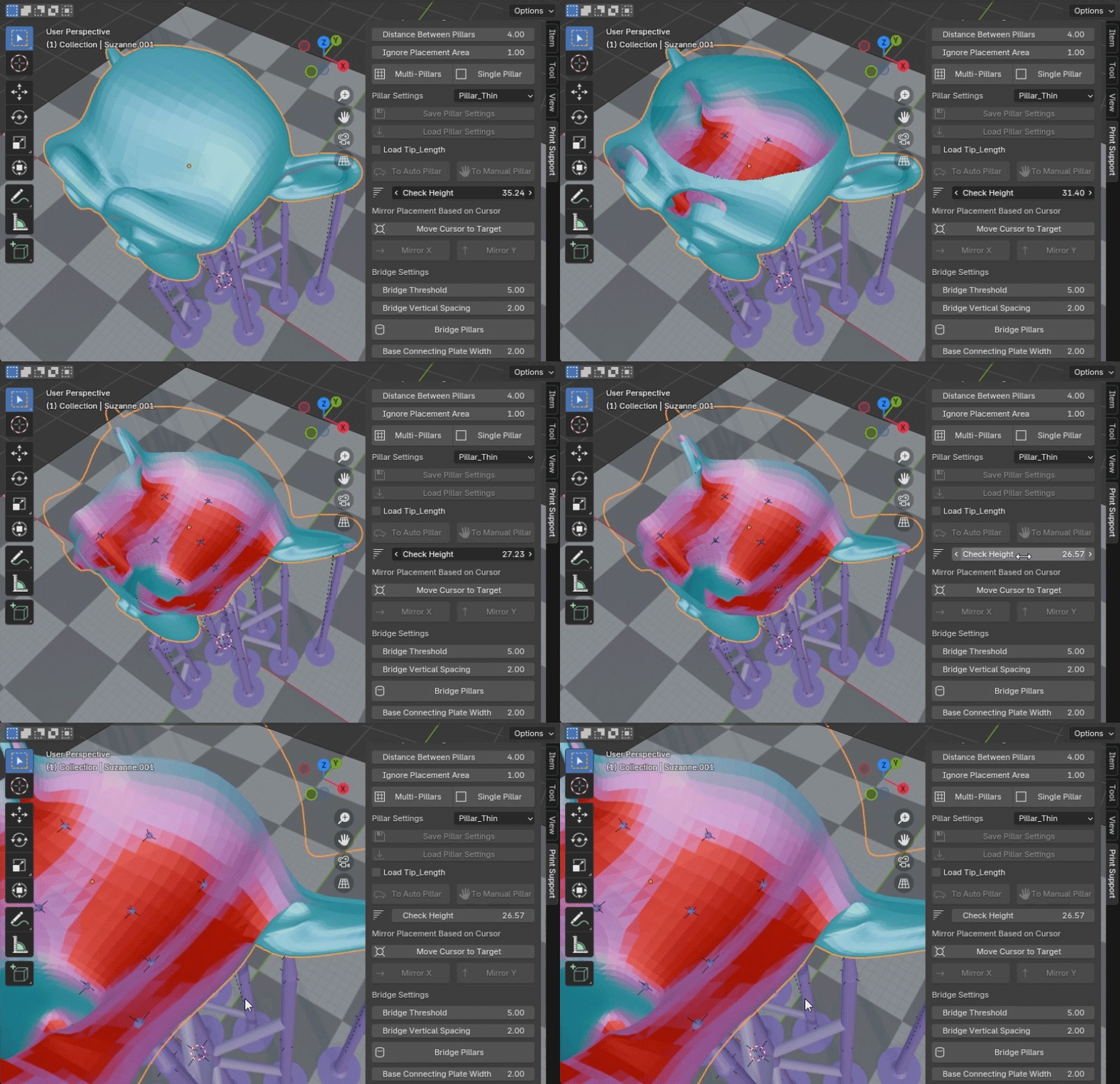
Thoroughly Inspect Internal Structures: Instantly Check Pillar Penetration!
Use the slider to view any layer height and check how pillars penetrate within the object, ensuring precise internal support placement at a glance.
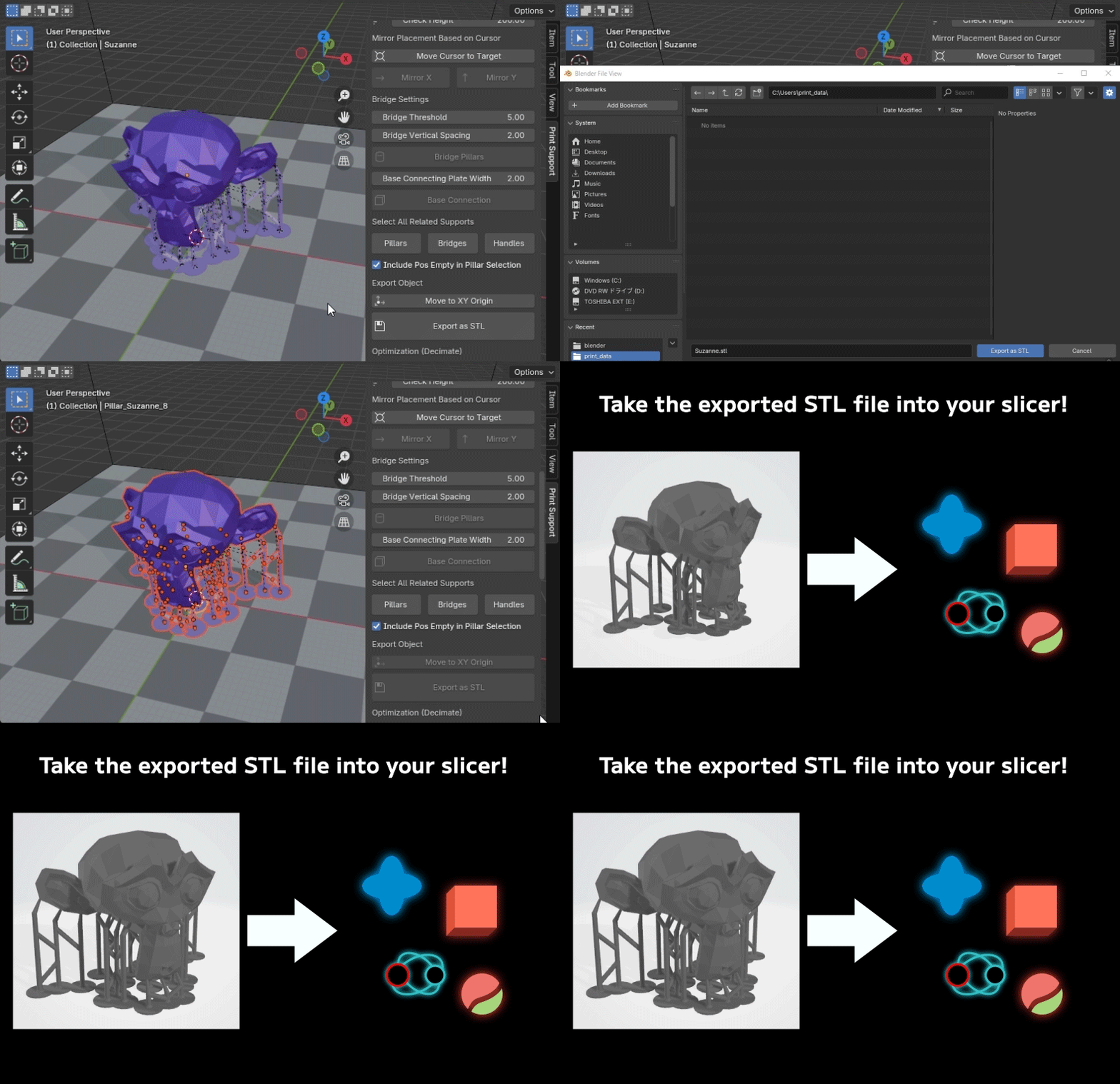
Export Placed Objects Directly as STL, Ready for the Slicer!
Easily export objects with supports as STL files. Simply load the exported STL into your slicer to create print-ready data.
Check out our tutorial video below for a step-by-step guide!
Tutorial 1: Basic Support Pillar Placement
Tutorial 2: Support Pillar Placement for Regular Shapes
Tutorial 3: Support Pillar Placement for Delicate Structures
Tutorial 4: Support Pillar Placement with Polygon Reduction
Note: This add-on requires an environment where EEVEE is functional. If EEVEE does not work in your environment, the material preview may be restricted, and some features of the add-on may not function correctly.