Procedural Bake Bridge - PBR Texture Baking Addon for Blender
 3D Skill Up
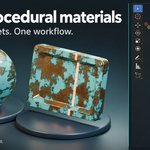
Documentation & User Guide
Install the addon, bake supported procedural materials and prepare the texture maps for your target workflow.
Download PDF User Guide →A PDF copy is also included in the customer package. The instructions below can be read directly on this page.
1. Requirements & Installation
Minimum Blender version: 4.5.0. Baking runs locally using CPU processing. This release has been verified on Blender 4.5.0 and 5.2.2 LTS on Linux. Windows, macOS and GPU execution have not been verified for this release.
- Locate procedural_bake_bridge-1.0.0.zip in your downloads. If you downloaded a Customer Package or Complete bundle, extract that outer archive first.
- In Blender, open Edit → Preferences → Add-ons. Open the menu and choose Install from Disk.
- Select the addon ZIP and enable Procedural Bake Bridge. Install the ZIP directly without extracting its contents.
- Return to the 3D Viewport, press N and open the PBB tab.
- Expand Help & About to confirm version 1.0.0. Use Open PDF User Guide to open the online manual.
Updating an existing installation? Save your work, finish any active PBB job, install the replacement addon ZIP and restart Blender. Install only the addon ZIP, not the Complete or Source archive.
2. Your First Bake
Start with the supplied example scene or a mesh with a supported Principled BSDF material and an existing UV map.
- Select your mesh. In the supplied example, use 01_PBB_PANEL_UV.
- In 1 - Source & Output, choose Object UV Bake and keep Require Existing UVs enabled.
- Choose Generic PBR, set the resolution to 512 and choose a writable output folder.
- In 2 - Maps, start with Base Color, Roughness, Metallic and Normal. Leave rendered previews disabled for this first test.
- Click Analyze. Resolve any blocking message before continuing.
- Click Bake and wait for completion. Open Checks & Results to access Open Folder, Validate, Preview and Report.
After inspecting the first export, select your target preset, add optional maps or increase the resolution. For the example material's Height map, set Height Node to PBB_HEIGHT_SOURCE and the output socket to Value.
3. Choose the Source Mode
Material Texture
Samples a material on a plane to produce a reusable texture set. Choose the material in the source field. UV-based procedural mapping is the most predictable starting point for this workflow. Object, Generated, Geometry and view-dependent coordinates can look different when evaluated on the sample plane.
Object UV Bake
Bakes the evaluated mesh into its UV layout. Use this mode for textures intended for a specific object and for geometry-based ambient occlusion. Existing source UVs are preserved; texture-only exports require usable UVs within the supported single-tile layout.
An explicitly selected Material or Object takes priority. If the source field is empty, Object mode uses selected meshes and Material mode uses materials from selected objects.
Objects without UVs
Either unwrap the object first, or disable Require Existing UVs and enable Advanced > Output Options > Include Baked Mesh. PBB can then generate Smart UVs on a temporary copy and deliver a static evaluated mesh with those UVs.
The optional mesh is saved as a .blend file inside Meshes/. Use File > Append > Object to bring that mesh into Blender and keep the matching bake layout.
The source object's UVs are not modified. If Smart UVs were generated for the bake, use the delivered mesh with its textures. PBB does not perform high-poly-to-low-poly cage transfer.
4. Select Maps & an Export Preset
The selected preset updates 2 - Maps to show the final texture files that will be exported. Packed maps have their own checkboxes and channel layouts. Disabling a packed output also skips source maps that are only needed for that output.
| Preset | Default Final Textures |
|---|---|
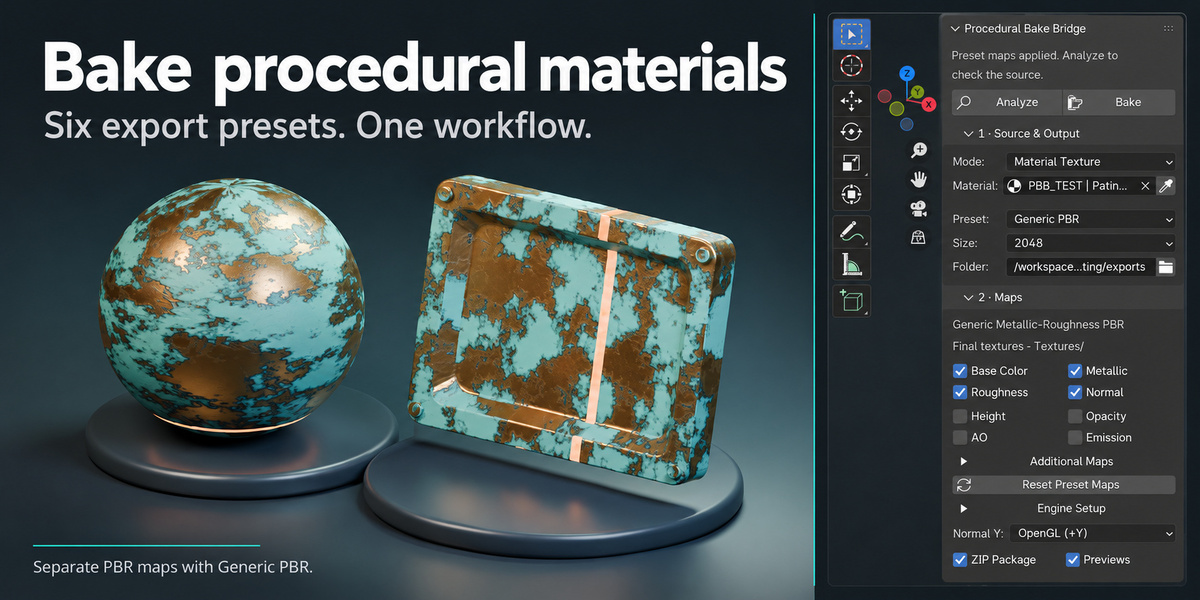
| Generic PBR | Base Color, Normal, Roughness and Metallic as separate images. |
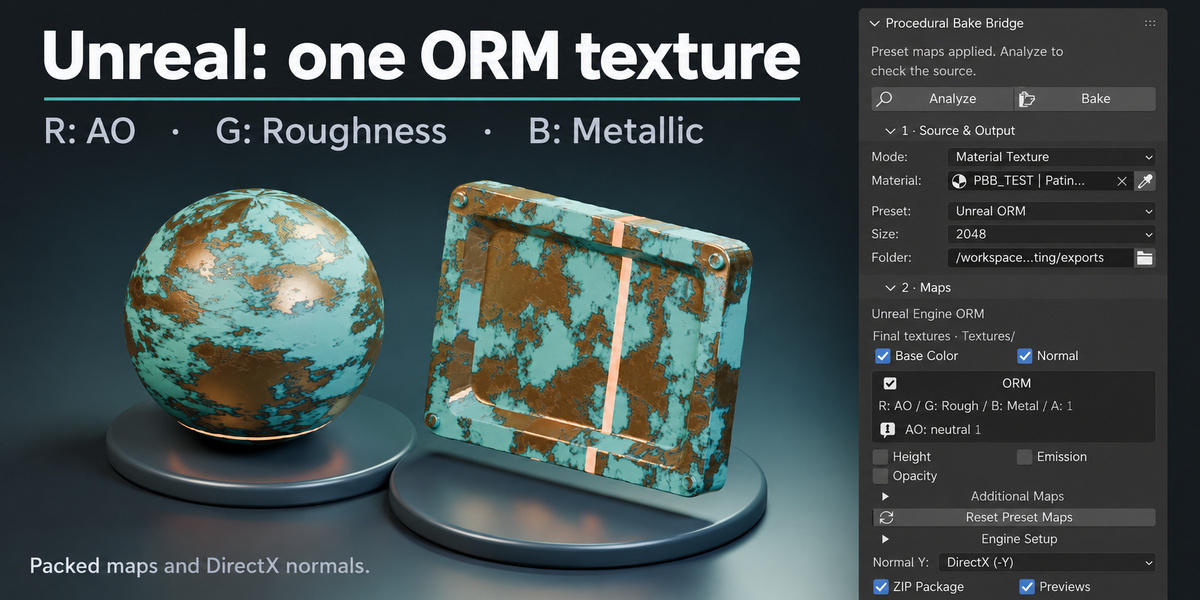
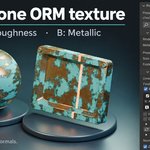
| Unreal ORM | Base Color, Normal and ORM. R: AO • G: Roughness • B: Metallic • A: 1. |
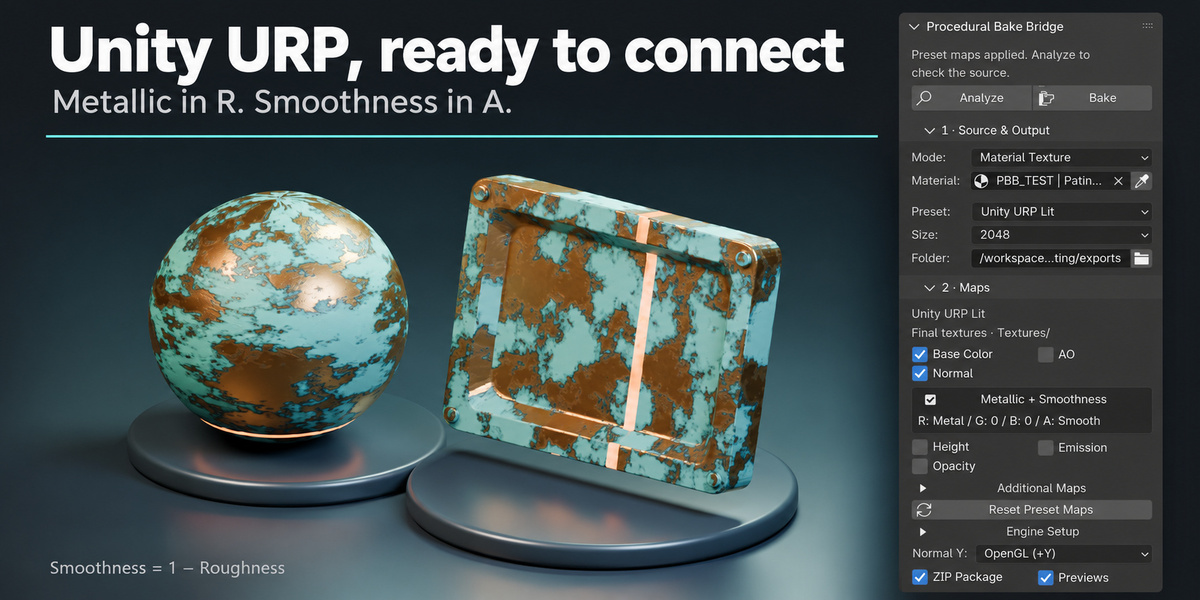
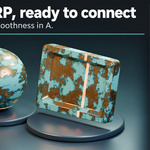
| Unity URP Lit | Base Color, Normal and Metallic/Smoothness. R: Metallic • A: Smoothness • G/B: 0. Separate AO when selected and available. |
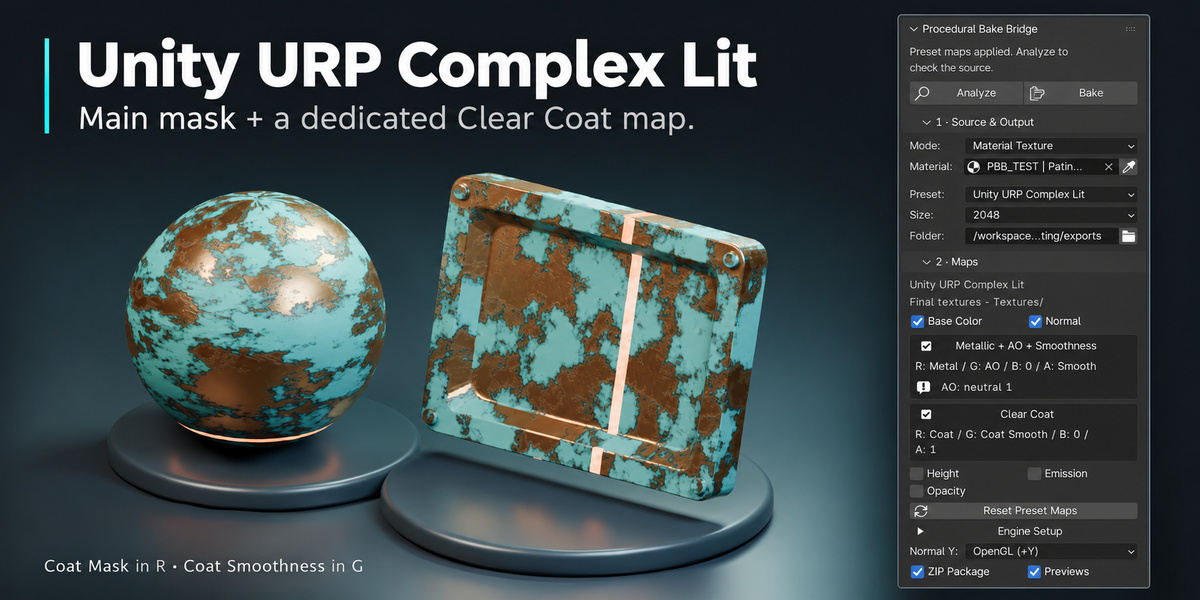
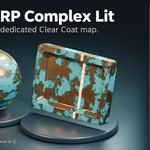
| Unity URP Complex Lit | Base Color, Normal, main packed mask and Clear Coat. Main mask: R Metallic, G AO, B 0, A Smoothness. Clear Coat: R Coat Mask, G Coat Smoothness, B 0, A 1. |
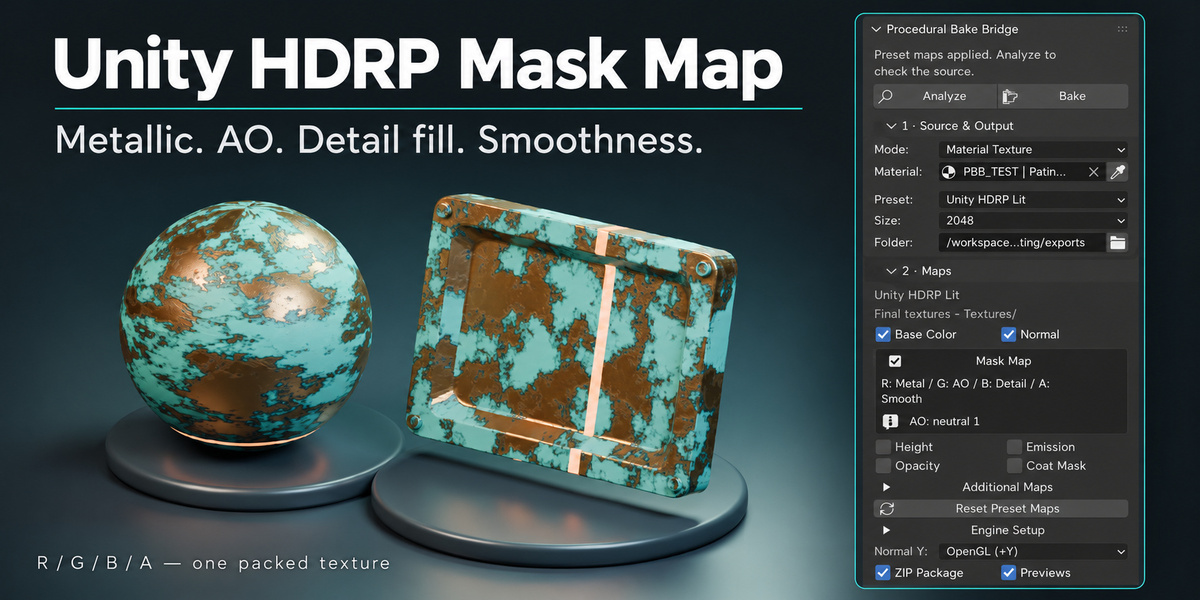
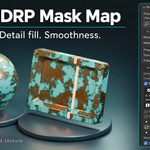
| Unity HDRP Lit | Base Color, Normal and Mask Map. R: Metallic • G: AO • B: constant Detail Fill • A: Smoothness. |
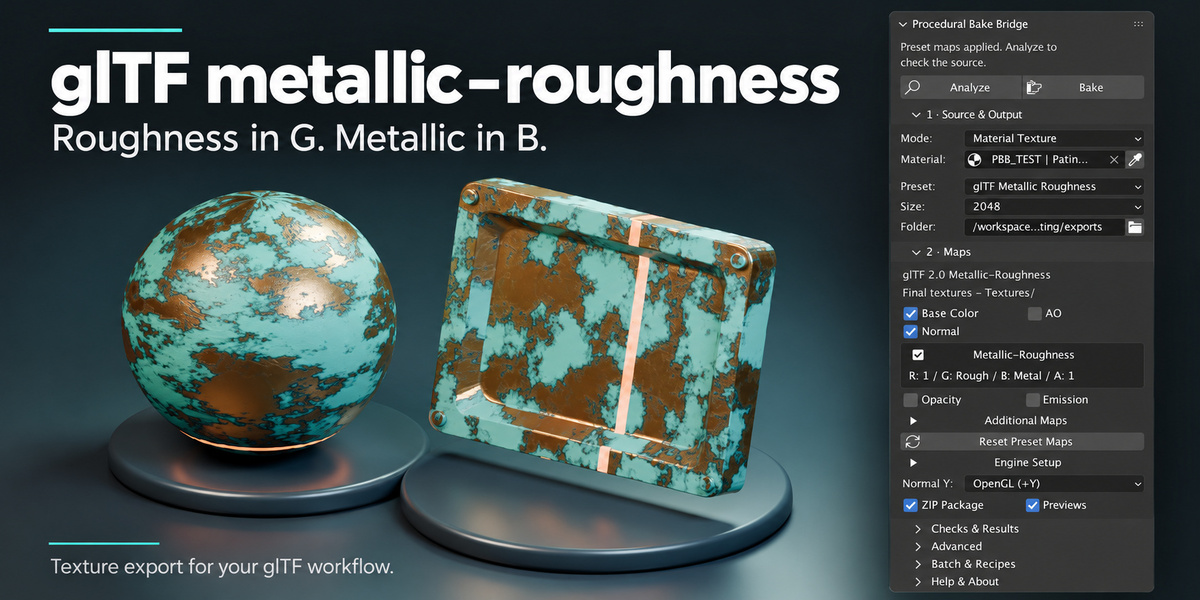
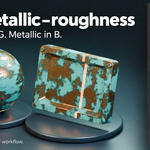
| glTF Metallic Roughness | Base Color, Normal and Metallic-Roughness. G: Roughness • B: Metallic • R/A: 1. Separate AO when selected and available. |
All final texture files go into Textures/. Source channels already represented by a packed map are not delivered again as separate images. Use Generic PBR when you need separate Metallic, Roughness or Smoothness files.
Additional Maps exposes supported channels outside the preset's main outputs. Reset Preset Maps restores the preset's map selection. Changing the preset resets its map defaults while preserving resolution, output folder, sample count and per-map format choices.
5. Import the Textures into Your Target Application
The presets prepare textures and channel layouts. Create the material in your target application and assign the exported files to the appropriate shader inputs. The addon does not create Unity or Unreal material assets, engine projects or GLB files.
- Base Color: import PNG RGB as sRGB color data.
- Normal: use the target application's normal-map importer. Unity and glTF presets default to OpenGL (+Y); Unreal defaults to DirectX (-Y). This setting remains editable.
- Masks and scalar maps: disable sRGB and treat them as linear data. This includes Roughness, Metallic, Smoothness, AO, Height and packed masks.
- Emission: PNG RGB uses sRGB; EXR emission preserves linear HDR values.
- Opacity: alpha is linear. Configure transparency or alpha clipping in the target shader when required.
Unity URP Lit
Use the Metallic workflow. Assign the Metallic/Smoothness texture to Metallic, select Metallic Alpha as the Smoothness source and use a Smoothness multiplier of 1. Assign a separate AO image to Occlusion when provided.
Unity URP Complex Lit
Assign the main packed mask to both Metallic and Occlusion. Use Metallic Alpha for Smoothness and a multiplier of 1. Enable Clear Coat, assign its separate texture to the coat Mask slot and set the mask and smoothness multipliers to 1.
Unity HDRP Lit
Assign the packed image to Mask Map, disable sRGB and keep the remap ranges at 0 to 1 for the exported values. The blue channel is a constant Detail Fill for a separately authored detail layer; it is not a baked procedural detail mask.
Unreal Engine
Connect ORM R to Ambient Occlusion, G to Roughness and B to Metallic. Disable sRGB on ORM. Import the normal texture as a normal map. ORM is the packing convention used by this preset.
glTF
Use the packed image as the metallic-roughness texture, reading Roughness from G and Metallic from B. Assign a separate AO image as the occlusion texture when available. If you export HDR emission as EXR, convert it to a glTF-supported image and configure the appropriate emission factors or extensions.
Smoothness is calculated as 1 - Roughness in linear space. In Unity presets it is stored in the packed map's alpha channel. Base Color alpha is reserved for opacity when that option is enabled.
6. Optional Maps: AO, Height, Opacity & Coat
Ambient Occlusion
Material Texture mode samples a flat plane and cannot recover meaningful geometry AO from that sample. For geometry AO, use Object UV Bake. Alternatively, choose a Supplied AO Image under Advanced > Source Options.
If Analyze blocks a Material Texture bake because AO is selected, use Turn Off AO, Use Object UV or supply an AO image. Object AO covers the isolated evaluated object, not other objects in the scene.
Allow Neutral AO in Packs permits a constant fill in a packed AO channel when no AO source is available. It does not generate a real standalone AO map. Engine presets normally enable AO for Object UV mode and omit it from the flat material sample unless a source is supplied.
Height
Height requires a supported scalar source. Set Height Node and Height Output Socket, or use unambiguous supported Bump Height detection. Under Source Options, set the raw range, normalization and inversion as needed. Height does not automatically reproduce displaced geometry; adjust the effect's strength in your target shader.
Opacity & Emission
Opacity reads the supported material alpha signal. Unity and glTF can place it in Base Color alpha, avoiding a duplicate Opacity image. Disable that alpha option if you need a separate file. A fully opaque material correctly produces white opacity. Emission includes supported color and strength; EXR is the default for preserving HDR brightness.
Coat
Coat Mask reads Principled Coat Weight. Coat Smoothness is 1 - Coat Roughness. Coat tint, coat IOR and separate coat normals require manual setup in the destination shader.
7. Resolution, Formats & Quality
- Resolution: begin with 512 pixels for a quick check, then increase it for the final export. Large textures require more memory and temporary disk space.
- Per-map Formats: choose PNG8, PNG16, EXR16 or EXR32 for separate maps. Defaults include PNG8 for Base Color, PNG16 for scalar maps, and EXR32 for Height and Emission.
- Packed PNG Precision: controls the precision of packed textures.
- PNG range: values outside 0 to 1 are clipped and reported. Use EXR for HDR or signed values that must be preserved.
- Bake padding and Cycles samples: adjust them under Advanced Controls to suit the UV layout and bake quality.
- Device: CPU is the supported execution path for this release. GPU and Automatic selections fall back to CPU with a warning.
Filename templates must produce a distinct filename for every map. Custom preset controls under Advanced allow you to save and load validated JSON presets. Loading a custom preset overrides the built-in selection; selecting a built-in preset clears that override.
8. Understand the Export Folder
| Entry | Contents |
|---|---|
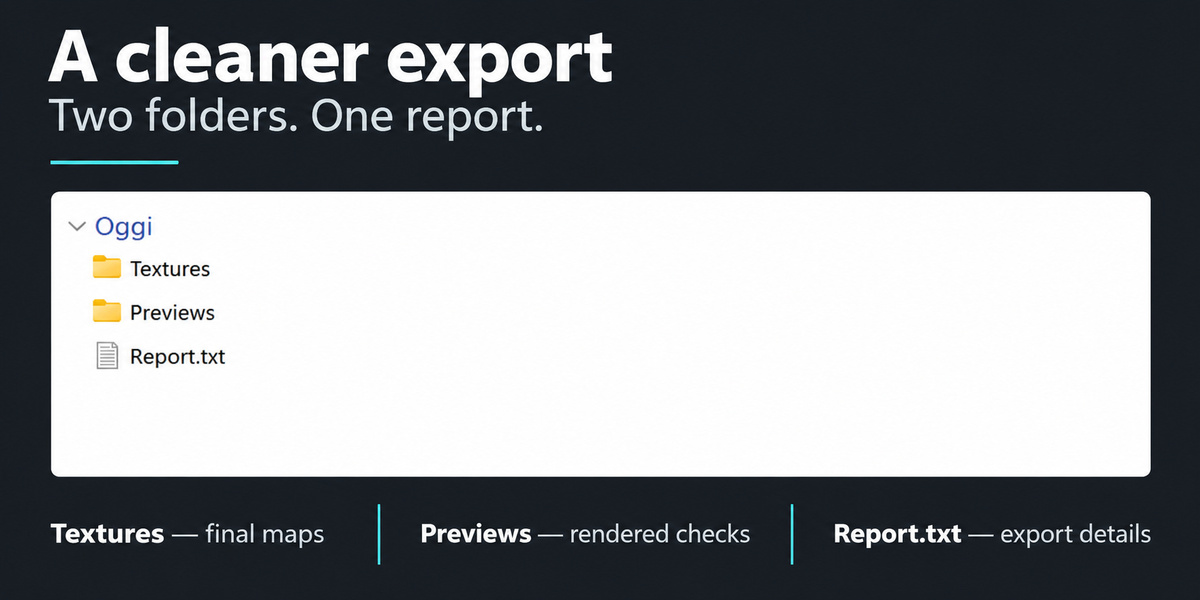
| Textures/ | The selected final texture files, including packed maps. |
| Previews/ | Rendered previews when requested, plus internal PBB data used to reopen the export. |
| Report.txt | A short export summary with readable map names, import instructions and issues to review. |
Keep Textures and the entire Previews folder together. Previews contains internal PBB data even when you did not request rendered previews. Retain it to use Validate and Preview after moving or archiving the export.
New reports contain no raw JSON, file-hash lists or Python tracebacks. They can be edited as plain summaries. Older exports with an embedded PACKAGE DATA section still require their original report.
Include Baked Mesh adds an optional Meshes/ folder. Per-package ZIP includes the complete export and its internal data. A failed, cancelled or partial export is clearly marked; resolve the reported issue before treating it as a finished texture set.
9. Validate & Preview the Result
- Open Folder: opens the most recent export location.
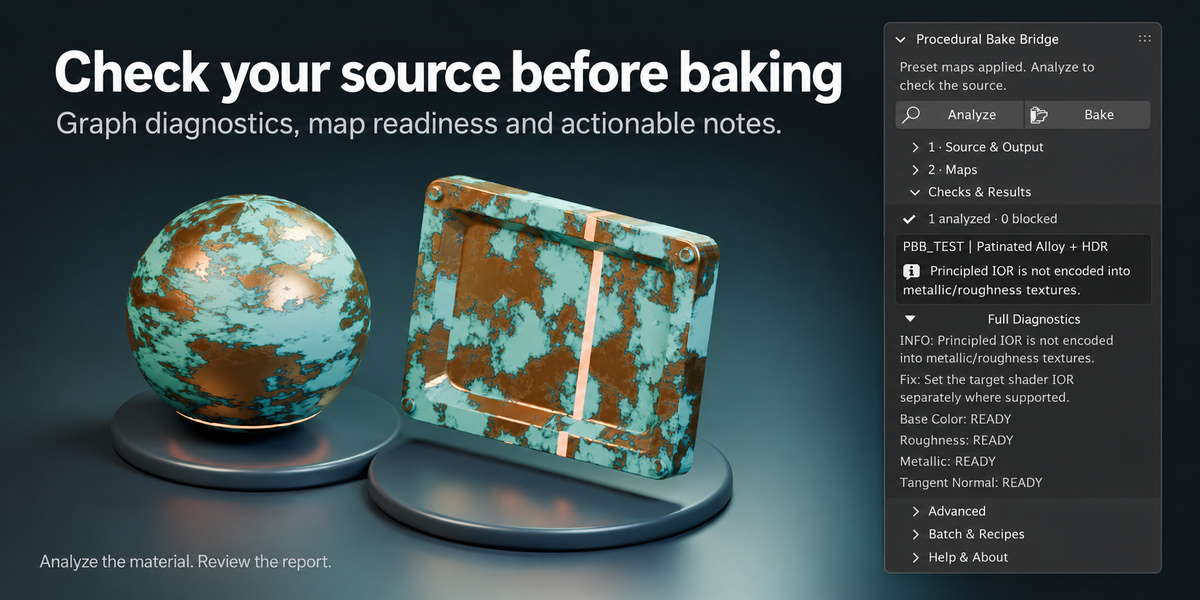
- Validate: checks saved maps, dimensions, precision, numeric ranges and available packed-channel relationships. Review PASS, PASS_WITH_WARNINGS or FAIL results.
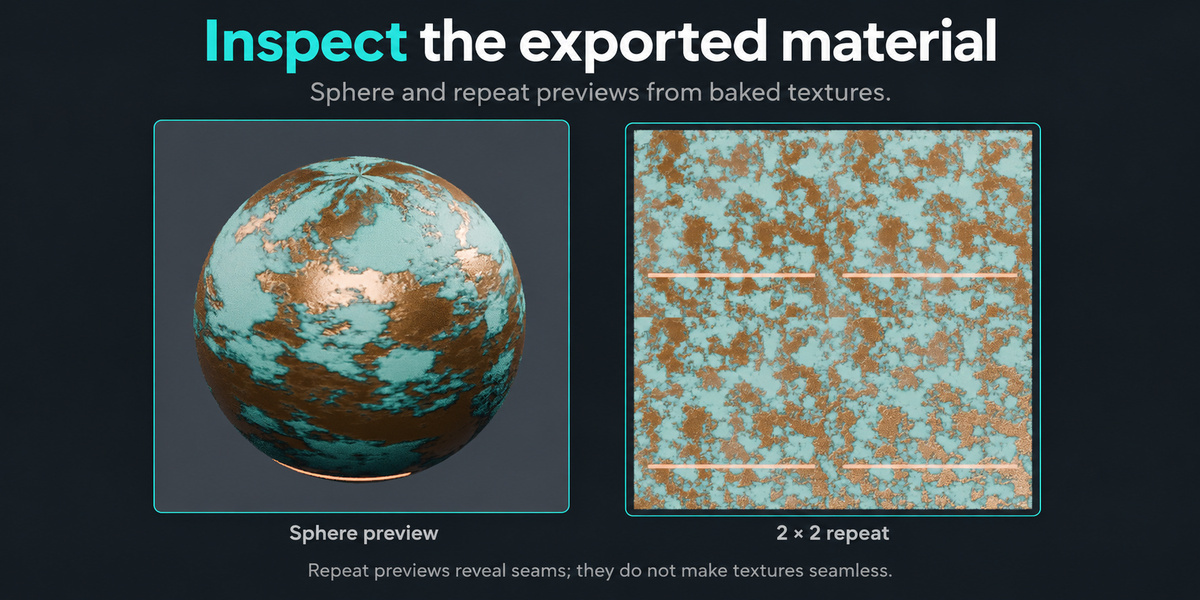
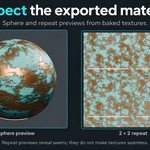
- Preview: reconstructs the material from the exported textures. Material previews include sphere, plane and repeat views. Object previews require the original named object in the open .blend file.
- Source Comparison: adds matching source renders where supported.
- Report: loads Report.txt as a Blender text datablock. Open a Text Editor and select the report if it is not already visible.
Additional preview runs use new Render_vNNN folders so earlier previews are preserved. Preview lighting is controlled in Blender; it does not guarantee identical rendering in Unity, Unreal or another application.
Textures are not automatically seamless. Tileability depends on the source nodes and coordinates. Use the repeat preview to inspect edges. Object UV textures follow the mesh layout and are not intended to repeat as a flat tile.
10. Batch Baking & Reusable Recipes
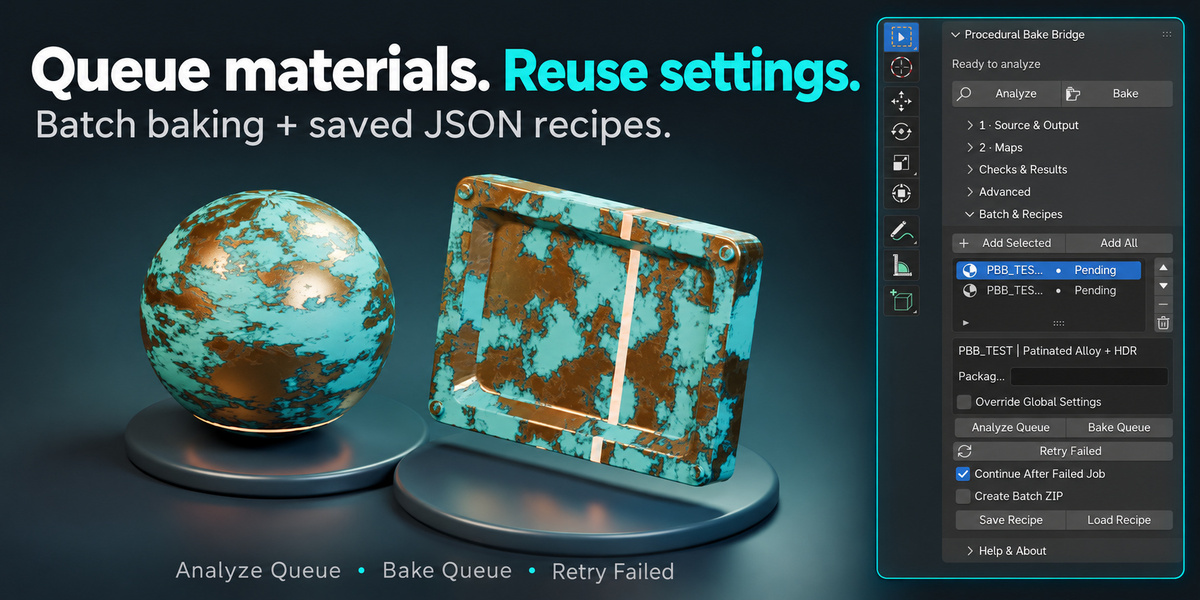
- Open Batch & Recipes. Use Add Selected or Add All, then review the queue.
- Reorder or remove entries as needed. Enable Override Global Settings for jobs that need a different name, resolution, output folder or map set.
- Run Analyze Queue and resolve blocking issues.
- Choose Bake Queue. Jobs run one after another. Continue After Failed Job controls whether processing continues after a failure.
- Use Retry Failed to retry failed, blocked, partial or cancelled entries after correcting their settings.
- Enable Create Batch ZIP to bundle successfully completed export folders with a short Batch_Report.txt.
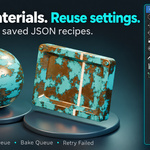
Save Recipe stores the queue and its settings in JSON. Load Recipe restores them. Recipes refer to source objects and materials by name; they do not contain your artwork. Keep the source .blend file and its resources.
Save Preset / Load Preset manage reusable export settings and channel mappings. Recipes manage a queue of jobs; presets define the texture-delivery configuration.
11. Progress & Cancellation
Analyze, Bake, Validate and Preview run in a separate local Blender process. The main interface remains available while the worker processes the job. Preparing the initial scene snapshot can briefly pause large scenes.
The progress percentage represents completed processing steps, not estimated time remaining. A complex bake or render may stay on one step for a while. Source changes made after launch apply to the next run.
Click Cancel or press Esc. Cancellation waits for the current bake, render or file operation to finish safely. Already completed packages are retained. Allow cleanup to finish before starting another job.
12. Troubleshooting
| Problem | What to Check |
|---|---|
| Analyze is blocked | Read the message at the top of the panel and expand Checks & Results. Use Full Diagnostics for more detail. Correct the source or settings, then run Analyze again. |
| AO blocks Material Texture mode | Turn off AO, supply an AO image or switch to Object UV Bake. A neutral packed fill is not a replacement for a requested standalone AO texture. |
| The object has no usable UV map | Unwrap it first, or disable Require Existing UVs and enable Include Baked Mesh for temporary Smart UV generation. Use the delivered mesh afterward. |
| Height cannot be exported | Choose a supported scalar node output and check Height Node, Height Output Socket and the height range. |
| A packed map reports missing inputs | Use Reset Preset Maps, or turn the affected packed output off and on to restore its required inputs. Check custom presets and recipes if the issue continues. |
| Textures look different from the source | Check the sampling mode and coordinates. Object, Generated and view-dependent sources can change on a sample plane. In the target application, check sRGB settings, normal convention and packed-channel connections. |
| No separate Metallic or Smoothness file appears | Engine presets store these signals inside packed textures. Read the layout in Maps or Report.txt. Use Generic PBR when separate maps are required. |
| Validate or Preview fails after moving an export | Keep the complete Textures and Previews folders together. Do not remove internal PBB data. Older exports also need their original embedded report or manifest. |
| Report appears to do nothing | The report is loaded into Blender's text data. Switch an area to Text Editor and select Report.txt, or use Open Folder and open the report with your text editor. |
| The bake fails or will not start | Check available disk space, output-folder permissions and the runtime log under Help & About. PBB needs to launch a local Blender worker; check whether security software is blocking that process. |
View Runtime Log contains more detail when an unexpected error occurs. The workspace cleanup tool removes inactive PBB-owned Blender data; it does not repair an incomplete export or remove arbitrary files from disk.
13. Supported Scope & Important Limits
- Use supported Principled BSDF graphs. Mixed shader closures, glass, volumes, OSL and view-dependent effects may not translate into a fixed PBR texture set.
- Base Color captures the supported material input without baking studio lighting or reflections into the texture.
- High-poly-to-low-poly cage baking, automatic retopology, UDIM export and GLB generation are not included.
- Presets target metallic workflows. They do not automatically reproduce every shader feature or convert a full specular workflow.
- Validation checks files and data. Inspect the rendered result in your target application before final delivery.
- The addon does not change the ownership or usage terms of source materials and artwork.
Keep a copy of the PDF guide with your project for offline reference.
Download PDF User Guide →Francesco Saviano — 3dskillup.art
 Included
Includes 12 months of
- Support from 3D Skill Up
- Product updates
Extend this product’s Support Period +12 months: 50% of product price
Have questions before purchasing?
Login to message
| Blender Extension Compatible | Yes |
| Dev Fund Contributor | |
| Published | about 4 hours ago |
| Blender Version | 4.5 - 5.2 |
| Extension Type | Add-on |
| License | GPL |
Discover more products like this
material-baking gltf batch-baking unity roughness smoothness texture-baking procedural materials Channel Packing Unreal Engine blender addon pbr-textures