 Mrs Eliza
Procedural Water Pro – Advanced Procedural Water Generator for Blender
1. Overview
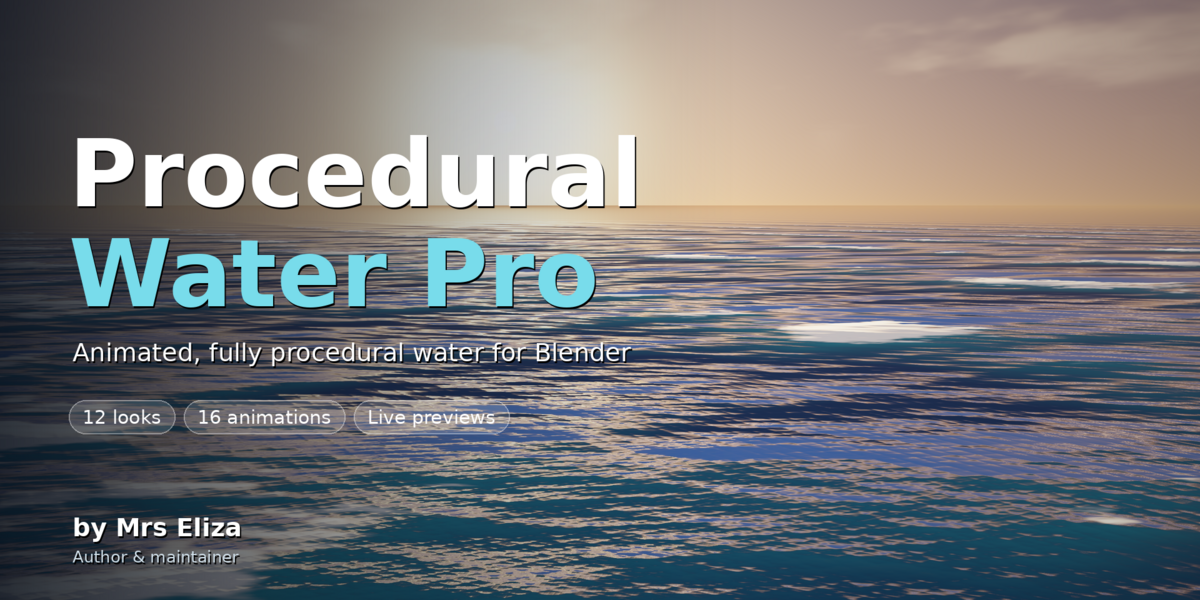
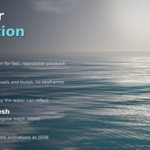
Procedural Water Pro is a powerful Blender add-on designed to create realistic, animated water surfaces with an easy-to-use procedural workflow. Create everything from calm lakes and swimming pools to flowing rivers, tropical lagoons, and powerful stormy oceans.
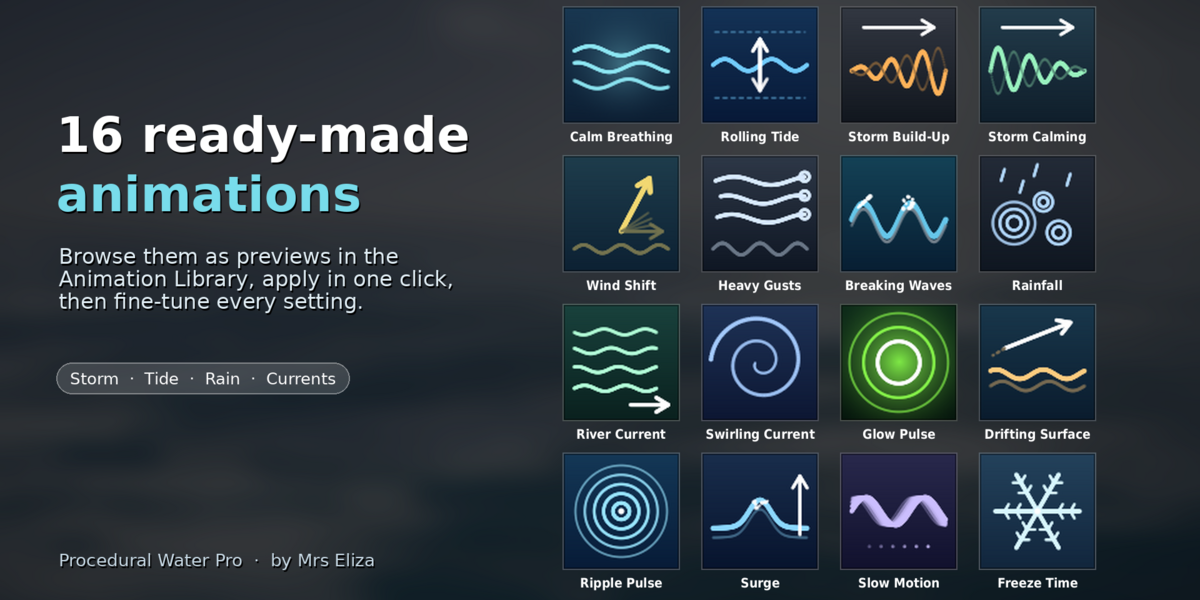
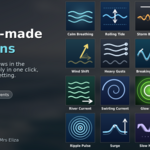
With 12 ready-made water looks and 16 animation presets, you can quickly create different water environments without manually building complex materials or animating wave effects.
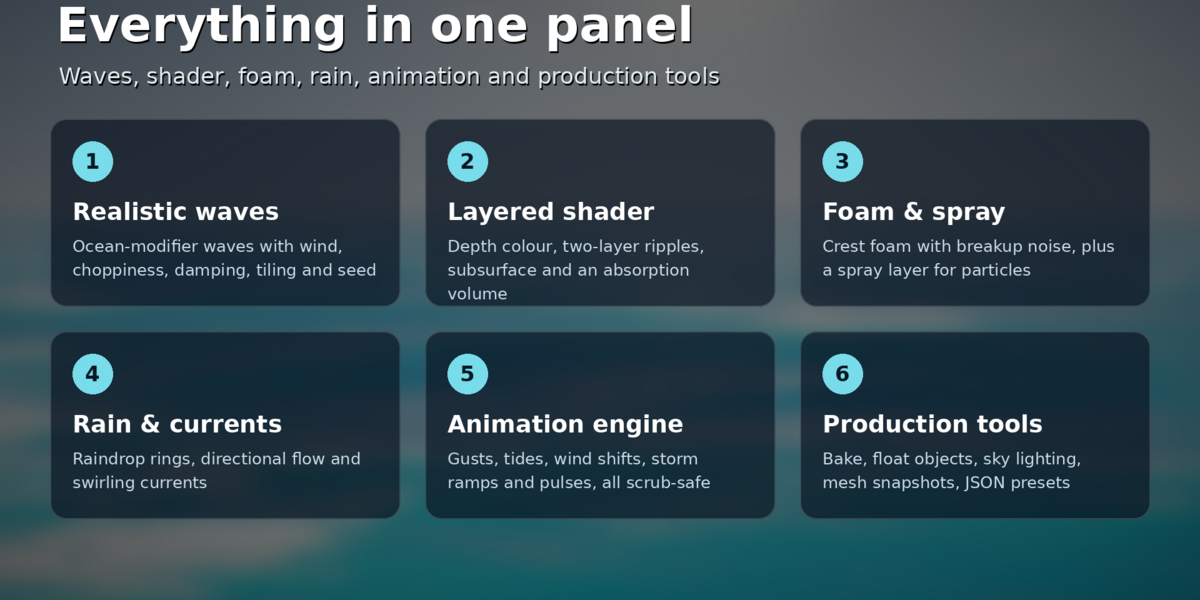
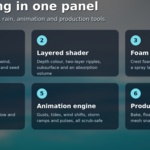
The add-on uses Blender's built-in Ocean modifier, procedural shader nodes, and animation drivers to generate the water. Every water object remains editable, allowing you to customize its waves, colours, transparency, ripples, foam, and movement whenever you need.
Whether you are creating architectural visualizations, environmental scenes, product renders, cinematic shots, or fantasy environments, Procedural Water Pro provides a flexible water creation workflow.
2. Main Features
12 Water Presets: Quickly create different water environments, from calm pools to rough oceans and fantasy liquids.
16 Animation Presets: Add storms, tides, currents, rainfall, drifting motion, glowing effects, and more.
Water Library: Browse water styles through a visual thumbnail library.
Animation Library: Preview and select animations from a dedicated library.
Custom Wave Controls: Adjust wave height, size, wind, direction, choppiness, and surface detail.
Procedural Materials: Customize water colours, transparency, reflections, roughness, and absorption.
Ripples & Rain: Add fine surface details and animated raindrop patterns.
Foam & Spray: Create white water, foam coverage, and spray data for additional effects.
-
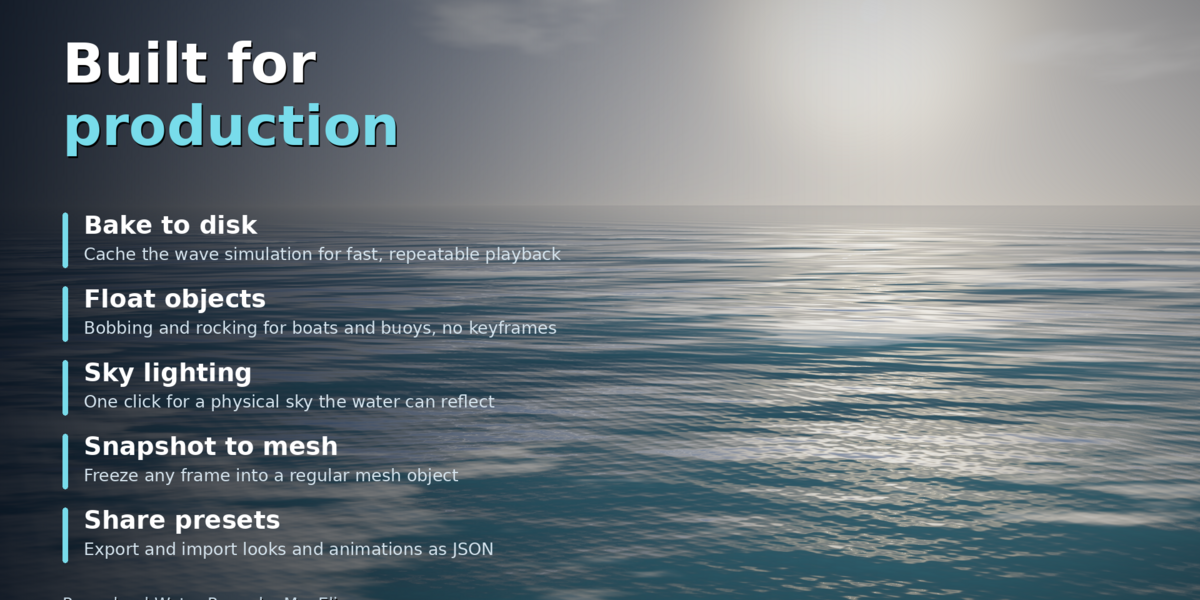
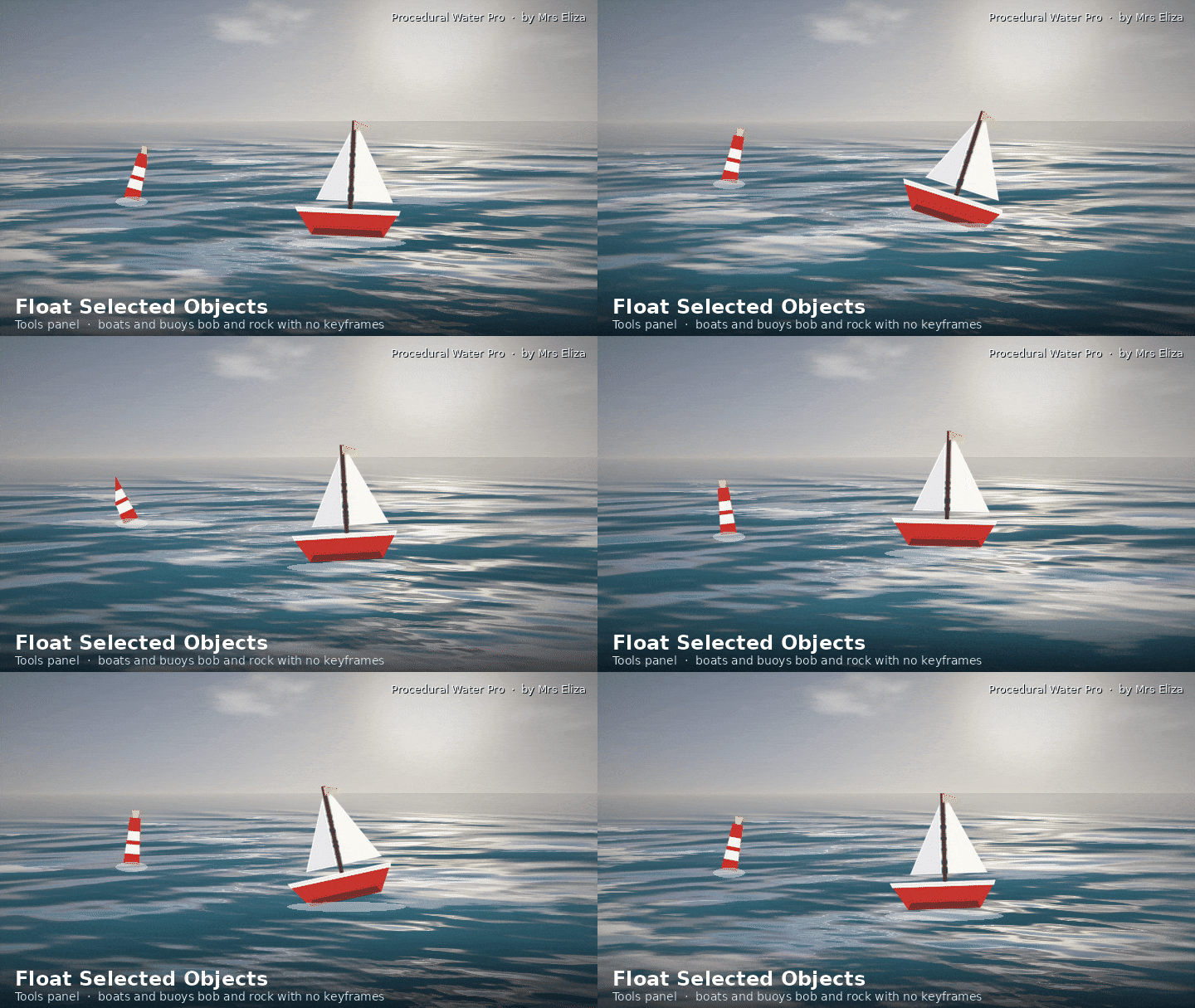
Floating Objects: Add natural-looking bobbing and rocking motion to selected objects.
Sky Lighting: Generate a procedural sky environment for better water reflections.
Wave Baking: Bake wave calculations for smoother playback.
Mesh Snapshots: Convert the water surface at the current frame into a regular mesh.
Preset Import & Export: Save your custom settings and reuse them in other Blender projects.
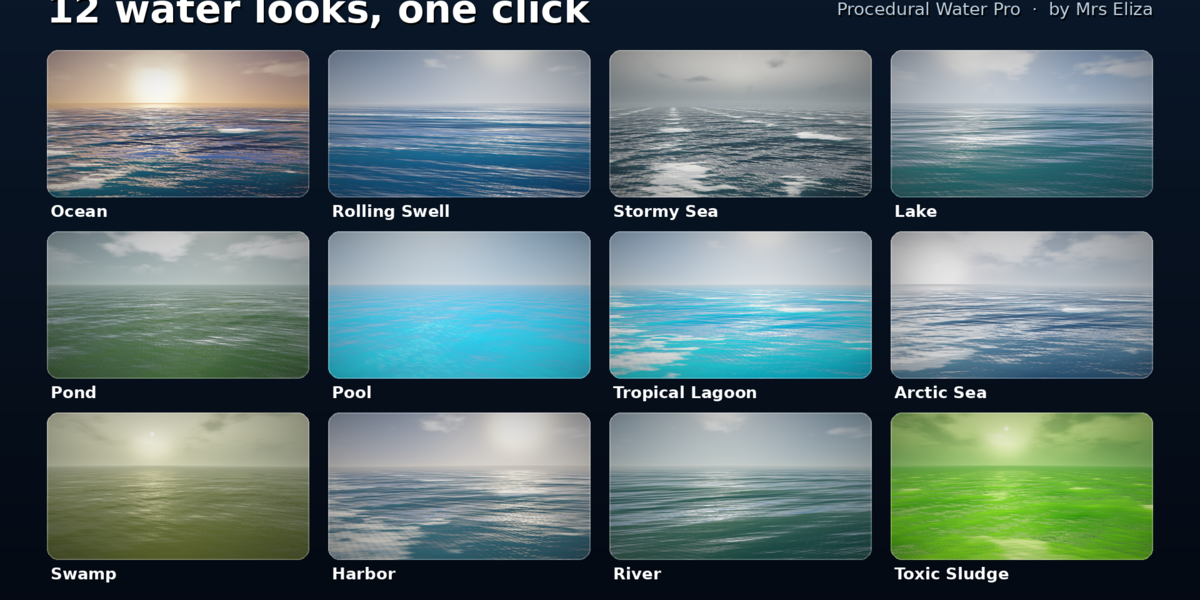
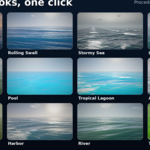
3. Water Library – 12 Ready-Made Looks
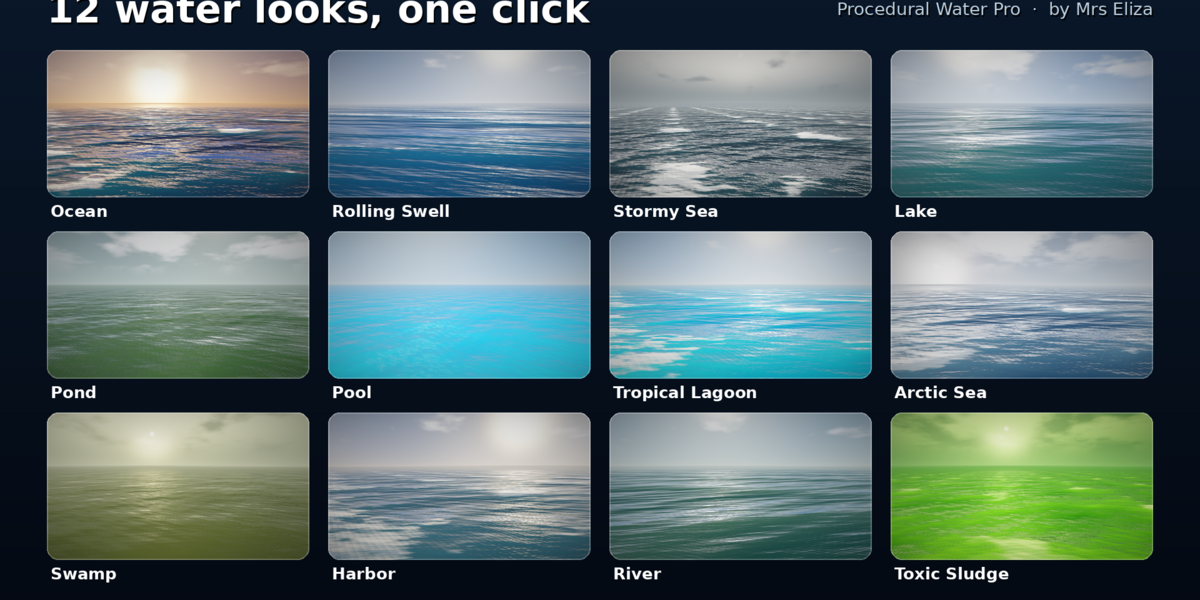
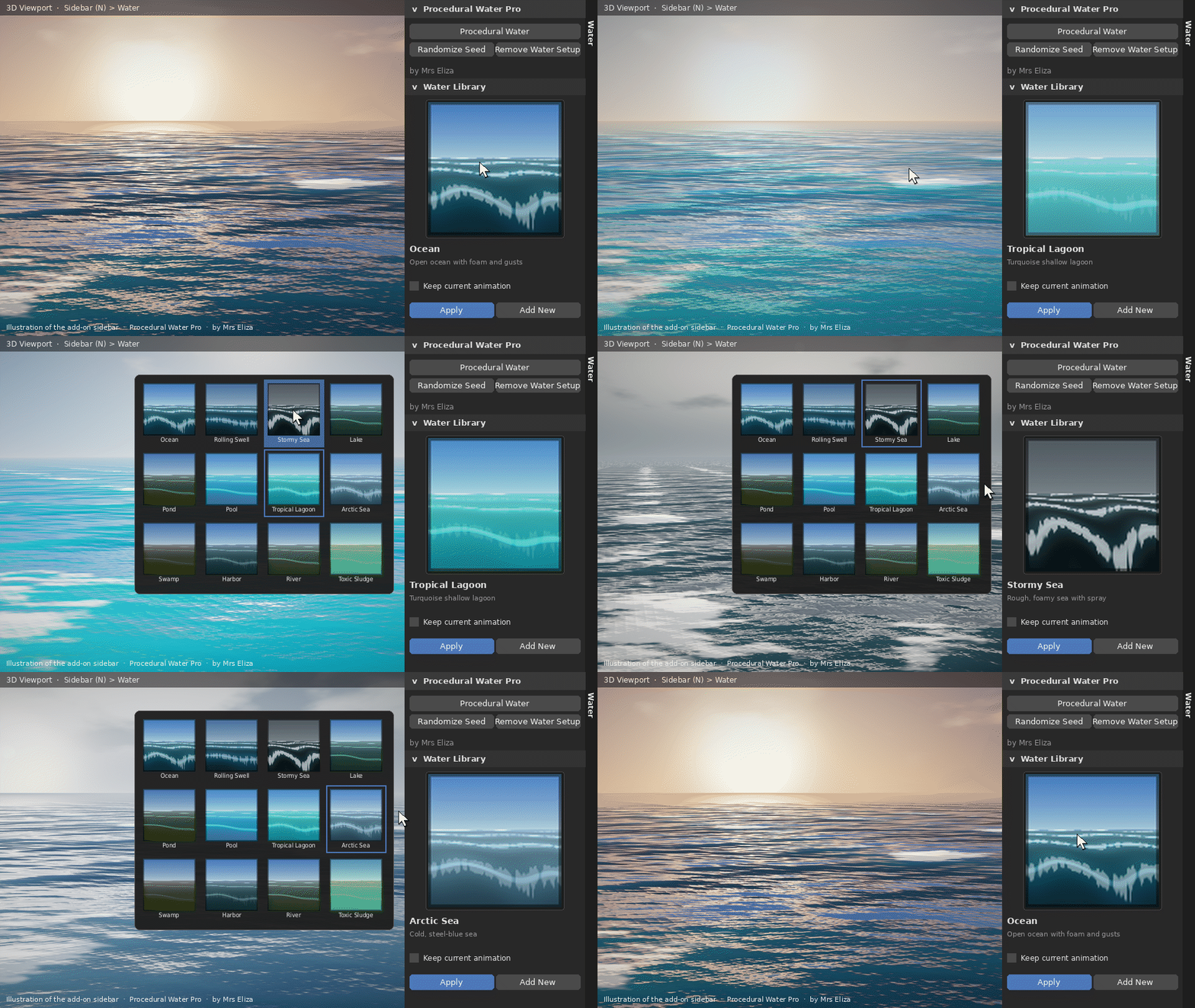
The Water Library includes 12 different water styles. Each preset automatically configures the wave geometry, colours, surface properties, ripples, and other relevant settings.
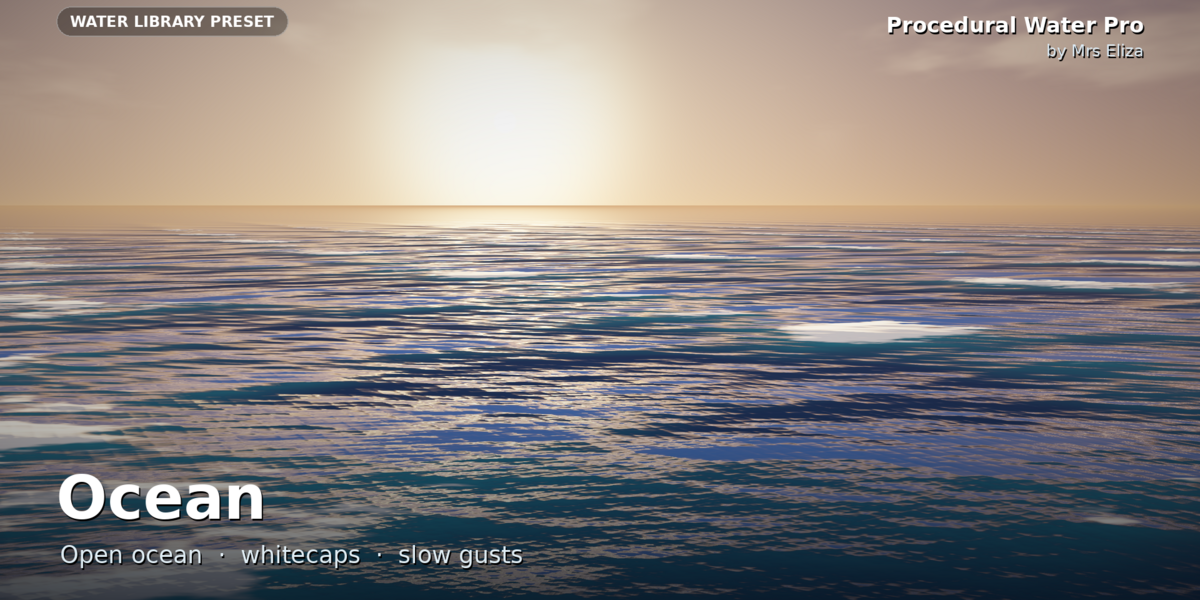
1. Ocean
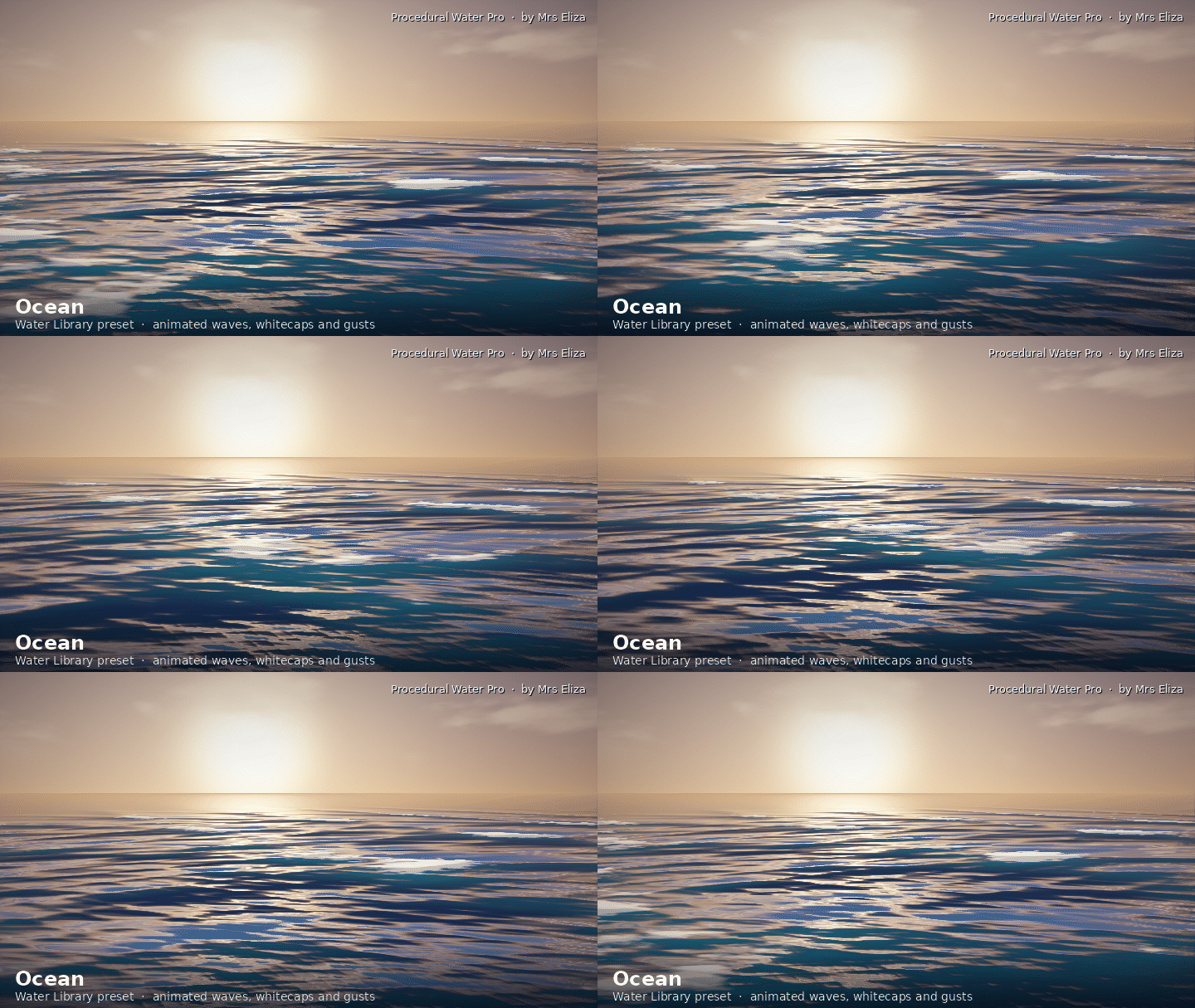
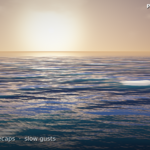
Create an open sea with natural waves, foam on the crests, and gentle changing wind conditions. Suitable for general ocean scenes and wide environmental shots.
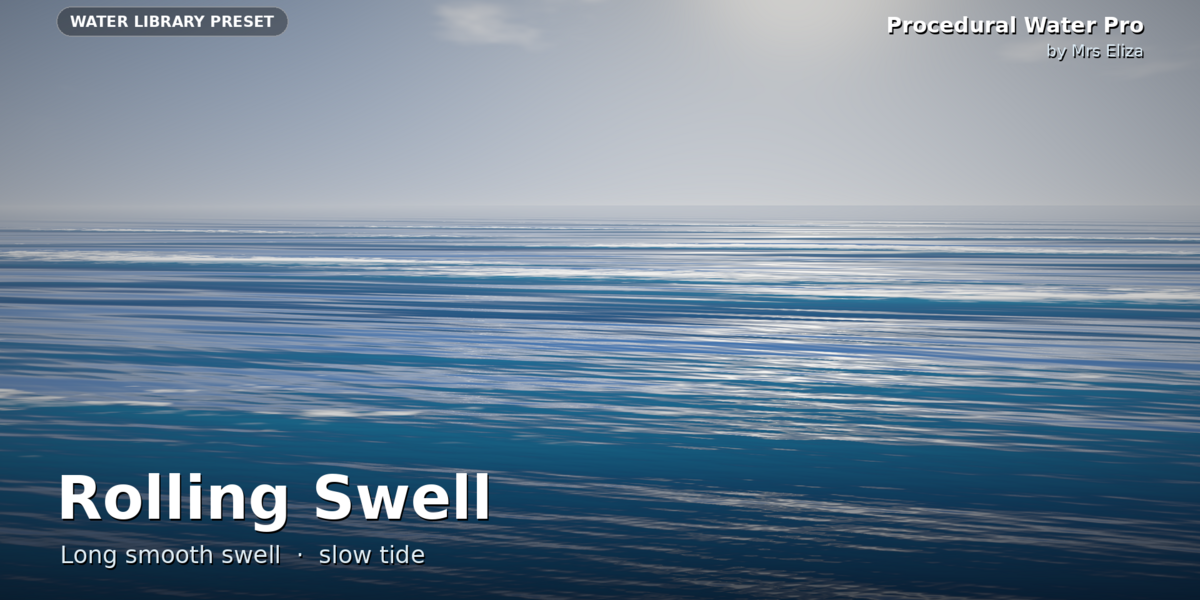
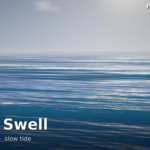
2. Rolling Swell
Generate long, smooth, cinematic waves with a calm and organized surface. Ideal for peaceful open-water scenes.
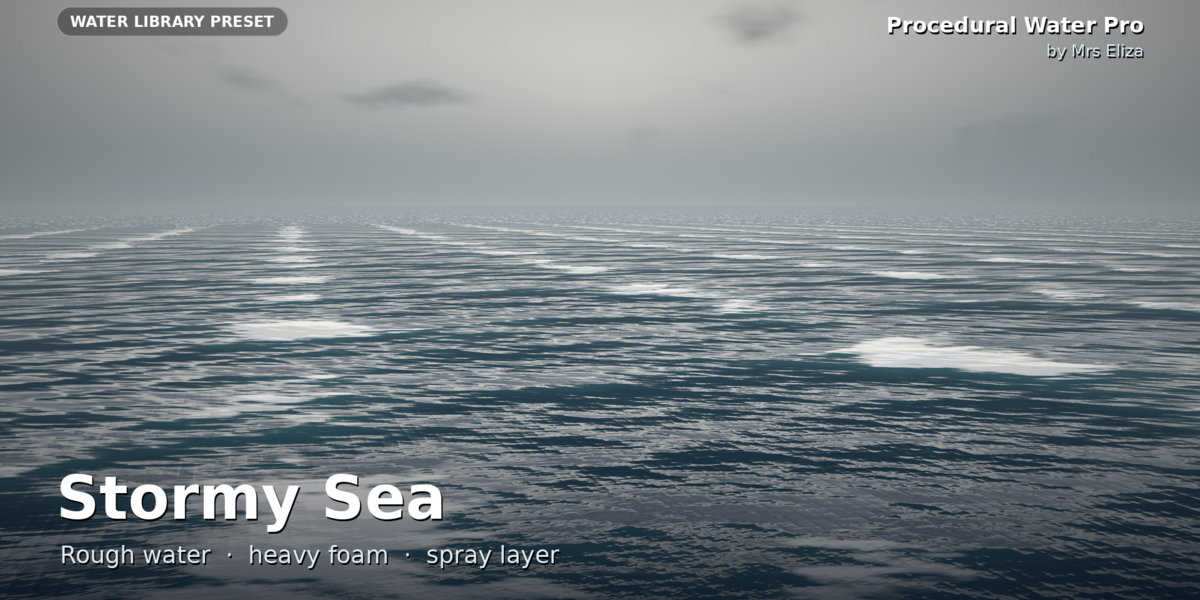
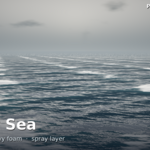
3. Stormy Sea
Create rough, powerful waves with strong wind, high choppiness, heavy foam, and a dark sea appearance.
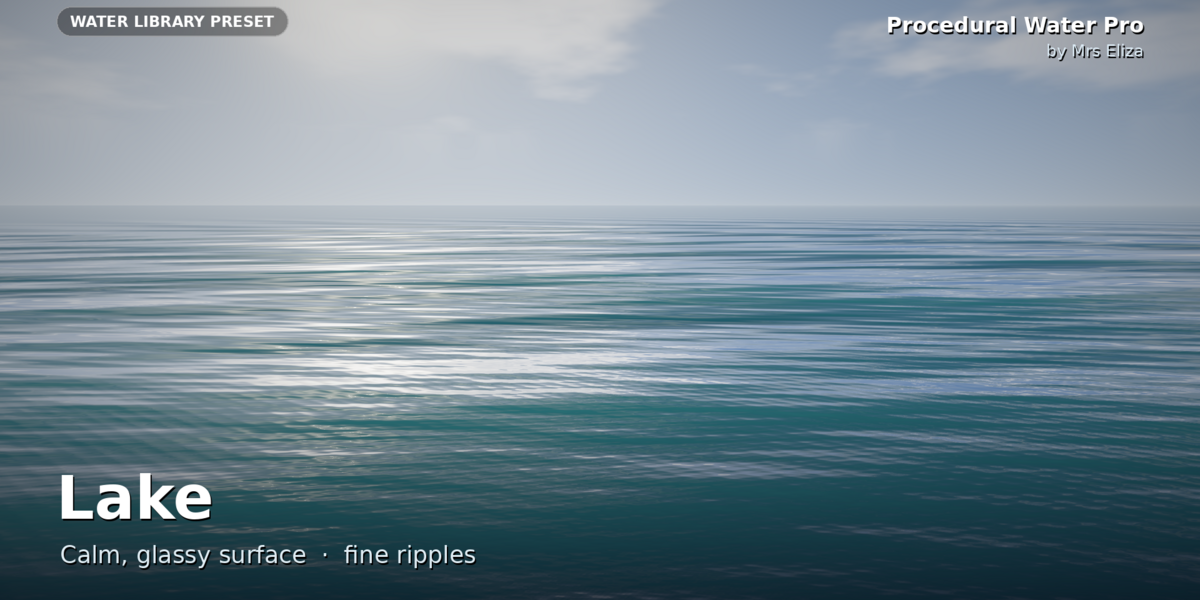
4. Lake
A calm freshwater look with small waves, subtle ripples, and dark green-blue colours.
5. Pond
Create small, nearly still water surfaces with green-brown colours and a murky appearance.
6. Pool
Generate clean swimming-pool water with bright turquoise colours, high transparency, and a smooth surface.
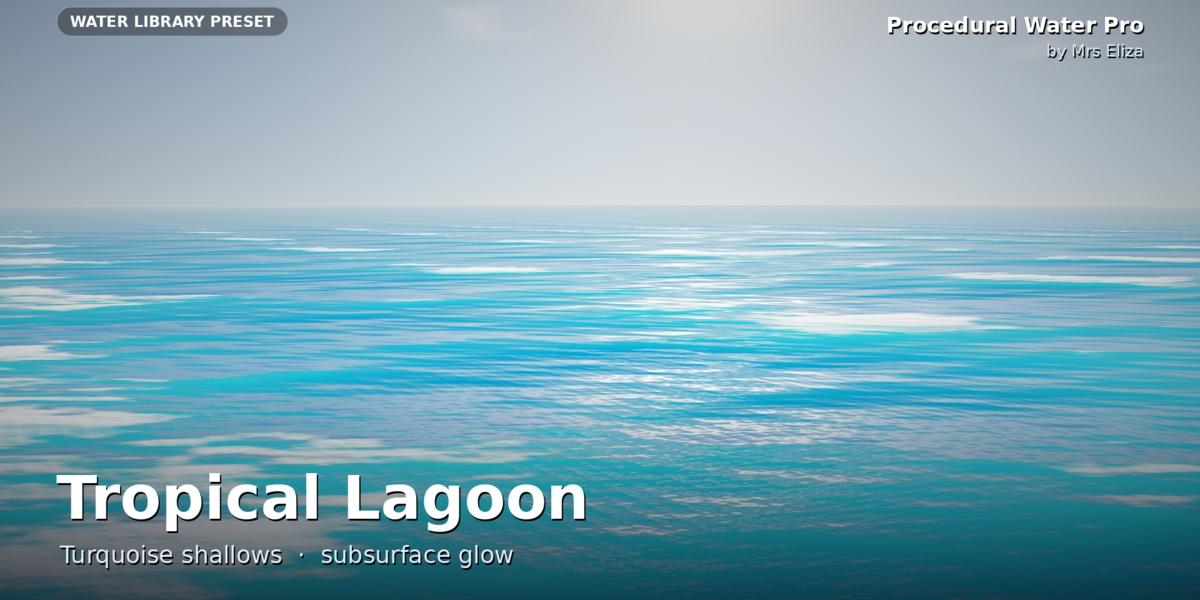
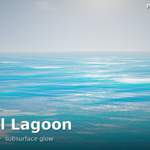
7. Tropical Lagoon
Create shallow tropical water with bright turquoise colours, soft waves, delicate foam, and a beautiful deep-teal transition.
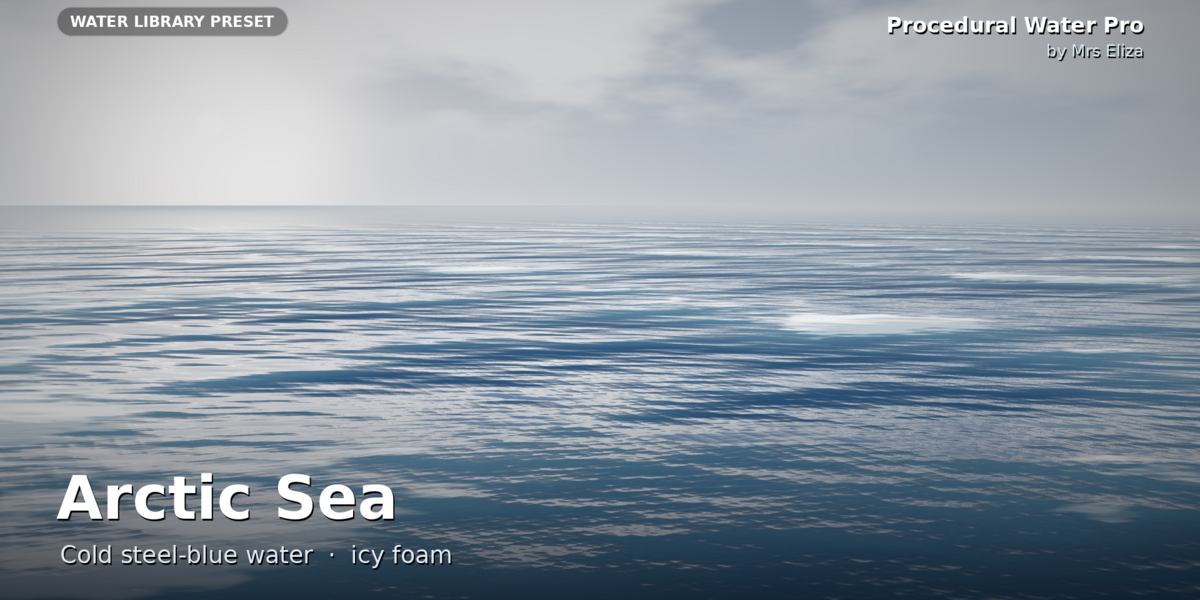
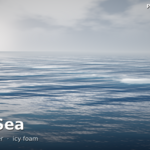
8. Arctic Sea
A cold, steel-blue water style with pale shallow colours, darker deep water, and blue-white foam.
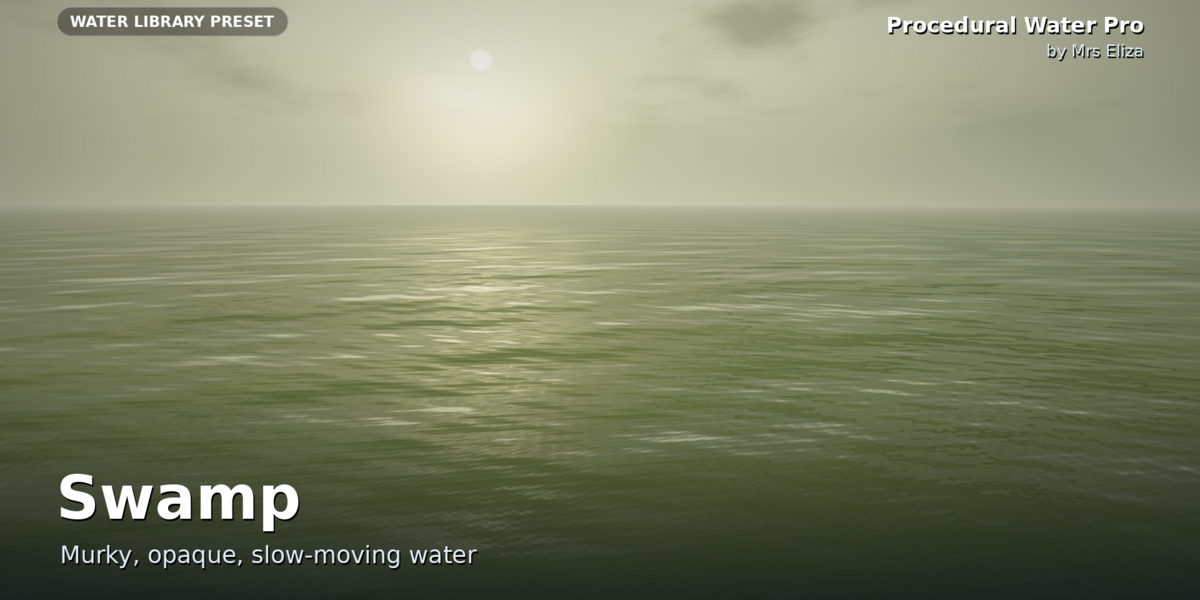
9. Swamp
Generate dark, muddy, nearly opaque water with a yellow-green and brown appearance.
10. Harbor
Create sheltered water with small waves, subtle foam, and gentle tidal movement. Suitable for docks, boats, and harbor environments.
11. River
Generate a directional water surface with aligned waves and flowing ripple details. Adjust the flow direction to match your river scene.
12. Toxic Sludge
Create glowing green fantasy liquid with yellow-green foam and a thick, unusual appearance. Ideal for sci-fi and fantasy environments.
4. Animation Library – 16 Animation Presets
Bring your water surfaces to life with the built-in Animation Library. Choose an animation and apply it to your selected water object.
Weather & Wave Animations
Calm Breathing: Gently increases and decreases wave and ripple strength for natural-looking water movement.
-
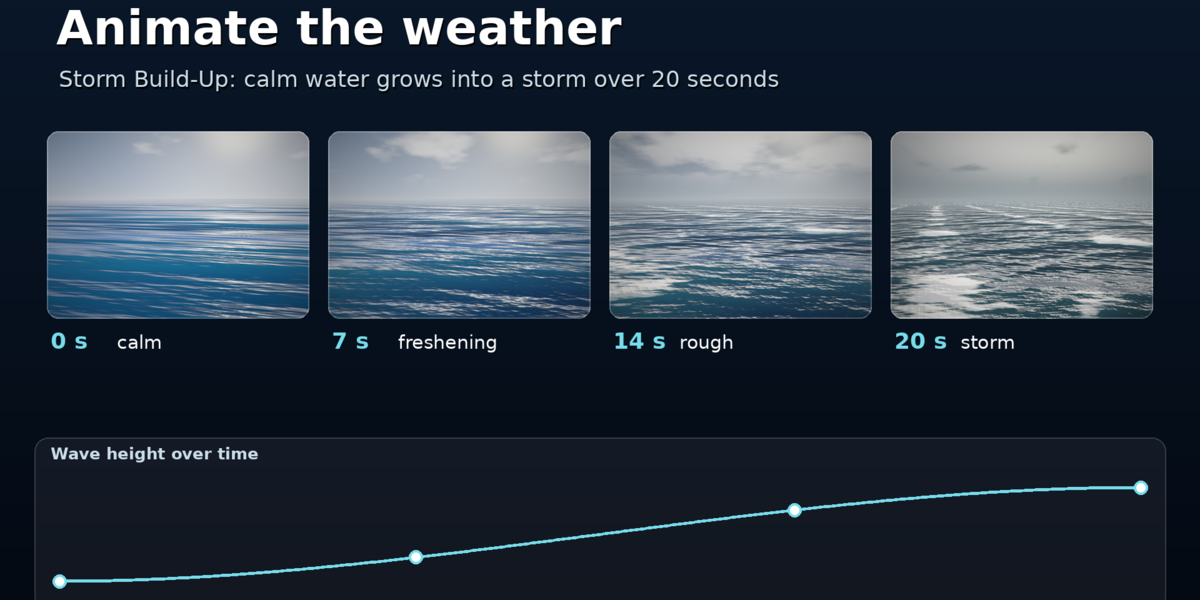
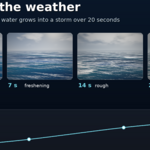
Storm Build-Up: Gradually increases wave height, choppiness, wind, and foam to transform calm water into a storm.
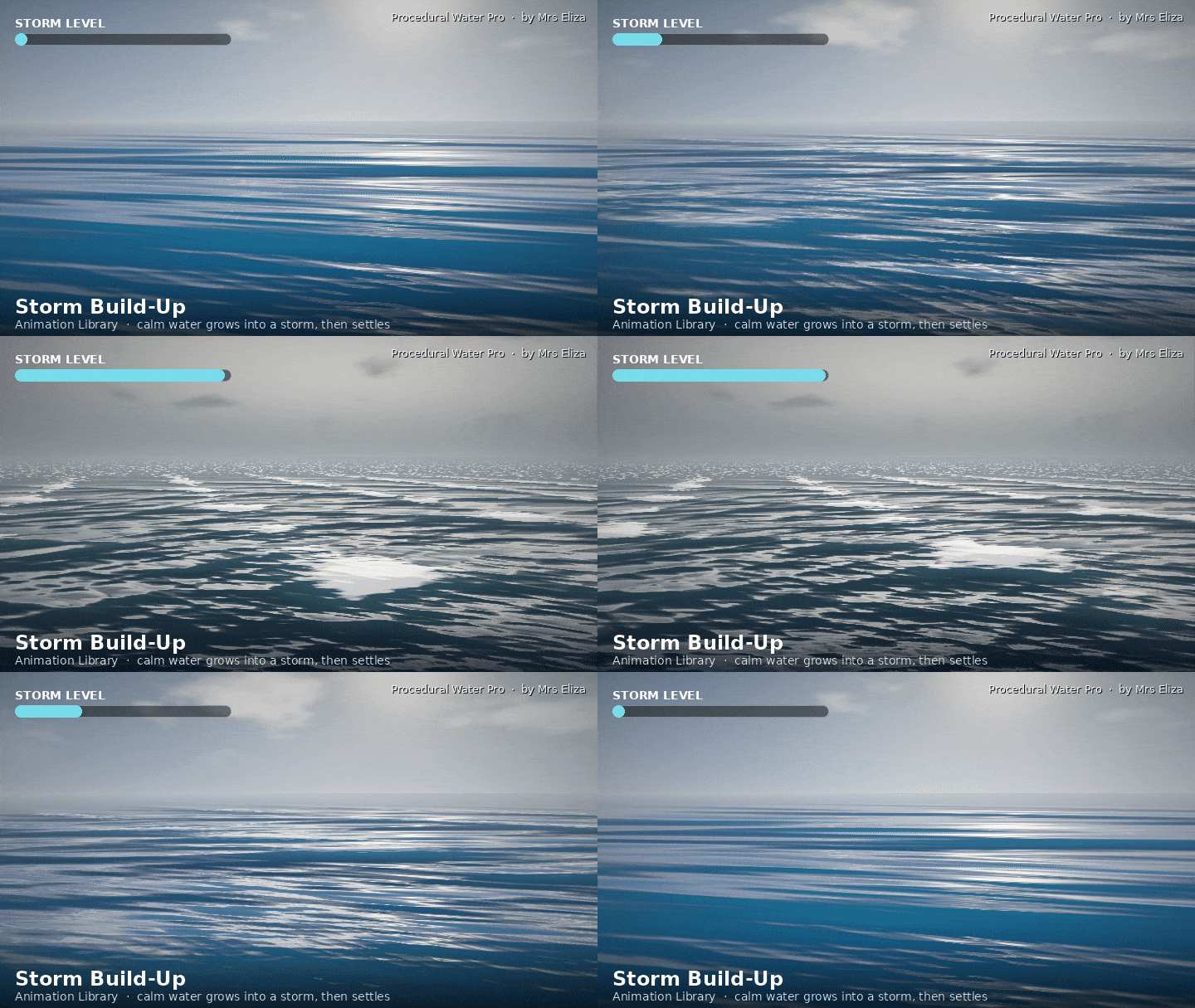
Storm Calming: Reverses the storm effect, gradually reducing wave intensity.
-
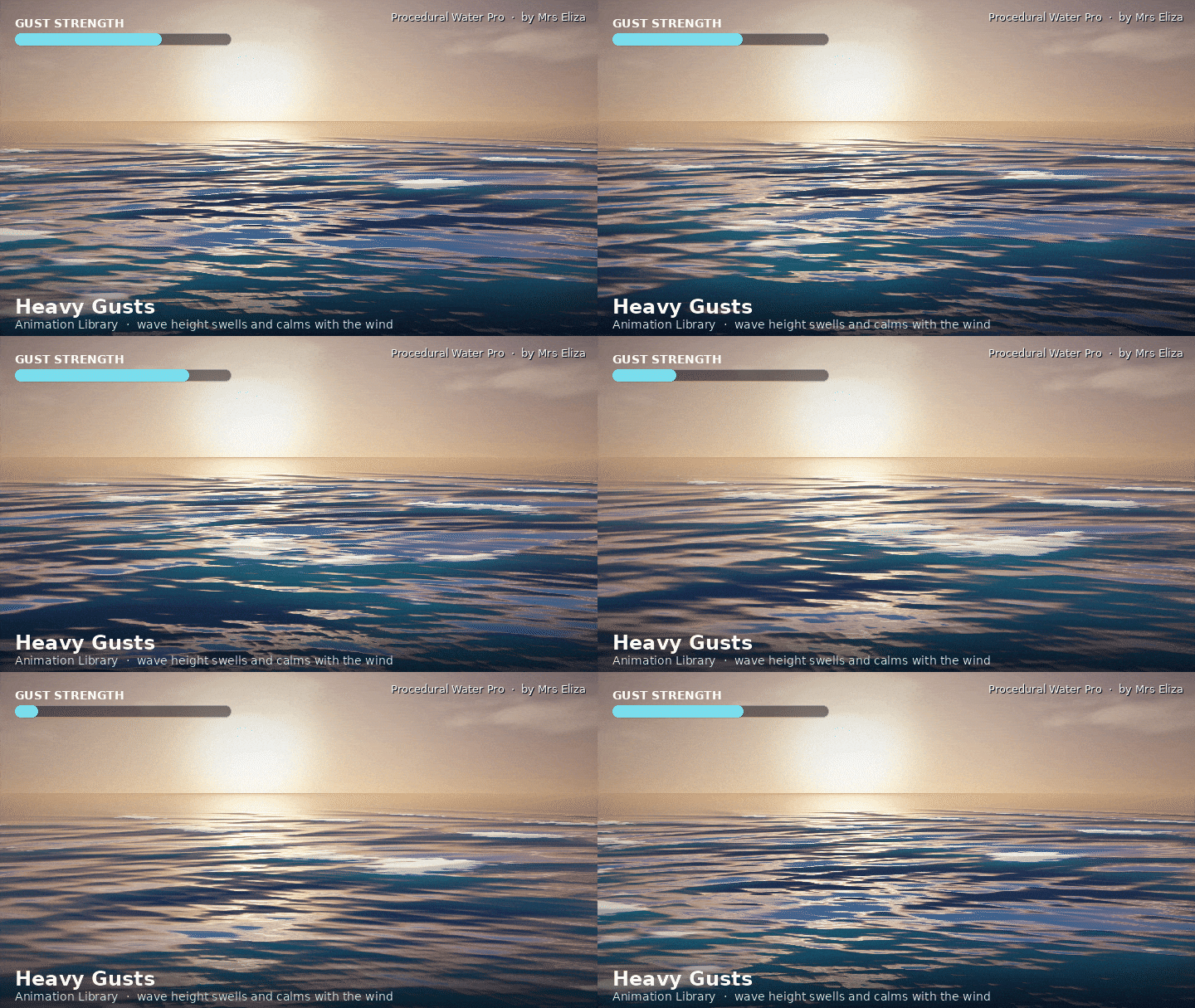
Heavy Gusts: Adds powerful wind gusts and changing wave intensity.
Breaking Waves: Creates changing foam coverage and choppiness to give waves a more energetic appearance.
Surge: Produces strong wave-height changes combined with tidal movement.
-
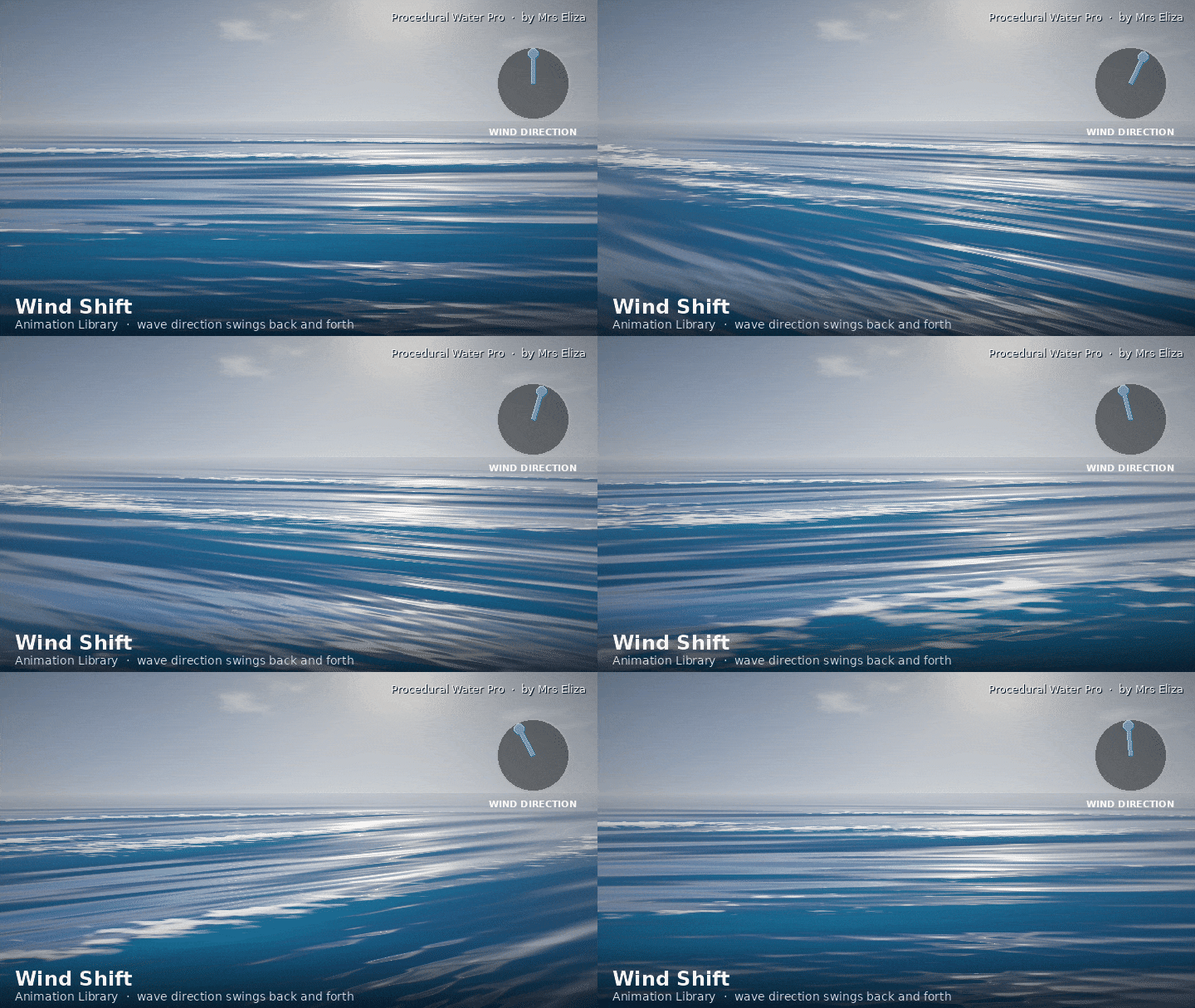
Wind Shift: Changes the wave direction over time.
Tide & Current Animations
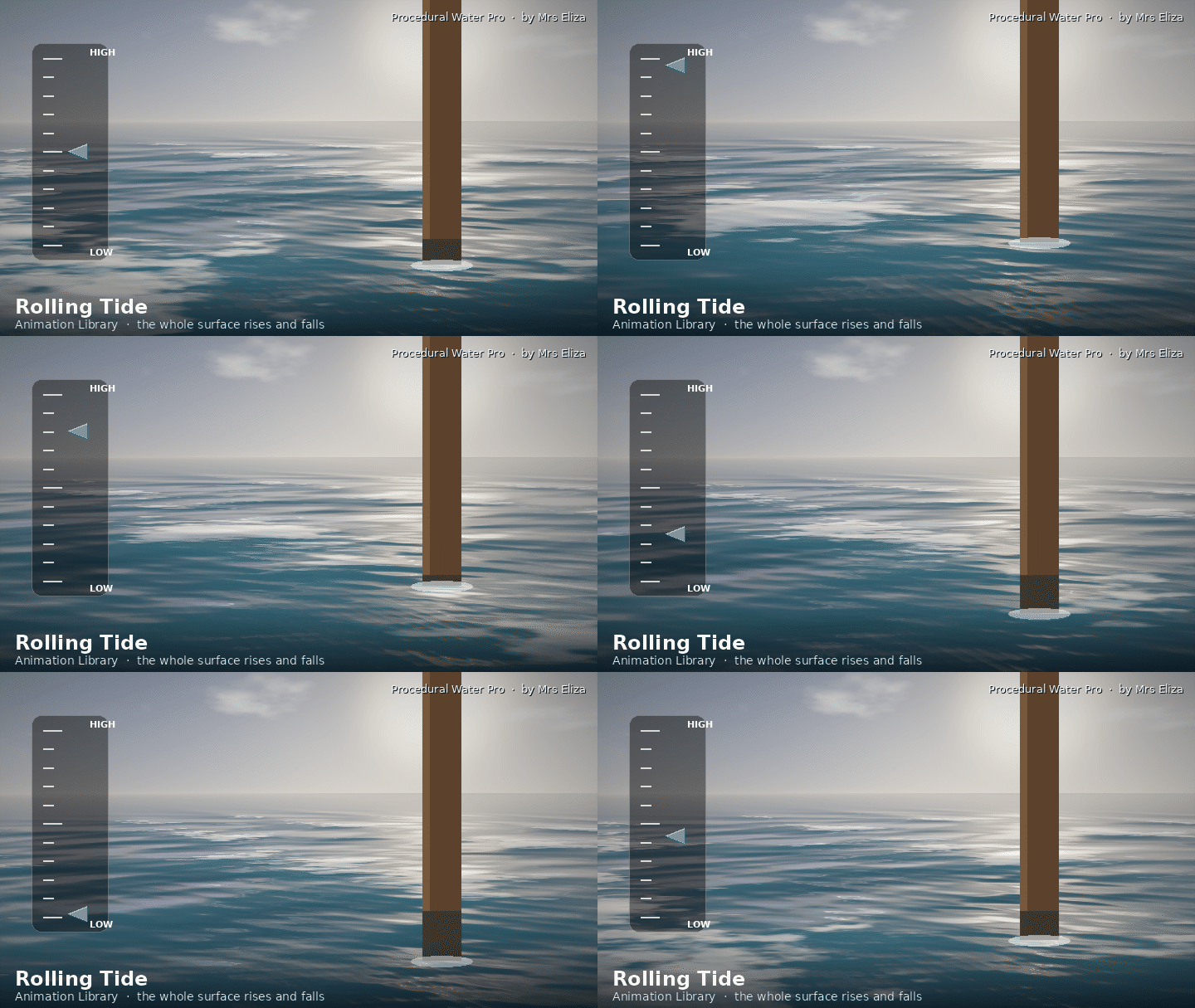
Rolling Tide: Makes the entire water surface rise and fall gradually.
River Current: Moves surface ripples in one direction.
Swirling Current: Creates rotating ripple movement for a spiral-like effect.
Drifting Surface: Moves the water surface sideways to suggest a slow current.
-
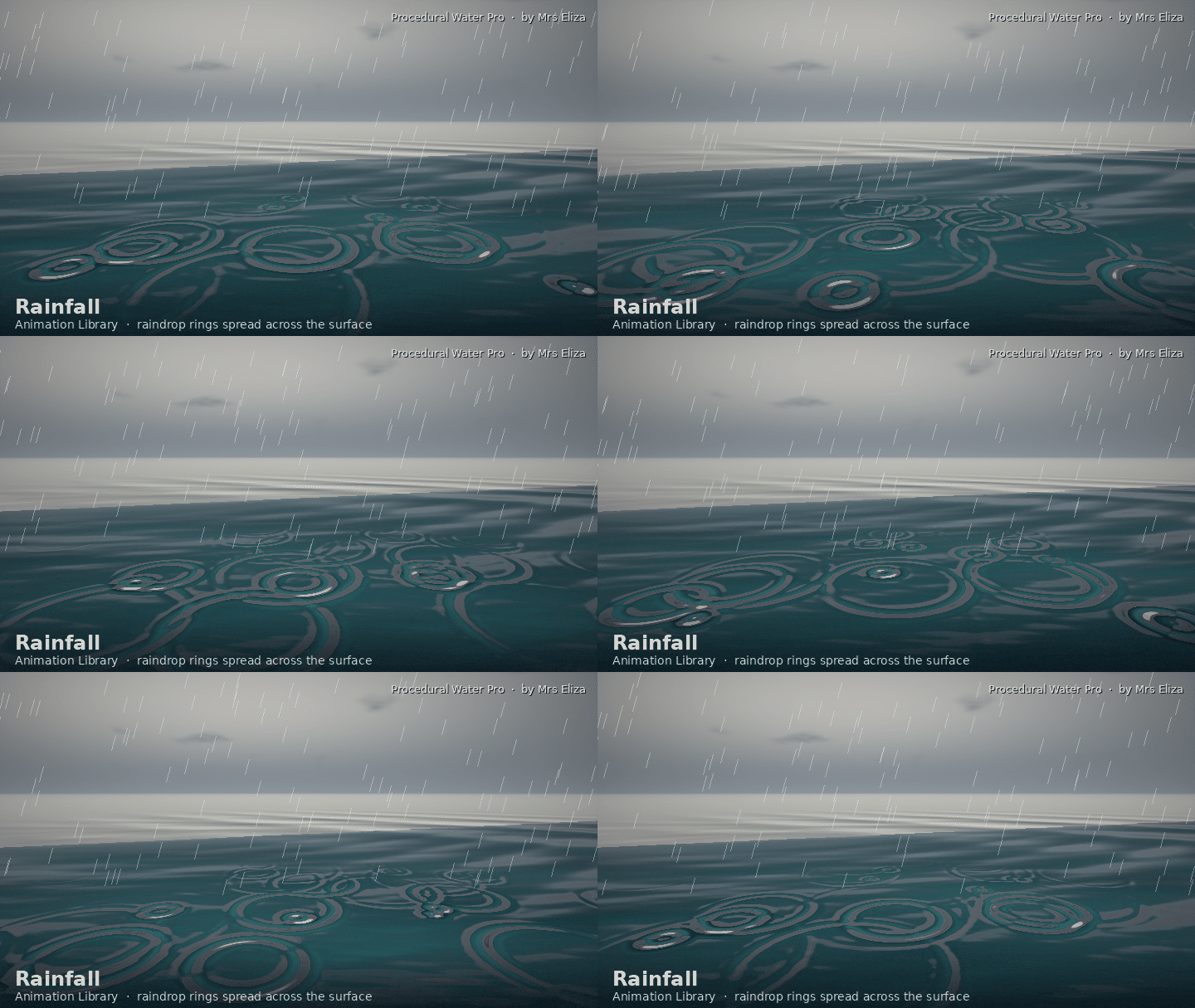
Rainfall: Adds animated raindrop rings and surface disturbances.
Special Effects & Time Controls
Glow Pulse: Gradually brightens and darkens the shallow water colour.
Ripple Pulse: Makes the ripple strength increase and decrease over time.
Slow Motion: Reduces the overall animation speed.
Freeze Time: Stops water movement while keeping the timeline available.
You can also customize animation settings manually or combine additional behaviours through the Animation Controls panel.
5. User Interface & Control Panels
Procedural Water Pro organizes its features inside a dedicated Water tab in Blender's 3D Viewport sidebar. Press N to open the sidebar and access the add-on.
The interface includes visual preset libraries and expandable control panels, making it easy to find and adjust settings.
Main Panel
The main Procedural Water Pro panel provides quick access to the water creation tools.
Add New Water: Create a new procedural water object.
Randomize Seed: Generate a different wave pattern.
Remove Water Setup: Remove the add-on's modifier, material, and animation drivers from the selected water object.
Water Library
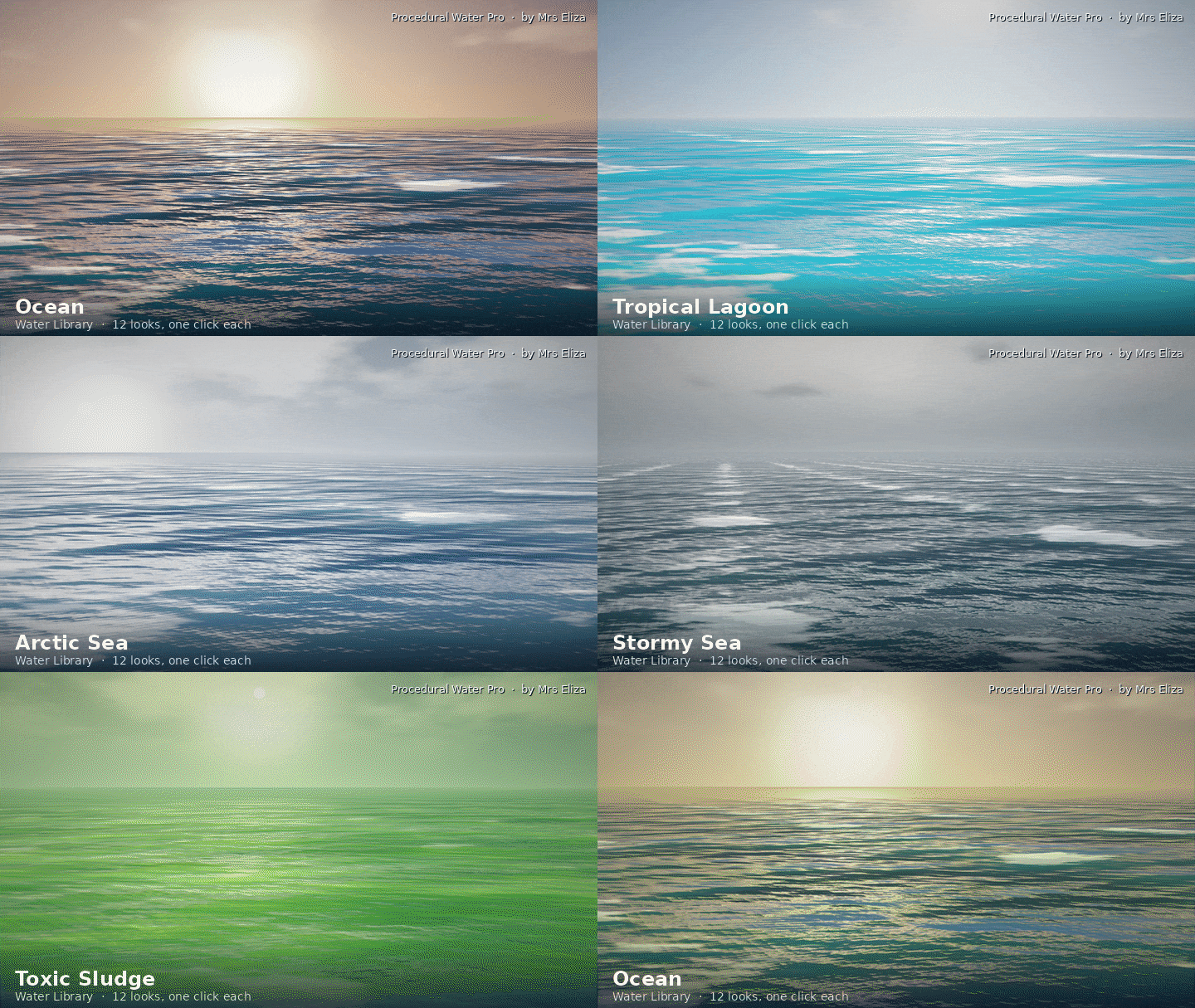
Browse all 12 water looks using preview thumbnails. Select a style and press Apply to update the active water object.
Use Add New to create another water object with the selected look. The Keep Current Animation option lets you change the appearance without replacing the existing animation.
Animation Library
Browse all 16 animation presets through a visual preview grid. Select an animation and press Apply to add it to your water object.
Use Clear to disable the animation behaviours and return to the base motion settings.
Waves Panel
Control the geometry and movement of the generated water surface.
Available settings include:
Size
Viewport Detail
Render Detail
Wave Height
Smallest Wave
Choppiness
Wind Velocity
Alignment
Direction
Damping
Depth
Wave Speed
Repeat X and Repeat Y
Seed
These controls allow you to create everything from small, smooth ripples to large, powerful ocean waves.
Animation Controls Panel
Customize the movement of your water with individual animation controls.
Adjust:
Global Time Scale
Gust Strength and Period
Tide Height and Period
Wave Ramp
Choppiness Pulse
Wind Shift
Foam Pulse
Ripple Pulse
Colour Pulse
Surface Drift
Flow Speed, Direction, and Spin
Each animation behaviour can be enabled or disabled independently.
Surface Panel
Customize the water material to achieve different visual appearances.
Shallow Color: Set the colour of shallow-looking water.
Deep Color: Control the darker colour of deep water.
Roughness: Adjust the sharpness or softness of reflections.
IOR: Control the index of refraction.
Transparency: Adjust how much light passes through the water.
Specular: Control surface highlights.
Subsurface: Add a soft internal light-scattering effect.
Absorption Volume: Add colour absorption to water with suitable thickness and render settings.
Ripples & Rain Panel
Add fine surface details without changing the main wave geometry.
Customize Ripple Scale, Ripple Strength, Ripple Speed, Detail Scale, and Detail Strength.
The rainfall controls let you adjust Rain Strength, Rain Scale, and Rain Speed to create changing raindrop patterns on the water surface.
Foam Panel
Control the appearance of white water and foam.
Available settings include:
Foam Coverage
Foam Strength
Foam Threshold
Foam Softness
Foam Scale
Foam Detail
Foam Color
Spray Layer
Invert Spray
Enable or disable the complete foam effect using the checkbox in the panel header.
Tools Panel
Access additional tools for working with your water objects:
Bake Waves: Save Ocean modifier wave calculations to a cache.
Free Bake: Remove the existing wave cache.
Float Selected Objects: Add bobbing and rocking motion to boats, buoys, and other objects.
Stop Floating: Remove the floating animation from selected objects.
Add Sky Lighting: Create a procedural sky environment for reflections.
Snapshot to Mesh: Convert the current water shape into a regular mesh.
Export Preset: Save your water look and animation settings to a JSON file.
Import Preset: Load previously saved settings into another water object.
6. Customization & Workflow
Every water preset is a starting point. After applying a look, you can customize its appearance and animation using the available panels.
For example, start with the Ocean preset, increase the Wave Height, adjust the Wind Velocity, and add the Storm Build-Up animation to create a more dramatic sea.
For a swimming pool, choose the Pool preset, adjust the Size to match your scene, and use the Surface panel to customize transparency and colour.
You can create multiple water objects in the same scene, each with its own look, animation, and settings. All the add-on settings are stored with the water object inside your Blender project.
7. Compatibility
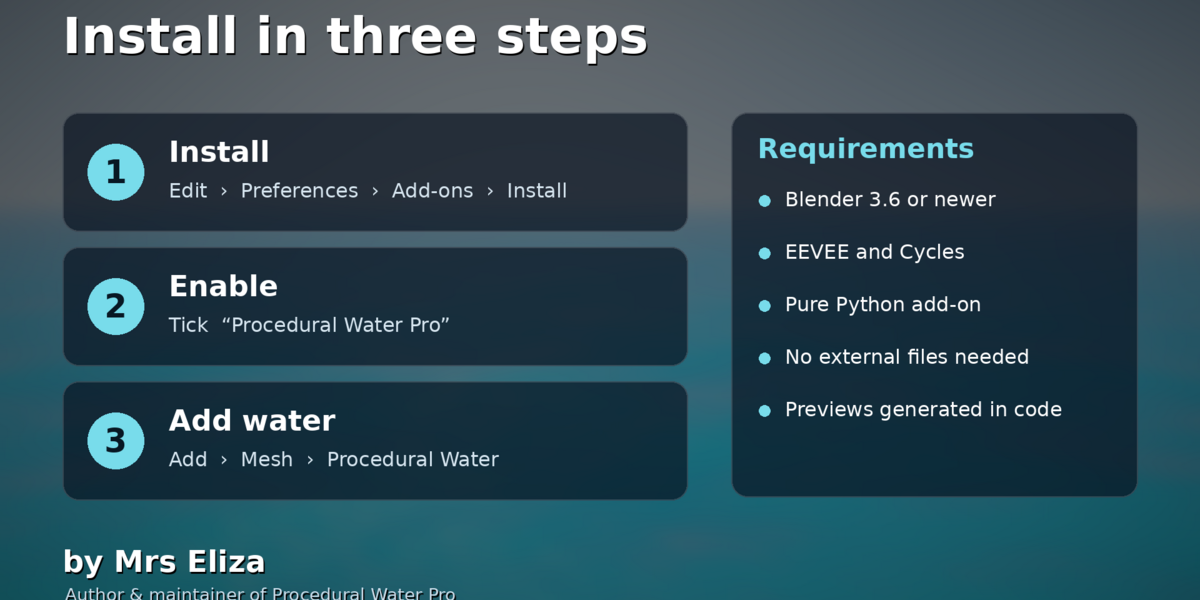
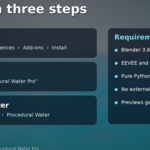
Software: Blender 3.6 or newer.
Render Engines: EEVEE and Cycles.
Installation: Single Python add-on file.
Textures: No external image textures required.
Water Generation: Blender's built-in Ocean modifier.
Materials: Procedural shader-node materials.
Animation: Drivers and frame-based animation controls.
Cycles is recommended for the most reliable transparent water and volume effects. Some reflections, refraction, and absorption features may require additional settings in EEVEE.