Procedural Weather Pro — One-Click Procedural Sky, Clouds, Stars & Lightning
 blenderustad


Overview
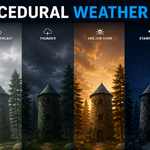
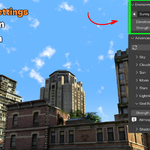
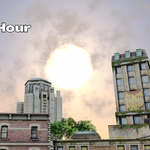
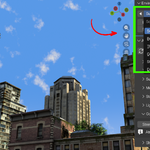
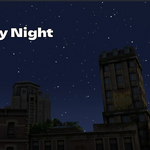
Procedural Weather Pro is a Blender add-on that builds a complete sky, sun, moon, stars, and clouds directly inside Blender's World shader. Everything is procedural (node-based), so there are no HDRIs or image textures to manage. Six ready-made scene presets get you a finished sky in one click, and an Advanced panel gives you full control when you want to fine-tune it.
Requirements
- Blender 4.2.0 or newer
- Built and tested on Blender 5.1, EEVEE
Installation
- Go to
Edit > Preferences > Get Extensions > Install from Disk. - Select the
procedural_weather_pro-1.0.0.zipfile. - Make sure Procedural Weather Pro is enabled in the list.
You can also just drag the ZIP file directly into the Blender window to install it.
Quick Start
- Open the 3D Viewport sidebar by pressing N, then go to the Weather Pro tab.
- Click Create Sky. This builds the World shader network and two light objects (sun and moon) in your scene.
- In the Environment panel, pick a preset from the dropdown, or step through presets with the arrow buttons on either side.
- Adjust the two master sliders:
- Elevation: moves the sun (Day presets) or the moon (Night presets) up or down.
- Strength: scales the overall brightness of the sky.
- Open Advanced for deeper control over individual systems.
Presets
| Preset | Mood |
|---|---|
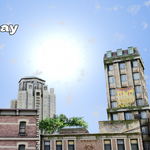
| Sunny Day | Bright blue sky, crisp clouds, high sun |
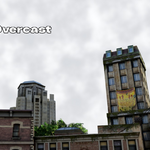
| Bright Overcast | Flat, even white-grey overcast |
| Golden Hour | Warm low sun, golden horizon, backlit clouds |
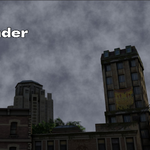
| Thunder | Dark storm with animated lightning |
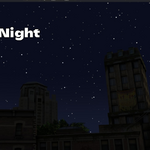
| Starry Night | Deep navy sky, cratered moon, twinkling stars |
| Dark Night | Almost-black minimal night |
The Blend slider (next to the preset dropdown) lets you cross-fade toward the next preset in the list, useful for a look in between two presets.
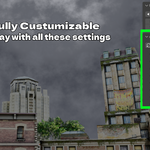
Advanced Panel
Click Advanced to expand eight sub-panels. Each maps to one system:
| Sub-panel | What it controls |
|---|---|
| Sky | Horizon and zenith color, horizon height, horizon glow, zenith darkening, Vivid Colors toggle |
| Clouds | Coverage, density, color, scale, softness, opacity, moon tint, night brightness, drift speed |
| Sun | Elevation, azimuth, size, color, disc brightness, light strength |
| Moon | Elevation, azimuth, size, color, disc brightness, light strength, crater strength/scale, glow |
| Stars | Density, size, brightness, size/brightness variation, clustering, twinkle, twinkle speed |
| Lightning | Strike brightness, flash rate, strike count, bolt visibility/scale/repeat, flash darken |
| God Rays | Strength (an atmospheric light-shaft effect built for Cycles renders) |
| Shadows | Cast shadows toggle, shadow softness (applies to both sun and moon lights) |
If you ever hand-edit the node network and something breaks, click Rebuild Sky at the top of the Advanced panel. It rebuilds the shader from scratch and reapplies your current preset.
Animation
Cloud drift, star twinkle, and lightning strikes are frame-driven. Once you set a drift speed, twinkle amount, or lightning strength, they animate automatically when you press Play or scrub the timeline, both in the viewport and in final renders. No keyframing is required for these.
Every slider is still a normal Blender property, so you can keyframe Elevation, Strength, or any other value by hand if you need a specific timed transition (for example, a sky that darkens over 100 frames).
Custom Presets
Presets are plain JSON files in the add-on's Presets folder. To make your own, duplicate an existing file, edit the values, and drop it back in the folder. No coding is required, and it will appear in the preset dropdown automatically.
Notes
- The add-on only reads and writes your scene's World shader and light objects. It doesn't need file system or network access to run.
- Licensed under GPL-3.0-or-later.
- Support and more add-ons: [email protected] / https://blenderustad.com / https://superhivemarket.com/creators/blenderustad
All FAQ
1. What does Procedural Weather Pro actually do? It builds a complete sky, sun, moon, stars, clouds, and optional lightning as a procedural node network inside Blender's World shader, controlled through a sidebar panel instead of the shader editor.
2. Do I need any HDRI or texture files? No. Everything is generated with shader nodes. There are no images to download, install, or manage.
3. Which Blender versions does it support? Blender 4.2.0 and newer. It's built and tested on Blender 5.1 using EEVEE.
4. Does it work in Cycles? The sky, clouds, sun, moon, stars, and lightning are shader-based and render in both engines. The God Rays effect is specifically an atmospheric light-shaft look built for Cycles, as noted in the panel itself.
5. Is this a regular add-on or a Blender extension? It installs as a Blender extension. Use Edit > Preferences > Get Extensions > Install from Disk, or drag the ZIP straight into the Blender window.
6. How do I start using it? Open the 3D Viewport sidebar with N, go to the Weather Pro tab, and click Create Sky. That builds the world and lights and applies the current preset.
7. What presets are included? Sunny Day, Bright Overcast, Golden Hour, Thunder, Starry Night, and Dark Night.
8. Can I create my own presets? Yes. Presets are plain JSON files in the add-on's Presets folder. Duplicate one, adjust the values, and drop it back in. No Python needed.
9. Does it animate on its own, or do I need to keyframe everything? Cloud drift, star twinkle, and lightning strikes are frame-driven. Set the speed or amount once, then press Play or scrub the timeline and they animate automatically, in the viewport and in renders.
10. Can I still keyframe things manually? Yes. Every slider (Elevation, Strength, cloud coverage, and so on) is a standard Blender property, so you can keyframe any of them for a custom timed transition on top of the built-in animated effects.
11. Does the moon look like a flat texture or a real sphere? It's rendered as a solid, opaque disc with procedural craters, maria, and surface noise, so stars pass behind it and it reads as a real cratered moon, not a flat glow.
12. Can I add a thunderstorm to my scene? Yes. The Thunder preset comes preconfigured, and the Lightning sub-panel gives you strike frequency, bolt visibility, bolt thickness, number of simultaneous bolts, and a flash-darken option for the whole sky.
13. Does it include rain, snow, or fog? No. It focuses on sky, clouds, sun, moon, stars, and lightning. It doesn't include precipitation, fog volumes, or wind/particle systems.
14. Will it slow down my viewport or render times? The star field uses a single, performant procedural layer, and the whole sky is one shader network, so it's designed to stay light on both the viewport and final renders.
15. Does the add-on need internet or file system access to run? No. It only reads and writes your scene's World shader and light objects, so no file system or network permissions are required.
16. What if I accidentally break the setup by editing nodes by hand? Use the Rebuild Sky button in the Advanced panel. It rebuilds the node network from scratch and reapplies your current preset.
17. Does changing presets affect my custom color tweaks? Applying a preset sets its own values, including any Sky, Clouds, Sun, and Moon settings you'd customized under Advanced. Tweak after picking your preset if you want to keep custom adjustments.
18. Do the sun and moon actually cast light and shadows in my scene? Yes. Both are real Sun-type light objects in your scene, so they light your models and cast shadows, not just paint color into the background.
19. Can I control shadow softness? Yes. The Shadows sub-panel has a softness slider and a cast-shadows toggle that apply to both the sun and moon lights.
20. Is this add-on open source? Yes. It's released under the GNU GPL-3.0-or-later license.
Have questions about this product?
Login to message
| Blender Extension Compatible | Yes |
| Sales | 10 |
| Published | 3 months ago |
| Blender Version | 3.2 - 5.2 |
| Extension Type | Add-on |
| Render Engine Used | Blender-Internal, Blender-Game-Engine, Cycles, Eevee |
| License | Mit |
