Q: Why are the "Active Segment" and "Frame Range" options missing or disabled?
A: These multi-frame modes are strictly tied to backgrounds that support 360-degree viewing. To enable them, set your Background Type to Transparent or select a 360 Backdrop Preset (e.g., Sha_Standard_360) in the Look tab. The addon automatically restricts these modes for standard flat or curved backdrops to prevent incorrect animations.
Q: Why does my lighting look completely different between the Viewport and the Final Render?
A: PV Pro is optimized for the Cycles Render Engine. Ensure your viewport is set to Rendered Shading (the fourth circle icon in the top right of the 3D view). If you are using Eevee, many physical light properties and GOBO shadows will not display correctly.
Q: How do I fix "Pink" textures or backgrounds?
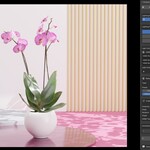
A: Pink surfaces in Blender indicate a missing file path. This usually happens if you moved the addon's installation folder or deleted files within the presets/ directory. Go to File > External Data > Find Missing Files and point it to the addon directory, or simply reinstall the addon from the original ZIP.
Q: My product is floating or partially inside the floor. How do I fix this?
A: Return to the Analyze tab and ensure you have clicked Analyze Model. If the issue persists, check your model's "Origin" point. You can manually move the model to the ground (Z=0) and click Analyze again to refresh the camera and light calculations.
Q: Can I load my own custom GOBO textures?
A: While the visual browser shows built-in textures, the GOBO light is a standard Blender light. In the Look tab, after enabling the GOBO, you can select the PV_GOBO_Light in your scene and manually swap the image in the Shader Editor if you have advanced knowledge of nodes.
Q: Why is my render taking so long?
A: Render time is determined by your Master Quality setting and hardware.
• Use Draft for quick tests.
• Ensure GPU Compute is enabled in Blender Preferences > System.
• Reduce the Resolution Preset to 50% or FHD during the development phase.
Q: How do I change the default output folder?
A: In the Render tab, under Output Settings, click the folder icon. Once set, PV Pro will remember this path. It will automatically create subfolders like [ProjectName] / [Date] / [Mode] to keep your work organized without any manual sorting.
Q: Does the Turntable rig work with custom cameras?
A: Yes. If you have a custom camera active, clicking the 360° Turntable button will build the rotation rig around your current selection. Ensure the product is analyzed first so the rig knows the center-point of the rotation.
Q: How do I reset all settings to default?
A: Most individual properties have a "Reset" icon or button next to them. To completely clear the PV Pro environment, you can delete the PV_STUDIO_COLLECTION from your Outliner and restart the workflow from Step 1.
 Dreamy Art World


 Included