Project Tabs - Multiple Projects in a Single Blender Instance
 3D Hermes Studio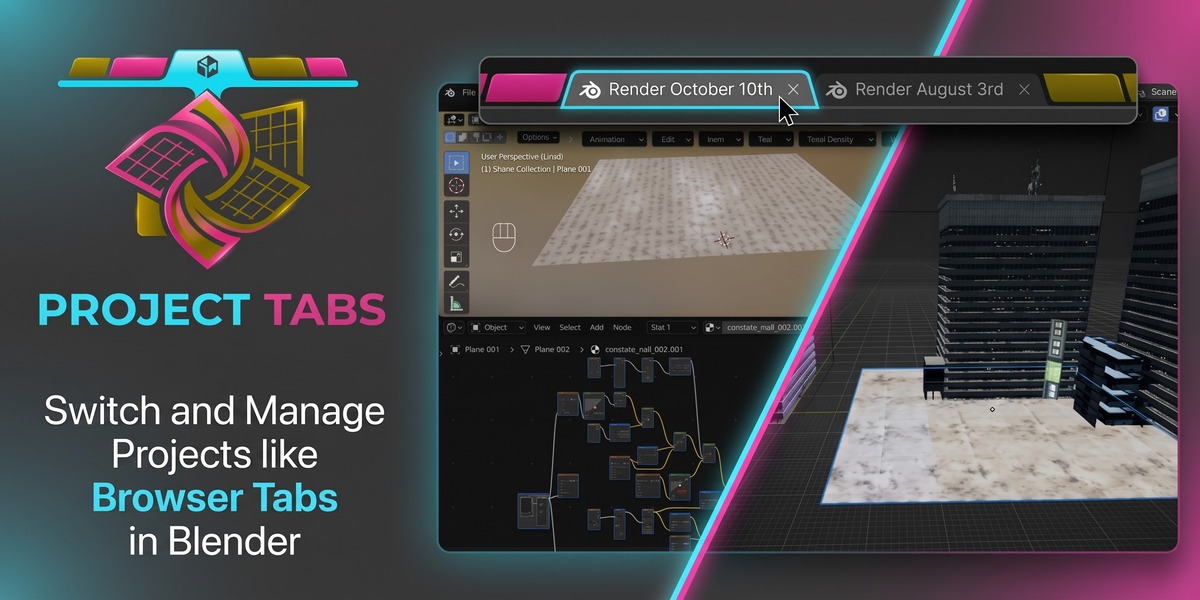
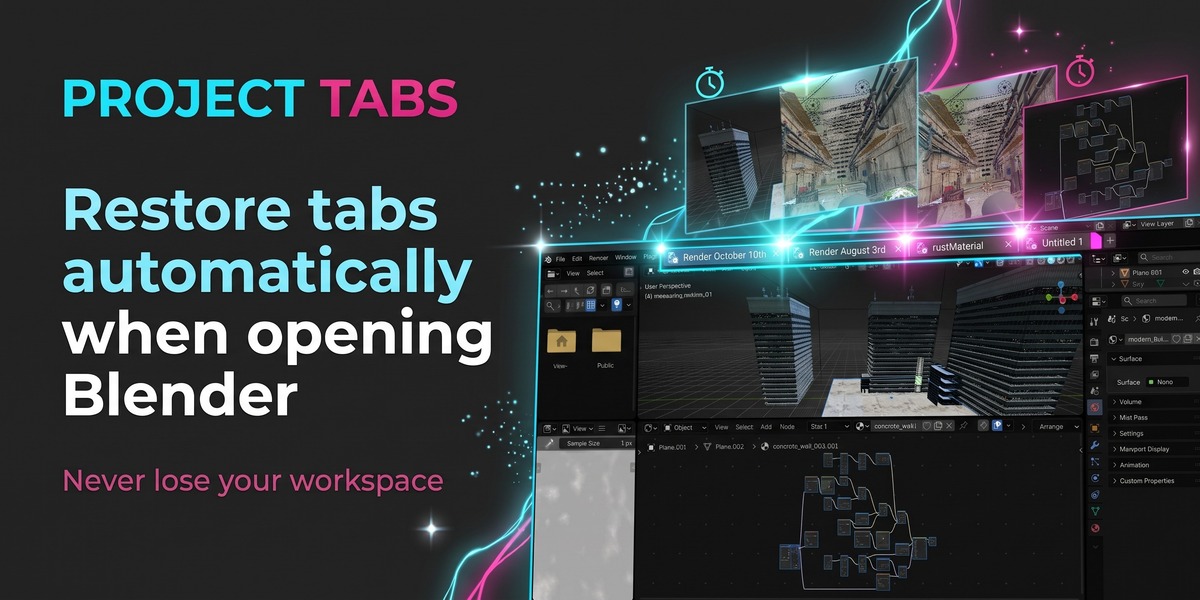




Project Tabs
Professional multi-project tabbed workflow for Blender with full .blend swapping and complete Ctrl+Z undo history preservation.
1. Overview & Cross-Platform Support
Project Tabs introduces an interactive tab bar at the top of your Blender window, bringing the familiar document management of modern software (such as 3ds Max, web browsers, and IDEs) to Blender. Switch between multiple open scenes with a single click, organize projects neatly, and eliminate messy desktop clutter.
Cross-Platform Compatibility:
- Windows (10 / 11): 100% Native support. Both Live Memory (0ms multi-process window swapping via native Win32 API) and Single-Process Swap work out of the box with zero setup required.
- macOS (Intel & Apple Silicon M-series): Fully supported. Single-Process Swap works natively with zero configuration. Live Memory mode utilizes built-in AppleScript/System Events for window activation (requires standard macOS Accessibility permission for Blender).
- Linux (Ubuntu, Fedora, Arch, Debian, etc.): Fully supported. Single-Process Swap works out of the box on all desktop environments and Wayland/X11. On X11, Live Memory mode utilizes standard
xdotoolfor window management; on Wayland setups where window management between separate processes is restricted, the add-on seamlessly operates in Single-Process Swap mode.
If for some reason it's not working for you. Please let me know and I'll do my best to fix it.
Key Highlights:
- Full Ctrl+Z Preservation: In Live Memory mode, each tab process stays alive in memory. Switching tabs is instantaneous (0ms) and keeps 100% of your undo/redo history intact.
-
Sequential Blank Projects: New blank scenes (
Untitled 1,Untitled 2, etc.) stay alive until explicitly closed or saved, never disappearing just because they are untouched. - Non-Destructive Swap Cache or Auto-Save: Work freely without overwriting your original saved files, or enable instant auto-save on tab change.
- Viewport & State Memory: Automatically restores 3D viewport camera position, distance, shading (Solid, Material, Render), overlays, workspace, scene, and active object upon return.
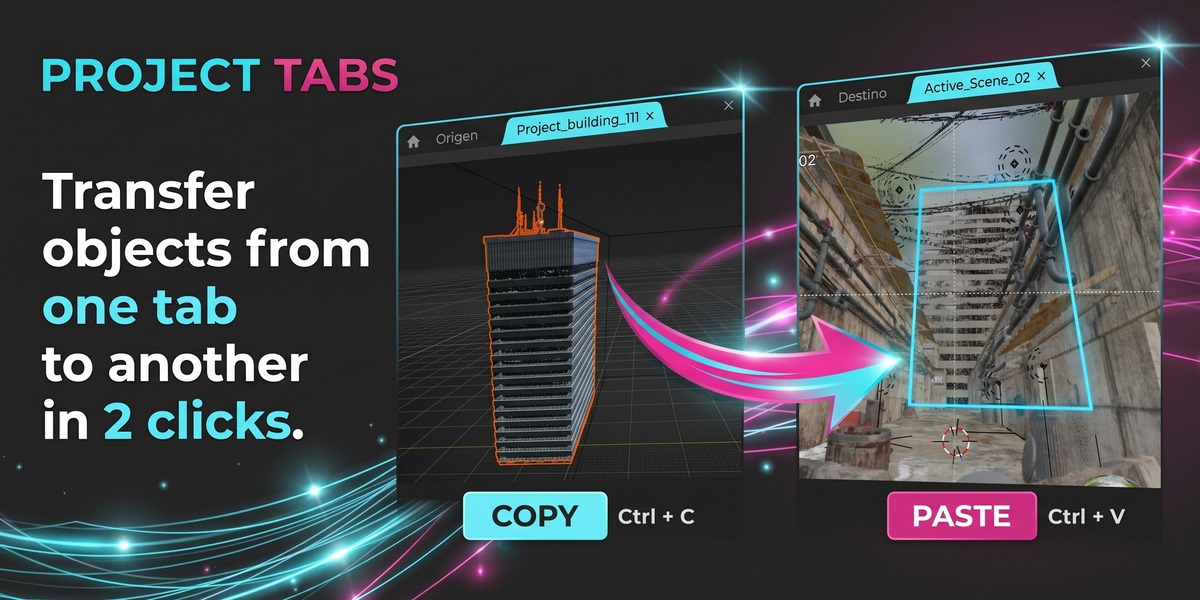
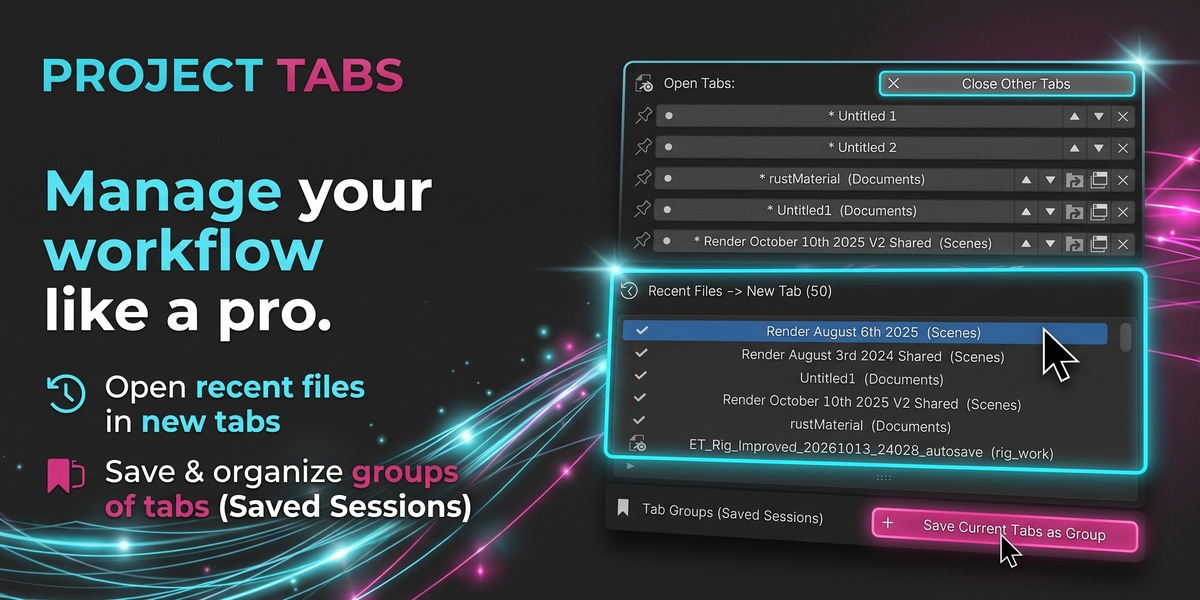
- Reusable Tab Groups: Save custom sets of open files (e.g., "Episode 1 Shots", "Asset Modeling") to reopen them together in one click.
2. Installation
Project Tabs is distributed as a single .zip package compatible with both Blender's modern Extensions system and classic add-on installations.
A) Blender 4.2 LTS, 5.0+, or 5.2 (Extensions System)
- Open Blender and navigate to Edit > Preferences.
- In the left sidebar, select Get Extensions or Add-ons.
- Click the options dropdown icon (three dots or arrow down) in the top right corner of the window.
- Select Install from Disk....
- Locate and select the
Project_Tabs_1.0.5.zipfile. - Ensure the checkbox next to Project Tabs is enabled.
B) Blender 4.0 / 4.1 (Classic Add-ons Manager)
- Go to Edit > Preferences > Add-ons.
- Click the Install... button at the top.
- Select
Project_Tabs_1.0.5.zipand click Install Add-on. - Check the box next to System: Project Tabs.
Important: Do not unzip the file beforehand. Blender requires the complete ZIP archive to register the extension manifests and dependencies properly.
3. Keyboard Shortcuts (Hotkeys)
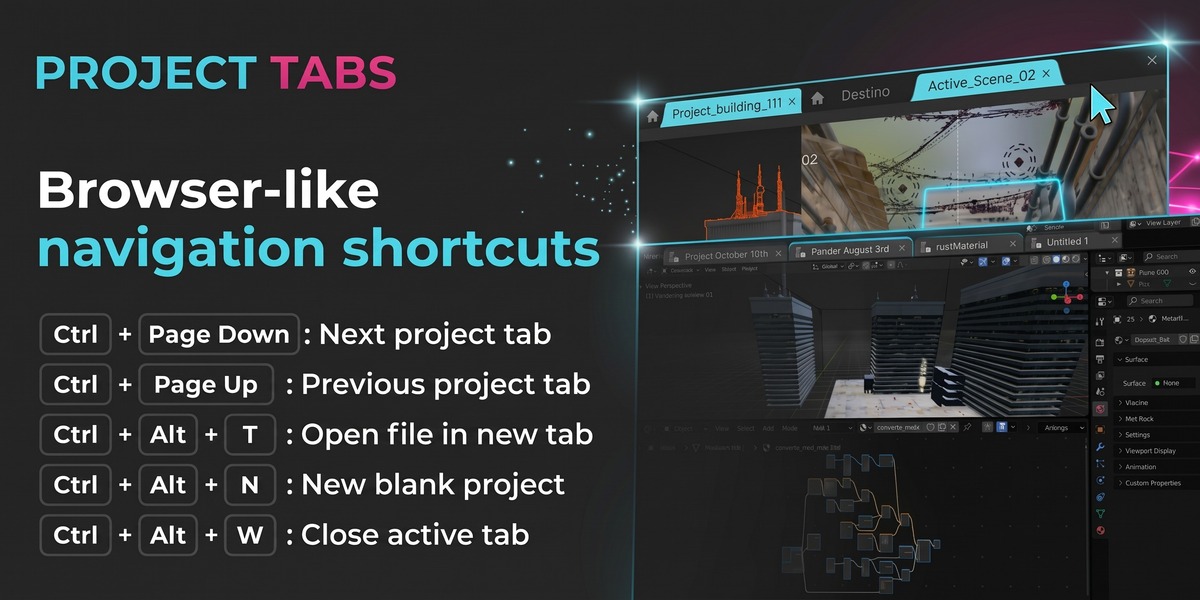
Control your workspace without leaving the keyboard using the default global hotkeys:
| Shortcut | Action | Description |
|---|---|---|
| Ctrl + Page Down | Next Project Tab | Cycles forward to the next tab to the right (wraps around). |
| Ctrl + Page Up | Previous Project Tab | Cycles backward to the previous tab to the left (wraps around). |
| Ctrl + Alt + T | Open in New Tab | Opens file browser to select one or multiple .blend files into new tabs. |
| Ctrl + Alt + N | New Blank Project | Creates a fresh empty project tab (Untitled 1, Untitled 2...) without touching open work. |
| Ctrl + Alt + W | Close Active Tab | Closes the currently active project. Asks to save if unsaved changes exist. |
Customization: You can edit or reassign any shortcut at any time in Edit > Preferences > Keymap > Window by searching for ptabs or Project Tab.
4. Interface & Workflow
By default, the tab bar appears as a dedicated header directly beneath Blender's main menu bar:
- Clickable Tabs: Click any project title to focus it instantly.
-
Dirty Indicator (
*): An asterisk next to the project title highlights unsaved scene modifications. -
Pinned Tabs (
PINNED): Pinned tabs hide their close button and are protected from accidental closure. -
Close Button (
X): Closes the tab. If the tab has changes, you will be prompted to save first. -
Open Button (
+): Opens the file browser to add one or multiple.blendfiles as tabs. - New Blank Tab: Leaf icon that generates a new empty document.
-
Manager Popover (
▼): Opens the quick-action panel.
Quick-Action Panel (Popover Menu):
- Reorder Tabs: Move tabs left or right to suit your priority.
- Open Containing Folder: Launches File Explorer or Finder directly to the file location.
- Pop Out to Separate Window: Launches that specific project in an independent Blender instance.
- Tab Groups: Save all open tabs under a named set (e.g. "Layout Set A") and restore them later at once.
-
Recent Files: Fast access to recently saved
.blendfiles.
5. Settings & Engine Modes
Adjust the add-on settings via the bottom of the Tab Manager popover:
| Setting | Function |
|---|---|
| Engine Mode | Live Memory (Recommended): Keeps each tab active in background memory. Switching takes 0ms and preserves 100% of your Ctrl+Z undo history. Single-Process Swap: Swaps scenes within a single Blender instance. Uses less system RAM, but resets undo history on each switch. |
| Save on Switch Mode | Ask on Close (Swap Cache): Keeps unsaved modifications in temporary cache and asks before closing. Auto-Save on Tab Switch: Automatically writes edits back to your original .blend before switching. |
| Header Position | Place tabs in a dedicated bar below menus (Dedicated Top Header), or embed them inside the main topbar (Before Workspaces, After Workspaces, or Right). |
| Close Buttons | Configure close (X) buttons: on all tabs, active tab only, or hidden from header (popover only). |
| Restore on Startup | Automatically reopens the tabs from your previous session upon launching Blender. |
| Language (Idioma) | Toggle interface labels between English (EN) and Spanish (ES). |
6. Frequently Asked Questions (FAQ)
How does Live Memory preserve Ctrl+Z undo history?
In Live Memory mode, each tab runs inside its own lightweight Blender process coordinated through IPC (inter-process communication). When you click a tab, its window is brought to the foreground seamlessly at the exact same monitor position. Because the process never closed, its entire undo stack remains untouched.
Will closing Blender leave background processes running?
No. Project Tabs includes clean exit hooks (atexit and process watchers). Closing the visible main Blender window automatically terminates any background child tab processes so no orphan instances linger in RAM.
Do untouched blank projects disappear when switching away?
No. Blank projects are tracked with monotonic creation numbering (Untitled 1, Untitled 2...) and persist in your tab strip until you explicitly save them to disk or close them.
Project Tabs - Guía de Usuario
Gestión profesional de múltiples proyectos .blend en pestañas interactivas con preservación total de Ctrl+Z.
1. Descripción general y compatibilidad multiplataforma
Project Tabs incorpora una barra de navegación por pestañas en la parte superior de Blender (similar a 3ds Max, navegadores web o editores de código). Permite trabajar en varios archivos en paralelo, cambiar entre proyectos en 0ms y mantener tu espacio de trabajo completamente despejado.
Soporte Multiplataforma:
- Windows (10 / 11): Soporte 100% nativo. Tanto Live Memory (cambio de ventanas en 0ms vía API Win32 directa) como Single-Process Swap funcionan sin ninguna configuración adicional.
- macOS (Intel y Apple Silicon M1/M2/M3/M4): Totalmente compatible. Single-Process Swap funciona de forma nativa sin configuración. El modo Live Memory utiliza AppleScript/System Events para activar ventanas en primer plano (requiere conceder permiso de Accesibilidad a Blender en macOS).
- Linux (Ubuntu, Fedora, Arch, Debian, etc.): Totalmente compatible. Single-Process Swap funciona en todos los entornos de escritorio. En X11, Live Memory utiliza
xdotoolpara la gestión de ventanas; en Wayland, el add-on opera limpiamente en modo Single-Process Swap.
Puntos clave:
- Historial Ctrl+Z intacto: En modo Live Memory, cada proyecto conserva su propio historial de deshacer/rehacer de forma independiente.
-
Pestañas en blanco correlativas: Crea proyectos vacíos (
Untitled 1,Untitled 2...) sin riesgo de que se cierren automáticamente si están vacíos. - Caché Swap o Autoguardado: Trabaja en memoria sin sobreescribir tu disco o guarda automáticamente con cada cambio.
- Restauración de contexto: Recuerda el espacio de trabajo (Workspace), posición de cámara 3D, sombreado y objeto activo al volver a cada pestaña.
- Grupos de proyectos: Guarda conjuntos de pestañas (ej. "Secuencia 01") para restaurarlas en bloque con un solo clic.
2. Instalación
El add-on se instala directamente desde el archivo .zip empaquetado:
A) En Blender 4.2 LTS, 5.0+ o 5.2 (Sistema de Extensiones)
- Abre Blender y dirígete a Edit > Preferences.
- En la barra lateral izquierda, selecciona Get Extensions o Add-ons.
- Haz clic en el menú de opciones de la esquina superior derecha (icono de tres puntos o flecha hacia abajo).
- Selecciona Install from Disk....
- Elige el archivo
Project_Tabs_1.0.5.zip. - Asegúrate de que la casilla de verificación quede marcada.
B) En Blender 4.0 / 4.1 (Instalador tradicional)
- Ve a Edit > Preferences > Add-ons.
- Pulsa el botón Install... en la parte superior.
- Selecciona
Project_Tabs_1.0.5.zipy presiona Install Add-on. - Activa la casilla junto a System: Project Tabs.
3. Atajos de teclado (Hotkeys)
| Atajo | Acción | Descripción |
|---|---|---|
| Ctrl + Page Down | Siguiente pestaña | Avanza hacia la pestaña de la derecha de forma circular. |
| Ctrl + Page Up | Pestaña anterior | Retrocede hacia la pestaña de la izquierda de forma circular. |
| Ctrl + Alt + T | Abrir en nueva pestaña | Abre el explorador para cargar uno o varios archivos en nuevas pestañas. |
| Ctrl + Alt + N | Nuevo proyecto vacío | Genera una nueva pestaña en blanco (Untitled 1, Untitled 2...). |
| Ctrl + Alt + W | Cerrar pestaña activa | Cierra la pestaña actual tras verificar si existen cambios sin guardar. |
4. Ajustes y modos de funcionamiento
| Opción | Descripción |
|---|---|
| Engine Mode | Live Memory (Recomendado): Mantiene cada proyecto activo en segundo plano; cambio instantáneo y preservación total de Ctrl+Z. Single-Process Swap: Intercambia proyectos dentro de un solo proceso de Blender para ahorrar memoria RAM. |
| Save on Switch Mode | Ask on Close (Swap Cache): Guarda cambios en caché temporal sin modificar el archivo original hasta pulsar Guardar. Auto-Save on Tab Switch: Guarda automáticamente en el archivo .blend antes de cambiar de pestaña. |
| Header Position | Barra superior dedicada (Dedicated Top Header) o compartida en la barra de menus (Antes, Después de Workspaces, o a la Derecha). |
| Restore on Startup | Restaura automáticamente las pestañas abiertas de la sesión anterior al iniciar Blender. |
Project Tabs for Blender • Developed by 3dHermesStudio • License: GPL-3.0
Have questions about this product?
Login to message
| Blender Extension Compatible | Yes |
| Published | about 8 hours ago |
| Blender Version | 4.2 - 5.2 |
| Extension Type | Add-on |
| License | GPL |
Discover more products like this
blender-c4d 3D Project Management blender project manager management