 WWS3D
WWS3D


Prompter — how to use it
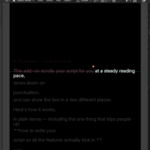
This add-on scrolls your script for you at a steady reading pace, slows down on punctuation, and can show the text in a few different places. Here is how it works, in plain terms — including the one thing that trips people up: how to write your script so all the features actually kick in.
Where the text can show up
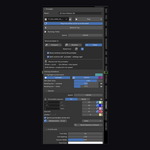
Open the panel (3D View ▸ press N ▸ Prompter). Under "Show prompter in:" you pick where the text appears. You can turn on more than one at a time:
- Viewport — the text scrolls right over your 3D view, so you can read while you work.
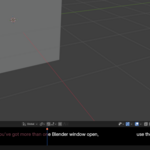
- Window — the text opens in its own separate Blender window. Handy for OBS, because capturing the main Blender window will not grab this one. Use the + button next to it to open more than one window — they all show the same script, in sync.
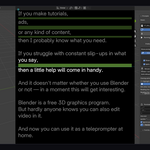
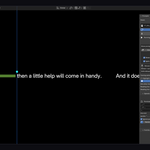
- Ticker — a wide, short strip along the bottom. You just glance down at one line.
To place the Viewport or Ticker, click the button, then click the viewport you want it in. If you have more than one Blender window open, use the little ▾ next to Ticker to pick from a list (a click cannot jump between Blender windows).
If you run a vertical one (Viewport or Window) and the Ticker together, "Read from" just decides which one you actually read from. The other one follows along.
Speed — and one important difference
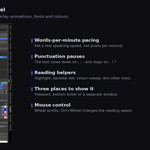
- Speed is your reading speed, in words per minute (normal talking is about 120–180). It is the same setting for both the window and the ticker.
- Empty Text Row Speed is how slowly it drifts through a blank line — that is the little breather you get between paragraphs when you press Enter twice.
Blank-line breathers only happen in the vertical Window/Viewport. On the Ticker, a blank line just slides by at normal Speed — there is no separate breather there.
So if you like your pauses to come from blank lines between paragraphs, read from the Window. If you read from the Ticker, build your pauses out of punctuation instead.
Pauses — where they come from
You do not set pauses by hand at each spot. The prompter watches your punctuation and slows down on it. Think of a pause as a bit of empty space slipped into the line — since the text moves at a steady pace, more empty space = more time = a pause. Everything is measured in "spaces" (a value of 5 means it pauses about as long as scrolling past 5 blank spaces), and it all scales with your Speed automatically.
You set the sizes under Speeds ▸ Punctuation pauses:
-
Short pause — after
,;:(a comma-length breath). -
Long pause — after
.!?…(end of a sentence). - Accent words — whole little words you list get a pause after them, wherever they show up.
- Quotes — a "quoted bit" gets a small breath just before it and just after it.
- Line end — every time you press Enter, the end of that line gets a small breath.
- Blank line (double Enter) — a paragraph breather (Window only, as above).
Extra bits:
- Ignore punctuation at line end — stops a period + line-end pause from stacking into one giant gap.
- Randomize pauses — makes the gaps a touch uneven so they do not look mechanical. Optional.
- The eye on the "Punctuation pauses" header shows or hides the coloured pause bands, so you can literally see the rhythm.
About those two little text boxes (Short / Long): you type the punctuation marks there (like , ; :). A couple of gotchas:
- Only marks that land at the end of a word count.
- Do not put quotes there — quotes have their own setting.
- Do not type letters there — a letter would make every word ending in that letter pause.
- The Accent box takes whole words, not single marks.
Writing your script — the do's and don'ts
Do this
- Just write normally, with proper punctuation. Your commas and periods are the pauses.
- Press Enter to break a line where you want a natural little breath.
- Leave a blank line between paragraphs for a bigger breather (you will feel it in the Window; the Ticker ignores it).
- Put quotes around example names or terms — they get a little air around them for free.
- Keep it short — one thought per line reads best.
Avoid this
- No stray spaces at the end of lines, and no double or triple spaces — one space between words. Extra spaces can create weird gaps or ghost empty lines.
- Do not count on blank lines for pauses if you read from the Ticker — use punctuation there.
- Punctuation only works at the end of a word, not stuck in the middle.
- Do not spam
. ! ? …for style — those are the long pauses. - Do not line things up with tabs or spaces — the font size and column width handle the look.
Tip: write and edit the script in Blender's Text Editor (there is a split-view button right next to the script picker). Pick which text block to read from the dropdown — the prompter reads whichever one is selected.
The reading helpers (overlays)
Under Overlay animations:
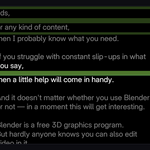
- Highlight current word — colours the word you are on.
- Karaoke — a dot that hops along above the words.
- Colour — words you have already read change colour, so your eye never loses its place.
- Dim other lines — a spotlight: everything except the line you are reading goes dark (from a little, up to fully black).
- Reading line — window / ticker — the blue guide line. Each has its own position slider and its own eye to show or hide it. (The ticker's line is vertical — moving it slides the reading spot along the strip.)
Look and feel
Under Font & Look: font size, line spacing, column width, text colour, and Dim background (its own eye) with separate darkness for Viewport / Ticker / Window.
Playing it
- Play / Pause / Stop / Reset are right in the panel.
- "Play only while cursor is on…" — the text only moves while your mouse is over the prompter text. Move the mouse away to model and it waits; move back and it goes again. (Available for Viewport, Window and Ticker. It only counts the text area, not the side panels.)
- With the mouse over the prompter: wheel = scroll, Ctrl+wheel = speed, Shift+wheel = blank-line speed.
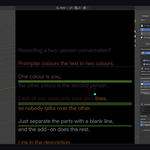
Two people talking
Dialogue (2 speakers) — paragraphs (separated by a blank line) alternate between two colours, one per speaker.
The floating window (Linux only)
A separate, see-through, always-on-top system window — nice for OBS, since a Blender-window capture will not catch it. It has its own buttons (play, reset, speed, mirror, close) and shortcuts (Space, arrows, R, M, Esc). It is Linux-only and needs GTK installed — that is why the panel only shows up when it can actually run. Heads-up: this window is a simple scroller — it does not do the punctuation pauses or the overlays.
Quick reminders
- Speed = words per minute. Empty Text Row Speed = blank-line breather, Window only.
- Pauses come from your punctuation:
, ; :short,. ! ? …long, quotes get air, Enter = line breath, blank line = paragraph breath (Window). - The little text boxes take end-of-word marks only — no quotes, no letters. The Accent box takes whole words.
- Read from the Window if you want blank-line breathers; read from the Ticker and lean on punctuation instead.
- Write normally: one space between words, nothing trailing, no tabs.
Have questions about this product?
Login to message
| Blender Extension Compatible | Yes |
| Published | about 2 months ago |
| Blender Version | 4.2 - 5.1 |
| Extension Type | Add-on |
| Render Engine Used | Cycles, Eevee |
| License | GPL |

Discover more products like this
Screencast Content Creation prompter screen recording tutorial obs Workflow teleprompter script narration voiceover autocue