Proof Suite — Twelve Checks, One Verdict on the Whole Delivery
 Skava
Skava

Proof Suite 1.2.3 — Documentation
1. What this is
Twelve separate Blender add-ons, sold together. They are separate on purpose: each installs, updates and works on its own, and removing one does not affect the others. What the suite adds is what happens when several of them are installed at the same time — one run, one report, one verdict for a whole delivery.
2. Installing
The download is one archive: unpack it, and inside is a folder called addons with twelve add-on archives, plus a short readme. Install each the normal way: open Preferences, go to Add-ons, choose Install from Disk, pick an archive without unpacking it, and tick its checkbox to switch it on. Repeat for as many as you want, in any order. Nothing here depends on anything else being present.
There is nothing else to install. No Python packages, no models, no accounts. Nothing is downloaded at any point and nothing leaves your machine.
3. The Whole Delivery panel
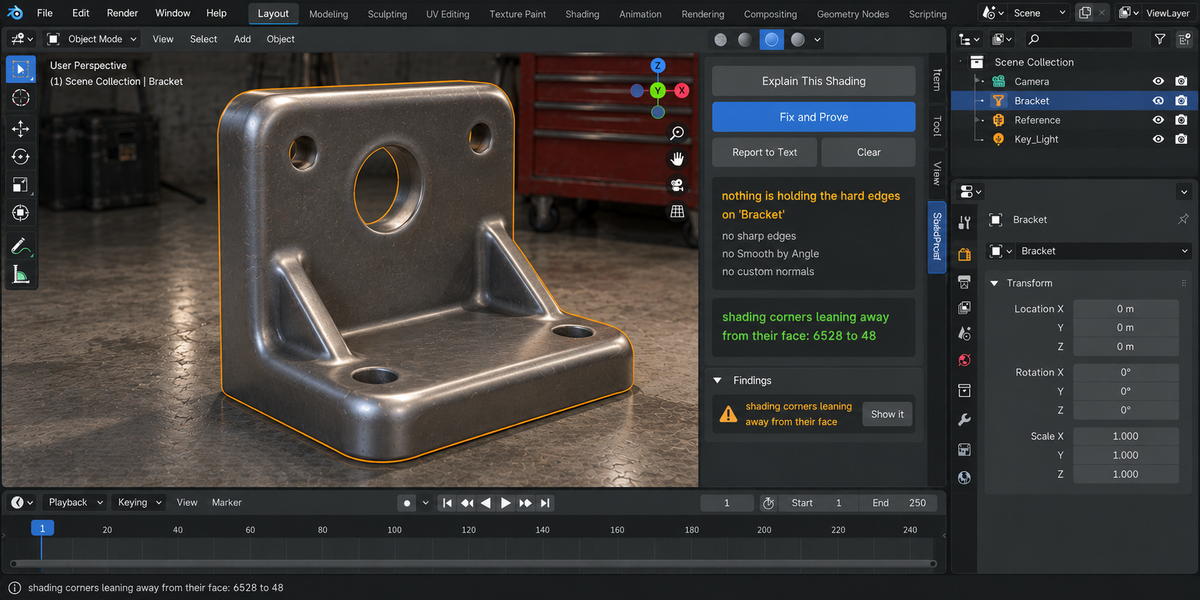
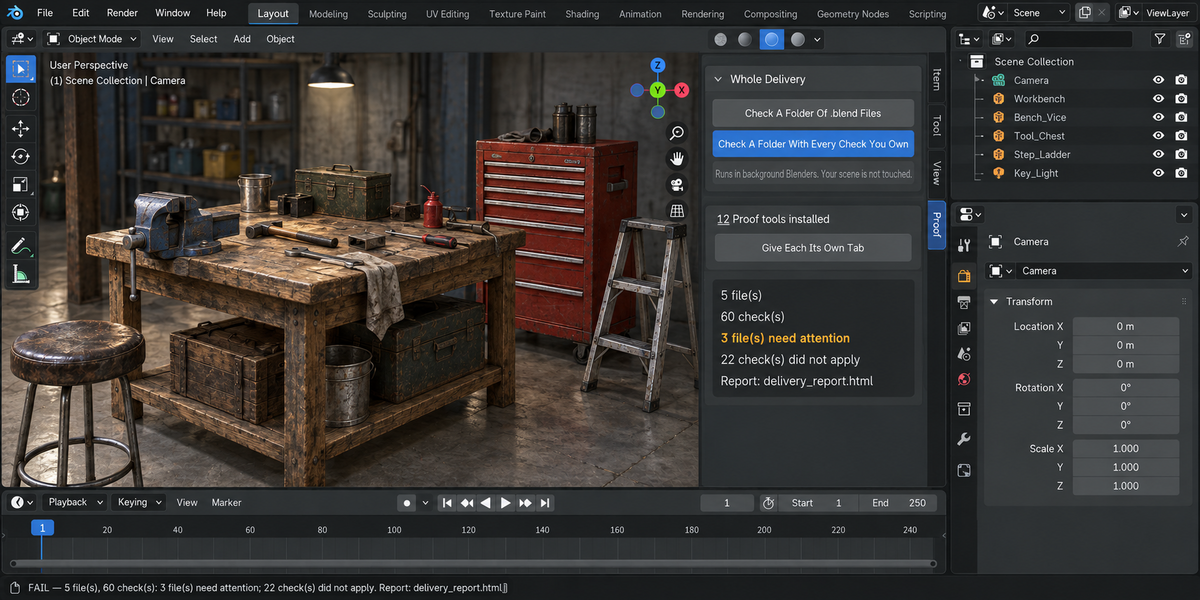
Once a tool is switched on, its sidebar tab gains a Whole Delivery panel with two buttons.
Check A Folder Of .blend Files runs that one tool over every file in a folder you pick.
Check A Folder With Every Check You Own runs all the tools from this line that you have installed, over the same files, in one pass.
Both open every file in its own background Blender. The scene you have open is never touched: not opened over, not saved, not modified. This is also why a file that will not open costs you only that file — the rest of the delivery is still checked, and the report names the one that failed.
Press Escape to stop. Nothing partial is written on purpose: a report covering half a delivery is a report nobody should trust.
4. The report
When the run finishes, a single page is written into the folder you checked, named after the tool whose panel you pressed (for example anim_proof_report.html). If a file with that name is already there, it is left as it is and the new report takes the next free name (anim_proof_report_2.html and so on); the message at the bottom of Blender names the file it wrote. It opens in any browser and contains everything inside itself — no fonts, styles or scripts fetched from anywhere. It will still open years from now on a machine with no network.
It reads top down: the verdict for the whole delivery, then one file at a time. Each file shows which checks ran and what each said in a sentence, then the numbers, then every finding with its address and a line on what to do about it. Findings are ordered by severity, not by the order they were found, because the first three lines are the ones a lead actually reads.
5. Running it from a pipeline
Every tool has the same headless entry point: no interface, no person, one command that writes the report and finishes with a code your build system can read.
- 0 — clean.
- 1 — something blocking was found.
- 2 — a file could not be checked at all.
- 3 — the command itself was wrong, for example no files were named.
The second and third are separate from the first deliberately. A check that did not run has not passed, and a gate that treats silence as success will one day let through the delivery it exists to stop.
The command has the same form for every tool, for example blender --background --factory-startup --python-expr "import anim_proof; anim_proof.proofkit_cli()" -- --folder /shots --report report.html. Replace anim_proof with the module name of the tool you want to run. Each command runs that one tool; the combined run of every tool is started from the Whole Delivery panel.
6. Comparing against last week
Any run can be saved as a baseline. A later run then reports what changed: which numbers moved and in which direction, which findings are new, and which you have fixed since.
Direction is not guessed. Each measurement carries its own sense of which way is worse, decided by the tool that produced it — so rising coverage reads as an improvement and rising drift reads as a regression, without you having to remember which is which.
A baseline that cannot be read is reported as such rather than ignored. The run still happens; it simply says it had nothing to compare against.
7. Sign-off inside the file
The Sign Off This File button runs every check you have on the file that is open and writes the result into the file itself: the date, the tools and their versions, the verdict and the counts.
Open that file next month and the panel says, before you press anything, when it was last checked and how it came out. A pipeline can ask the same question without running anything.
Two things are deliberate. First, checking a folder does not sign the files inside it: those are opened only to be read, and writing into them silently would change files you asked us to check, not to touch. Signing off is a separate, deliberate action on the file you have open. Second, if the file is saved after the record was written, the panel says the record is out of date — a sign-off that stays quiet about later edits is worse than none, because people believe it.
The record is a log, not a seal. It says what was measured and by what. It proves nothing about quality and can be edited by anyone with the file, and the add-on does not pretend otherwise.
8. Taking you to a finding
Findings that have an address can be jumped to from the panel: the object is selected and brought into view, the frame is set, and the vertex or bone in question is made active. Only the selection, the mode and the current frame change, and the step can be undone like any other.
If the address no longer matches anything in the scene — the object was renamed or removed since the check — it says so plainly instead of selecting something at random.
9. One sidebar tab
Each tool has its own sidebar tab, which is right when you own one. Own several and the sidebar fills up, so the panel offers to group them: one click and all of them move into a single tab, collapsed, with one Whole Delivery panel instead of one per tool. One click puts them back where they were.
The choice is remembered next to your Blender settings and applies to every tool from this line you have installed, so it only has to be made once. The button appears only when more than one is installed.
10. Which tools repair, and which deliberately do not
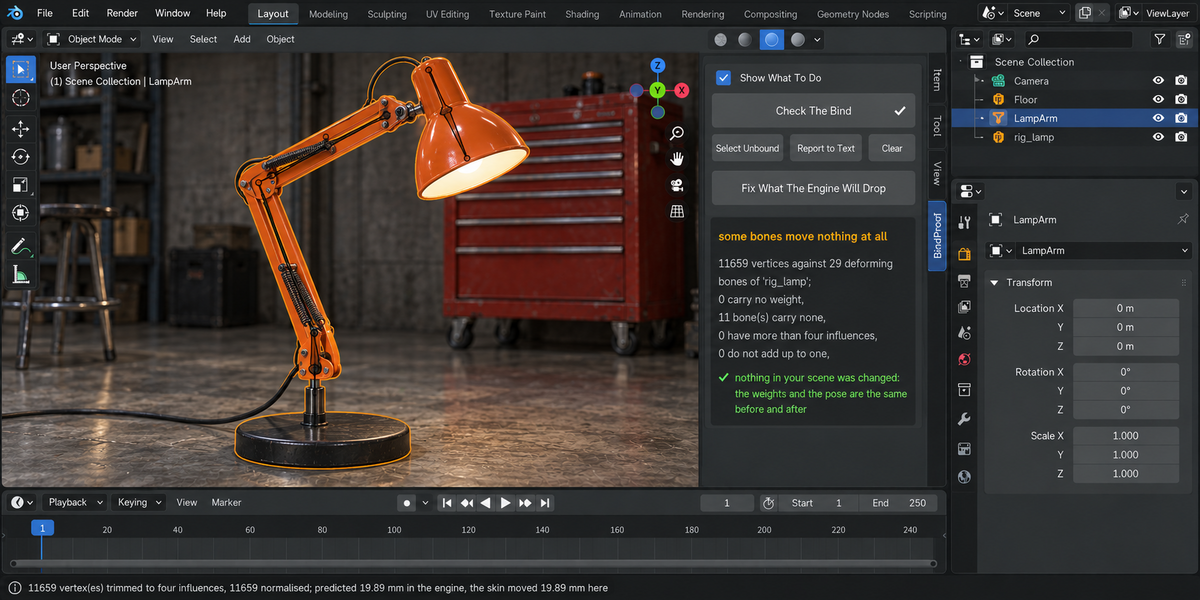
Seven of the twelve can fix what they find, and each proves the fix by measuring again rather than by falling silent.
Five do not, and that is a decision rather than a gap:
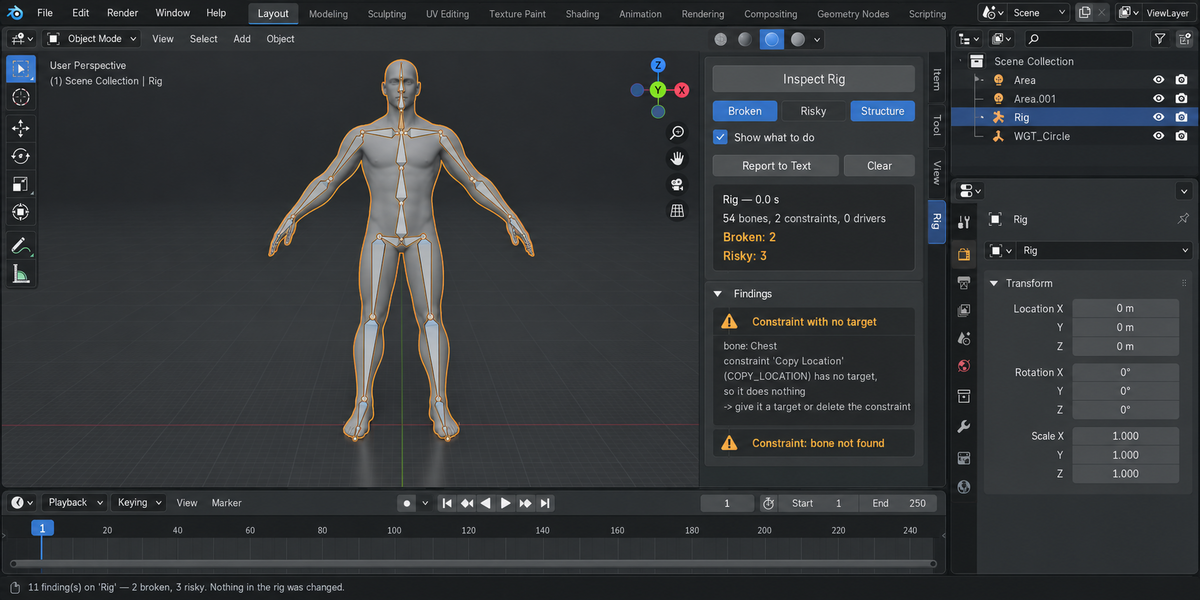
- Rig Inspector never changes anything. Its whole promise is that it can be pointed at somebody else's rig safely.
- HandoffProof reports how your file opens elsewhere; it cannot reach into the other person's Blender.
- Modifier Profiler shows what a modifier costs. Whether to pay it is a modelling decision.
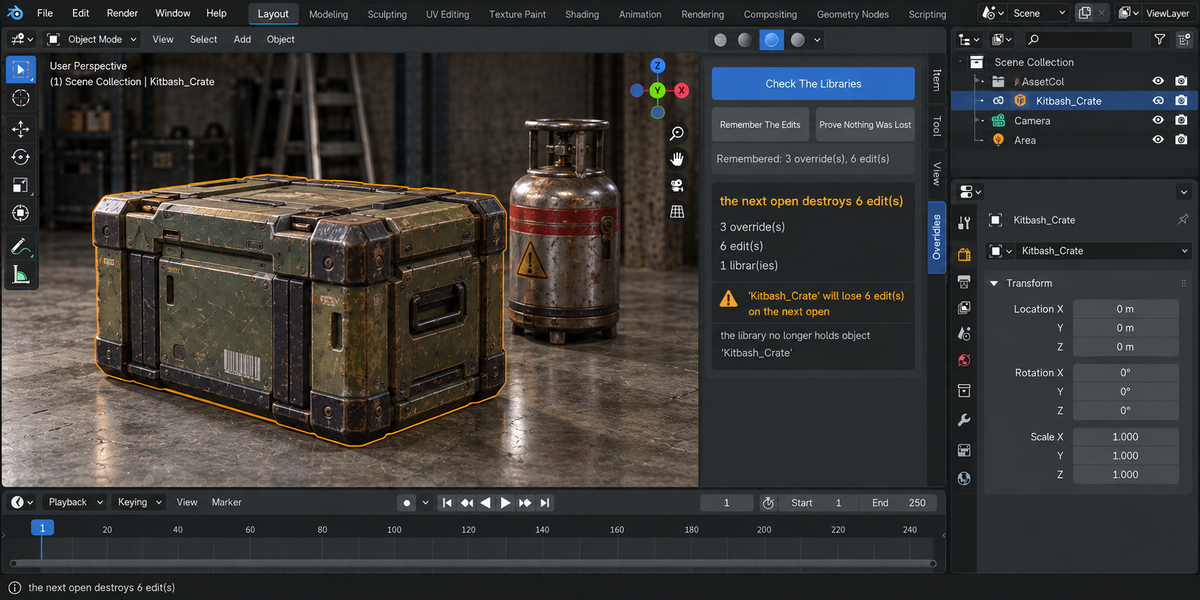
- AnimProof and OverrideProof tell you what moved and why. Rewriting animation or overrides automatically is a change we are not prepared to make on your behalf.
The same principle runs through the ones that do repair: an unbound vertex is never assigned to the nearest bone, and a vertex further from the surface than its own mesh spacing is left alone. Both are named in the report and left to you.
11. Compatibility and limits
- Blender 4.2 LTS through 5.2, on Windows, macOS and Linux.
- Checking a folder starts one background Blender per file, one after another. A delivery of forty heavy scenes takes time; the panel shows which file it is on, and Escape stops it.
- The combined run needs the tools to be installed and switched on. Tools you do not own are listed in the report as not having taken part.
- Restoring or repairing works on the file you have open, never on files inside a checked folder.
12. How this was tested
8769 automated checks across Blender 4.2.9 LTS, 5.1 and 5.2, with zero problems. One change was made after that run — a false alarm fixed in DeformProof, which could report an untouched mesh as moved — and it was re-verified the same way: 133 checks on each of the three versions, plus the shared-module suites, again with zero problems. Among them:
- all twelve installed into one Blender at once — 432 operators, 193 panels and 96 scene properties, with nothing colliding; switching them all off leaves nothing behind, and switching them all back on works;
- the folder run measured against the open scene, to prove it is not touched;
- every repair measured before and after, and each test deliberately broken to confirm it can fail.
13. Support and licence
Through the marketplace messaging where you bought this. Licence: GPL-3.0.
Changelog
1.2.3 — Carries all twelve tools: Cache Commander at 1.2.3 and the other eleven at 1.2.2. The Whole Delivery folder check no longer replaces a file in the folder you pick: if <tool>_report.html (or the baseline file) is already there, it is left as it is and the new file takes the next free name (<tool>_report_2.html and so on); the message names the file written, the report and baseline keep one number, and a folder that cannot be written to is refused in words, a folder that has the report's name is skipped, no empty report is left when the baseline cannot be created, a file whose check prints a lot no longer stalls the run on Windows, and a file that cannot be opened or has nothing to check is explained in words (before, the closing message often ended in a Python error instead). SampleProof: the tooltip of Measure The Denoiser now says the extra frame is rendered with the opposite denoiser setting to your scene's. No other changes.
1.2.2 — maintenance release. Cache Commander at 1.2.2, the other eleven tools at 1.2.1. Every package now ships the full GPL-3.0 licence text and a README with install, first-run and uninstall steps. No changes to any check.
Have questions about this product?
Login to message
| Published | about 2 months ago |
| Blender Version | 4.2 - 5.2 |
| Extension Type | N/A |
| Render Engine Used | Cycles, Eevee |
| License | GPL |