 HanaYou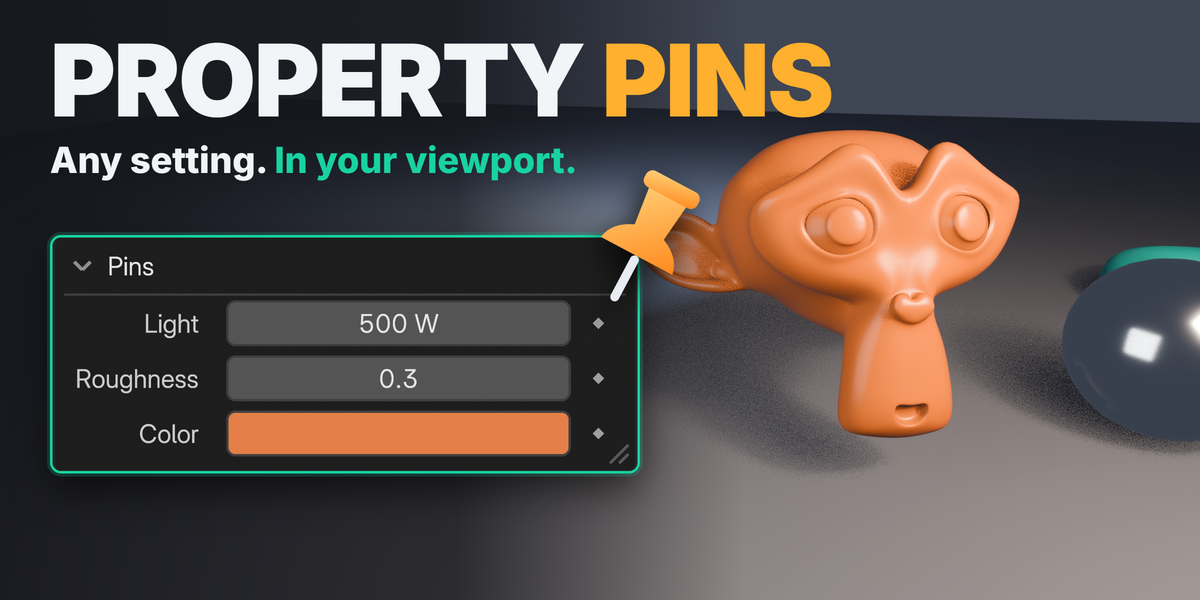
Installation
Extension package (recommended)
- Download property_pins-1.0.0-extension.zip. Do not unzip it.
- Open Edit → Preferences → Get Extensions (or Add-ons), click the arrow menu at the top right and choose Install from Disk….
- Select the ZIP. Property Pins is installed and enabled. You can also drag the ZIP into Blender.
You can also add Superhive as a remote repository (Blender 4.2 and newer) to install and update it from inside Blender.
Regular add-on ZIP
- Download property_pins-1.0.0.zip.
- Edit → Preferences → Add-ons → arrow menu → Install from Disk… and select the ZIP.
- Enable Property Pins.
Install only one of the two. If one is already enabled, the other refuses to start and says so: disable and remove the first one, then enable the other.
Updating
Install the new ZIP over the old one and restart Blender. Pins live in your .blend files, so nothing needs to be moved.
Quick Start
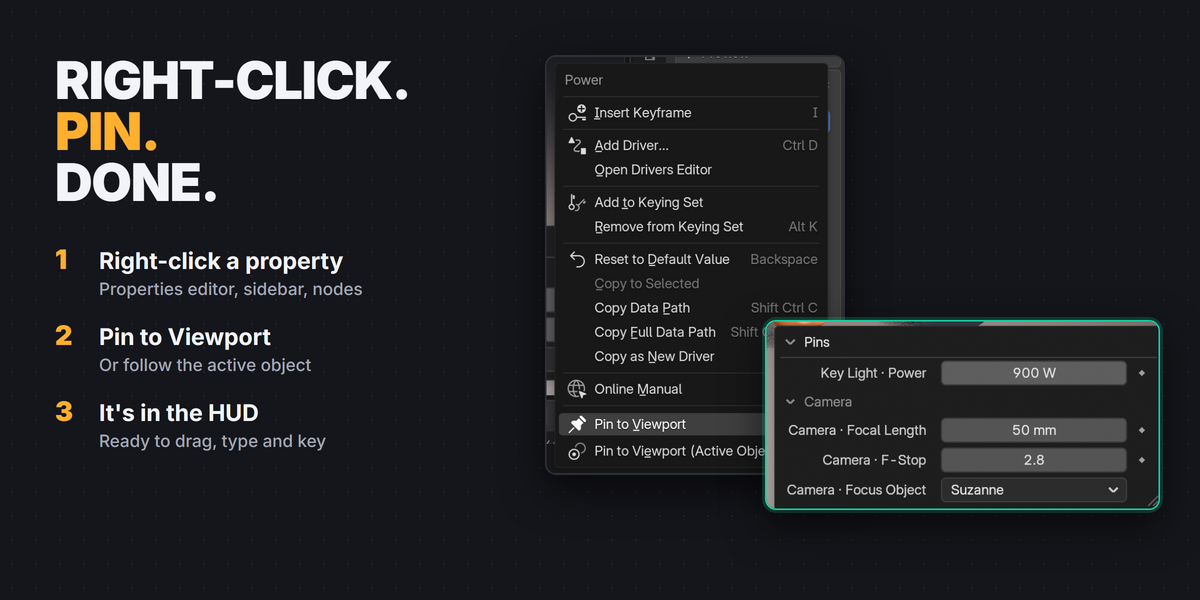
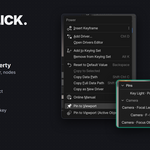
- Right-click a property, for example a light's Power, and choose Pin to Viewport.
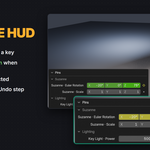
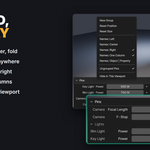
- The HUD appears in the bottom-left corner of the 3D Viewport.
- Drag the value left or right, or click it and type. Click ◆ to set a keyframe.
- Drag the title bar to move the HUD. Drag its bottom-right corner or right edge to resize it.
Pinning
| Pin to Viewport | This property of this object. The HUD keeps showing it whatever you select. |
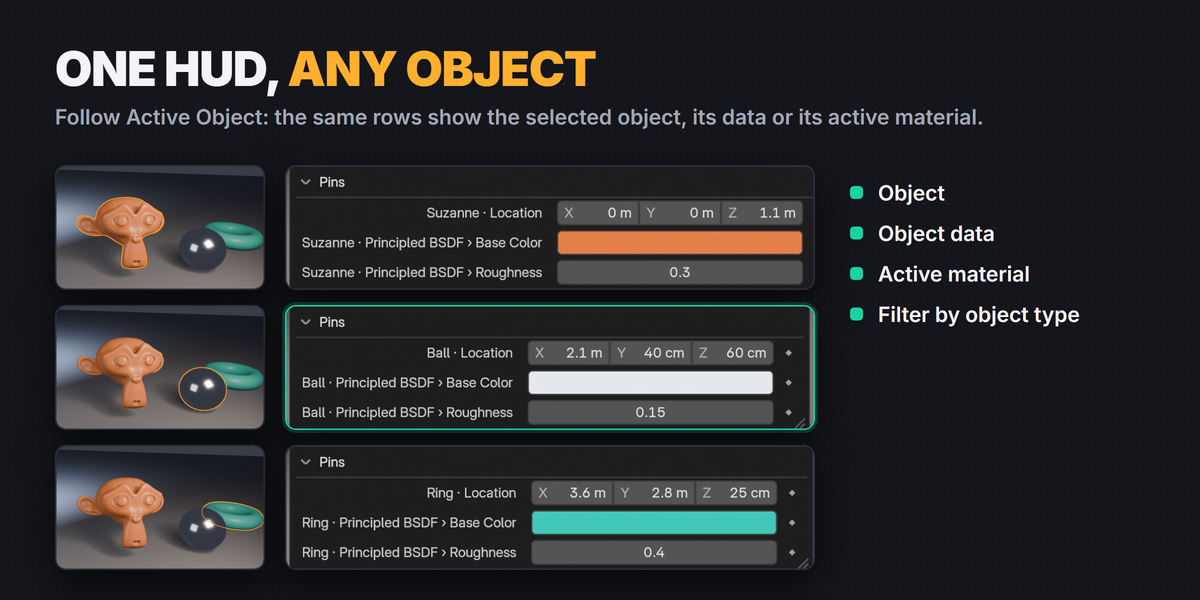
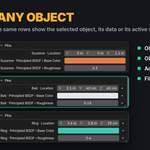
| Pin to Viewport (Active Object) | This property of whichever object is active (Follow Active Object). Select another light and the same row shows that light's value. Hidden while the active object doesn't have it. |
| Pin to Viewport (This Element) | One component of a vector or color, for example only Location Z. |
Labels follow renames: rename the object and the HUD updates right away. Rename a pin yourself to give it a fixed name, or clear the name to go back to the automatic one.
Follow Active Object can be relative to the object, its data (for example the light or camera data) or its active material, and limited to one object type: open the pin's settings (⚙) in N → Pins. Turn it on or off for an existing pin from the pin's menu in the HUD.
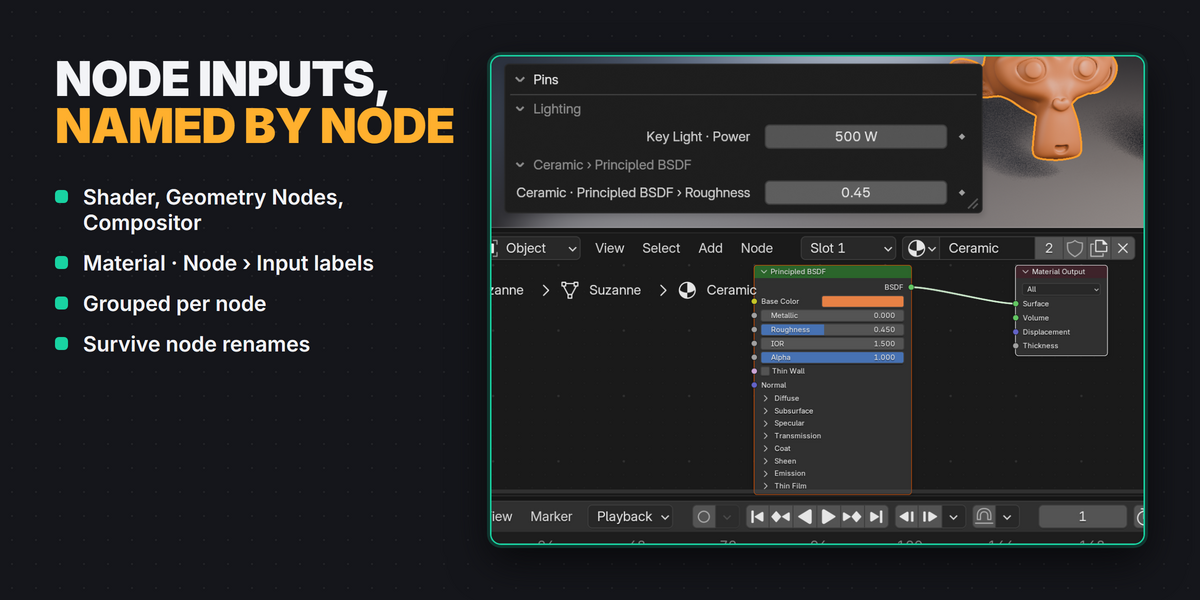
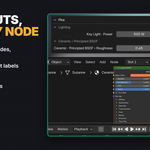
Node properties (Shader Editor, Geometry Nodes, Compositor) show their node too, for example Steel · Principled BSDF › Roughness, or Steel · Math › Value 2 when a node has two inputs with the same name. A node's label is used when it has one. Renaming the node keeps the pin working. Pins of the same node are grouped under Steel › Principled BSDF; turn off Group Node Pins in the sidebar to keep them ungrouped.
Editing in the HUD
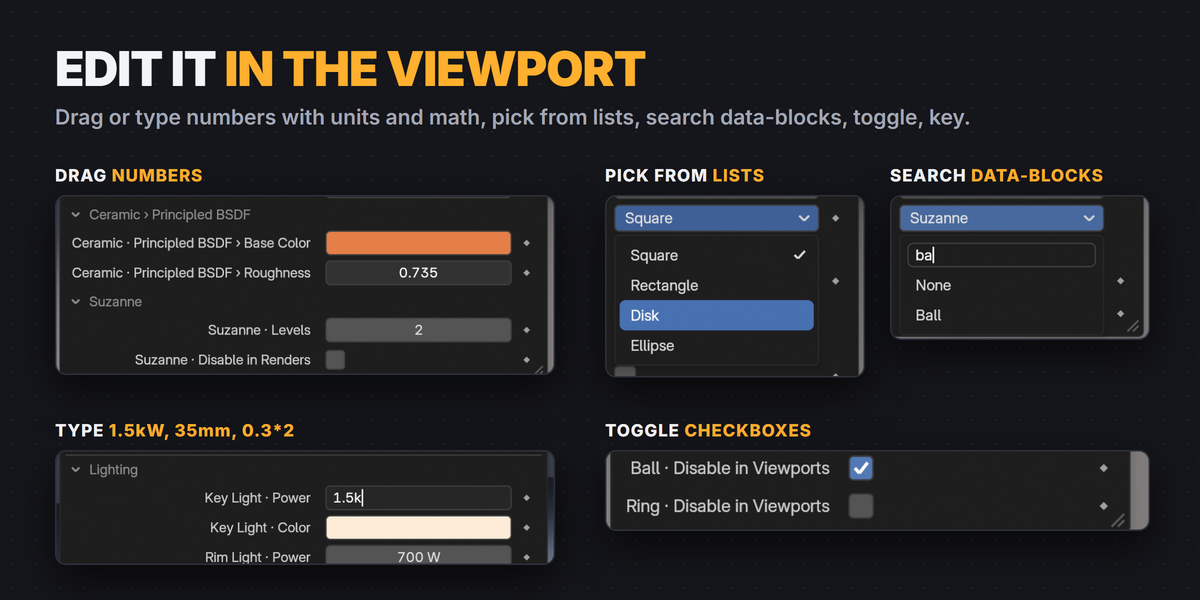
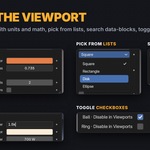
| Numbers | Drag left or right. Shift for fine steps, Ctrl to snap, Esc or right-click to cancel. |
| Typing | Click a number (or Ctrl+click) and type. Units and math work: 35mm, 1.5kW, 90 (degrees, or radians if the scene's rotation unit is Radians), 0.3*2. Enter confirms, Tab moves to the next field, Esc cancels. |
| Vectors and arrays | One field per component (X / Y / Z…); longer arrays wrap onto more lines. |
| Checkboxes | Click. Boolean vectors (such as Lock Location) show X / Y / Z toggles. |
| Dropdowns | Click to open the list inside the HUD. Multi-choice enums keep the list open. |
| Data-blocks | Pointer properties (Parent, Focus Object…) open a searchable list: type to filter, Enter picks the first match. The list shows every data-block of that type; one the property doesn't accept is refused with a message. |
| Colors | Click the swatch for the native color picker. |
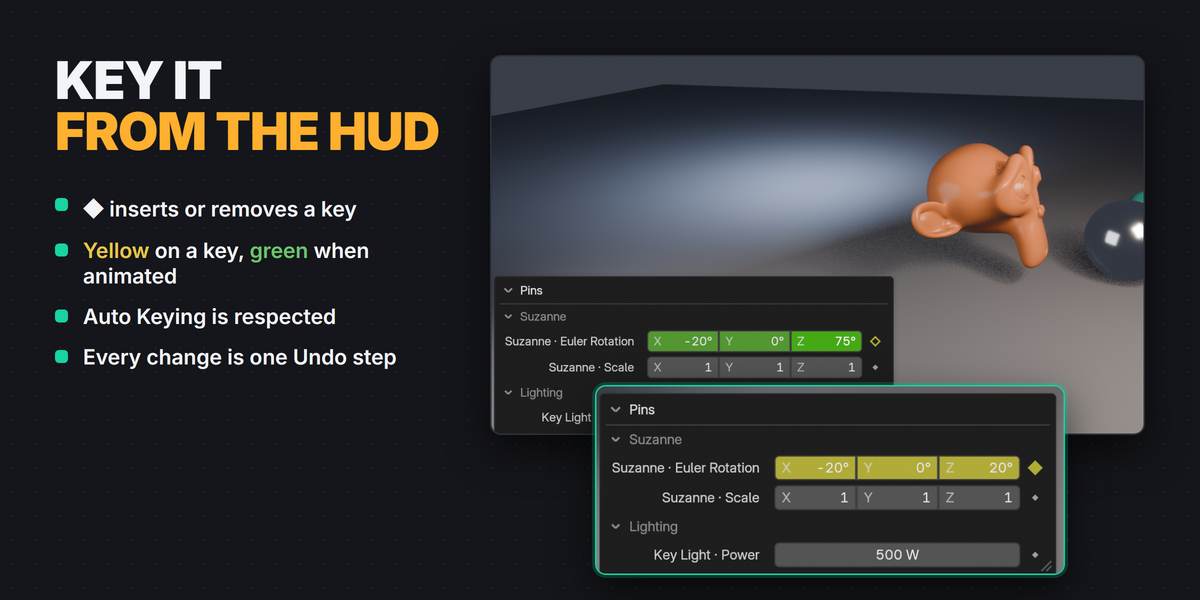
| Keyframes | ◆ inserts a key, or removes it on a frame that has one. Fields turn yellow on a keyframe and green when animated, like the Properties editor. Auto Keying is respected. |
Every change is one Undo step.
Organizing
- Right-click a pin (or click its name) for its menu: Rename, Move Up / Down, move to a group, New Group, Only When Selected, Follow Active Object, Unpin.
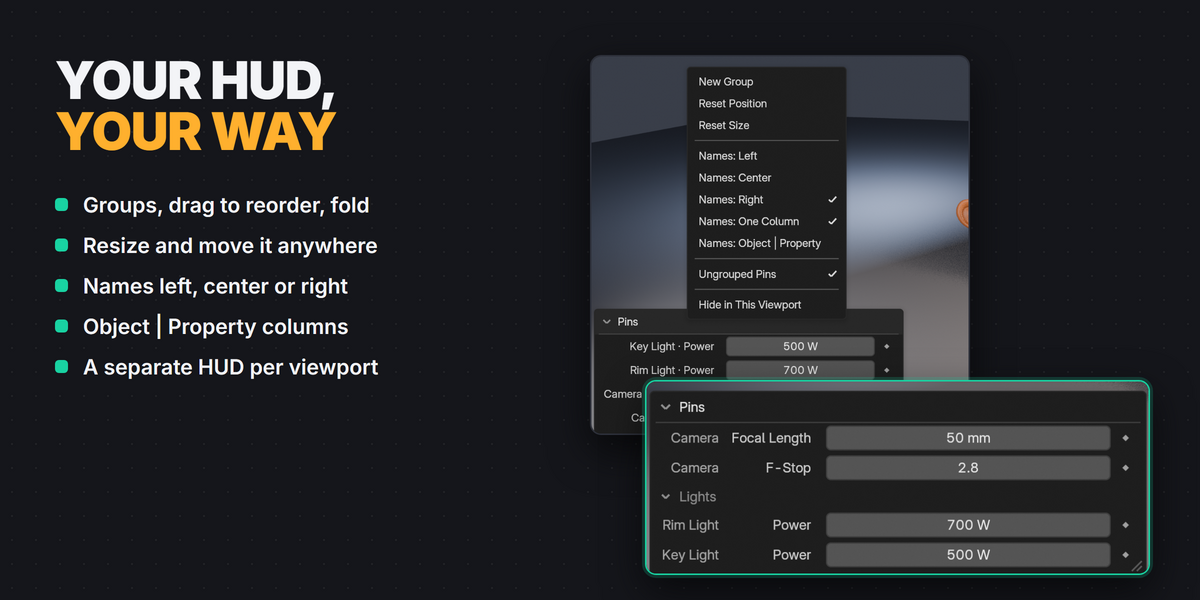
- Drag a pin by its name to reorder it or drop it into another group. Drag a group header to reorder groups.
- Click a group header to fold it. Click the title bar to fold the whole HUD.
- Right-click the title bar for: New Group, Reset Position, Reset Size, pin name alignment (left, center or right), names in one column or as separate Object | Property columns, which groups this viewport shows, Remove Deleted Pins and Hide in This Viewport.
- Only When Selected shows a pin only while its object is selected.
Several viewports and editors
Each viewport has its own HUD: position, size, folding, name alignment and columns, hidden groups and visibility are remembered per viewport and saved with the file. Pins and groups are shared by the whole scene.
The HUD also works in the Node Editor and Image Editor. It starts hidden there: turn it on from that editor's View → Pins HUD. In the 3D Viewport use View → Pins HUD or the Pins tab in the sidebar (N).
Sidebar panel
N → Pins lists every pin by group, with its settings: Viewport HUD (show or hide the HUD everywhere), Reset HUD, Group Node Pins, New Group and Remove Deleted Pins.
Good to know
- Pins are saved in the .blend file, per scene.
- When you delete an object a pin points at, the pin shows Deleted (Ctrl+Z brings it back). The deleted object is not kept in the file when you save. Remove Deleted Pins cleans them up.
- The HUD stays clear of the toolbar, sidebar, headers and the sculpt and paint brush shelf. You can drag it partly off the edge; its title bar always stays reachable.
- The HUD is an overlay: it hides with Overlays off and never appears in renders.
- Gizmos (the Move tool's arrows, the navigation gizmo) and node editor widgets get clicks before the HUD. If a field under one doesn't respond, move the HUD a little.
- Matrices and very long arrays (over 32 values) are shown read-only.
Troubleshooting
- The HUD doesn't show: check that Overlays are on, View → Pins HUD is ticked for that viewport and Viewport HUD is on in N → Pins. In the Node and Image editors it starts hidden.
- A click on the HUD does nothing: a gizmo or node widget is under that spot. Move the HUD a little.
- "Property Pins is already enabled": both the regular add-on and the Extension package are installed. Disable or remove one, then enable the other.
- A pin shows Deleted: its object was deleted. Undo brings it back, or use Remove Deleted Pins.
- A pin keeps an old name: it has a name you typed. Rename it and clear the name to go back to the automatic label.
Support
Send a message through Superhive. Please include your Blender version, the property you pinned, the steps, what you expected and what happened, and any error from the system console. I aim to reply within 72 hours.
Have questions about this product?
Login to message
| Blender Extension Compatible | Yes |
| Published | 1 day ago |
| Blender Version | 4.3 - 5.2 |
| Extension Type | Add-on |
| License | GPL |
Discover more products like this
Workflow Pin hud productivity properties viewport keyframe quick access Node Editor interface