Propgon Uv Trim
 PropGon


Installation
- Download PropGon_UV_Trim_2.1.zip
- Open Blender → Edit → Preferences → Add-ons
- Click Install and select the ZIP file
- Enable PropGon UV Trim in the list
The addon panels appear in UV Editor → Sidebar → PG UVTrim
Panels & Features
Make my Trim
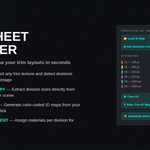
Auto-generates trimsheet divisions from existing UV islands. Set your target texture resolution, select your mesh objects in Edit Mode, and click Scan Islands → Divisions. The addon groups islands by material and height, creating clean trim slots ready to use.
PropGon UV Trim
Your main trim manager. Add, remove and reorder trim divisions. Each trim is a defined UV rectangle with a custom color. Use Fit to Trim to snap any selected UV island into a trim slot, Random Fit to assign islands to random trims, and Awesome Auto Layout to distribute islands automatically by material.
Atlas
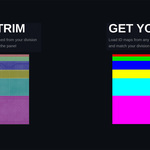
Save and load trimsheet configurations as JSON presets. Share presets across projects or export them for your team. Load ID maps to colorize trims directly from texture data.
Basic UV Tools
- Quadrify UV — Straightens UV islands by walking the quad topology and assigning a clean grid. Preserves your original texel density and island position.
- Orient to Geometry — Rotates UV islands to align with the 3D world axes using face normals. Floors align horizontal, walls align vertical.
- Flip U / Flip V — Mirror islands horizontally or vertically.
- Align Horizontal — Straightens the dominant axis of selected islands.
- Cut Seam / Weld Seam — Quick seam editing directly from the UV Editor.
- Randomize U Position — Offset islands randomly along U for trim variation.
Texel Density
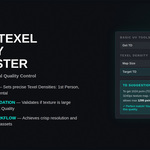
Get and set texel density across multiple objects simultaneously. The TD Assistant calculates the recommended max TD and minimum texture resolution based on actual 3D surface area, using an industry-standard 0.85 packing efficiency factor.
Overlay Visualization
Toggle colored trim overlays directly in the UV Editor. Each division displays its assigned color so you can identify which islands belong to which trim at a glance.
ID Map Baking
Bake a flat color ID map from your material assignments. Useful for masking in Substance Painter or similar tools.
Basic Workflow
- Unwrap your mesh using standard Blender tools
- Go to Make my Trim → set texture resolution → click Scan Islands → Divisions
- Review and adjust the generated divisions in the PropGon UV Trim panel
- Select UV islands → click Fit to Trim or Awesome Auto Layout
- Check texel density in the Texel Density section
- Save your trimsheet as a preset with Save Preset for reuse
Requirements
- Blender 4.2 or newer (tested up to 5.0)
- Works in UV Editor with Edit Mode active
- Multi-object editing supported
Support
Bug reports and questions: github.com/PropGon/propgon-uv-trim/issues
Have questions about this product?
Login to message
| Published | 7 months ago |
| Blender Version | 4.2 - 5.0 |
| Extension Type | N/A |
| Render Engine Used | Cycles |
| License | GPL |
Discover more products like this
environment art uv-tools game-art UV Unwrap Modular Assets UV layout trimsheet ID-map trim atlas uv texel density