Propgon Uv Trim
 PropGon


How it works?
Here are the tutorials:
https://youtube.com/playlist?list=PLad5LkpnlJ2BiLg5FavLqmQgLo31Y20yP&si=oH5VeNESsAhVaZkU
Is PropGon UV Trim free?
Yes — it's free on propgon.com and on GitHub. Purchasing on Blender Market or Superhive directly supports continued development.
Is the source code available?
Yes, the addon is open source under GPL 3.0 and available at github.com/PropGon/propgon-uv-trim.
Where can I report bugs or request features?
Open an issue at github.com/PropGon/propgon-uv-trim/issues — all bug reports and feature requests are tracked there.
Is the JSON format compatible with other tools?
The JSON is human-readable and straightforward. The Trim Importer for Designer reads it directly, and you can parse it in any custom pipeline.
Can I save and share my trim sheet setups?
Yes. Presets are saved as .json files containing all your division data — pixel heights, colors, and material assignments. You can share them across your team or between projects.
Are there extra dependencies required?
No. It only requires the sd module that ships with Substance Designer, plus PySide2 or PySide6 (both included with Designer).
Does it work with Substance Painter?
No — it's designed specifically for Substance Designer. It uses the Designer Python API (sd module) to build the node graph.
How do I use it?
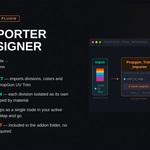
Place the .py file in your Substance Designer plugins folder (or load it via Python → Plugin Manager). A button will appear in your graph toolbar. Click it, select your PropGon JSON preset, and the node is generated automatically in your active graph.
What is the Trim Importer?
It's a free Python plugin for Substance Designer included in the addon folder. It reads your PropGon JSON preset and automatically generates a node graph that outputs individual grayscale masks — one per trim division — grouped by material.
What TD presets are available?
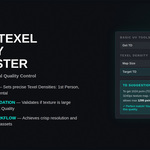
The tool supports standard AAA game categories: 1st Person, 3rd Person, and Environmental — each with their typical industry TD values.
What is the Texel Density Suggester?
It calculates the required texture resolution to achieve a target Texel Density (px/m) for your asset. It also validates whether your current map size is large enough for the quality you need.
Does it process multiple objects at once?
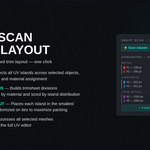
Yes. Select any number of mesh objects before running Smart Scan or Auto Layout — all UV islands across all selected objects are processed together.
What does Awesome Auto Layout do?
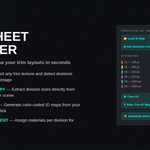
It takes your current divisions and automatically places every UV island into the smallest division that fits it — maximizing packing efficiency. Ties are randomized to distribute islands evenly.
What does Smart Scan do?
Smart Scan analyzes all selected objects, measures every UV island's pixel height, and reads its assigned material. It then proposes a set of divisions sized to fit your actual content — grouped by material.
What is Bake Trim ID Map?
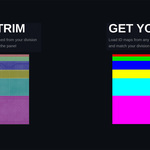
It generates a color-coded PNG texture from your current divisions — one solid color per division. This is useful for exporting to Substance Designer or Painter as a mask source.
Can I extract divisions from a plane mesh?
Yes. Use Get Divisions from Plane — PropGon reads the edge loop spacing of a plane mesh and converts it into divisions directly.
Can I load an existing trim sheet texture as a reference?
Yes. Use Load ID Map to import any color-coded trim texture. PropGon will read the division colors and heights automatically.
What is a Trim Sheet Division?
A division is a horizontal section of your trim sheet — a defined pixel-height band that UV islands will be aligned and snapped to. You define these once and reuse them across your entire project.
Do I need to restart Blender after installing?
No restart is needed. Once enabled, the panel is immediately available in the UV Editor.
Where does the panel appear?
The panel appears in the UV Editor sidebar (press N to open it) under the PropGon tab.
How do I install it?
For Blender 4.2+: Go to Edit → Preferences → Add-ons → Install, select the ZIP file, and enable the addon. For the Extensions platform, use the dedicated extensions ZIP.
What versions of Blender does PropGon UV Trim support?
PropGon UV Trim is compatible with Blender 4.2 and above, including Blender 5.x.
$1
Have questions about this product?
Login to message
| Published | 7 months ago |
| Blender Version | 4.2 - 5.0 |
| Extension Type | N/A |
| Render Engine Used | Cycles |
| License | GPL |
Discover more products like this
trimsheet trim atlas texel density game-art UV layout ID-map UV Unwrap Modular Assets uv uv-tools environment art