 DoitTsui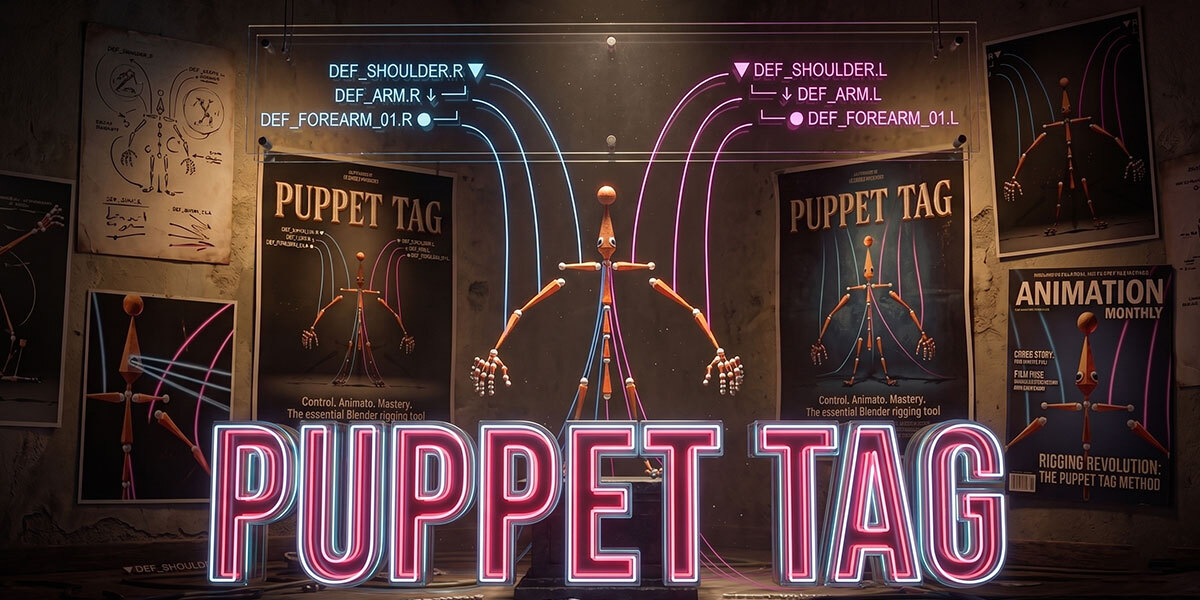
PuppetTag
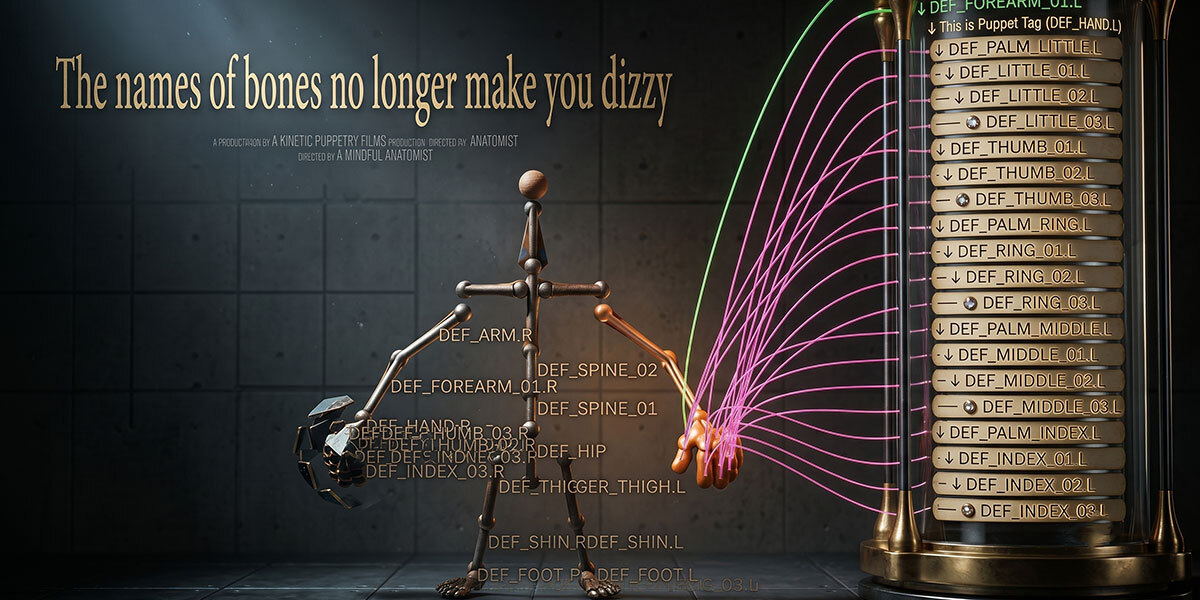
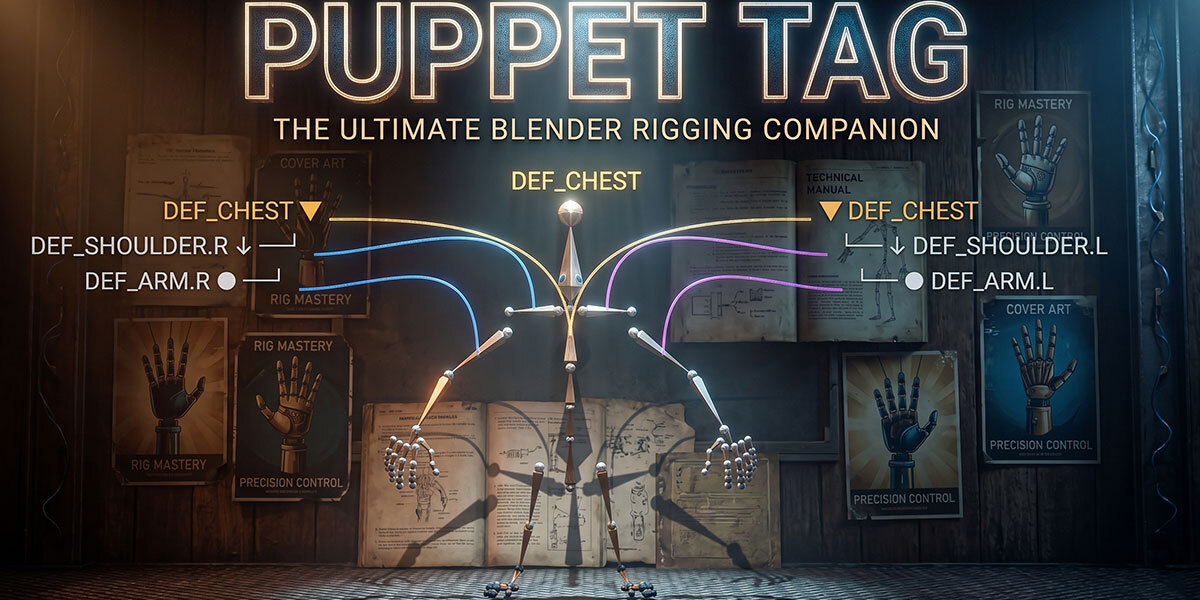
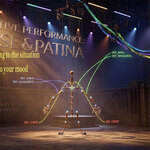
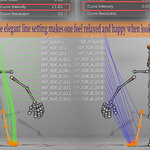
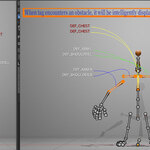
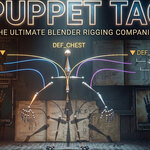
PuppetTag is a Blender viewport add-on for readable bone labels, rig notes, and presentation-friendly leader lines. It shows selected bones as an interactive HUD in the 3D View, so you can inspect or explain a rig without renaming the real bones.
Requirements
- Blender 4.0 or newer
- Works from the 3D View sidebar:
Npanel >PuppetTag
Installation
- Install the add-on ZIP from Blender Preferences > Add-ons > Install.
- Enable
PuppetTag. - Open the 3D View, press
N, and use thePuppetTagtab.
Quick Start
- Select an armature and enter Pose Mode or Edit Mode.
- Open
Npanel >PuppetTag. - Click
Turn On. - Select one or more bones. PuppetTag draws labels and leader lines in the viewport.
- Use the quick presets to switch layouts:
-
Clean: simple top-to-bottom layout. -
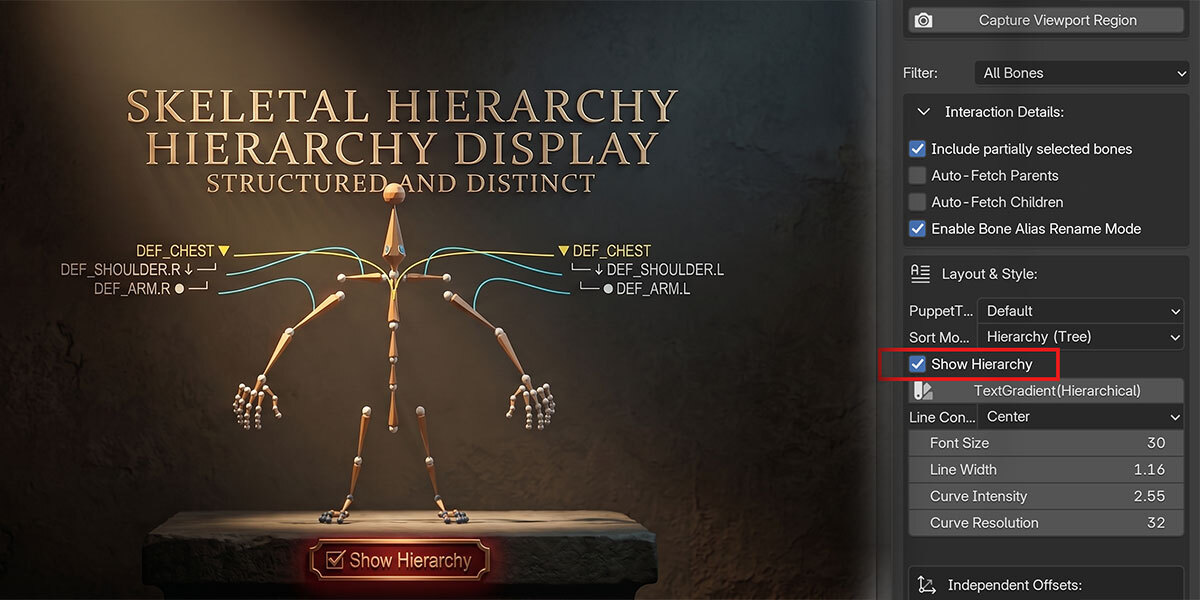
Hierarchy: clearer parent-child reading. -
Spatial Heavy: occluded leader lines for a more spatial look. -
Performance: lighter settings for dense rigs. -
Presentation: larger, cleaner labels for screenshots or tutorials. -
Rig Debug: hierarchy-focused labels with parent and child fetching.
-
Main Controls
Quick Controls
-
Turn On / Turn Off: enable or disable the live PuppetTag HUD. -
Repair HUD: rebuild the viewport draw handler if labels look stale. -
Auto Performance: automatically lightens expensive line settings on dense selections. -
Text Size: changes the HUD label size. - Icon toggles: hierarchy view, object-mode interaction, and annotation mode.
Interaction & Selection
-
Partial Select: show labels when only a bone head or tail is selected in Edit Mode. -
Keep Pose: keep dragged puppet tag transforms after releasing the mouse. -
Keep Label Layout: keep manually dragged label positions. -
Tag Space: choose fixed screen spacing or spacing that scales with view depth. -
Object Mode Interaction: keep tags visible and draggable while another object is active. -
Fetch Parents / Fetch Children: automatically include nearby hierarchy bones.
Layout & Lines
-
Bone Filter: show all bones, deform bones, or control-style bones. -
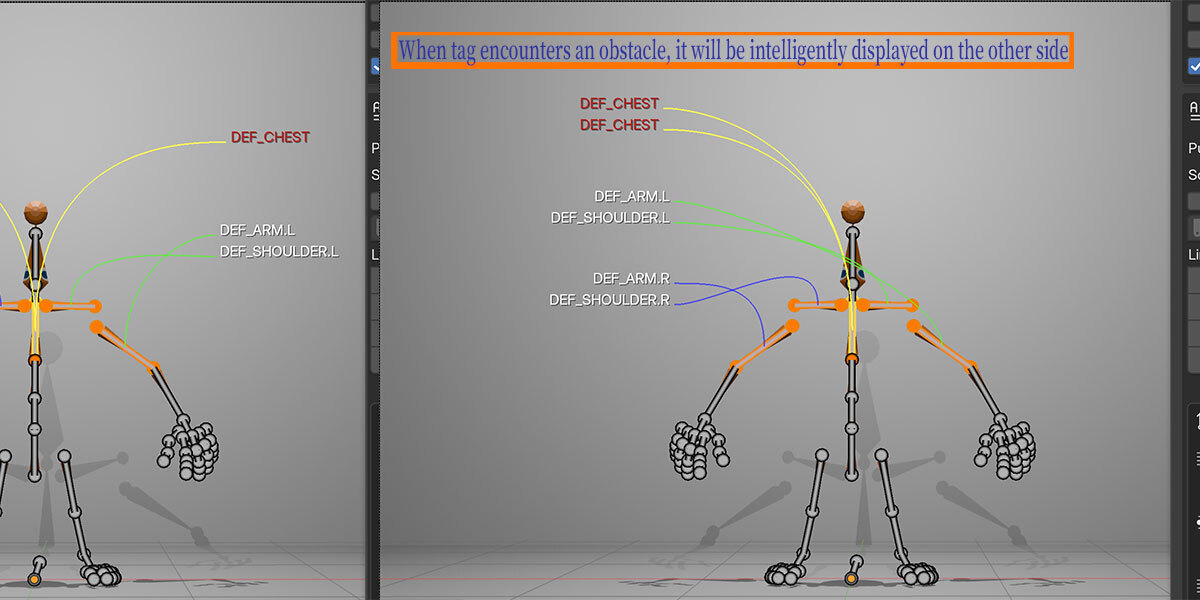
Label Side: automatic, natural, left, right, or center label placement. -
Center Reference: use the viewport, armature origin, custom object, or selected bones as the left/right reference. -
Sort Mode: order labels by hierarchy, screen position, depth, name, distance, or selection order. -
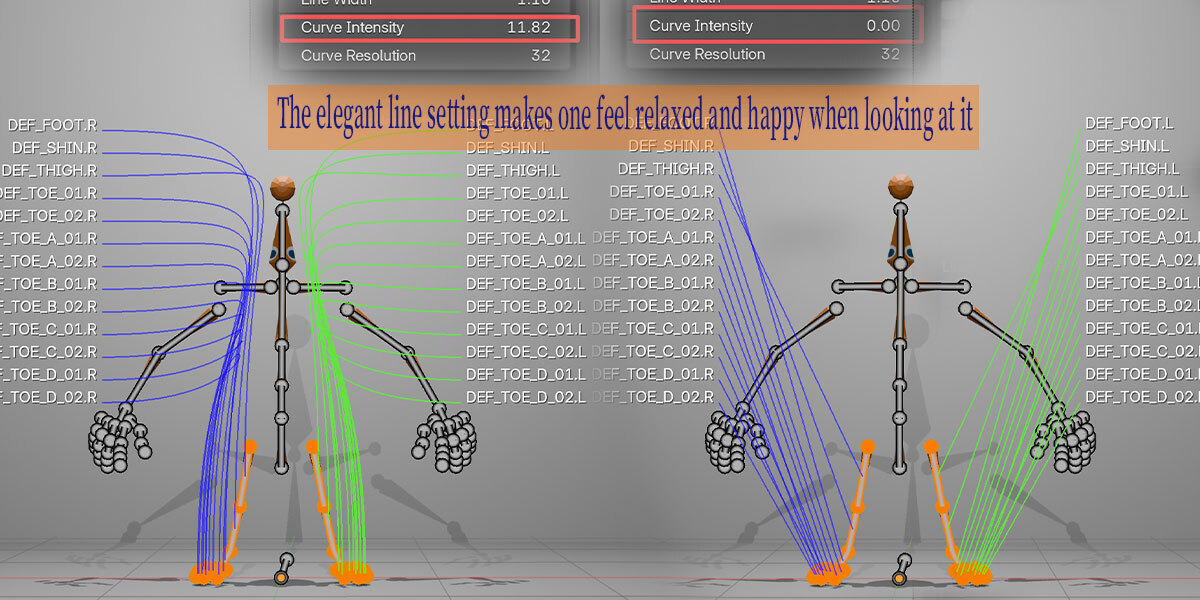
Line Style: curve, elbow, or shared shoulder rail. -
Line Depth Mode: draw lines in front of the viewport or let them pass behind scene geometry. -
Break Middle: hide the crowded middle span of long leader lines. -
Hover Range / Hover Highlight: control mouse hover sensitivity and line emphasis.
Offsets & Colors
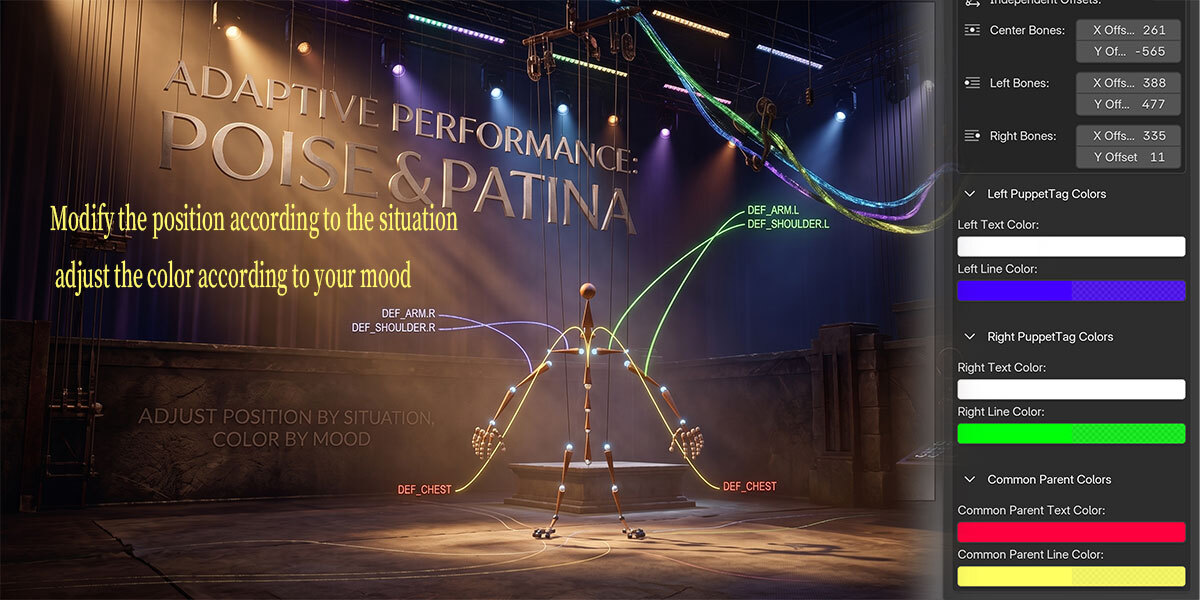
Use this tab to adjust left, center, and right label offsets. You can also set text and leader-line colors for left-side, right-side, and shared-parent tags.
Custom Annotations
PuppetTag annotations are display-only labels stored on bones. They do not rename the real bone.
- Enable annotation mode, then click a tag to edit its text.
-
Add Selectedcreates annotation rows for selected bones. - Use annotation rows to jump to bones, edit notes, or remove notes.
-
Clear Allremoves all visible custom annotations from the panel list.
Workflow Tools
-
Copy: copy all current PuppetTag settings as JSON. -
Paste: apply settings from copied JSON. -
Save: save the current settings locally for automatic reuse. -
Load: reload the saved local settings. -
Path: copy the saved preset content for sharing. -
Shot: drag a rectangle in the viewport and save that area as a PNG. -
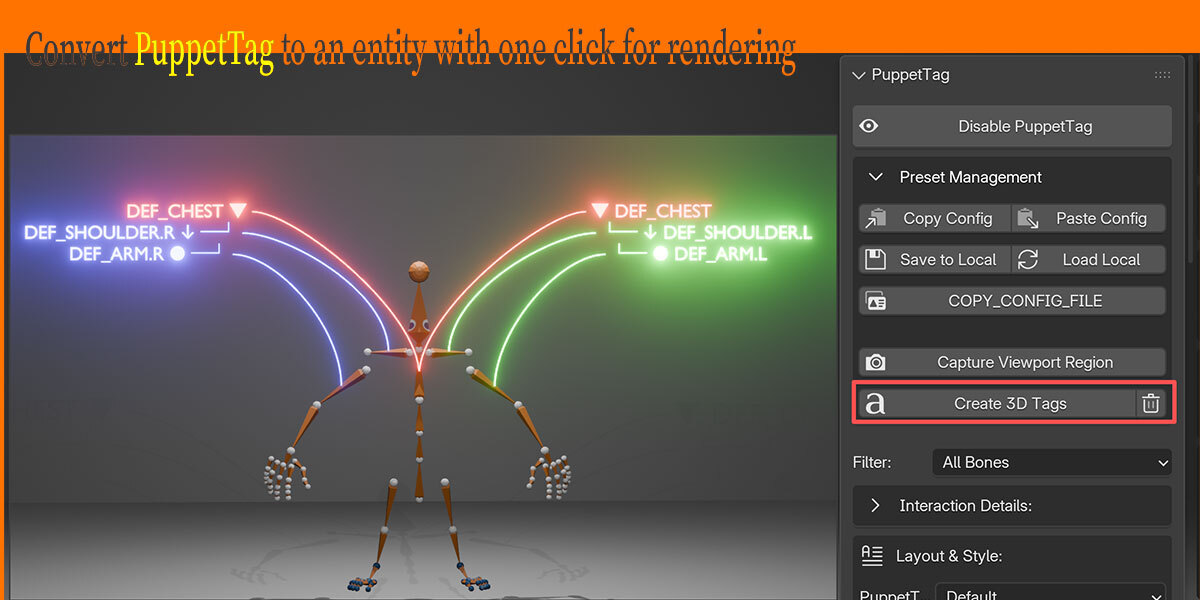
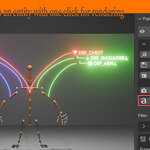
To 3D: convert the current HUD labels and leader lines into real text and curve objects for rendering. - Trash button beside
To 3D: delete generated 3D tag objects without changing the live HUD.
Mouse Tips
- Select bones to show tags.
- Drag tags to reposition them when layout persistence is enabled.
-
Alt + Left Clickon a tag resets that tag. -
Ctrl + Dragbox-selects tags in the viewport. -
Shift + Left Clickin the annotation list multi-selects when jumping to bones.
Notes
- PuppetTag is a viewport HUD first. Use
To 3Donly when you need renderable text and curve objects. - Occluded depth lines are heavier than front HUD lines. Use
Performanceor keepAuto Performanceenabled on dense rigs. - Annotation text is separate from Blender bone names, so it is safe for rig notes, aliases, and tutorial labels.
-
$59
1 seat
-
$249
up to 5 seats
-
$399
up to 10 seats
 Included
Includes 12 months of
- Support from DoitTsui
- Product updates
Extend this product’s Support Period +12 months: 50% of product price
Have questions before purchasing?
Login to message
| Blender Extension Compatible | Yes |
| Published | 3 months ago |
| Blender Version | 4.0 - 5.1 |
| Extension Type | Add-on |
| Render Engine Used | Cycles, Eevee |
| License | GPL |