 blenderVfxMaster





QuadAnneal Remeshing
Start with a dense or uneven mesh and make a cleaner quad version to work from. Choose Instant Meshes or QuadAnneal, set your target, and pick the preservation options you need. The result comes in as a new object, leaving the source available for comparison.
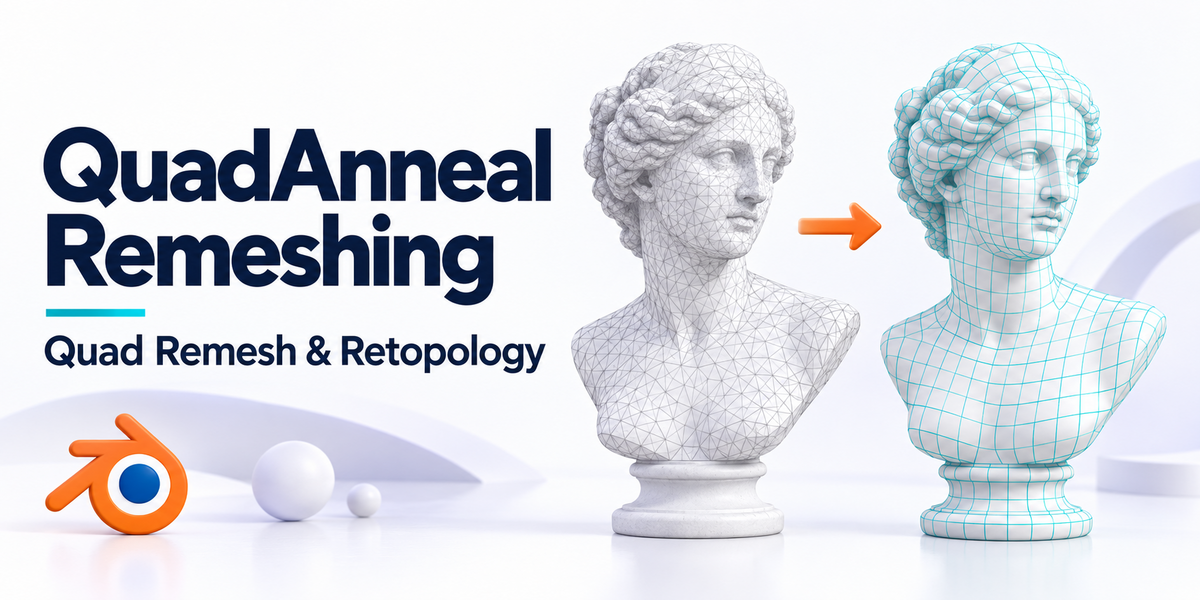
Cover illustration. The screenshots and previews below are labelled separately.
Compare the remeshing options
Compare density, flow and polygon targets before choosing a result.
BEFORE / AFTER · View full size ↗
Density and flow controls
The comparison shows the raw input beside density-map and flow-guide examples.
BEFORE / AFTER · View full size ↗
Try different polygon targets
These examples show lower-count versions of the input. Use the timings as context for that example only, not as a benchmark for your hardware.
Targets and preservation controls
Here’s what you can do with it.
Choose a remeshing approach
Use Instant Meshes or QuadAnneal. Each has its own controls, so changing the approach also changes which settings are relevant.
Set up Instant Meshes
This approach provides crease handling, boundary alignment, projection passes, thread settings and deterministic controls.
Set up QuadAnneal
Use sharp-edge angle, adaptivity, edge scaling and normal smoothing to work toward the shape and detail you need.
Set a topology target
Choose a polygon-count or edge-length target, then adjust polygon scale. Counts are approximate, so compare the shape and face distribution as well as the number.
Bring attributes across
Optionally project material assignments, UV maps and vertex-group weights onto the result. Check transferred data around difficult boundaries.
Watch progress and keep the source
Follow progress in the N-panel and cancel an active job if needed. Each remesh is imported as a new object, so the original is still there to compare.
Handle a batch of meshes
Batch selected meshes, use result-name tokens and presets, choose modifier evaluation and selection behaviour, and use continue-after-error handling when appropriate.
Leave room for cleanup
Difficult geometry and material boundaries crossing large faces may need manual cleanup. Timings printed on the older example screenshots are not speed guarantees for other scenes.
The panel and Preferences
CONTROLS · View full size ↗
Set the remesh and preservation options
The sidebar keeps the operation and its preservation settings beside the model.
BLENDER PREFERENCES · View full size ↗
Preferences and product settings
This is the actual Preferences view for configuration, separate from the remesh comparisons.
Make a new quad version
-
01
Select the source mesh and choose a remeshing approach.
-
02
Set the target and relevant preservation options.
-
03
Choose modifier evaluation and any attributes to transfer.
-
04
Run the remesh and follow its progress.
-
05
Compare the new mesh with the source and tidy up difficult areas.
Before you remesh
- Blender 4.2 or newer.
- Packages for Windows x64, macOS Apple Silicon and Linux x64.
- Keep the source and check any transferred attributes.
- Settings differ between approaches, and target counts are approximate. Test a representative mesh first.
Will I get exactly the face count I enter?
Not necessarily. The count is a target, not an exact output guarantee. Check the shape and topology too.
What should I look at after remeshing?
Check boundaries and tricky junctions, then inspect any UVs, materials and vertex-group weights you transferred.