QuadForge – One-Click LOD, Quad Retopology & Texture Rebake
 blenderustad


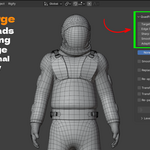
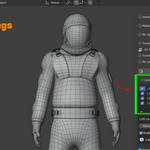
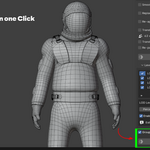
QuadForge — Quick Start Guide
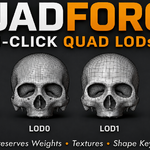
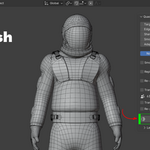
What it does QuadForge converts the active triangle mesh into clean quad topology, then optionally rebakes textures, transfers rig data, and generates LODs, all in one operation inside Blender.
Requirements
- Blender 4.2 or newer
- Windows x64 or macOS (Intel native, Apple Silicon via Rosetta 2)
- No internet connection needed. The remesh engine is bundled and runs locally.
Install
- Edit → Preferences → Add-ons → ▾ → Install from Disk.
- Select the QuadForge zip file.
- Enable QuadForge.
Basic use
- Select a mesh object in the viewport.
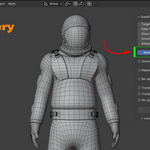
- Open the N-panel → QuadForge tab.
- Set Target Quads (20,000 is a solid default for a character-scale mesh).
- Click QuadForge: Quad Remesh.
You can press Esc at any time to cancel. Blender stays responsive while it works.
Core settings
| Setting | What it controls |
|---|---|
| Target Quads | Approximate quad count of the result |
| Edge Scaling | Higher = lower poly result |
| Sharp Edge | Angle above which an edge is kept sharp |
| Smooth Normal | Normal-smoothing threshold (0 = off) |
| Adaptivity | 0 = uniform density, 1 = curvature-adaptive |
| Symmetry (X/Y/Z) | Remesh one half, mirror the rest (mesh must be centered on that axis) |
| Smooth Result | Enables tangential smoothing passes, reprojected onto the source surface |
Keeping your textures and rig
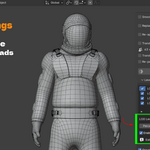
- Turn on Re-apply Texture to bake your source material onto the new UVs (diffuse-only, or full PBR: Base Color, Normal, AO, Roughness, Metallic, assembled into a Principled BSDF).
- Turn on Transfer Weights and Transfer Shape Keys to carry vertex groups and blend shapes to the result. Re-parent to Armature reattaches it to your original rig.
- Open holes (eye sockets, neck openings) stay open. They are never capped.
Generating LODs Open the Level of Details sub-panel. Add, remove, rename, or reorder LOD levels, each with its own target percentage. Click QuadForge: Generate All LODs to batch-produce every enabled level as its own object, optionally grouped into a collection.
If the button is greyed out The panel will show "Engine not found." Open Add-on Preferences and set Engine Path manually, this is only needed if the bundled binary somehow isn't detected for your platform.
Support [email protected] · blenderustad.com
Have questions about this product?
Login to message
| Blender Extension Compatible | Yes |
| Sales | 10+ |
| Published | about 2 months ago |
| Blender Version | 3.2 - 5.2 |
| Extension Type | Add-on |
| Render Engine Used | Cycles, Eevee |
| License | GPL |

Discover more products like this
blender LOD generator addon blender auto retopology addon addon convert triangles to quads automatic retopology blender addon blender game asset optimization addon model LOD generator blender vertex group transfer addon LOD offline retopology addon for blender blender retopology tool for characters mesh cleanup addon for game engines bake texture after retopology blender