 Mamba CG

Quick Audio Visualizer
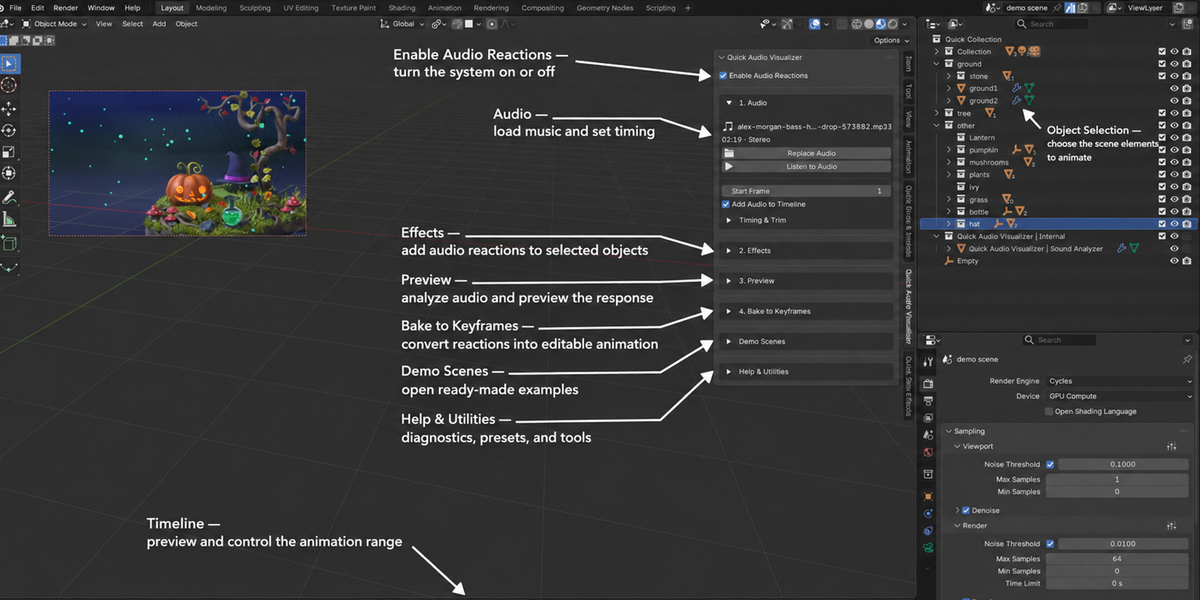
Turn music into animation. Quick Audio Visualizer analyzes an audio track and connects its frequencies, energy, and beats to object properties in Blender. Use it to animate lights, cameras, materials, typography, and more.
Requirements
- Blender 5.2 or later
- An audio file supported by your Blender installation
Installation
- In Blender, open Edit > Preferences, then choose Get Extensions or Add-ons, depending on your Blender version.
- Choose Install from Disk and select the downloaded ZIP, or drag the ZIP into the Blender window.
- Enable Quick Audio Visualizer if Blender asks you to.
- In the 3D Viewport, press N to open the Sidebar, then select the Quick Audio Visualizer tab.
Make your first audio animation
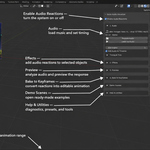
- Expand Audio and click Load / Replace Audio. Choose your audio file and adjust its start frame or offset if needed.
- Select the objects you want to animate in the 3D Viewport.
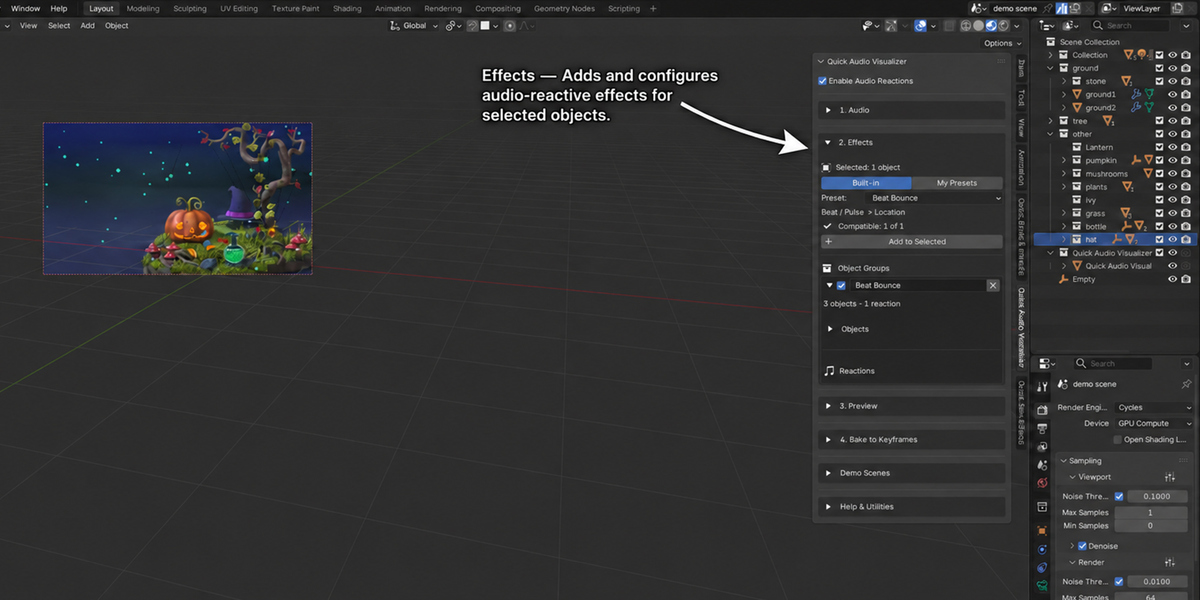
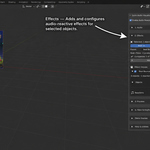
- Expand Effects, choose a preset, and click Add to Selected. Presets may require a compatible object, such as a light for a lighting effect.
- Expand the new object group and reaction to adjust its settings.
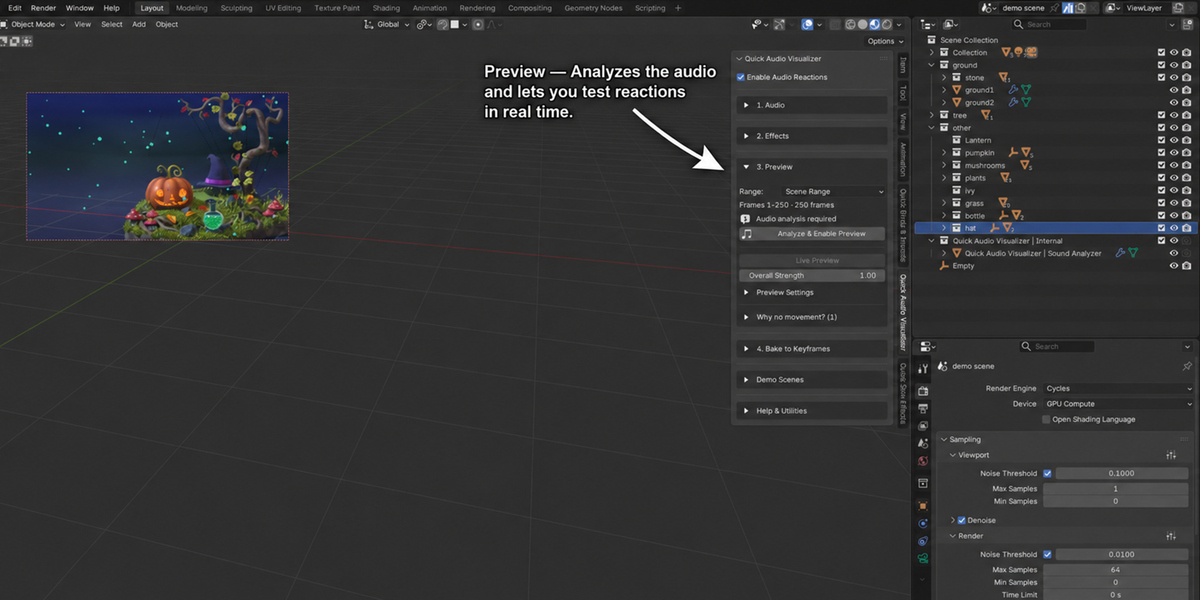
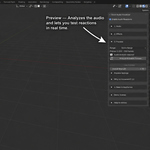
- Open Preview and analyze the audio. Play the timeline to preview the animation.
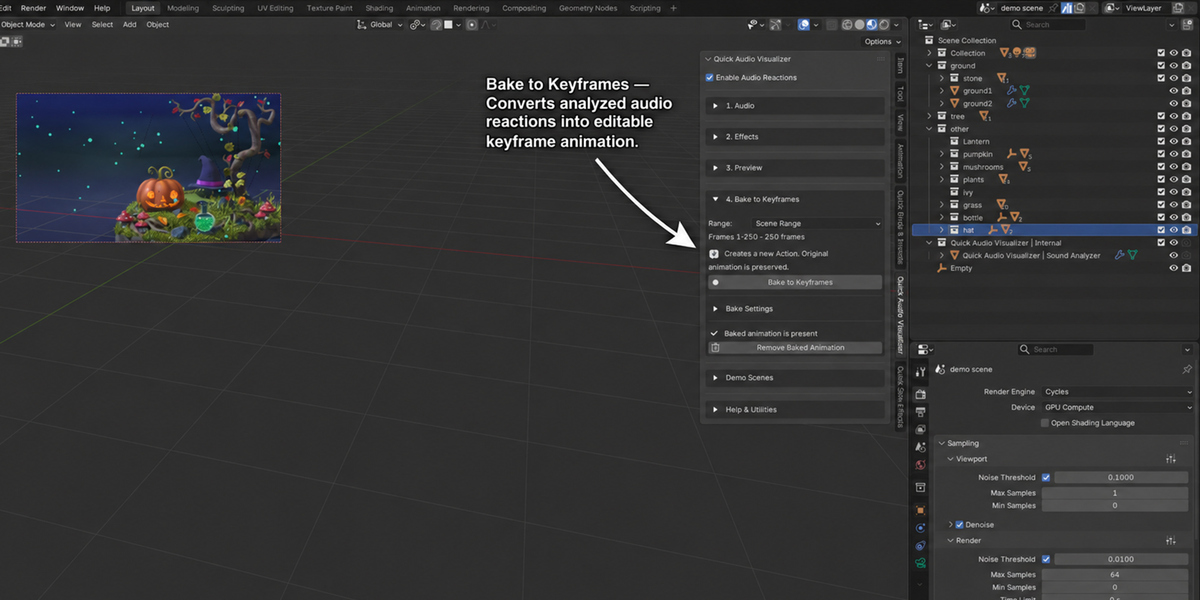
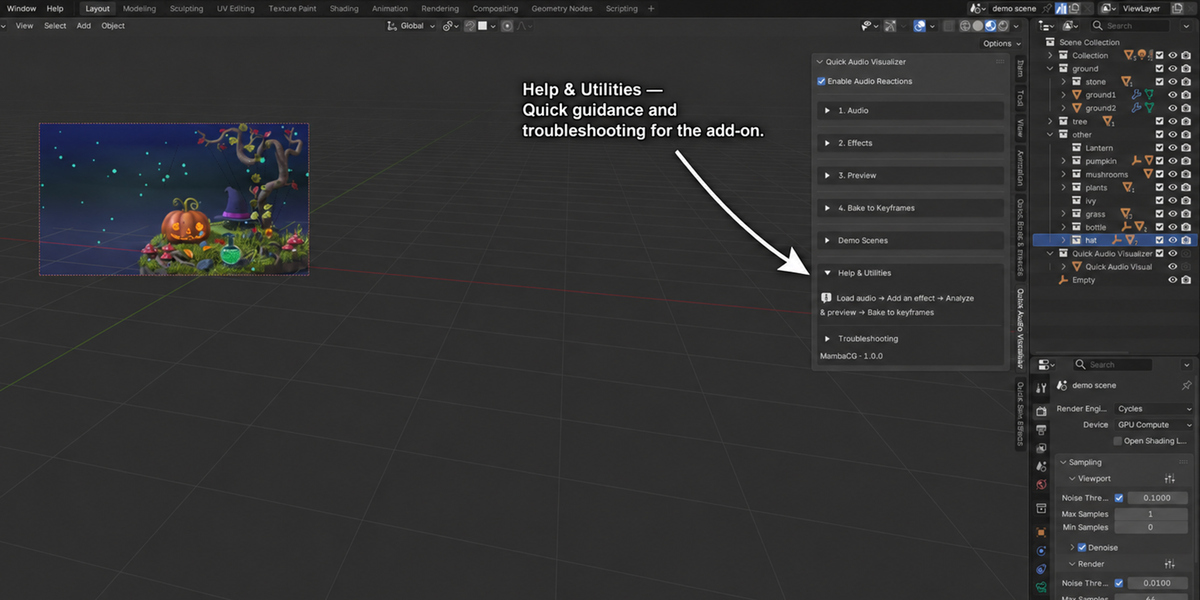
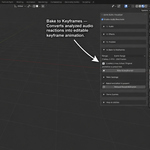
- When you are happy with the result, use Bake to Keyframes before rendering or exporting.
Try a demo scene
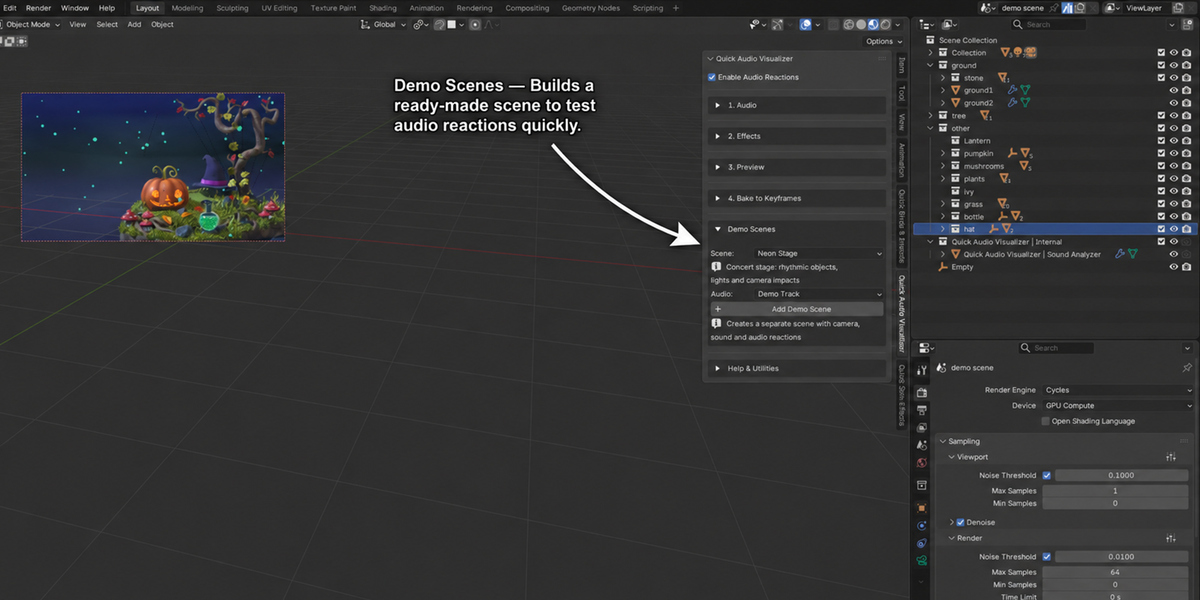
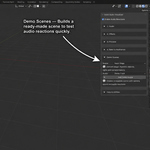
Expand Demo Scenes, choose a scene and track, then click Add Demo Scene. The add-on creates a separate scene with objects, materials, a camera, audio, and configured reactions. Analyze the audio in the Preview section, then play the timeline. Demo audio is generated by the add-on.
Choose an audio signal
- Frequency bands: Sub Bass, Bass, Low Mids, Mids, High Mids, and Treble.
- Full Spectrum: Uses the complete analyzed frequency range.
- Custom Frequency: Lets you set the lower and upper frequency limits.
- Overall Energy: Follows the audio’s overall energy.
- Beat / Pulse: Responds to rising transients in the selected band. It does not detect BPM.
Shape the response
Adjust Strength to change the size of the effect and Threshold to ignore quieter input. Use Attack, Release, and Smoothing to control how quickly the response changes. Response curves, timing, phase, and frequency variation offer more ways to shape the motion and spread it across objects.
Reactions can combine with existing values in different ways. Additive behavior offsets a base value; multiplicative behavior scales it, so a zero base remains zero. Absolute behavior supplies the response value directly. Choose Replace when you want direct control.
Targets and manual setup
You can connect reactions to supported animatable properties on transforms, lights, cameras, materials, shader sockets, Geometry Nodes inputs, modifiers, shape keys, and custom properties. For a manual setup, use Add Object Group, assign objects, and add reactions. Several reactions can affect the same property; their combination settings determine how their values are combined.
Presets
The add-on includes 23 editable factory presets. Save your own reactions to your local preset library, or import and export presets as JSON files. When using a preset in another project, check its object assignments and property targets.
Baking and rendering
Use Bake to Keyframes for a reliable result when rendering or exporting. Choose the frame range, bake the animation, then inspect or edit the keys in Blender’s animation editors. Save your project after baking. If you change the audio or reactions, bake again. Keep a project backup before replacing animation you have edited manually.
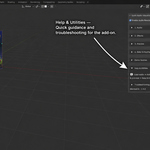
For support, contact MambaCG through the Superhive product support channel. Include your Blender version, the steps to reproduce the issue, and any relevant panel messages.
Have questions about this product?
Login to message
| Blender Extension Compatible | Yes |
| Published | about 15 hours ago |
| Blender Version | 5.2 |
| Extension Type | Add-on |
| Render Engine Used | Cycles, Eevee |
| License | GPL |