 Me_D
Me_D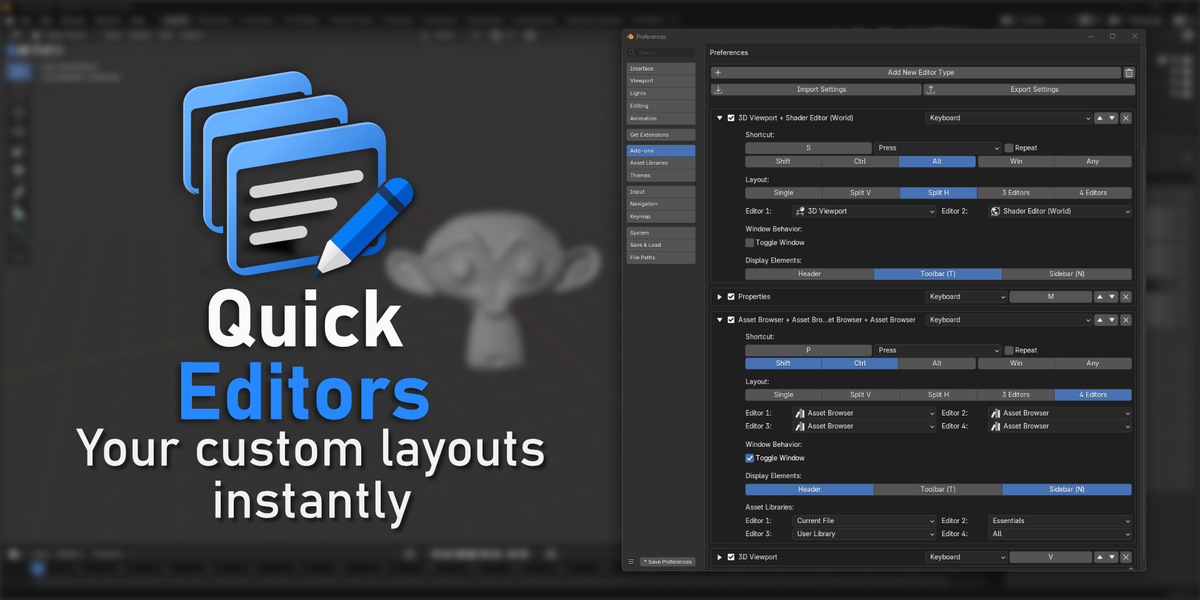
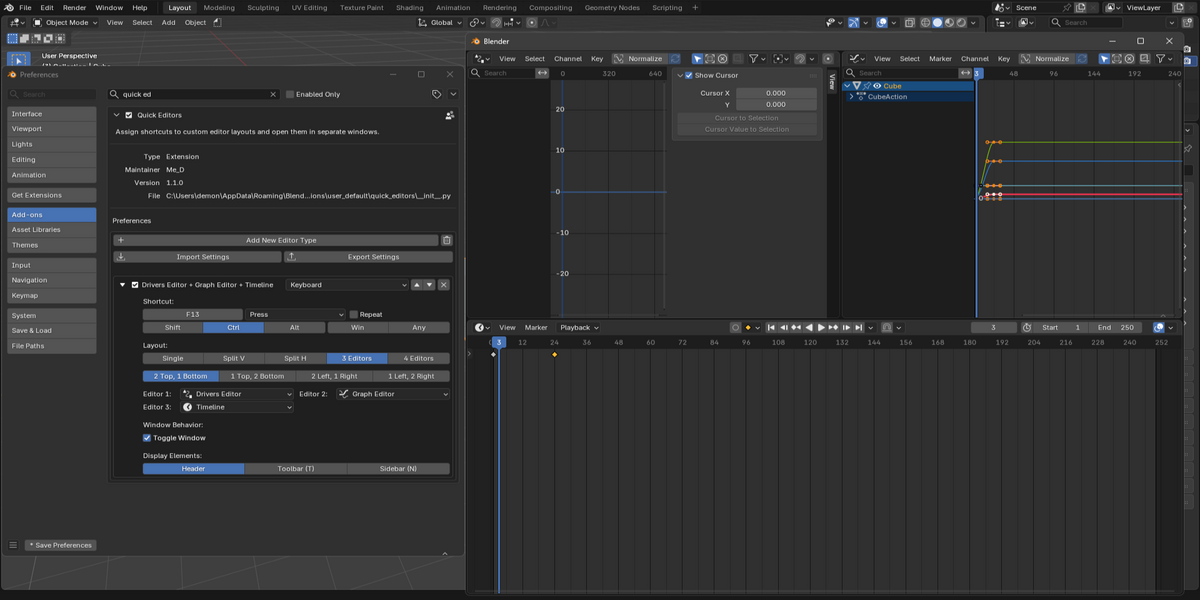
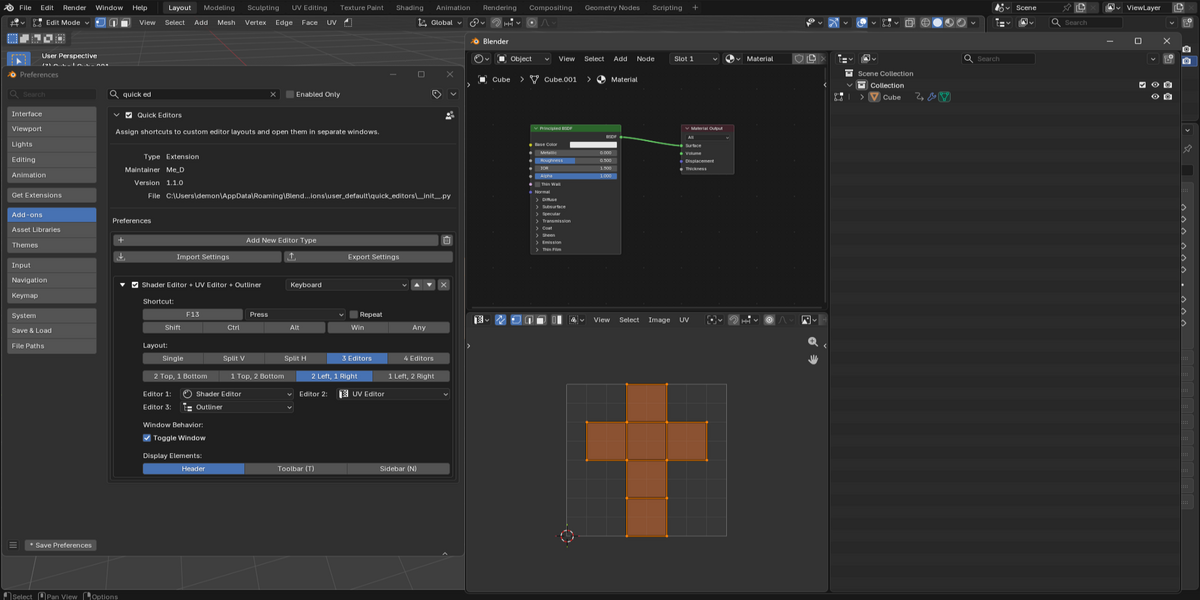
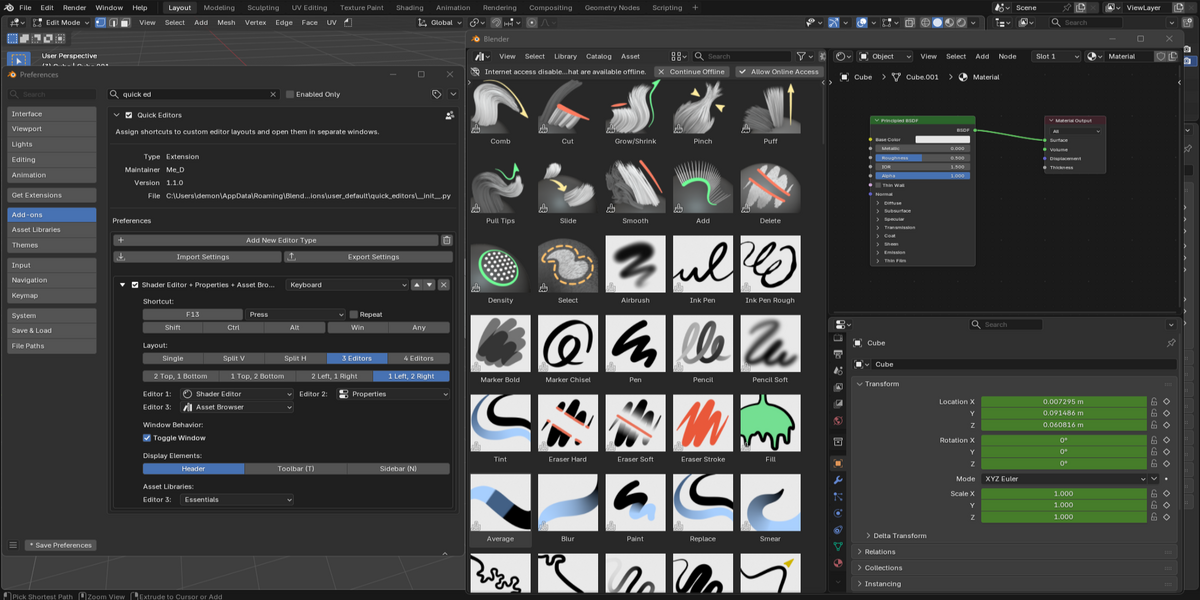
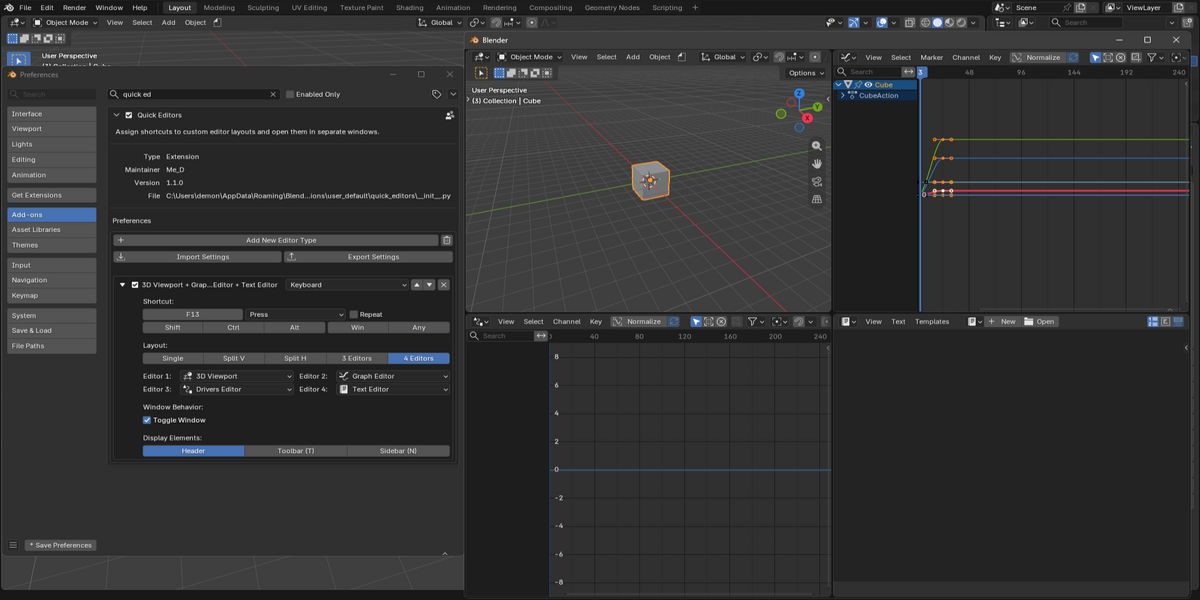
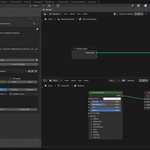
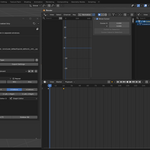
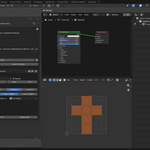
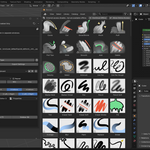
🚀 Installation Guide
Method 1: Drag & Drop
- Open Blender.
- Drag and drop the downloaded .zip file directly into the Blender window.
- Follow the installation prompt to install the add-on.
Method 2: Install from Disk
- Open Blender and go to Edit > Preferences.
- Navigate to Get Extensions or Add-ons, depending on your Blender version.
- Open the menu in the top-right corner and select Install from Disk... (or Install..., depending on your version).
- Select the downloaded .zip file and install it.
- Enable Quick Editors if it is not already enabled.
📖 How to Use
1. Adding & Configuring Editor Blocks
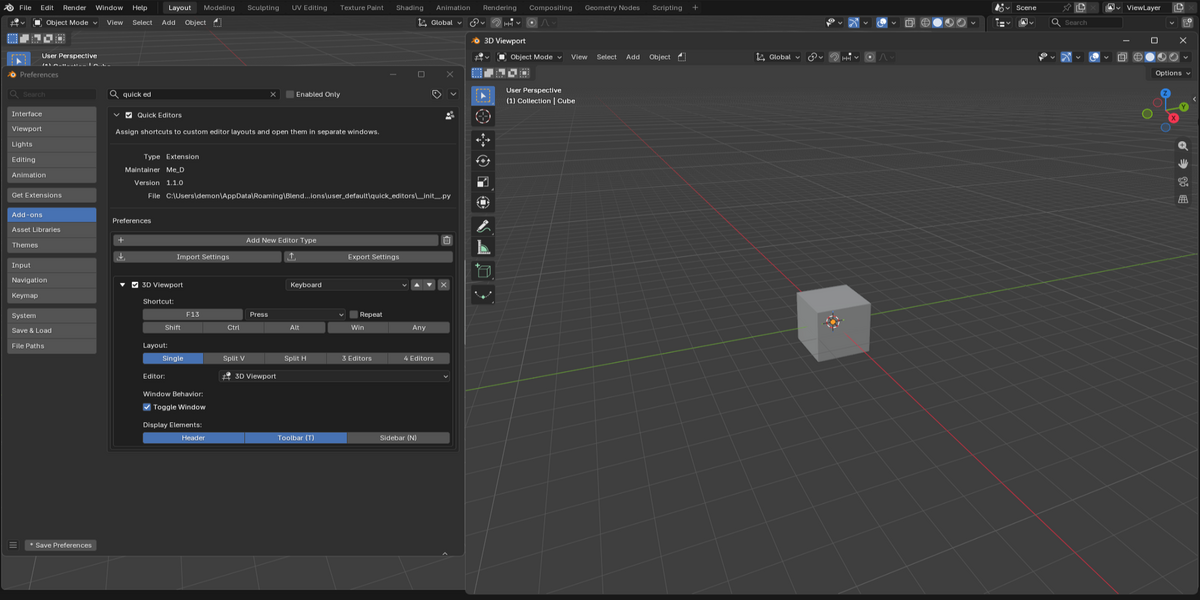
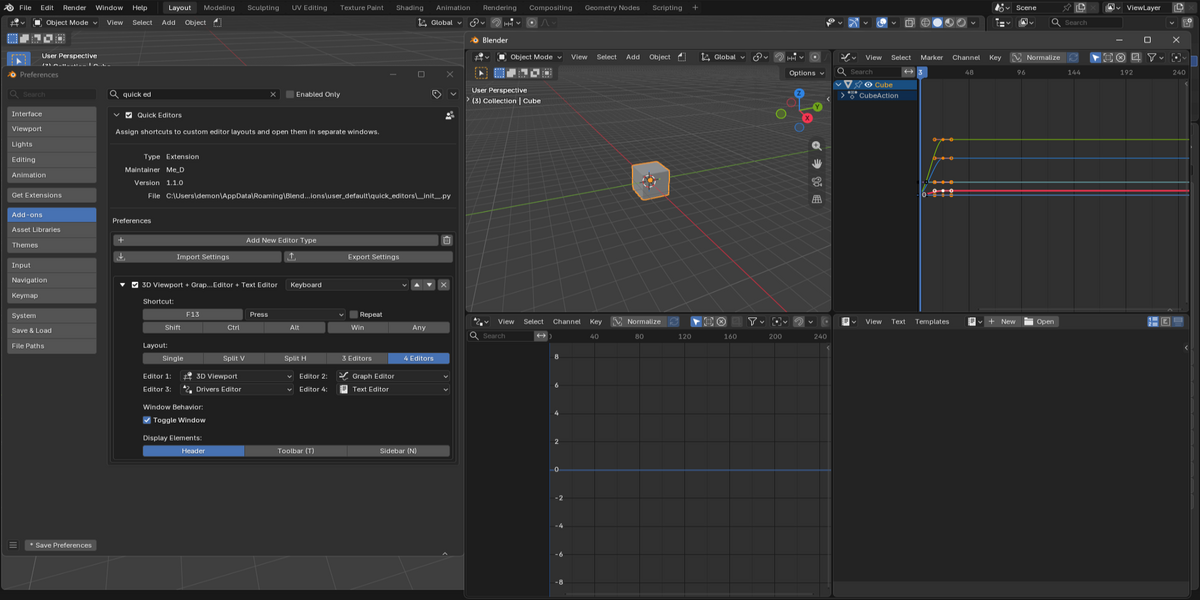
- Add a New Editor Block: Go to Edit > Preferences > Add-ons, find Quick Editors, and click Add New Editor Type to create a new configuration.
- Assign a Shortcut: Choose your input device type. For keyboard shortcuts, click Press Key and press the desired key combination. Configure modifier keys such as Shift, Ctrl, Alt, or Win/Cmd, along with the desired interaction event.
- Manage Your Blocks: Use the Move Up / Move Down arrows to reorder configurations, or click the trash icon to remove one.
2. Choosing a Layout
- Single: Opens a dedicated window containing one editor.
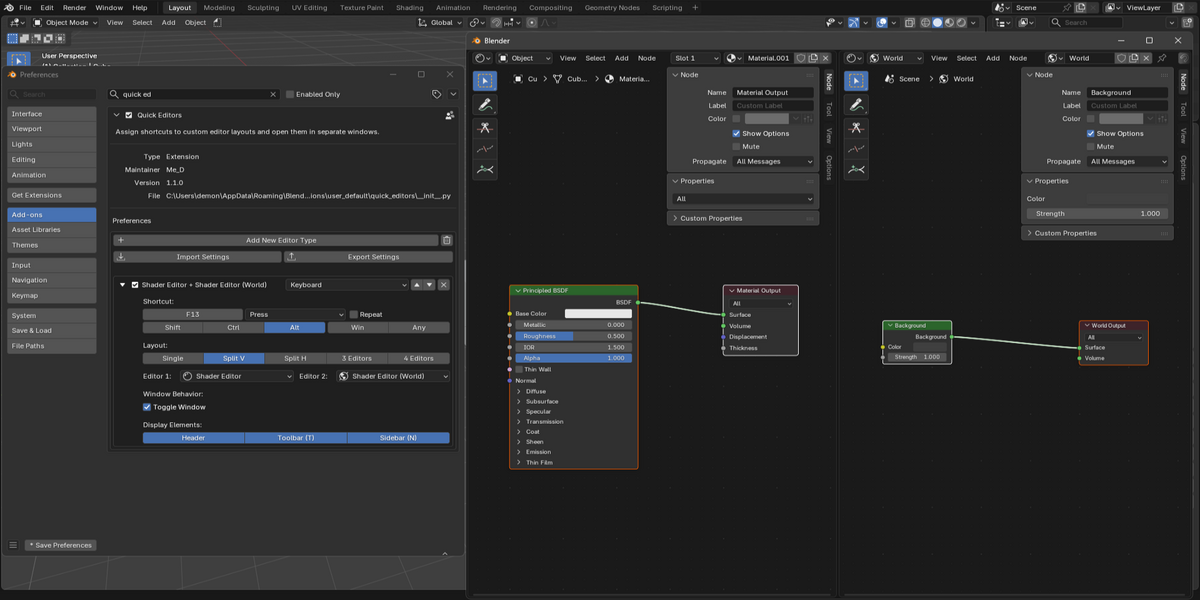
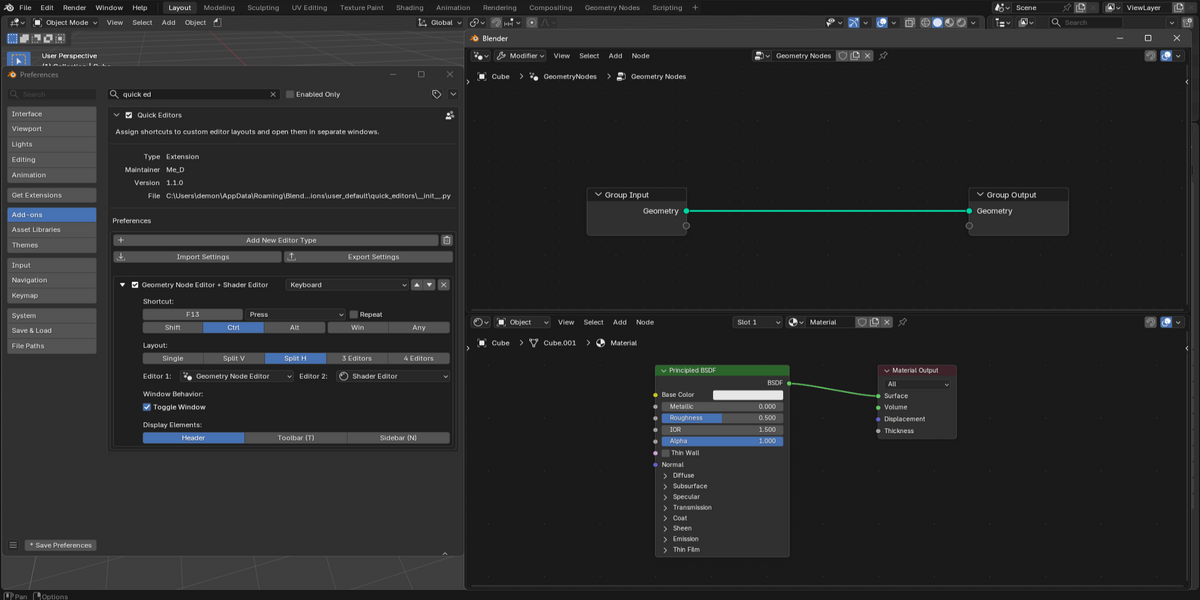
- Split V & Split H: Arranges two editors side by side or one above the other.
- 3-Editor Layouts: Combine three editors in one of four arrangements: 2 Top, 1 Bottom, 1 Top, 2 Bottom, 2 Left, 1 Right, or 1 Left, 2 Right.
- Quad Grid: Arranges four editors in a 2x2 grid.
3. Window Behavior & Interface Customization
- Toggle Window Mode: When enabled, pressing your assigned shortcut opens the custom window, and pressing it again closes the window. When disabled, each activation opens a new window instead.
- Customize Interface Elements: Independently show or hide the Header, Toolbar (T), and Sidebar (N) for each editor configuration.
- Asset Browser Integration: Select the asset library used by each Asset Browser instance, choosing from All, Current File, Essentials, or your custom libraries. A maximum of 2 Asset Browser instances is supported per layout.
4. Importing & Exporting Settings
- Back Up & Share: Use Export Settings to save your layout configurations and shortcuts to a .json file. Use Import Settings to restore a configuration or share it with others.
Have questions about this product?
Login to message
| Blender Extension Compatible | Yes |
| Published | 2 days ago |
| Blender Version | 5.0 - 5.2 |
| Extension Type | Add-on |
| License | GPL |
Discover more products like this
Workflow Add-on editor interface productivity Blender interface improvements workspace