 Luigi Crv


Installation
After purchase, download QPanels_vX.X.X.zip. Do not unzip it — Blender installs directly from the archive.
In Blender, go to Edit → Preferences → Add-ons and click Install.
Navigate to your download folder, select QPanels_vX.X.X.zip, and click Install Add-on.
Search for "Quick Panels" in the add-ons list and tick the checkbox to enable it. Quick Panels will scan and index your Blender installation in the background.
Creating Your First Quick Panel
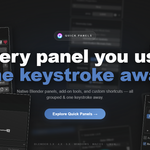
A Quick Panel is a named shortcut that opens a popup at your cursor — containing one or more Blender panels. You can create as many as you need, each with its own key combination and display mode.
Go to Edit → Preferences → Add-ons, search for Quick Panels, and expand the add-on entry. Inside, click the Quick Panels tab — this is where your shortcuts are created and managed. (The Settings tab contains global options.)
Click + Add Quick Panel. A new entry appears in the list. Give it a descriptive name — e.g. "Modeling", "UV", "Materials".
Click the shortcut field and press the key combination you want — e.g. Q, Shift+W, Alt+E. The shortcut works globally in all Blender editors and modes.
Select how the popup will look when you press the shortcut: Standard Popup, Pie Menu, or Grouped. See Section 5 for a full description of each.
Click the Add Panel button on your Quick Panel entry to open the Panel Browser — panels you pick will be added directly to this Quick Panel. See Section 3 for a full walkthrough.
Panel Browser
The Panel Browser is a full browser for all panels detected in your Blender installation. It lets you browse, filter, preview, and add panels to any of your Quick Panels.
Panel Browser reflects your current Blender installation every time you open it. Install or uninstall an add-on — its panels appear or disappear in Panel Browser immediately. No reinstall of Quick Panels required.
Panel Search
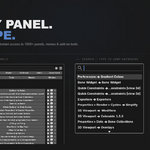
Panel Search is a quick-access search bar available inside any Quick Panel popup. Open your Quick Panel with its shortcut, then start typing — results filter in real time.
The search index is built when Quick Panels is installed. Add-ons installed after Quick Panels won't appear in Panel Search until you reinstall Quick Panels. This does not affect Panel Browser — which always reflects your current setup in real time.
Display Modes
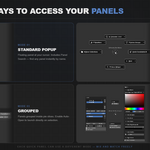
Each Quick Panel shortcut can be configured to open in one of three display modes. The mode is set per-shortcut in Quick Panels preferences and can be changed at any time.
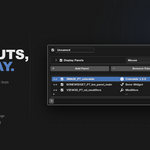
Opens a floating popup at your cursor. Multiple panels appear as tabs inside the same popup. Press Escape or click outside to close.
Panels are arranged radially around the cursor. All options are visible at once with minimal mouse movement. Click a slice to open the corresponding panel.
Like Pie Menu, but panels are grouped inside each slice. Enable the Auto-Open option to have the selected panel launch immediately on selection — no extra click required.
Export & Import
Transfer any Quick Panel configuration to another machine or Blender installation using the clipboard — no files to move manually.
Open the Quick Panel popup (press its shortcut in Blender).
Click Export Data inside the popup.
Configuration is copied to clipboard. Share it however you like.
On the destination machine, open any Quick Panel popup.
Click Import Data and paste the clipboard content.
Quick Panel is recreated. Panels that don't exist on the destination are silently skipped.
Export/Import works across different machines and different Blender versions. Panels that don't exist on the destination (missing add-on, renamed panel, version mismatch) are silently skipped — the rest of the configuration is fully preserved.
Negate Value
Quick Panels includes a bonus utility called Negate Value. Hover over any numeric field in Blender and press Alt + Right Click to instantly flip its sign.
1 → −1 · −0.5 → 0.5 · 90 → −90
Customizable in Blender Keymap preferences under "User Interface"
Negate Value does not work inside popup windows in Blender. This is a Blender API limitation that affects all popups — not specific to Quick Panels. It works correctly in all non-popup contexts.
-
$14.99
1 user, personal/freelance projects
Have questions about this product?
Login to message
| Published | 6 months ago |
| Blender Version | 3.4 - 5.0 |
| Extension Type | N/A |
| Render Engine Used | Cycles, Eevee |
| License | GPL |
Discover more products like this
productivity Shortcut efficiency interface panels menu customization workspace Workflow ui Hotkeys navigation