 Shift4cube



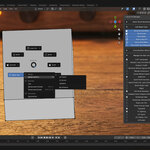
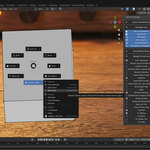
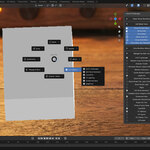
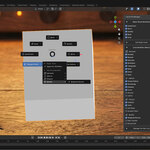
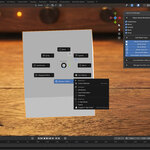
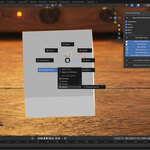
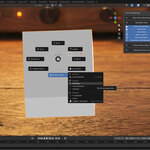
🚀 Documentation: Quick Pie & Favorites (v1.10)
🧩 Add-on Name: Quick Pie & Favorites
🔢 Version: 1.10
👤 Author: Shift4Cube
🐵 Blender Version: 4.0+
📂 Category: Interface (Pie Menu)
🚀 1. Overview
Quick Pie & Favorites is a context-sensitive productivity tool designed to kill menu-diving. It replaces the default Q (Quick Favorites) menu with a powerful, customizable Pie Menu that morphs based on your mode (Object vs. Edit).
✨ Key Features:
🧠 Smart Modifiers: Add modifiers (Subdiv, Mirror, Bevel) with instant auto-popups.
🛠️ Modeling Toolkit: Fast access to Extrude, Inset, Loop Cut, and Knife.
🎨 Smart Materials: Instantly spawn Checker patterns, Emission shaders, or random ID colors.
♻️ Material Reuse: One-click re-assign existing materials to new objects.
⭐ Favorites Manager: Launch panels from other add-ons directly from your cursor.
⚙️ 2. Installation
Download the quick_pie_v1_10.py file.
Open Blender and go to Edit > Preferences.
Select the Add-ons tab and click Install....
Locate the .py file and click Install Add-on.
✅ Enable the checkbox next to Interface: Quick Pie & Favorites.
🎮 3. Global Controls
⌨️ Shortcut: Press Q in the 3D Viewport.
🎛️ Sidebar (N-Panel): Go to the "Quick Pie" tab on the right side of the viewport. Toggle specific buttons ON/OFF to keep your menu clean.
📦 4. Object Mode (The Modifier Suite)
Tools for object management, non-destructive modeling, and visibility.
⬅️ Left (West): 💧 Subdivision Surface (Auto-opens settings).
➡️ Right (East): 🪞 Mirror (Auto-opens settings).
⬆️ Top (North): 🔲 Bevel.
↖️ Top-Left (NW): 🔢 Array.
↗️ Top-Right (NE): 🧱 Solidify.
⬇️ Bottom (South): 👁️ Display / Select (Wireframes, X-Ray, Face Orientation).
↘️ Bottom-Right (SE): ⭐ Fav Add-ons (Your custom list).
↙️ Bottom-Left (SW): 🧰 Manage & More
🎨 Smart Materials (Checker, Emission, etc.)
✅ Apply Tools (Apply All / Specific)
🌊 Extra Modifiers (Physics, Deform, Generate)
✏️ 5. Edit Mode (The Modeling Suite)
Direct mesh editing tools using native Blender operators.
⬅️ Left (West): ⬆️ Extrude Menu (Region, Manifold, Normals).
➡️ Right (East): 🔲 Inset Faces.
⬆️ Top (North): ➗ Loop Cut.
↖️ Top-Left (NW): 🔪 Knife / Bisect.
↗️ Top-Right (NE): 📐 Bevel.
⬇️ Bottom (South): 👁️ Display / Select.
↘️ Bottom-Right (SE): ⭐ Fav Add-ons.
↙️ Bottom-Left (SW): 🛠️ Mesh Tools & UVs
🎨 Smart Materials (Apply without leaving Edit Mode)
🗺️ UV Tools (Smart Project, Unwrap)
🧲 Mesh Ops (Merge, Normals, Symmetrize)
🎨 6. Smart Materials & UV Tools
Located in the Bottom-Left (SW) sub-menu in both modes.
📂 Choose Old Material: Opens a searchable list of all existing materials in your scene. Click one to apply it instantly.
🏁 Checker (Scale 40): Applies a UV Checker texture (Scale 40) to check for stretching.
🧊 New Material: Creates a basic Principled BSDF with a random pastel color (great for blocking).
💡 Emission: Creates an orange Emission shader (Strength 5.0).
🗺️ UV Tools: Instant access to "Smart UV Project" and "Unwrap" to fix textures fast.
⭐ 7. Favorites Manager
Access UI panels from other installed add-ons (like HardOps, Node Wrangler) directly at your cursor.
Open the N-Panel > Quick Pie tab.
Expand "Manage Fav Add-ons".
📋 You will see a list of every enabled add-on.
☑️ Check the box next to any add-on you want to favorite.
Press Q > ⭐ Fav Add-ons (Bottom-Right).
Clicking an item in the list pops up its main panel instantly.