Quick Pie & Favorites
 Shift4cube



Documentation: Quick Pie & Favorites (v1.10)
Add-on Name: Quick Pie & Favorites
Version: 1.10
Author: Shift4Cube
Blender Version: 4.0+
Category: Interface (Pie Menu)
Add-on Name: Quick Pie & Favorites
Version: 1.10
Author: Shift4Cube
Blender Version: 4.0+
Category: Interface (Pie Menu)
1. Overview
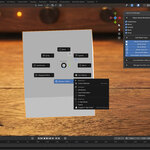
Quick Pie & Favorites is a context-sensitive productivity tool designed to speed up your workflow. It replaces the default Q (Quick Favorites) menu with a powerful Pie Menu that adapts to your current mode.
Key Features:
Smart Modifiers: Add modifiers (Subdiv, Mirror, Bevel) with instant setting popups.
Modeling Toolkit: Fast access to extrude, inset, loop cut, and knife in Edit Mode.
Smart Materials: Instantly apply Checker patterns, Emission, or random colors.
Old Material Selector: Quickly re-assign materials already existing in your scene.
Favorites Manager: Launch panels from your other installed add-ons directly from the pie menu.
Quick Pie & Favorites is a context-sensitive productivity tool designed to speed up your workflow. It replaces the default Q (Quick Favorites) menu with a powerful Pie Menu that adapts to your current mode.
Key Features:
Smart Modifiers: Add modifiers (Subdiv, Mirror, Bevel) with instant setting popups.
Modeling Toolkit: Fast access to extrude, inset, loop cut, and knife in Edit Mode.
Smart Materials: Instantly apply Checker patterns, Emission, or random colors.
Old Material Selector: Quickly re-assign materials already existing in your scene.
Favorites Manager: Launch panels from your other installed add-ons directly from the pie menu.
2. Installation
Download the quick_pie_v1_10.py file.
Open Blender and go to Edit > Preferences.
Select the Add-ons tab and click Install....
Locate the file and click Install Add-on.
Enable the checkbox next to Interface: Quick Pie & Favorites.
Download the
quick_pie_v1_10.pyfile.Open Blender and go to Edit > Preferences.
Select the Add-ons tab and click Install....
Locate the file and click Install Add-on.
Enable the checkbox next to Interface: Quick Pie & Favorites.
3. Global Controls
Shortcut: Press Q in the 3D Viewport.
Sidebar (N-Panel): Go to the "Quick Pie" tab on the right side of the viewport to customize the menu. You can toggle specific tools on or off to declutter your view.
Shortcut: Press
Qin the 3D Viewport.Sidebar (N-Panel): Go to the "Quick Pie" tab on the right side of the viewport to customize the menu. You can toggle specific tools on or off to declutter your view.
4. Object Mode (The Modifier & Material Suite)
When in Object Mode, the menu focuses on modifiers, view settings, and material management.
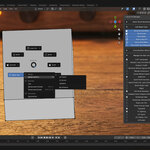
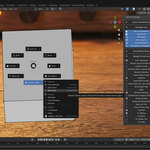
Left (West): Subdivision Surface (Auto-opens settings).
Right (East): Mirror (Auto-opens settings).
Top (North): Bevel.
Top-Left (NW): Array.
Top-Right (NE): Solidify.
Bottom (South): Display / Select Menu (Toggle Wireframes, X-Ray, Statistics).
Bottom-Right (SE): Fav Add-ons (Your custom favorites list).
-
Bottom-Left (SW): Manage & More
Smart Materials: (See Section 6).
Apply Tools: Apply All Modifiers or Specific Modifiers.
Extra Modifiers: Access Physics, Deform, and Generate modifiers.
When in Object Mode, the menu focuses on modifiers, view settings, and material management.
Left (West): Subdivision Surface (Auto-opens settings).
Right (East): Mirror (Auto-opens settings).
Top (North): Bevel.
Top-Left (NW): Array.
Top-Right (NE): Solidify.
Bottom (South): Display / Select Menu (Toggle Wireframes, X-Ray, Statistics).
Bottom-Right (SE): Fav Add-ons (Your custom favorites list).
-
Bottom-Left (SW): Manage & More
Smart Materials: (See Section 6).
Apply Tools: Apply All Modifiers or Specific Modifiers.
Extra Modifiers: Access Physics, Deform, and Generate modifiers.
5. Edit Mode (The Modeling Suite)
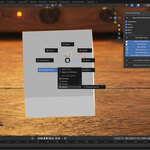
In Edit Mode, the menu transforms into a direct modeling toolkit.
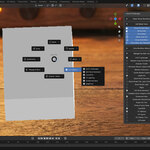
Left (West): Extrude Menu (Region, Manifold, Along Normals).
Right (East): Inset Faces.
Top (North): Loop Cut.
Top-Left (NW): Knife / Bisect.
Top-Right (NE): Bevel.
Bottom (South): Display / Select Menu.
Bottom-Right (SE): Fav Add-ons.
-
Bottom-Left (SW): Mesh Tools & UVs
Smart Materials: (See Section 6).
UV Tools: Smart UV Project, Unwrap.
Mesh Ops: Merge (Center/Collapse), Normals (Flip/Recalculate), Symmetrize.
In Edit Mode, the menu transforms into a direct modeling toolkit.
Left (West): Extrude Menu (Region, Manifold, Along Normals).
Right (East): Inset Faces.
Top (North): Loop Cut.
Top-Left (NW): Knife / Bisect.
Top-Right (NE): Bevel.
Bottom (South): Display / Select Menu.
Bottom-Right (SE): Fav Add-ons.
-
Bottom-Left (SW): Mesh Tools & UVs
Smart Materials: (See Section 6).
UV Tools: Smart UV Project, Unwrap.
Mesh Ops: Merge (Center/Collapse), Normals (Flip/Recalculate), Symmetrize.
6. Smart Materials & UVs (New in v1.10)
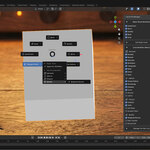
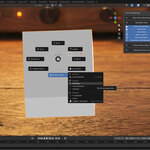
Located in the Bottom-Left (SW) sub-menu of both modes.
Choose Old Material: Opens a list of all existing materials in your blend file. Click one to instantly apply it to the selected object.
Checker (Scale 40): Applies a UV Checker texture with a scale of 40 (useful for checking UV distortion).
New Material: Applies a basic Principled BSDF with a random pastel color (great for color blocking).
Emission: Applies an orange emission shader (Strength 5.0).
UV Tools: Quickly "Smart UV Project" or "Unwrap" without opening the UV editor.
Located in the Bottom-Left (SW) sub-menu of both modes.
Choose Old Material: Opens a list of all existing materials in your blend file. Click one to instantly apply it to the selected object.
Checker (Scale 40): Applies a UV Checker texture with a scale of 40 (useful for checking UV distortion).
New Material: Applies a basic Principled BSDF with a random pastel color (great for color blocking).
Emission: Applies an orange emission shader (Strength 5.0).
UV Tools: Quickly "Smart UV Project" or "Unwrap" without opening the UV editor.
7. Favorites Manager
This feature allows you to access UI panels from other installed add-ons (like Node Wrangler, HardOps, etc.) directly inside the Pie Menu.
Open the N-Panel > Quick Pie tab.
Expand "Manage Fav Add-ons".
You will see a list of your installed add-ons. Check the box next to any add-on you use frequently.
Press Q > Fav Add-ons (Bottom-Right).
Your checked add-ons appear in the list. Clicking one opens its panel instantly at your mouse cursor.
This feature allows you to access UI panels from other installed add-ons (like Node Wrangler, HardOps, etc.) directly inside the Pie Menu.
Open the N-Panel > Quick Pie tab.
Expand "Manage Fav Add-ons".
You will see a list of your installed add-ons. Check the box next to any add-on you use frequently.
Press Q > Fav Add-ons (Bottom-Right).
Your checked add-ons appear in the list. Clicking one opens its panel instantly at your mouse cursor.
Have questions about this product?
Login to message
| Sales | 10+ |
| Published | 7 months ago |
| Blender Version | 4.5 - 5.0 |
| Extension Type | N/A |
| Render Engine Used | Cycles, Eevee |
| License | Mit |
Discover more products like this
interface productivity Modeling tools Workflow blender addon pie menu