Quick Pie & Favorites
 Shift4cube



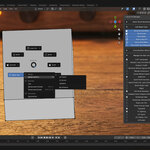
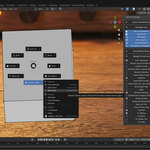
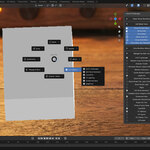
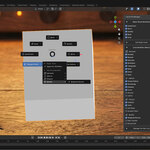



How do I add my other add-ons to the "Fav Add-ons" list? A:
Press N to open the Sidebar in the 3D Viewport.
Click the Quick Pie tab.
Expand the "Manage Fav Add-ons" section.
Check the box next to any enabled add-on you want to appear in your Quick Pie menu.
Why does the menu change when I enter Edit Mode? A: Quick Pie is context-sensitive.
Object Mode: It shows Modifiers (Subdivision, Mirror, etc.) and global tools.
Edit Mode: It automatically switches to Modeling tools (Extrude, Merge, Knife, Loop Cut) so you always have the right tools for the job.
Q: The 'Q' key is already used by Blender's "Quick Favorites." Does this break that?
A: Yes, this add-on is designed to replace the default Quick Favorites menu with something much more powerful. If you still need the old menu, or if Q conflicts with another add-on, you can change the shortcut in Edit > Preferences > Add-ons > Quick Pie > Keymap.
Q: How do I install the add-on?
A: Download the .py file. Open Blender, go to Edit > Preferences > Add-ons, click Install, select the file, and enable the checkbox for "Interface: Quick Pie & Favorites".
$2
Have questions about this product?
Login to message
| Sales | 10+ |
| Published | 7 months ago |
| Blender Version | 4.5 - 5.0 |
| Extension Type | N/A |
| Render Engine Used | Cycles, Eevee |
| License | Mit |
Discover more products like this
interface pie menu Modeling tools Workflow blender addon productivity