Quick Pin
 MNC Development
Quick Pin — Documentation
Requires Blender 5.2 or later.
1. In Blender, open Edit > Preferences > Get Extensions.
2. Click the dropdown arrow at the top right of the window and choose Install from Disk…
3. Select QuickPin-1.0.0.zip. Blender lists one permission, Files: the add-on writes a single file in its own user folder to remember the pins of each blend-file (see section 8). It never accesses the network.
4. The extension installs and enables itself. A pin button appears at the right end of the 3D Viewport header, and the P shortcut is already active.
To update later, install the newer zip the same way; it replaces the previous version. Disabling or uninstalling the add-on removes the panel, the header button, the shortcut and the right-click entries immediately. Your pins stay stored in your .blend files and come back as soon as the add-on is enabled again.
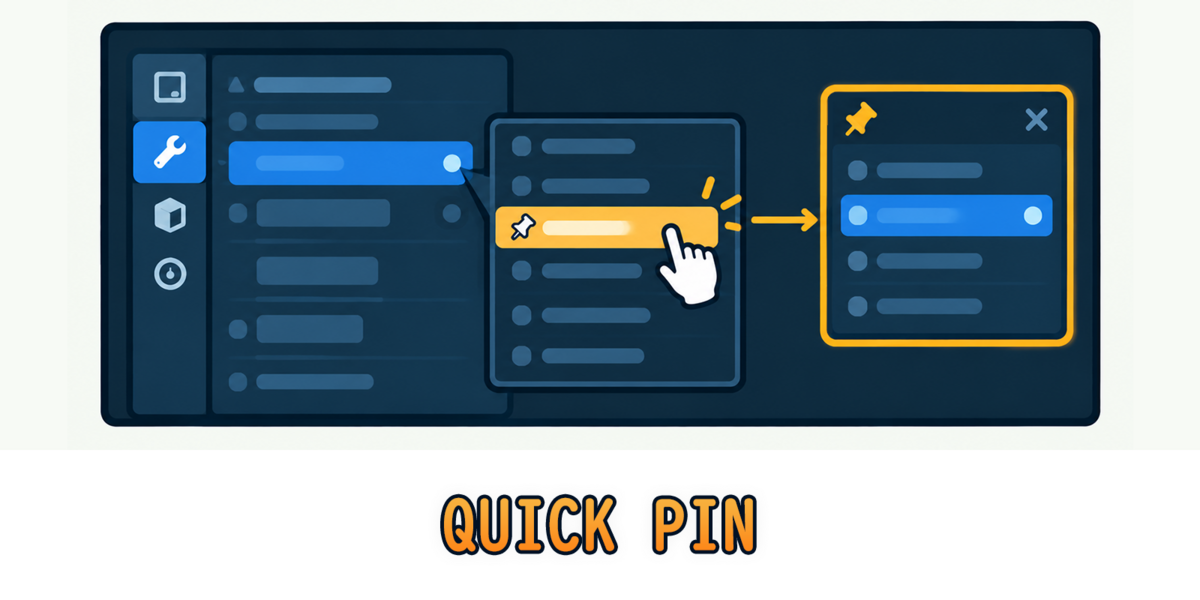
Pinning works from Blender's own right-click menu, wherever the property is: the Properties editor, the sidebar, a header popover, the Outliner.
1. Right-click the property you want to keep at hand, for example Max Samples in the Render properties.
2. Choose Pin to Quick Pin at the bottom of the menu. The status bar confirms it, for example Pinned “Samples”.
3. Open the floating panel with the pin button of the viewport header or with P: the property is there, ready to be changed.
Right-click a property that is already pinned and the menu shows Unpin from Quick Pin instead. When the entry does not appear at all, the property cannot be pinned (see section 3). Pinning and unpinning can be undone with Ctrl+Z.
Quick Pin follows each property back to the data that holds it, so a pin keeps pointing to the same setting wherever you open the panel.
| Scene settings | Render, output and scene properties such as Samples, Device or Motion Blur. They belong to the scene that holds the pin. |
| Objects and their data | Location, Rotation, Scale, Dimensions, a light's Power and Color, an object's Disable in Renders. |
| Modifiers | Any modifier setting, such as the Levels of a Subdivision Surface. |
| Material and World nodes | Node inputs and settings, such as the Roughness of a Principled BSDF or the Strength of the World Background. |
| Viewport settings | Overlays, Shading, X-Ray, Clip Start and the other settings of the 3D Viewport. They apply to the viewport the panel is open in, not to the one you pinned them from. |
| Outliner toggles | The eye (Hide in Viewport) of an object or a collection, and the camera (Disable in Renders). The eye applies to the active view layer. |
| Preferences | Blender's preferences, such as Resolution Scale. Theme colors are not supported. |
Pins point to the data itself, not to its name: renaming an object, a material or a light keeps its pins working. Lists (such as the material slots) and buttons that run a command cannot be pinned.
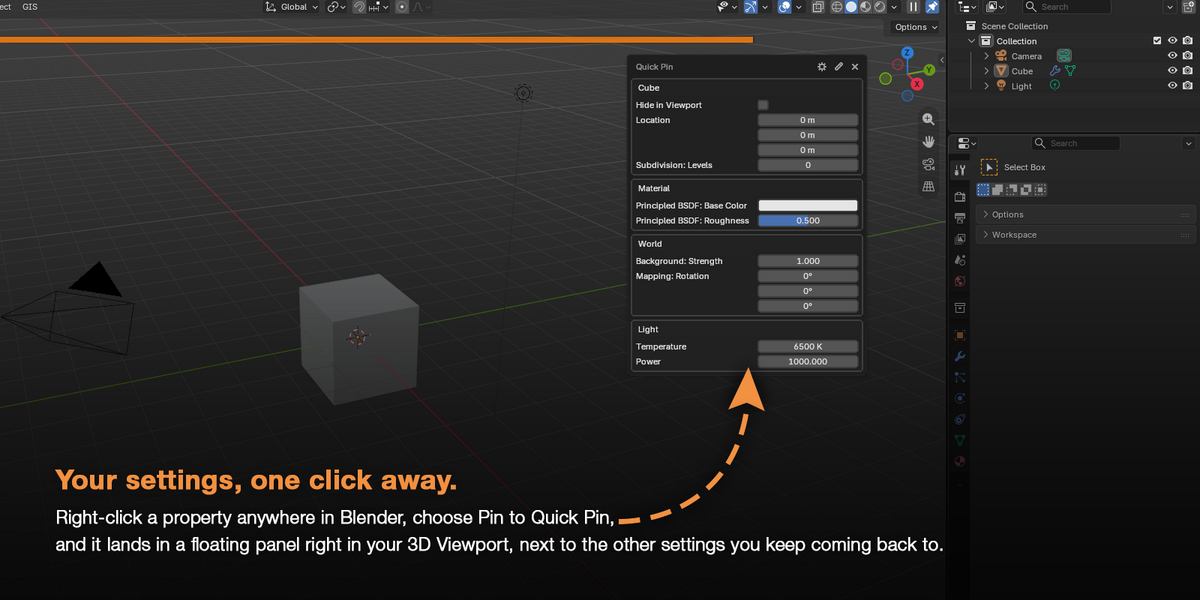
The panel is drawn inside the 3D Viewport and stays open while you work: clicking, selecting, orbiting or modeling in the viewport does not close it.
| Header button | The pin icon at the right end of the viewport header shows or hides the panel of that viewport. It is highlighted while the panel is open. The panel opens where it was last placed, or at the top right of the viewport, next to the navigation gizmo. |
| P | Over a 3D Viewport, shows the panel under the mouse, or hides it. Pressed over another editor, it shows or hides the panel of the largest 3D Viewport of the window. |
| Title bar | Drag it to move the panel. It always stays inside the viewport, clear of the toolbar and the sidebar. |
| Gear | Opens the add-on preferences. |
| Pencil | Switches edit mode on and off (see section 6). |
| × | Closes the panel. |
Each 3D Viewport has its own panel, opened and placed independently. Hover a button for half a second to see its tooltip. The panel receives clicks through Blender's gizmo system, so it is shown only while Gizmos are enabled in the viewport header. Opening another file closes the panel; your pins stay in the file.
Every value behaves like the same field in Blender's own panels, and reads exactly the same: numbers follow the units of the scene (Scene > Units), so a location shows 0.5 m, 50 cm or 1.6404' just as the Transform panel does. Vectors show one component per line.
| Drag a number | Changes the value at the pace of Blender's fields: 1° per pixel for a rotation, 1 cm per pixel for a location. The cursor is hidden while you drag. Factors and percentages are sliders: their whole width covers the range. |
| Shift | Held while dragging, moves the value ten times slower. |
| Ctrl | Held while dragging, snaps to round values: 10° steps for rotations, whole meters for locations, steps of ten for whole numbers. Ctrl+Shift snaps to finer steps. |
| Esc or right-click | During a drag, puts the value back as it was. |
| Click a number | Opens Blender's text field, ready to type. Enter applies the value and closes it. |
| Checkbox | A click toggles it. The Outliner eye is shown as a checkbox too: checked means hidden. |
| List | A click opens Blender's menu of choices. |
| Color | A click opens Blender's color picker. |
| Other values | Text, data-block selectors and larger arrays open in a small popup with Blender's own widget. |
Every change made in the panel is a regular undo step, named Quick Pin followed by the pin's name: Ctrl+Z reverts it. Hover a value to see the description of the property. Values Blender does not let you edit, such as those of a linked file, are shown dimmed.
Pins are grouped under what they belong to — the scene, an object, a light, a material, the World, the 3D Viewport, the Preferences — and named automatically: Samples, Subdivision: Levels, Principled BSDF: Roughness. A new pin joins the end of its group.
Click the pencil in the title bar to switch to edit mode. The values make way for the editing tools:
| Name field | Click it to rename the pin, then press Enter. Leave it empty to go back to the automatic name, shown dimmed. |
| ▲ ▼ on a pin | Move the pin up or down within its group. |
| ▲ ▼ on a group | Move the whole group, with all its pins. |
| × on a pin | Unpin it. |
| Remove Unavailable | Unpins every property that can no longer be found (see section 7). Dimmed when there is none. |
| Unpin All | Removes every pin of the scene, after a confirmation. |
Click the pencil again to go back to the values. Edit mode ends by itself when the last pin is removed. Every change made in edit mode can be undone with Ctrl+Z. Each scene has its own pins: switching to another scene shows its own list.
When a pinned property cannot be reached anymore, its pin stays in the panel, dimmed, with the reason and a small × to unpin it. Nothing breaks, and the pin works again as soon as the property is back.
| Deleted | The object or data-block that held the property was deleted. |
| Unused | The data-block is no longer used anywhere, for example the light data of a deleted light. |
| Not Found | The modifier or node was removed or renamed, or the object is not part of the active view layer. |
| No Editor | The pin belongs to an editor that is not open in the current window. |
Pins marked Deleted or Unused are removed when the file is saved, so a pin never keeps deleted data alive in your .blend. The others stay until you remove them.
Pins are part of the scene, so they are saved with your .blend. With Remember Pins, they also survive a file closed without saving.
| Saved file | The pins of each scene are stored in the file, with their names and order. |
| Closed without saving | Every pin, rename, move and unpin is also recorded for that file. When you open it again, the pins are exactly as you left them. |
| Saved elsewhere since | When the .blend was saved more recently than the recorded pins, for example on another computer, the pins stored in the file win. |
| New, unsaved file | Remembered from its first save. |
The record is a single file, remembered_pins.json, in the add-on's user folder. It keeps the 300 most recent files and forgets the files that no longer exist. Turning off Remember Pins deletes it, and files then open without pins. Turning it back on starts recording again from your next change.
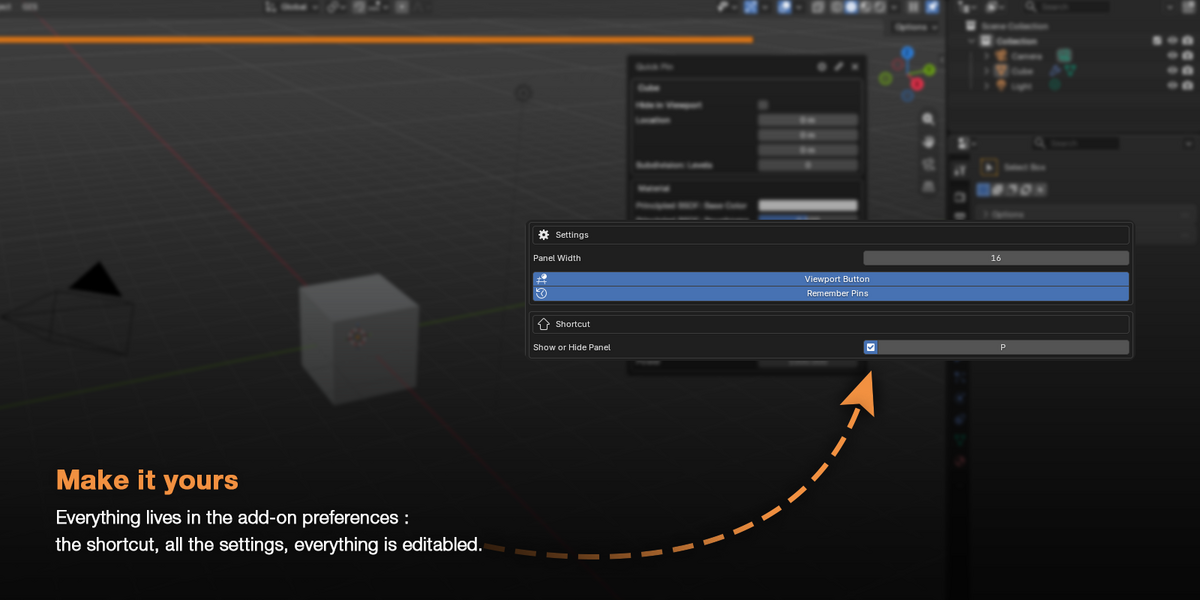
Open Edit > Preferences > Add-ons and expand Quick Pin, or click the gear in the panel. Every change applies immediately — no restart, no need to reopen the file.
| SETTINGS | |
| Panel Width | Width of the floating panel, in interface units. Default 16, from 10 to 40. |
| Viewport Button | Shows the pin button in the 3D Viewport header. On by default. |
| Remember Pins | Keeps the pins of each blend-file when it is closed and opened again, even if it was not saved. On by default; when off, files open without pins (see section 8). |
| SHORTCUT | |
| Show or Hide Panel | The shortcut, P by default. Click the button, then press the new key or combination. The checkbox turns the shortcut off without forgetting it, and the arrow that appears after a change restores the default. |
The shortcut is a regular Blender keymap entry: it is saved with your preferences and also listed in Edit > Preferences > Keymap, under Window, as Open Quick Pin. Where an editor or a mode already uses the same key, Blender's own shortcut comes first.
| “Pin to Quick Pin” is missing from the right-click menu | That property cannot be pinned: it is a list, a button that runs a command, or a setting Quick Pin cannot locate, such as a theme color. Check also that the add-on is enabled in Edit > Preferences > Add-ons. |
| The panel disappeared | Gizmos were turned off in that viewport, or another file was opened. Turn the gizmos back on, or reopen the panel with the header button or the shortcut. |
| The header button is gone | Turn on Viewport Button in the preferences. |
| My pins disappeared after opening a file | Check that Remember Pins is on: when it is off, files open without pins. Also check the active scene, since each scene has its own pins. |
| A pin is dimmed and says Deleted, Unused, Not Found or No Editor | The property can no longer be reached, see section 7. Click its ×, or use Remove Unavailable in edit mode. |
| A name is cut with “…” | Raise Panel Width in the preferences, or give the pin a shorter name in edit mode. |
Quick Pin · Requires Blender 5.2 or later
Have questions about this product?
Login to message
| Blender Extension Compatible | Yes |
| Published | 12 days ago |
| Blender Version | 5.2 |
| Extension Type | Add-on |
| Render Engine Used | Cycles |
| License | GPL |
Discover more products like this
3d viewport addon Workflow #WorkflowEnhancement Pin quick pin