Quickfix Tools
 KalthireddyAbhishek



Overview
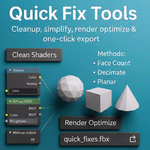
Quick Fix Tool is a Blender addon designed to solve the most common workflow problems instantly:
-
Messy shader networks
-
High-poly meshes
-
Slow scene performance
-
Broken or failed exports
-
Non-optimized rendering setups
With this addon, you can fix, simplify, clean, export, and optimize your Blender scene using a minimal one-panel interface — perfect for beginners AND pros.
Installation
-
Download the .zip file from Blender Market
-
Open Blender and go to:
-
Click Install…
-
Select the downloaded .zip
-
Enable:
-
Sidebar panel appears here:
Interface Location
After installation, open:
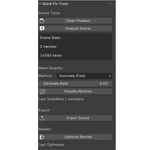
You will see:
-
Shader Cleanup
-
Scene Analyzer
-
Mesh Simplification
-
Export Section
-
Render Optimizer
Features
1. Shader Cleanup
Removes unused nodes safely.
-
Keeps Material Output
-
Traces all connected nodes
-
Deletes everything else
-
Never breaks materials
Use this when:
-
Materials are imported from other software
-
Shader trees become bloated over time
-
You want clean, minimal node graphs
2. Scene Analyzer
Shows quick stats:
-
Total mesh objects
-
Total face count
Helpful to:
-
Identify heavy scenes
-
Know when to simplify
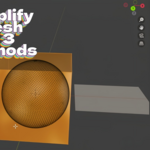
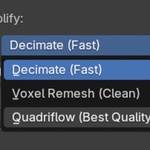
3. Mesh Simplification (Smart)
Targets only meshes with more than 10,000 faces
You can choose between:
Decimate (Fast)
– Good general reduction
– Keeps shape well
– Adjustable ratio slider
Voxel Remesh (Clean)
– Uniform quad topology
– Removes holes
– Great for sculpting prep
Quadriflow (Quality)
– Best retopo method
– Very clean quads
– Slower, use on final meshes
4. One-Click Export
Supports:
-
FBX
-
OBJ
With:
-
Auto-selection enabled
-
Safe folder auto-created
-
Auto ZIP (optional)
5. Render Optimizer (Cycles)
One click applies:
-
Adaptive Sampling
-
GPU Denoising (OPTIX)
-
Samples → 128
-
Clean indirect lighting
-
Efficient bounce limits
Result:
-
Faster renders
-
Cleaner frames
-
Less noise
Workflow Example
-
Run Shader Cleanup
-
Click Analyze Scene
-
Simplify meshes (if needed)
-
Press Export
-
Use Render Optimize to Optimize render settings
Best Use Cases
-
Heavy scenes slowing down
-
Sending assets to game engines
-
Cleaning downloaded models
-
Fixing shader bloat
-
Lowering file size
-
Reducing VRAM usage
-
Speeding up render times
Known Limitations
-
Quadriflow may take time on very high-poly meshes
-
Shader cleanup does not delete unused materials (by design)
-
Export always uses safe folder instead of C:\ or root
Support
If you need help:
-
Blender Market messages
-
Product comments
-
Updates included for free
Updates will include:
✔ More cleanup tools
✔ More export control
✔ More mesh repair tools
Have questions about this product?
Login to message
| Blender Extension Compatible | Yes |
| Dev Fund Contributor | |
| Published | 10 months ago |
| Blender Version | 3.0 - 4.5 |
| Extension Type | Add-on |
| Render Engine Used | Cycles, Eevee, Freestyle |
| License | Mit |
Discover more products like this
shader cleanup optimize quad remesh Blender tool quick fix scene cleanup mesh optimizer decimate simplify 3D Pipeline FBX Export