 JESUS
JESUS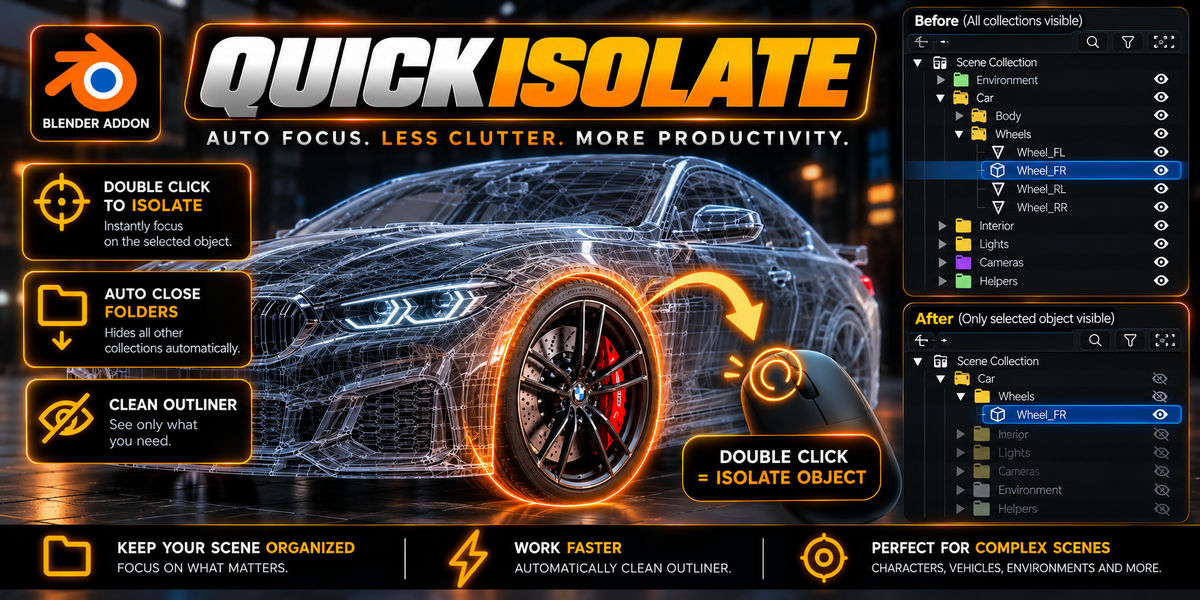
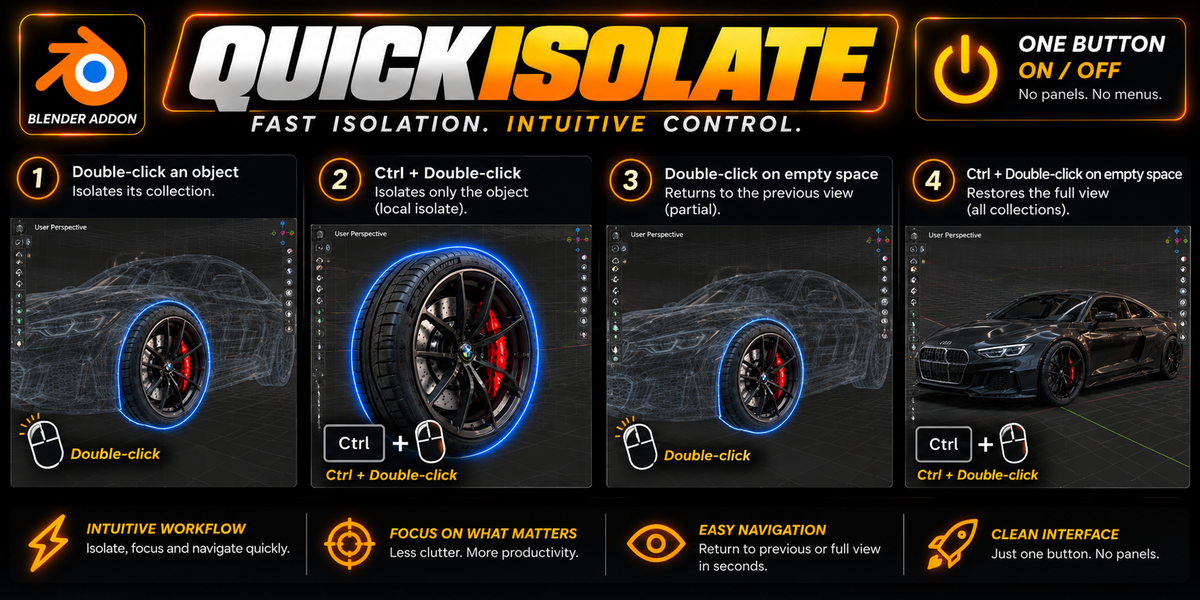
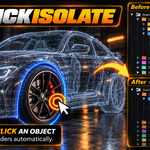
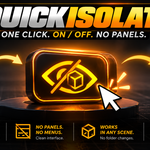
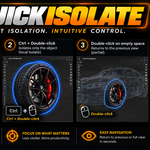
QuickIsolate — User Manual & Reference
QuickIsolate brings the universal double-click isolation workflow found in Photoshop, Illustrator, Figma, Unreal Engine, and Maya directly into Blender's 3D Viewport with zero N-Panel clutter.
1. Installation (Blender 4.2 LTS → 5.1+)
- Download
quick_isolate.zipfrom your Blender Market purchase page. - In Blender, navigate to Edit → Preferences → Add-ons.
- Click the top-right down arrow / gear menu and select Install from Disk....
- Locate
quick_isolate.zipand click Install Add-on. - Enable the checkbox for QuickIsolate.
2. Complete Gesture Reference Guide
| Trigger Gesture | Target Under Cursor | Action Executed |
|---|---|---|
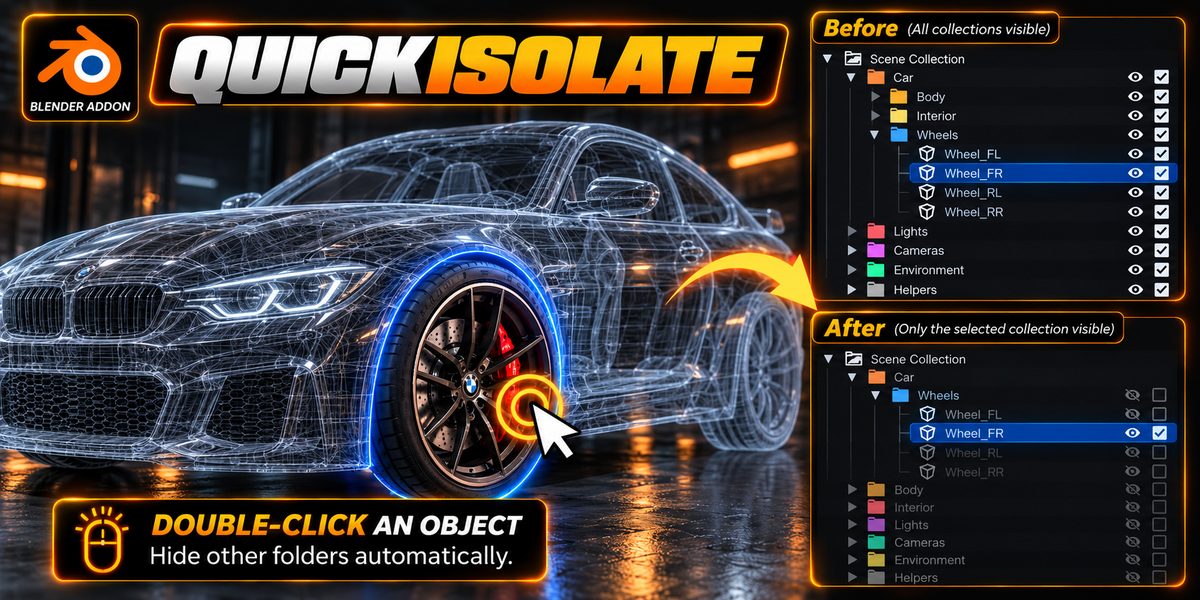
| Double-Click | Single 3D Object | Isolate Collection: Isolates the object's parent collection and ancestor folders. Pushes the previous visibility state to the stack. |
| Double-Click | Multiple Selected Objects | Multi-Collection Isolation: Isolates all collections containing the selected parts simultaneously. |
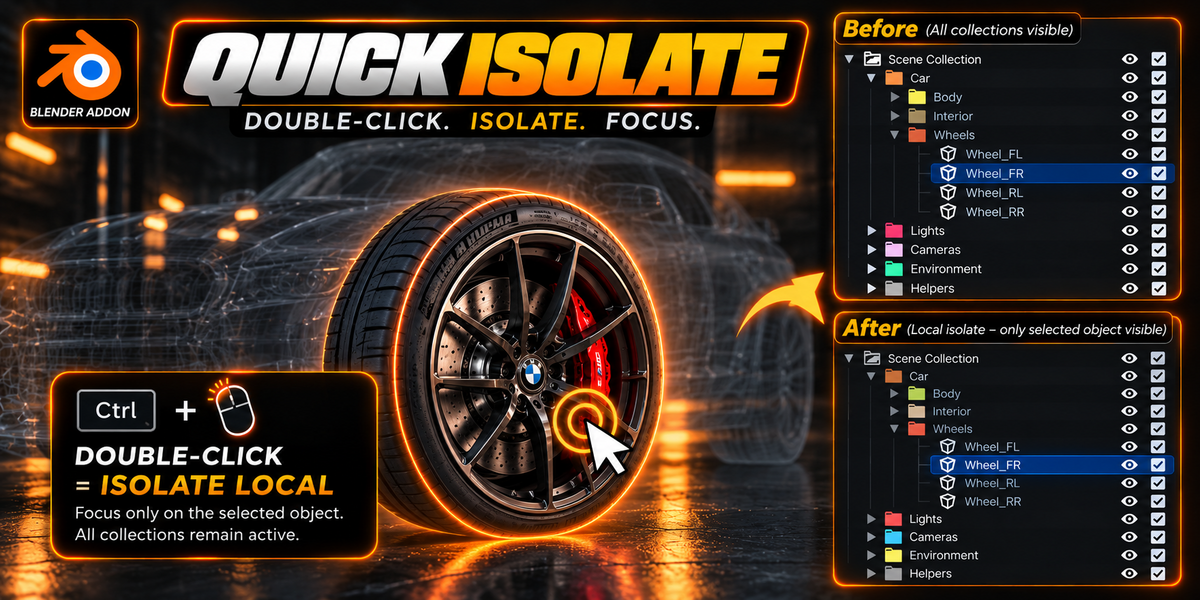
| Ctrl + Double-Click | Any 3D Object(s) |
Native Local View: Toggles Blender's native Local View (/), keeping Outliner collections 100% active while focusing solely on your selected mesh. |
| Double-Click | Empty 3D Space (Background) | Step-by-Step Return: Unwinds 1 level from the isolation stack (Local View → Previous Collections → Full Scene). |
| Ctrl + Double-Click | Empty 3D Space (Background) | Master Reset: Unwinds all active isolation layers immediately, restoring full scene visibility in a single stroke. |
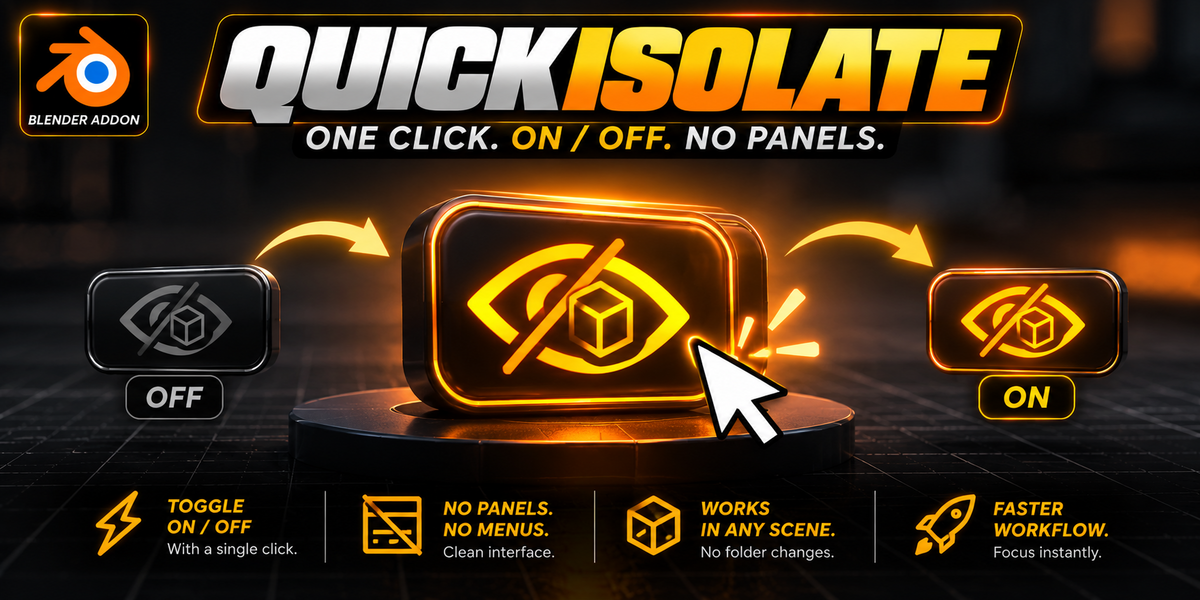
| Single Click | Viewport Header Eye Button | Fail-Safe Escape & Pause: Restores full scene if isolated, or pauses/resumes QuickIsolate. |
3. Step-by-Step Practical Examples
1. Double-Click on Object → Collection Isolate
Scenario: You are working in a scene with 60 collections and need to focus on the Engine.
Result: Double-clicking any engine part instantly mutes the exterior, interior, chassis, and ground, leaving only the Engine collection active.
2. Double-Click on Multi-Selection → Multi-Collection Isolate
Scenario: You need to check clearances between the Wheel Rim, Brake Caliper, and Suspension (each in separate collections).
Result: Select all three parts and double-click any of them. All 3 collections remain visible together while everything else in the scene is hidden.
3. Ctrl + Double-Click on Object → Native Local View
Scenario: Inside the isolated Brakes collection, you want to inspect only the red Brembo caliper in complete isolation.
Result: Holding Ctrl and double-clicking the caliper triggers native Local View (/), keeping Outliner collections intact while centering the camera on that single mesh.
4. Double-Click in Empty Space → Step-by-Step Return
Scenario: You finished editing the caliper and want to step backwards through your workflow hierarchy.
Result: 1st double-click in empty space exits Local View back to the Brakes & Wheels collections. 2nd double-click in empty space restores the full scene.
5. Ctrl + Double-Click in Empty Space → Master Reset
Scenario: You drilled 4 levels deep and want to jump immediately back to the entire scene without clicking repeatedly.
Result: Hold Ctrl and double-click anywhere in empty background space. All isolation layers unwind in 1 stroke.
6. Viewport Header Eye Icon → Fail-Safe & Pause
Scenario: You are zoomed in so close to a mesh that no empty background space is visible.
Result: Click the glowing blue eye icon in the 3D Viewport Header to escape all isolation. Click it when not isolated to pause QuickIsolate (showing 🚫).
4. Hierarchical LIFO Isolation Architecture
[Level 0: Full Scene] (50 collections active) │ ▼ Double-Click Multi-Selection (Engine + Wheels + Suspension)[Level 1: Working Group] (3 collections active) │ ▼ Double-Click Sub-Assembly (Engine + Turbo)[Level 2: Assembly Group] (2 collections active) │ ▼ Double-Click Component (Turbo)[Level 3: Single Collection] (1 collection active) │ ▼ Ctrl + Double-Click Impeller Mesh[Level 4: Native Local View] (1 mesh focused, collections preserved)─────────────────────────────────────────────────────────────UNWINDING VIA DOUBLE-CLICK IN EMPTY BACKGROUND: ▲ Double-Click Empty Space ──► Exits Local View (Returns to Level 3) ▲ Double-Click Empty Space ──► Pops Level 3 (Restores Level 2) ▲ Double-Click Empty Space ──► Pops Level 2 (Restores Level 1) ▲ Double-Click Empty Space ──► Pops Level 1 (Restores Level 0 - Full Scene)
5. Smart Non-Destructive State Memory
QuickIsolate creates an intelligent snapshot of your view layer prior to isolating. When you return from isolation, it does not blindly turn on every collection. Any collections that were already hidden—such as camera rigs, reference image planes, backdrops, or trash collections—remain hidden upon return.
6. Edit Mode & Sculpt Mode Safety Gating
QuickIsolate is strictly restricted to Object Mode ('OBJECT'). While in Edit Mode (mesh modeling), Sculpt Mode, Texture Paint, or Weight Paint, your native mouse double-clicks (such as edge loop selections and vertex island picks) work 100% natively without any interference.
 Included
Includes 12 months of
- Support from JESUS
- Product updates
Extend this product’s Support Period +12 months: 50% of product price
Have questions before purchasing?
Login to message
| Published | about 5 hours ago |
| Blender Version | |
| Extension Type | N/A |
| Render Engine Used | Blender-Internal, Blender-Game-Engine, Cycles, Eevee |
| License | GPL |
Discover more products like this
Workflow modeling focus double click collections Scene Management productivity outliner Local View Isolate