 JESUS
JESUS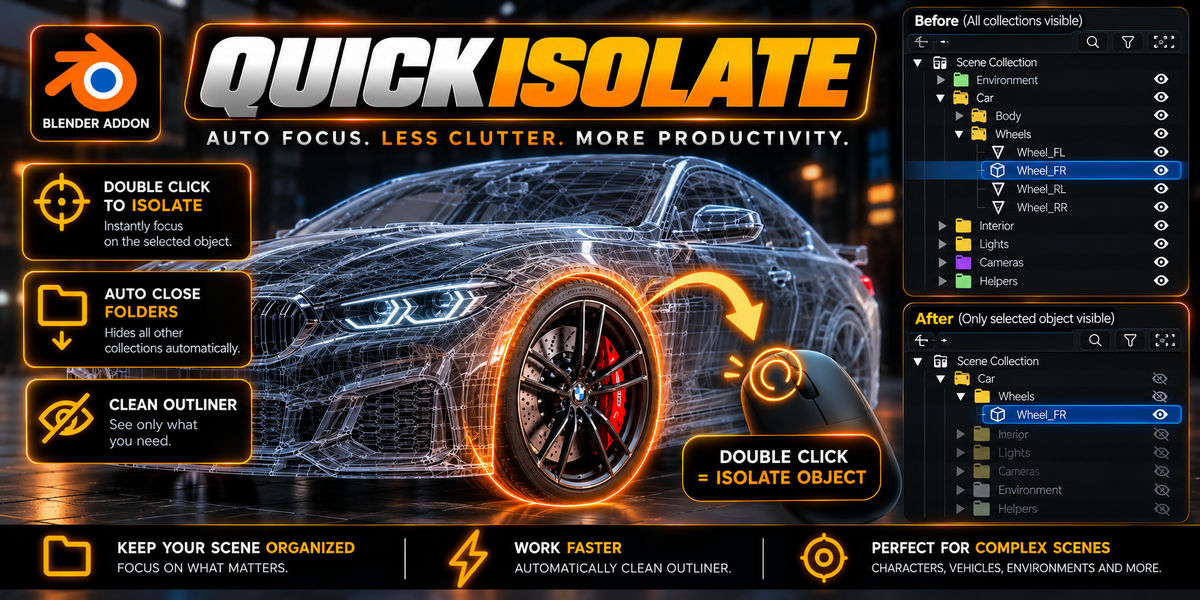

Can I temporarily disable QuickIsolate without uninstalling?
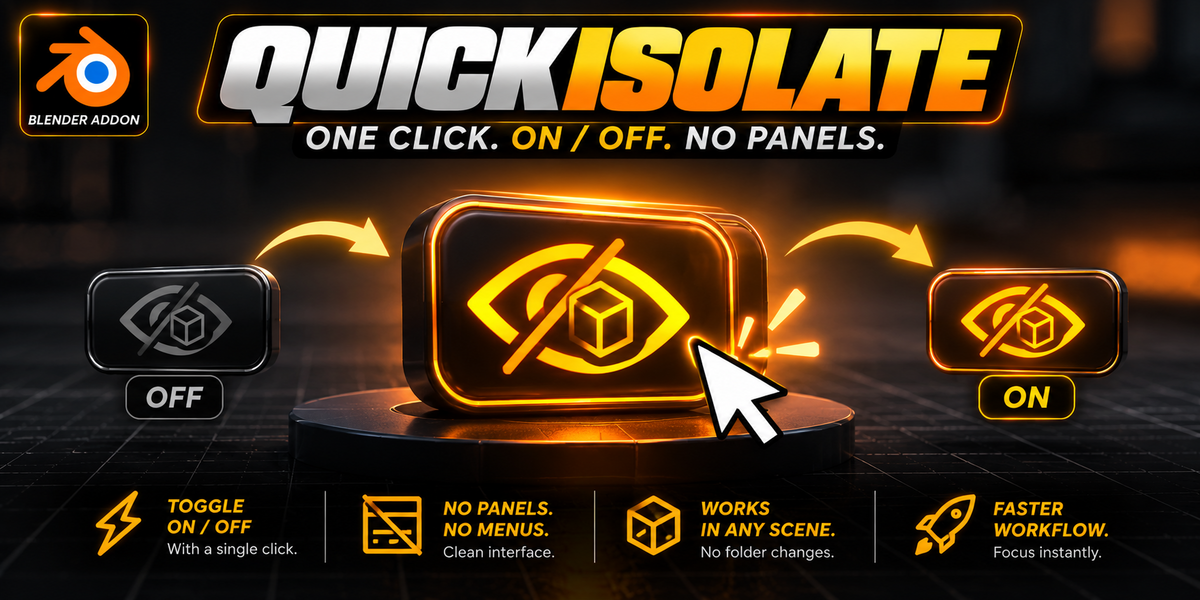
Yes. Click the eye icon in the 3D Viewport Header when not in isolation. When the icon appears crossed out (🚫), QuickIsolate is paused and all mouse gestures pass through to vanilla Blender. Click it again to re-enable.
What if my model fills the entire viewport and there is no empty space to double-click?
You are never trapped. Whenever the scene is isolated, the eye toggle icon in the 3D Viewport Header illuminates in bright blue. Simply click that eye icon once to immediately escape isolation and restore your full scene visibility.
Can I use Ctrl + Double-Click for Local View on multiple objects at once?
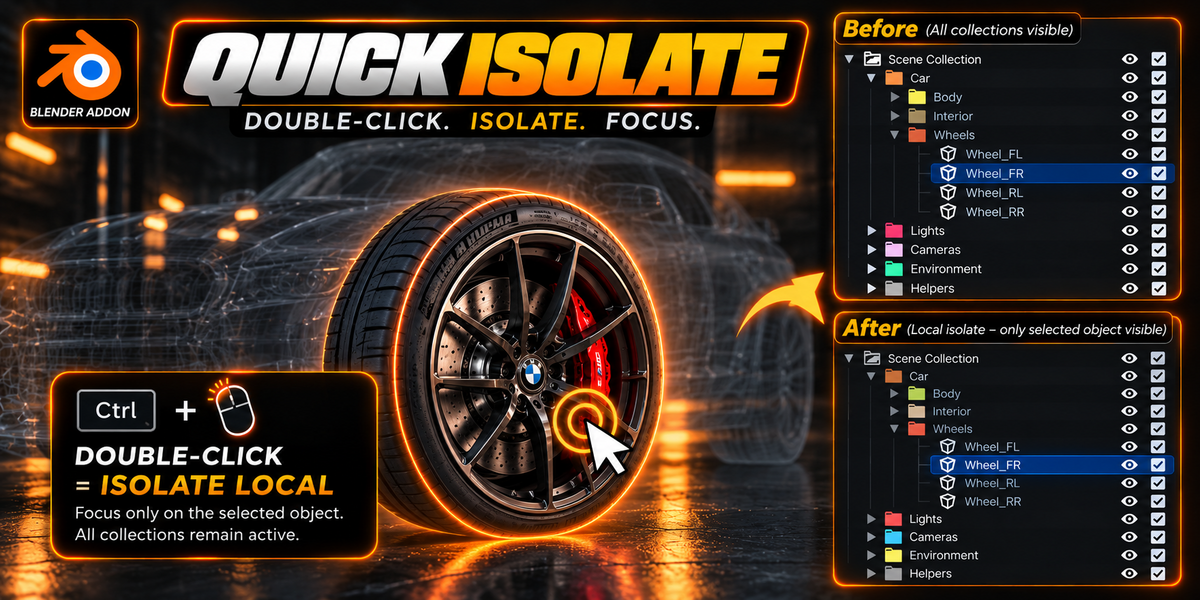
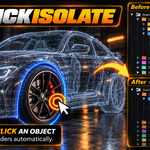
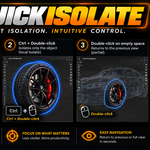
Yes. Simply select your objects and Ctrl + double-click on any of them. All selected objects enter Blender's native Local View together while keeping your Outliner collections 100% intact.
Why did the first click of a double-click deselect my other objects in vanilla Blender?
Blender natively treats the first mouse-down of a double-click as a single selection event, dropping multi-selections. QuickIsolate includes an integrated micro-selection cache (< 450ms) that rescues your multi-selection instantly, allowing you to multi-isolate seamlessly without needing to hold Shift.
What happens if I had some collections hidden before I isolated an object?
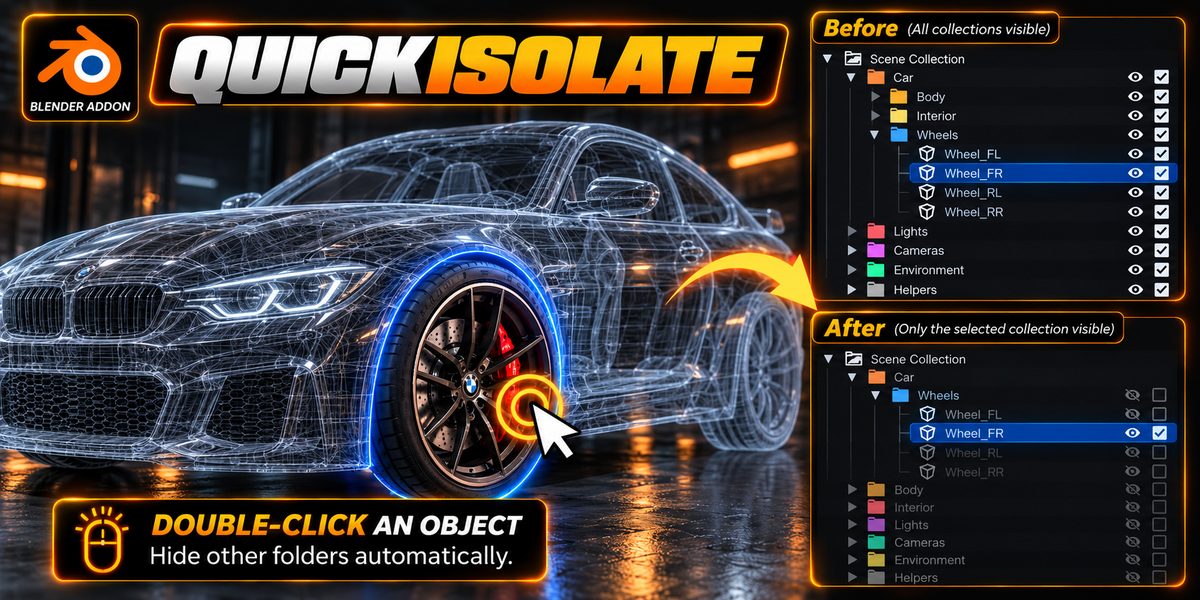
QuickIsolate uses non-destructive state snapshots. When you exit isolation, it does not blindly turn on every collection in your scene. Any collections you intentionally had hidden (such as reference image planes, backdrops, lighting rigs, or trash collections) remain hidden upon return.
How can I exit all isolation layers straight to the full scene in one click?
You have two instant options:
Ctrl + Double-Click anywhere in empty 3D space (Master Reset).
Click the glowing blue QuickIsolate Eye icon in the 3D Viewport Header.
What is the Hierarchical LIFO Stack and how does drill-down work?
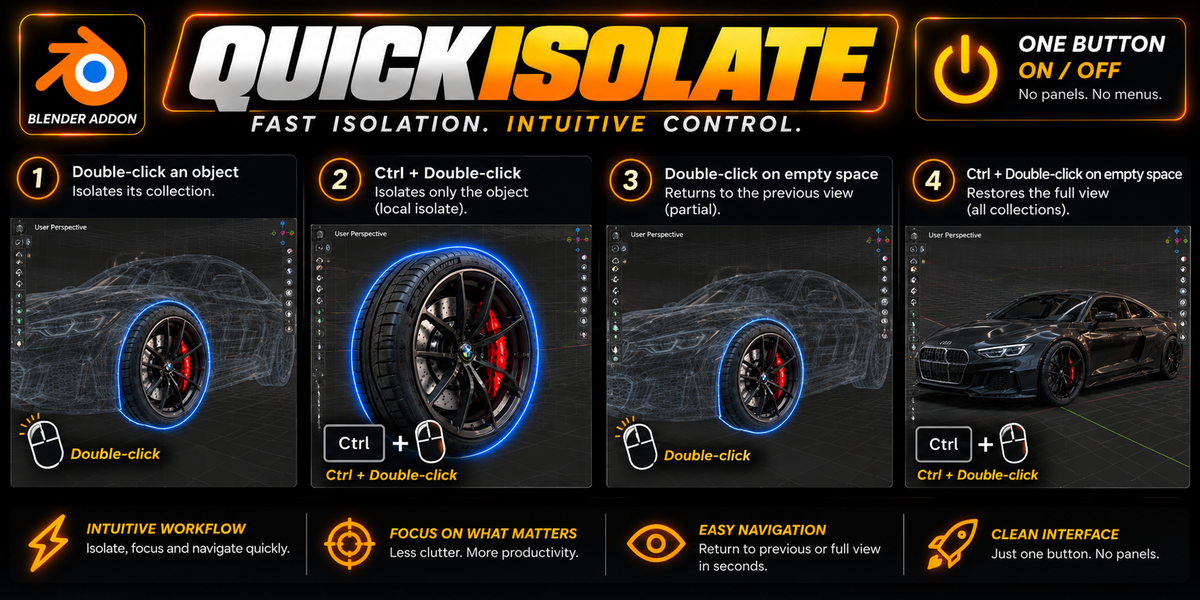
QuickIsolate allows continuous nested isolation. You can double-click to isolate 4 collections, double-click deeper to isolate 2 collections, double-click a part for 1 collection, and Ctrl + double-click for Local View. When you double-click empty space, it steps backwards one level at a time (Local View → 1 folder → 2 folders → 4 folders → Full Scene), so you never lose your intermediate working groups.
What happens if I have parts selected across 3 or 4 different collections?
QuickIsolate handles arbitrary multi-collection isolation automatically. Simply select objects across any number of folders (e.g., Engine + Wheels + Suspension) and double-click any of them: QuickIsolate keeps all corresponding collections visible and mutes the rest of the scene graph.
Does double-clicking interfere with Edit Mode, Sculpting, or Vertex Paint?
Not at all. QuickIsolate strictly gates its double-click operator to Object Mode. In Edit Mode (such as double-clicking to select edge loops), Sculpt Mode, Vertex Paint, Weight Paint, and Texture Paint, all native mouse gestures and tool behaviors remain 100% untouched.
Does QuickIsolate add another tab to my already crowded N-Panel?
No. QuickIsolate adheres to a strict zero N-Panel bloat policy. It integrates cleanly and discretely into your 3D Viewport Header with a native-style eye toggle icon, keeping your sidebar completely uncluttered.
Which Blender versions are supported?
QuickIsolate is fully compatible with Blender 4.2 LTS, 4.3, 4.4, 4.5 LTS, 5.0, and 5.1+. Both standard zip installation and the modern Blender 4.2+ extension standards are fully supported.
 Included
Includes 12 months of
- Support from JESUS
- Product updates
Extend this product’s Support Period +12 months: 50% of product price
Have questions before purchasing?
Login to message
| Published | about 5 hours ago |
| Blender Version | |
| Extension Type | N/A |
| Render Engine Used | Blender-Internal, Blender-Game-Engine, Cycles, Eevee |
| License | GPL |
Discover more products like this
productivity Local View modeling Isolate double click Scene Management outliner collections Workflow focus