 Mohamed Targam





Blender QuickOps
A focused collection of Blender tools designed to reduce repetitive work, clean up node workflows, automate material setup, simplify baking, and provide faster access to common mesh operations.
Five focused workflows. One lightweight toolkit for materials, nodes, baking, disconnecting, and everyday object operations.
See QuickOps in Action
What Is Included?
Quick Tools combines several independent workflows into one organized Blender add-on.
Import models, detect PBR textures, match materials, and build shader nodes automatically.
Organize, inspect, mute, color, and debug complex Blender node trees.
Bake shader outputs to versioned PNG files with a simplified workflow.
Disconnect selected nodes using a Houdini-inspired shake gesture or the E shortcut.
Access useful mesh and object operations without repeatedly switching modes.
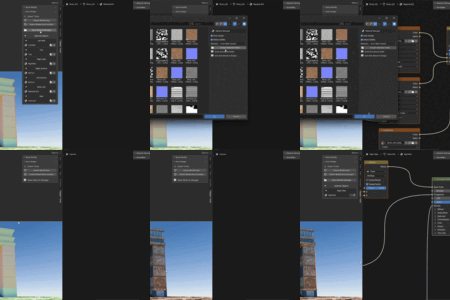
AutoTex — Automatic Texture Assignment
Import models and automatically detect, match, and connect their PBR texture maps. AutoTex is designed for downloaded assets, game-ready models, scans, and large texture libraries.
Smart Batch Importing
Import multiple model files in one operation using:
.fbx .obj .gltf .glb .abc .usd
Choose Model Only to import geometry without textures, or use Auto-Assign to run the texture assignment system immediately.
Intelligent Keyword Mapping
AutoTex does not depend only on exact filenames. It uses a flexible keyword library to identify common texture types.
Color: Albedo, BaseColor, Diffuse, Color, Col
Surface: Roughness, Gloss, Metallic, Metalness, Specular
Depth: Normal, NRM, Bump, Height, Displacement
Additional: AO, Ambient Occlusion, Alpha, Opacity, Emission
Resolution and Folder Detection
When multiple resolutions such as 2K and 4K are found, AutoTex opens the Resolution Manager and lets you choose which version to use.
If several valid texture folders are detected, you can select the correct folder before the materials are created.
Smart Folder Fallback
If object, material, or texture names are inconsistent, the fallback system analyzes the available files and ranks possible matches using texture type, filename, and resolution information.
Automatic Shader Node Building
- Builds a clean Principled BSDF material setup.
- Adds Texture Coordinate and Mapping nodes.
- Mixes Ambient Occlusion with Base Color when available.
- Uses sRGB for color textures.
- Uses Non-Color for Roughness, Metallic, Normal, and other data maps.
- Connects Normal, Bump, Displacement, Alpha, and Emission maps when detected.
Integrated Material Manager
- Assign a texture folder to selected objects or materials.
- Manually assign individual texture maps.
- Clear existing material node trees.
- Apply random colors for quick object organization.
- Enable optional UDIM detection.
Node Tools
A collection of tools for organizing, inspecting, muting, coloring, and debugging Blender node trees.
Smart Masonry Layout
Automatically arrange messy node setups into cleaner, more readable columns.
Live HUD Overlay
Display useful node-tree information directly inside the Node Editor.
- Node Count: View the total number of active nodes.
- Groups and Frames: Track the structure of the current node tree.
- Error Detection: Identify undefined nodes and invalid links.
- Status Check: See muted or unlinked nodes at a glance.
Flexible Node Muting
- Mute or unmute selected nodes.
- Mute an entire Frame and all of its contents.
- Mute unconnected nodes to simplify shader debugging.
Visual Debugging
- Red Highlight: Highlight unconnected nodes for quick detection.
- Color by Type: Assign matching colors to nodes of the same type.
- Random Colors: Color frames or groups for easier navigation.
Additional Tools
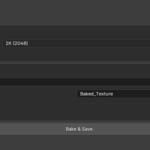
Quick Bake
Bake shader values and node outputs to PNG files using a simplified, focused workflow.
- Automatic output socket detection.
- Selectable texture resolution and output folder.
- Automatic versioning using names such as v001 and v002.
- Quickly import completed textures into the Shader Editor.
Shake Cut
A Houdini-inspired node disconnect workflow for Blender.
- Shake a selected node to disconnect its links.
- Press E for an immediate manual disconnect.
- Disconnect multiple selected nodes as one group.
- Preserve internal links while removing external connections.
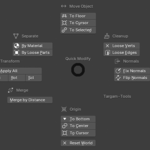
Quick Modify
Access useful Blender object and mesh operations without repeatedly switching to Edit Mode.
- Apply object transforms quickly.
- Fix and recalculate normals.
- Separate geometry directly from Object Mode.
- Perform common cleanup and object adjustments in fewer steps.
Spend Less Time Repeating Tasks
Quick Tools keeps frequently used Blender workflows close together, helping you move from importing and texturing to node editing, baking, and object adjustments with fewer unnecessary steps.