Quick Ops Bundle
 Mohamed Targam





Blender QuickOps
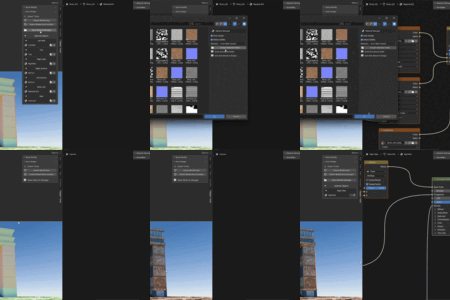
A productivity-focused Blender toolkit for faster material creation, automatic texture assignment, node management, shader baking, node disconnection, and common object operations.
QuickOps is designed to reduce repetitive steps when working with imported assets, large texture sets, complex shader graphs, and everyday Blender cleanup tasks.
Installation
- Download the Quick Tools ZIP file.
- Open Blender.
- Go to Edit > Preferences > Add-ons.
- Click Install from Disk.
- Select the Quick Tools ZIP file.
- Enable the add-on from the Add-ons list.
After installation, open the Sidebar by pressing N inside the 3D Viewport or Node Editor.
The add-on is located under the Targam-Tools tab.
Toolkit Overview
Quick Tools is divided into five main workflow sections.
Import models, detect textures, match materials, and build shaders automatically.
Organize, inspect, mute, color, and debug Blender node trees.
Bake shader outputs to organized, versioned PNG textures.
Disconnect node links with a shake gesture or a single shortcut.
Access frequently used object and mesh operations from one location.
Auto Texture Assign
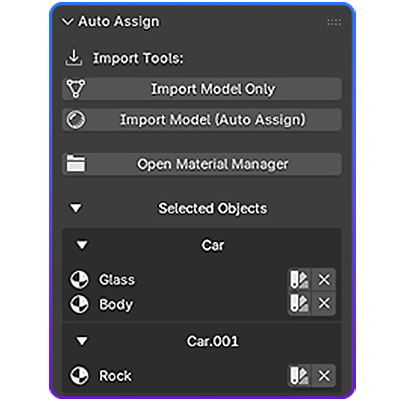
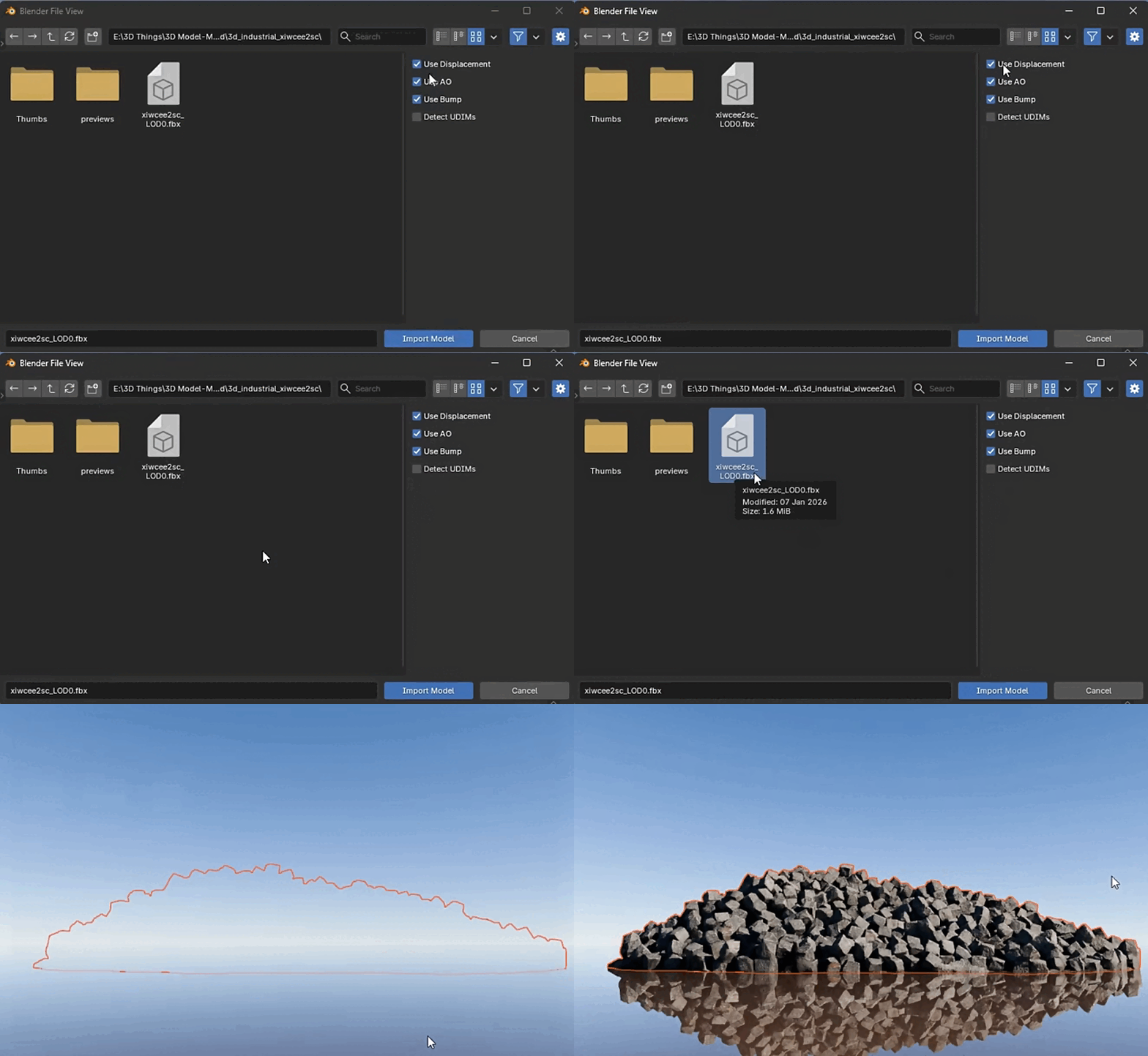
Automatically import models and assign PBR textures using intelligent filename matching, folder analysis, resolution detection, and shader-node creation.
Supported Import Formats
.fbx .obj .gltf .abc .usd
Import Modes
Model Only
Imports the selected model files without assigning textures.
Auto-Assign
Imports the selected models and immediately runs the automatic texture detection and material assignment system.
Intelligent Keyword Mapping
Auto Texture Assign does not require exact filename matches. It uses a keyword library to identify common PBR texture types.
Base Color: Albedo, BaseColor, Diffuse, Color, Col
Surface: Roughness, Gloss, Metallic, Metalness, Specular
Depth: Normal, NRM, Displacement, DISP, Height
Additional: Ambient, AO, Alpha, Opacity
Resolution and Texture Folder Detection
Multiple Resolutions
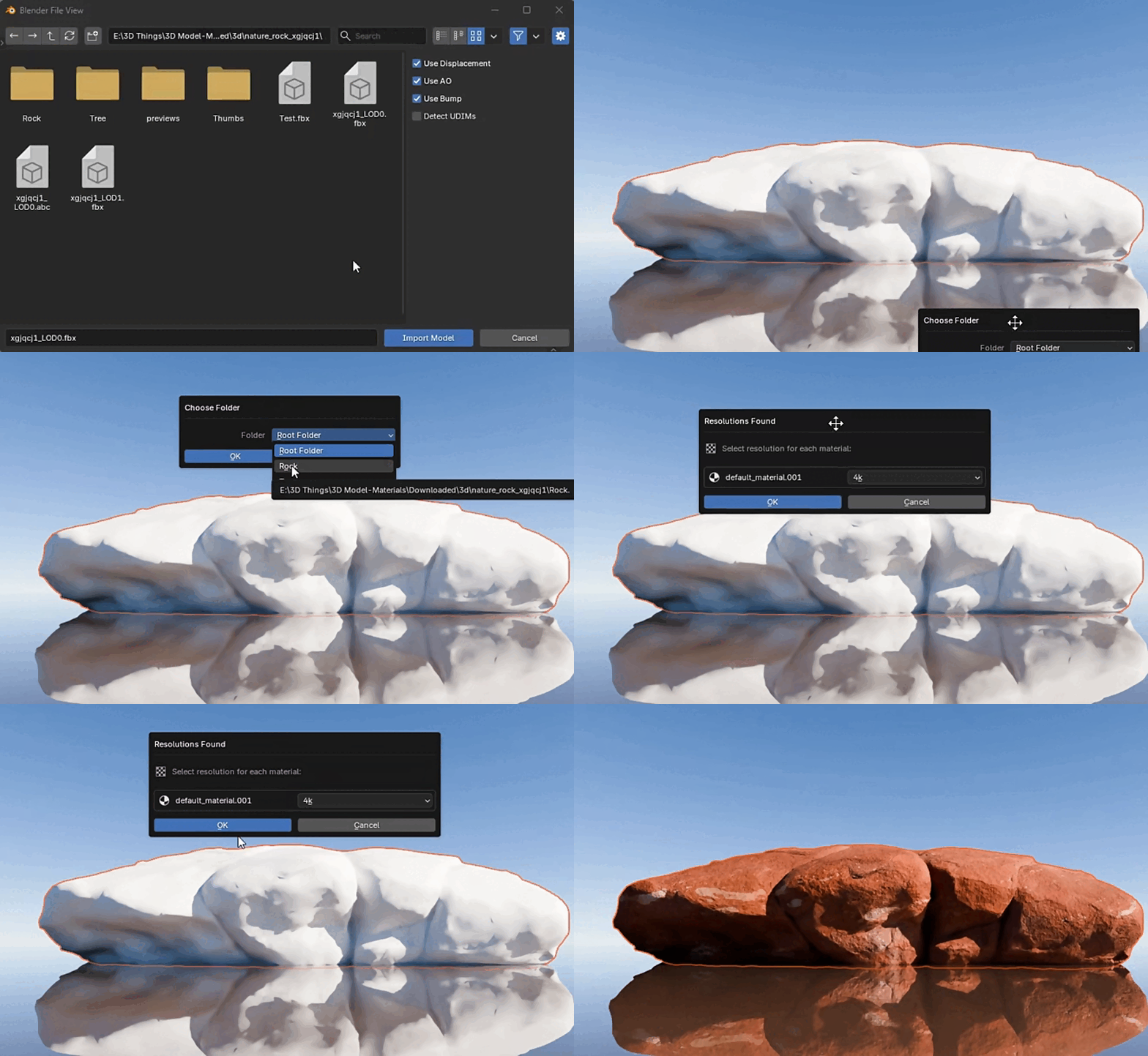
When different resolutions such as 2K and 4K are found, the Resolution Manager appears.
- Select the preferred resolution for each material.
- Avoid mixed-resolution texture assignments.
- Keep material quality under your control.
Multiple Texture Folders
When several valid texture folders are found, a selection window appears so you can choose which folder should be used for assignment.
Smart Folder Fallback
If material names or texture filenames are inconsistent, the fallback system analyzes the contents of the folder.
- Files are ranked by texture type.
- Resolution information is considered.
- The most likely texture matches are selected automatically.
Shader Node Building
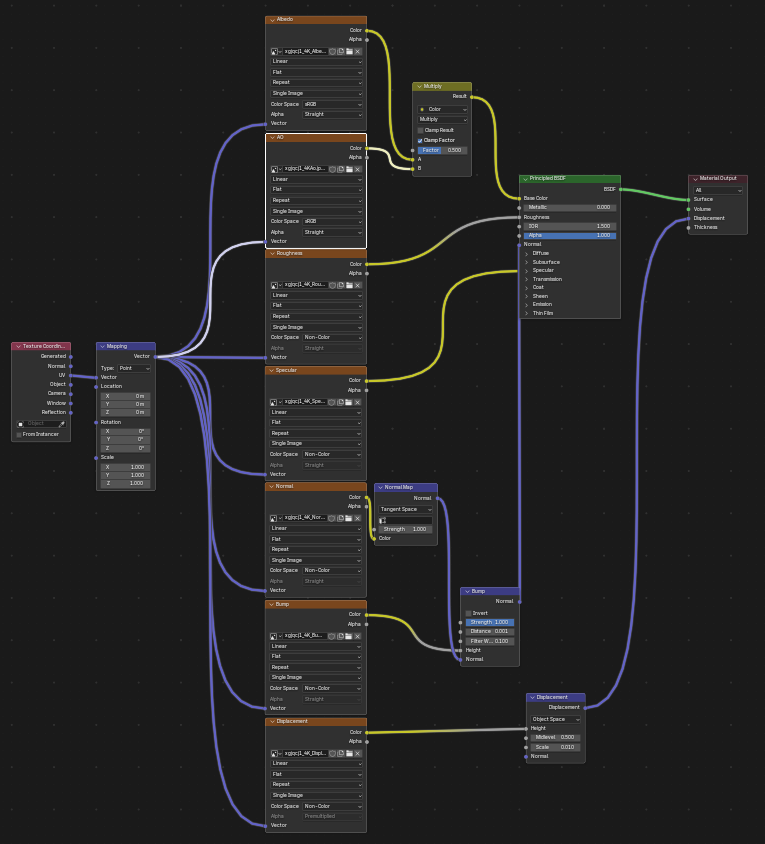
The add-on automatically creates and configures the material node setup.
- Adds Texture Coordinate and Mapping nodes.
- Uses sRGB for Base Color and other color maps.
- Uses Non-Color for Normal, Roughness, Metallic, and other data maps.
- Combines Ambient Occlusion with Base Color when available.
- Routes Normal maps through a Normal Map node.
- Supports Displacement when detected.
Material Manager
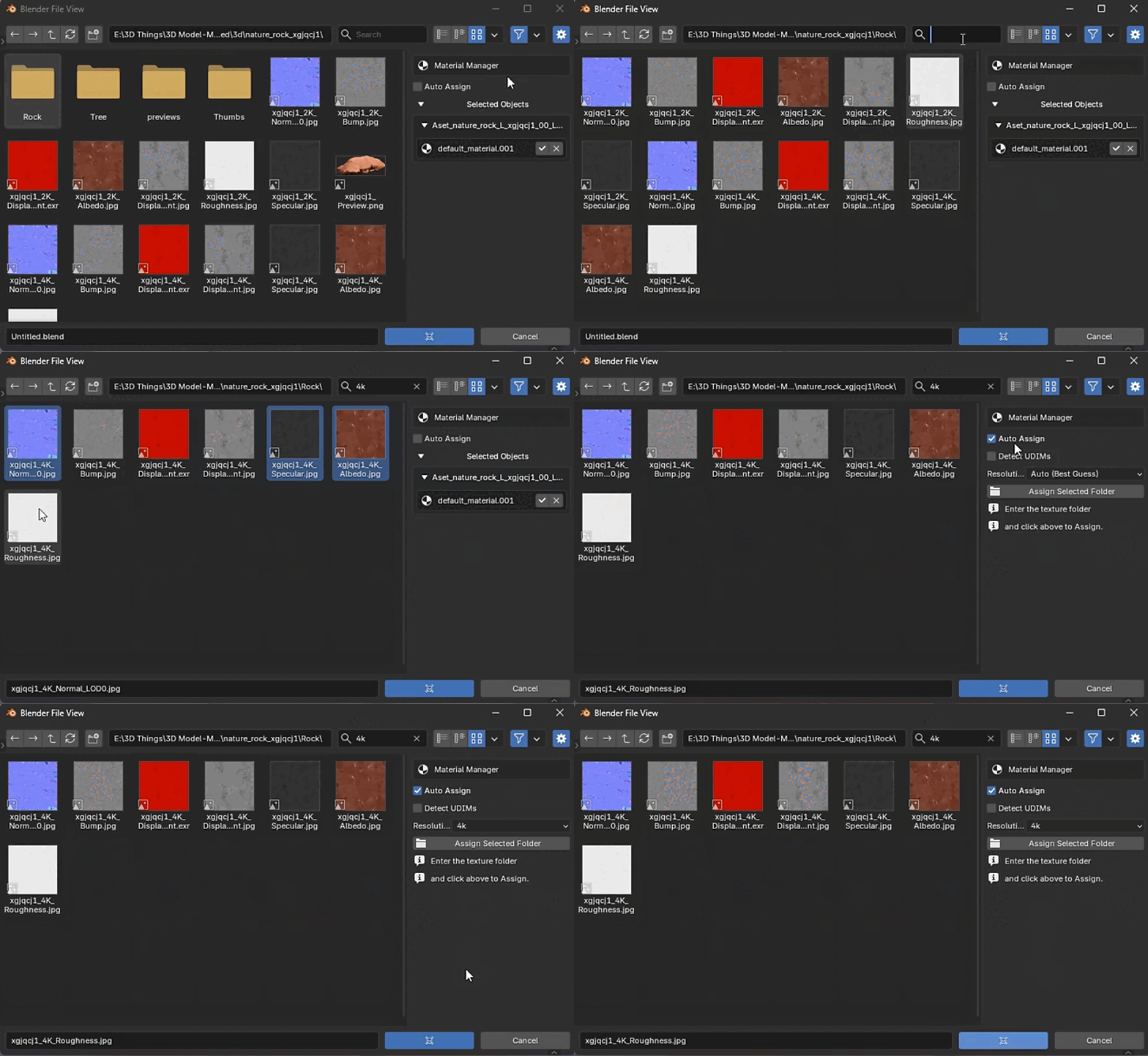
- Assign a full texture folder to selected objects or materials.
- Assign individual texture files manually.
- Detect multiple texture resolutions automatically.
- Clear existing node trees and rebuild materials cleanly.
- Enable optional UDIM detection during import and assignment.
Node Tools
Organize complex node graphs, inspect their status, mute large sections, and identify unused or problematic nodes more quickly.
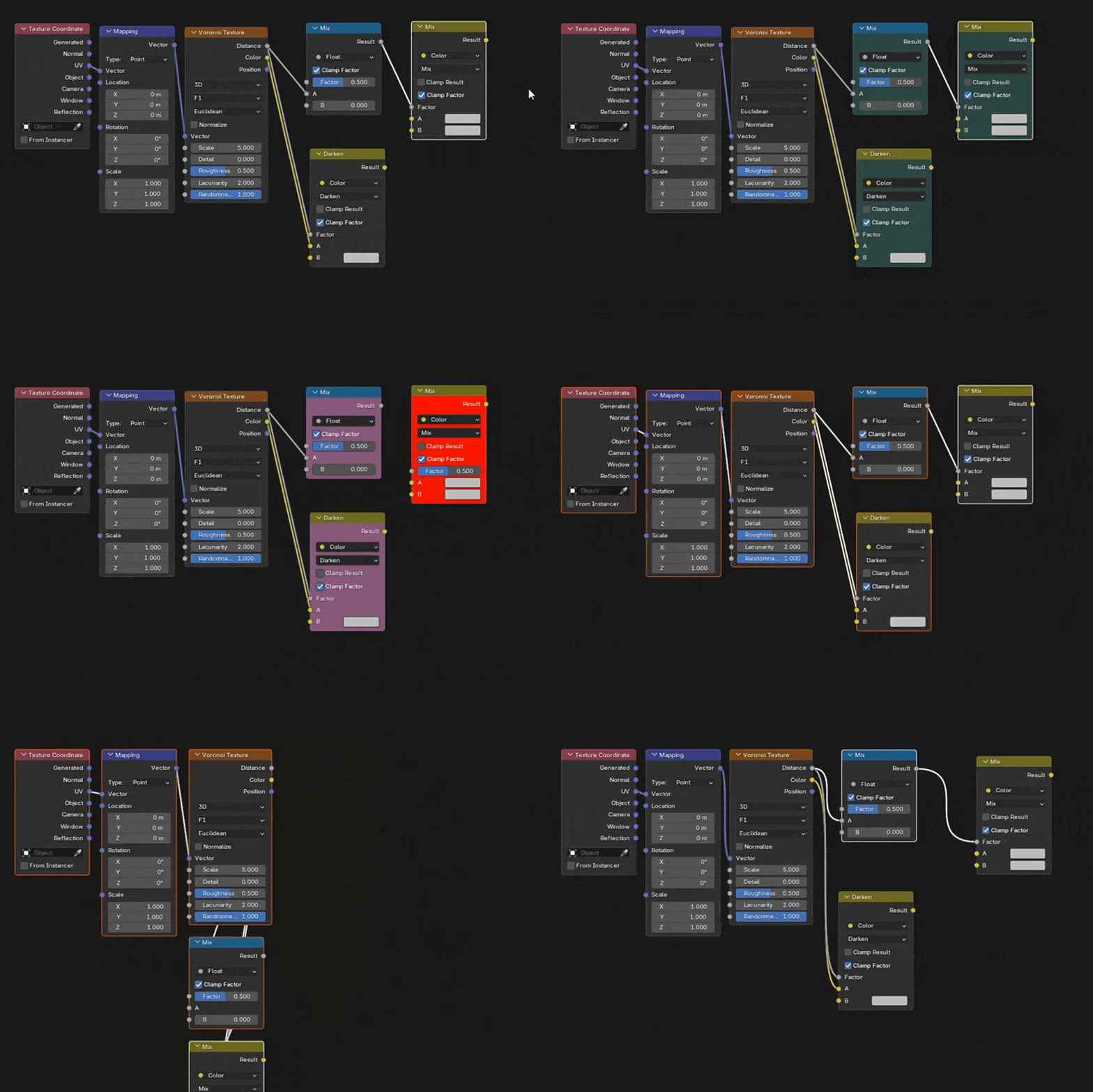
Smart Masonry Layout
Automatically organizes node trees into clean vertical columns based on node dependencies, helping complex shaders remain readable and structured.
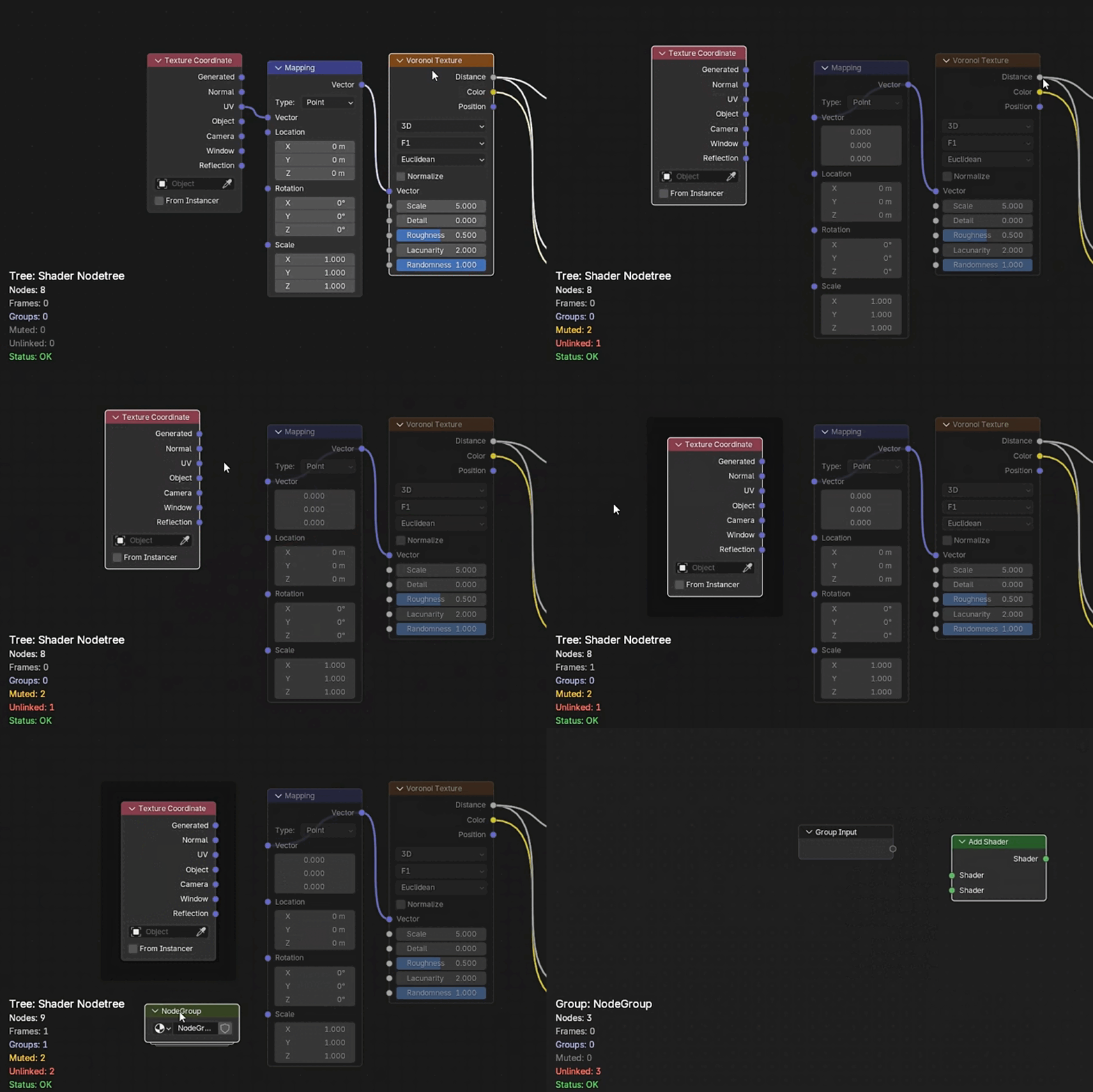
Live HUD Overlay
A real-time heads-up display inside the Node Editor provides useful information about the active node tree.
- Total node count.
- Frame and group count.
- Muted and unlinked nodes.
- Error and valid-status indicators.
Muting
- Mute or unmute selected nodes.
- Mute an entire Frame and every node inside it.
- Mute or isolate unconnected nodes for debugging.
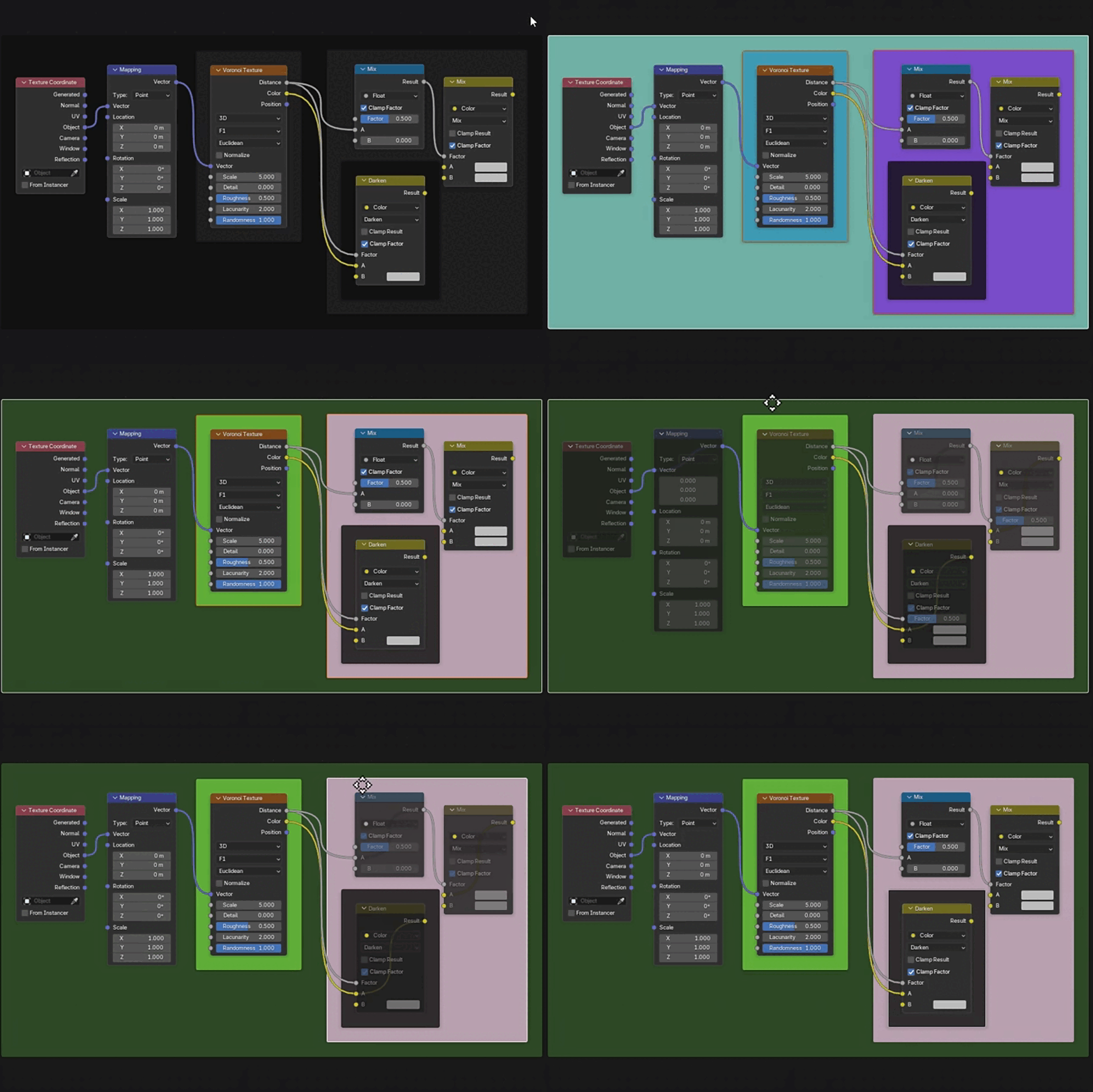
Visual Debugging Tools
Red Highlight: Marks unconnected nodes in red to help identify unused textures and inactive parts of a node graph.
Color by Type: Applies consistent colors to nodes of the same type.
Random Color: Assigns colors to Frames or Groups for clearer visual organization.
Node Tools Pie Menu
Opens a quick Pie Menu containing common node utilities:
- Select Similar Nodes.
- Reset Node Properties.
- Mute Unlinked Nodes.
- Highlight Unlinked Nodes.
- Apply Random Colors.
- Color Nodes by Type.
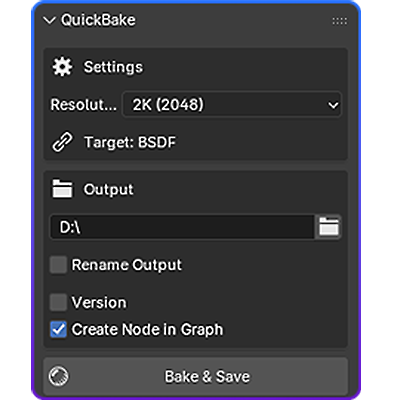
Quick Bake
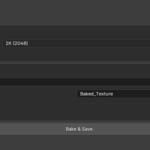
Bake shader outputs or node results to PNG textures using a simplified, organized baking workflow.
- Bake shader outputs and node results to PNG.
- Automatically detect the appropriate output socket.
- Create versioned files using names such as v001 and v002.
- Select the output resolution and destination folder.
- Re-import completed textures into the Shader Editor.
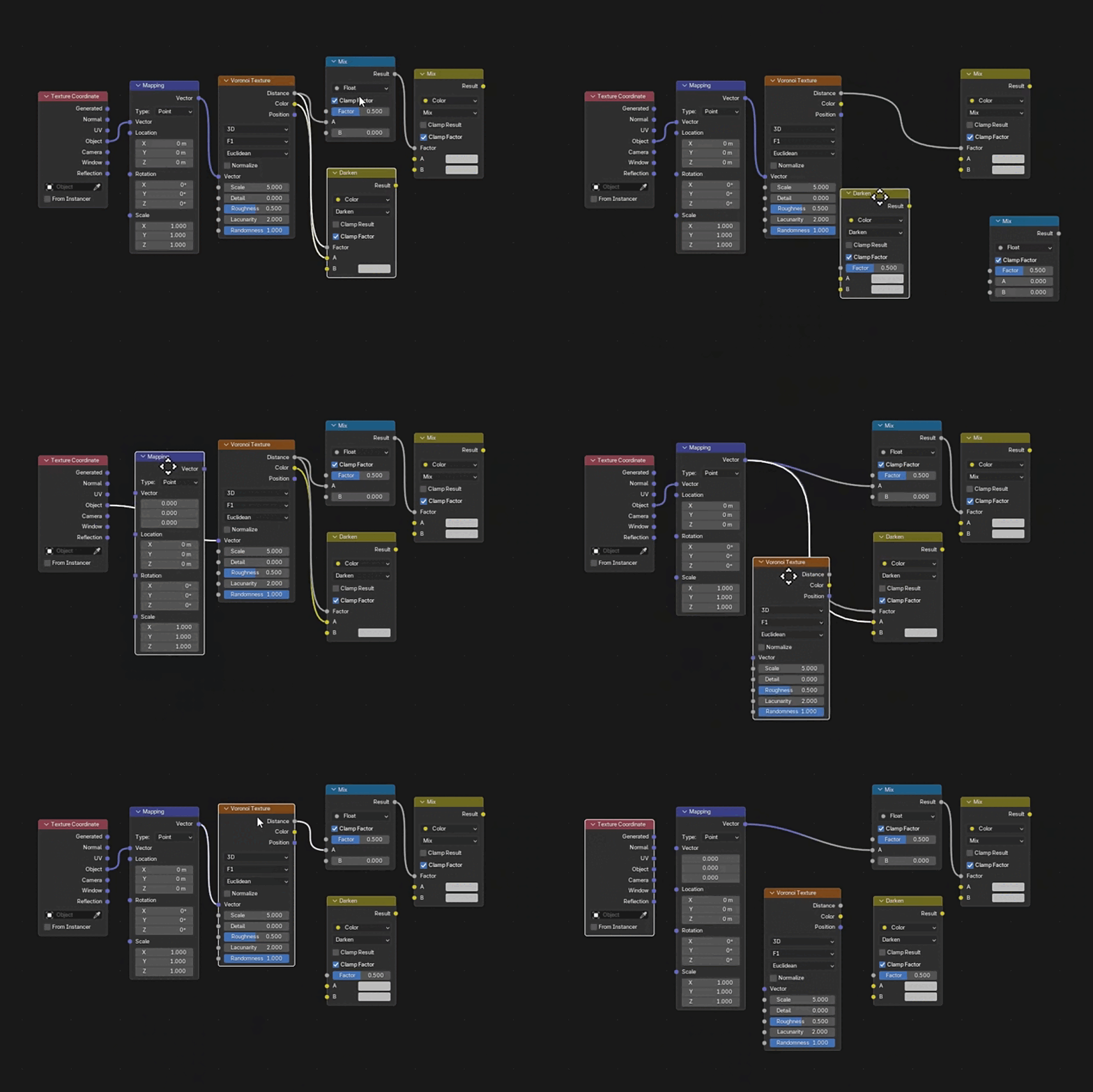
Shake Cut
A Houdini-inspired workflow for quickly disconnecting node links inside Blender’s Node Editors.
Disconnect Methods
Shake: Move a selected node quickly to disconnect its links.
E Shortcut: Press E to disconnect the selected node immediately.
Supported Editors
Shader Editor • Geometry Nodes • Compositor
Tip for Better Shake Detection
Shake the node quickly in a circular motion. A fast circular shake is detected more reliably than a slow, straight movement.
Quick Modify
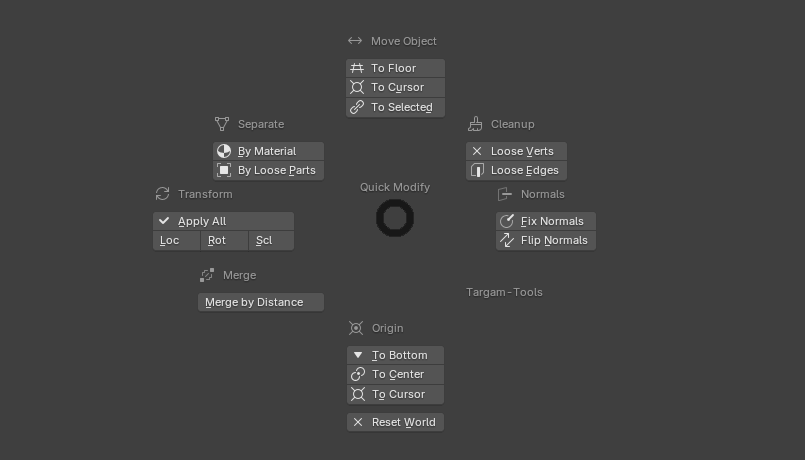
Quick Modify groups commonly used Blender operations into one panel and a fast Pie Menu.
Quick Modify does not replace or change Blender’s standard tools. Its purpose is to make frequently used actions faster to access without repeatedly switching modes or searching through menus.
Apply Transform
Apply Location, Rotation, Scale, or all transforms to the selected objects.
Set Origin
- Set Origin to Bottom using the object bounds.
- Set Origin to Center.
- Set Origin to the 3D Cursor.
- Reset the 3D Cursor to the world center.
Move Object
- Move an object to the floor using its bounds.
- Move an object to the 3D Cursor.
- Move one selected object to another selected object.
Normal Tools
- Recalculate normals outside.
- Flip or invert normals.
Cleanup
- Remove loose vertices.
- Remove loose edges.
- Merge vertices by distance.
Separate Mesh
- Separate geometry by material.
- Separate geometry by loose parts.
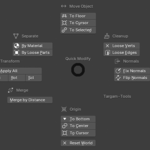
Quick Modify Pie Menu
Access the main Quick Modify actions through a fast Pie Menu without leaving the 3D Viewport.
Notes and Limitations
- Clear and consistent texture naming improves automatic matching accuracy.
- Extremely inconsistent texture folders may require manual assignment.
- Some shortcuts may conflict with custom Blender keymaps or other add-ons.
Support
When reporting a problem, include:
- Your Blender version.
- Your operating system.
- A brief description of the issue.
- The tool or section where the problem occurred.
- A screenshot or error message when available.
Blender QuickOps
Faster material setup, cleaner node workflows, simplified baking, and quicker access to everyday Blender operations.
Have questions about this product?
Login to message
| Blender Extension Compatible | Yes |
| Published | 8 months ago |
| Blender Version | 5.0 - 5.2 |
| Extension Type | Add-on |
| Render Engine Used | Blender-Internal |
| License | GPL |