QuickSplit
 pl_workshop
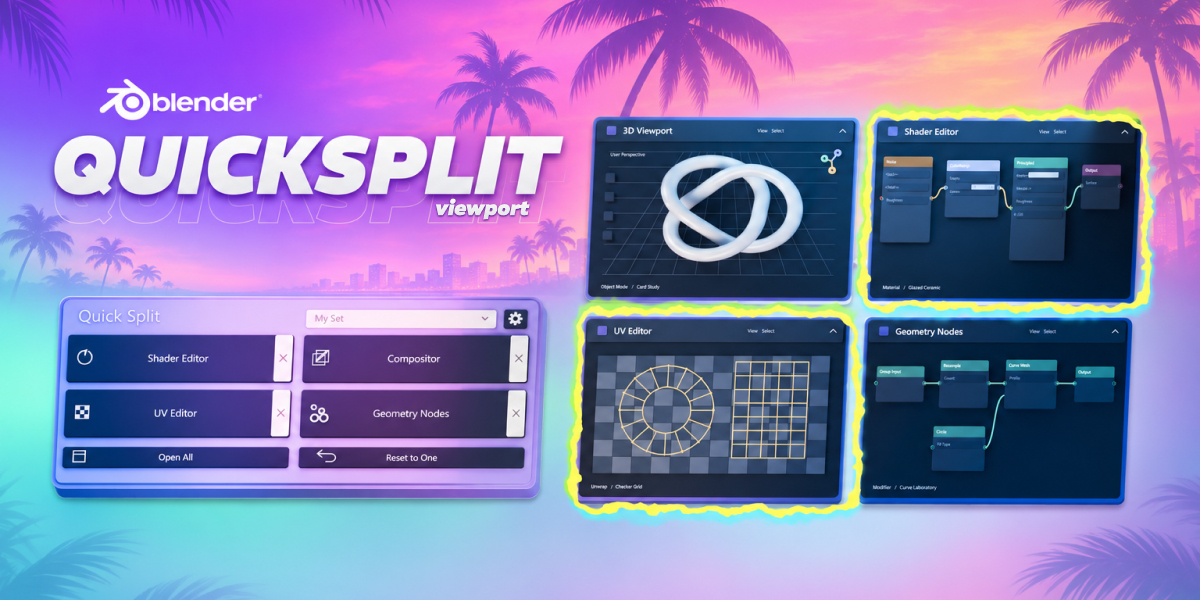
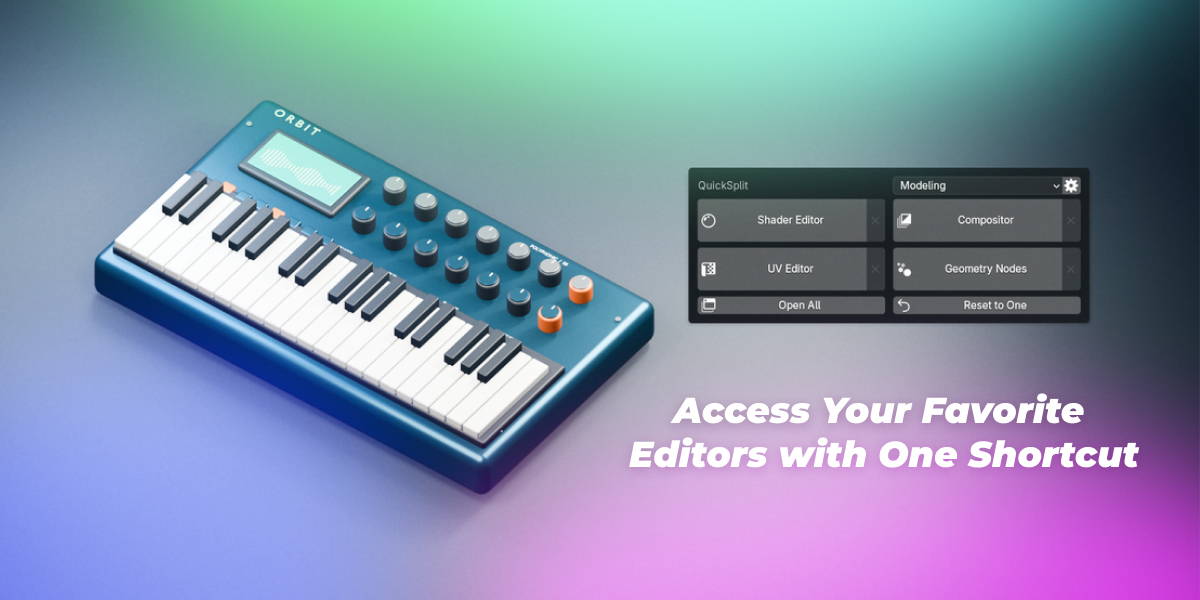
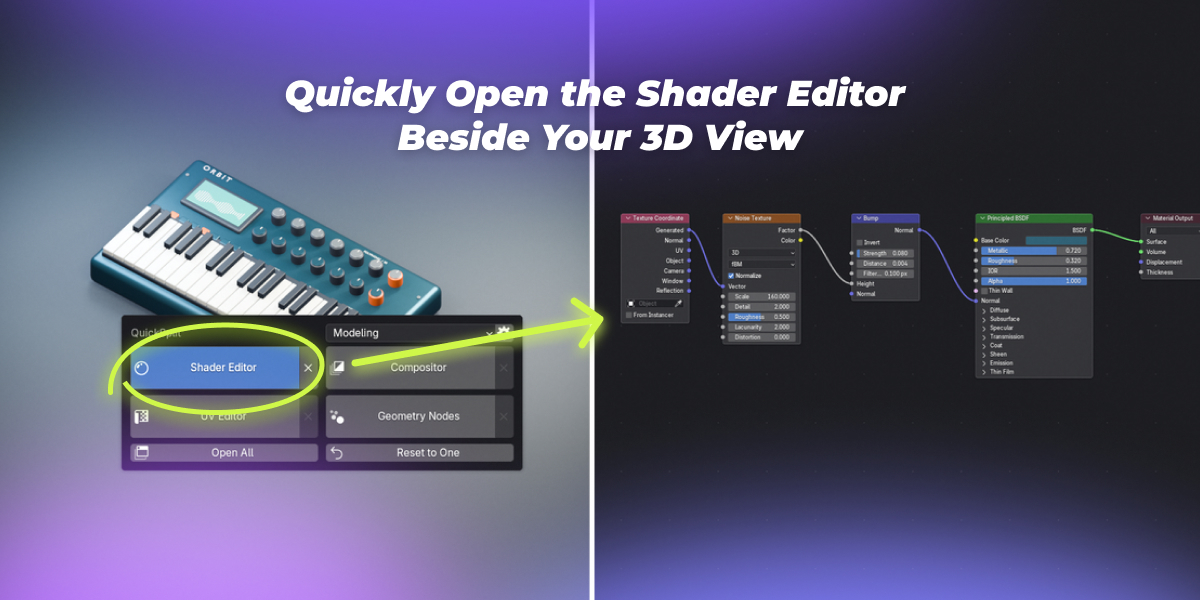
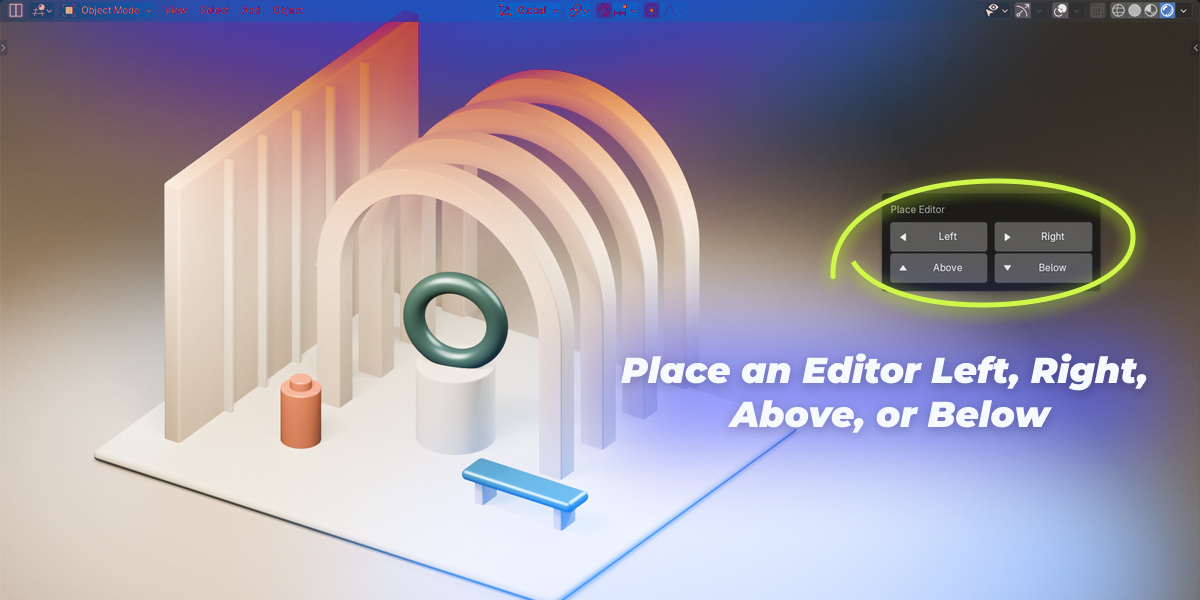
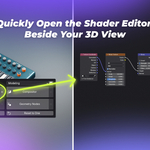
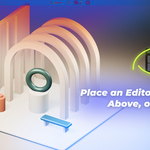
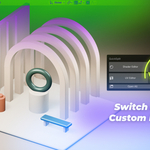
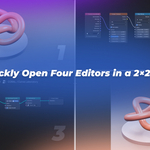
REQUIREMENTS & INSTALLATION
Blender 5.0 or newer.
Open Edit > Preferences > Get Extensions. In the top-right menu, choose Install from Disk, select viewport_quick_split-1.9.5.zip without extracting it, and enable the extension. Use the same procedure to update an existing installation.
QUICK START
1. Hover over the working editor you want to split. Press Ctrl + Shift + W, or use the QuickSplit button in its header.
2. Click an assigned editor, then choose Left, Right, Above or Below. The area splits 50/50. The chooser closes after the action.
3. Repeat from any editor in the zone, up to four areas in total, including the original.
FAVORITE SETS
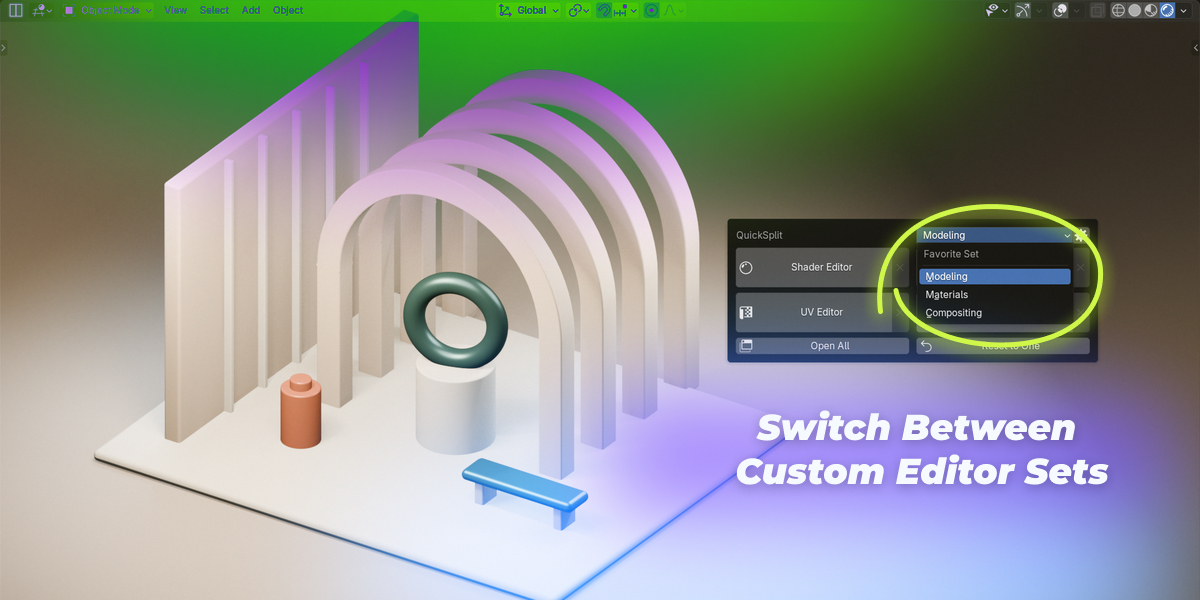
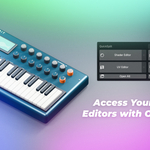
Choose one of three sets at the top of QuickSplit. The panel stays in place while you switch sets. Use the gear to rename a set and assign its four buttons from 21 editor types. Choose Empty for unused buttons. Assign 3D Viewport if you want it included in Open All.
LAYOUT CONTROLS
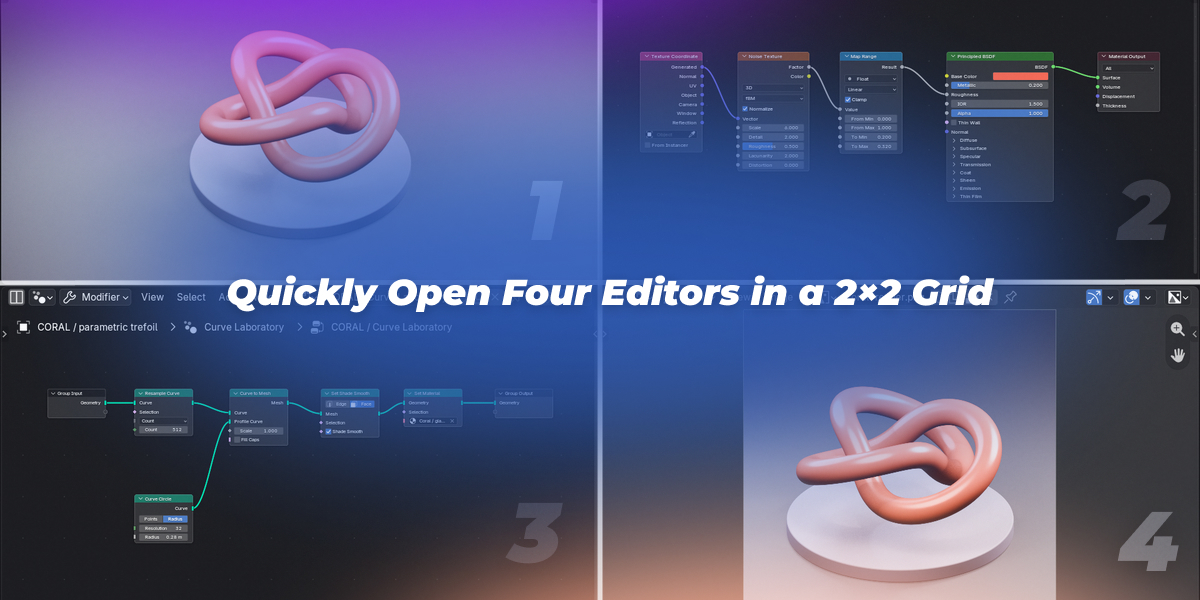
Open All rebuilds the current QuickSplit zone using only the assigned buttons: one editor fills the zone; two split it side by side; three create a three-area layout; four create a 2 x 2 grid. Empty buttons are skipped. This replaces the layout in that zone.
The X beside an open button closes its linked area. Close editors in any order in layouts created with QuickSplit; neighbors expand into the available space. Reset to One merges the zone into one 3D Viewport. Existing areas outside the zone keep their layout.
SHORTCUT & PANEL
Customize the shortcut in Preferences > Add-ons > QuickSplit > Keyboard Shortcut. Conflicts are shown there. Ctrl + Shift + W also has uses in some Blender contexts; change it if needed. Ctrl + Q remains Blender's Quit command. Repeat the QuickSplit shortcut to bring the panel to the current cursor, or drag its top row. Esc or a click outside closes it. Newly opened editors start with the N-sidebar hidden.
SAVING & LIMITS
Set names, assignments and shortcut are saved with Blender preferences; use Save Preferences if automatic saving is off. Save your .blend to keep its layout. Exit maximized area mode before splitting. Very small areas or manually rearranged, irregular zones may prevent layout commands; use a regular rectangular zone. The last remaining area cannot be closed.
 Included
Includes 12 months of
- Support from pl_workshop
- Product updates
Extend this product’s Support Period +12 months: 100% of product price
Have questions before purchasing?
Login to message
| Blender Extension Compatible | Yes |
| Published | about 6 hours ago |
| Blender Version | 5.0 - 5.3 |
| Extension Type | Add-on |
| Render Engine Used | Arnold, Blender-Internal, Blender-Game-Engine, Cycles, Eevee, Freestyle, Luxrender, Mental-Ray, Octane, Vray |
| License | GPL |
Discover more products like this
interface productivity layout compositor editors split screen asset-browser geometry nodes shader editor viewport Workflow shortcuts