 eFcoelum


QUiKV — Quick Keyframe Value
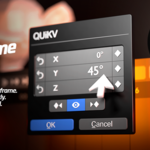
QUiKV lets you edit keyframe values instantly by double-clicking on them in the Graph Editor or Dopesheet — without moving the playhead. Available in two editions: Lite for single-value editing, and Pro for full multi-channel control.
Installation
- Download the
.zipfile from your Superhive library. - Open Blender → Edit → Preferences → Add-ons.
- Click Install… and select the
.zipfile. - Enable the QUiKV (Quick Keyframe Value) checkbox.
- The [QUiKV] button will appear in the Graph Editor and Dopesheet header, on the right end.
Basic Usage
- Select a keyframe in the Graph Editor or Timeline/Dopesheet.
- Double-click on the keyframe (or its handle).
- A popup appears showing the current value(s).
- Edit the value and press Enter to confirm.
- Press Esc or click Cancel to discard all changes.
Lite vs Pro — Feature Comparison
| Feature | Lite | Pro |
|---|---|---|
| Single-value editing (Float, Int, Angle, Factor, %) | ✓ | ✓ |
| Distance & Time units | ✓ | ✓ |
| Live Preview | ✓ | ✓ |
| Handle Preservation (Bezier) | ✓ | ✓ |
| Smart Popup Positioning | ✓ | ✓ |
| Mass (kg) & Velocity (m/s) units | — | ✓ |
| Multi-Channel Editing (XYZ, RGBA, Quaternion) | — | ✓ |
| Jump Selection Navigation (◄ ►) | — | ✓ |
| Boolean Editing (Checkbox + Bool Vector) | — | ✓ |
| Enum / Dropdown Selection | — | ✓ |
| Per-channel Keyframe Toggle [●] | — | ✓ |
| Per-channel Reset [↺] | — | ✓ |
| Auto-Keyframe Insertion | — | ✓ |
| Full Undo / Redo Support | — | ✓ |
| Geometry Nodes (all input types) | — | ✓ |
| Shader Nodes (all sockets) | — | ✓ |
| Modifiers | — | ✓ |
| Shape Keys | — | ✓ |
| Physics (Rigid Body, Cloth, Soft Body, Fluid…) | — | ✓ |
| Particles | — | ✓ |
| Constraints | — | ✓ |
| Bone Properties | — | ✓ |
| Camera, Lights, Grease Pencil, Metaball, Lattice | — | ✓ |
| Smart Native Property Resolver (fallback) | — | ✓ |
Pro — Feature Details
Multi-Channel Editing Pro
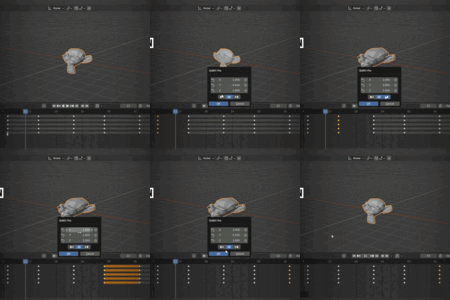
Select any keyframe from a Location, Rotation, Scale, or Color property and QUiKV automatically shows all related channels in one popup. Edit X/Y/Z or R/G/B/A simultaneously without selecting each axis separately.
Jump Selection Navigation Pro
Use the ◄ and ► buttons inside the popup to navigate to the previous or next keyframe without closing it. All channel values update automatically on each jump. Every edit is tracked for full undo support.
Live Preview Lite & Pro
Toggle the 👁 eye icon to update the 3D viewport in real-time as you type. Turn it off for better performance on heavy scenes with complex Geometry Nodes or modifier stacks.
Handle Preservation Lite & Pro
Bezier curve handle offsets are maintained during editing. Your interpolation curves stay intact — no unexpected changes to animation timing or easing.
Per-channel Reset [↺] Pro
Each channel in the popup has its own reset button. Restore only the axis that needs fixing without affecting the others. This also undoes any keyframe insertions made for that channel.
Keyframe Toggle [●] Pro
Each channel shows a filled circle ● if a keyframe exists at the current frame, or an empty circle ○ if it does not. Click to insert or remove keyframes per channel individually.
Auto-Keyframe Insertion Pro
If you edit a channel that has no keyframe at the current frame, QUiKV automatically inserts one. All auto-inserted keyframes are tracked and can be undone with the per-channel Reset button or the global Cancel.
Keyboard Shortcuts
Double-Click LMBEnter / ReturnEscTabScroll WheelArrow Up / DownCompatibility
- OS: Windows, macOS, Linux
- Full Cancel button UI: Requires Blender 4.1 or higher
- License: GNU General Public License v3.0
Troubleshooting
Popup doesn't appear on double-click
- Make sure a keyframe is selected (highlighted yellow or orange).
- Check that
[QUiKV]is enabled in the header — it should be highlighted. - Verify the F-Curve is not locked or muted.
- Click directly on the keyframe diamond, not on the curve between keyframes.
Multi-channel popup not showing (Pro only)
Not all properties have multiple channels. Single-value properties (e.g., a single Float input) will always show the single-channel UI. This is expected behavior.
Live Preview is slow
Turn off Live Preview using the 👁 eye icon. Make your edits, then click OK to apply once. This is recommended for scenes with heavy Geometry Nodes, dense modifier stacks, or large particle systems.
Property not detected (Pro only)
v1.3.0 includes a Smart Native Property Resolver as a fallback. If a property is still not detected, it may be a highly specialized custom type. Check the Blender system console for detection log output.
Jump Selection not working (Pro only)
The primary channel must have at least two keyframes to navigate. If only one keyframe exists on the F-Curve, the navigation buttons will be inactive.
CHANGELOG v1.4.0
1. POPUP OPENS NEAR YOUR CURSOR
The edit popup now appears right next to where you double-clicked, no more dialog jumping to the center of the screen. Position adapts to which quadrant
you clicked in, the estimated dialog height, and screen boundaries.
2. KEYFRAME STATE INDICATORS
Reset and Keyframe Toggle buttons now visually highlight when a keyframe exists at the current frame. Instant visual feedback without reading the timeline.
3. PLAYHEAD NAVIGATION
Next/Prev keyframe buttons now correctly move the playhead to the target frame in all cases.
4. POSE MODE MULTI-CHANNEL FIX
Bone rotation and location properties now correctly display all channels in Pose Mode. Previously, a gap in the property detector could cause these to resolve as single-axis.
Support
Found a bug or have a feature request? Contact us — every report is read and helps shape the next update.
-
$6.75 $9
Single-value editing with live preview. Perfect for beginners.
-
$18 $24
Full feature set. Multi-channel, Jump Selection, all property types.
-
$30 $40
Pro features. 3–5 commercial seats for teams and studios.
Have questions about this product?
Login to message
Discover more products like this
timeline keyframe Workflow value editing productivity Animations Tools dopesheet Animator Tools animation geometry nodes graph editor fcurve