 eFcoelum


What is QUiKV PRO and what is its main function?
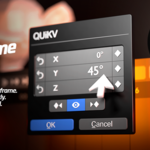
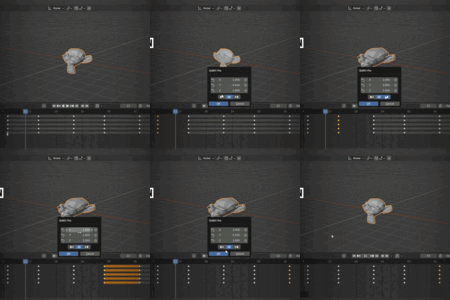
QUiKV PRO is a Blender addon that allows you to instantly edit keyframe values by double-clicking on them in the Graph Editor or Timeline/Dopesheet, without needing to move the playhead. It features advanced multi-channel editing, smart property detection, and comprehensive support for all Blender property types, including Geometry Nodes, Physics, Particles, and Shape Keys
How do I install the QUiKV PRO addon?
To install the addon, follow these steps:
Download the .zip file.
Open Blender -> Edit -> Preferences -> Add-ons.
Click "Install..." and select the .zip file.
Enable the "QUiKV PRO (Quick Keyframe Value)" checkbox.
The addon is now active!
Why doesn't the popup appear when I double-click?
If the popup isn't showing, make sure a keyframe is actually selected (highlighted) and check that QUiKV is enabled in the header. Additionally, verify that the F-Curve is not locked or muted, and try clicking directly on the keyframe itself rather than just the curve.
What should I do if the live preview is slow or laggy?
If the preview is lagging, turn off the live preview (using the eye icon). This is especially helpful for complex scenes containing many objects, modifiers, or geometry nodes. You can make your edits with the preview off, then click OK to apply them all at once.
Can I cancel the changes I make inside the popup?
Yes, you can press Esc or click outside the popup area to cancel all changes. Everything will return to its original state, including any keyframes you inserted or deleted. Please note that for Blender versions older than 4.1.0, the "Cancel" button is not visible due to native UI limitations, so simply clicking outside the popup or pressing Esc is the standard way to cancel.
What is the "Jump Selection" feature and how does it work?
The "Jump Selection" The "Jump Selection" feature allows you to navigate between keyframes seamlessly without needing to close the popup. Use the [◄] and [►] buttons to jump to the previous or next keyframes. When you navigate, the Blender playhead automatically syncs and jumps to the target frame in all cases. This feature instantly updates all channel values from the target keyframe and preserves full edit history for robust undo/redo support. It provides an efficient, batch-editing workflow for handling complex animation sequences.
-
$6.75 $9
Single-value editing with live preview. Perfect for beginners.
-
$18 $24
Full feature set. Multi-channel, Jump Selection, all property types.
-
$30 $40
Pro features. 3–5 commercial seats for teams and studios.
Have questions about this product?
Login to message
Discover more products like this
graph editor keyframe dopesheet timeline productivity Animations Tools animation fcurve Workflow Animator Tools value editing geometry nodes