RapidHair Cards
 Paweł_Harnaź


Can I use multiple RapidHair Cards modifiers on one character?
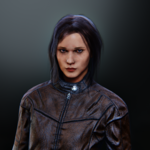
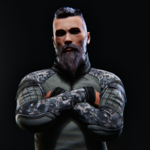
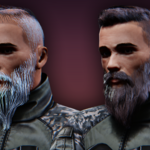
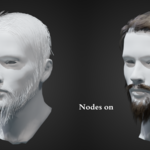
Yes, it’s best to copy existing cards as a different object, change their type, width, etc.—which is good practice (and quite convenient) when you want to create, for example, a male character with hair and facial hair. That way, you have the same material on several objects, but with a different hair type selected from the atlas.
Performance is very slow with many curves. How to optimize?
The “Sampling” section allows you to set the geometry density along the hair uniformly for all cards (each card has, for example, 10 intersections), or based on its length (shorter hair has less geometry, longer hair has more).
The add-on handles dense geometry well, but with an extreme number of hairs, I recommend reducing their density using the built-in “Interpolate Hair Curves” asset before applying RapidHair Cards and adjusting the density accordingly—this is a non-destructive solution.
You can also use the density brush in sculpt hair curves mode.
The cards disappear after applying the modifier. Why?
You rather need to convert cards to mesh, than apply modifiers, because for Blender applying "meshing" modifier to curves will not work.
Go to Object>Convert>Mesh.
How do I convert the hair cards to a real mesh for export?
It's best to use “Convert to mesh.”
The mesh has a UV map and basic vertex colors that are useful for further processing.
What is the “Curve Trim & Resample” tool and how do I use it?
This is a small but very useful tool for modifying selected hair in “edit” and “sculpt” modes.
It changes the density of the points on the hair and trims the selected hair.
The material looks flat / no anisotropy. How to improve it?
You can adjust the strength of the normal map and the flow map directly within the material.
Can I use my own hair textures instead of the included material?
Yes, but it has to be consistent with the atlas/UV.
What is the difference between Fixed Tilt and Random Tilt?
Cards are automatically rotated relative to the surface of their parent object; “fixed tilt” applies rotation only along the root's tangent, which is useful for preventing hair from bending, for example, near the ears.
“Random tilt,” on the other hand, changes the tilt of the cards randomly along a curve.
Can I use it on fur, not only human hair?
Yes, you can achieve good results by combining the add-on with existing hair asset sets—or even without any add-ons.
What is the correct workflow from scratch?
We need a model that has a UV map, and we need to assign curves to it (the new hair system). The hair is automatically parented to the mesh; then, in the side panel (“N” panel), select the ‘RapidHair’ option and choose “Add RapidHair Cards.”
The “Add RapidHair Cards” button is grayed out. Why?
The add-on works on curves; it will be inactive on a mesh.
Which Blender versions are supported?
Version 5.0 or higher is best, but it also works in version 4.5—unfortunately, without the option to select curve types.
How do I install RapidHair Cards?
Simply install the add-on in the Add-ons section using the “Install from disk” option, then select “Use File from Add-on Folder.” You can also use the “Append Trim & Resample Tool” by selecting this option.
Of course, you can manually select the “append” option from the RapidHair Cards 1.0 file and choose:
node tree:
•RapidHair Cards_1.0
•Curve_Trim_Resample
material:
•M_RapidHair_Cards

Discover more products like this
hair cards realtime hair hair system blender Low Poly Hair Procedural Hair geometry nodes Sculpt Hair hair curves hair card generator game-ready hair Blender Hair