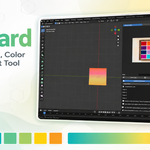
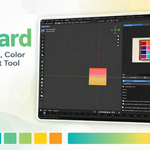
RefBoard - Reference Image Board & Color Picker for Blender
 Ludiax Studio


Documentation
Installation
- Download the RefBoard ZIP package.
- Open Blender 5.1.
- Go to Edit > Preferences > Add-ons.
- Click Install from Disk.
- Select the RefBoard ZIP file.
- Enable the add-on from the add-ons list.
- Open the 3D View sidebar with the N key.
- Go to the RefBoard tab.
For a clean update, remove the previous version of RefBoard first, restart Blender, and then install the new ZIP package.
Opening the RefBoard Panel
After installation, open the 3D View and press N to show the sidebar. Select the RefBoard tab to access the add-on panel.
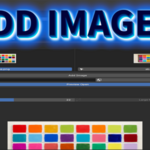
The panel includes image management, preview controls, color picking, gradient tools, and save/load options.
Adding Images
You can add reference images in two ways:
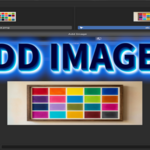
Add Image
Use this option to select image files from your computer.
Add URL
Use this option to add an image from a direct image URL. The URL should point directly to an image file such as PNG, JPG, JPEG, or WEBP. Some websites may block direct image downloads, depending on their server settings.
Previewing Images
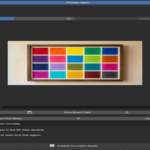
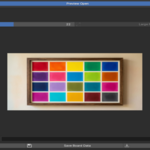
Select an image from the image list and open the Preview Open section. The selected image will be displayed in the panel.
For a larger preview, use the Large Preview option. This is useful when you need to inspect details or pick colors more accurately.
Picking a Single Color
- Add or select a reference image.
- Select the object you want to paint.
- To paint only part of the mesh, enter Edit Mode.
- Select the face, edge, vertex, or region you want to color.
- Click Pick Color.
- Click the desired color on the large image overlay.
- RefBoard applies the sampled color to the selected mesh region.
If no mesh region is selected, RefBoard applies the color to the active material as a fallback.
Painting Selected Mesh Areas
RefBoard is designed to work with Blender mesh selection. You can select a specific face, a group of faces, an edge, or a vertex-connected area before picking a color.
Blender material assignment works primarily on faces. If you want to color a smaller part of a face, subdivide the mesh first so that the area becomes selectable.
Gradient Pick Mode
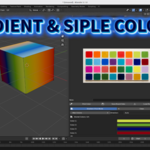
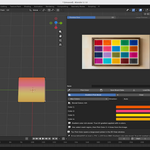
Gradient Pick Mode allows you to sample multiple colors from a reference image and apply them as a gradient across the selected mesh area.
To use Gradient Pick Mode:
- Select your object.
- Enter Edit Mode.
- Select the mesh area you want to color.
- Enable Gradient Pick Mode in the RefBoard panel.
- Choose the maximum number of colors: 2, 3, or 4.
-
Choose a gradient direction:
- Auto
- Local X
- Local Y
- Local Z
- Click Pick Color and sample the first color.
- Click Pick Color again and sample the second color.
- RefBoard applies the gradient after at least two colors are selected.
- Continue sampling third or fourth colors if needed.
Use Clear to reset the stored gradient colors and start again.
Viewing Gradients Correctly
Gradient results are best viewed in Material Preview or Rendered mode.
In Blender’s Solid View, textures, UV-based gradients, or material node results may appear as a flat color. This is a Blender viewport display limitation, not an issue with the gradient itself.
Saving and Loading Board Data
Use Save Board Data to save your current RefBoard setup.
Use Load Board Data to reload previously saved board data.
This is useful when you want to continue working with the same set of references later.
Troubleshooting
The picked color looks different from the reference image.
Use Material Preview or Rendered mode. Lighting, viewport mode, color management, and material settings can affect how colors appear on the object.
The gradient looks like a single color.
Switch from Solid View to Material Preview or Rendered mode.
The URL image does not load.
Some websites block direct downloads or hotlink access. Try using a direct image URL or download the image manually and use Add Image.
Only the whole object is being colored.
Enter Edit Mode and select the specific mesh area before using Pick Color.
Only one face is colored, but I want a smaller area.
Subdivide the mesh first. Blender needs selectable geometry to assign different colors to smaller regions.
The large picker image appears behind the sidebar.
Use the latest version of RefBoard. The picker is designed to temporarily avoid sidebar overlap while selecting colors.
Have questions about this product?
Login to message
| Blender Extension Compatible | Yes |
| Dev Fund Contributor | |
| Published | 5 months ago |
| Blender Version | 5.1 |
| Extension Type | Add-on |
| Render Engine Used | Cycles, Eevee |
| License | GPL |
Discover more products like this
artist-tools color picker Reference Board Workflow Mesh Painting image reference shading color-palette texture gradient materials blender addon