RefCanvas – Infinite Reference Board
 Alternative Pack
Installation
- Download the .zip file. Don't unzip it.
- In Blender open Edit > Preferences > Get Extensions, click the arrow menu in the top-right corner and choose Install from Disk…
- Select the downloaded .zip. RefCanvas is enabled automatically.
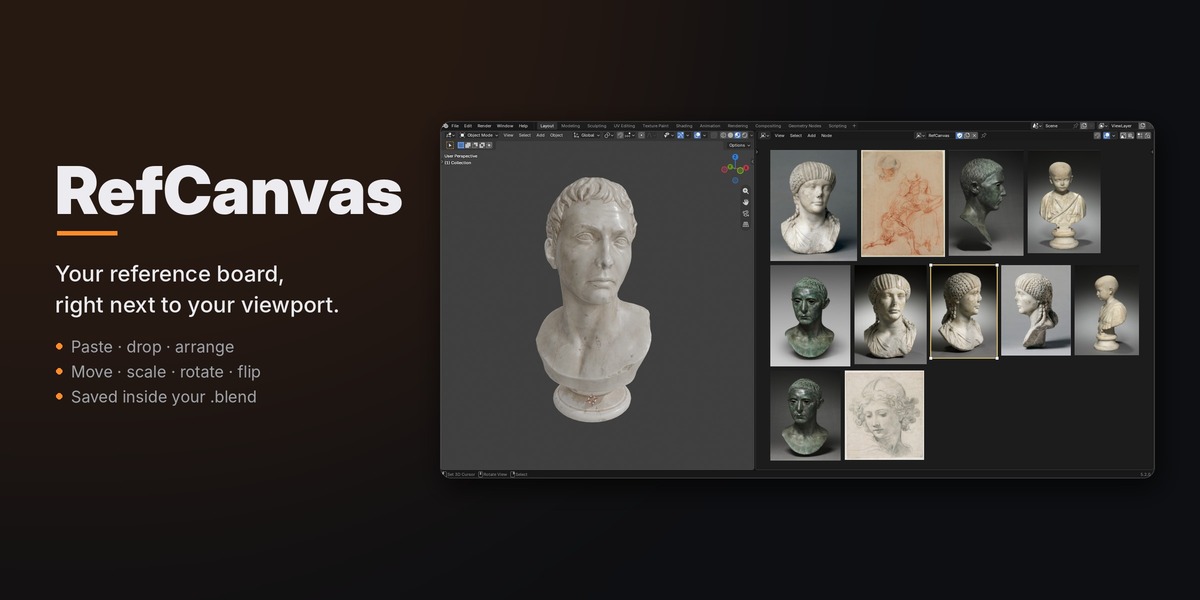
- In any area, open the Editor Type menu (top-left of the area) and pick RefCanvas in the General column.
Requires Blender 4.2 or newer. Tested with Blender 5.2 LTS on Windows.
Getting started
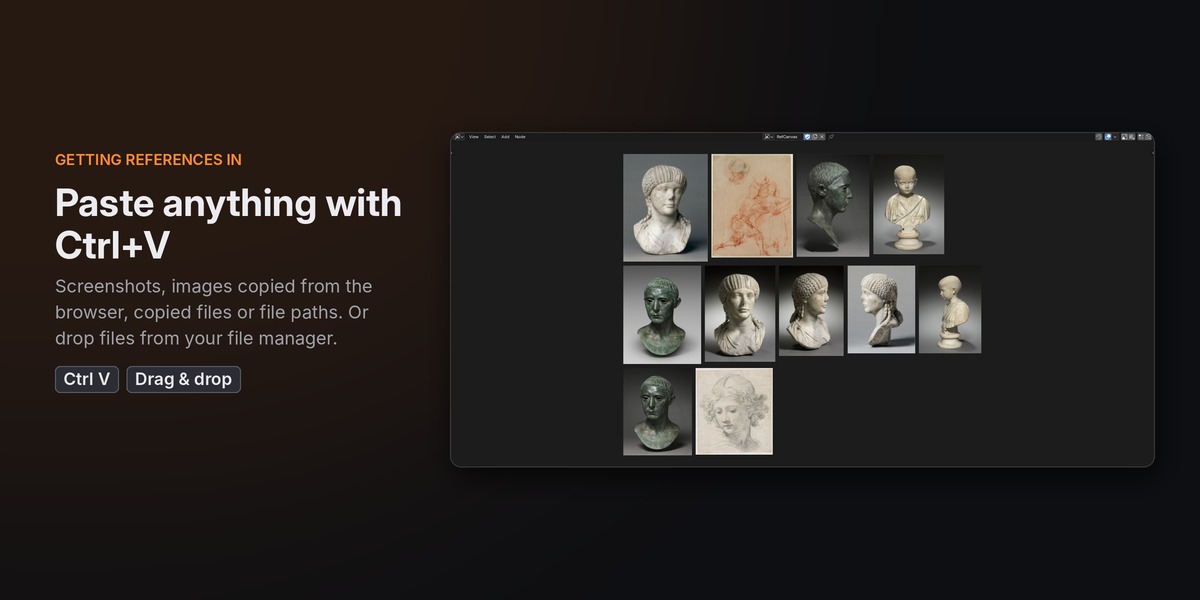
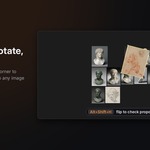
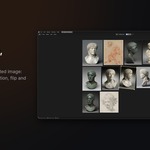
Switch an area to RefCanvas. An empty board shows a short hint. Copy an image anywhere (a screenshot, an image in your browser, a file in your file manager) and press Ctrl+V with the mouse over the board. The image is placed under the mouse. When you add several images at once, they are laid out in rows automatically.
Mouse
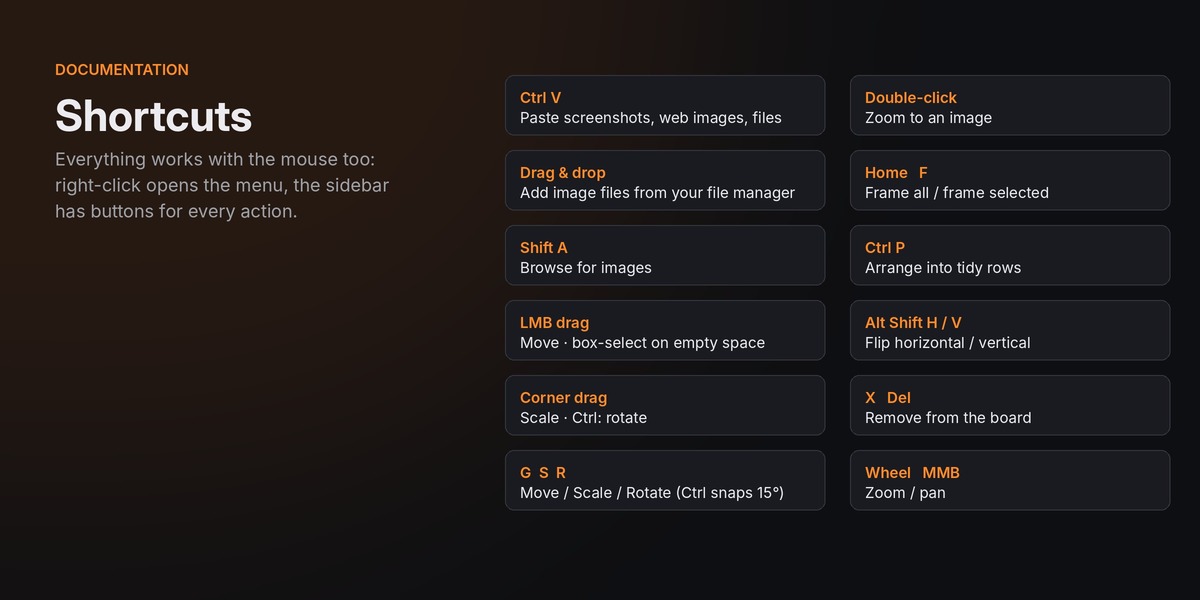
- Left click selects an image, Shift+click adds or removes it from the selection.
- Drag an image to move it (the selection comes to the front).
- Drag on empty space to box select (Shift adds, Ctrl removes).
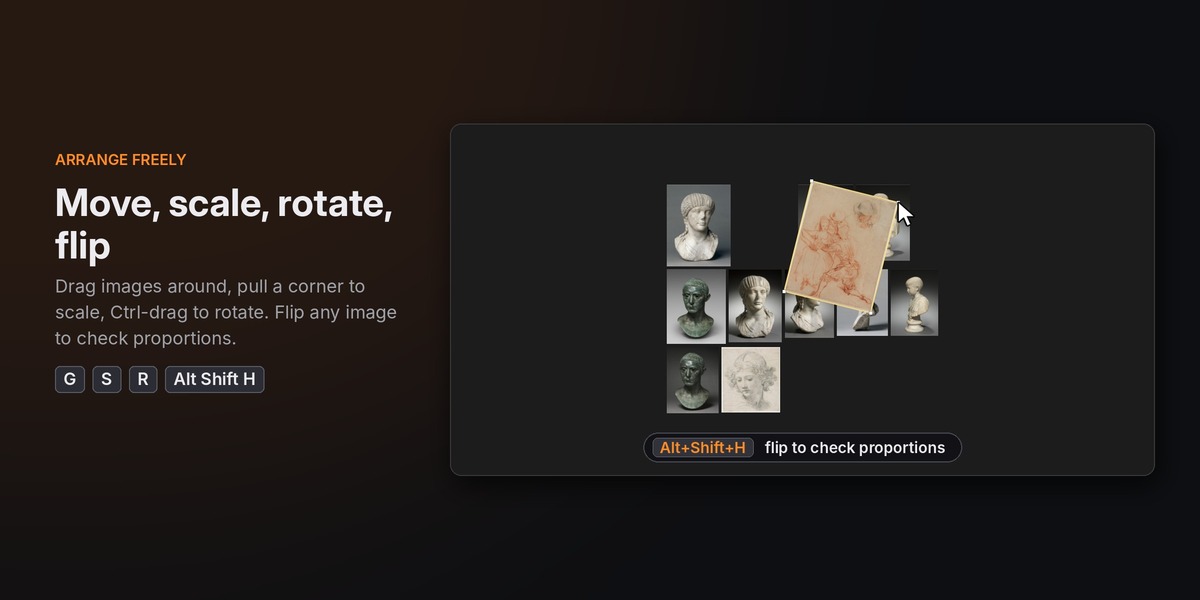
- Drag a corner handle to scale from the opposite corner. Hold Ctrl when you start dragging to rotate instead (Shift while rotating snaps to 15°).
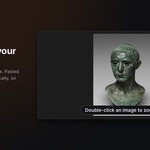
- Double-click an image to zoom to it.
- Right click opens the RefCanvas menu with every action.
- Middle mouse / wheel: pan and zoom, like the other Blender editors.
Keyboard shortcuts
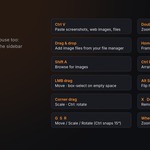
| Ctrl V | Paste images from the clipboard |
| Shift A | Add image files |
| G / S / R | Move / scale / rotate the selection (Ctrl snaps rotation, Enter or click confirms, Esc or right click cancels) |
| A / Alt A / Ctrl I | Select all / deselect / invert |
| X / Delete | Remove selected images from the board |
| Home | Frame all images |
| F / Numpad . | Frame selected images |
| Ctrl P | Arrange into rows (the selection, or everything) |
| Alt Shift H / Alt Shift V | Flip horizontal / vertical |
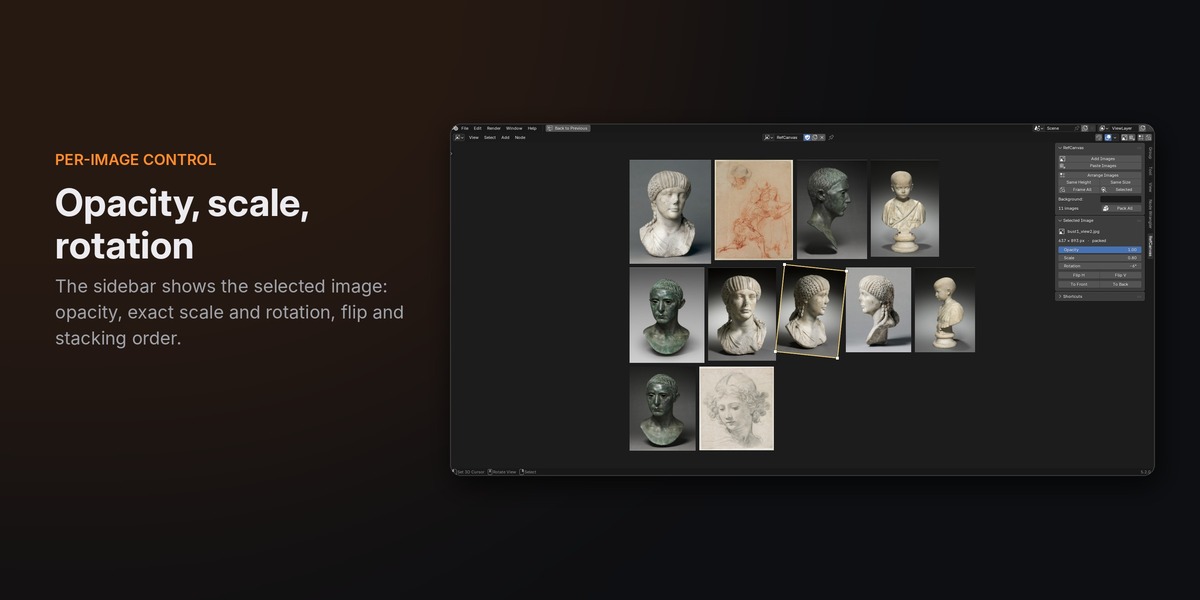
Sidebar (N panel, "RefCanvas" tab)
- RefCanvas: add or paste images, arrange, same height / same size, frame, background colour, pack all images into the .blend.
- Selected Image: opacity, scale, rotation, flip and stacking order of the active image.
- Shortcuts: the full list, always at hand.
Boards
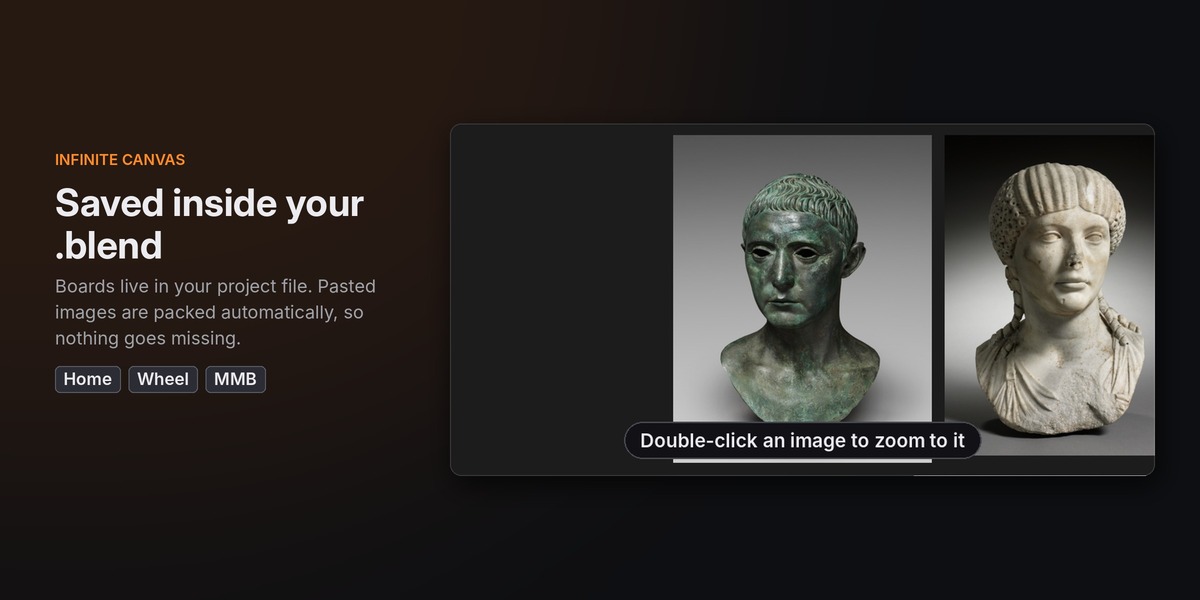
Each RefCanvas editor shows one board. Use the board selector in the editor header to switch between boards or create a new one; every board is saved in the .blend file.
Saving and packing
Pasted images (screenshots, browser images) are always packed into the .blend file. Images added from disk are linked by path, like normal Blender images: use Pack All in the sidebar to embed them, or enable automatic packing in the add-on preferences.
Add-on preferences
- Size of new images: the longest side of newly added images on the board (default 1200). Set 0 to keep the native pixel size.
- Pack dropped / browsed images: embed image files in the .blend automatically.
Uninstalling
Preferences > Add-ons, find RefCanvas and choose Uninstall. Existing boards stay in your files and come back if you install RefCanvas again.
Have questions about this product?
Login to message
| Blender Extension Compatible | Yes |
| Dev Fund Contributor | |
| Published | 1 day ago |
| Blender Version | 4.2 - 5.2 |
| Extension Type | Add-on |
| License | GPL |
Discover more products like this
image canvas inspiration concept art references Workflow Reference Board image viewer reference moodboard interface productivity