 za studio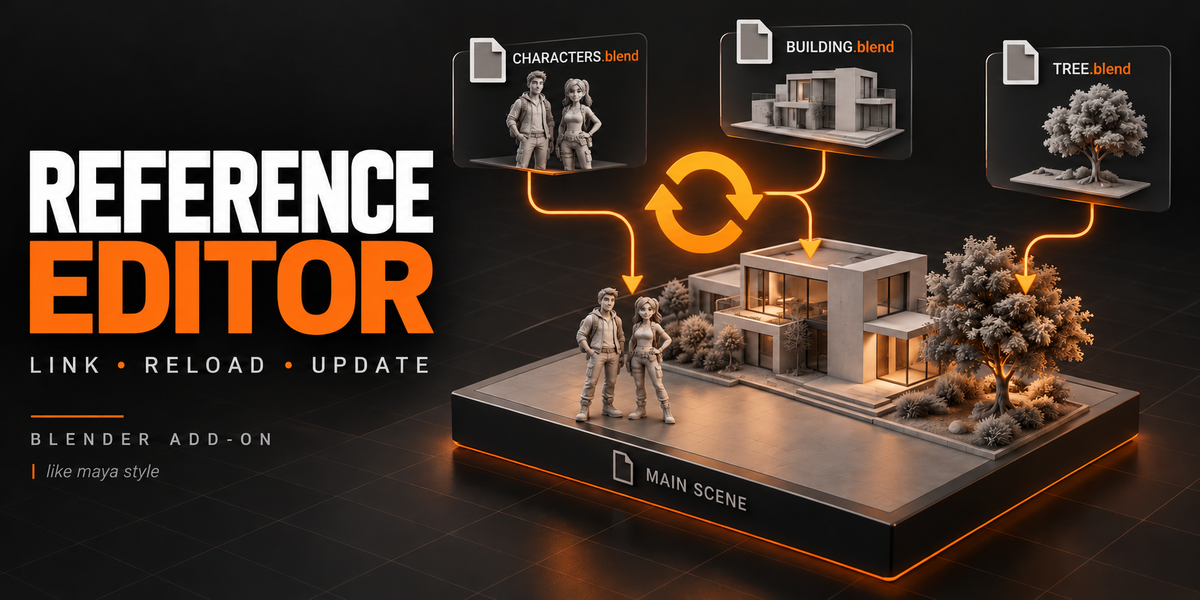
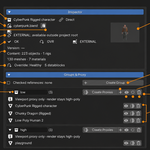
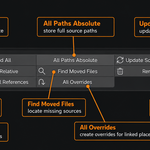
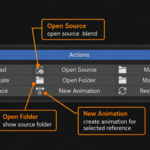
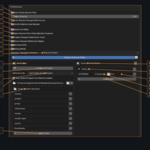
LINK · ANIMATE · UPDATE
Reference Editor
Maya-Style Referencing Workflow for Blender
Link external assets, animate with Library Overrides, and bring source model and rig updates into your scene while preserving local animation.
Blender 4.5 LTS & 5.x · Windows / macOS / Linux
Overview
Hello everyone.
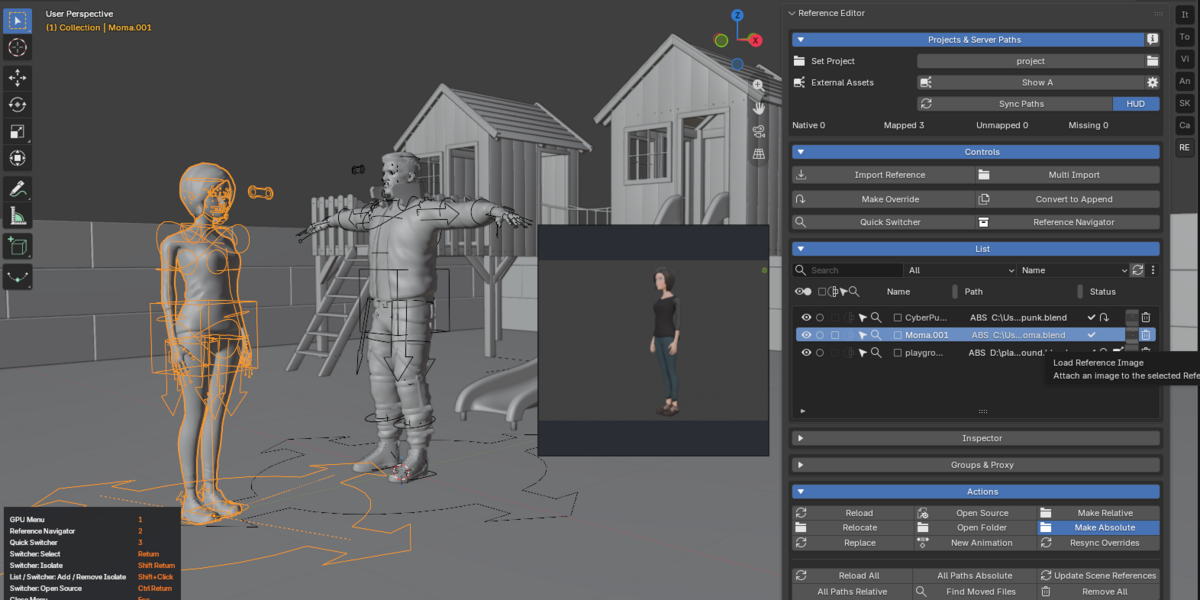
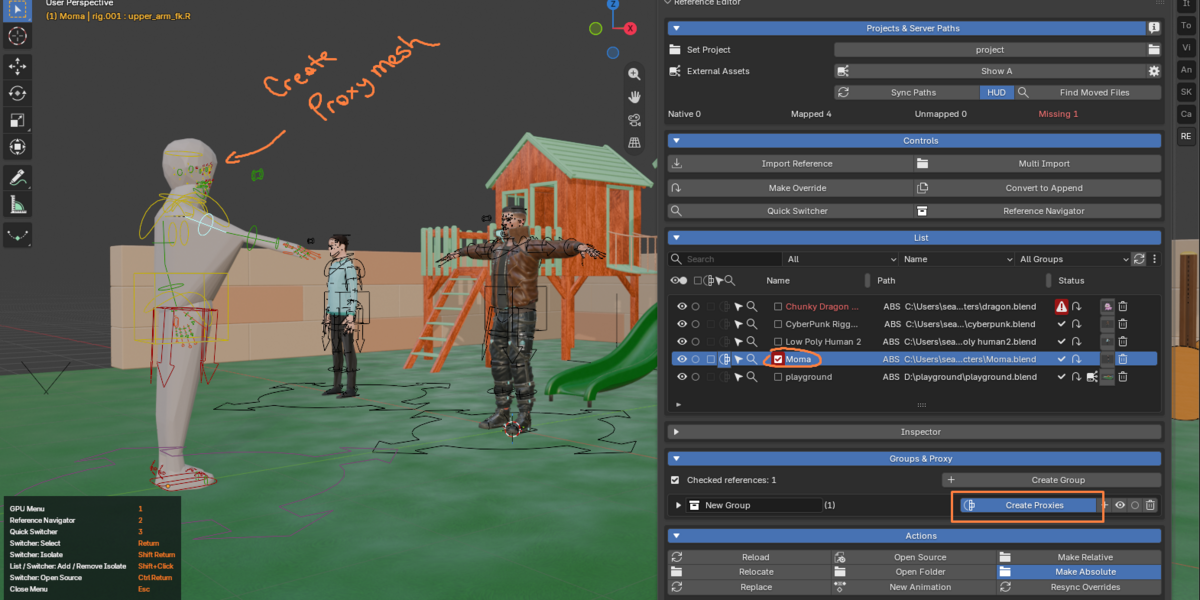
I have developed a reference editor for Blender, similar to the one found in Autodesk Maya. With this editor, you can easily manage the assets in your scene—importing or removing them with a single click—or even hide entire assets by selecting just one of their components.
For those working on character animation, in particular, hiding unused objects in a scene could previously be a hassle, often requiring you to navigate to the Outliner and toggle "hide in viewport" (via collections).
Now, you can hide or unhide whatever you choose with ease. Furthermore, if a reference object is updated or a new version is added, the tool automatically detects this, alerts you, and prompts you to load the update.
It also displays thumbnails of your references within the UI, making it simple to identify the contents of each reference, and provides quick access via Pie Menus. It is a fantastic tool that streamlines the workflow for both layout artists and animators.
Keep your production organized around reusable assets. Large, monolithic .blend files can become difficult to maintain; referencing lets characters, environments, and props live in separate source files.
Reference Editor brings the Autodesk Maya referencing philosophy to Blender 4.5 LTS and Blender 5.x. Link external assets as read-only references, build Library Overrides for animation, and pull upstream model fixes, texture updates, and rig revisions into your working scene.
Key Features
01 / ANIMATION
Non-Destructive Animation Pipeline
- Safe Resync & Reload: Pull upstream changes from modelers and riggers while preserving your intentional animation keyframes.
- Smart Pose Preservation: Separates local pose overrides from source-file changes and includes a confirmation prompt before resetting legacy pose configurations.
- Immediate Frame Evaluation: Linked and overridden animations evaluate at the consumer scene’s current frame immediately after Import or Make Override.
02 / PROJECTS & PATHS
Production-Grade Path Management
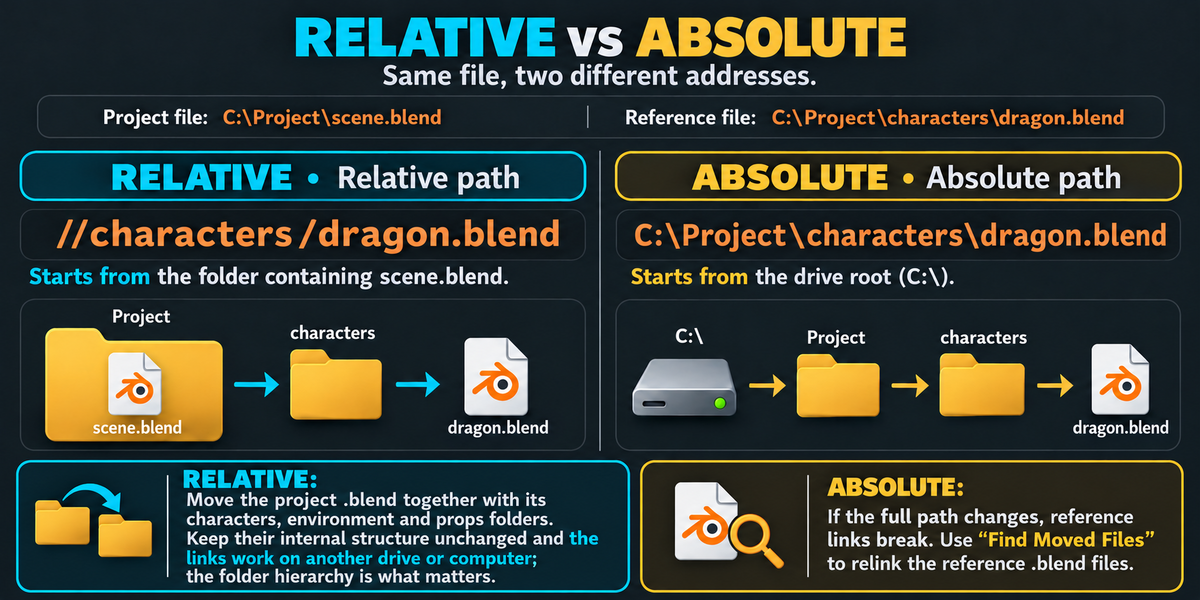
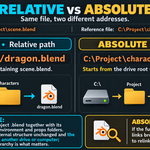
- Clear Path Status: Check stored paths at a glance with REL (Relative) and ABS (Absolute) indicators and full-path tooltips.
-
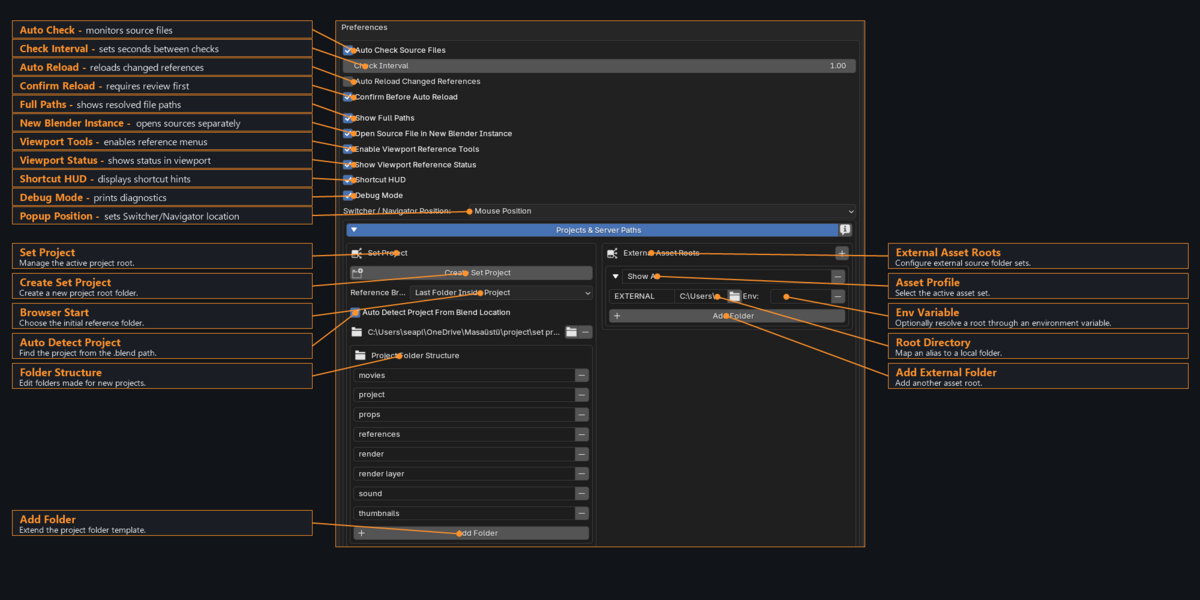
Projects & External Asset Roots: Set project roots and configure server, NAS, or secondary-drive paths. These settings are stored in
.blendmetadata for cross-machine recovery. - Source Files Stay Untouched: Reference Editor never deletes, renames, or alters your raw source files on disk.
03 / PERFORMANCE
Viewport Optimization & LODs
-
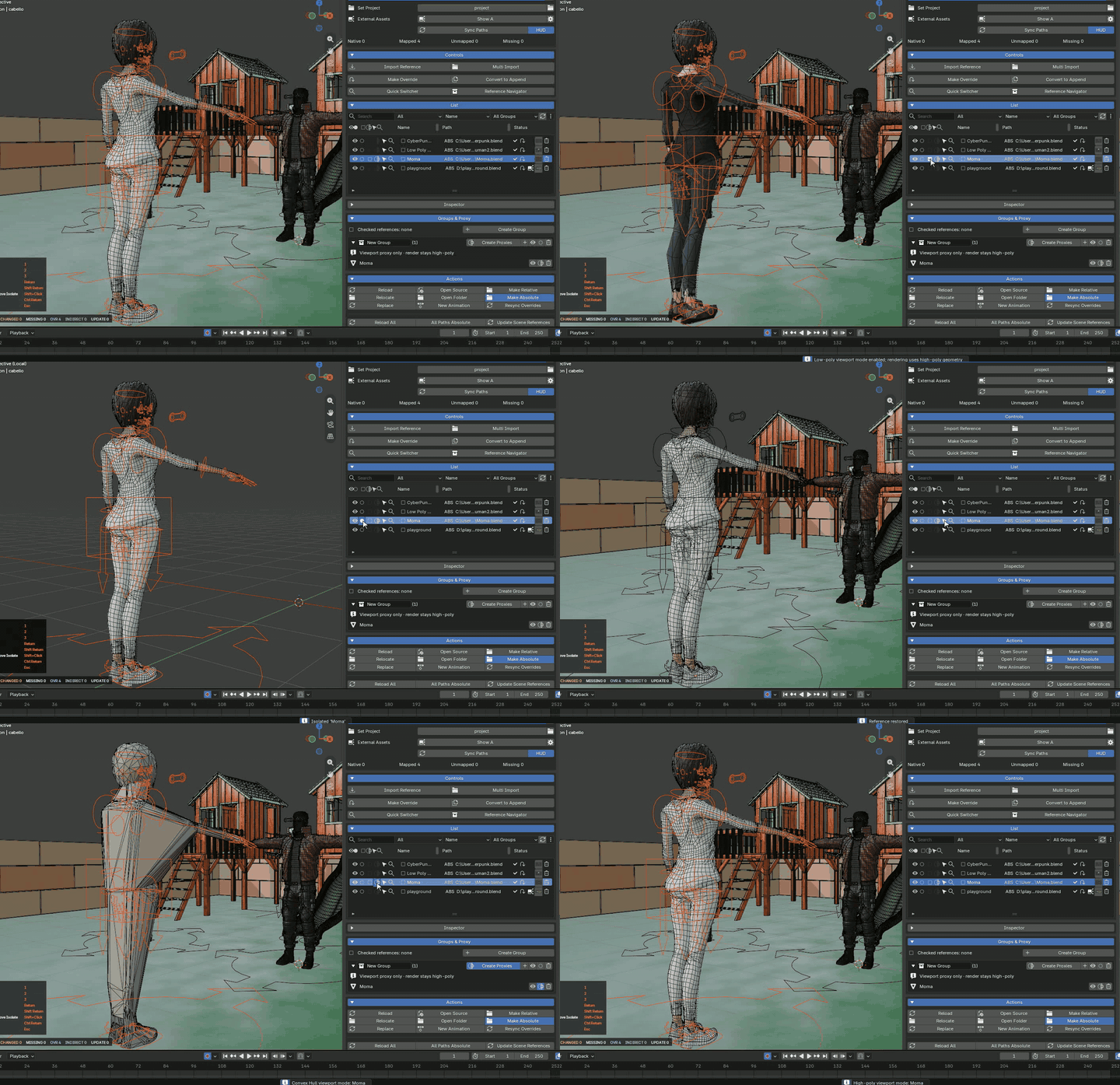
High / Low Mesh Toggles: Switch between lightweight
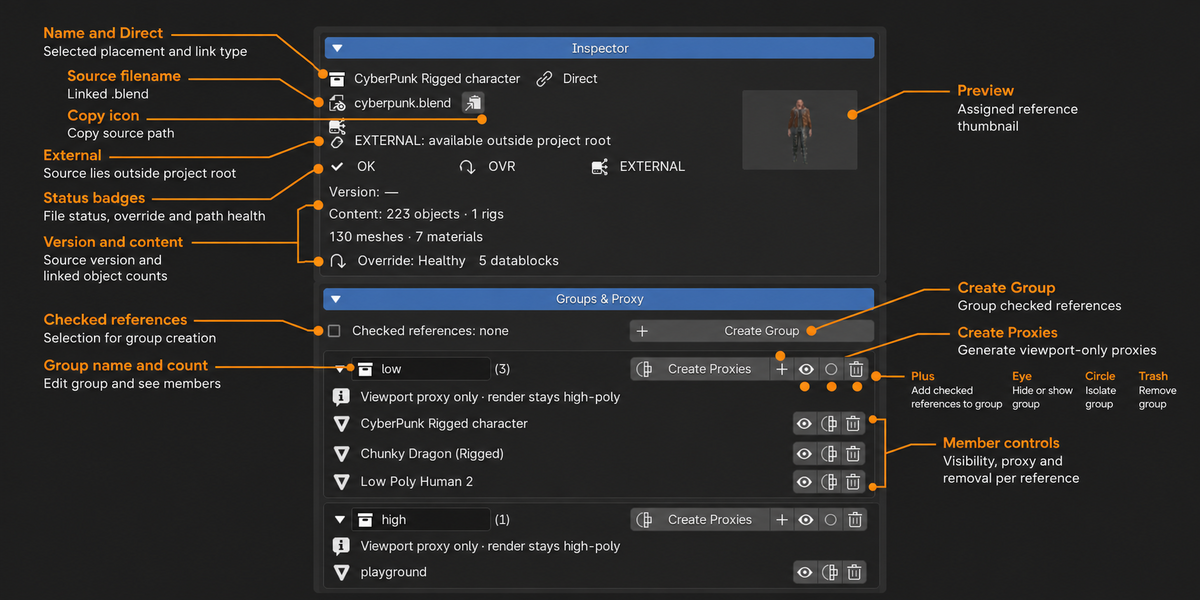
_lowmeshes in the viewport and full-density_highgeometry for final rendering, with both versions sharing the same rig. - Convex Hull Proxies: Automatically generate lightweight bounding proxies, with up to 96 islands per mesh, for dense assets and heavy scenes.
04 / NAVIGATION
Fast Navigation & Multi-Viewport Isolation
- Quick Switcher & Radial Navigator: Search, filter, and isolate references directly in the 3D Viewport.
- Independent Viewport Isolation: Shift-click reference isolation circles to isolate assets in the active window without affecting other 3D viewports or scene-wide visibility layers.
-
Automatic Thumbnails: Pair an asset with a same-named image, such as
Hero_Rig.blendandHero_Rig.png, for visual identification and a 300 × 300 hover preview.
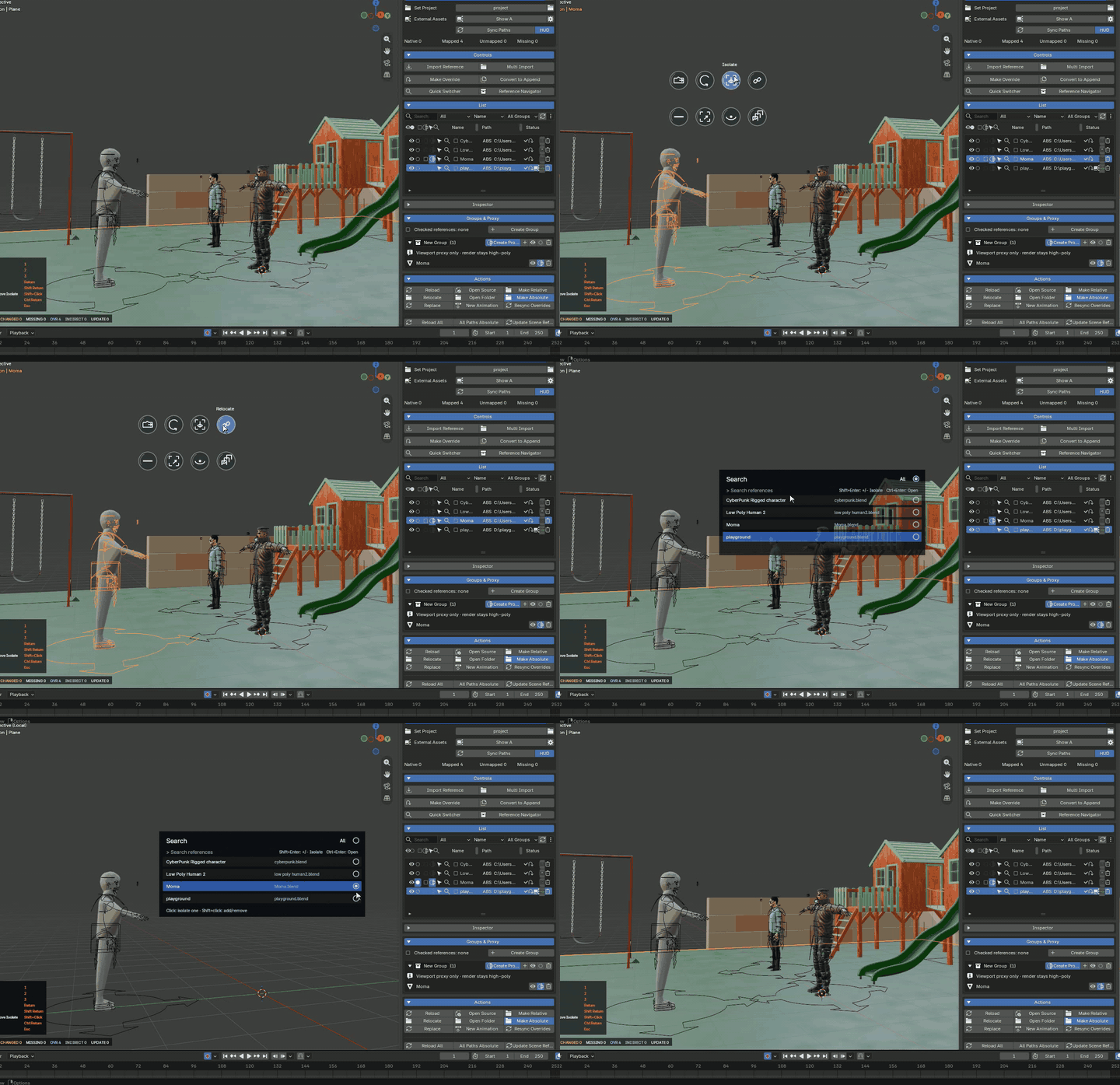
Native Blender vs. Reference Editor
| Feature | Native Blender | Reference Editor |
|---|---|---|
| Interface | Outliner and linking / override menus | Unified, dedicated 3D Viewport Sidebar |
| Source Updates | Library reload and override resync controls | 1-click Reload with pose-preservation handling |
| Path Visibility | Library datablock paths | REL / ABS badges with full-path tooltips |
| Proxy / LOD Handling | Manual asset and collection setup | Built-in High / Low toggles and Convex Hull proxies |
| Thumbnails | Default datablock icons | Automatic discovery and 300 × 300 hover preview |
| Isolation | Native Local View controls | Reference-focused, independent per-viewport multi-isolation |
What’s Included?
-
Reference Editor Addon — installable
.zippackage. - Quick Start Guide — installation and first reference setup.
- Demo Scene — referencing, High / Low LOD switching, and Library Overrides.
- Lifetime Updates — for Blender 4.5 LTS and Blender 5.x releases.
Compatibility
- Blender: 4.5 LTS and 5.0+.
- Operating Systems: Windows, macOS, and Linux.
- License: Royalty-Free / Commercial Use.
Quick Start Guide
From installation to your first animated reference in six steps.
STEP 01
Installation
- Open Blender and go to Edit > Preferences > Extensions (or Add-ons).
- Open the top-right menu and choose Install from Disk...
- Select the downloaded
reference_editor_v1.0.xx.zippackage. - Press N in the 3D Viewport and open the Reference Editor tab.
STEP 02
Set Your Project Root
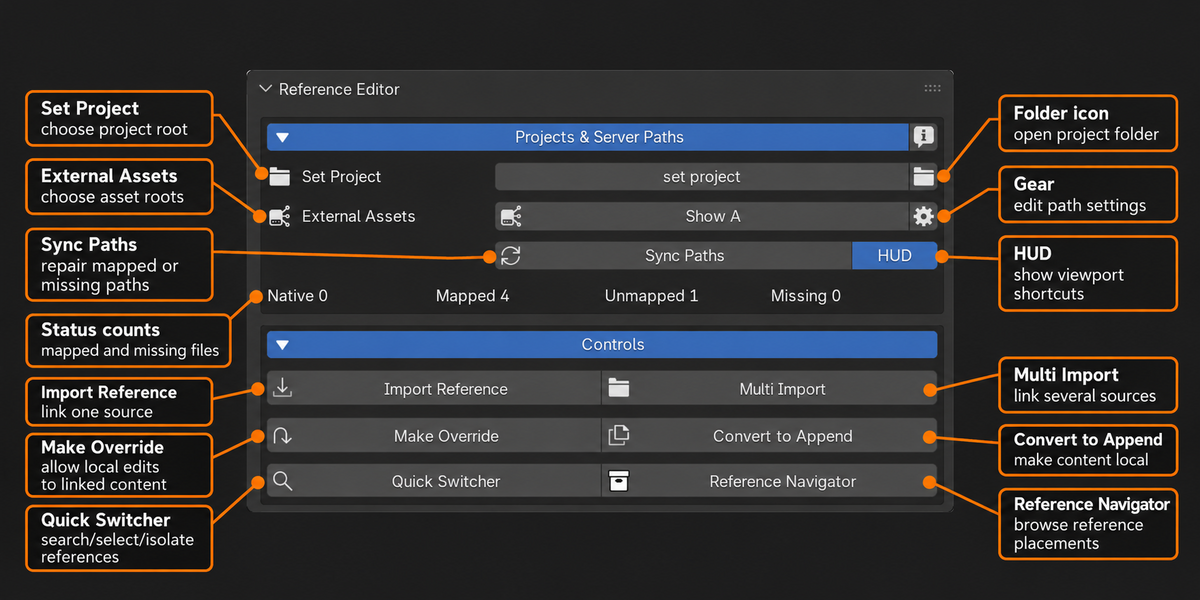
- Under Projects & Server Paths, click Set Project.
- Select the main directory for your current production. Keep your working
.blendfile saved within this project hierarchy. The addon detects whether links should be stored as Relative (REL) or Absolute (ABS). - For network shares, NAS locations, or shared asset drives, configure External Asset Roots. These paths are saved in
.blendmetadata for cross-machine recovery.
STEP 03
Reference Your Assets
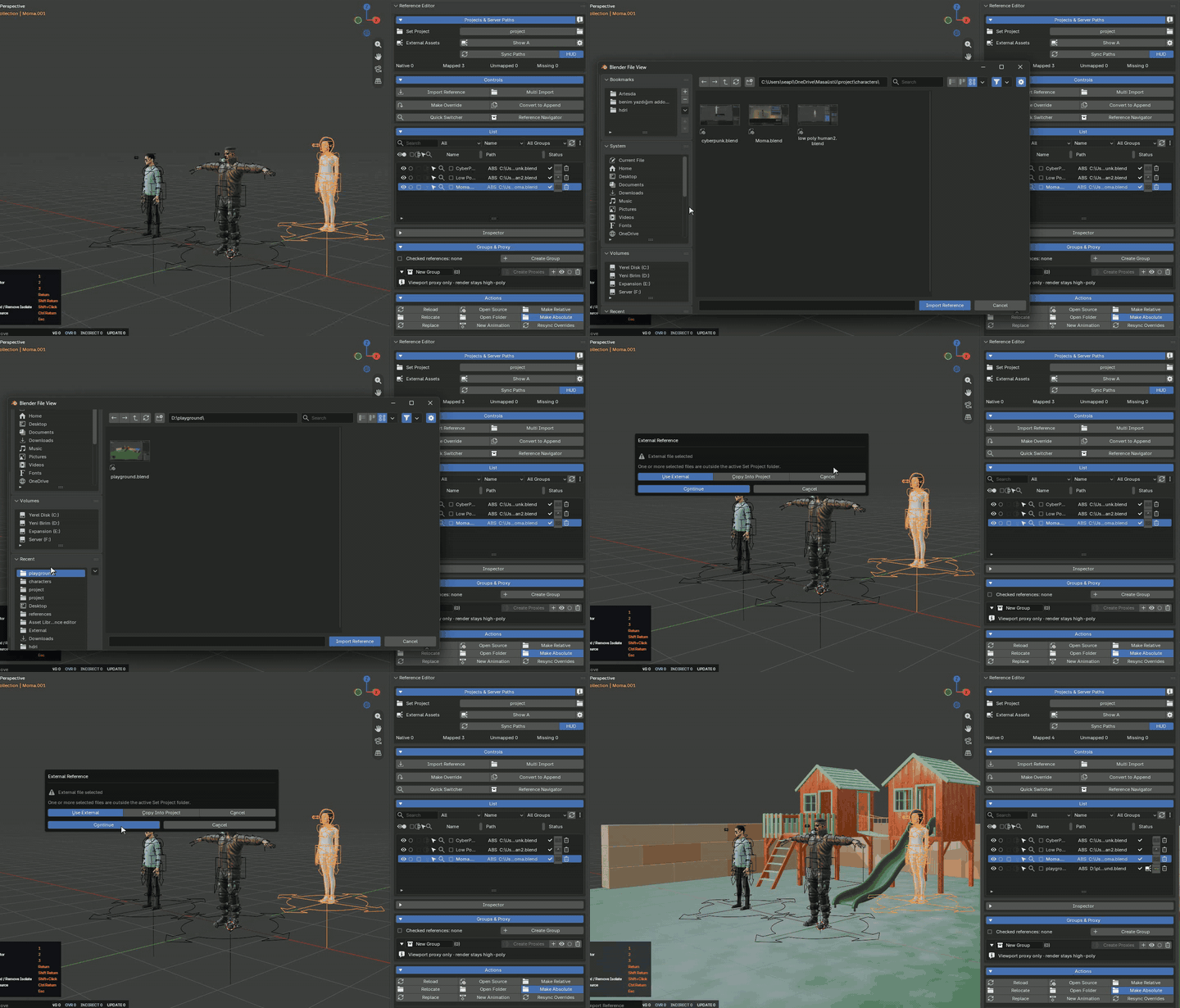
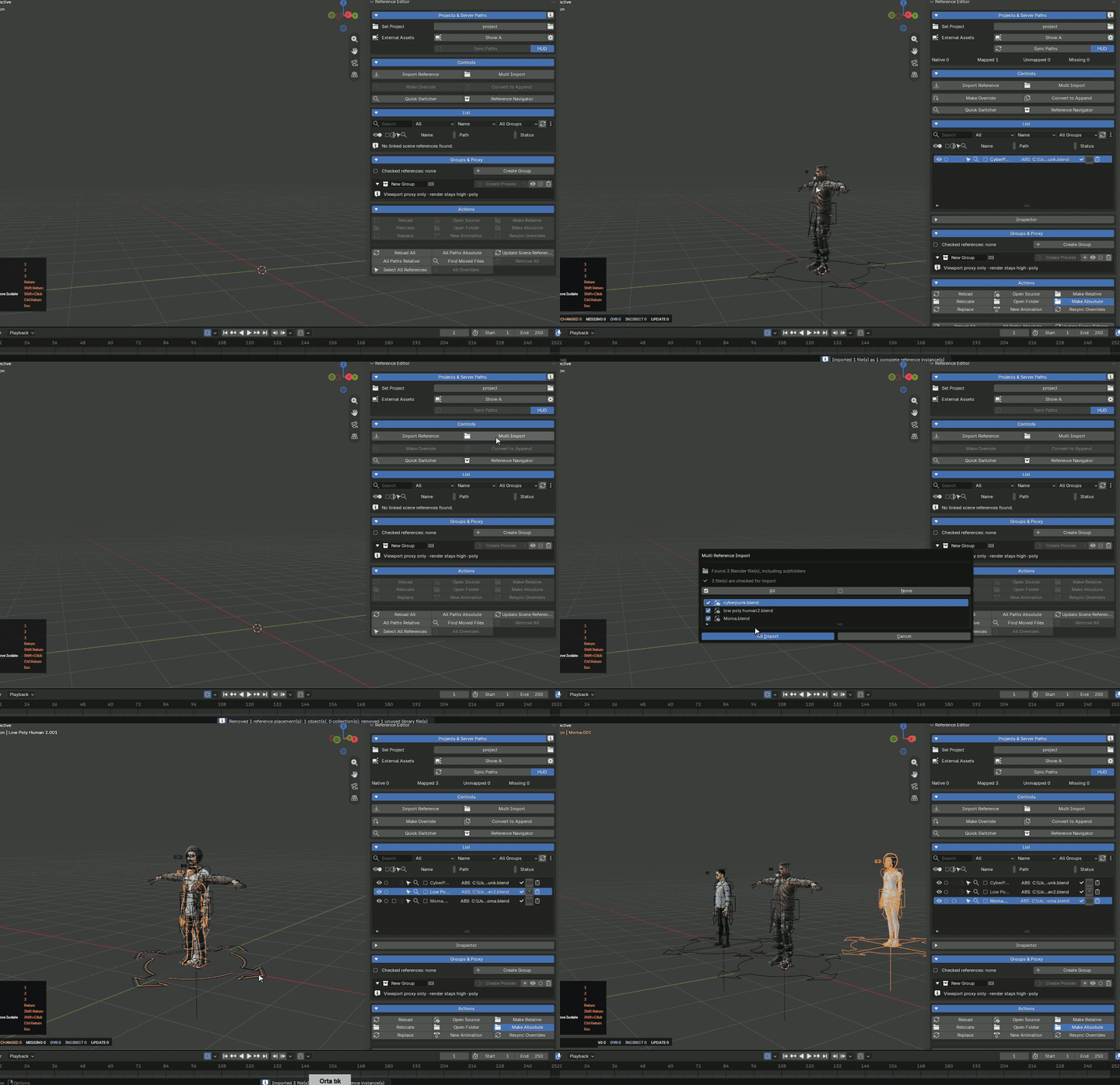
- Under Controls, click Import Reference, or use Multi Import for batch importing.
- Choose the character, prop, or environment
.blendfile. - Find the imported reference in the List, together with its status, path type, and automatically discovered thumbnail.
STEP 04
Animate with Library Overrides
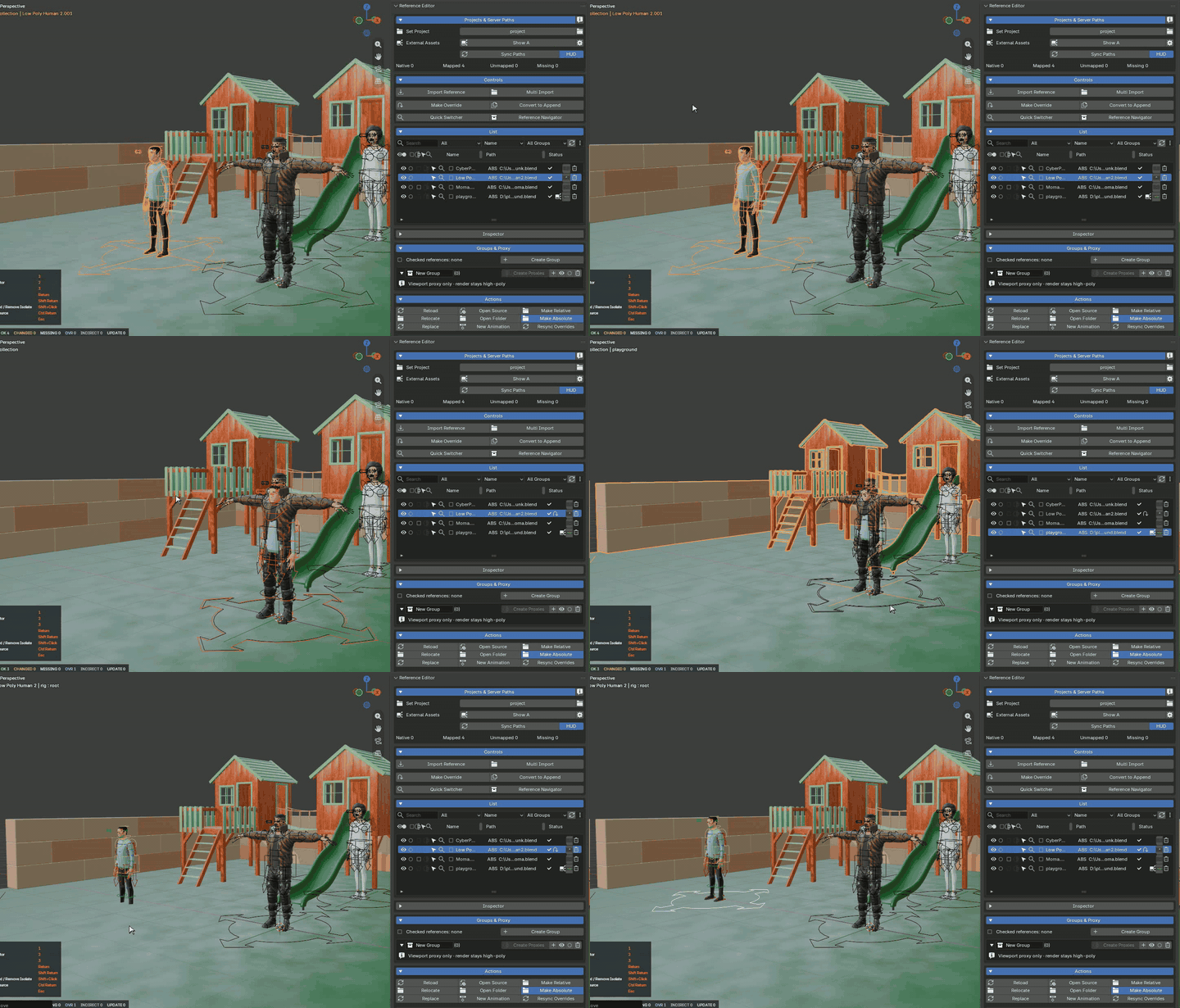
- Select the imported character in the reference list or viewport.
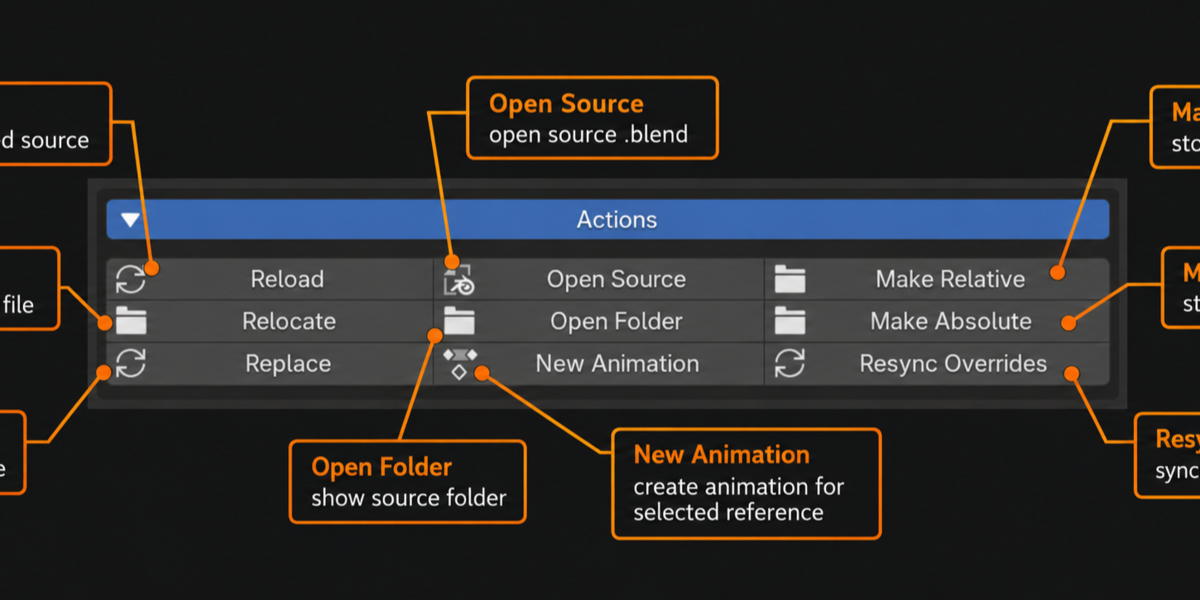
- Click Make Override in the Controls panel.
- Pose and keyframe the rig as usual. Linked and overridden animations evaluate immediately at your current scene frame.
STEP 05
Update Upstream Assets
When the modeling or rigging team updates the source file:
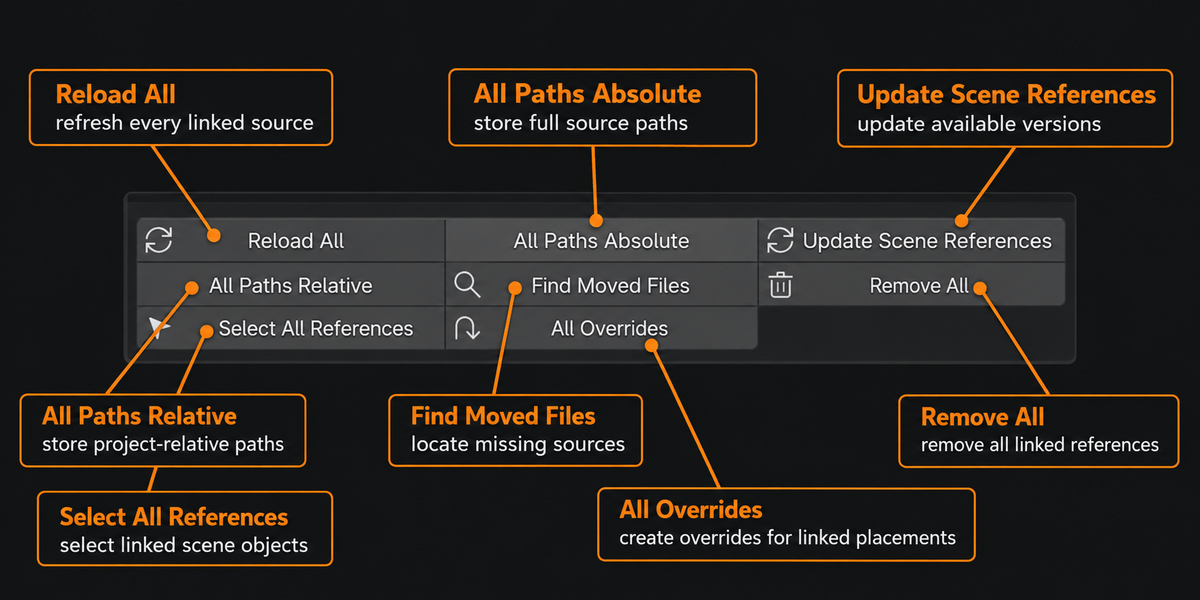
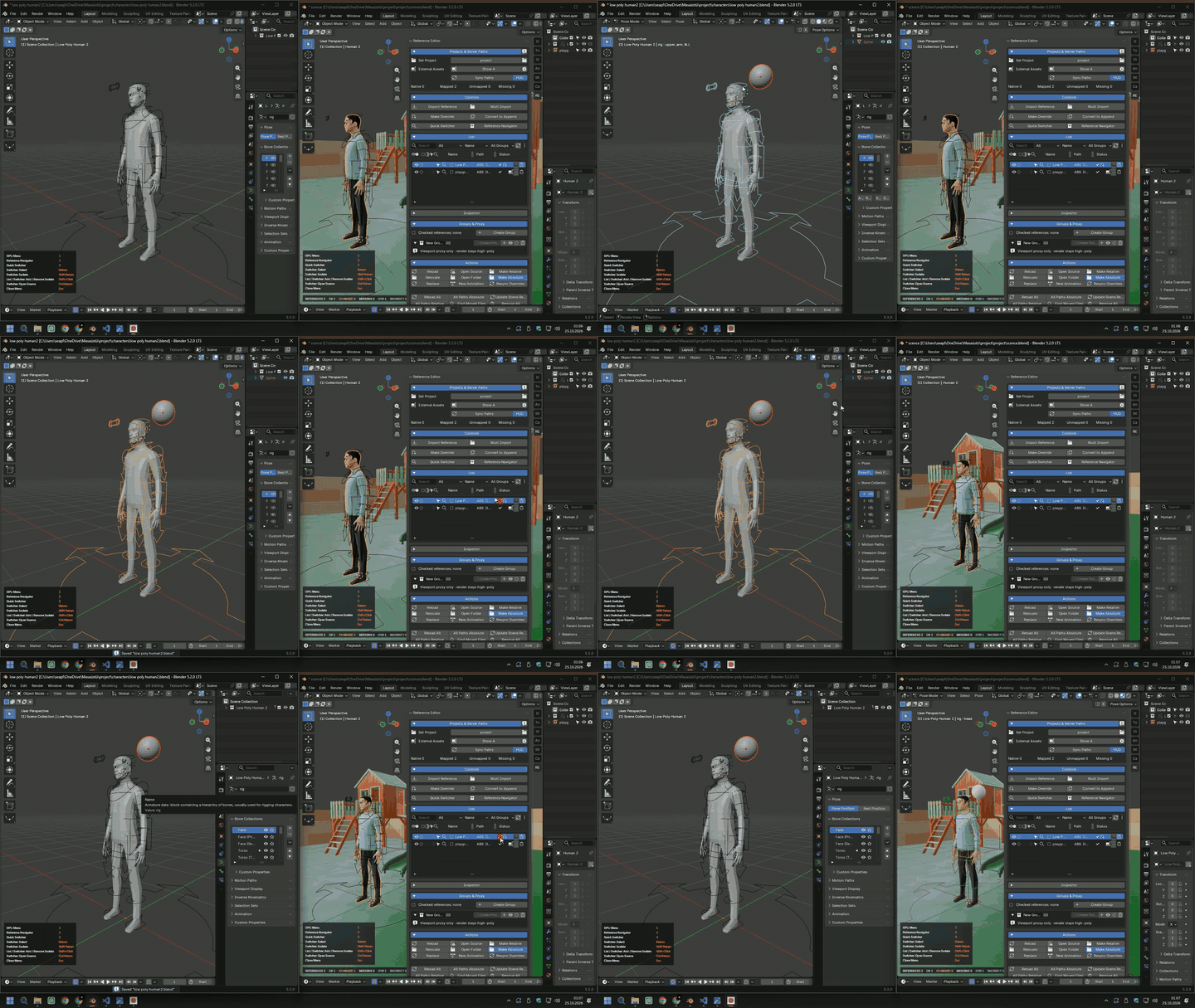
- Click Reload for a single asset or Reload All for the entire scene.
- Pull the updated geometry and rig data into your scene while preserving local pose edits and animation keyframes.
- If a legacy pose configuration requires a reset, review the confirmation prompt before proceeding.
STEP 06
Optimize Viewport Performance
-
High / Low: For assets with matching
_highand_lowgeometry, use low-poly meshes in the viewport while keeping high-poly geometry for final F12 rendering. - Create Proxies: Generate Convex Hull proxies for dense sets and background props, with up to 96 islands per mesh.
- Viewport Isolation: Shift-click a reference’s isolation circle to isolate it in the active window while leaving other viewports and scene-wide visibility layers unaffected.
Need help or have a feature request?
Contact Zekeriya AYAN through the Superhive message board.