Reference Editor
 za studio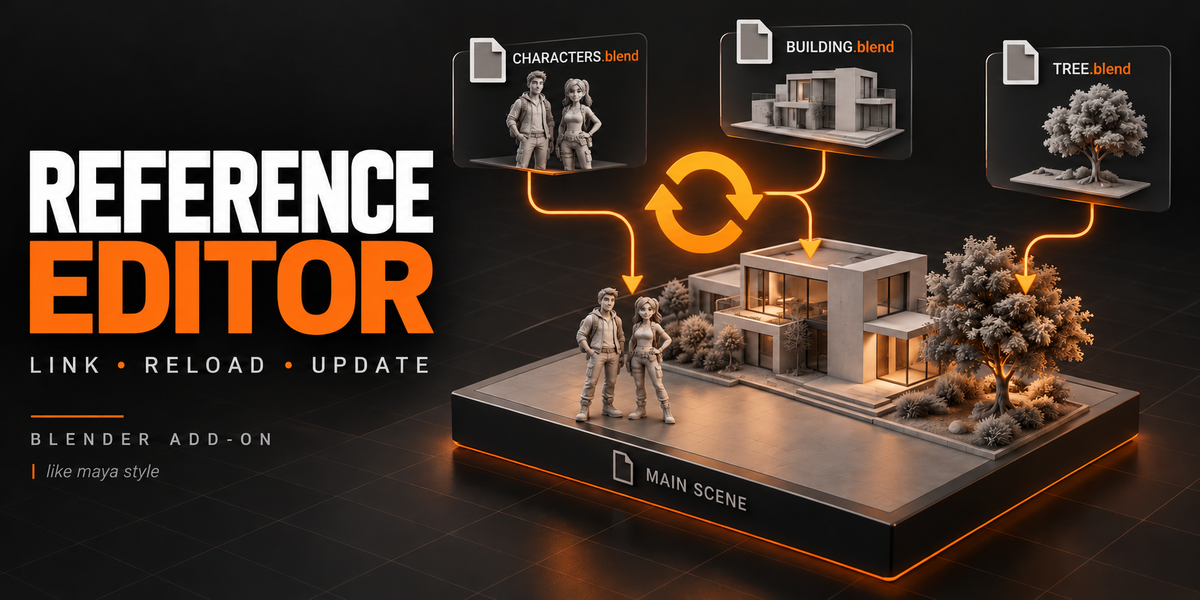
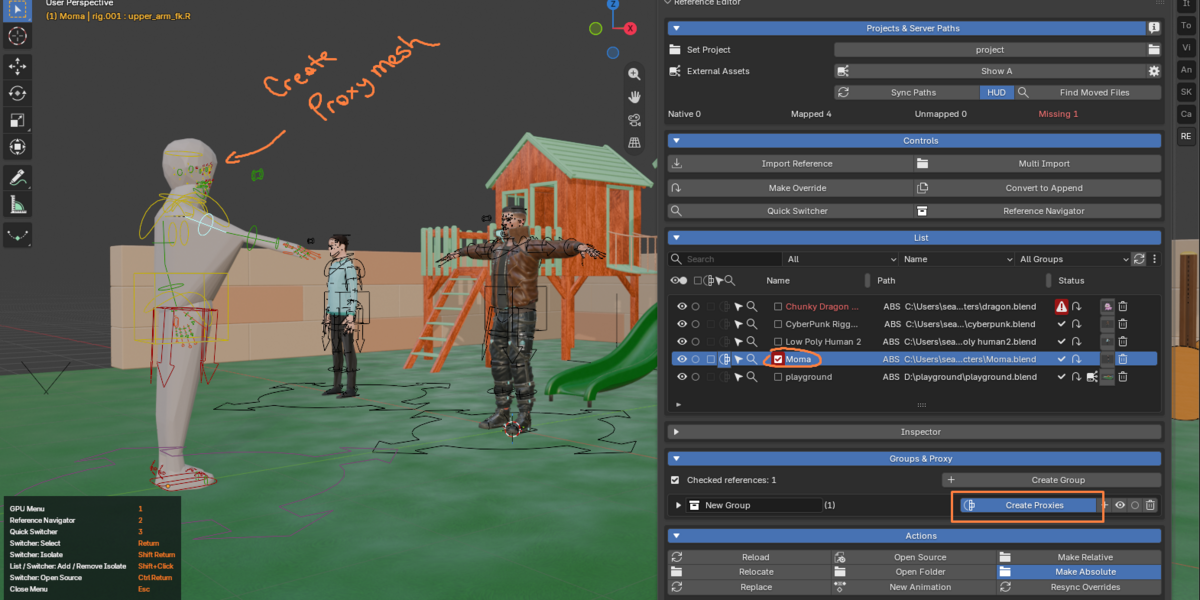

Reference Editor - User Guide
Version 1.0.36 | Zekeriya Ayan | 24 October 2026 | English edition
Link assets. Assemble shots. Manage source files. A practical guide to references, overrides, paths, viewport tools and project handoff.
Contents
- Overview and requirements
- Install and update Reference Editor
- Build your first referenced scene
- Understand libraries and placements
- Set up a project folder
- Configure shared External Assets
- Understand and change file paths
- Import source files and assets
- Read and use the reference list
- Edit linked assets with Library Overrides
- Reload, resync and change sources
- Start a new local animation
- Navigate with the GPU tools
- Control visibility and isolation
- Organize groups and create proxies
- Prepare authored low and high geometry
- Assign and recover reference images
- Use numbered source versions
- Preferences and saved settings
- Move a project and repair missing files
- Troubleshooting
- Frequently asked questions and support
01. Overview and requirements
Reference Editor manages linked Blender files and their placements in a working scene. Use it to import reusable assets, inspect their sources, create Library Overrides for local animation, organize references, repair paths, and choose lighter viewport representations. The source .blend remains the shared asset; your working .blend stores scene assembly and supported local changes.
This guide covers Reference Editor 1.0.36 by Zekeriya Ayan. It is written for artists assembling characters, props and environments into shots, and for teams moving projects between workstations.
| Requirement | Details |
|---|---|
| Blender | Blender 4.5 LTS or Blender 5.x. The extension manifest requires 4.5 or newer and excludes 6.0 and later. |
| Validation | The documented release workflows were tested on Windows with Blender 4.5.7 LTS and 5.2.0 LTS. The path examples in this guide use Windows drive letters. |
| Installation | Install the Reference Editor extension ZIP directly. Keep the ZIP compressed for Install from Disk. |
| Assets | Existing source .blend files containing organized collections or supported Object / Collection assets. Source files must be available to the workstation. |
| Dependencies | The add-on uses Blender APIs and its bundled Python runtime; no separate Python package installation is required. |
What the add-on manages
- A source library is one linked .blend file. Several reference rows can use the same library.
- A placement is one use of a source in the current scene, such as a collection instance or an override hierarchy.
- Placement actions include isolation, grouping, viewport LOD, and removal of that placement. Source actions such as Reload, Replace, Relocate and path conversion can affect every placement sharing that library.
- Set Project and External Assets help organize and resolve file paths. They are not cloud synchronization or a complete dependency packaging service.
Before changing a production shot
Save the working file before replacing source assets, resyncing overrides or changing animation. Keep a separate copy when testing a substantially changed rig or hierarchy.
02. Install and update Reference Editor
First installation
- Start a supported Blender version and open Edit > Preferences.
- Open the Add-ons / Extensions area, open its menu and choose Install from Disk.
- Select the downloaded Reference Editor extension ZIP and confirm installation. Do not select a .blend file or extract the ZIP first.
- Enable Reference Editor if Blender does not enable it automatically.
- Move the pointer into a 3D Viewport, press N to show the sidebar, and open the Reference Editor tab.
Updating an existing installation
- Save the working .blend file. If you have custom mappings, save the scene so its External Assets recovery data is included.
- Install the newer Reference Editor ZIP with Install from Disk. Keep the same extension installation rather than enabling a second copy under another name.
- Restart Blender, reopen the saved scene, and check the Reference Editor panel.
- Use Sync Paths to check source paths and recover available missing thumbnails. If a project root moved, use Locate Project first.
Groups, reference aliases, managed thumbnail assignments and other scene settings depend on saving the .blend file. The HUD toggle and Switcher / Navigator position are saved automatically as add-on UI preferences. Updating the add-on does not replace missing source files or copy assets to a new computer.
If the panel is not visible
- Check that Reference Editor is enabled in Preferences and that the current editor is a 3D Viewport.
- Press N and check the sidebar tabs. Expand collapsed sections in Reference Editor.
- If installation or registration reports a Python error, record the complete traceback and the Blender and add-on versions. Disable duplicate installations and restart before testing again.
03. Build your first referenced scene
This example uses a character source and a separate shot file. You can follow it with a simple prop collection before moving to a rigged asset.
- In the source file, place the asset under one clearly named top-level collection, such as Character. Save the source as characters/character.blend.
- Create a separate working scene and save it, for example as project/shot_010.blend. Saving first makes relative paths available.
- In Projects & Server Paths, choose Create Set Project and select the parent project folder. This creates or reads the project structure and manifest.
- Choose Import Reference and select character.blend. Inspect the new row in List. If your source has several eligible top-level collections, it can create several reference rows.
- Click the row or its Select Objects arrow to select the visible placement. Position the imported instance in the shot.
- For a rig you need to pose, select the placement and choose Make Override. Then select its armature and work in Pose Mode.
- Use Shift-click on the round List isolation buttons to keep several references isolated together. Use All to restore the previous viewport.
- If the source contains paired _low and _high geometry, use Toggle Low Poly for a lighter viewport. Otherwise, organize references in a group and create generated proxies when appropriate.
- Save the shot. When the source is edited and saved, use Reload and inspect the resulting scene and animation.
SOURCE: character.blend -> LINK: Import Reference into shot.blend -> WORK LOCALLY: Make Override, then pose and animate. Save source changes and Reload to update the shared library. Convert to Append creates an independent local placement.
A linked instance is not yet a local editable rig
Moving a collection instance positions the asset as a whole. To edit supported rig controls in the working scene, create a Library Override. To make the placement local and independent, use Convert to Append.
04. Understand libraries and placements
| Term | Meaning | Typical use |
|---|---|---|
| Linked library | Data loaded from an external .blend file. | Share one source character or environment across shots. |
| Collection instance | A scene object displaying a linked collection. | Place and move an asset without making all its contents local. |
| Library Override | Local editable overrides that still refer to linked source data. | Pose and animate supported rig controls in a shot. |
| Appended data | Local data produced by Convert to Append for the selected placement. | Create an independent local copy that no longer follows the original reference workflow. |
| Direct reference | A source placed directly in the working scene. | A character imported into the shot. |
| Indirect dependency | A .blend library brought in through another linked library. | A character source that itself links a body or material library. |
Direct and Indirect with a concrete example
shot.blend -> character.blend Direct reference -> body.blend Indirect dependency -> materials.blend Indirect dependencyImport character.blend into shot.blend and it is Direct. If character.blend uses linked data from body.blend, that source is an Indirect dependency of the shot. A source also placed independently in the shot is treated as Direct. The list shows libraries and placements that are actually used; saving an unrelated linked datablock in a source does not guarantee a visible standalone scene reference.
Textures do not determine Direct or Indirect
A texture stored beside a character, inside a project folder, outside the project, or packed into a .blend file does not by itself make that character Indirect. The distinction describes linked .blend dependencies, not where image files are stored.
Indirect rows can select, frame and isolate their visible uses, including containing instances or override chains. They are dependency rows rather than independent owned placements. Operations such as placement removal, grouping or proxy setup should be performed on the owning Direct reference.
When two rows use the same source
Two imported copies can have independent transforms, local animation, per-placement LOD and isolation membership. Their linked source is still shared. Reloading that library, changing its source address, replacing it or converting its stored path format can affect both rows.
05. Set up a project folder
Set Project gives Reference Editor a shared folder structure and a portable project identity. It does not move existing assets, save the working scene automatically, or change Blender into a project-based application.
- Save the working .blend inside the intended project hierarchy.
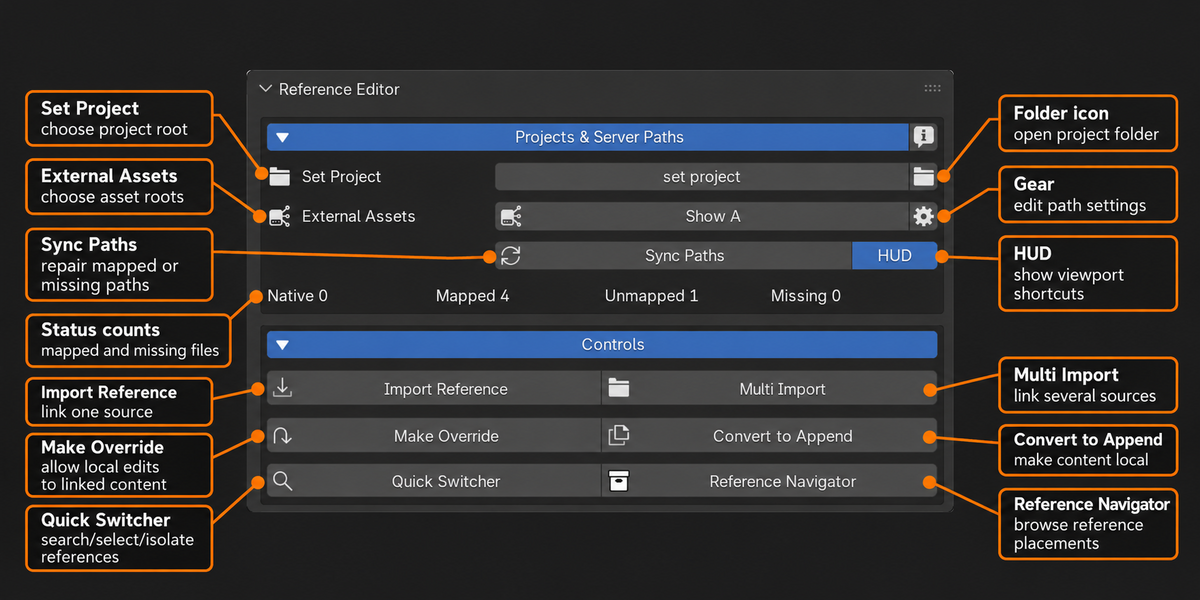
- Open Projects & Server Paths > Set Project > Create Set Project and choose the project root directory.
- The add-on creates its configured folders and a .reference_editor_project.json manifest, or reads an existing valid manifest.
- Import assets from the project or keep selected sources outside it with Use External.
- Save the working .blend after configuring the project and references.
Default structure
MyProject/ .reference_editor_project.json project/ working scenes and shots characters/ character sources environment/ environment sources props/ prop sources references/ reference storage thumbnails/ references/ managed reference images images/ sound/ render/ movies/ render layer/Folder names can be configured in the add-on preferences. Use safe relative folder names. References and thumbnails are required folder roles. Existing project folder mappings are retained when additional configured roles are introduced.
Click the current project name to open its folder in the operating system. Use its adjacent folder button to choose another root. If the original root is unavailable, the Missing project button opens Locate Project. Forget Project Folder removes the local mapping; it does not delete the project or source files.
Keep the manifest with the project
The manifest stores the project identity and relative folder map. Each workstation maps that identity to its local root directory. Keep this file when transferring the project; Locate Project checks the identity rather than accepting an unrelated folder with similar contents.
Validate the setup
Press F3 and run Project Validation. It reports the project root, manifest, References and Thumbnails folders, reference availability and managed thumbnail state. Use it after a move or before sharing the project.
Thumbnail cleanup scope
Clean Unused Thumbnails deletes managed images considered unused by scenes in the currently open .blend. It does not inspect other closed shot files. If several shots share the thumbnail directory, keep a backup and check those shots before confirming cleanup. Source .blend files are not deleted.
06. Configure shared External Assets
External Assets lets different workstations locate the same shared libraries through named roots. It is useful for assets kept outside the active project, including production libraries and mounted shared folders. It does not upload or synchronize files.
- Open the gear beside External Assets to access Reference Editor preferences.
- Add an External Asset Set, such as Show A. Each set has a stable key.
- Add a root with an alias such as CHARACTERS and set External Folder to the actual asset directory.
- Select the set in Projects & Server Paths and click Sync Paths.
- On another workstation, use the same set key and root alias, but enter that workstation's actual directory.
- Save the .blend after configuration so its recovery snapshot is included.
| Logical mapping | Workstation example |
|---|---|
| SHOW_A / CHARACTERS | Machine A: D:/StudioAssets/Characters |
| SHOW_A / CHARACTERS | Machine B: E:/Shared/Characters |
| Asset within the root | Hero/Hero.blend on both machines |
Root aliases use uppercase letters, digits and underscores. When multiple roots contain an asset, the most specific matching directory is used. Sources inside the active project are mapped to that project before external roots are considered.
Optional environment variables
Enter an environment-variable name such as STUDIO_CHARACTERS in the root settings. Its value should be a directory. An existing directory from that variable has priority; the valid External Folder field is the fallback. Configure the variable in the environment used to start Blender.
Persistence across saved scenes and updates
External Asset sets are local preferences. Saving a .blend also stores recovery information for the configured sets and roots. Reopening that scene can restore missing profiles and blank settings without replacing nonempty workstation-specific mappings. Existing nonempty paths are preserved even if unavailable, so verify the local directories. Use Blender's Save Preferences when automatic preference saving is disabled, and save the scene after changing roots.
Removing a set or root removes its configuration only. The files at that location are not deleted.
07. Understand and change file paths
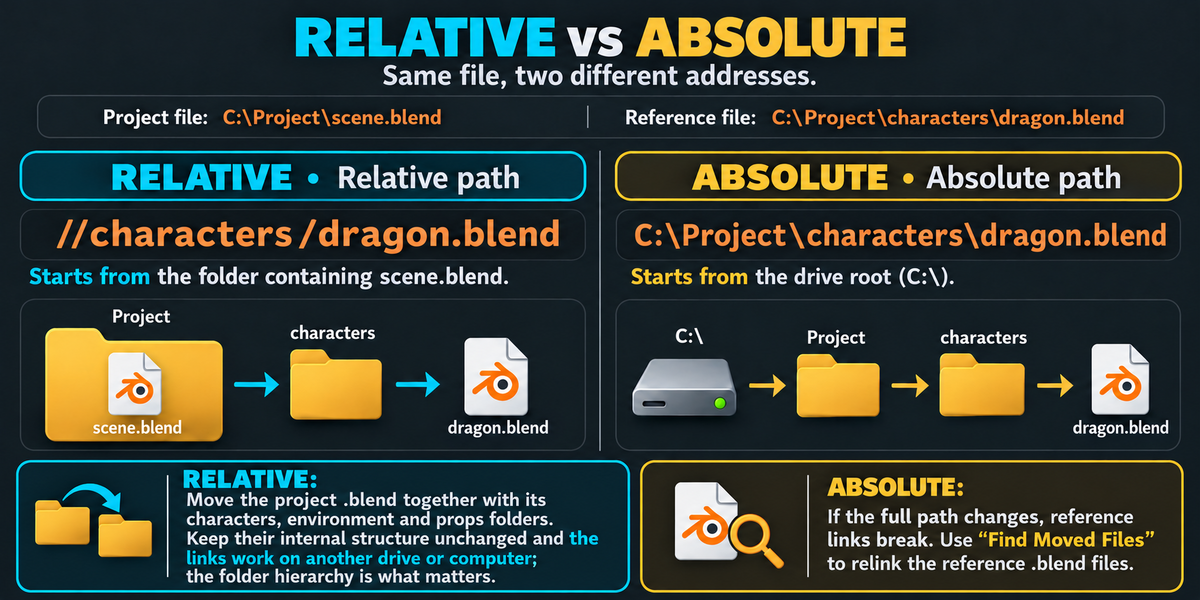
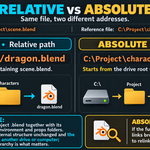
A relative or absolute path tells Blender where to find a source. Converting the path changes its saved address format; it does not move or duplicate the source file.
| Mode | Example | How it resolves |
|---|---|---|
| REL - Relative | //../characters/Hero.blend | Start at the directory containing the current working .blend, go up one folder, then into characters. |
| ABS - Absolute | E:/Show/characters/Hero.blend | Use this full drive and directory address. |
A concrete example
Working file: E:/Show/project/Shot.blendSource file: E:/Show/characters/Hero.blendRelative link: //../characters/Hero.blendMove the whole Show folder to D:/Shared/Show while preserving its internal structure. The relative link still reaches the same character from the moved Shot.blend. The absolute link still points to E:/Show/characters/Hero.blend; it needs repair if that location is no longer available.
RELATIVE: //characters/hero.blend follows the relationship between shot.blend and characters/hero.blend. Move the complete Project folder with that hierarchy intact. ABSOLUTE: C:/Assets/hero.blend points to an exact address; moving the source to D:/Assets/hero.blend requires path repair. Relative paths do not copy or package files.
Change one source or all direct sources
- Save the working .blend so it has a location.
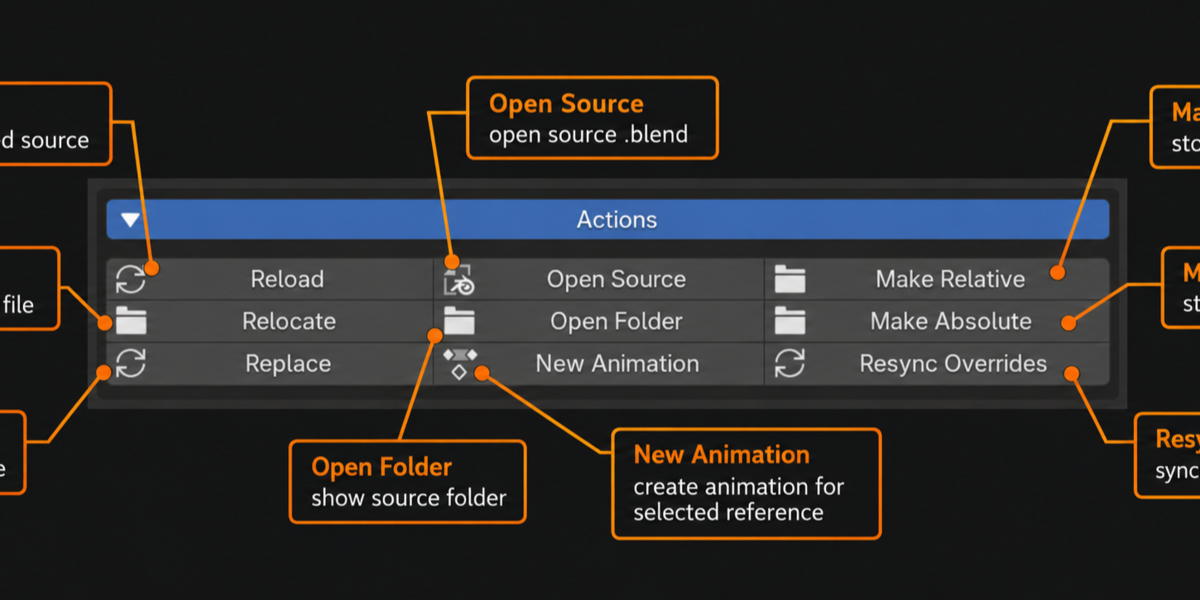
- Select the reference in List and choose Actions > Make Relative or Make Absolute.
- Check the REL / ABS prefix and saved path in List. Hover to see the complete resolved source address.
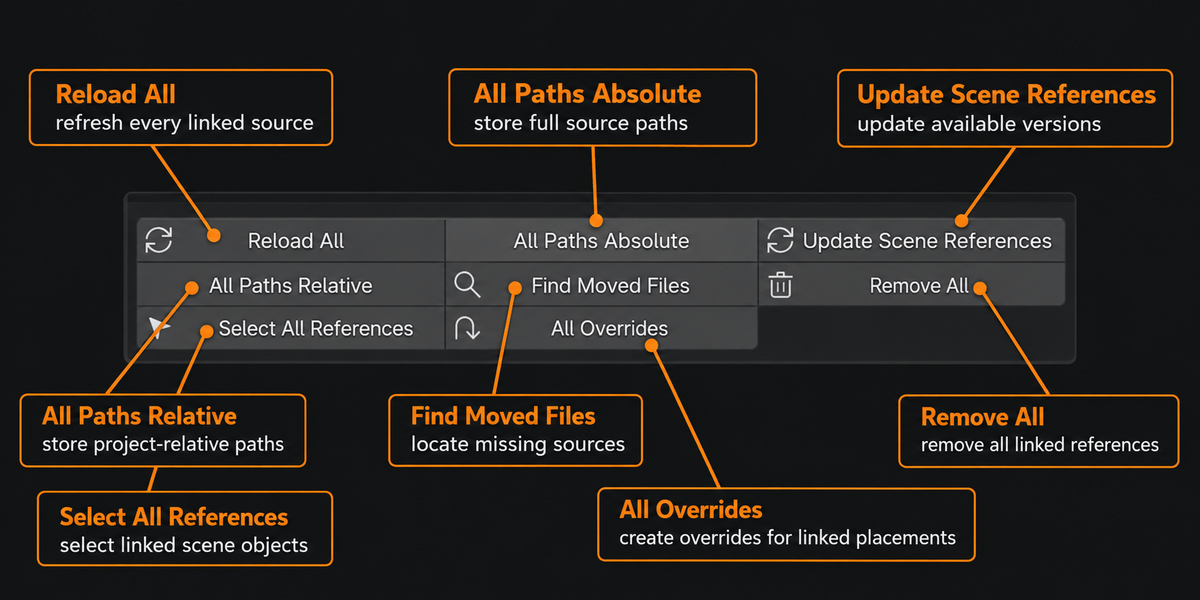
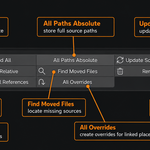
- For a batch conversion, use All Paths Relative or All Paths Absolute and confirm the operation.
- Review the report and save the working scene.
Duplicate placements of one library share its path. All Paths conversion applies to directly placed libraries; it does not rewrite every link inside nested source files. On Windows, paths on incompatible drives may remain absolute. The command reports conversions and fallbacks.
The relative base is the working file
Relative paths start from the folder containing the current .blend, not from the Set Project root. If the working file is at the project root, //characters/Hero.blend may be correct. If it is in project/, the example uses //../characters/Hero.blend.
Read the path counters
| Counter | Meaning |
|---|---|
| Native | An available source already uses a relative // library path. |
| Mapped | An available absolute source has a Project / External Assets mapping, or an unavailable stored address has an available mapped candidate. |
| Unmapped | An available absolute source has no recognized portable root mapping. |
| Missing | Neither the stored location nor a usable mapped location is available. |
These counters count unique directly placed source libraries, not every duplicate placement. Unmapped is a portability issue, not proof that the file is missing. An absolute source can still be repaired through Project or External Assets mappings.
What Sync Paths does
Sync Paths records portable mappings, repairs unavailable mapped libraries, recovers eligible missing previews and textures, and refreshes List. The List refresh control also performs this synchronization. Existing valid source locations and valid chosen images are preserved. It does not force Relative mode or move source .blend files and textures.
Automatic search uses exact filenames, ignoring case, and requires a unique match. A source-adjacent image with the same stem can recover a missing thumbnail even when the source is outside configured roots. Managed preview copies are the deliberate exception to the rule that synchronization does not copy source assets.
08. Import source files and assets
Prepare a source collection
- Put the objects required by the asset inside its importable collection hierarchy. Parenting an object to the rig does not automatically include that object in the linked collection.
- Use one top-level collection for an asset you want to import as one reference. Multiple eligible top-level roots can produce multiple placements.
- Keep rig widgets and other utility collections organized according to the rig workflow. Internal helper roots are filtered; do not rely on them as separate production references.
- Save the source before importing or reloading it. An unsaved source edit is not available to the working scene.
Import Reference
- Choose Controls > Import Reference.
- Select one or more .blend files in the file browser. Use Shift or Ctrl for multiple file selection.
- For files outside the active project, review the available keep-in-place or copy-into-project choice before confirming.
- Confirm the import and inspect the resulting rows. The operation links eligible collection roots and creates scene placements; it does not append every source datablock as independent local data.
Multi Import Folder
- Choose Controls > Multi Import and select the folder to scan.
- Review the .blend files found in that folder and its subfolders.
- Use the file checkboxes and All / None buttons to choose what will be imported.
- Click All Import to confirm the checked files, then inspect the imported reference rows and any reported skipped or failed sources.
Copying a .blend is not a full asset package
Copy Into Project copies the chosen source .blend. It does not recursively collect every linked dependency or external texture. Keep dependent files accessible, pack supported textures in the source where appropriate, and validate the transferred project.
Load an Object or Collection asset
Right-click a supported external Object or Collection in the Asset Browser. Under Asset Actions, choose Link, Link + Library Override, or Append (Local). Collections also offer Collection Instance. These commands execute directly. Append (Local) creates local data that is not tracked as an external Reference Editor reference. Local assets are outside this external loading workflow.
This integration is also the appropriate route for an Object asset when the source does not provide the collection-root structure used by Import Reference. Assets are placed at the cursor and selected by default. If an override cannot be created, the linked asset is retained and a warning reports the failure.
09. Read and use the reference list
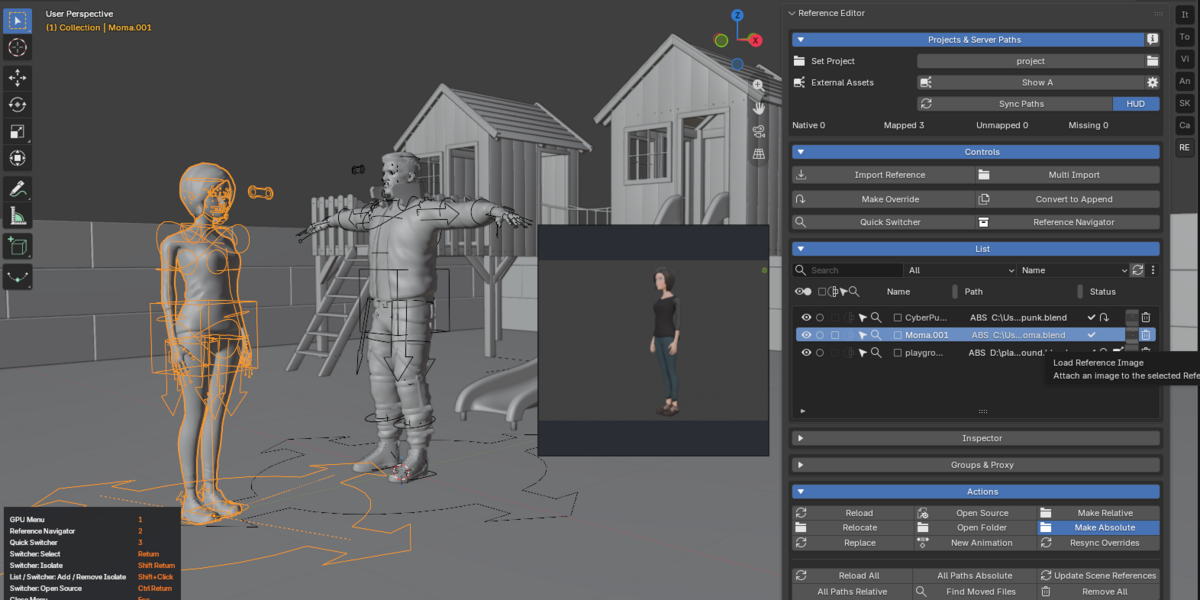
List is the central place to find a reference, select its visible scene placement, and inspect its source. The name is a display alias: editing it does not rename the source file, rig or object hierarchy.
| Control or field | Behavior |
|---|---|
| Eye | Archive or restore this placement. This visibility action also affects rendering; see Visibility and isolation. |
| Round isolation button | Solo the reference in this viewport. Shift-click adds or removes it from a multiple-reference isolate set. |
| Low-poly checkbox | Switch authored matching _low / _high geometry. Available when a compatible pair is detected. |
| Proxy icon | Toggle a generated proxy for a grouped placement. An active proxy is highlighted. |
| Select arrow and frame icon | Select visible objects belonging to the reference or frame the placement. Some controls are hidden in very narrow panels. |
| Batch checkbox | Mark references for supported batch actions. Drag across checkboxes while holding the mouse button to mark several. This is separate from viewport selection and isolation. |
| Name | Display name for this placement. A normal row click also selects its visible viewport object or rig when possible. |
| Path | Actual saved address, prefixed REL or ABS. Hover for the complete source location and an explanation of the path format. |
| Status area | Source / override / dependency / external state, image control, and Remove. Empty badge positions stay reserved. |
| Trash | Remove the checked placements after confirmation, or the clicked placement if none are checked. Source files on disk remain unchanged. |
Filter and sort
Search matches reference names and source information. The status menu offers All, Missing, Changed, Direct, Indirect, With Overrides and Without Overrides. The group filter narrows the list to one Reference Editor group. Quick Switcher and Reference Navigator use these same filters and order.
| Sort | Meaning |
|---|---|
| Name | Alphabetical order by the displayed reference name. |
| Path | Alphabetical order by the complete source path. |
| Status | Group rows by source state, then by name. |
| Linked Data Count | Sources with the most linked datablocks first. This counts objects, collections, meshes, materials, actions and other data, not polygons. |
Status meanings
| Indicator | Meaning and next step |
|---|---|
| OK | The source is available and no saved-file change has been detected. |
| CHANGED | The source file changed on disk. Use Reload to read its saved changes. |
| MISSING | The source path is unavailable. Check project location, local availability and path mappings. |
| OVR | The placement has a Library Override. Inspect override health before major source changes. |
| INDIRECT | The source is used through another linked .blend. Manage ownership through its parent reference. |
| EXTERNAL | The available source is outside Set Project and is being used in place. External does not mean missing. |
| UPDATE | An unambiguous newer numbered sibling source was found. Updating requires an explicit action. |
| Image warning | The assigned thumbnail is unavailable. This warning is separate from the .blend source state. |
Inspector
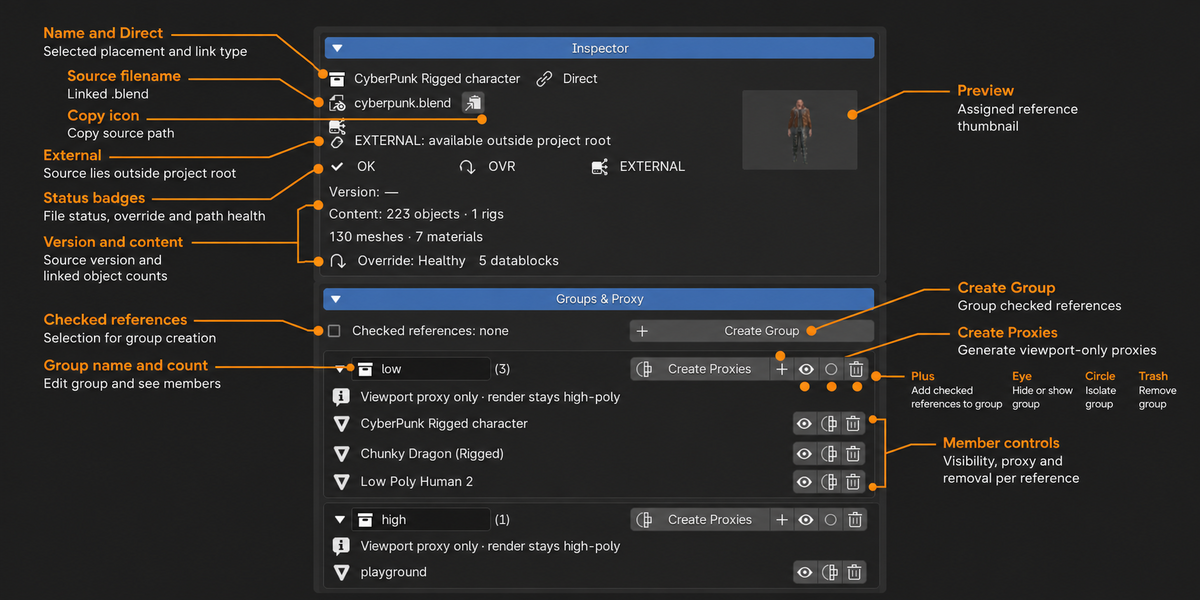
Expand Inspector for the selected reference name, Direct / Indirect classification, source filename, path mapping, status, detected version, content counts, override health and loaded image. Copy Source Path copies the resolved source address. The image at the right is a reference preview, not a material texture.
Remove a reference
- Check any references you want to remove together. Clear the checkboxes if you intend to remove only one row.
- Click the row trash icon and review the compact confirmation.
- Confirm removal. Other placements sharing that source remain when they are not part of the removal selection. Unused linked data may be cleaned up; the external .blend file is not deleted.
10. Edit linked assets with Library Overrides
A Library Override allows supported local changes to a linked asset while preserving its relationship to the source. This is the normal workflow for posing and animating a referenced character in a shot.
Make one placement editable
- Select the intended reference in List and confirm the same placement is selected in the viewport.
- Choose Controls > Make Override. The operator may use the active viewport object when one is available.
- Select the resulting armature, enter Pose Mode and test a rig control.
- Inspect the OVR state and override health in Inspector, then save the shot.
All Overrides creates overrides for eligible, nonarchived placements that do not already have them. Creating an override does not detach the asset from the library or make every possible source property freely editable.
Convert a placement to local data
- Restore the placement if it is archived and select it.
- Choose Controls > Convert to Append.
- Review the local result and save the working file.
Convert to Append realizes the selected collection placement as local objects and retains its placement transform. Other placements using the same library stay linked. The converted placement no longer receives source changes through Reload. Direct Object references are not supported by this conversion path; use the collection-based workflow.
Choose the relationship you need
Use an override when the source should remain authoritative and the shot needs local edits. Use local appended data when this placement should become independent of source reloads.
11. Reload, resync and change sources
Apply saved source edits
- Save the working shot before a significant source update.
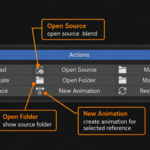
- Use Open Source to open the source in another Blender process. Edit and save the source .blend.
- Return to the shot, select the reference, and choose Actions > Reload.
- If animation-related data is detected, review the confirmation and its listed actions, NLA tracks, rigs and drivers.
- Inspect geometry, rig controls, animation and visibility at useful frames before saving the updated shot.
Reload reads saved changes from disk, reconciles supported hierarchy changes and resyncs eligible overrides. It also restores relevant placement visibility and refreshes proxies. Reload All processes scene references rather than only the visible List filter.
Reload affects the shared source
Several placements, including placements in other scenes, can share one library. Reload, Relocate, Replace and version updates operate on that source and can affect all of them. Isolation and low/high choices are separate placement settings.
Animation and pose preservation
Ordinary Reload attempts to retain supported local animation and local unkeyed pose changes while source-following channels can adopt updated source values. Blender override compatibility still matters: changed bone names, deleted data or redesigned rig structures can invalidate local work. Check the result; preservation is not a guarantee for arbitrary rig changes.
Resync Overrides
Actions > Resync Overrides reloads the shared source and performs a stronger override reconciliation. It can replace unanimated local pose transforms with source values across placements sharing that library. Rigs with a local Action or NLA tracks are excluded from that pose-reset step. Read the confirmation and save a backup before using it on posed characters.
Relocate an existing source
Use Relocate when the same asset moved. Select its new .blend location and choose the desired path option. The command reassigns the library location and reloads it; it does not move the file on disk. Use a mapped project root or Find Moved Files when many sources moved together.
Replace with a different source
Use Replace to point the shared library at a different compatible .blend. The replacement must contain the expected linked data names and a compatible structure. Replace is not an automatic rig retargeter or a name-matching conversion system for unrelated characters. Inspect every affected placement.
When new source objects do not appear
In the source file, check collection membership as well as parenting. Parenting an object to the rig does not put that object into the imported collection. Place the object in the appropriate source collection, save, then Reload. Use Resync Overrides when the override hierarchy needs reconciliation.
Automatic checks
Auto Check Source Files is on by default and checks every second. Auto Reload Changed References is off by default. Confirm Before Auto Reload is on; in this release it blocks automatic reloading rather than repeatedly opening a confirmation dialog. For animated scenes, prefer the explicit Reload workflow and inspect changes.
Enabling automatic reload requires Auto Check on, Auto Reload on, and Confirm Before Auto Reload off. Automatic reloading uses a more basic library reload path than the full manual workflow.
12. Start a new local animation
New Animation prepares an empty local Action for editable override objects in the selected reference. It does not generate motion or copy an existing performance.
- Make a Library Override for the intended rigged placement.
- Select the intended armature in the viewport and select its reference in List. Selecting the rig explicitly avoids ambiguity in assets with several armatures.
- Exit NLA Tweak Mode if it is active.
- Choose Actions > New Animation.
- Review the new action, named from the object with an _Animation suffix, then pose and insert keyframes.
- Inspect the NLA Editor if the previous animation should be used again.
The previous active action is preserved in a muted NLA track, and existing NLA tracks are muted so they do not mix into the new action unexpectedly. Mesh selections can be resolved to their rig; when nothing suitable is explicitly selected the operator may choose a likely rig within the reference.
The command can adjust keying settings to Add & Replace and disable Only Insert Available. It does not turn Auto Key on. Enable Auto Key yourself if desired, or insert keys explicitly. Test the new action before deleting or unmuting older tracks.
13. Navigate with the GPU tools
Place the pointer over a 3D Viewport when using the default number keys. These shortcuts can be changed in the add-on preferences. A reference must be available for the reference menus to open.
| Shortcut | Action |
|---|---|
| 1 | Open the GPU quick-action menu for the current reference. |
| 2 | Open Reference Navigator. |
| 3 | Open Quick Switcher. |
| Enter in Switcher | Select the active result and close the menu. |
| Shift + Enter in Switcher | Add or remove the active result from isolation; keep the menu open. |
| Ctrl + Enter in Switcher | Open the source file and close the menu. |
| Shift + click in Switcher | Add or remove a row or its round button from isolation. |
| Shift + click a List circle | Add or remove that reference from the same viewport isolate set. |
| Esc or right-click | Close the active GPU menu. |
Quick Switcher
- Press 3 or choose Controls > Quick Switcher.
- Type to narrow the results. The sidebar search, status and group filters are already applied.
- Use Up / Down to move the active result. A row click selects it; a double-click frames it.
- Use Shift-click or Shift + Enter to build an isolate set. Active circles and highlighted rows show the current members.
- Click All to restore the viewport state before isolation. Press Esc to close the menu without clearing the isolate set.
Reference Navigator
Press 2 or choose Controls > Reference Navigator for cards with names, assigned images and status/version information. Click to select, double-click to frame, scroll to browse, and use arrow keys to move between cards. Enter selects and closes. Navigator cards follow the List filters; Shift multi-isolation is provided by the List circles and Quick Switcher rather than the Navigator cards.
GPU quick-action menu
Press 1 to access Open Source, Reload, Isolate, Relocate, Remove, Override, Hide / Show and Groups & Proxy. These commands use the current reference and retain their normal confirmation dialogs where applicable. The Hide / Show submenu lists references archived by Reference Editor so you can restore one by name.
HUD and popup position
Toggle HUD beside Sync Paths to show shortcut guidance above the bottom-left reference status strip. Labels are white and keys are orange. Remapped keys are reflected in the HUD; Enter may be displayed as Return. In Preferences, Switcher / Navigator Position selects Viewport Center or Mouse Position. Both the position and HUD toggle are saved automatically for the next Blender session.
14. Control visibility and isolation
Choose the control that matches your intention. Archive, viewport visibility and isolation have different effects on the final render.
| Control | Viewport effect | Render effect |
|---|---|---|
| List eye or GPU Hide / Show | Archives or restores the placement. | Archived placement is hidden from rendering too. |
| Group header eye | Archives or restores group members. | Archived members are hidden from rendering too. |
| Group member eye | Shows or hides that member's viewport representation. | Preserves its render visibility. |
| Round isolate button | Temporarily shows chosen references in the current viewport. | Does not change final render inclusion. |
| Low-poly or generated proxy | Changes the visible level or representation. | Original/high geometry remains the render source. |
Isolate several references
- Click a round isolation button in List or Quick Switcher to start with one reference.
- Hold Shift and click another List circle or Switcher row/circle to add it.
- Shift-click an included reference to remove it from the isolate set.
- Click All, or remove the last member, to restore the previous viewport state.
All is at the top-right of Quick Switcher. The circle beside the eye in the List column header provides the same restore action. Isolation belongs to the viewport where it was invoked. Other viewport areas and windows keep their own view. If you were already using Blender Local View, ending isolation restores that previous membership. Manually hidden or archived references are not all made visible by All; it restores the pre-isolation state.
Restore an archived reference by name
- Press 1 over the viewport and choose Hide / Show.
- Select a named entry in the hidden-reference list to restore it. Scroll if needed.
- Use Hide Selected to archive the current reference when appropriate.
Hide / Show is not a universal unhide browser
It lists references archived by this add-on. For objects hidden with Blender H, collection exclusion or other Blender visibility controls, use the corresponding Blender controls.
15. Organize groups and create proxies
Create and populate a group
- Open Groups & Proxy and click Create Group. Enter a unique name.
- Mark the desired Direct reference rows with the List batch checkboxes.
- Click the + beside the intended group name. If no rows are checked, the active Direct reference is used.
- Expand the group to see its members and per-member controls.
Groups organize placements in the current scene; they do not restructure linked source collections. A placement belongs to one Reference Editor group at a time. Adding it to another group changes its assignment.
| Group control | Behavior |
|---|---|
| Create Proxies | Build or enable simplified viewport proxies. When every member already has its proxy enabled, this acts as an off toggle. |
| Header + | Add the checked references, or the active reference, to this group. |
| Header eye | Archive or restore the group. This affects render inclusion. |
| Header circle | Isolate the group in the current viewport. |
| Header trash | Remove the group after confirmation; its source references remain in the scene. |
| Member eye | Show or hide the member in the viewport while preserving render visibility. |
| Member proxy icon | Switch that member between proxy and original representation. |
| Member trash | Remove group membership and its generated proxy, not the reference itself. |
What Create Proxies produces
Generated proxies approximate renderable mesh geometry with convex hulls. Disconnected mesh islands are treated separately where possible, which reduces unwanted connections between unrelated parts. For highly fragmented source meshes, the largest 96 islands per mesh are considered. Sources without suitable evaluated mesh faces cannot create this proxy.
The generated representation is for viewport layout, not production retopology or a guaranteed silhouette match. Convex hulls fill concavities and remove detail. Proxy objects are excluded from the render; the original source remains the render geometry.
Performance expectations
A proxy reduces displayed detail but may still read evaluated source geometry and rig results. It does not guarantee zero source evaluation, lower memory use or a particular speedup. Test it on a representative shot. For deliberate deformation quality and topology, use authored _low / _high geometry.
Rebuild or remove a generated proxy
Toggle the member proxy off and on to rebuild it after a relevant source change. The group panel has no separate Refresh button. Removing a member from its group or removing the group also removes its generated proxy and restores the original representation.
16. Prepare authored low and high geometry
Toggle Low Poly uses geometry levels that you prepare in the source .blend. It is separate from Create Proxies. A matching pair must share the same base name and end with _low and _high. Matching is case-insensitive and can use mesh object names, mesh datablock names or collection pairs within the imported hierarchy.
Recommended rigged character structure
Character importable root collection Rig one shared armature Body_high high-detail mesh Body_low lightweight mesh Eyes_high optional additional pair Eyes_low Shared accessories content not part of an LOD pair- Create both geometry levels in the character source. Bind them to the same rig, with compatible position and deformation.
- Name each pair consistently, such as Body_low and Body_high. Keep both inside the imported root collection.
- Save the source and import or Reload it in the shot.
- Use the List low-poly checkbox to switch the visible level. A valid pair makes the control available.
- For local posing and animation, create a Library Override for the intended placement and use the shared rig.
- Check the viewport and a test render. The viewport displays the chosen level while rendering uses _high.
Use one rig for one character
Two independently rigged copies are not an automatic LOD pair. Switching geometry does not retarget animation or copy a pose between unrelated rigs. Use one shared armature with low and high meshes following that armature.
Two placements of the same source can keep different low/high viewport choices. Unpaired geometry remains shared asset content. High-detail data remains available for rendering, so this is viewport detail control rather than unloading the high-resolution library from memory.
When the low-poly control is unavailable
- Confirm both suffixes exist and occur at the end of the source object, mesh data or collection names.
- Confirm the base names match and both levels are inside the referenced root.
- Save and Reload the source after adding the pairs.
- Use the Direct placement, not an Indirect dependency-only row.
17. Assign and recover reference images
Reference images help identify assets in List, Inspector and Reference Navigator. They are per-placement previews and do not change materials or assign textures to the model. Set Project is required for managed thumbnails.
Load an image manually
- Set the active project and click the image button at the right of a List row.
- Choose a supported image such as PNG, JPG/JPEG, WebP, BMP, TGA or TIF/TIFF.
- The selected image becomes the active thumbnail. Hover the image button for about half a second to open the 300 by 300 preview.
- Use Load Reference Image again to replace it later. An invalid file leaves the existing assignment intact.
Find an image automatically
characters/ dragon.blend dragon.pngPlace an image with the same stem beside the source .blend, as in the example. Import, Sync Paths, Refresh or reopening a saved project can discover it. Matching ignores case. If several supported formats match, the priority is PNG, JPG, JPEG, WebP, TIF, TIFF, TGA, then BMP.
A valid current image, including a later manual choice, stays active. If its managed file is deleted or missing, Sync Paths can recover from the same-name image beside the actual source, even outside configured External Asset roots. A differently named image can be assigned with Load Reference Image or found using Find Moved Files.
Editing or replacing the image beside the source does not continuously synchronize an existing valid managed copy. Load Reference Image again to update that thumbnail; Sync Paths preserves its current valid assignment.
Remove an assignment intentionally
Right-click the row's image button and choose Remove Image. This leaves a deliberate clear choice so automatic discovery does not immediately put the image back. Use Load Reference Image when you want an image on that row again.
Where images are stored
Images are copied into the active project's configured thumbnails/references folder with their original filenames, extensions and file contents. Identical same-name images can reuse a copy. Different images with the same filename use numbered subfolders, for example Portrait (2)/Portrait.png, instead of overwriting another reference's image. Runtime display images are limited to 512 pixels on the longest side; the stored original is not resized.
Do not confuse thumbnails and textures
Repairing a reference thumbnail does not repair material textures. Use Sync Paths or Find Moved Files for missing image dependencies, and inspect the source materials separately.
18. Use numbered source versions
Reference Editor can detect newer numbered source files in the same directory. This is separate from detecting a saved change to the same file. Keep compatible linked names and rig structures across versions.
characters/ dragon.blend base dragon_v001.blend version 1 dragon_v002.blend version 2Supported families include suffixes such as _v001, -v002, _003, -004 and .005 before .blend. Matching ignores case and compares version numbers rather than file modification times. Blender backup files such as dragon.blend1 are not numbered .blend versions for this feature.
Update one source
- Keep the newer compatible version beside the current source.
- Select the reference and inspect the version information and UPDATE state.
- Choose the available update action and review the current and target source.
- Confirm, then inspect all placements that share the source and save the shot.
Update several sources
Update Scene References lists available candidates for directly used sources in the current scene. Review the checked candidates before confirming. The operation processes each shared library once, skips missing or ambiguous candidates, and uses the source reload pipeline. It preserves relative path format where possible.
Ambiguous versions are not guessed
Do not store two different files for the same numeric version in one family, such as dragon_v002.blend and dragon-002.blend. Keep the intended version family unambiguous. Save a backup before a version update rather than relying on Undo as the recovery plan.
19. Preferences and saved settings
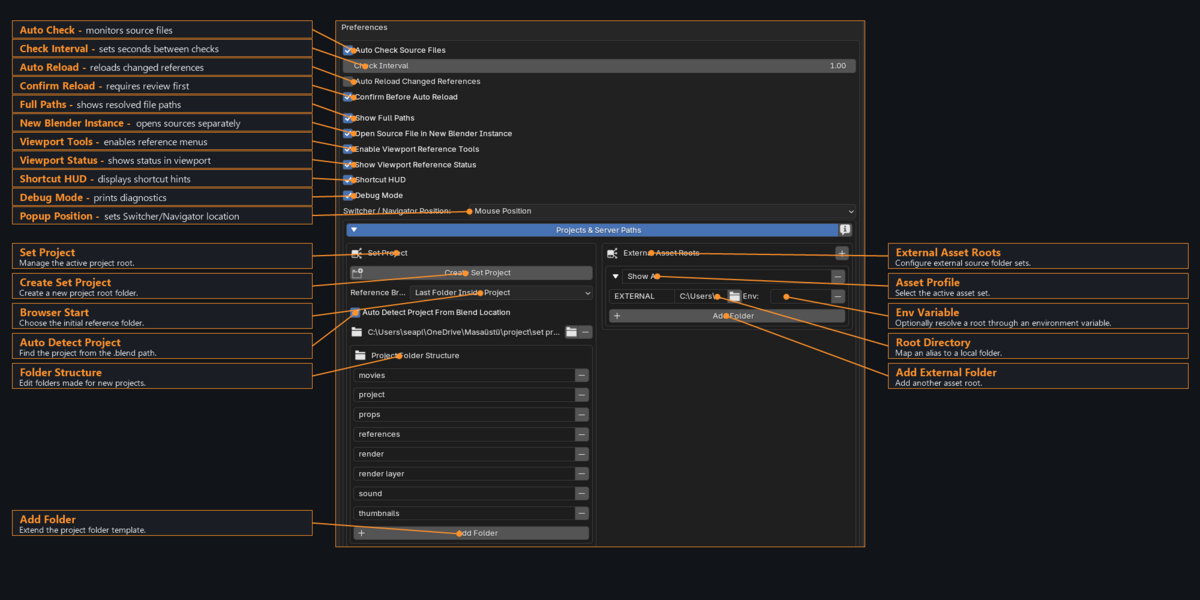
Open Edit > Preferences > Add-ons and expand Reference Editor. The gear beside External Assets also opens its settings. Use Blender's preference saving controls for normal configuration changes when Auto-Save Preferences is disabled.
| Setting | Default / purpose |
|---|---|
| Auto Check Source Files | On; default interval 1 second. Detects source changes on disk. |
| Auto Reload Changed References | Off. Read Reload before enabling it in an animated workflow. |
| Confirm Before Auto Reload | On. Prevents automatic reload while enabled. |
| Enable Viewport Reference Tools | On. Enables the GPU tools and their shortcuts. |
| Show Viewport Reference Status | On. Shows the bottom reference status strip. |
| Show Shortcut HUD | Off. Shows shortcut hints above the status strip. Also available beside Sync Paths. |
| Switcher / Navigator Position | Center by default; choose center or mouse placement. |
| Reference Browser Start | Last Folder Inside Project by default; otherwise uses the project references directory. |
| Auto Detect Project From Blend Location | On. Finds a matching project manifest in parent directories. |
| Project folder names and External Assets | Configure the project layout and workstation-specific shared asset roots. |
Shortcut assignments can be adjusted in the add-on preferences. Test them with the pointer over a 3D Viewport. Conflicting Blender or third-party keymaps can affect which command receives a key.
Where settings are kept
| Setting or data | How to preserve it |
|---|---|
| References, groups, aliases, images and scene state | Save the working .blend. |
| Project identity and folder map | Keep .reference_editor_project.json with the project. |
| External root configuration | Save preferences and the scene recovery snapshot. Configure local folders on each machine. |
| HUD and popup location | Saved automatically when changed. |
| Edits to a source asset | Save the source .blend, then Reload in the working scene. |
20. Move a project and repair missing files
Transfer a complete project folder
- Save the source files and working shot. Keep a backup of the project before moving it.
- Move the working .blend, character/environment/prop folders, thumbnails and project manifest together. Preserve their relative hierarchy.
- Open the working file at the new location. Automatic detection looks for a matching manifest in parent folders.
- If the project is shown as Missing, click it and use Locate Project to select the moved root containing the original manifest.
- Configure any External Asset roots for the destination workstation. Assets outside the moved project were not included automatically.
- Click Sync Paths, inspect Missing and Unmapped counts, and check a test render for texture availability.
- Save the repaired working .blend.
Find Moved Files: search a directory
- Choose Actions > Find Moved Files, or use the List three-dot menu.
- Select the directory containing the moved assets. Its subfolders are searched.
- Review the report. A missing source is repaired automatically only when its exact filename has one case-insensitive match.
- For duplicate filenames, search a narrower directory or choose the desired file explicitly.
- Use Make Relative afterwards if desired; newly assigned source paths from this recovery command are absolute.
Recover a renamed source or image
Select the missing reference and use Find Moved Files to select its actual .blend directly, even if the filename changed. If only one source is missing, the target can be inferred; otherwise the selected missing row matters. A supported image can also be chosen to repair a missing thumbnail or image texture. Use Load Reference Image for a deliberate replacement of a valid preview.
Folder search matches names, not visual content or asset identity. It does not move the chosen source or texture. For a single source whose new address you already know, Relocate provides the direct path-reassignment workflow.
Copying one .blend is not collecting dependencies
Copy Into Project and Copy External References into Project copy selected .blend files only. Nested linked libraries and unpacked textures may still live elsewhere. Keep their paths available, repair them, or prepare the complete asset dependency structure before transferring a project.
21. Troubleshooting
A source is available but marked Unmapped or External
The source can work locally without belonging to a configured root. Add or select the appropriate External Asset root and run Sync Paths if it should be portable. External describes its location outside the project; it is not a missing-file error.
External Assets seems empty after an update
Open the last saved working .blend so its recovery data can restore missing settings. Verify the selected set and each local root. Nonempty machine-specific mappings are not overwritten, including unavailable paths. Save the scene and preferences after configuring new roots.
Make Relative leaves a source as ABS
Save the working .blend first. Check that the working file and source can form a relative path on the current operating system and drive layout. Read the operator report for a cross-drive fallback. Relative conversion changes the shared library, so duplicate rows can update together.
Indirect is empty, or an Indirect row cannot be selected
The nested dependency must actually be used and loaded through the placed source. Save and Reload the parent after adding the link. A parent remains Direct even when it uses Indirect dependencies. A material-only dependency has no standalone scene placement to select. Dependency rows with real scene object users can support selection or framing, but placement-only actions remain unavailable.
The thumbnail is missing or still looks old
Check the active project and the assigned image. A valid manual image is intentionally retained even if another same-name preview appears beside the source. To replace it, use Load Reference Image. If the managed image is missing, place a same-stem supported image beside the actual source and run Sync Paths. An intentionally removed assignment stays clear until you load an image again.
Several characters move or change together
Confirm you are editing separate placements and using the intended override rig. Shared source changes, paths and reloads affect all copies by design. Viewport low/high choices are per placement. For authored LOD, one rig should drive both geometry levels; two independent rigs do not share a pose automatically.
A reference is difficult to select
Try the List selection arrow, then inspect whether the reference is archived, hidden in the viewport, excluded by a collection, or outside the current isolate set. A linked collection instance is selected as a placement; create a Library Override to edit its rig. Indirect material libraries do not supply selectable placement objects.
A generated proxy looks stretched or too coarse
Convex hulls simplify geometry and fill concavities. Inspect source transforms and mesh organization, then toggle the proxy off and on after corrections. Disconnected islands are handled separately within the documented limit. For exact deformation and silhouette control, prepare authored _low / _high meshes instead.
The high mesh or rig behaves incorrectly after switching LOD
Check matching names, collection membership and a single shared armature. Both levels must follow the same intended pose. Save and Reload the corrected source. Test a render separately; the viewport choice is not the final render level.
Isolation does not restore every hidden object
All restores the viewport state from before Reference Editor isolation. It does not clear unrelated Blender hide flags, collection exclusions or archived references. Use the relevant eye control or the GPU Hide / Show list for add-on-archived placements.
New source objects are absent after Reload
Check that new objects belong to the imported source collection. Parenting alone is insufficient. Save the source, Reload, and consider Resync Overrides for hierarchy reconciliation after saving the shot.
A Rigify rig_ui.py error mentions rigify_ui_row
That traceback comes from the generated rig interface accessing a property unavailable in the current session. Check that the required rigging add-on is installed and enabled and that the rig and generated UI are compatible with the Blender version. Reference Editor does not automatically repair third-party rig scripts. Test a copy of the source and report the complete traceback if reference operations trigger the issue.
Installation or an operation raises another Python error
Record the complete traceback, Blender version, Reference Editor version and exact action. Reproduce with a small saved test scene where possible. Check for duplicate installations and restart Blender after an update. Keep the original scene intact while testing fixes.
22. Frequently asked questions and support
Is a texture in a separate folder an Indirect reference?
No. Direct and Indirect describe .blend library relationships. Packed images, a textures folder, or a folder outside the project do not by themselves change that classification.
Does a Direct character become Indirect when it links a material?
No. The character file that the shot links stays Direct. A separate material .blend loaded through that character is Indirect in the shot. The dependency must be used by the imported data to be loaded and listed.
Can one character placement be low and another high?
Yes, compatible authored LOD is controlled per placement. Their common source filepath and source updates remain shared.
Does deleting a reference delete the source asset?
No. Remove deletes selected scene placements and may clean up unused linked data. The external .blend file remains on disk. Group-member removal only changes group membership and its proxy.
Does a proxy guarantee that the original rig stops evaluating?
No. Generated proxies can still depend on evaluated source geometry and rig results. Measure the effect in your scene; use deliberately prepared low geometry when you need predictable topology and deformation.
Will changing Set Project copy everything into it?
No. Set Project establishes organization and mapping. Use the explicit copy commands for selected .blend sources, and handle their nested libraries and textures separately.
Can I move a relative-path project to another drive?
Yes, when the working file and its referenced assets move together with the same relative folder structure. Absolute paths continue to use their original full addresses; repair them with configured mappings and Sync Paths or Find Moved Files if those locations change.
Why does the number of rows differ from the path counters?
Rows represent placements and loaded dependencies. Path counters summarize unique direct source libraries, so several placements of one source can contribute one library to a counter.
Requesting support
Use the seller contact or support channel on the Reference Editor product page on Superhive. Include the details below so the issue can be reproduced.
- Reference Editor version and exact Blender version, plus the operating system.
- The action performed, expected result, actual result, and whether the issue persists after reopening the saved scene.
- The complete Python traceback, if present, and a screenshot showing the relevant List / Inspector state.
- Whether the asset is a collection instance, override, appended local object or Indirect dependency.
- For path issues: the working-file location, source location and Project / External Asset mapping, with private directory names removed if necessary.
- A small reproducible .blend and required dependencies when you have permission to share them. Avoid sending confidential production assets.
Guide version: Reference Editor 1.0.36. Prepared 24 October 2026. UI wording can vary slightly with Blender versions and translations; the control names in this guide use the English interface.
Have questions about this product?
Login to message
| Blender Extension Compatible | Yes |
| Published | 1 day ago |
| Blender Version | 4.5 - 5.2 |
| Extension Type | Add-on |
| Render Engine Used | Blender-Internal |
| License | GPL |
Discover more products like this
`Library Overrides Blender` `non-destructive animation Blender` `Blender Reference Editor` `Blender asset management` `Blender linking tutorial` `Blender animation pipeline` blender 5.0 `Blender proxy system` `Blender production tools` `Blender Maya workflow` `Blender addon showcase` Blender 4.5 LTS