ReferenceMesh
 GPolygon Design


ReferenceMesh v1.1 —User Manual & Documentation
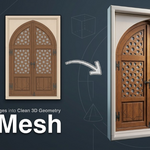
Turn Reference Images into Clean 3D Geometry
==============================================================================
TABLE OF CONTENTS
==============================================================================
1. Overview & System Requirements
2. Installation Guide (Blender 4.2+, 4.5+, 5.0+)
3. Interface Overview
4. Step-by-Step Workflow
• Step 1: Loading Your Reference
• Step 2: Selecting & Refining Shapes (Wand, Pen, Box, Knife)
• Step 3: Choosing Action Modes (Cut, New Face, Remove)
• Step 4: 2.5D Layer Studio (Extrude, Bevel, Roughness, Side Colors)
• Step 5: Manual Viewport Edits & Sync
• Step 6: Finalize & Game Engine Export
5. Best Practices & Pro Tips
6. Troubleshooting & FAQ
7. Support & Contact
==============================================================================
1. OVERVIEW & SYSTEM REQUIREMENTS
==============================================================================
ReferenceMesh is a professional Blender add-on built for environment artists,
game developers, and archviz modelers. It lets you select shapes directly from
reference photos and convert them into clean, manifold 3D geometry without
manual curve tracing or AI hallucination.
COMPATIBILITY:
• Blender: 4.2 LTS, 4.5 LTS, 5.0, and 5.1+
• Operating Systems: Windows, macOS, Linux
• Python Dependencies: ZERO mandatory external libraries.
ReferenceMesh runs 100% out of the box using Blender's built-in NumPy.
==============================================================================
2. INSTALLATION GUIDE
==============================================================================
ReferenceMesh is packaged using the modern Blender Extension system.
INSTALLATION STEPS:
1. Open Blender.
2. Go to: Edit → Preferences → Add-ons (or Get Extensions).
3. In the top-right corner, click the dropdown arrow next to the filter search
and select: "Install from Disk..."
4. Browse to and select: reference_mesh_v1.1.zip
5. Click "Install from Disk".
6. In the search box, search for "ReferenceMesh" and ensure the checkbox is ENABLED.
7. Close the Preferences window.
HOW TO ACCESS THE PANEL:
In the 3D Viewport, press the 'N' key to open the Sidebar.
Click on the "ReferenceMesh" tab on the right side.
==============================================================================
3. INTERFACE OVERVIEW
==============================================================================
The sidebar is structured into 4 sequential production stages:
[ 1. Reference Image ]
• Import Reference Image: Loads your reference photo (JPG, PNG, WebP, etc.).
[ 2. Cut & Tools ]
• Action Mode Selector: Cut (Slice) | New Face | Remove.
• 4 Cutting Tools: Magic Wand, Magnetic Pen, Smart Box, Knife (K).
• Refinement Sliders: Expand/Contract (px), Wand Sensitivity, Curve Smoothing.
[ 3. Layers ]
• Create Layer from 3D Selection: Converts selected faces in Edit Mode into layers.
• Layer List: Visual stack with visibility toggles, action icons, and depths.
• Active Layer Controls: Name, Extrude, Bevel, Roughness, and Side Color.
• Action Buttons: Delete layer, Sync to 3D View, Reset All.
[ 4. Finalize & Export ]
• Single Material Slot (Checkbox): Merges all colors and textures into 1 draw call.
• Triangulate for Game Engines (Checkbox): Converts planar N-gons into clean game-ready triangles.
• Finalize & Prepare for Export: Bakes geometry, cleans slivers, and builds UVs.
==============================================================================
4. STEP-BY-STEP WORKFLOW
==============================================================================
--------------------------------------------------------------------------------
STEP 1: LOADING YOUR REFERENCE
--------------------------------------------------------------------------------
You can start from either a reference photo:
Reference Image:
1. Click "Import Reference Image".
2. Select your photo. ReferenceMesh automatically creates an aspect-ratio-accurate
canvas mesh in your 3D Viewport with material preview shading enabled.
3. If your image is a transparent PNG, click "Auto-Cut Transparent BG" to
instantly remove the surrounding transparent area.
--------------------------------------------------------------------------------
STEP 2: SELECTING & REFINING SHAPES
--------------------------------------------------------------------------------
ReferenceMesh offers 4 dedicated tools for different geometric situations:
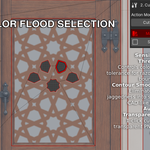
1. MAGIC WAND:
• Best for: Areas with distinct colors (stained glass, painted panels, tiles).
• How to use: Click on the tool, then click anywhere on your reference image.
• Refinement:
- Wand Sensitivity: Adjust threshold (lower = strict match, higher = broad).
- Expand / Contract: Shrink or expand selection margins by pixel radius.
- Curve Smoothing: Douglas-Peucker tolerance for clean vector contours.
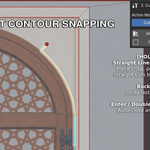
2. MAGNETIC PEN:
• Best for: Complex architectural carvings, baroque filigree, and ornate curves.
• How to use: Click to place anchor points along high-contrast lines.
The pen snaps intelligently to gradient boundaries. Press Enter to confirm.
3. SMART BOX:
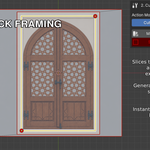
• Best for: Windows, doors, rectangular stone blocks, and framing.
• How to use: Click corner 1, then click corner 2. Press Enter to cut.
4. INTERACTIVE KNIFE (K):
• Best for: Custom multi-point polygons or irregular architectural sections.
• How to use: Click freely across points. Press Enter or Space to complete.
--------------------------------------------------------------------------------
STEP 3: CHOOSING ACTION MODES
--------------------------------------------------------------------------------
Before confirming a cut, select your intended Action Mode:
• CUT (Slice — Default):
Slices the active surface into a separate, independent layer while keeping it
100% coplanar and flush with the facade. Perfect for windows, glass panels,
or painting specific areas with different roughness.
• NEW FACE:
Creates an independent geometry layer elevated slightly above the reference,
ready for immediate relief modeling.
• REMOVE:
Punches an open hole through the mesh (e.g. window openings or archway cutouts).
If you subsequently give it an Extrude value, it carves a recessed basin/well.
--------------------------------------------------------------------------------
STEP 4: 2.5D LAYER STUDIO (EXTRUDE, BEVEL, ROUGHNESS, SIDE COLORS)
--------------------------------------------------------------------------------
Once a cut is made, it is selected as the Active Layer in Section 3:
1. EXTRUDE SLIDER:
• Positive (+) values: Emboss / Raise geometry into high relief.
• Negative (-) values: Inset / Carve geometry into the surface.
• Dragging is real-time (60 FPS) and non-destructive.
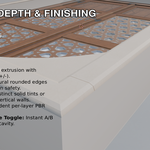
2. BEVEL SLIDER:
• Applies production-grade rounded edges to both the top perimeter and base.
• Eliminates razor-sharp CG edges and catches realistic specular highlights.
3. ROUGHNESS SLIDER (PBR Surface Gloss):
• Set surface roughness per layer:
- 0.00 to 0.05: Polished glass, mirrors, shiny tiles.
- 0.50: Standard default reference material.
- 0.85 to 1.00: Rough stone, matte plaster, weathered wood.
• Works on flush Cuts (depth = 0.0) without elevating geometry!
• Preserved during Finalize and export.
4. SIDE COLOR:
• When Extrude is active, toggle "Side Color" to assign a solid palette
color to vertical extruded side walls while keeping the reference photo
on the top face.
5. SMART HIERARCHY & NESTING:
• If you cut a child layer inside a parent (e.g., a rosette inside a door),
moving the parent's Extrude slider automatically elevates the child layer!
--------------------------------------------------------------------------------
STEP 5: MANUAL VIEWPORT EDITS & SYNC
--------------------------------------------------------------------------------
You are never locked into slider values:
1. Tab into Edit Mode.
2. Select any cut face and move it freely using Blender's G+Z keys.
3. Tab back to Object Mode and click "Sync" in Section 3.
4. ReferenceMesh reads the new physical heights from the geometry and updates
the layer properties automatically.
--------------------------------------------------------------------------------
STEP 6: FINALIZE & GAME ENGINE EXPORT
--------------------------------------------------------------------------------
When you are satisfied with your model, scroll to Section 4:
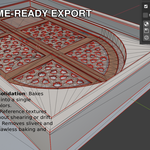
1. MATERIAL CONSOLIDATION:
• Leave "Merge into 1 Single Slot" unchecked for a 2-Slot setup:
Slot 0 = Reference Texture, Slot 1 = Master Side Material.
• Check "Merge into 1 Single Slot" for a 1-Draw-Call Unified PBR Shader.
Side colors, top textures, and roughness values are baked into vertex attributes!
2. FINALIZE GEOMETRY:
• Click "Finalize & Prepare for Export".
• ReferenceMesh cleans sliver faces, generates unfolded non-stretched UVs,
locks normals, and validates topology.
3. TRIANGULATE FOR GAME ENGINES:
• Click "Triangulate for Game Engines" to convert planar N-gons into clean,
optimal triangles ready for Unreal Engine 5, Unity, Godot, or 3D printing.
==============================================================================
5. BEST PRACTICES & PRO TIPS
==============================================================================
• Start from Large to Small:
Cut major architectural boundaries (outer frames, arches) first, then cut
inner panels, ornaments, and window panes inside them.
• Window Glass Workflow:
Cut window panes using Smart Box or Knife with Action Mode set to 'Cut'.
Leave Extrude at 0.00 m and set Roughness to 0.05. You get instant glossy
reflections on glass panes while walls stay matte.
• Edge Softening:
Always give a slight Bevel (e.g. 1mm - 3mm) to exterior moldings to ensure
sunlight catches edges convincingly in Cycles, Eevee, or Lumen.
• Single-Slot Draw Call Savings:
For mobile or VR games, enable "Merge into 1 Single Slot" before Finalizing
to ensure your entire building uses a single material draw call.
==============================================================================
6. SUPPORT & CONTACT
==============================================================================
Need help, found a bug, or want to suggest a feature? We are here for you!
📩 Email: [email protected]
Updates & Downloads: Blender Market & Superhive
==============================================================================
Have questions about this product?
Login to message
| Blender Extension Compatible | Yes |
| Sales | 10+ |
| Dev Fund Contributor | |
| Published | about 2 months ago |
| Blender Version | 4.2 - 5.2 |
| Extension Type | Add-on |
| Render Engine Used | Cycles, Eevee |
| License | GPL |
Discover more products like this
blender modeling Game asset architectural environment decoration extrusion Image to Mesh contour reference 2.5d Mesh Generation