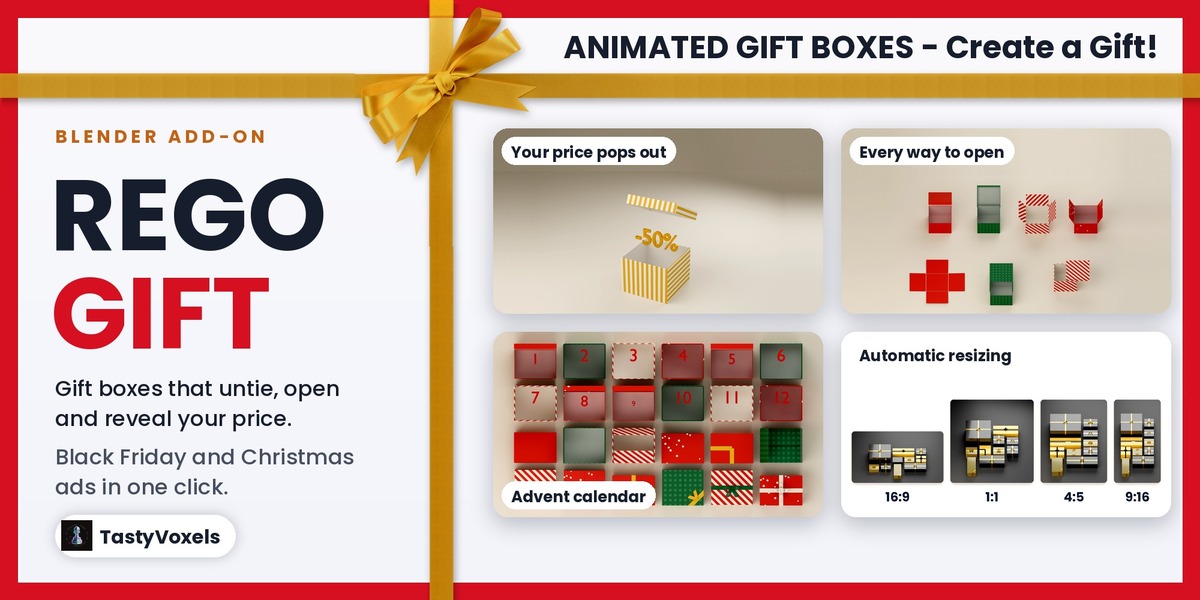
Rego Gift - Animated Gift Boxes, Ribbons and Responsive Mosaics for Sale and Holiday Ads
 TastyVoxels

Install
- Download rego_gift-1.0.3.zip. Do not unzip it.
- In Blender (4.2 or newer) drag the zip into the window, or open Edit > Preferences > Get Extensions > the arrow at the top right > Install from Disk, and pick the zip.
- In the 3D Viewport press N and open the Rego Gift tab.
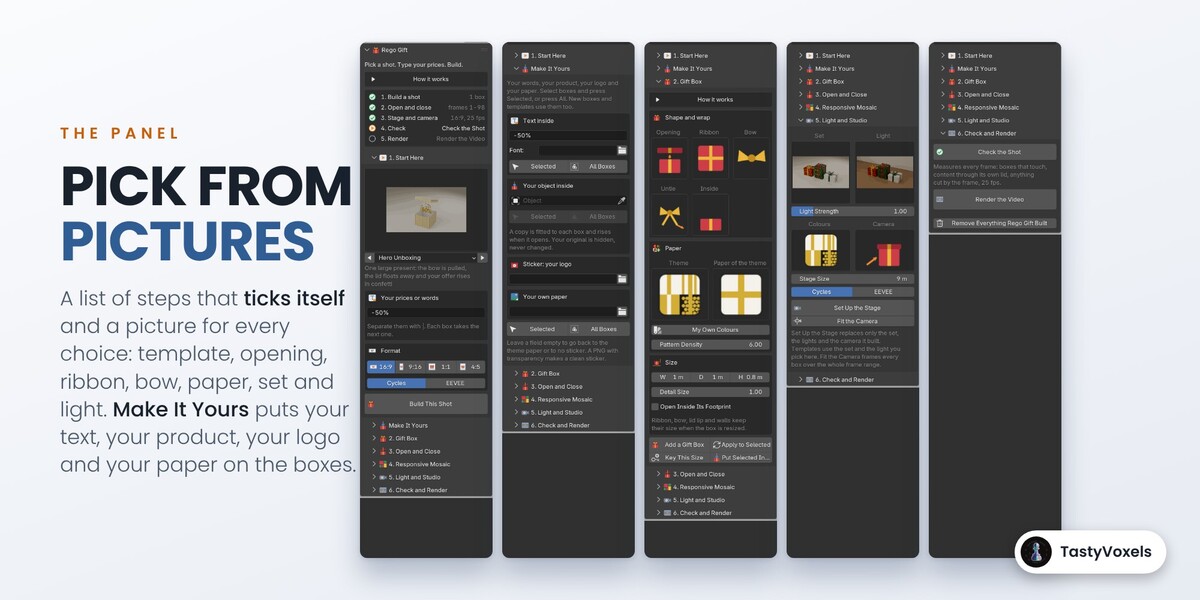
The panel
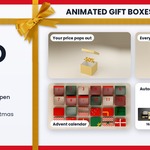
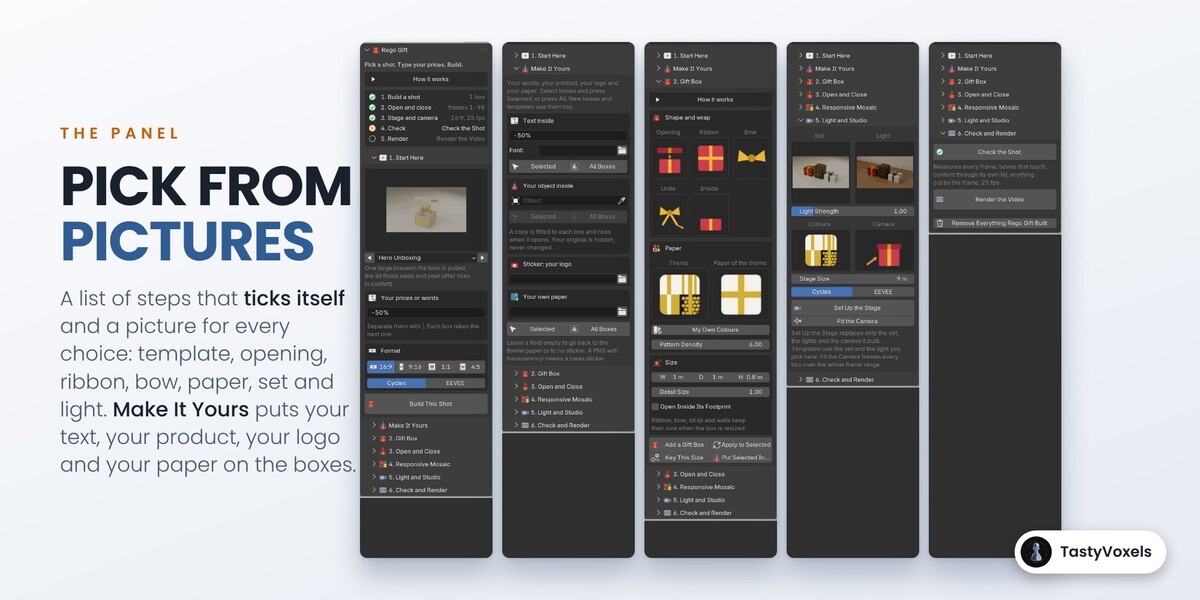
At the top of the tab a list of five steps ticks itself: Build a shot, Open and close, Stage and camera, Check, Render. The next step is marked, with a hint on the right. Every choice that is easier to see than to read is a picture: click it to see all of them (templates, openings, ribbons, bows, untie, what comes out, themes, papers, sets, lights, cameras, layouts). Each sub-panel has a How it works line you can open.
Your first video
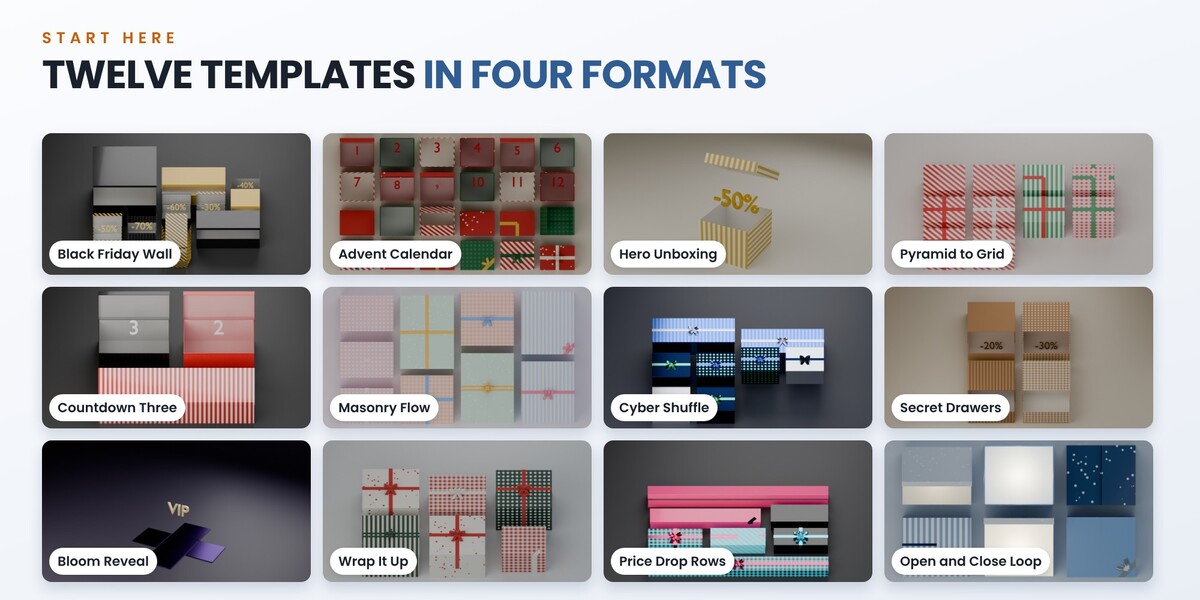
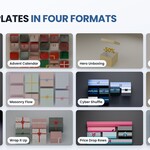
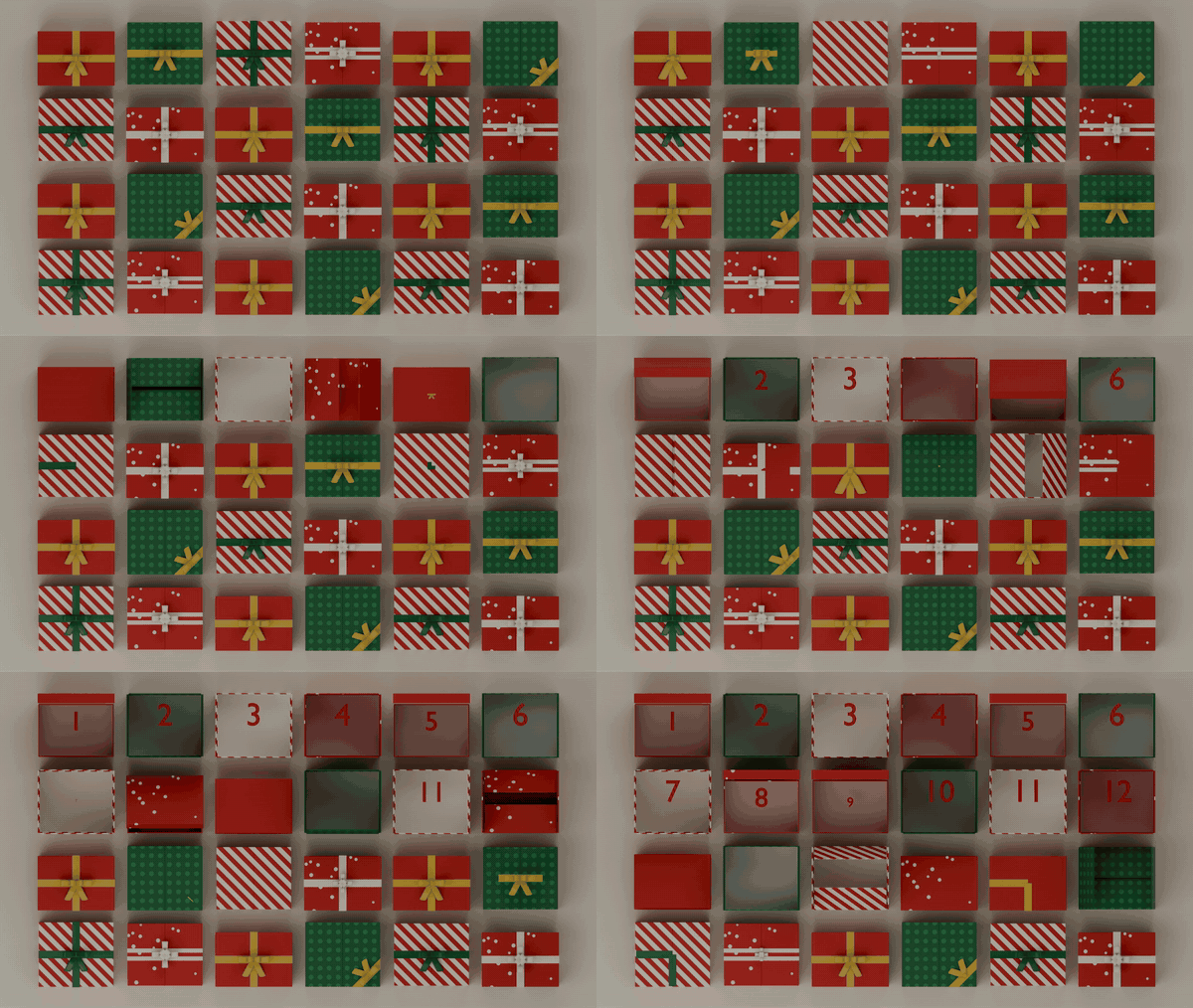
- In 1. Start Here click the picture of the template, or use the arrows beside its name. The text under it says what the shot does.
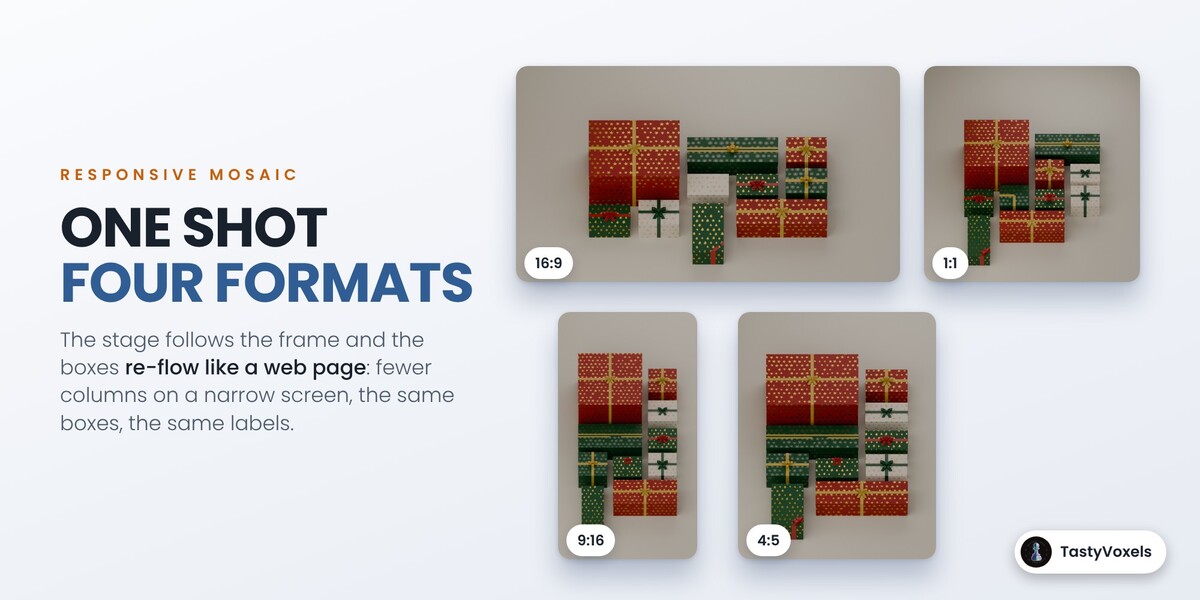
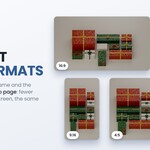
- Type your prices or words in Labels, separated by |. Pick the format: 16:9, 9:16, 1:1 or 4:5.
- Press Build This Shot. The scene is set to 25 fps, the boxes, the layout, the animation, three lights, a backdrop and a camera are built, and the camera is fitted over the whole range. Your own objects are not touched.
- Press Play. Then open 6. Check and Render, press Check the Shot and Render the Video. Save the .blend first: the MP4 is written next to it.
Make It Yours
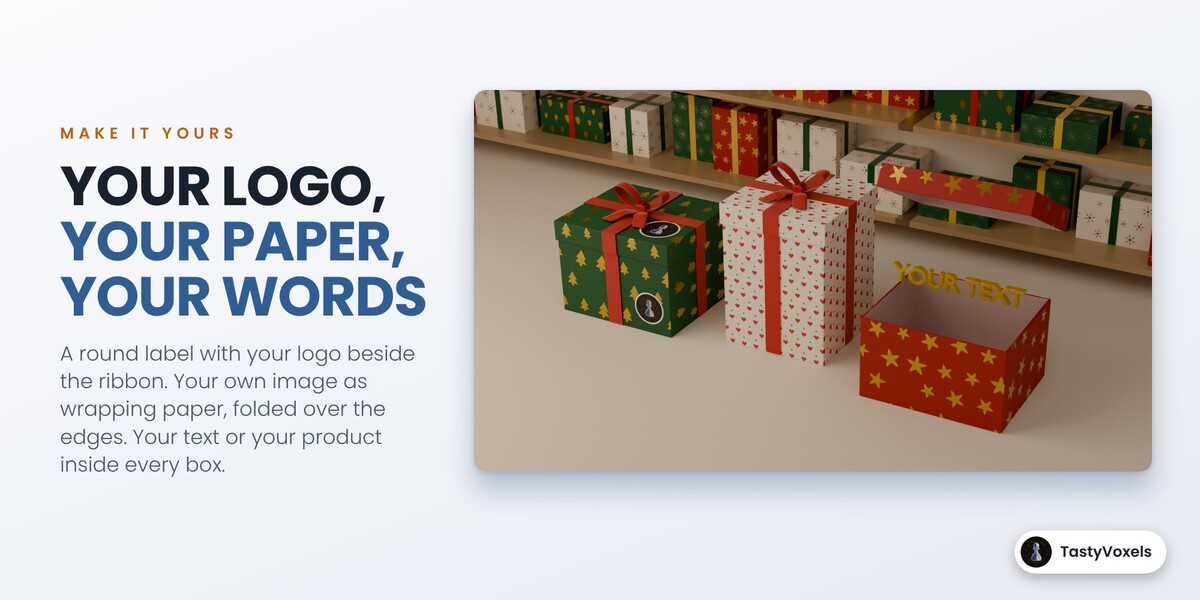
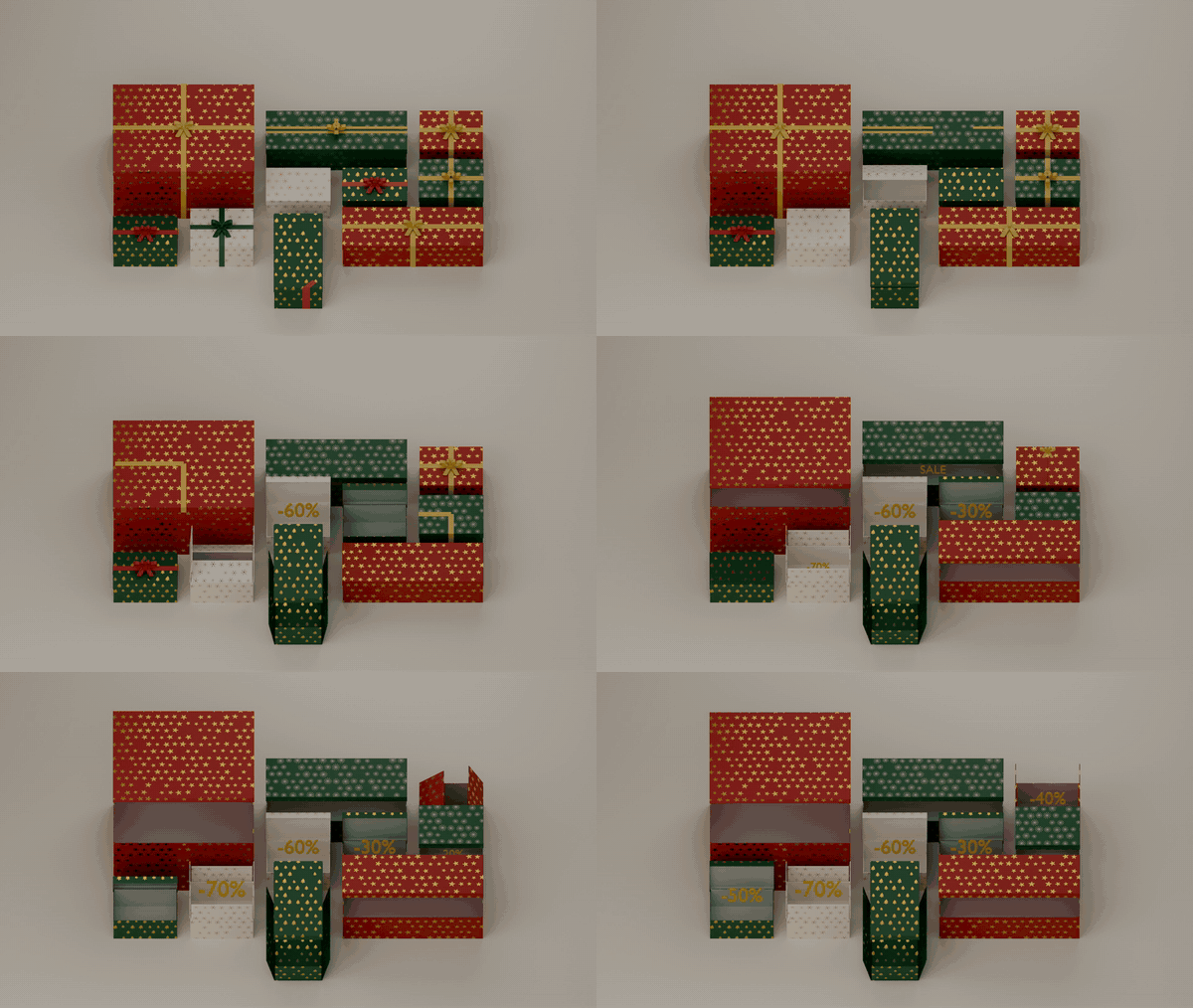
- Text inside: type your text, pick a typeface if you like, then Selected (the boxes you selected) or All Boxes. Boxes with confetti keep them.
- Your object inside: pick your product, logo or model in the field, then Selected or All Boxes. A copy (sharing your mesh) is fitted to each box and rises when it opens. Your original is hidden, never changed or deleted. Pressing it again replaces the copies.
- Sticker: an image file of yours, printed on the paper. Round Label cuts it to a circle with a thin white rim; As Is keeps the whole image (a PNG with transparency). Beside the Ribbon puts it at the lower right of each side and the front right of the lid, clear of the ribbon; Centre puts it in the middle (best with No Ribbon). Size is the width; it is never larger than the room on the face. On: Front, Top, Front and Top, All Sides.
- Your own paper: an image file used as wrapping paper. Tile Size is the size of one repeat. It folds over the edges like the built-in papers.
- Selected and All Boxes under them give the boxes your sticker and your paper and change nothing else. Leave a field empty to go back to the theme paper or to no sticker.
- New boxes, templates and mosaics built afterwards use your sticker and paper too.
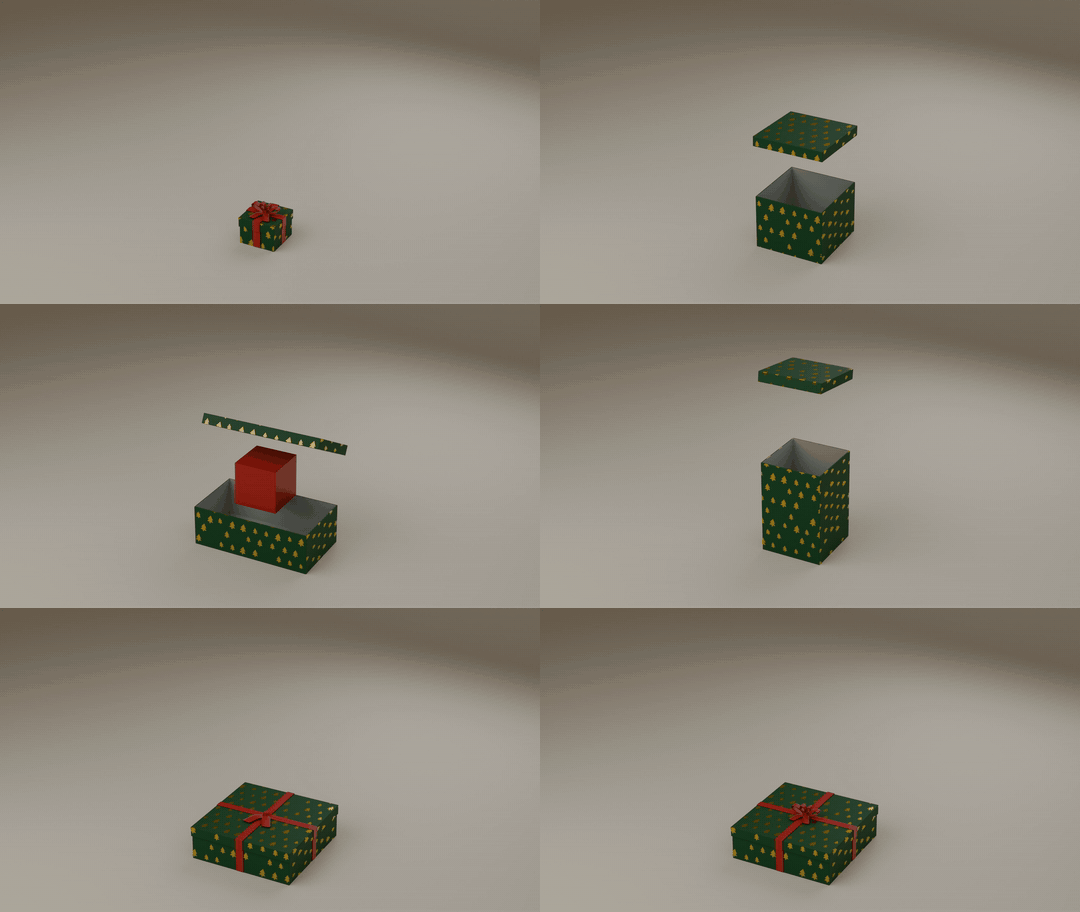
2. Gift Box
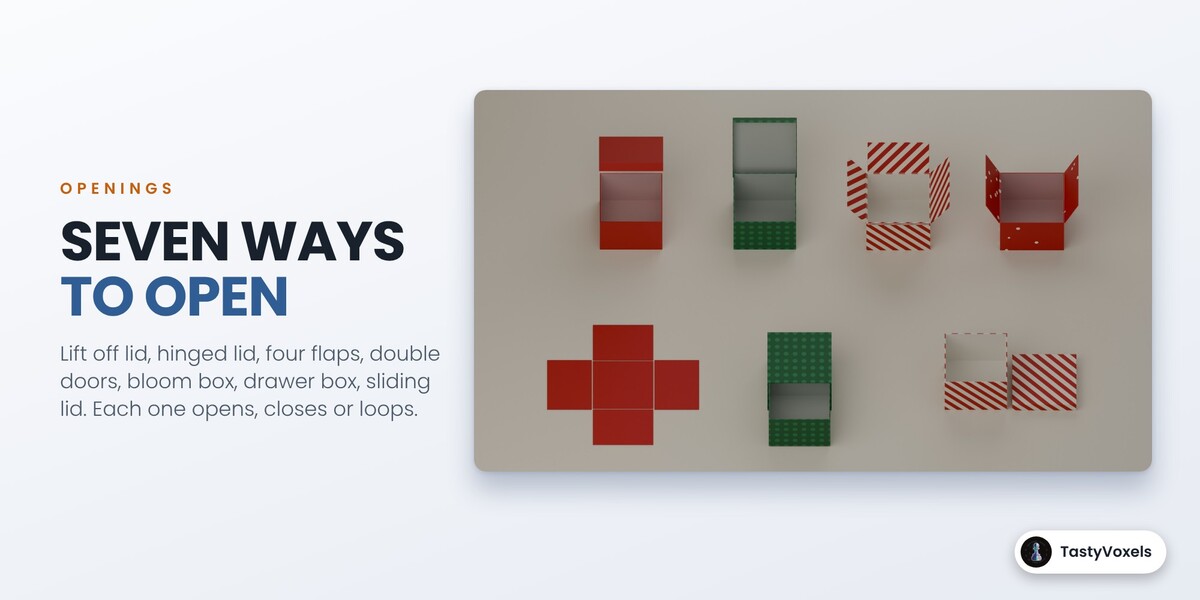
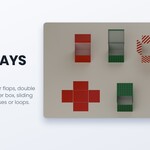
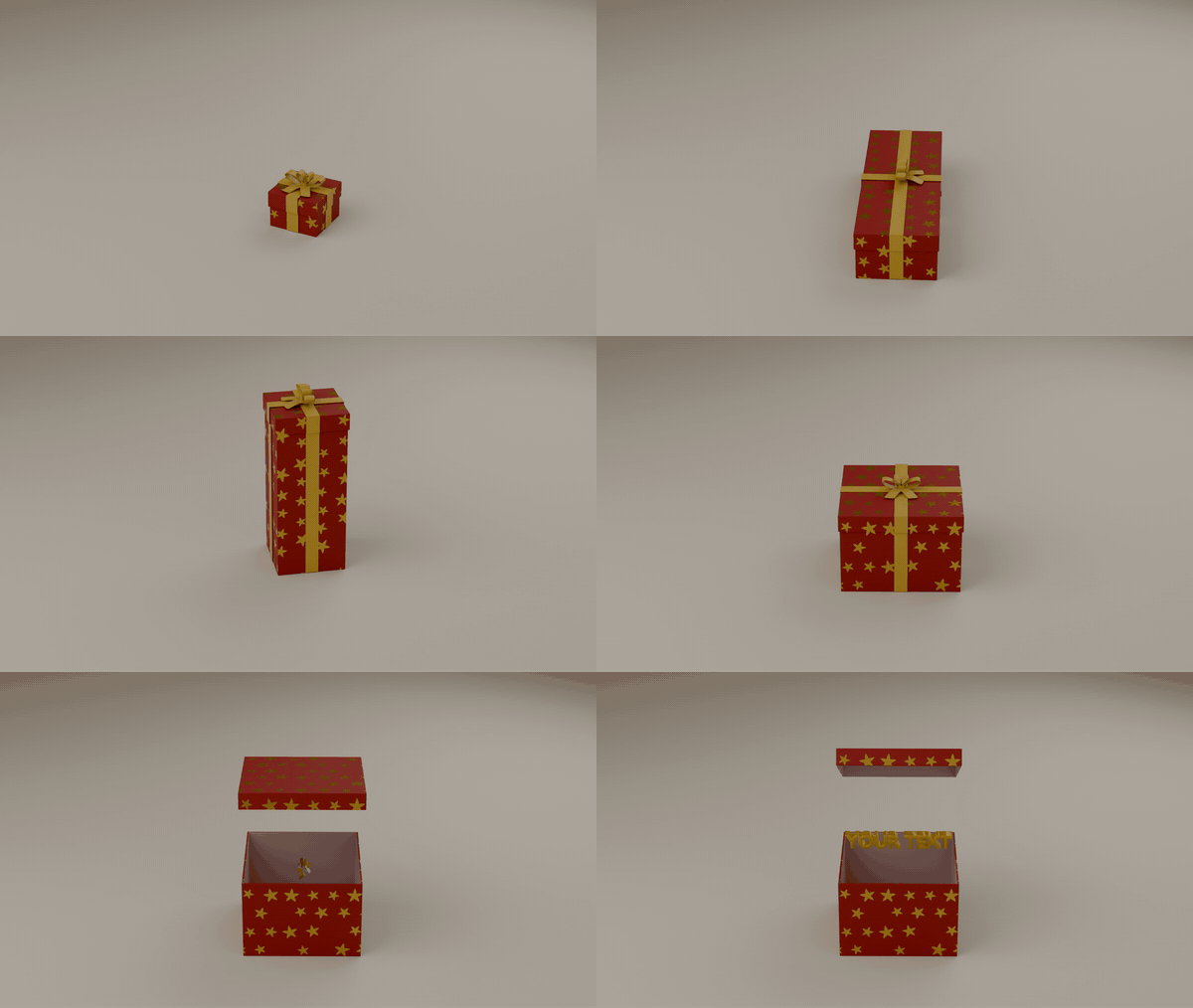
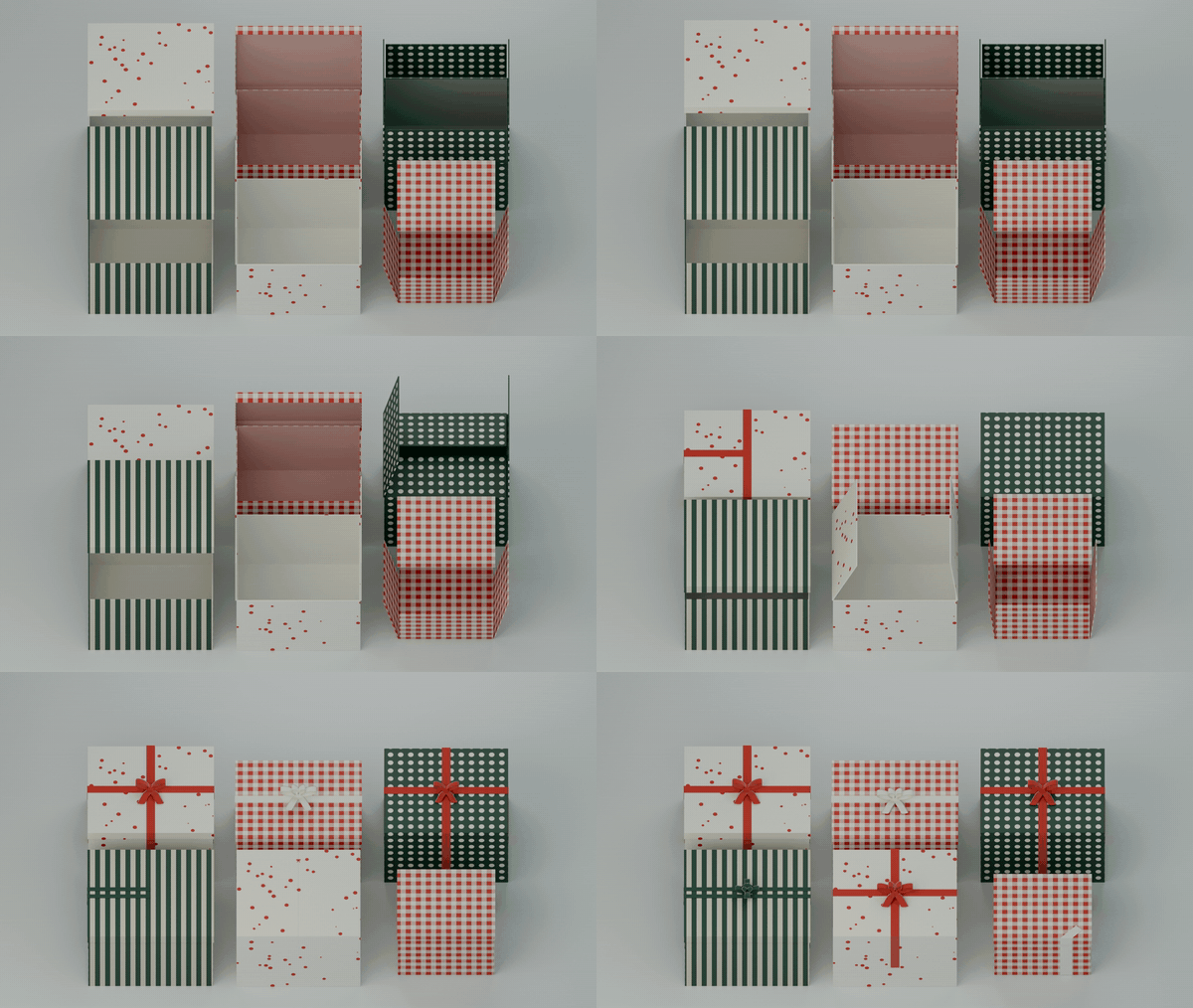
- Opening: Lift Off Lid, Hinged Lid, Sliding Lid, Four Flaps, Double Doors, Bloom Box, Drawer Box.
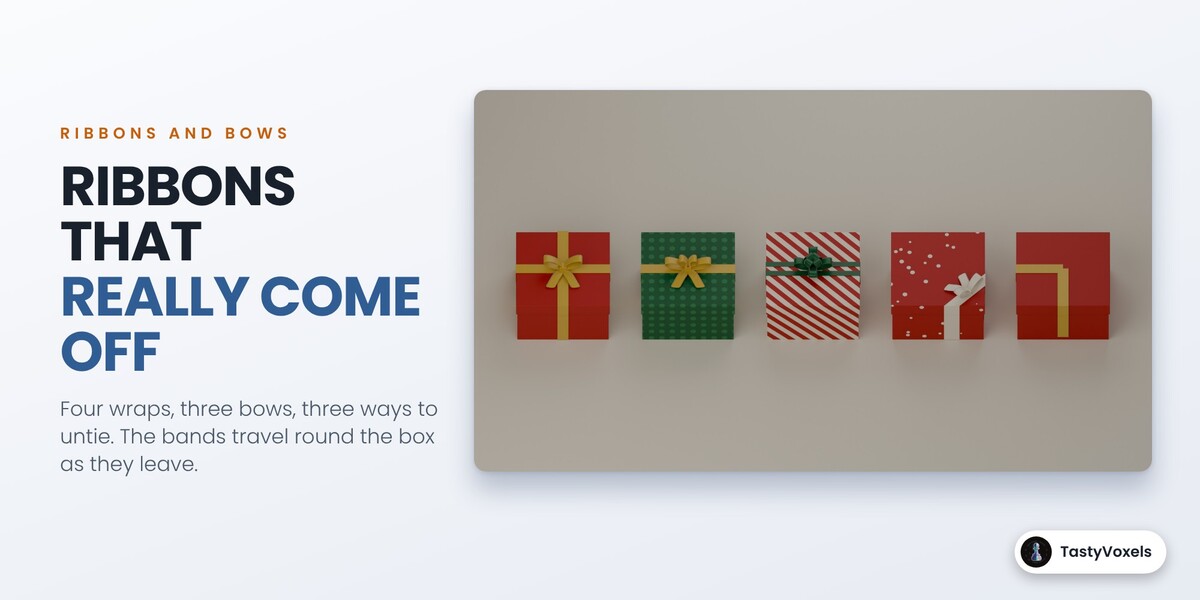
- Ribbon: Cross, Single Band, Twin Bands, Corner, No Ribbon. Bow: Classic, Double, Rosette, No Bow.
- Untie: Pull the Bow, Slip Off, Snap.
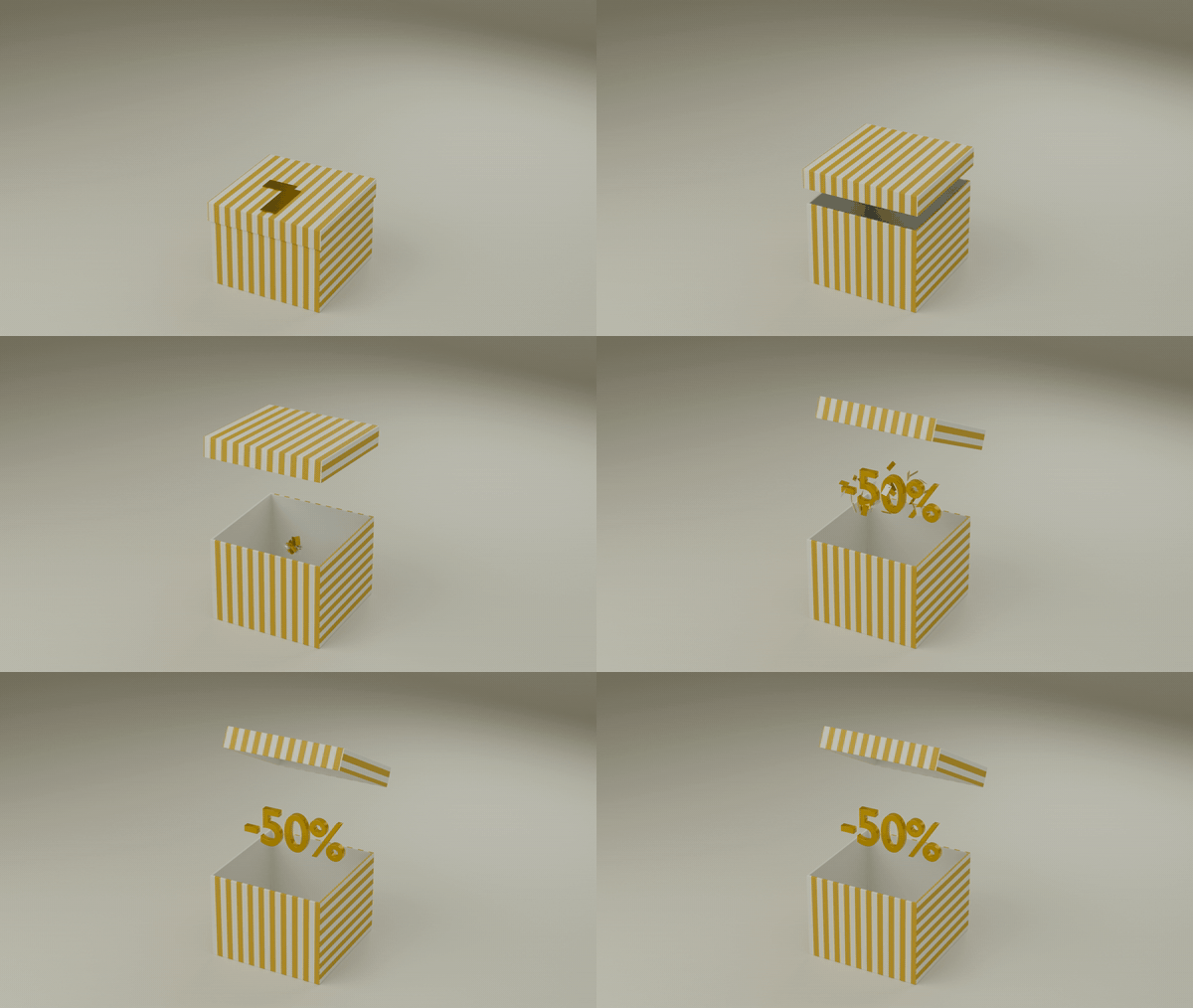
- Inside: Empty, Text, Confetti, Glow, Text and Confetti. Text takes a typeface file of yours in Font; empty uses the Blender font.
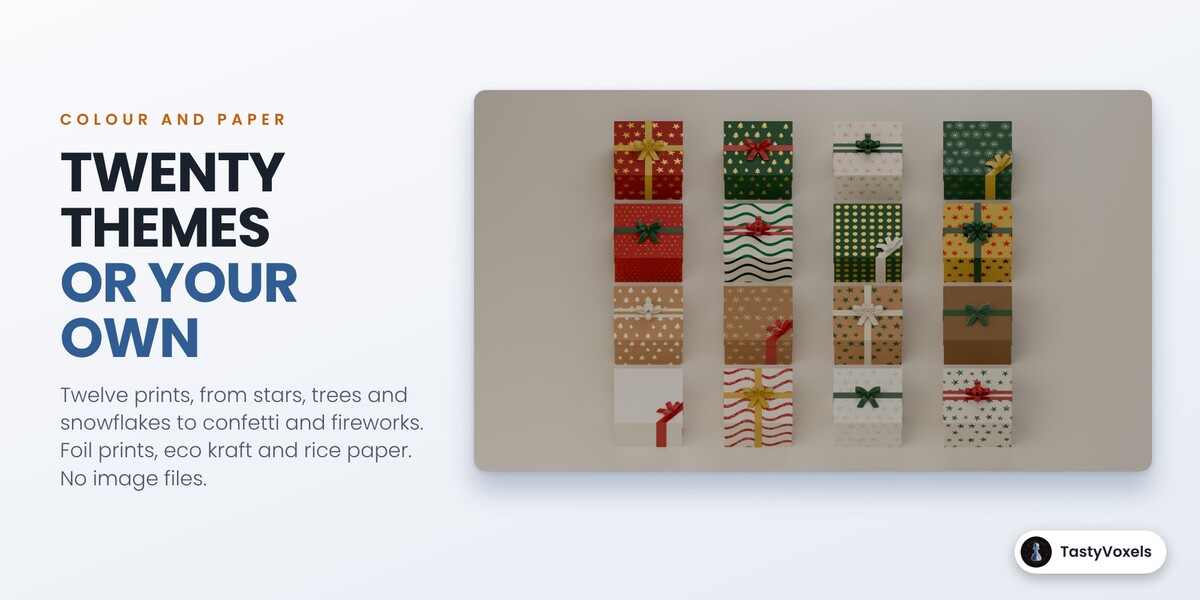
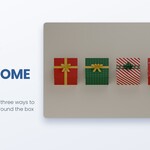
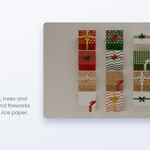
- Theme and Colour pick one of the four papers of a theme. My Own Colours shows the paper, pattern, ribbon and text colours, the pattern, the paper finish and the ribbon fabric. Pattern Density sets the repeats per unit. Twelve patterns: Solid, Stripes, Diagonal, Dots, Gingham, Snow, Stars, Trees, Snowflakes, Fireworks, Confetti and Abstract. The printed motifs are moved, turned and sized a little by chance. Six papers: Matte, Glossy, Metal Foil, Kraft, Foil Print (the pattern in metal foil on the paper) and Rice Paper (thin, with long fibres).
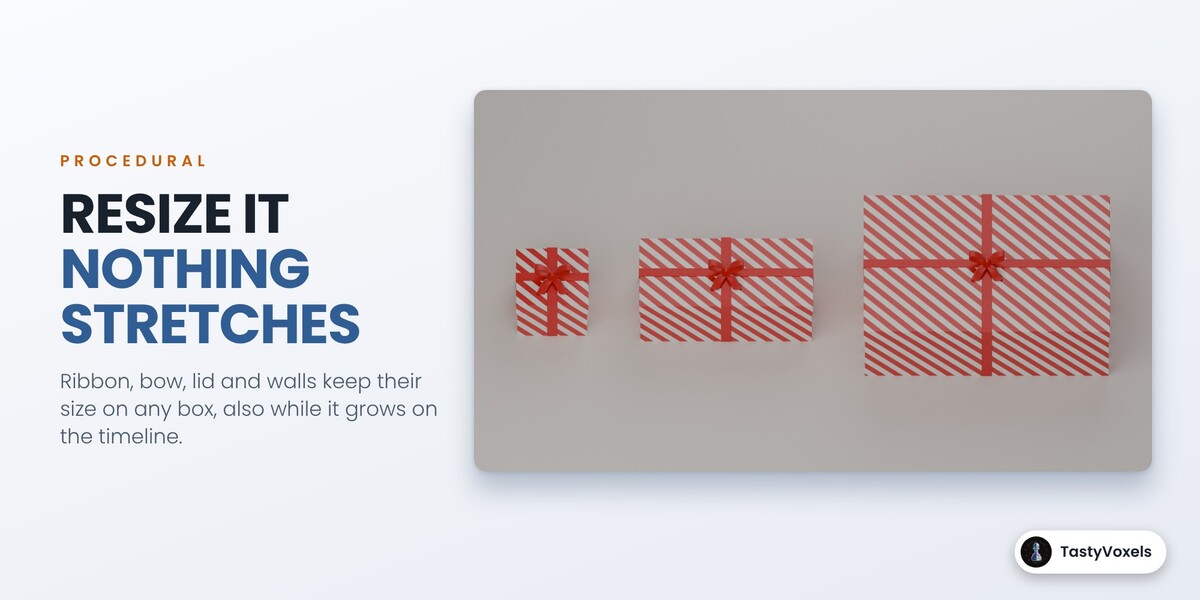
- Width, Depth, Height. Detail Size is the size of the ribbon, the bow, the lid lip and the walls: they keep it when the box is resized.
- Open Inside Its Footprint keeps the opening inside the footprint of the box: the lid rises straight up, flaps and doors stop upright, the bloom walls only lean. Use it for tight layouts.
- Add a Gift Box adds one at the 3D cursor. Apply to Selected gives the selected boxes these settings and keeps their place and their animation. Key This Size sets the size of the selected boxes and keys it at the current frame.
- Put Selected Object Inside: select your object, then the box last.
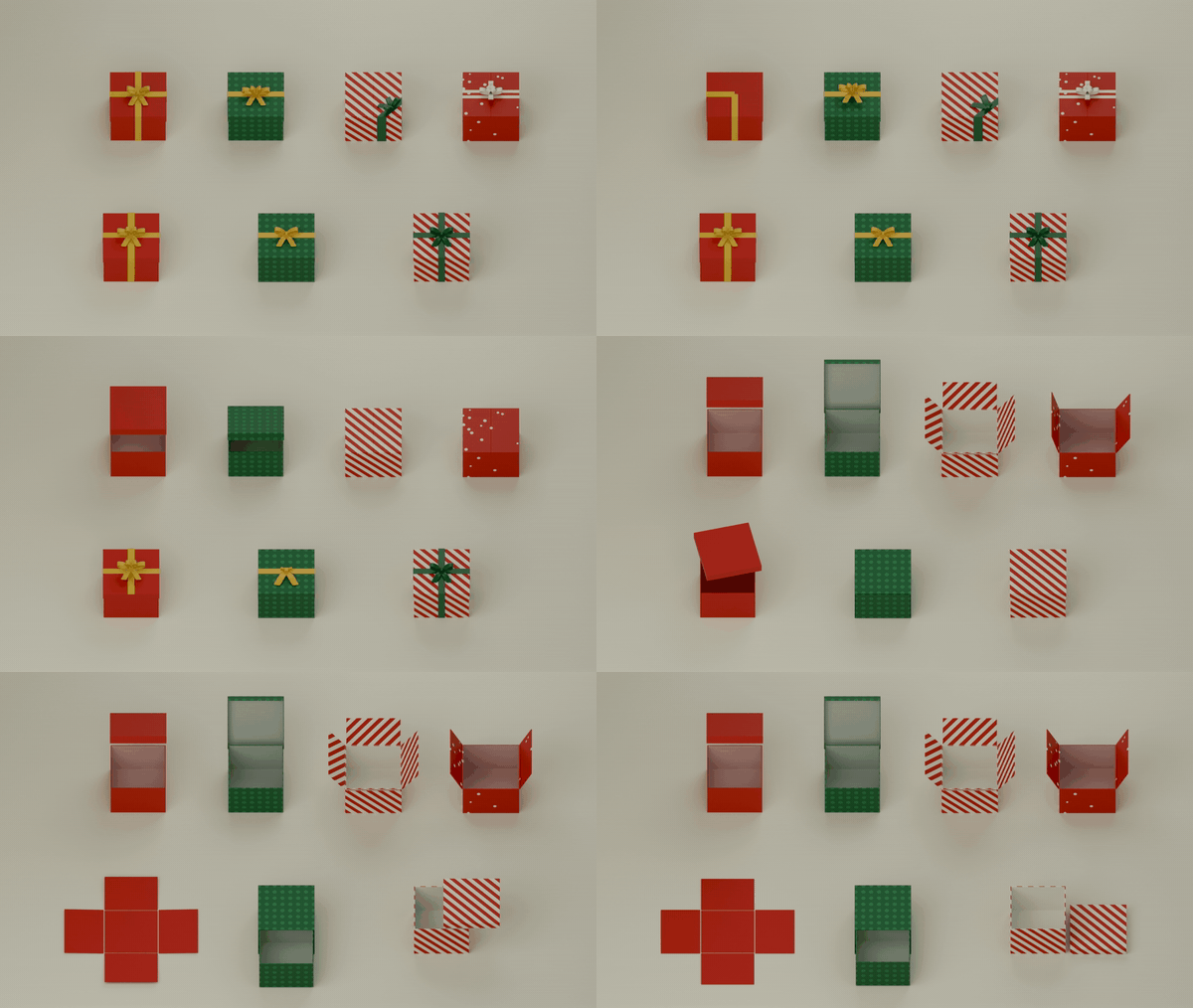
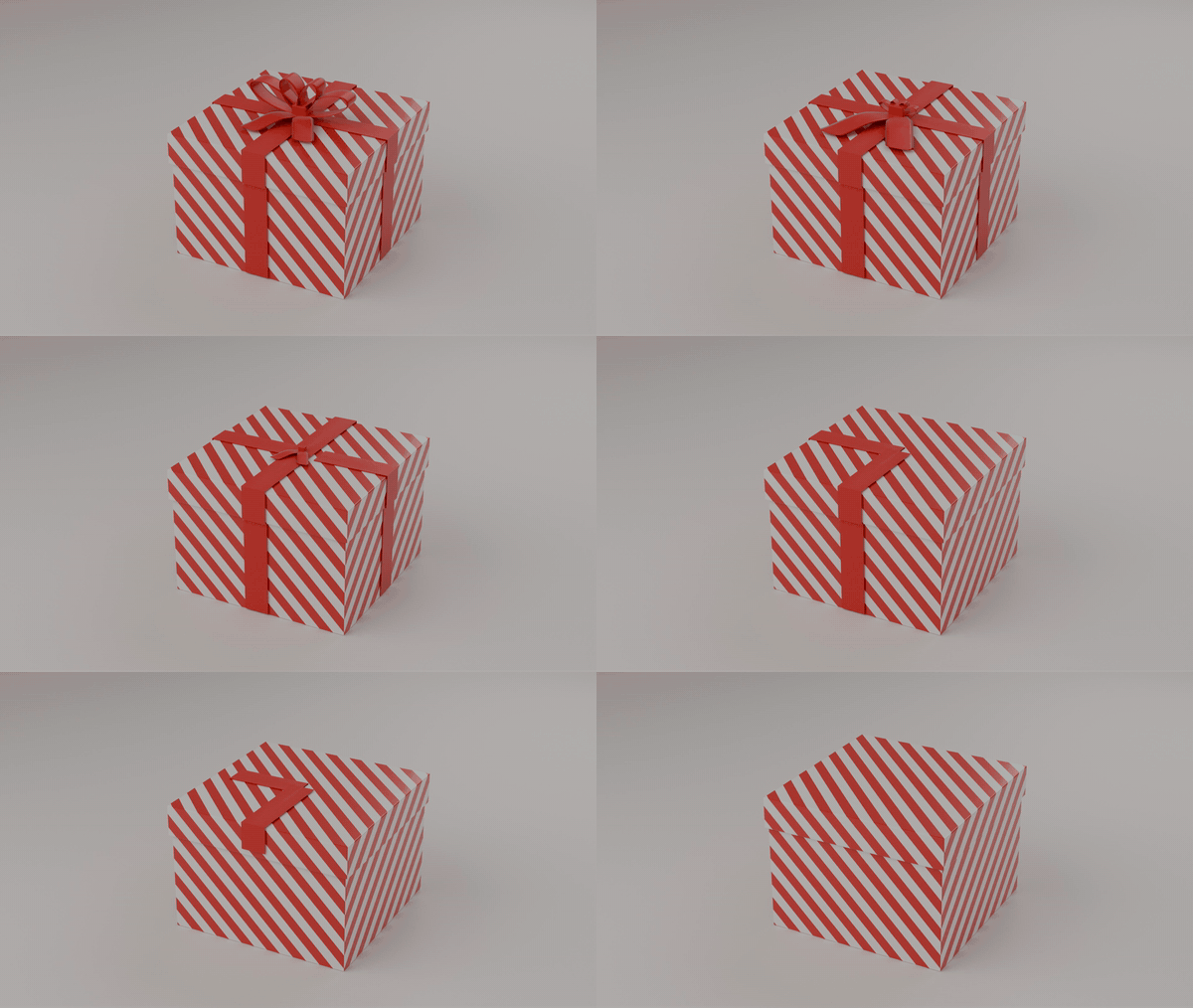
3. Open and Close
- Move: Open, Close, or Open, Hold, Close. Duration is the number of frames from tied to open; the ribbon takes a little under half of it.
- Stagger and Order send a wave over several boxes: reading order, columns, from the centre, from the edges, reverse, random.
- Animate Selected and Animate All start at the current frame. Keep Earlier Moves (in the panel that appears after the click) adds to what is already keyed.
- Remove Open and Close deletes those keys and leaves the boxes closed.
4. Responsive Mosaic
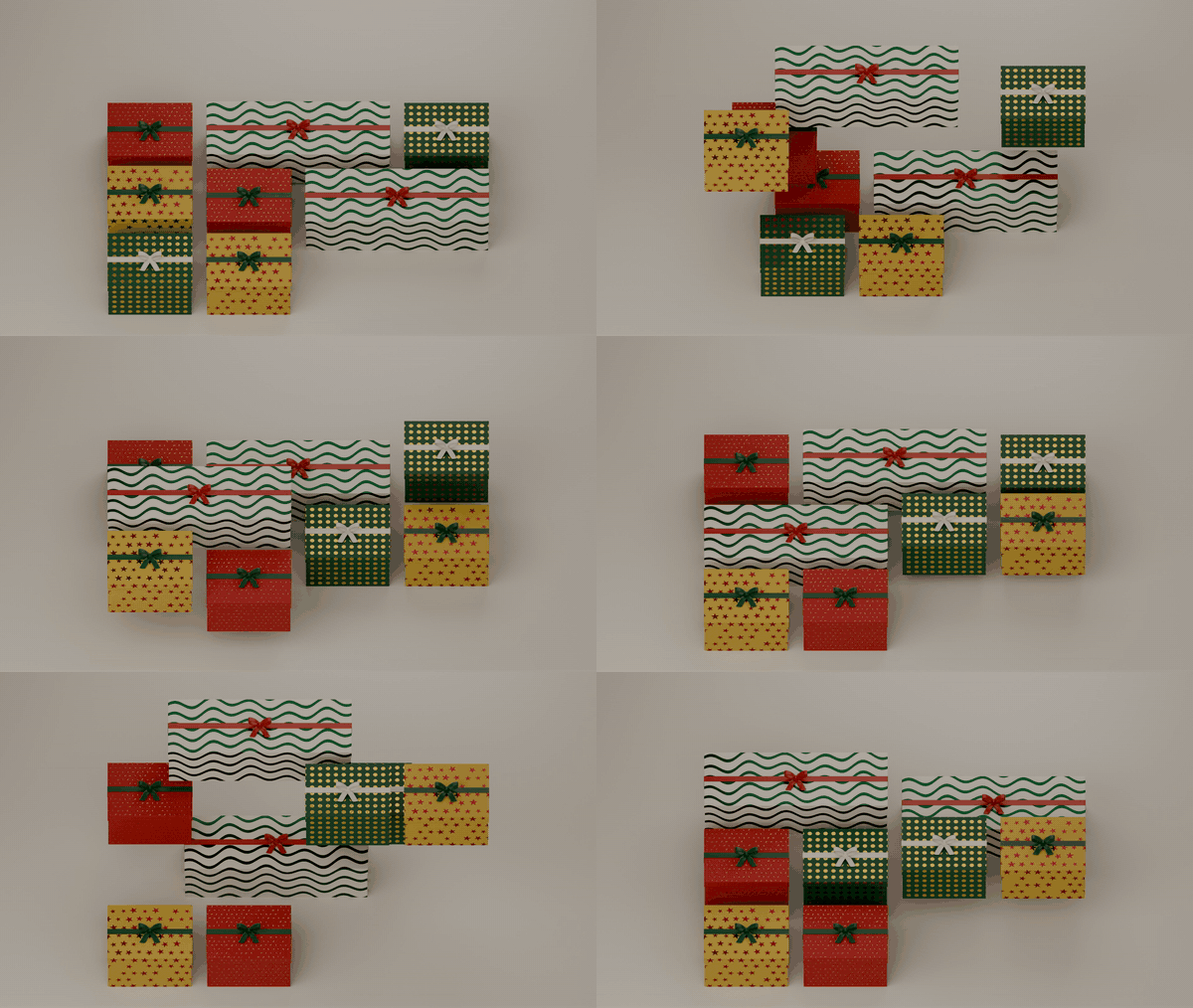
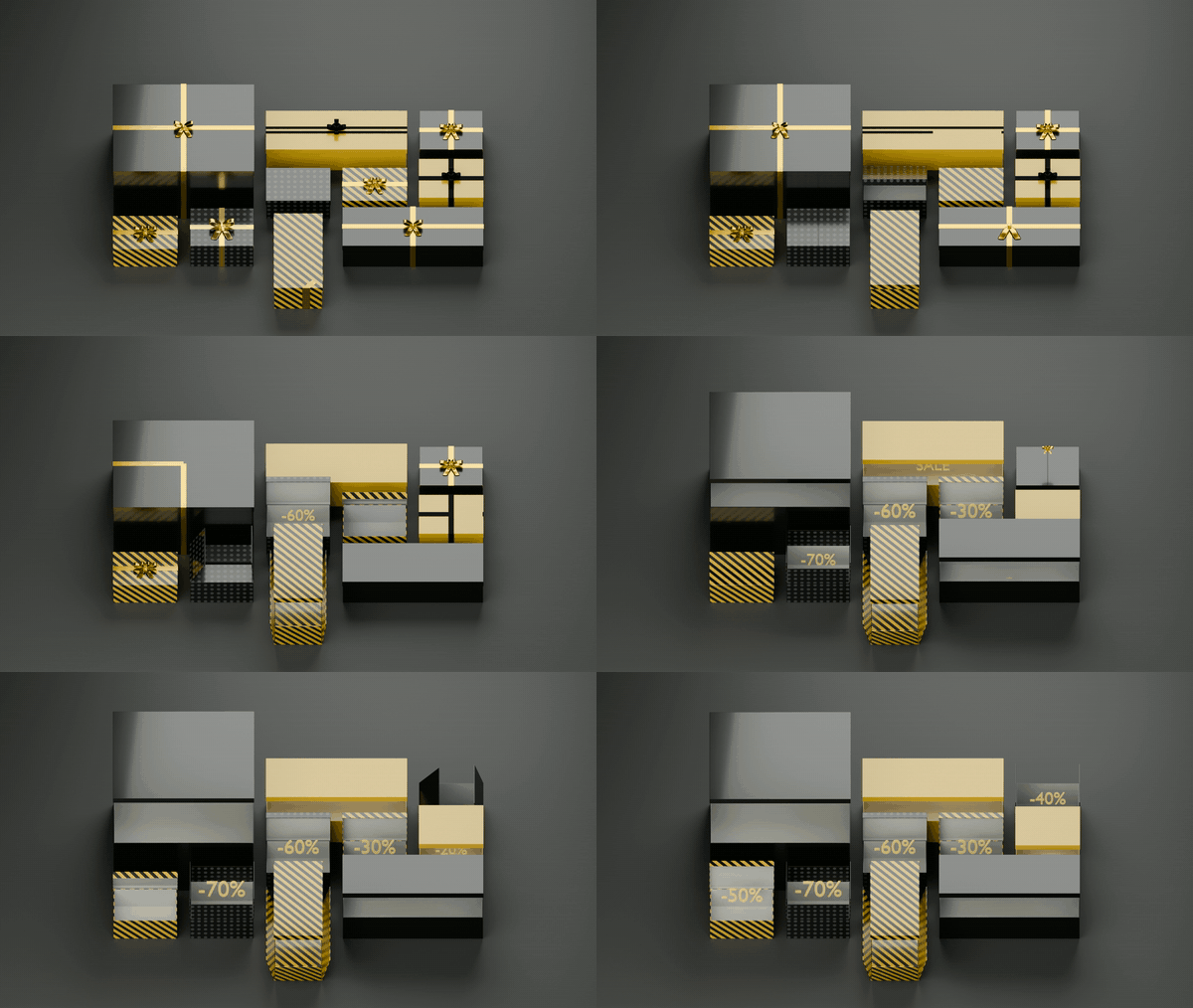
- The list is the order. W and D are the columns and rows a box spans. The arrows move a box, Shuffle, Reverse and Big First reorder the whole list. A box keeps its look and its label when it moves.
- Layout: Bento Grid, Masonry, Justified Rows, Pyramid.
- Stage Width and Stage Depth are the room. Cell Size is the smallest cell: the stage width divided by it gives the columns, and that is where the layout breaks to fewer columns. Columns set to 0 means automatic. Gap is the space between cells. Fill the Depth stretches the rows to the stage depth.
- Heights: proportional to the footprint, fixed, or varied per box.
- Variety: All the Same uses the Gift Box settings for every box; Mixed rotates openings, ribbons and bows. With the Flat Lay camera, Mixed only uses openings that show the inside from above.
- Open Inside the Cell keeps every opening in its own cell. Without it the cell also holds the room the opening needs, so the box is smaller.
- Stage Follows the Format: the format buttons resize the stage and the mosaic re-flows.
- Build the Mosaic builds the boxes at rest. Re-flow Now applies the settings without keys.
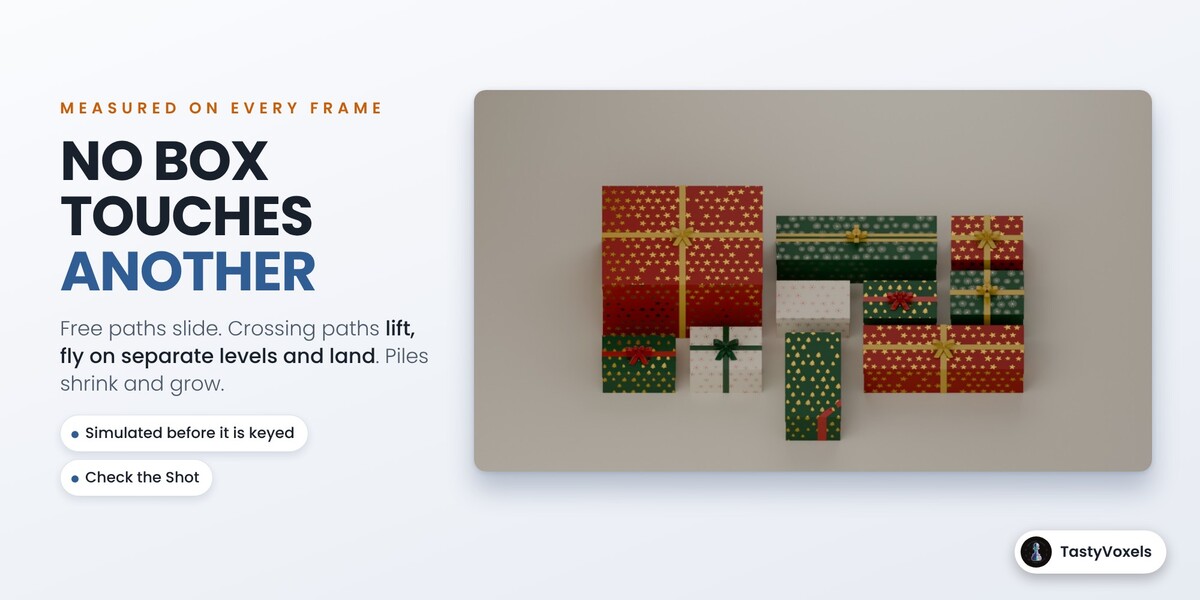
- Animate to This Layout: move the play head, change the stage, the cell, the gap, the layout or the order, and press it. Transition: Auto (slide, then lift and fly, then shrink and grow, the first one that is free of contact), Lift and Fly, or Shrink and Grow. A box added to the list grows in its cell; a box removed from the list is deleted.
- Pop In: the boxes grow in their cells one after another from the current frame.
5. Light and Studio
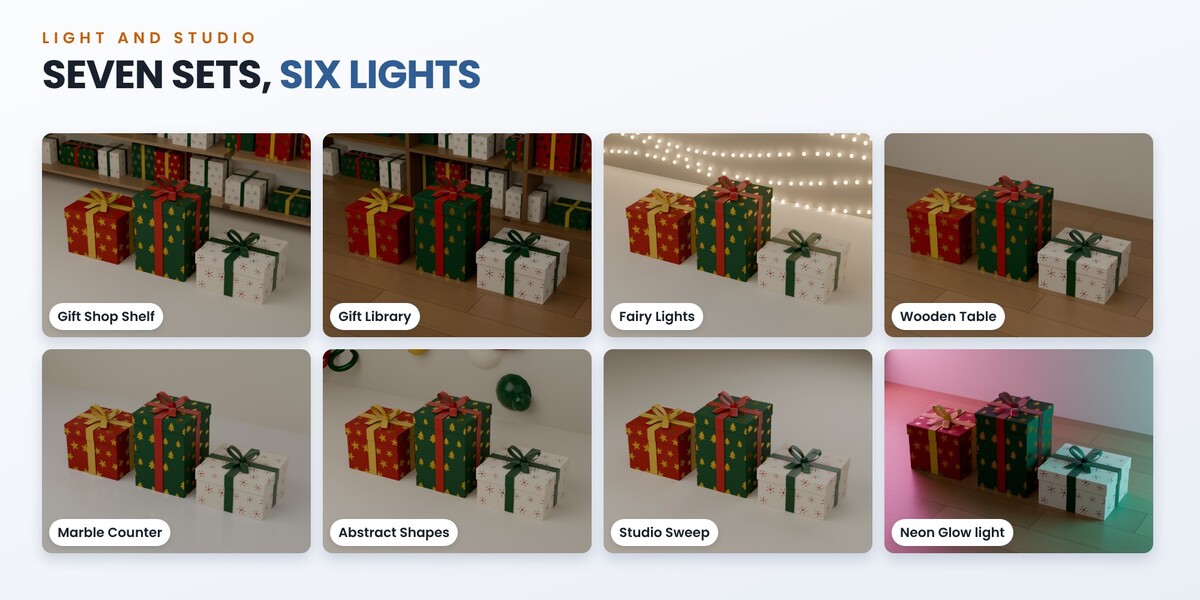
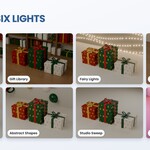
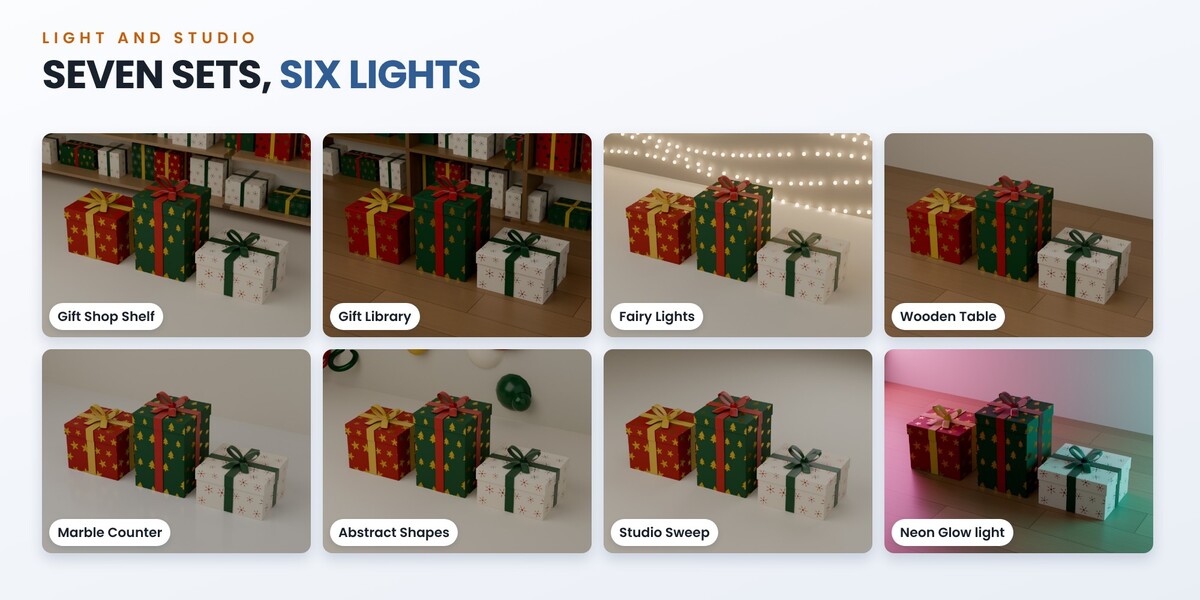
- Set: Studio Sweep (seamless paper in the theme colours), Wooden Table, Marble Counter, Gift Shop Shelf (shelves of wrapped presents), Gift Library (a tall case full of presents), Fairy Lights (strings of warm lights) and Abstract Shapes (a gradient with floating spheres and rings). With the Hero camera, the shelves, the lights and the shapes are softly out of focus behind sharp boxes.
- Light: Soft Studio, Bright Shop, Warm and Cozy, Window Light, Dramatic, Neon Glow. Light Strength makes all the lights of the preset brighter or darker.
- Everything of a set stands behind and under the stage, never on it: it cannot touch a box.
- Colours (the theme), Camera (Flat Lay, Tilted, Hero), Stage Size, Renderer (Cycles or EEVEE).
- Templates use the set and the light you pick here.
- Set Up the Stage replaces the set, lights and camera it built before and nothing else.
- Fit the Camera frames every box over the whole frame range.
6. Check and Render
- Check the Shot measures every frame: contacts between boxes, content (text, your object, confetti) passing through its own lid, flaps, walls or tray, anything cut by the frame, a frame rate other than 25.
- Render the Video writes an MP4 next to your file.
- Remove Everything Rego Gift Built removes boxes, mosaic and stage, and leaves your objects.
Good to know
- A box is an empty with three custom properties, rg_w, rg_d and rg_h. They drive shape keys on every part. You can key them in the Graph Editor like any property.
- Files render without the add-on: shape keys, simple drivers, Mask and Solidify modifiers, keyframes.
- The travel between layouts is planned on closed boxes. If boxes move while open, press Check the Shot.
- In a Pyramid the boxes rest on each other: use No Bow.
- Confetti is free to leave the frame and is not part of the contact check between boxes. It is part of the crossing check inside its own box.
- What comes out waits for the opening: after the lid has risen, after the flaps and doors are open, and in a drawer box it rides in the drawer. A floating lid rises higher when the content is taller. A leaning text is fitted to the depth of the box as well as to its width.
- Scaling a box in the viewport stretches it like any object. Use Width, Depth and Height.
- A sticker is printed on the paper, it is not a separate object: it cannot be peeled or animated on its own.
- Your sticker and paper images are read from where they are on your disk. Pack them into the .blend (File > External Data > Pack Resources) before you send the file to someone else or to a render farm.
Have questions about this product?
Login to message
| Blender Extension Compatible | Yes |
| Dev Fund Contributor | |
| Published | about 1 hour ago |
| Blender Version | 4.2 - 5.2 |
| Extension Type | Add-on |
| Render Engine Used | Cycles, Eevee |
| License | GPL |
Discover more products like this
mosaic gift-box social-media Christmas procedural sale product reveal Black Friday unboxing advertising motion graphics ribbon