Rego Nimbus - Realistic VDB Cloud Generator
 TastyVoxels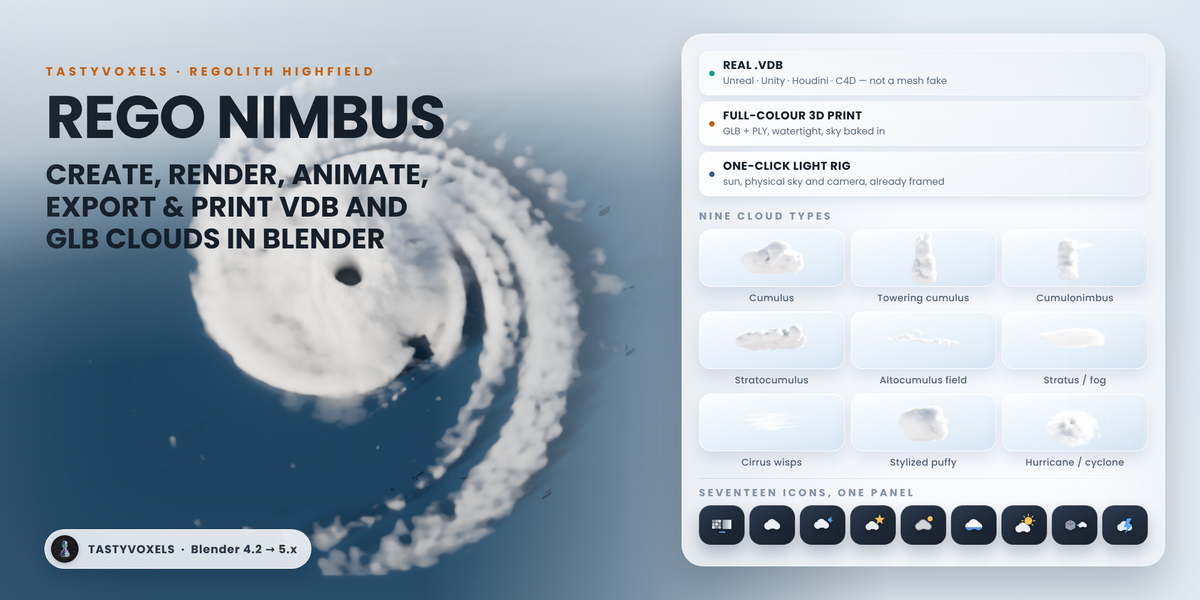
Install
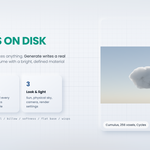
Blender 4.2 LTS and newer (extension): Edit > Preferences > Get Extensions, open the drop-down at the top right, choose Install from Disk and pick rego_nimbus-1.2.2.zip. It shows up under Add-ons as Rego Nimbus and is enabled straight away.
Legacy install: Edit > Preferences > Add-ons > Install, pick the same zip, then tick the checkbox.
The panel is in the 3D Viewport sidebar: press N and open the Nimbus tab. There is nothing else to install. It is pure Python plus the numpy that ships with Blender, and it never connects to the internet.
Your first cloud
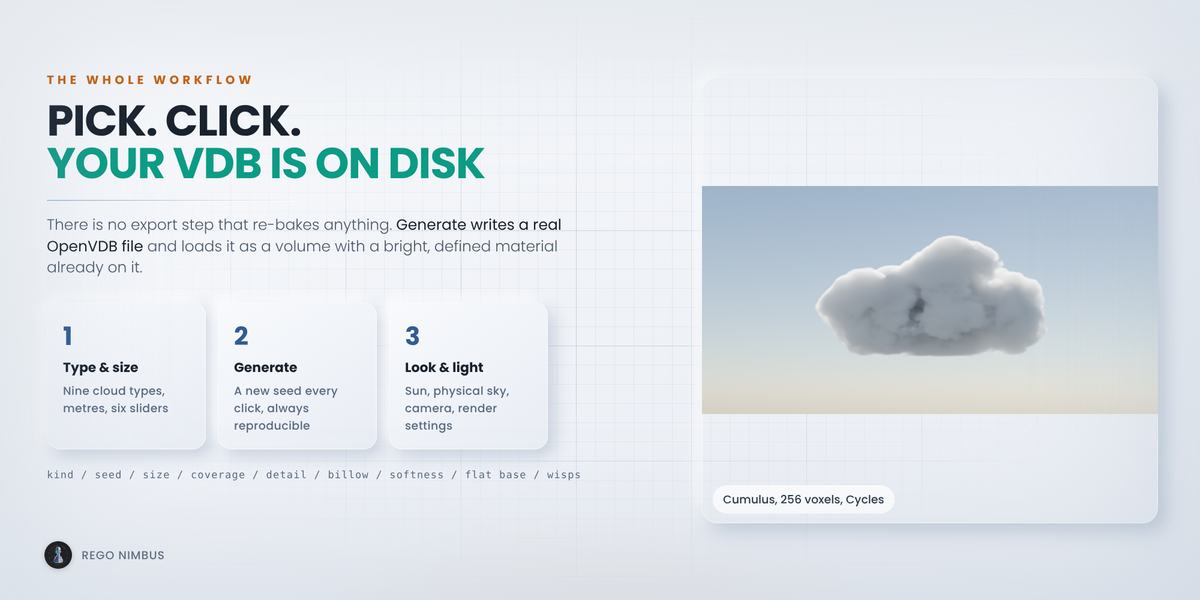
- Open the Nimbus tab in the sidebar.
- Leave Quality on Preview for now.
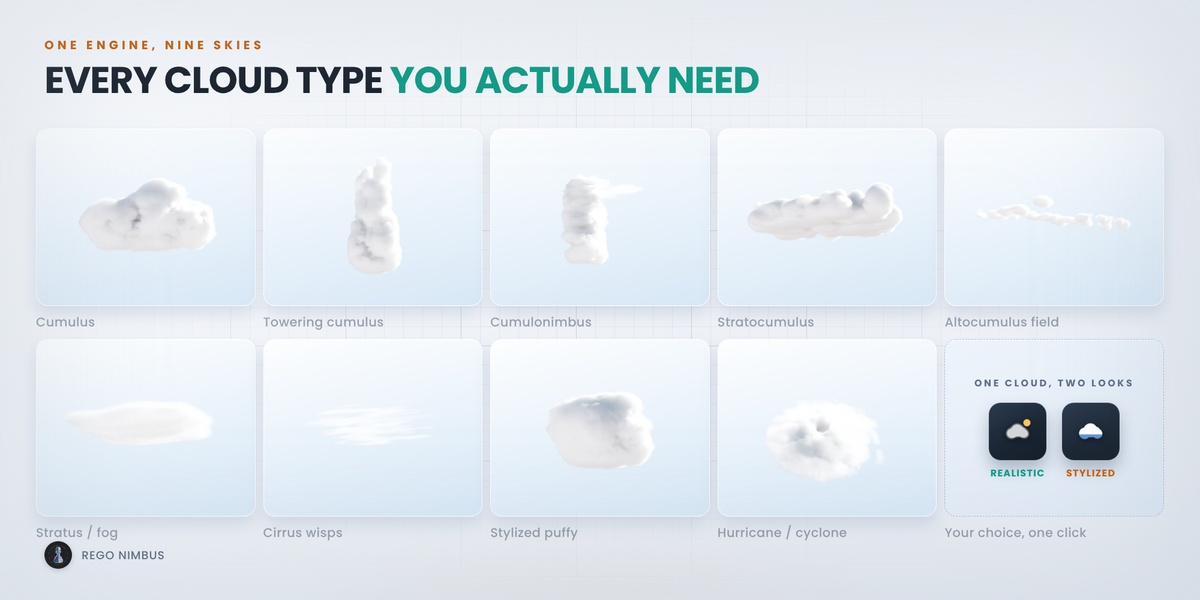
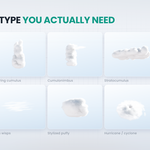
- Pick a Type. Cumulus is the easiest to start with.
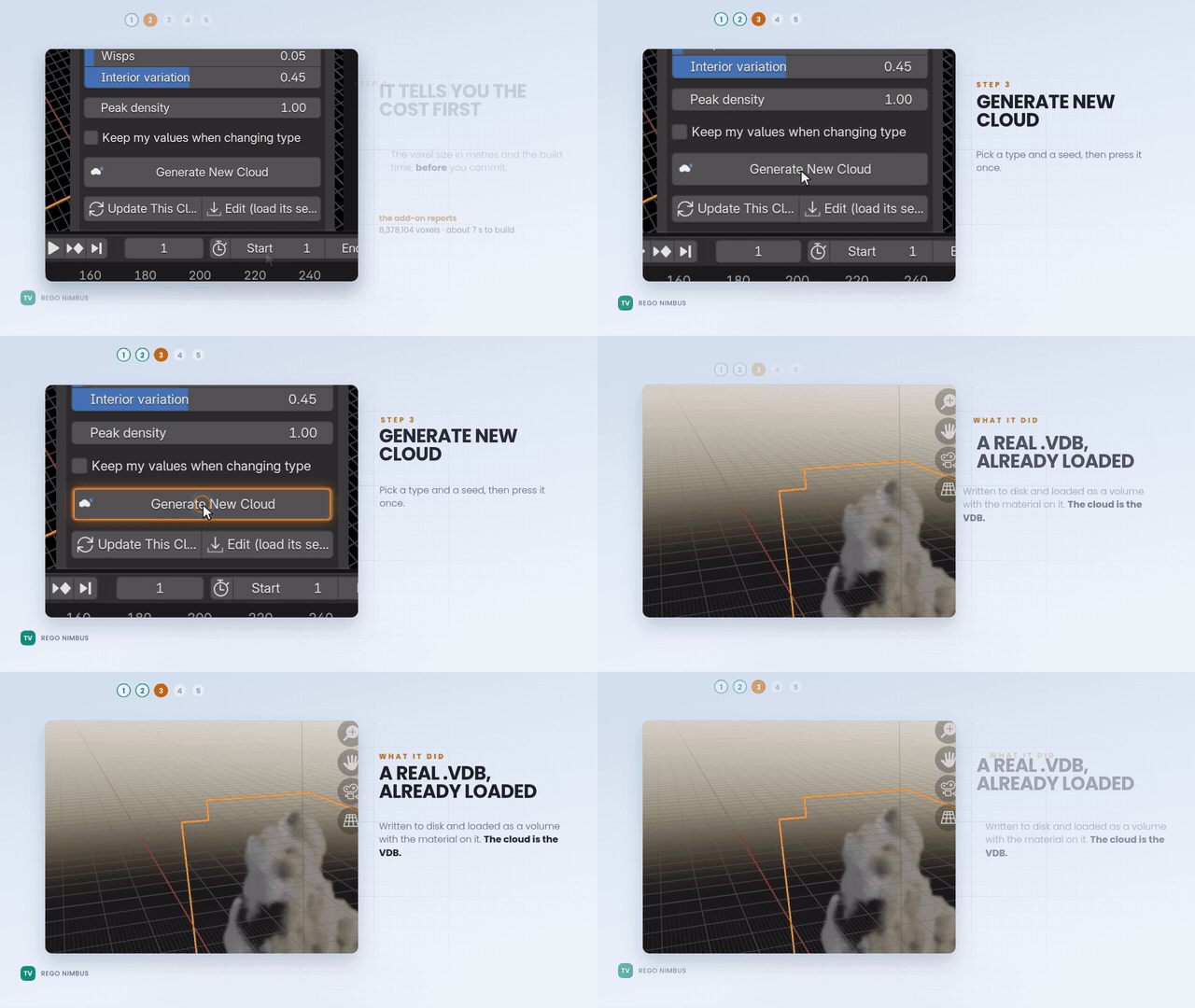
- Press Generate New Cloud.
A .vdb file is written to the output folder and imported as a Volume object with the cloud material on it. The seed shown in the panel is stored on the object, so you can always rebuild this exact cloud.
Quality
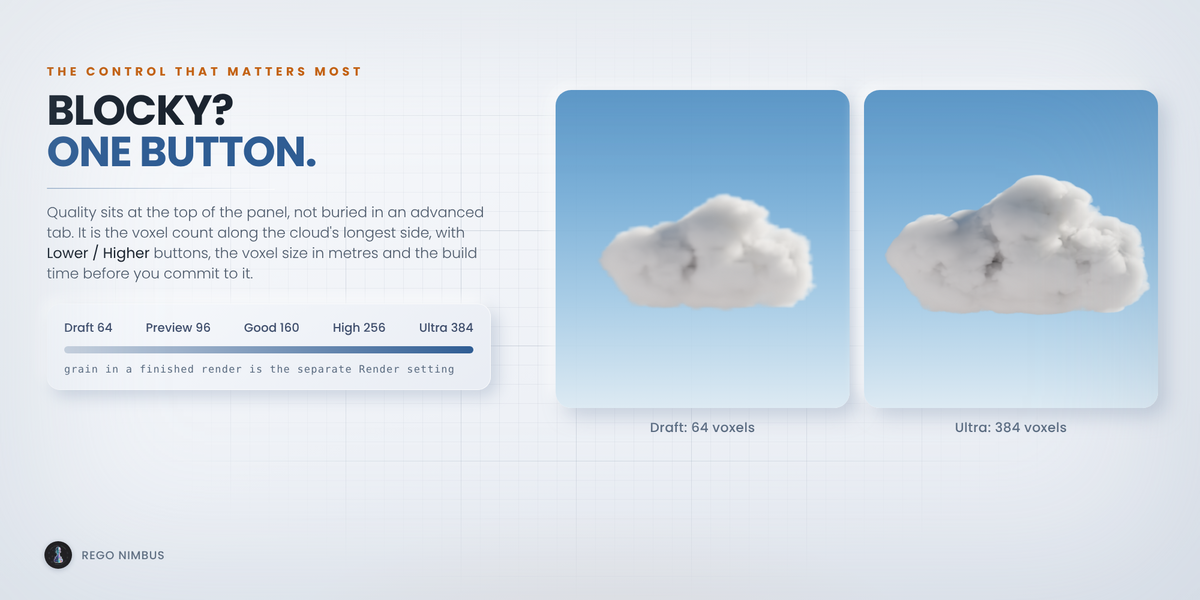
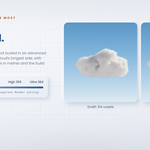
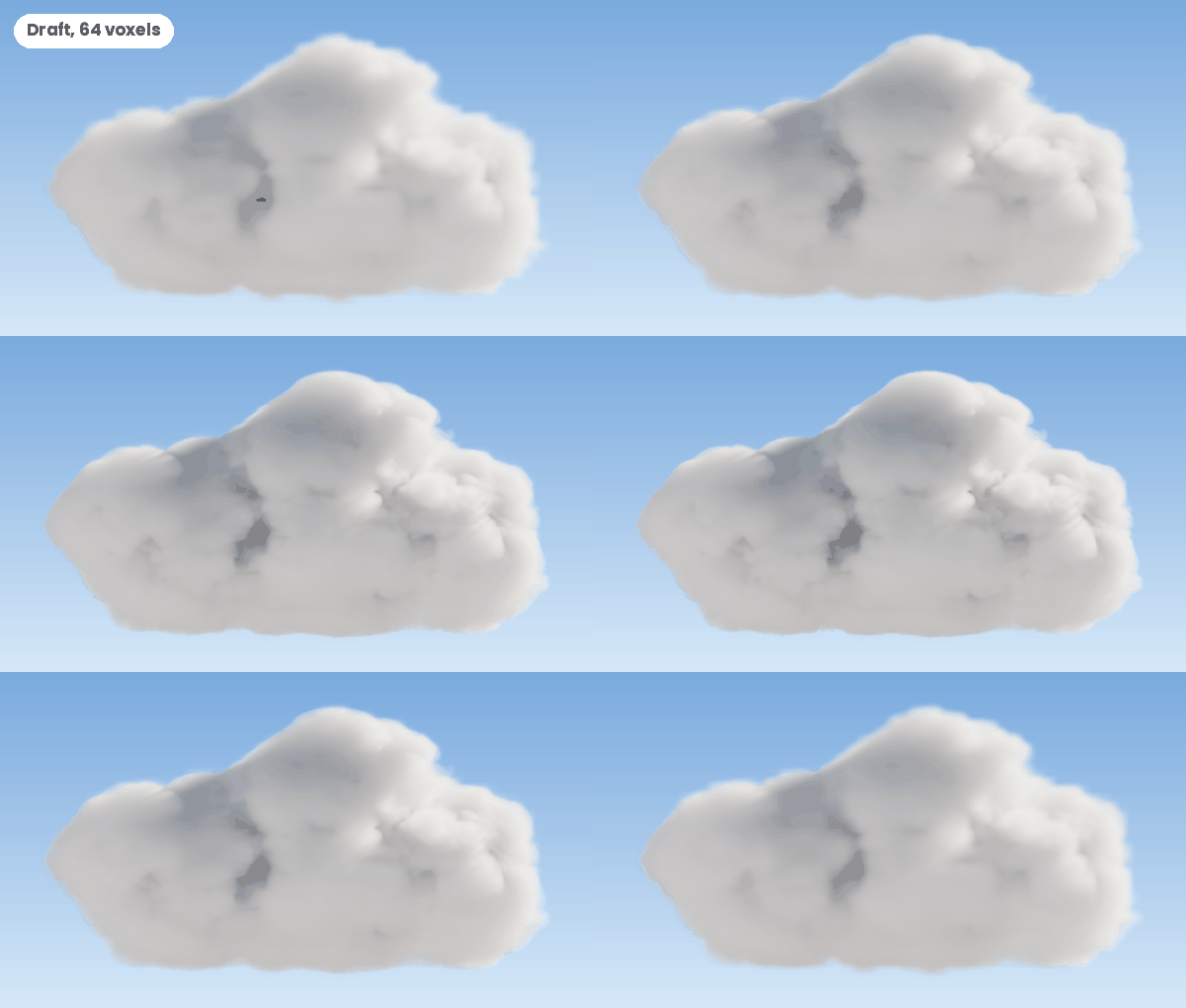
Quality is the number of voxels along the longest side of the cloud. It decides whether a cloud looks blocky or smooth, so it sits at the top of the panel with Lower and Higher buttons, the voxel size in metres and an estimate of the build time.
- Draft 64: instant, good for finding a shape
- Preview 96: about a second
- Good 160: a few seconds, fine for most renders
- High 256: around half a minute
- Ultra 384: a couple of minutes, for hero shots and printing
Two problems look alike and are not. If the cloud is blocky or stepped, it needs more voxels: raise Quality. If the final render is grainy or speckled, it needs more render samples: use the Render setting next to Quality (Fast, Balanced or Final). That one sets samples, volume step size and bounces for Cycles and EEVEE in one go.
Shaping the cloud
Coverage is how much of the volume is filled. Detail is the amount of fine noise. Billow pushes out the round cauliflower bumps. Edge softness is how far the rim dissolves. Flat base flattens the underside at the condensation level. Wisps adds torn streamers. Interior variation adds thermals and dry pockets inside the body, so the cloud does not read like solid rubber.
Size is in metres and the density scale follows it, so a 4 cm cloud on a table and a 500 m cumulus both look right as soon as they appear. Build time depends on the voxels, not on the metres.
Seeds and presets
Every Generate picks a new seed, so no two clicks give the same cloud. The seed is always visible and you can type it back in. 24 presets come with the add-on. Save to My Presets keeps your own, and Export .json and Import .json move recipes between machines or to someone else.
Every exported VDB also carries its recipe in its metadata. Open the file in the VDB Inspector and press Load Recipe from VDB to get the whole cloud back.
Looks and lighting
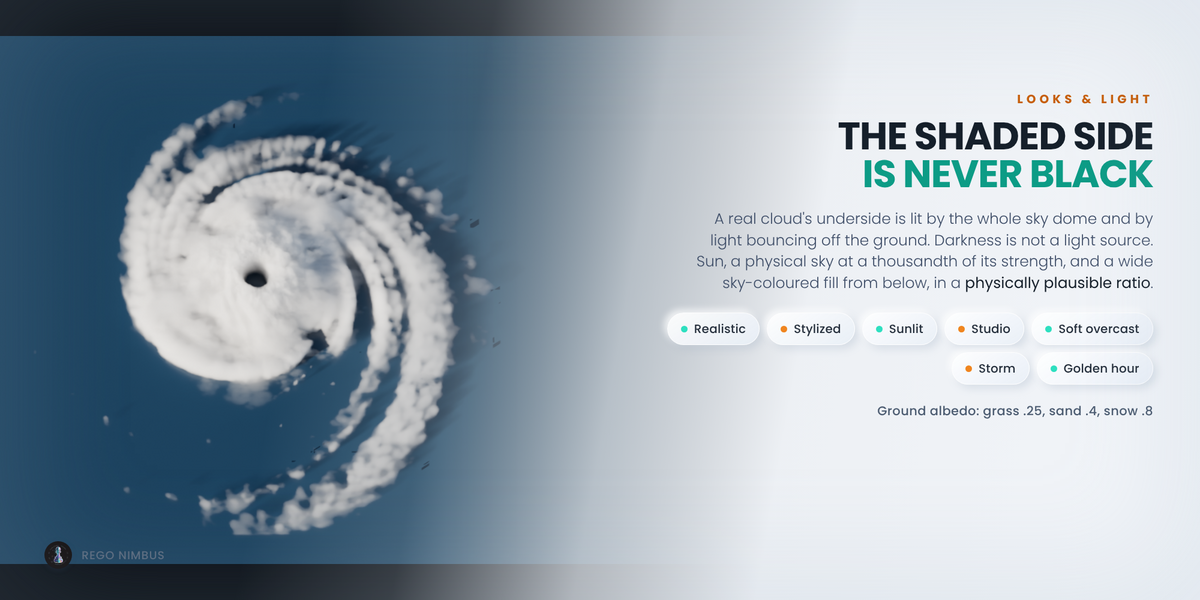
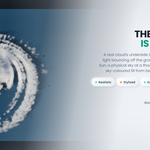
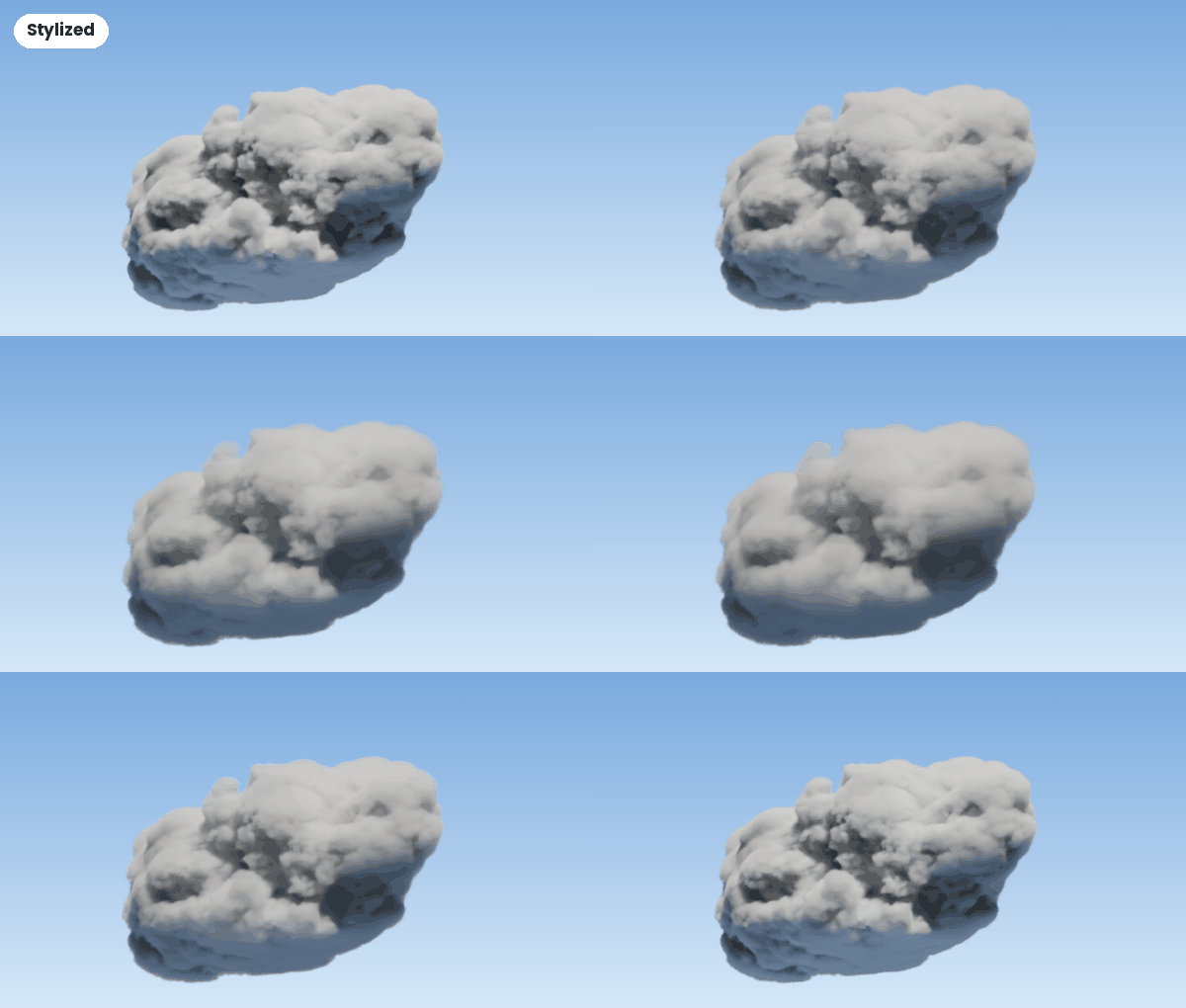
Realistic is soft vapour with light passing through the thin rim. Stylized is denser and more graphic. In both, the shaded side goes sky blue instead of black, because the underside of a real cloud is lit by the sky and by light bouncing off the ground.
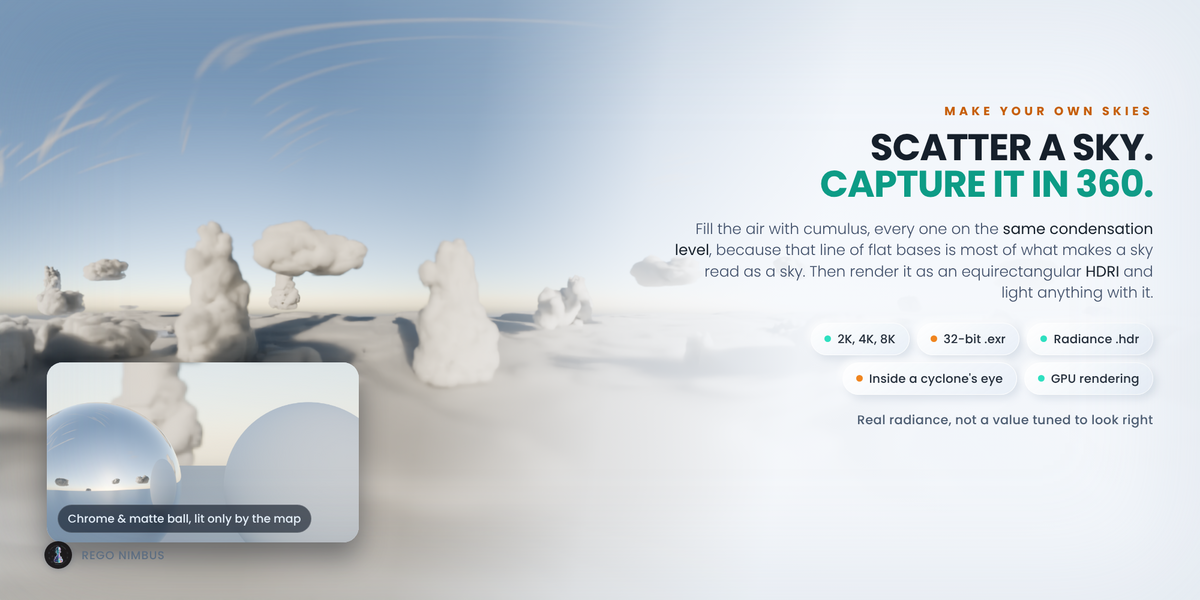
Build Light Rig sets up a sun, a physical sky with a ground albedo, and a wide sky coloured fill from below so EEVEE and low bounce counts get the effect too. The sun's height drives the sky colour, from deep blue overhead to pale and warm near the horizon. Ground albedo uses real values: grass about 0.25, sand 0.4, fresh snow 0.8. Five more looks are one click each: Sunlit silver lining, Studio white, Soft overcast, Storm cell and Golden hour.
Turning your own shapes into clouds
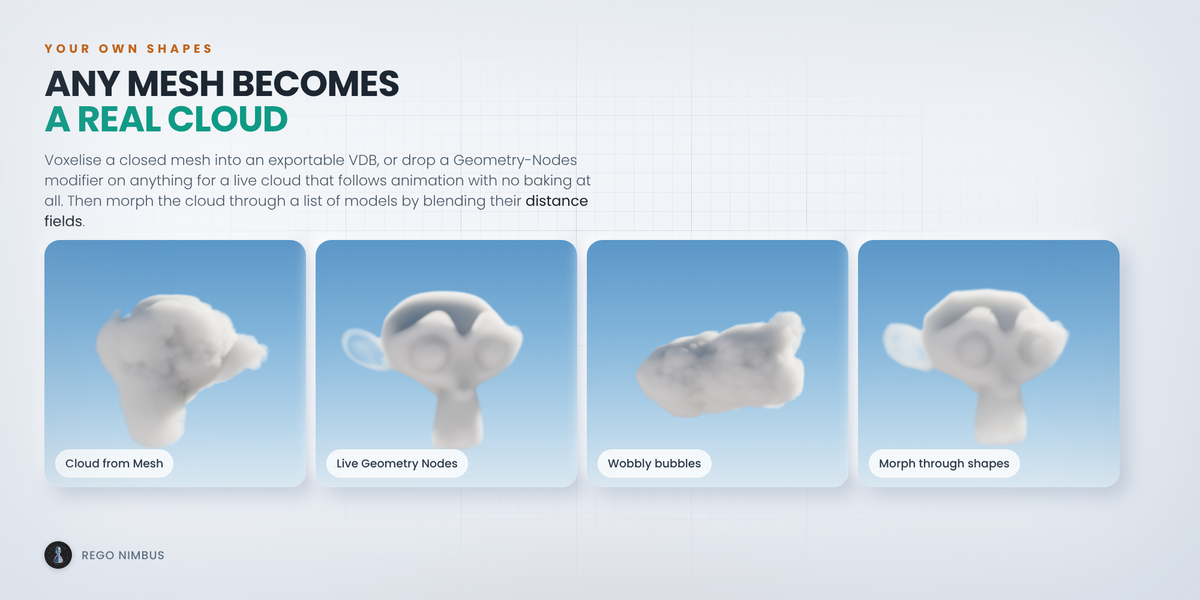
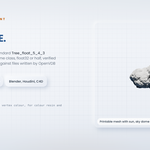
Cloud from Mesh voxelises a closed mesh into a real VDB that you can export. The mesh has to enclose a volume: an open shell has no inside.
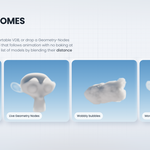
Live Cloud adds a Geometry Nodes modifier that turns an object (mesh, metaball, curve or text) into a volume without baking, so it follows animation, armatures and physics. It is not written to a .vdb file. When the cloud has to leave Blender, use Cloud from Mesh. Voxels sets how fine the volume is, Detail how much the noise breaks up its surface and Noise scale how big that noise is. After changing them, press Update Live Clouds.
Metaball rig builds a cluster of blobs in the shape of a cumulus that you can move and keyframe by hand. Add Children grows more blobs, with a count and an amount of chaos. Animate Metaballs keyframes drift, rise and a breathing radius on every blob at once.
Morphing between models
Add a list of target objects, give each one a hold in frames, and press Bake Morph & Play. The blend happens between the distance fields of the shapes, with an organic bulge halfway through, and the result is a VDB sequence that plays in the timeline. The blend works on the exact distance to each mesh, so thin parts such as ears and fingers keep their shape.
Weather and physics
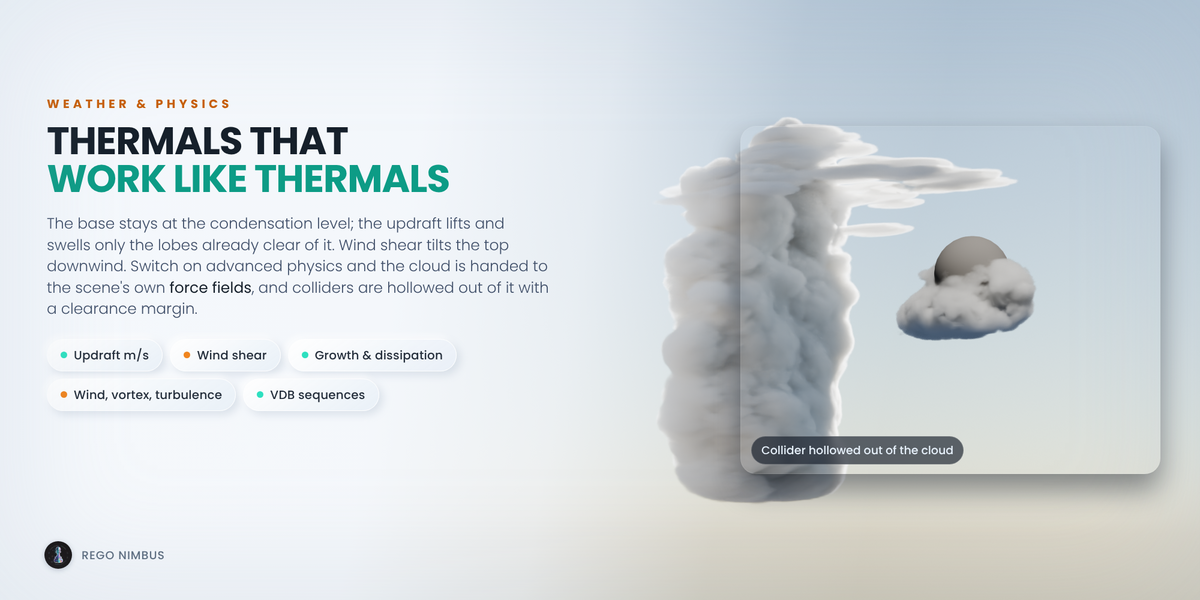
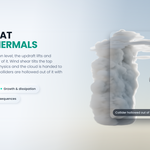
The base sits at the condensation level and stays there. Updraft (m/s) lifts and swells only the lobes already clear of the base. Wind shear makes the top drift faster than the base. Growth, Dissipation and Turbulence do the rest.
Switch on Advanced physics and the cloud is moved by the force fields in your scene (Wind, Vortex, Turbulence, Force, Harmonic) at their real strengths and falloffs. The domain grows so the cloud is never clipped. A mesh with a Collision modifier, or marked with Mark as Collider, is carved out of the cloud with a clearance margin.
A cloud is static unless Animate is ticked. Then one light VDB per frame is written and loaded as a sequence. Time scale is in cloud seconds per real second.
The hurricane
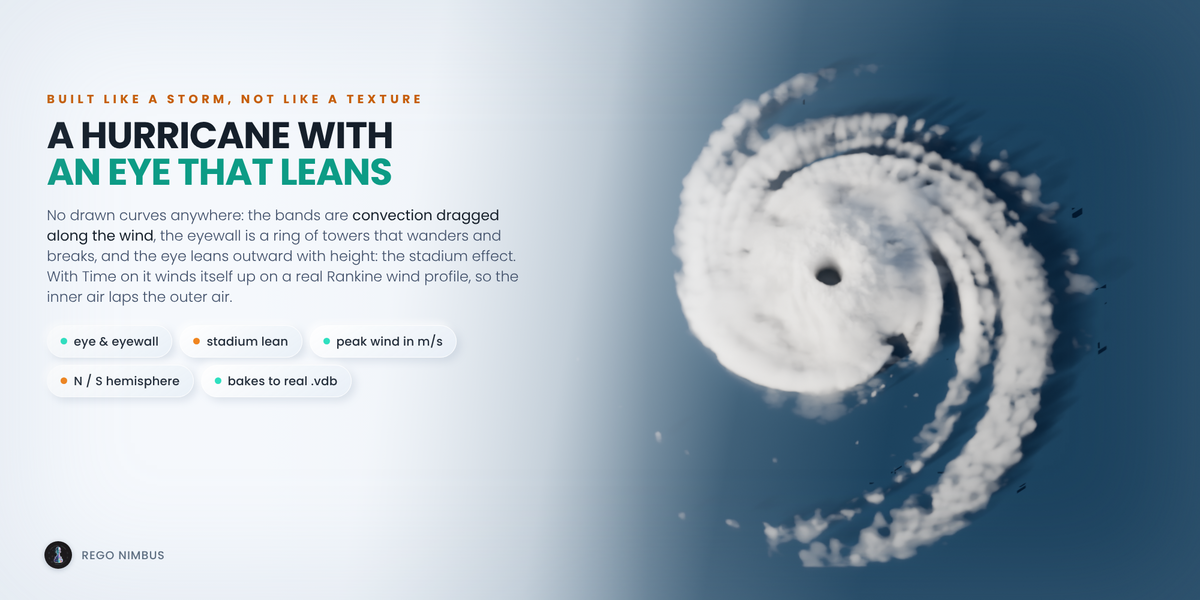
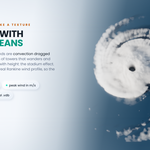
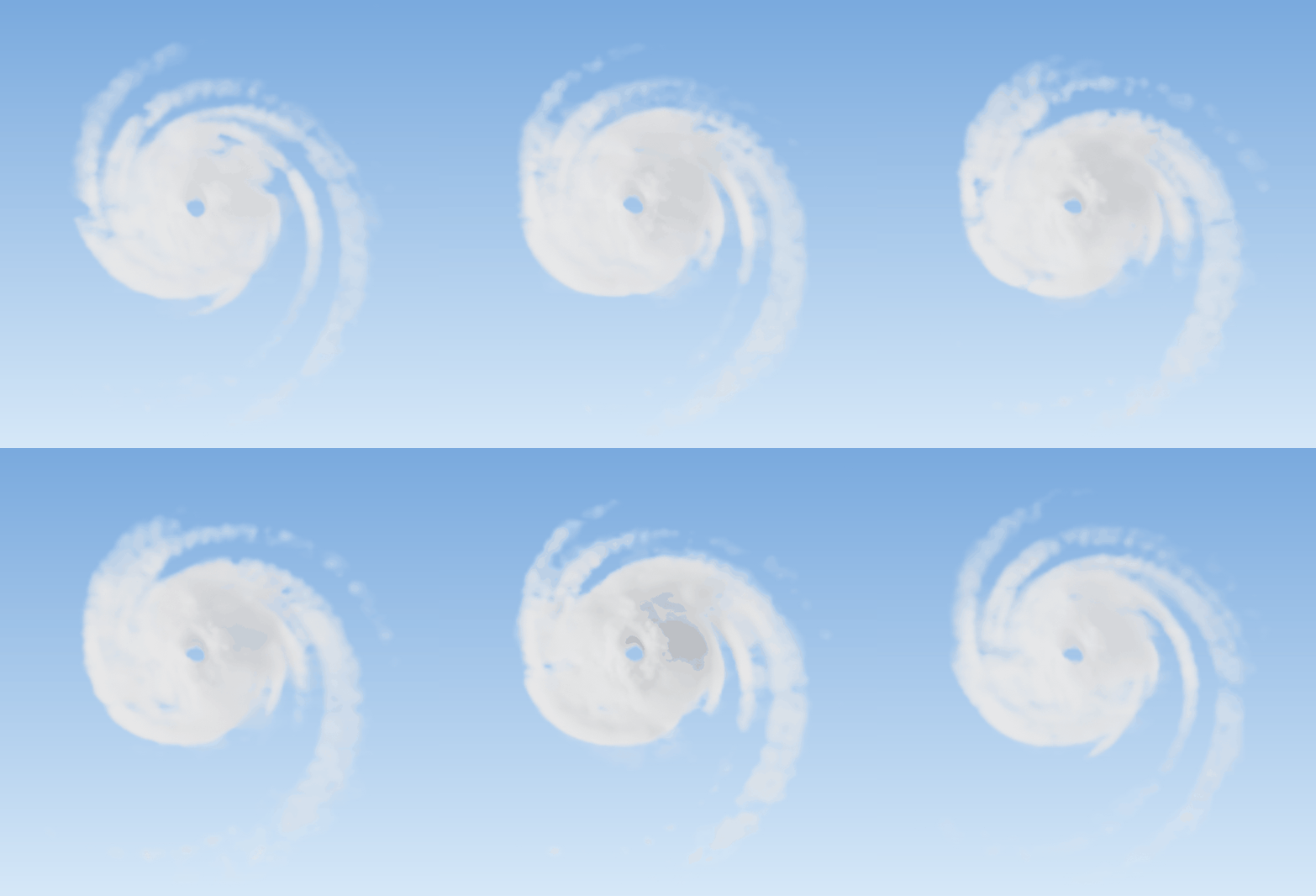
Choose Hurricane / Cyclone as the Type. Arms, pitch, eye size, eyewall thickness, canopy reach and break-up are sliders, and Hemisphere switches between northern (anticlockwise) and southern (clockwise) spin. With Time or Animate on, the storm winds up: set the peak wind in m/s and the real radius in kilometres.
Exporting
The cloud in the viewport is the file on disk, so there is no separate export step. Pick a Target and press Generate:
- Blender, Houdini, Cinema 4D: metres, Z up
- Unreal Engine: centimetres, Z up. Read as Sparse Volume Textures and in Niagara.
- Unity, Maya, Omniverse: metres, Y up
- Custom: your own unit scale and up axis
The object's scale can be baked into the voxel size, and you choose the grid name. Export Cloud Pack writes a set of seed variants with a README table. The VDB Inspector reads the header of any .vdb, including files made elsewhere, and tells you in plain words whether an engine will accept it.
The output is uncompressed OpenVDB, float32 or half float. It is larger than Blosc and it opens everywhere. If you need Blosc, save the file again from Houdini or from Blender's own bake.
Full colour 3D printing
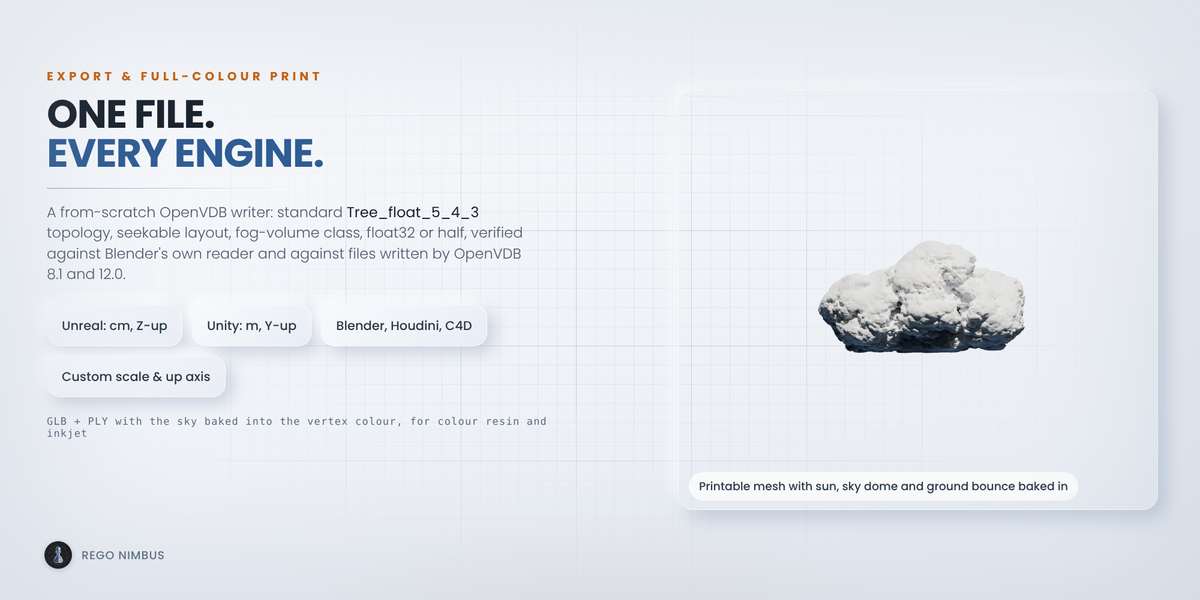
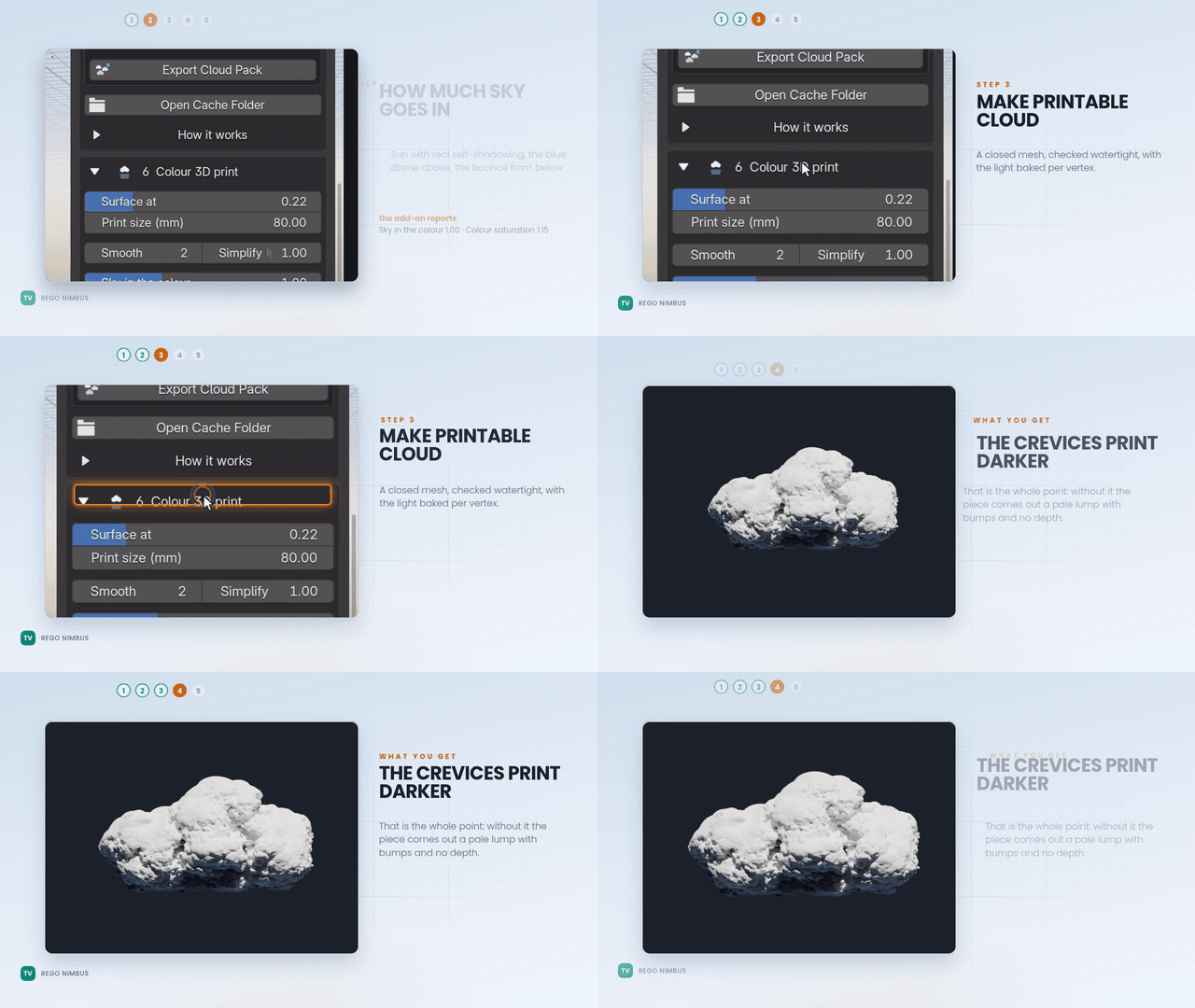
Make Printable Cloud turns the volume into a closed mesh and bakes the sky model into its vertex colours: direct sun with self shadowing, blue sky on top and on the sides, warm ground bounce underneath.
- Set the size in millimetres. The mesh is scaled for you.
- Smooth and simplify until the triangle count suits your slicer.
- Push Exposure and Saturation a little. Inks and resins look flatter than a screen.
- Export GLB or PLY.
Printability Report lists the triangle count, whether the mesh is watertight and the real size in millimetres before you send it anywhere.
Troubleshooting
- Blocky cloud: raise Quality.
- Grainy render: raise the Render setting.
- Nothing appears: check that the output folder is writable, and look in the Blender console for the path it reports.
- Cloud from Mesh gives nothing: the mesh is not closed. Try Mesh > Clean Up > Fill Holes and check for flipped normals.
- Generation feels slow: it runs on the CPU. Explore at Preview and raise Quality once for the final.
- A sequence is heavy on disk: use half float and a lower Quality for animation, full Quality for stills.
Support
Write to me through the Superhive message box on this product. Updates and support are included for good, with no support period and no renewal fee.
Have questions about this product?
Login to message
| Blender Extension Compatible | Yes |
| Dev Fund Contributor | |
| Published | about 2 months ago |
| Blender Version | 4.2 - 5.2 |
| Extension Type | Add-on |
| Render Engine Used | Cycles, Eevee |
| License | GPL |
Discover more products like this
volumetric unreal sky clouds procedural vdb volume openvdb unity environment weather cloud