 Densle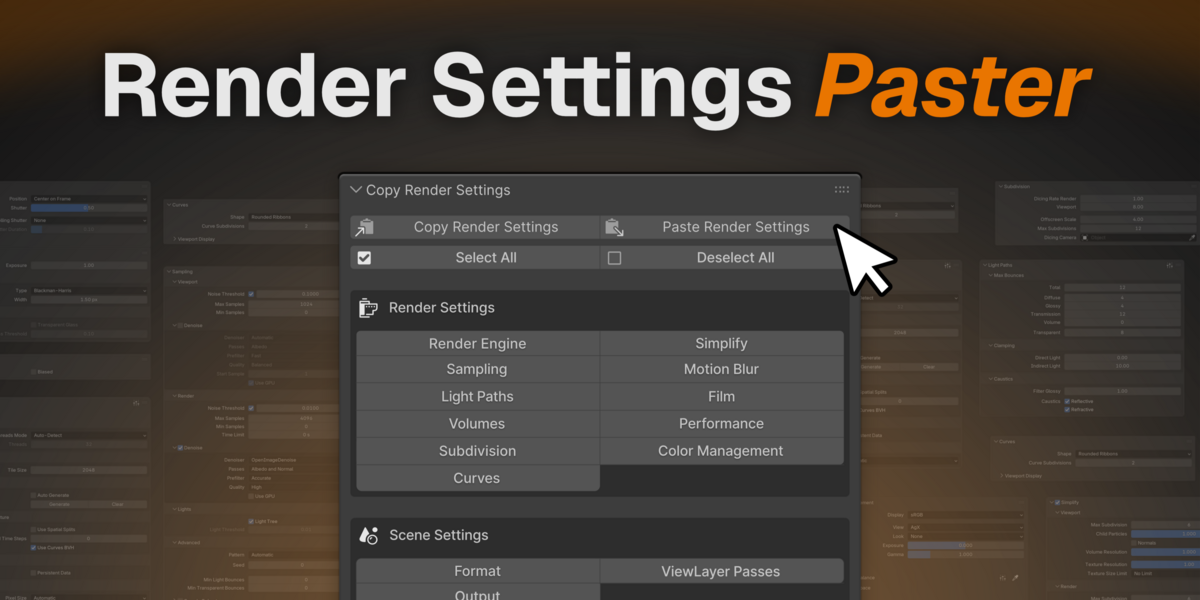
Installation
- In Blender, go to Edit → Preferences → Add-ons.
- Click Install from Disk… (Blender 4.2+) and select the add-on ZIP.
Enable Copy Render Settings in the add-on list.
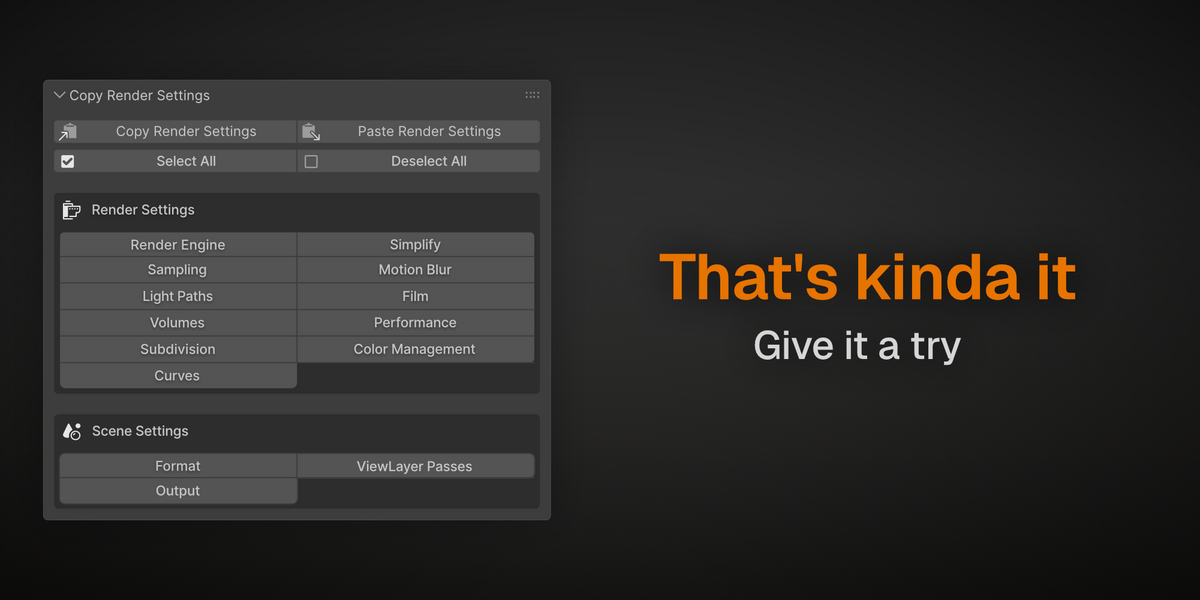
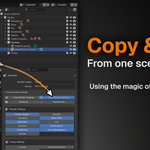
The add-on adds a Copy Render Settings panel to Properties → Render
(the camera icon).
Quick Start
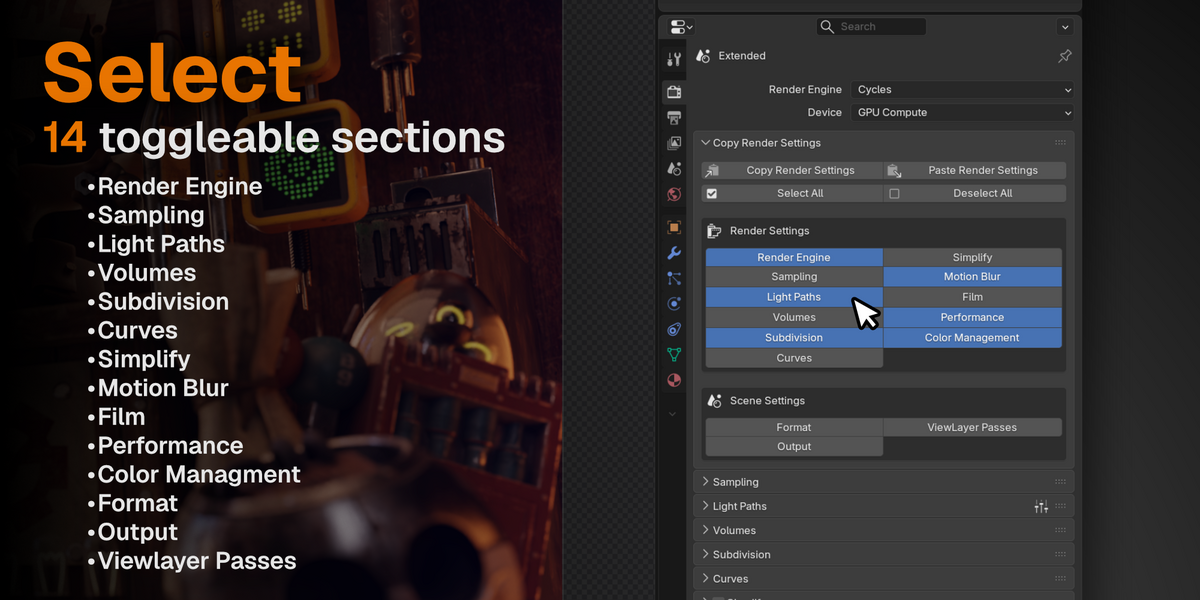
- In the source scene, enable the categories you want to copy.
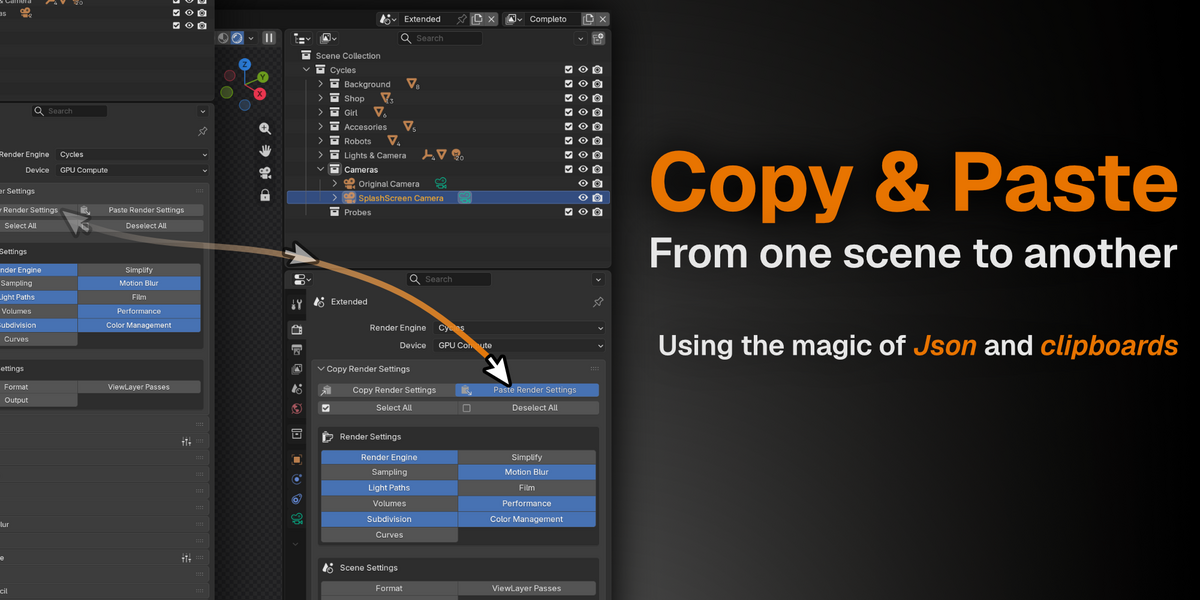
- Click Copy Render Settings. The settings are now on your clipboard.
- Open the target scene (in the same file, another file, or another Blender
window entirely) and click Paste Render Settings.
The status bar reports which categories were applied and skipped.
Categories
Every category is independently toggleable. Only the enabled categories are
copied and pasted.
| Category | What it includes |
Render Engine |
The engine itself (Cycles/EEVEE) and its CPU/GPU device |
| Sampling | Render & viewport samples, adaptive sampling, denoising, path guiding (Cycles); TAA samples & reprojection (EEVEE) |
| Light Paths | Bounces, caustics, sample clamping, Fast GI/AO (Cycles); raytracing, GTAO, GI intensity (EEVEE) |
| Volumes | Step rates, max steps, volumetric shadows |
| Subdivision | Dicing rates, max subdivisions (Cycles) |
| Curves | Hair type and curve subdivisions |
| Simplify | All Simplify toggles, including Grease Pencil |
| Motion Blur | Position, shutter, rolling shutter — plus the full shutter curve |
| Film | Transparency, exposure, pixel filters; EEVEE overscan & bokeh |
| Performance | Threads, persistent data, tile size, BVH options, compositor device |
| Color Management | Display device, view transform, look, exposure, gamma, white balance — plus the full RGB curves |
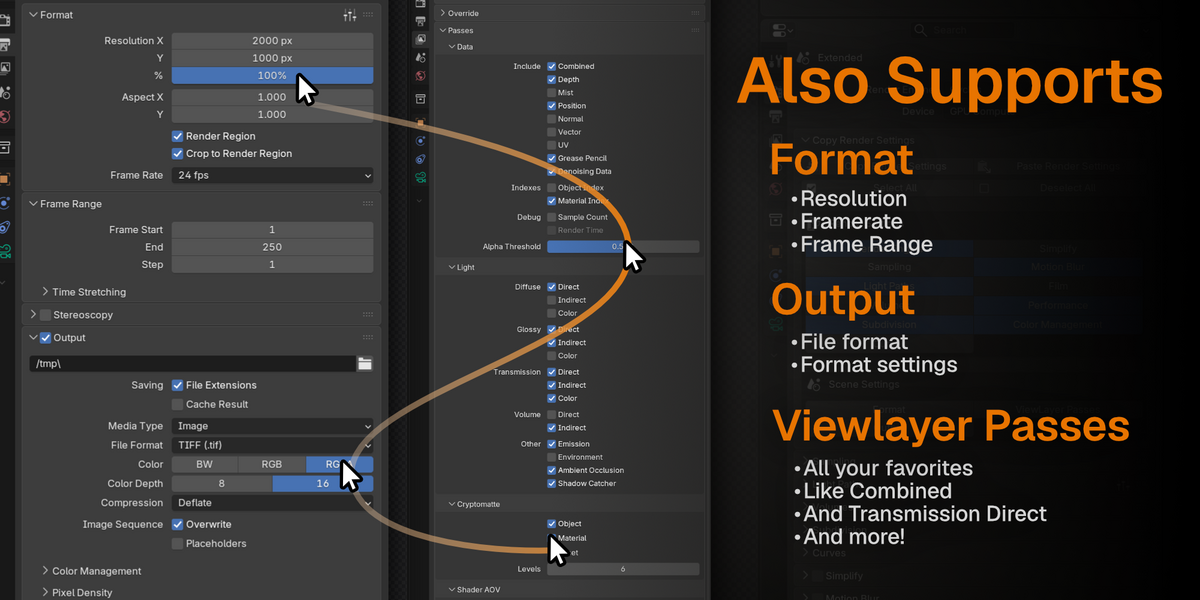
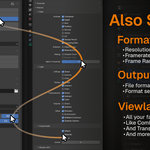
| Format | Resolution, pixel aspect, border render, FPS, frame range, stereoscopy |
| Output | File format, color depth, compression, codecs, EXR options, overwrite rules |
| ViewLayer Passes | All pass toggles, Cryptomatte depth, per-engine pass settings (Denoising Data, Sample Count, etc.) |
Use Select All / Deselect All to toggle every category at once.
Copying Between Machines
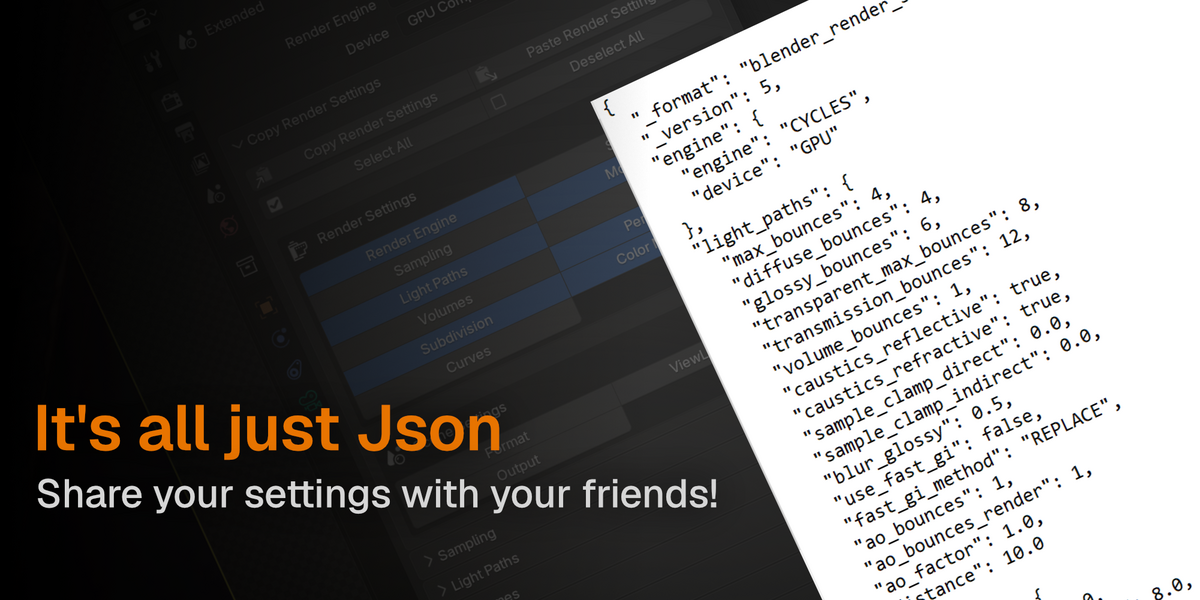
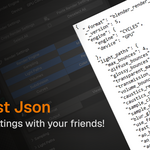
The payload is plain JSON on the system clipboard. To move settings between
computers, paste it into anything that carries text — chat, email, a notes
app, a text file — then copy it again on the target machine and use
Paste Render Settings there.
If the clipboard doesn't contain valid render settings, the add-on tells you
so rather than guessing.
Cross-Version Behavior
The add-on runs on Blender 4.5 and 5.x. When pasting into a different version:
- Engine names are translated automatically (e.g. EEVEE's BLENDER_EEVEE_NEXT rename between 4.5 and 5.x).
- Settings that don't exist in the target version are skipped and reported.
- Engine-specific categories (Cycles sampling, EEVEE light paths, …) only transfer between the same engine; non-applicable categories are reported
as skipped. - A catch-all sweep transfers settings the add-on doesn't explicitly enumerate, so new properties added by Blender are picked up without an
update.
What Is Never Copied
- Absolute output paths — pasting one from another shot or machine would most likely be no good.
- CPU instruction-set and debug toggles (AVX2, OptiX debug, adaptive compile flags) — these belong to the hardware, not the look of the render.
- Current frame / playhead state and other transient viewport state.
Troubleshooting
"Clipboard is empty" / "Clipboard does not contain render settings"
The clipboard doesn't hold a payload from this add-on. Copy first, or check
that another application didn't overwrite the clipboard in between.
"Nothing to copy: … not available for the CYCLES engine"
The enabled categories belong to the other engine. Enable the ones matching
the active engine, or copy the engine itself so paste switches engines.
"N properties skipped — see console"
Expected when moving between Blender versions or engines. Enable Verbose
Logging in Preferences → Add-ons → Copy Render Settings to see the full
list with reasons.
Paste changed the settings but the UI still shows old values
Some panels lag behind scripted changes. The add-on forces a redraw, but if a
panel still looks stale, toggling it or changing tabs refreshes it.
Nothing happened on paste and nothing was reported
All categories in the payload were either skipped or unavailable. Enable
Verbose Logging for details.
Preferences
Verbose Logging - logs every skipped property (with its reason) to the
system console. Off by default; enable when reporting an issue.
Feedback & Contributing
Bug reports are welcome, especially for Blender versions or engine
combinations not covered by the test suite. When reporting a paste that
misbehaves, include:
Both Blender versions involved (source and target),
The active engine on each side,
The Verbose Logging output.
Have questions about this product?
Login to message
| Blender Extension Compatible | Yes |
| Published | 19 days ago |
| Blender Version | 4.5 - 5.2 |
| Extension Type | Add-on |
| Render Engine Used | Cycles, Eevee |
| License | GPL |

Discover more products like this
render toolkit render tools Blender-render-settings rendersettings