 Urushigusa Software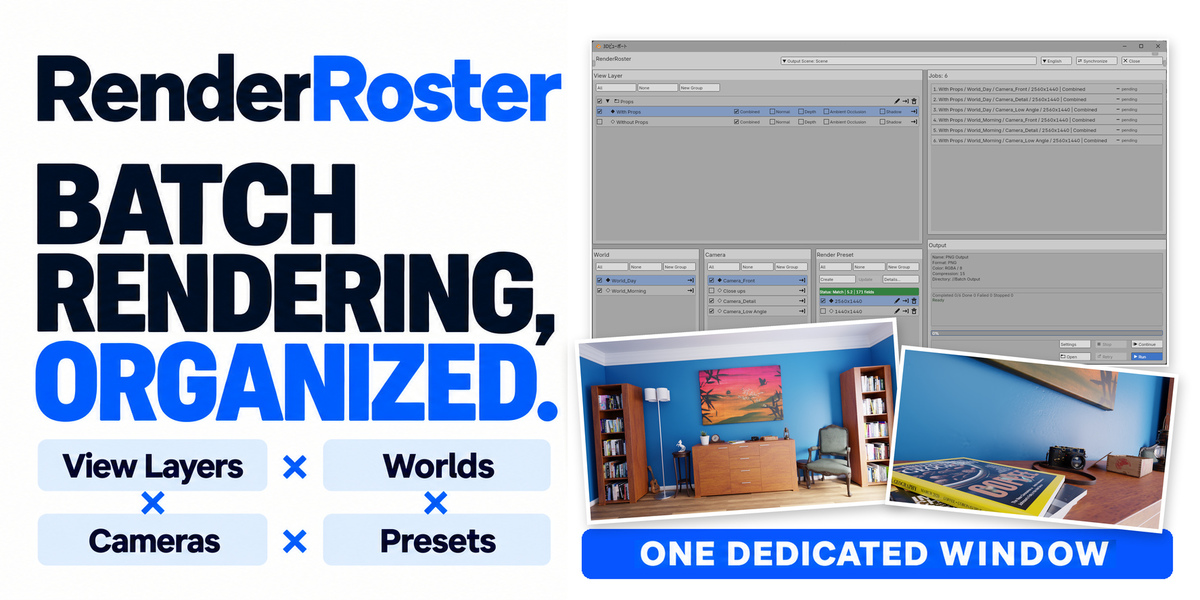
RenderRoster
Batch render combinations. Manage them in one dedicated window.
RenderRoster is a batch render manager for Blender. Choose your View Layers, Worlds, Cameras and Render Presets, then render their combinations in sequence. A spacious dedicated window keeps your selections, generated jobs and progress together, so batch management does not have to fit into a narrow sidebar or a long properties panel.
Choose the combinations. See the results.
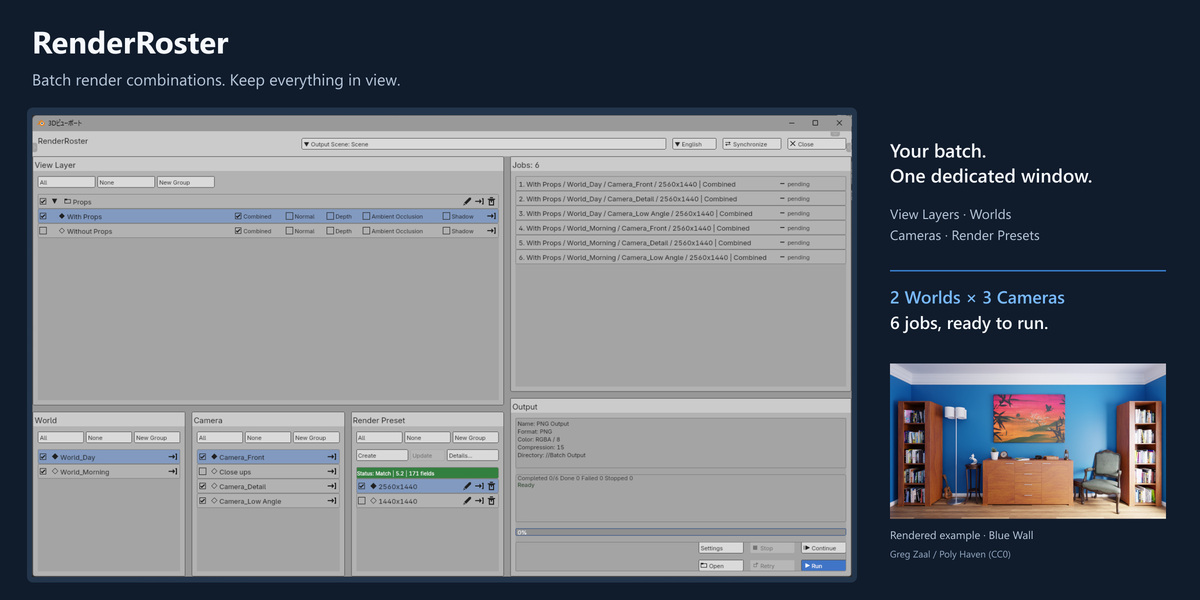
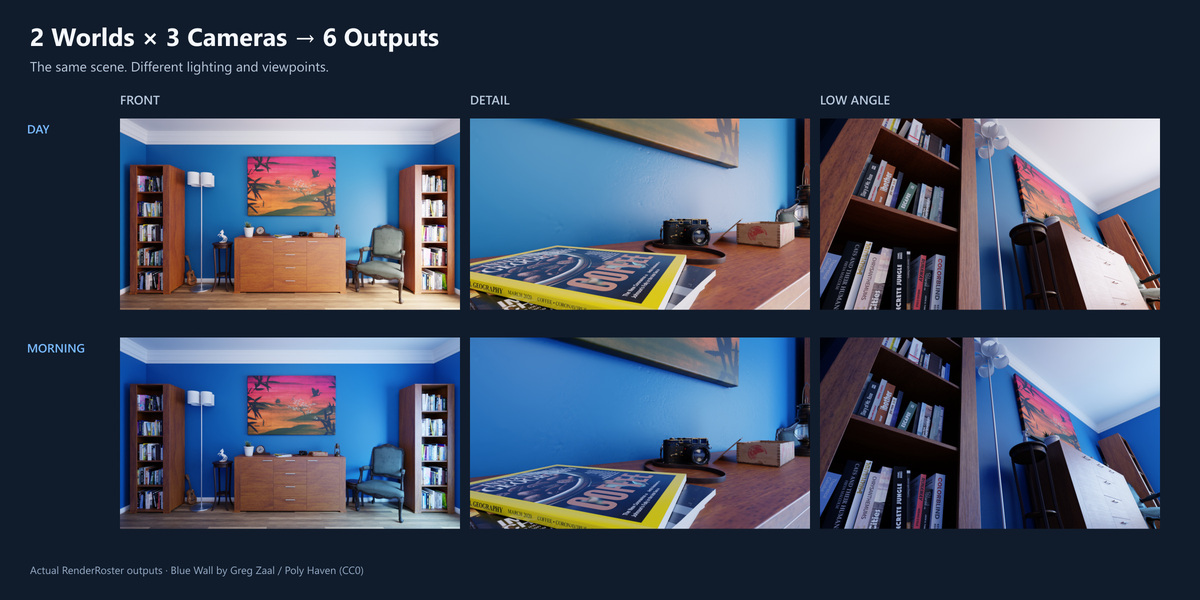
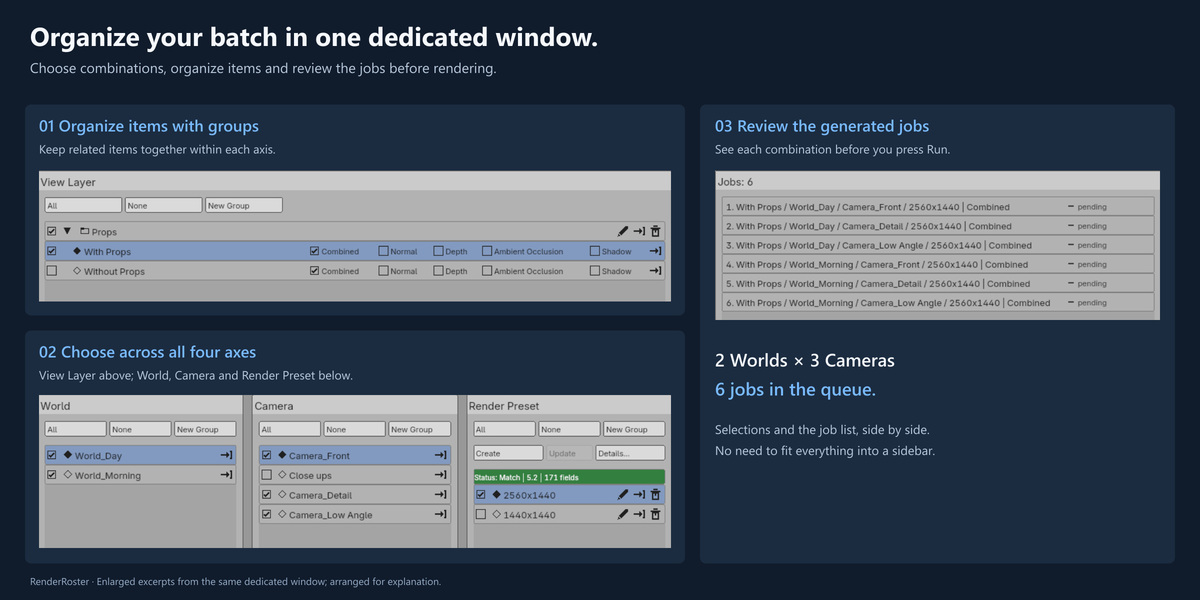
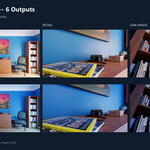
Need the same scene from three cameras under two lighting environments? Select one View Layer, two Worlds, three Cameras and one Render Preset: RenderRoster prepares six jobs. Review the list, choose your output settings and run the batch.
The gallery shows six actual outputs from this setup: Day and Morning, each rendered from Front, Detail and Low Angle cameras.
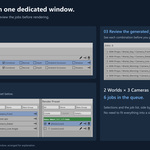
Keep the whole batch in view
Choose items across all four axes while keeping the generated job list visible. Organize related items into groups within each axis. Switch a group off to exclude its contents temporarily, then switch it back on with the individual selections preserved.
Follow each job's progress and result in the same window.
Put the names that matter first
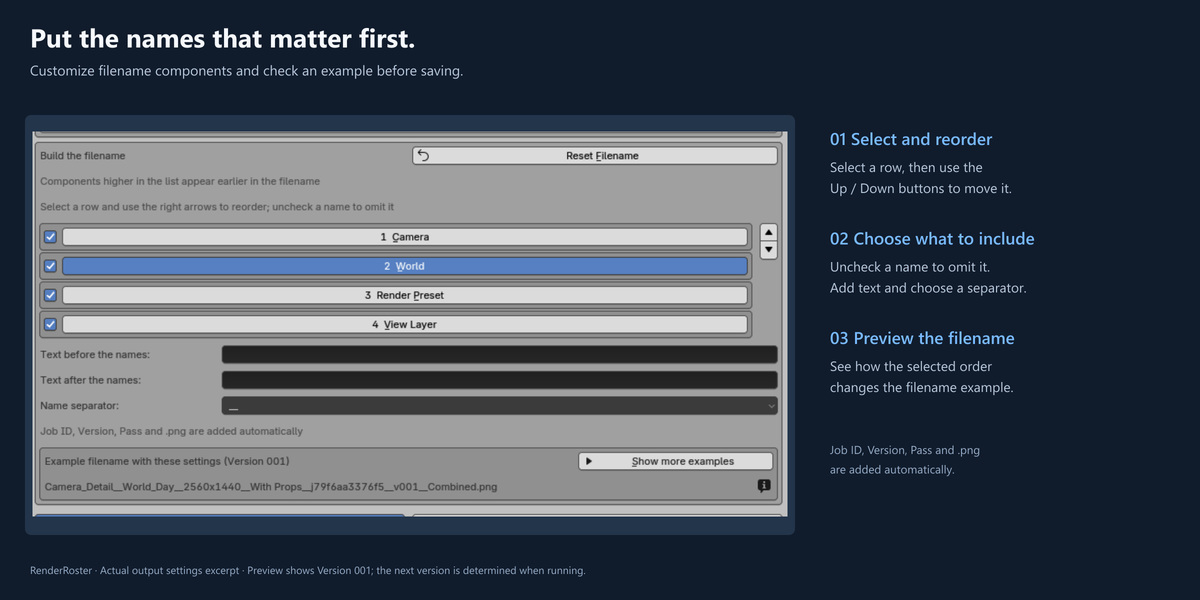
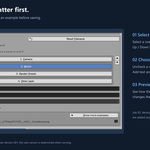
Arrange filename components to suit how you browse your outputs. Put Camera first when comparing viewpoints, or World first when comparing lighting. Select a row and use the Up / Down buttons to reorder it; omit names you do not need, add text before or after the names, and choose a separator.
Check a filename example before saving. The job identifier, Version and Pass are added automatically at the end. Filename order does not change job execution order.
You can leave camera or world names out of your filenames without losing the distinction between jobs. RenderRoster automatically appends a job ID that identifies the full combination of View Layer, World, Camera and Render Preset. Different combinations remain distinguishable even when the names you choose to display are the same.
Review settings before applying
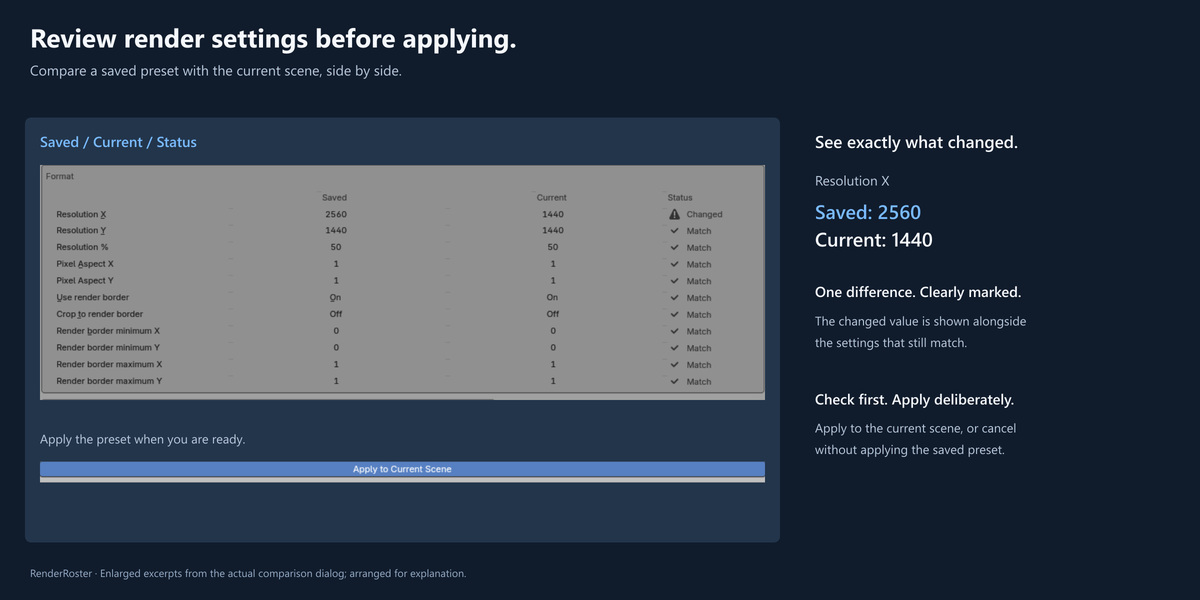
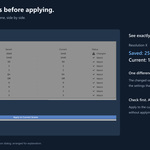
Save render settings as named presets for different resolutions or quality levels. Compare a preset's saved values with the current scene, see which settings changed, and apply the preset when ready. You can also update a preset from the current settings.
Follow a batch through interruptions
Stop takes effect after the current job finishes. Within the same batch setup and Blender session, Continue runs pending or stopped jobs, while Retry runs failed jobs after you correct the cause. Both skip completed jobs, so you do not have to render the whole batch again. When a job fails, RenderRoster records the reason and continues where possible.
Continue and Retry do not restore a batch after Blender has been closed or restarted.
Versioned output names preserve earlier renders. Settings temporarily changed for rendering are restored as far as Blender allows.
Compatibility and scope
- Windows; Blender 4.5 LTS and 5.2 LTS. Tested versions: 4.5.13 and 5.2.0. macOS and Linux are untested.
- Dedicated-window UI in English, Japanese, Simplified Chinese, Korean, Spanish, Russian and French. Choose a language in RenderRoster or follow Blender's language setting.
- PNG output. Jobs render sequentially; distributed and parallel job rendering are not included.
- Continue and Retry use the current session; there is no history browser for resuming an old run after restarting Blender.
- Use one Blender process per output directory at a time.
- Presets that change the file Working Space affect the whole blend file; review the warning before applying.
On Windows, drag the supplied Extension ZIP from File Explorer into Blender and follow the installation prompt. Keep the ZIP unextracted. Alternatively, use Blender's Install from Disk command. After installing RenderRoster, save your blend file and set it up from the RenderRoster tab in the sidebar. The included guide walks you through your first batch.
Support and updates
Your Superhive purchase includes 12 months of support, maintenance and product updates. An optional additional 12 months costs 50% of the product price at renewal; there is no automatic renewal. Versions received during coverage remain usable afterward. Access to releases published after expiry and individual support require renewal. Japanese and English support covers installation, product use and troubleshooting. For Superhive purchases, please contact us through the product page on Superhive; we handle these conversations in our Superhive Inbox. Alternatively, contact Urushigusa via https://urushigusa.com/contact or [email protected].
Demo scene: Blue Wall by Greg Zaal / Poly Haven (CC0), adjusted for these examples. Rendered examples illustrate RenderRoster's output; the scene is not included with the add-on.
License and asset terms
The add-on source code is licensed under GPL-3.0-or-later. The guide and product icon have separate terms stated in the included README.md; normal use with RenderRoster, including commercial production, is permitted. Our original promotional text and images are not offered for unrestricted reuse. Other uses require permission unless permitted by applicable law or an existing license. These terms do not restrict GPL-covered code or your own rendered output. Third-party materials retain their respective terms.
