Render Roster
 Urushigusa Software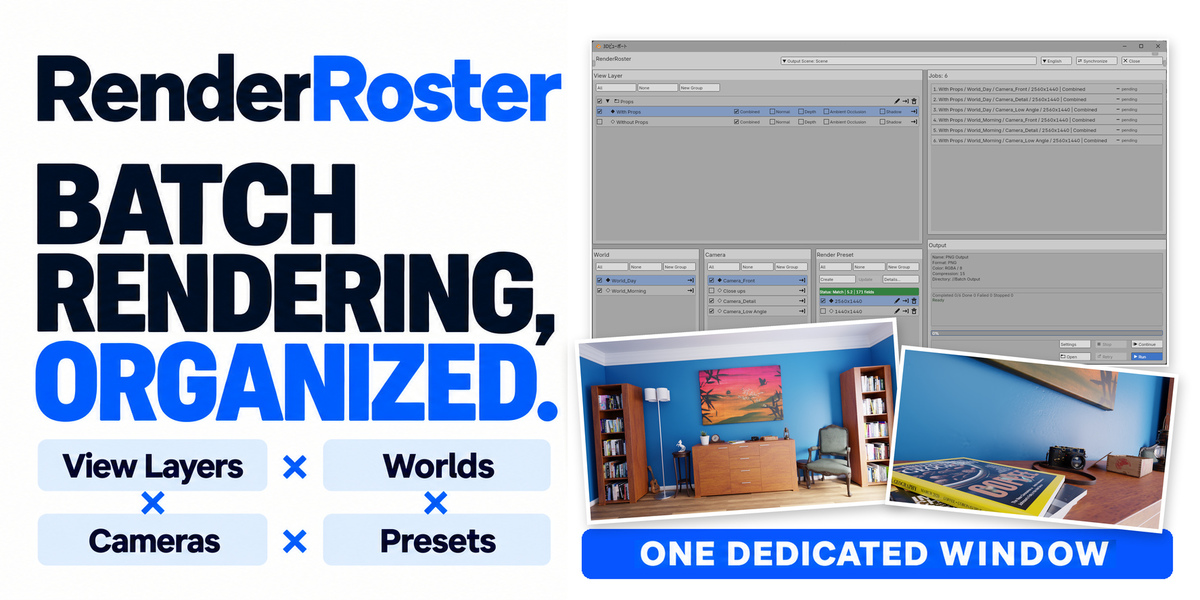
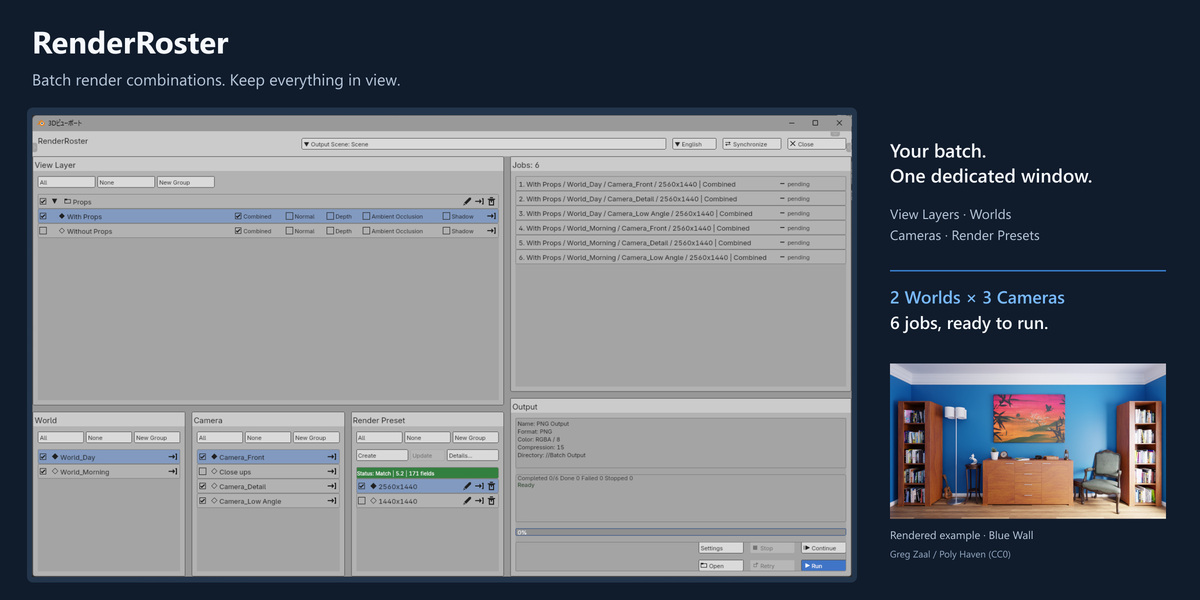
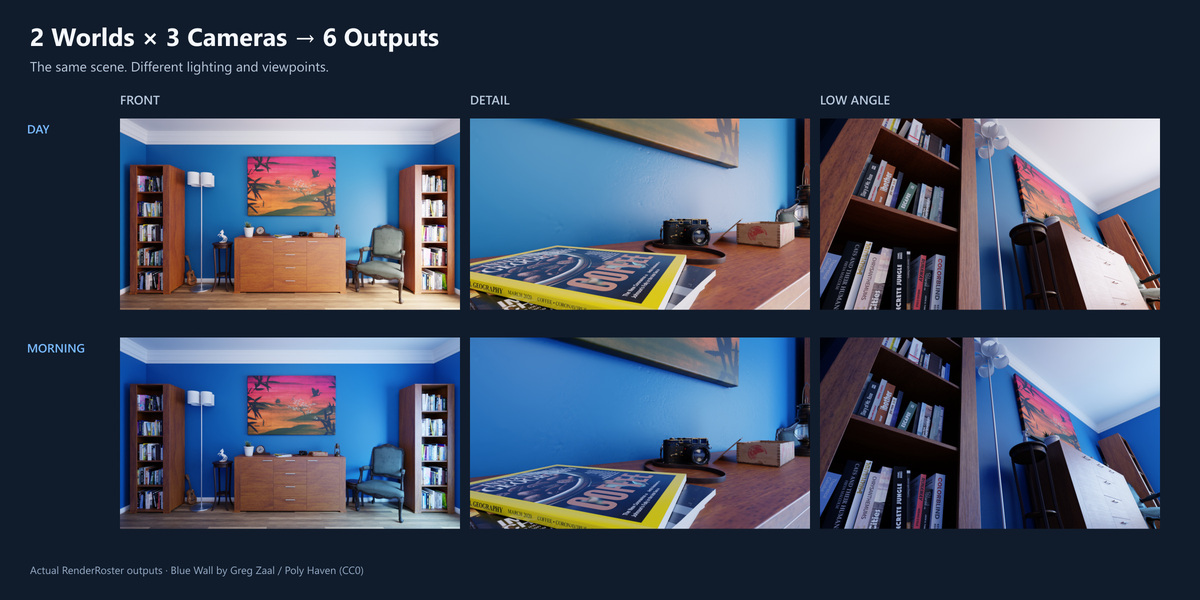
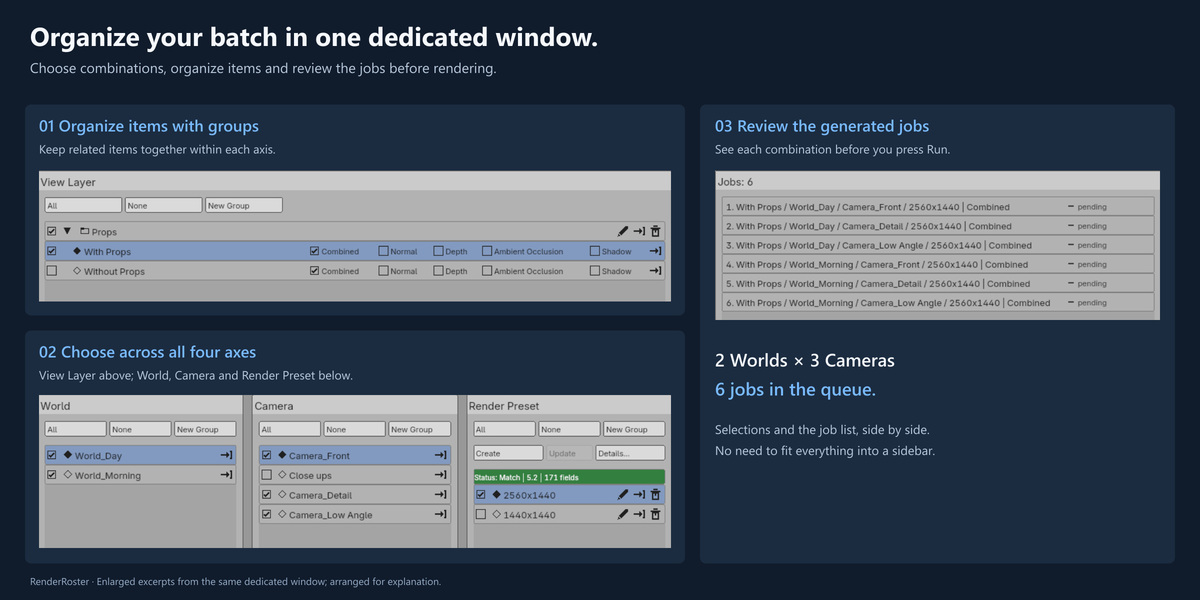
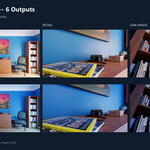
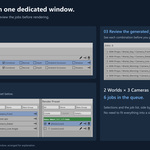
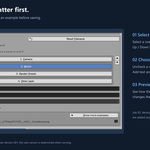
Rendering several combinations from the same scene: different cameras, Worlds, View Layers and render settings. For example, one View Layer × two Worlds × three Cameras × one Render Preset produces six jobs. Review and manage the batch in a dedicated window.
It reduces the manual work of switching conditions and tracking repeated renders. It does not speed up Blender's rendering of an individual image. Jobs run sequentially, not in parallel or across multiple machines.
Yes. Save your blend file, set up RenderRoster and select the scene's existing items. You prepare cameras, Worlds and View Layers in Blender; RenderRoster organizes their combinations. Groups are optional. Opening the window does not start a render: use Run when ready.
Windows with Blender 4.5 LTS and 5.2 LTS; tested versions are 4.5.13 and 5.2.0. macOS and Linux are untested. The dedicated-window UI supports English, Japanese, Simplified Chinese, Korean, Spanish, Russian and French, with an option to follow Blender's language setting. Customer support is in Japanese and English.
PNG output, with Combined, Normal, Depth, Ambient Occlusion and Shadow choices per View Layer, subject to the render engine's capabilities. Additional passes create additional files; they do not add another combination axis. EXR, JPEG and video output are not included.
Yes. Stop takes effect after the current job finishes. Within the same batch setup and Blender session, Continue runs pending or stopped jobs, while Retry runs failed jobs after you correct the cause. Both skip completed jobs, so you do not have to render the whole batch again.
Continue and Retry do not restore a batch after Blender has been closed or restarted.
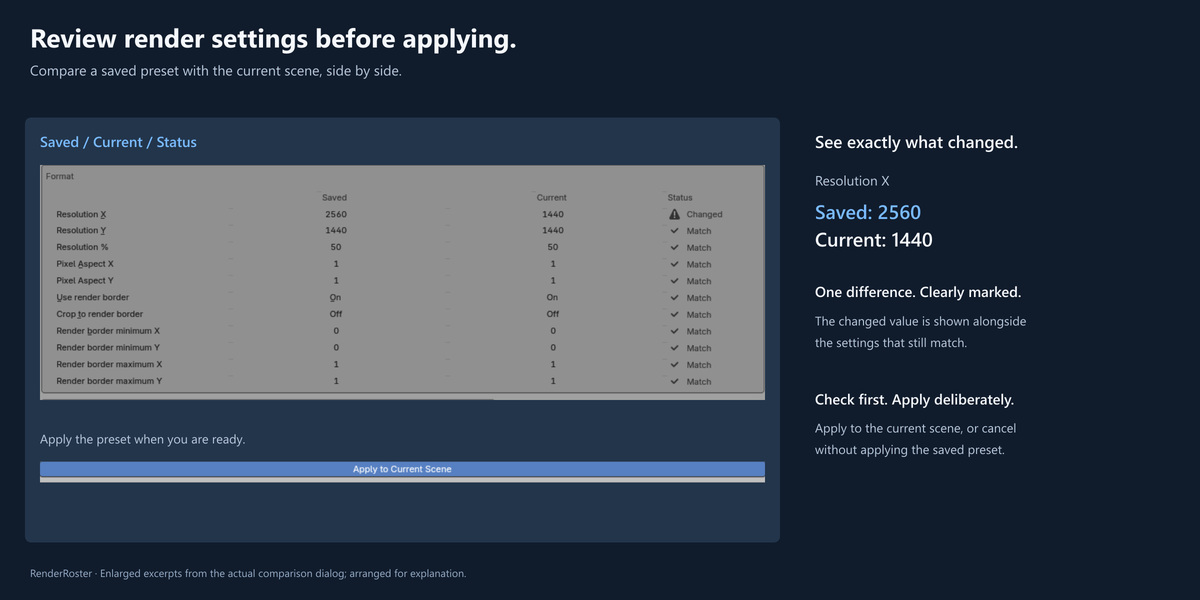
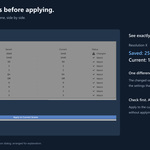
Render Presets store supported render settings, such as resolution, engine and sampling, and let you compare saved values with the current scene before applying. Output Settings control the output folder, PNG options and filename customization. If a preset needs updating in another Blender version, review the indicated settings; newer settings are not guaranteed to work in older versions.
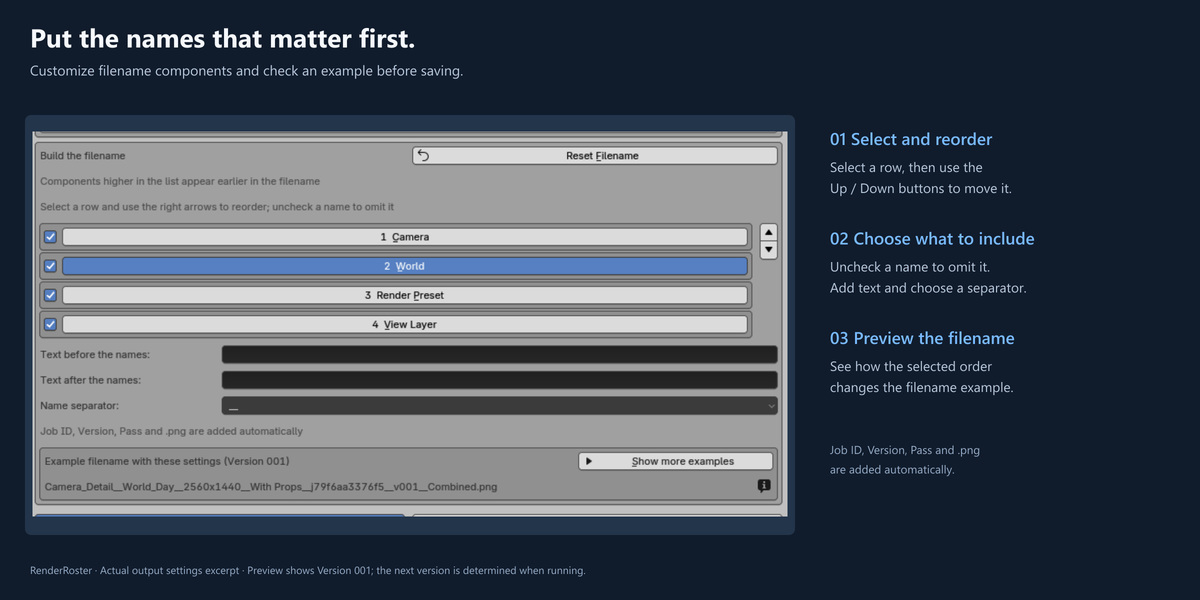
Yes. Reorder or omit axis names, keeping at least one, and choose added text and a separator. Preview a filename example before saving. Job ID, Version and Pass are added automatically at the end.
Even when you omit camera or world names, the job ID still identifies the full combination of View Layer, World, Camera and Render Preset. Different combinations remain distinguishable even when their displayed names are the same.
Naming changes do not rename existing files or change job execution order. New runs use the next Version for recognized existing outputs of the same combination, preserving earlier renders. Use only one Blender process per output folder at a time.
No. The Blue Wall scene and gallery renders demonstrate the add-on and are not part of the download. The scene is by Greg Zaal / Poly Haven (CC0), adjusted for the examples.
On Windows, drag the supplied Extension ZIP from File Explorer into Blender and follow the installation prompt. Keep the ZIP unextracted. Alternatively, use Blender's Install from Disk command. After installing RenderRoster, save your blend file and set it up from the RenderRoster tab in the sidebar. The included guide walks you through your first batch. For Superhive purchases, please contact us through the product page on Superhive; we handle these conversations in our Superhive Inbox. Alternatively, contact Urushigusa via https://urushigusa.com/contact or [email protected]. Support is available in Japanese and English.
You can keep using the versions received during the included 12 months. Renew to receive individual support and access versions released after your coverage expires. Another 12 months costs 50% of the product price at renewal. Renewal is optional, not automatic.
Superhive purchases follow the Superhive Refund Policy. Requests must be made within 30 days of purchase and meet the policy's conditions; this is not an unconditional money-back guarantee. For technical issues, check the guide and FAQ, then contact us through the product page. For accidental purchases, follow the store's instructions, which differ depending on whether you have downloaded the product. Superhive reviews and processes refunds.
 Included
Includes 12 months of
- Support from Urushigusa Software
- Product updates
Extend this product’s Support Period +12 months: 50% of product price
Have questions before purchasing?
Login to message
| Blender Extension Compatible | Yes |
| Published | 11 days ago |
| Blender Version | 4.5 - 5.2 |
| Extension Type | Add-on |
| Render Engine Used | Cycles, Eevee |
| License | GPL |
Discover more products like this
camera view layer Workflow world batch render render-preset render manager