RenderTwin: Faster Cycles Render Settings, Tested on Your Own Scene
 Darksteady. Studio
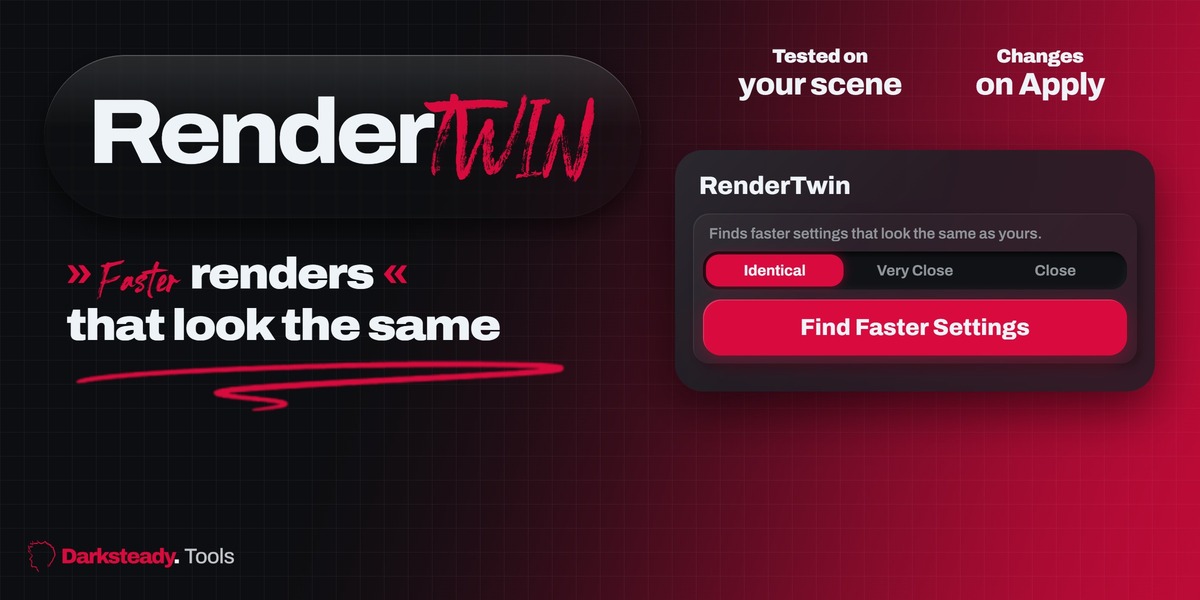
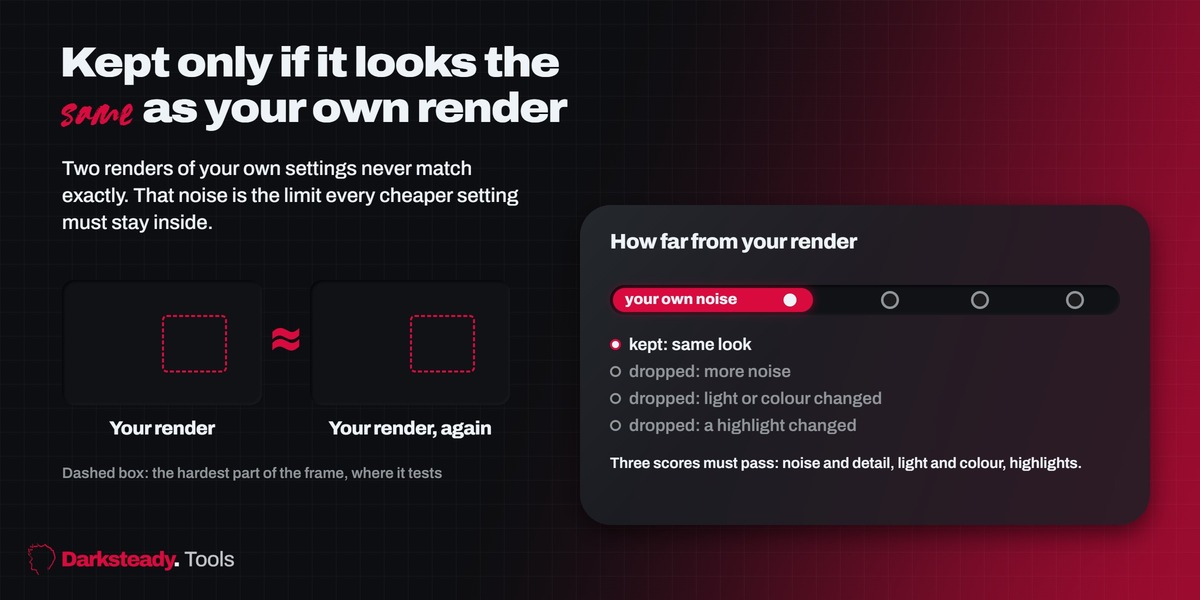
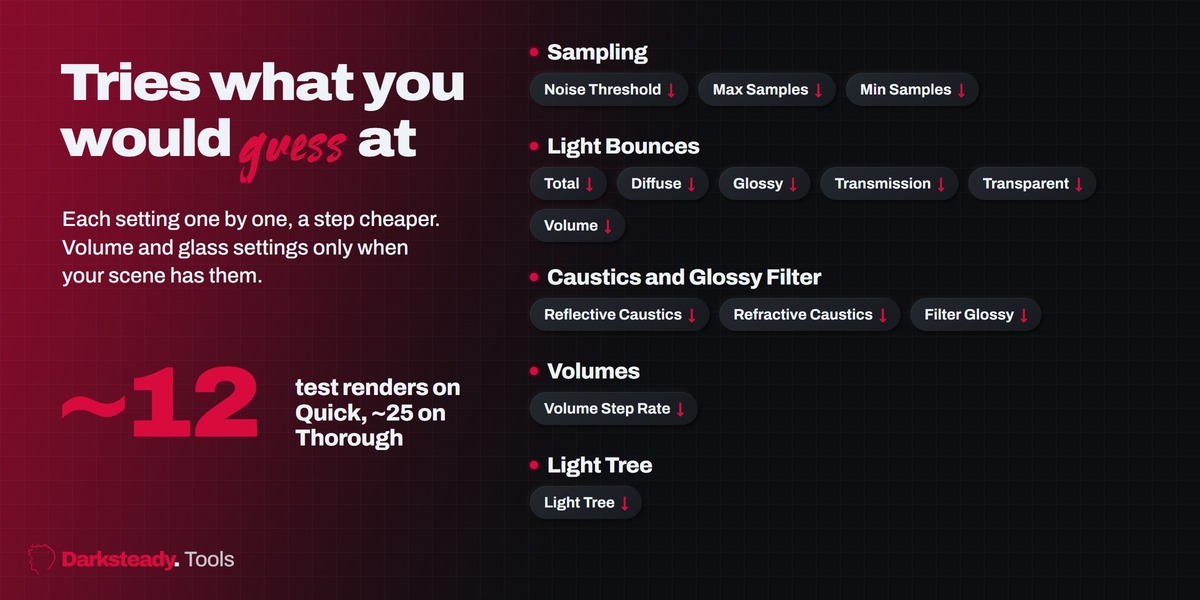
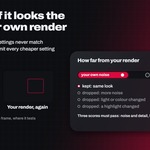
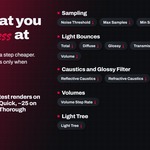
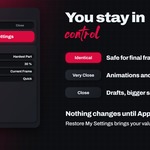
RenderTwin finds out how much of your Cycles render time you can save without the image changing. It renders part of your frame twice with your own settings to measure how much two renders of the same scene differ anyway (the noise). Then it tries cheaper settings one by one: noise threshold, samples, light bounces, caustics, volume steps and light tree. It keeps only the changes whose result is no further from your render than your render is from itself, and checks all kept changes together once more. Nothing changes until you press Apply, and Restore My Settings brings your values back at any time.
Install
- In Blender open Edit > Preferences > Get Extensions.
- Open the menu in the top right corner and choose Install from Disk.
- Pick
rendertwin-1.0.0.zip. It is enabled right away. - Open the Properties editor, Render tab, and scroll to RenderTwin.
Supported: Blender 4.2 LTS, 4.5 LTS, 5.1 and 5.2 LTS. Render engine: Cycles.
Quick start
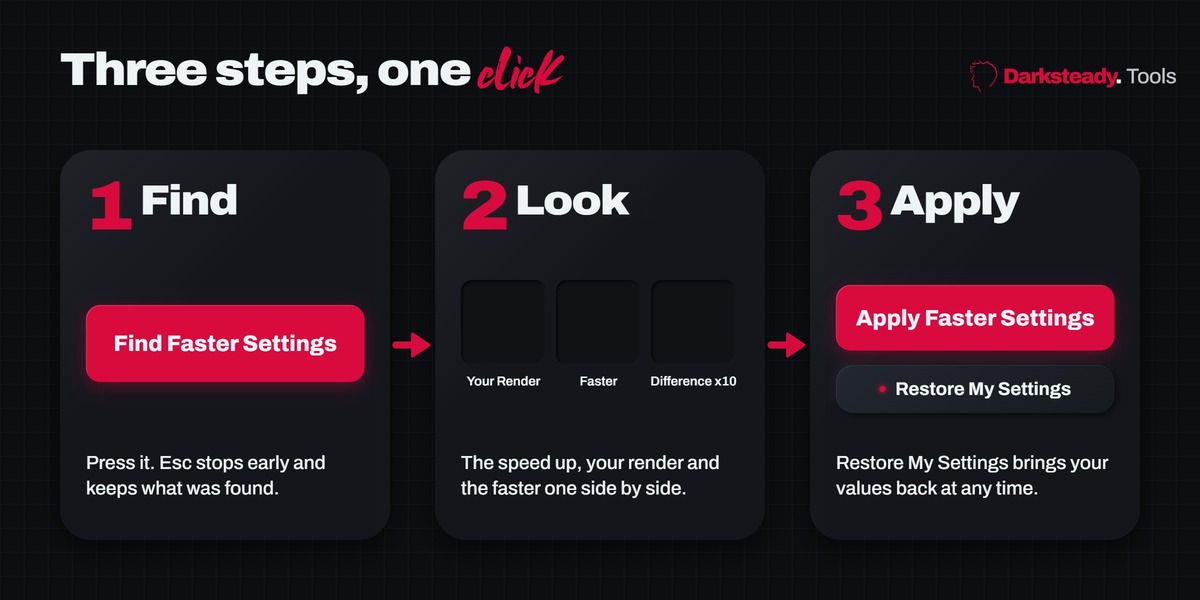
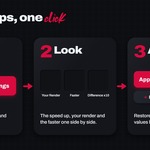
- Set up your scene and render settings as you like them, with Cycles and an active camera. Press Find Faster Settings. The panel shows the progress, for example "Test 5 of about 20: Noise Threshold 0.010 to 0.040". Esc stops early and keeps what was found.
- Look at the result: the speed-up, the three thumbnails (Your Render, Faster, Difference x10), Compare Full Size for a close look, and the list of changes.
- Press Apply Faster Settings. Changed your mind later: Restore My Settings.
The same command is in the Render menu: Find Faster Settings (RenderTwin).
Settings
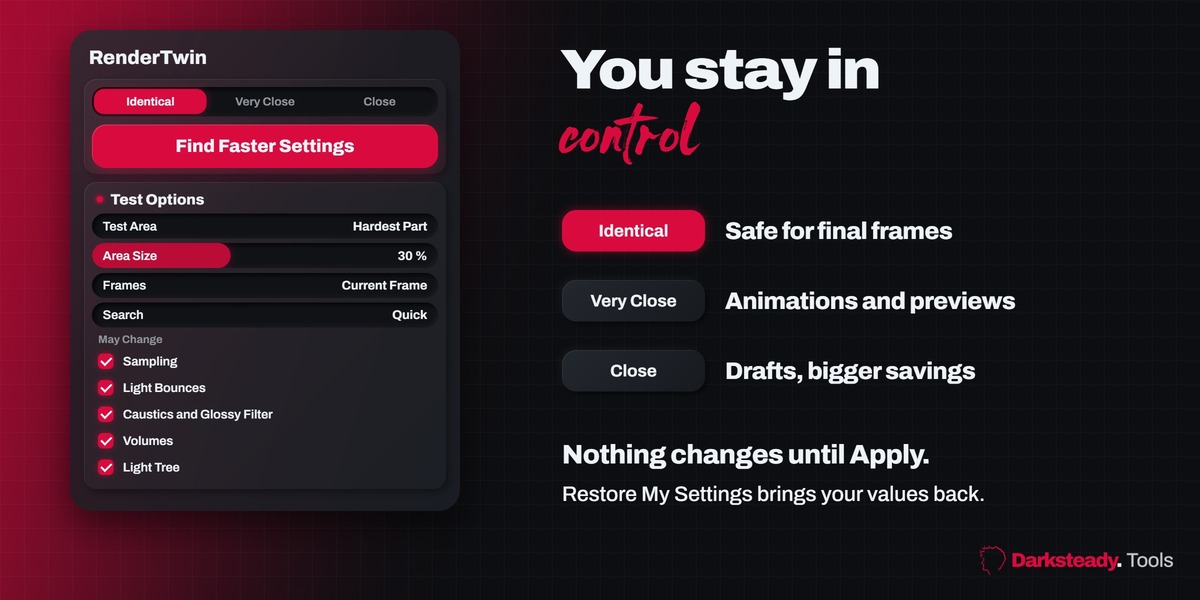
- Match: Identical (default): keeps only changes whose difference is no bigger than rendering your own settings twice. Safe for final frames.
- Match: Very Close: allows differences slightly above the noise of your own render. Good for animations and previews.
- Match: Close: allows small visible differences in noise or light for big speed-ups. Good for drafts.
- Test Area: Hardest Part (default) tests the part of the frame that is hardest to render, where two quick noisy previews disagree most (glass, glossy, indirect light). Render Region tests the region you drew with Ctrl B in the camera view. Whole Frame is the most accurate and the slowest.
- Area Size: width and height of the automatic test area as a share of the frame (30 % by default, 10 to 60 %). Bigger is more accurate and slower.
- Frames: Current Frame, or Current and 2 More, which also tests frames at one third and two thirds of the frame range. Use it for animations.
- Search: Quick (default) tries the boldest saving of each setting and the gentlest step, about 12 test renders. Thorough tries every step, about 25 test renders.
- May Change: which groups RenderTwin may touch: Sampling (noise threshold, max and min samples), Light Bounces (total, diffuse, glossy, transmission, volume, transparent), Caustics and Glossy Filter, Volumes (step rate), Light Tree. Volume and transmission settings are only tried when the scene has volumes or glass.
What Was Tried (a closed sub panel) lists every test: what was changed, and whether it was kept or dropped and why (more noise, light or colour changed, a highlight changed, not faster).
How "looks the same" is measured
Three scores compare each test render with both renders of your settings: the average pixel difference (noise and detail), the difference after a soft blur (brightness and colour shifts, for example light lost when bounces are cut), and the strongest small spots (a lost caustic or highlight). A change is kept only when all three stay within the Match limit, measured against your own render's noise. The denoiser is never switched on or off: the comparison runs on your final, denoised image.
Tips
- Draw a render region (Ctrl B in camera view) around the part that matters most, such as glass, hair or a dark corner, and pick Test Area: Render Region.
- For animations use Frames: Current and 2 More, and Match: Identical or Very Close.
- Run it again after big changes to lights or materials: the best settings depend on the scene.
- The test uses your own device (CPU or GPU), so the speed-up is measured on your machine.
Known limits
- Cycles only.
- The test covers the test area and the chosen frames. A part of the frame or the animation that was not tested could differ: Whole Frame and Current and 2 More reduce this.
- Flicker between animation frames after denoising is not measured; each frame is compared on its own.
- Very fast test areas (under 0.3 s) give rough speed numbers; use Whole Frame then.
- A change right at the Match limit can pass in one run and not in the next (render noise), so two runs on an already well tuned scene can report 1.0x and 1.2x. Clear savings are found every time.
- While the test runs Blender waits for it; Esc stops it after the current test render. The comparison images are kept for this session only.
Support
For bugs and questions, contact us through the product page you bought RenderTwin from.
Have questions about this product?
Login to message
| Blender Extension Compatible | Yes |
| Published | about 3 hours ago |
| Blender Version | 4.2 - 5.2 |
| Extension Type | Add-on |
| Render Engine Used | Cycles |
| License | GPL |
Discover more products like this
optimization denoise samples Workflow render settings noise threshold render time Render Cycles light bounces animation faster render