Replaycam
 Sporemind

User Manual
ReplayCam
Capture supported modeling data, edit the replay and export a video. Keep the session separate from your Blender project.
01Overview and compatibility
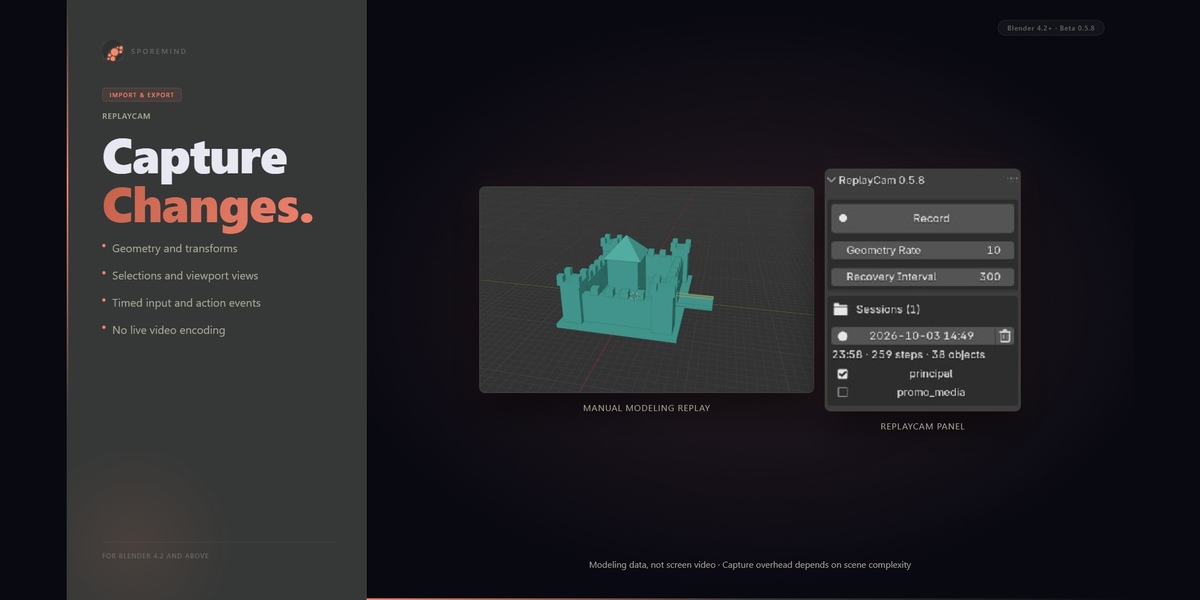
ReplayCam captures supported mesh modeling changes as data so you can build and edit a replay afterward. It tracks captured geometry states, transforms, selections, viewport views and timed events rather than recording screen pixels. The replay does not rely solely on re-executing keyboard shortcuts.
The current beta has been verified on Windows with Blender 4.2.23 and 5.0.x. Its manifest declares Blender 4.2.0 as the minimum. macOS, Linux, other hardware and every subsequent Blender release have not been verified. Native video export needs a working Blender UI/GPU context, writable local storage and enough space for temporary frame images.
02Installation and first recording
1In Blender, open Edit → Preferences → Get Extensions and use the menu's Install from Disk option.
2Select replaycam-0.5.8.zip. Use the addon installer, not the marketing bundle. Enable ReplayCam if Blender asks.
3Save your modeling project as a .blend in a writable folder.
4In the 3D Viewport, press N to open the sidebar and select ReplayCam.
5Start with a small visible mesh in Object or Edit Mode. Click Record, then model normally.
6Use Pause / Resume when you want to exclude time from the recording.
7Click Stop & Save. Leave Blender open until the status reports Saved.
8Select the session and its edit in the Sessions list, then click Build Replay.
Geometry Rate limits geometry snapshots per second. Increasing it can capture more frequent changes but increases capture and storage work. The default is 10; the allowed range is 1–30. Some short changes can fall between samples.
03Recording files and backups
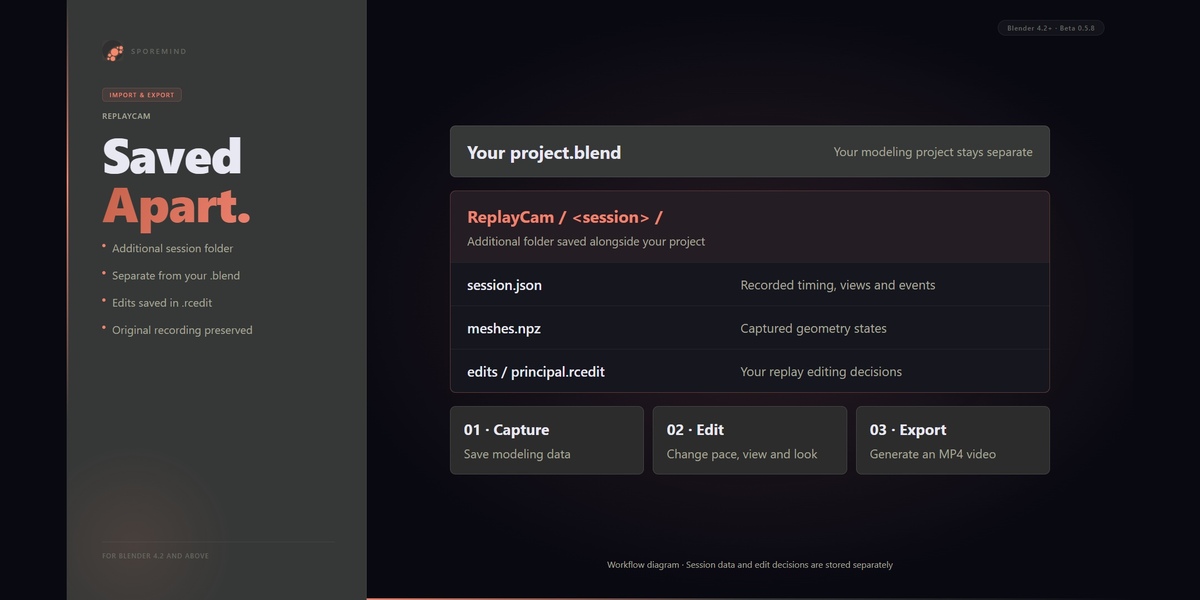
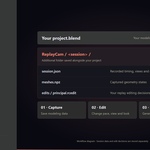
The additional recording folder is saved next to your Blender project under ReplayCam/<session>/. It contains session.json for timing and tracks, meshes.npz for captured base-mesh geometry, and an edits folder for .rcedit files such as principal.rcedit.
ReplayCam keeps these recording and editing files outside your .blend. It does not add its replay objects, actions or session properties to the modeling project. Keep the session folder in your backup if you want to revisit the recording; copying the .blend alone does not carry the ReplayCam recording with it.
The session is preserved after saving. Editing decisions are written to the active .rcedit. Never edit the captured session files to make a video cut.
04Replay controls and timing
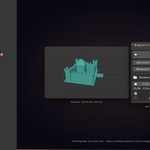
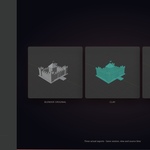
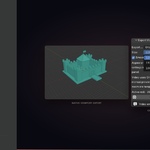
Build Replay opens the replay in the viewport. Use the panel's Play / Pause, seek and step controls. Exit Replay returns to the modeling viewport. In Orbit, middle-mouse drag and wheel input adjust the temporary preview rotation and zoom.
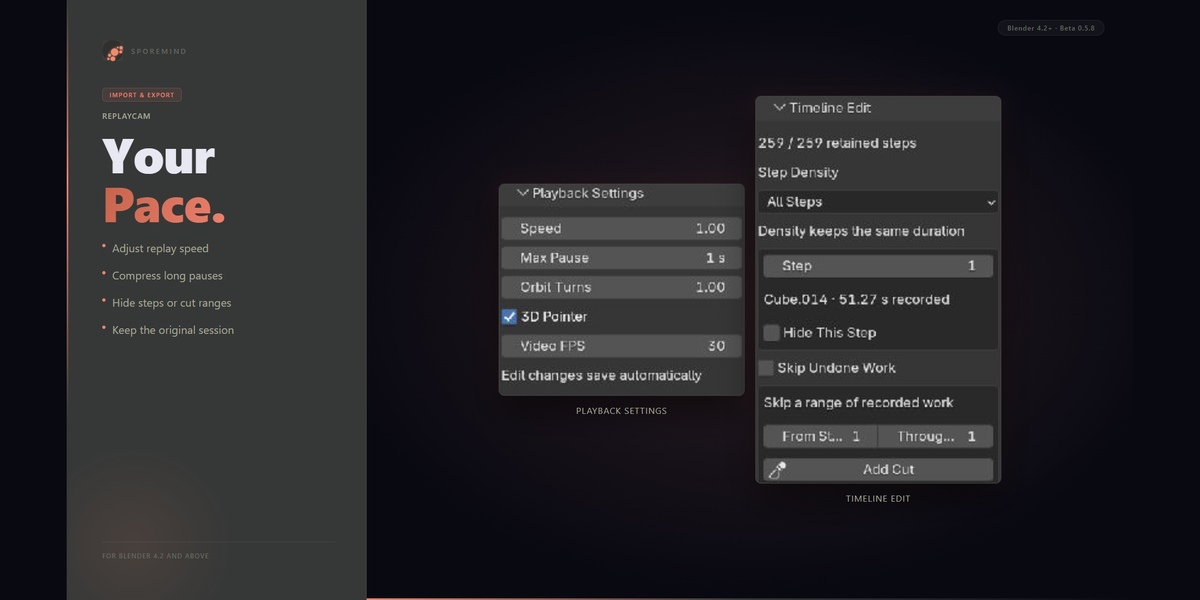
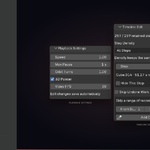
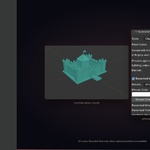
In Playback Settings, Speed changes the overall replay speed, Max Pause compresses long gaps, Orbit Turns controls the exported orbit, Video FPS sets the output frame rate, and 3D Pointer toggles the pointer presentation. These edit settings save automatically.
Recorded timestamps determine timing. Speed 1, Max Pause 0 and no cuts preserve the captured pace within the sampling and output frame-rate limits. Explicit pauses in recording are excluded. The default Max Pause compresses long gaps, so a default replay is not necessarily real-time.
Smooth Motion interpolates compatible captured movement in preview and video. Cuts and undo boundaries remain discrete; changing topology is not a guarantee that every action becomes continuous.
05Hide steps, cuts and density
In Timeline Edit, choose the recorded Step and use Hide This Step to omit it from the replay. For a range, set From Step and Through Step and use the range-cut control. Skip Undone Work omits supported undone branches.
Hiding and cutting remove portions of the presentation while keeping the resulting model state. They do not undo those operations in your modeling project or remove their effects from the final mesh.
Step Density controls which recorded geometry steps are retained. It keeps the same duration by itself; use Speed, Max Pause or cuts to shorten the video. Stable step indices refer to the original captured geometry changes.
The default edit is principal.rcedit. To preserve an alternative, copy the saved edit to a different .rcedit filename inside the session's edits folder and select that copy in the Sessions list. View choices are made in replay/export controls; the edit stores settings such as timing, cuts, orbit parameters and appearance.
06Views, appearance and selection
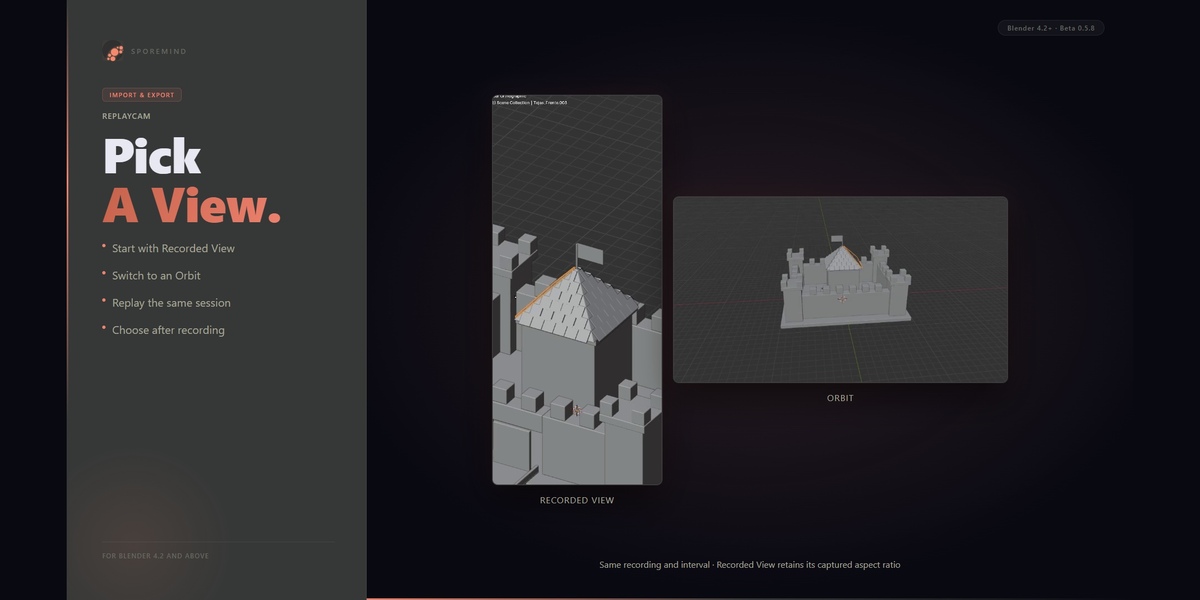
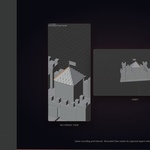
Recorded View follows a captured viewport. Choose the relevant recorded viewport if the replay exposes more than one. Orbit provides an orbiting presentation around the recorded model. These are the supported choices; arbitrary Blender scene cameras are outside the current beta scope.
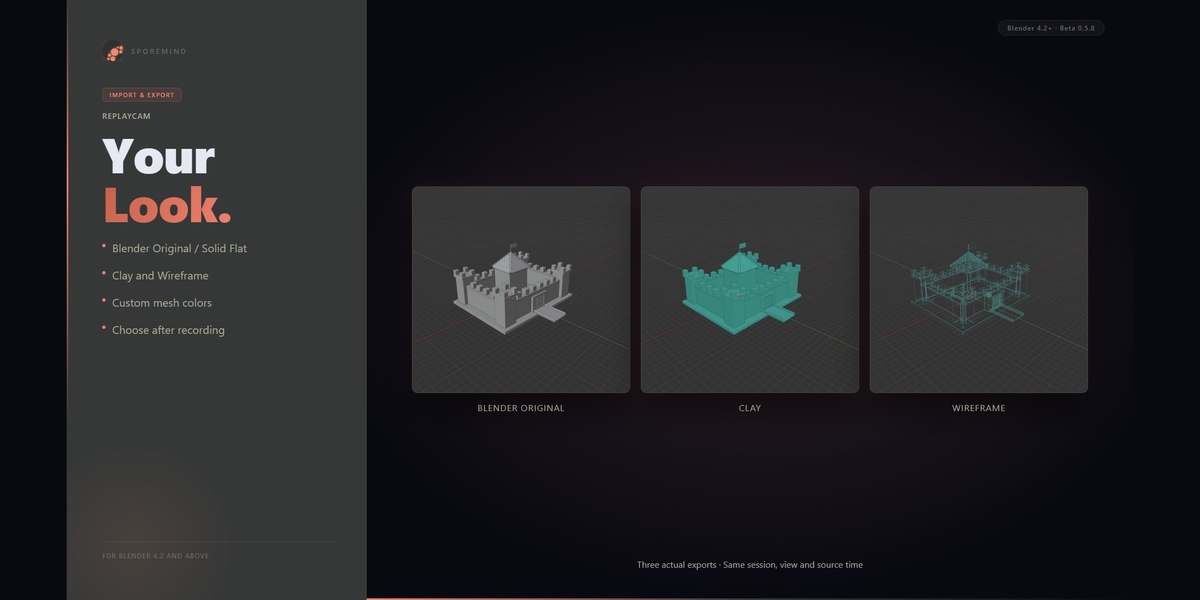
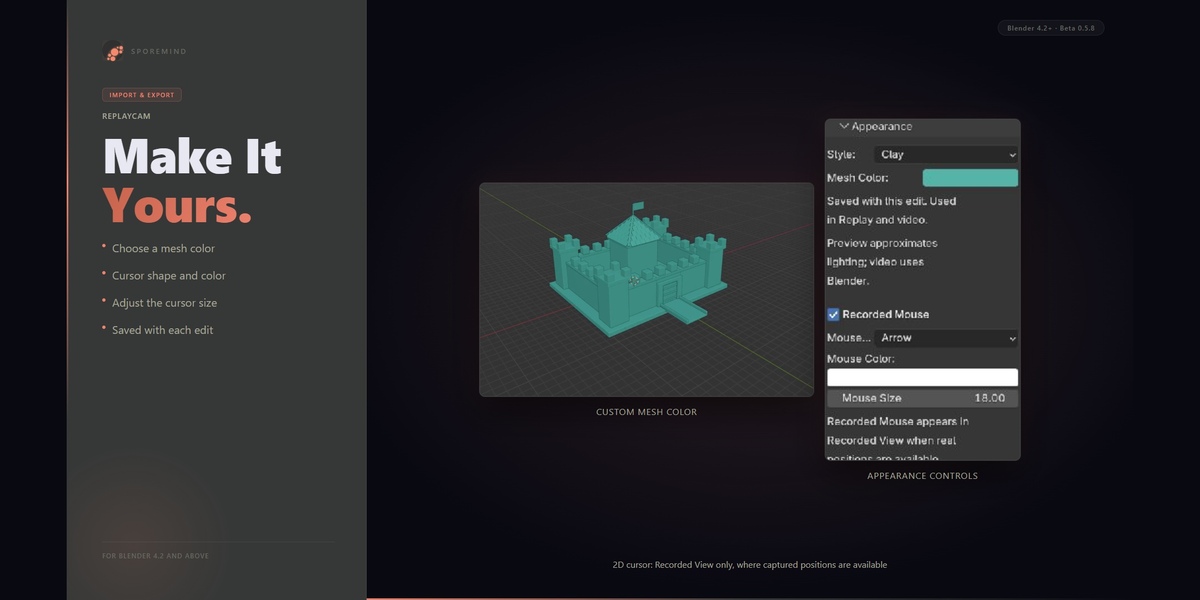
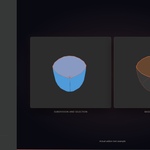
In Appearance, choose Blender Original, Solid Flat, Clay or Wireframe. Configure mesh color and cursor style, color and size where appropriate. Appearance is saved with the active edit and used for both replay and video.
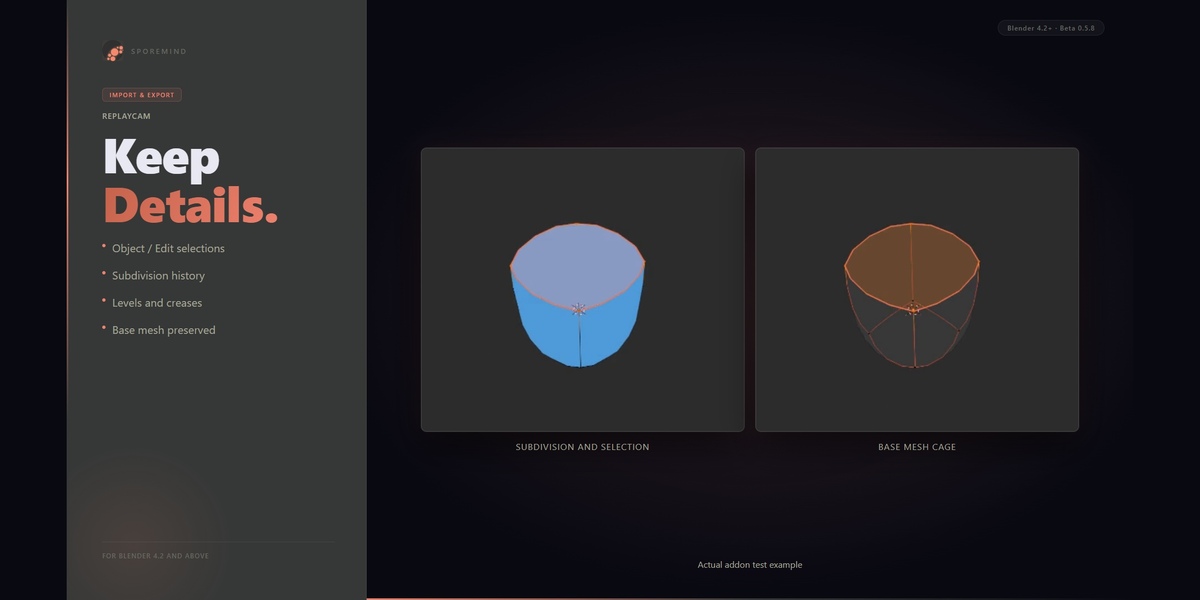
Recorded Selection displays supported captured Object/Edit selections. Older recordings may lack this information. The recorded 2D cursor requires Recorded View and available captured positions. The 3D pointer is a separate overlay; it is not a guarantee that every modal interaction supplies an exact cursor path.
The preview is an approximation of supported viewport appearance. Native export uses Blender's viewport. The beta does not capture the entire Blender UI, gizmos, toolbars, material nodes, textures or custom color management, and does not offer photorealistic Rendered export.
07Subdivision and current limits
New session-v4 recordings preserve supported Subdivision Surface settings and base-mesh creases. Levels, activation, Edit visibility, On Cage and Optimal Display are replayed in their recorded order. Smooth Motion interpolates the base mesh before Subdivision.
Some combinations fall back to the base mesh with a warning in preview. Native video reconstructs supported Subdivision stacks. Other active modifier types, uncaptured custom normals or incompatible data can block export. Respect the displayed preflight message rather than expecting every modifier or topology to work.
Older sessions can be read without rewriting them, but they do not gain historical selections or modifier data they never captured. Make a new recording to capture newly supported history. Full Sculpt workflows, arbitrary scene cameras, materials/textures and UV/seam history are outside the current scope.
08Export MP4
1Finish saving the recording and select the active session/edit.
2Choose the pace, cuts and appearance. Open Export Video.
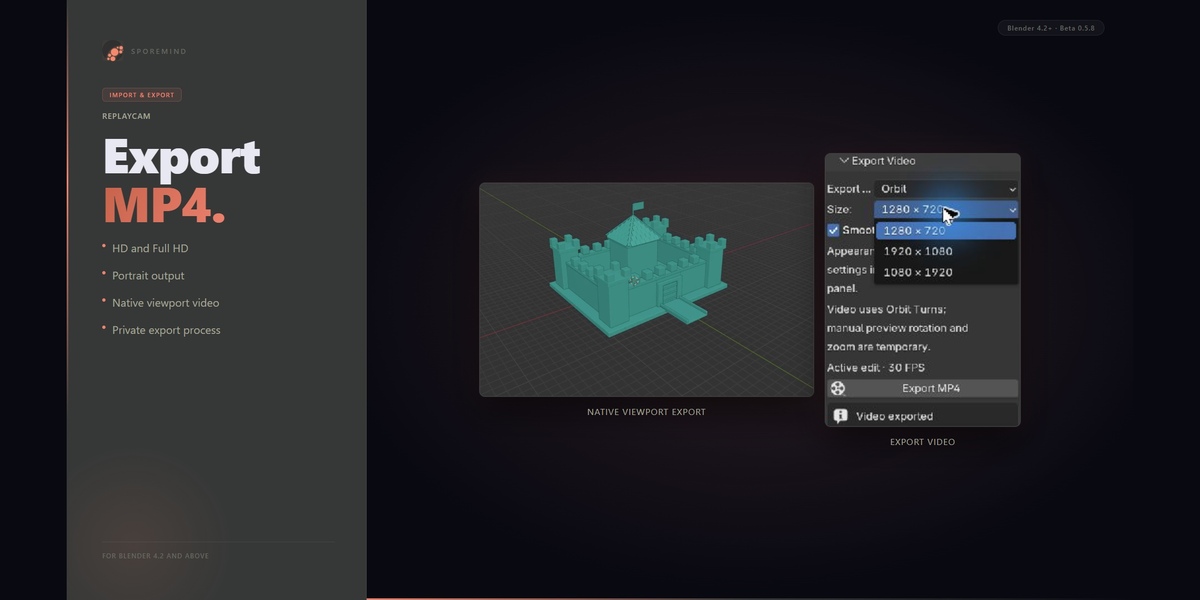
3Choose Recorded View or Orbit, the available HD / Full HD / Portrait size, Smooth Motion and the desired Video FPS.
4Click the export control and select the destination file when prompted.
5Keep Blender open while the export job runs. The exporter uses a separate Blender process and a private scene; it does not open your modeling project in that process.
6Wait for completion and use Open Video to review the result. Export Files / Log opens the job's diagnostic folder.
For Orbit, video uses Orbit Turns. Manual preview rotation and zoom are temporary and do not transfer to the exported camera. Aspect ratios are preserved; a narrowly recorded viewport will not automatically become a wide framing.
If the job fails or is canceled, use the displayed log and Retry Export after resolving the cause. Failed/canceled jobs do not publish a partially completed final video. Temporary frames and retained job files need disk space in addition to the session and MP4.
09Saving, recovery and performance
Recording saves asynchronously on Stop & Save. If final saving fails, keep Blender open and use Retry Save. Do not assume the recording is durable before Saved is displayed.
Recovery Interval controls periodic verified checkpoints, with a default of 300 seconds. Save Recovery Copy requests one manually. The current system keeps two verified copies. After an interrupted recording, use Recover from the panel when a complete recovery copy is offered. Recovery creates a new session and preserves the source; it restores the latest complete checkpoint, not every later action.
Video encoding happens at export. Capture still uses CPU, memory and disk, and dense meshes, higher Geometry Rate, checkpoints and long sessions can increase the cost. No fixed one-hour file size, constant-RAM guarantee or zero-overhead claim is made.
10Troubleshooting and support
•Record unavailable: save the project, use a supported mesh workflow and read the panel's reason. Recording and export cannot run together.
•No geometry steps: edit a visible mesh; viewport navigation alone does not create a geometry change.
•Replay controls: use the ReplayCam panel in the replay viewport. Exit Replay before returning to normal modeling.
•No historical selection or modifiers: check whether the recording predates the relevant capture format; older files cannot reconstruct missing history.
•Unsupported modifier or export warning: review the displayed preflight reason and the current Subdivision support matrix; support is intentionally bounded.
•Save failure: leave Blender open, check disk space and permissions, then use Retry Save.
•Export failure: read Export Files / Log, resolve the stated problem and use Retry Export.
•Large recording or slow capture: reduce Geometry Rate for future recordings where appropriate and monitor the panel's geometry memory display; it is not total Blender RAM.
For a support request, include Blender version, operating system, ReplayCam version, the exact error, reproduction steps and relevant export/save log. Share only files you are comfortable sending. Use the creator contact/support route on the Superhive product page; no response-time or update-entitlement promise has been set for this draft.
 Included
Includes 12 months of
- Support from Sporemind
- Product updates
Extend this product’s Support Period +12 months: 50% of product price
Have questions before purchasing?
Login to message
| Blender Extension Compatible | Yes |
| Dev Fund Contributor | |
| Published | about 15 hours ago |
| Blender Version | 4.2 - 5.2 |
| Extension Type | Add-on |
| License | GPL |
Discover more products like this
non-destructive recording timelapse camera Workflow Import-Export replay mp4 viewport modeling orbit video export