ReplayCam — Editable Modeling Replays
 Sporemind
Q: Does ReplayCam record my screen?
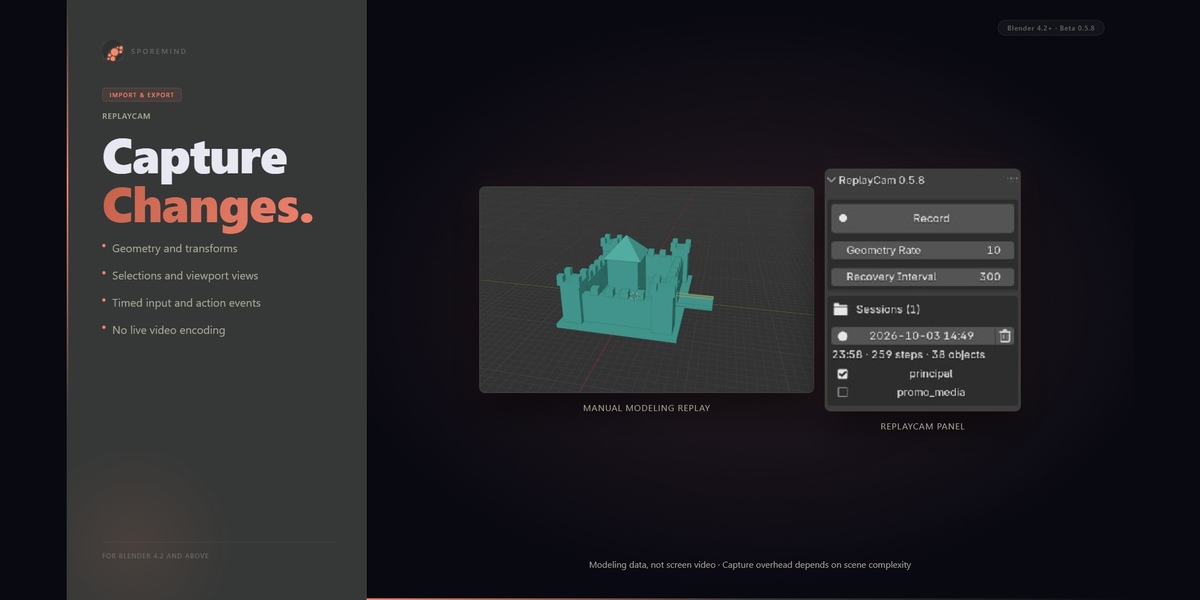
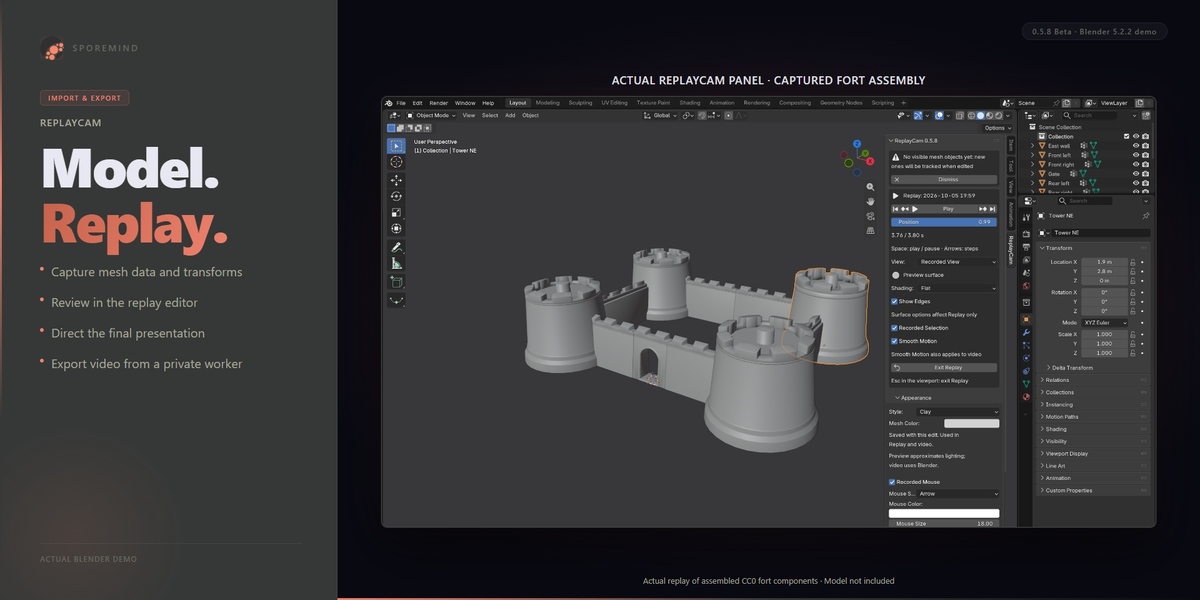
A: No. ReplayCam captures supported mesh states, transforms, selections, viewport views and timed events as modeling data. It rebuilds a replay from that data, rather than storing screen video or relying only on re-executing keyboard shortcuts.
Q: Where is the recording saved? Does it change my .blend?
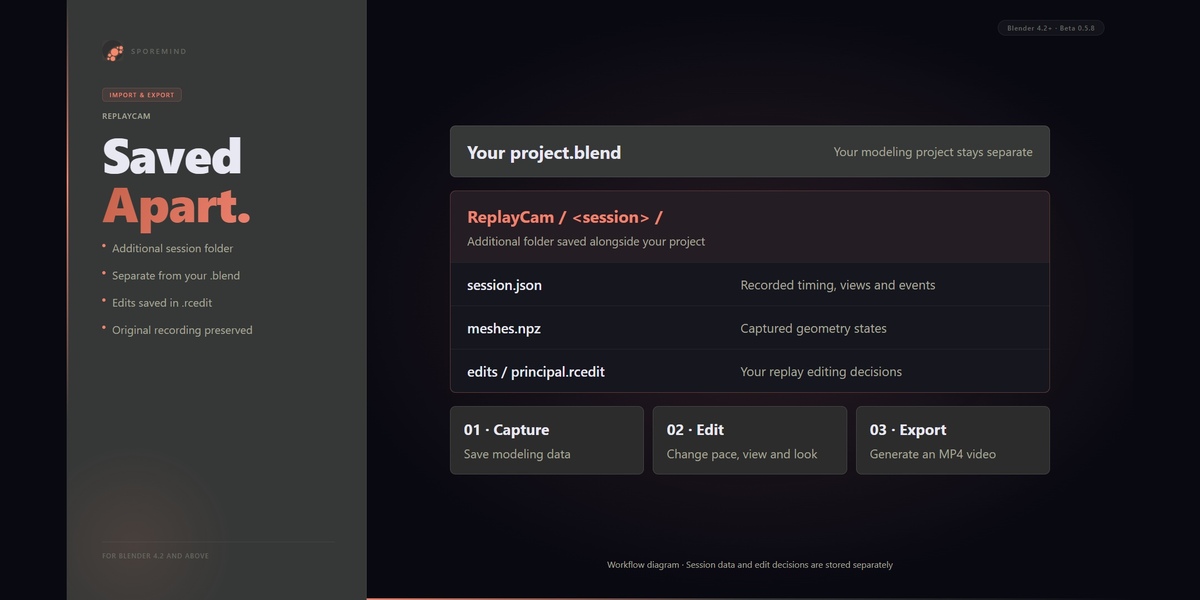
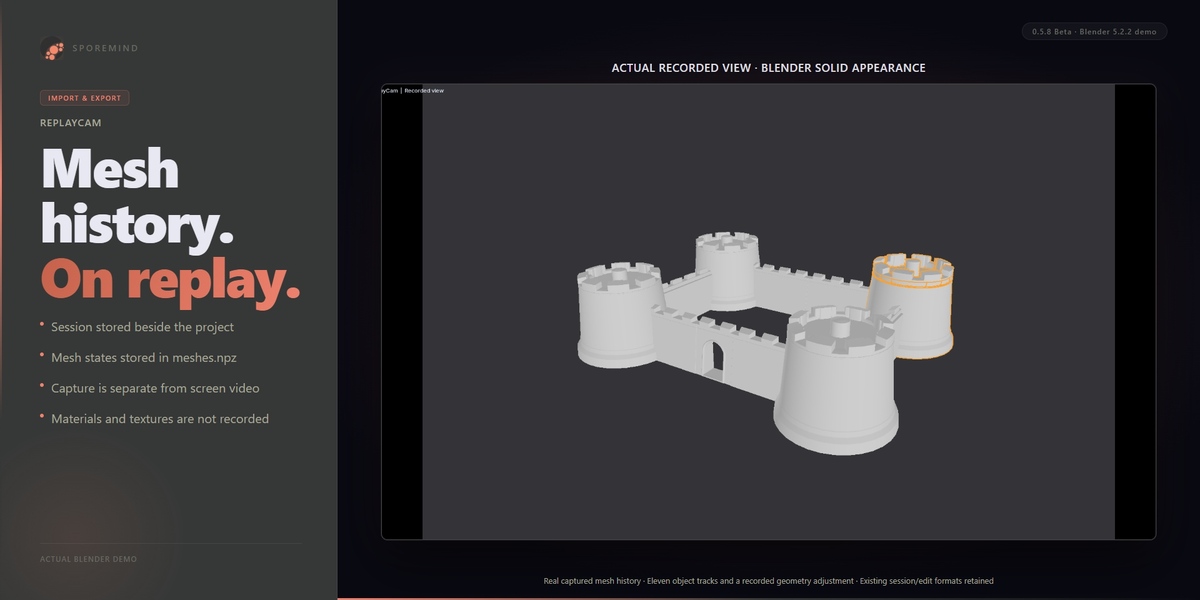
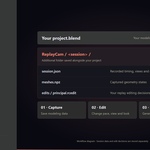
A: An additional ReplayCam session folder is saved alongside your Blender project. session.json stores timing and tracks; meshes.npz stores captured geometry. Editing decisions are stored separately in .rcedit files. ReplayCam does not add its replay objects, actions or session data to your project.
Q: Can I hide mistakes or shorten the process afterward?
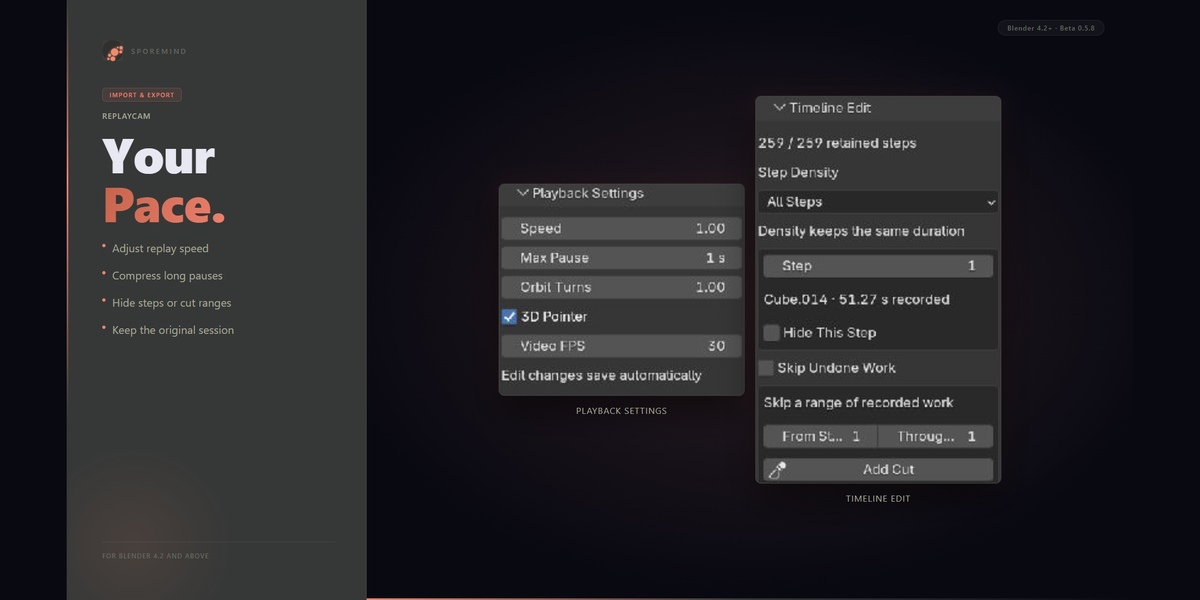
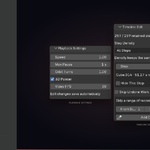
A: Yes. You can hide recorded steps, cut ranges, adjust playback speed and compress long pauses. These decisions affect the presentation and preserve the recording; they do not undo the operations in your model, and the resulting model state is kept. You can also omit undone branches. Step Density controls retained geometry steps and does not itself shorten the duration.
Q: Can I choose different cameras and visual styles after recording?
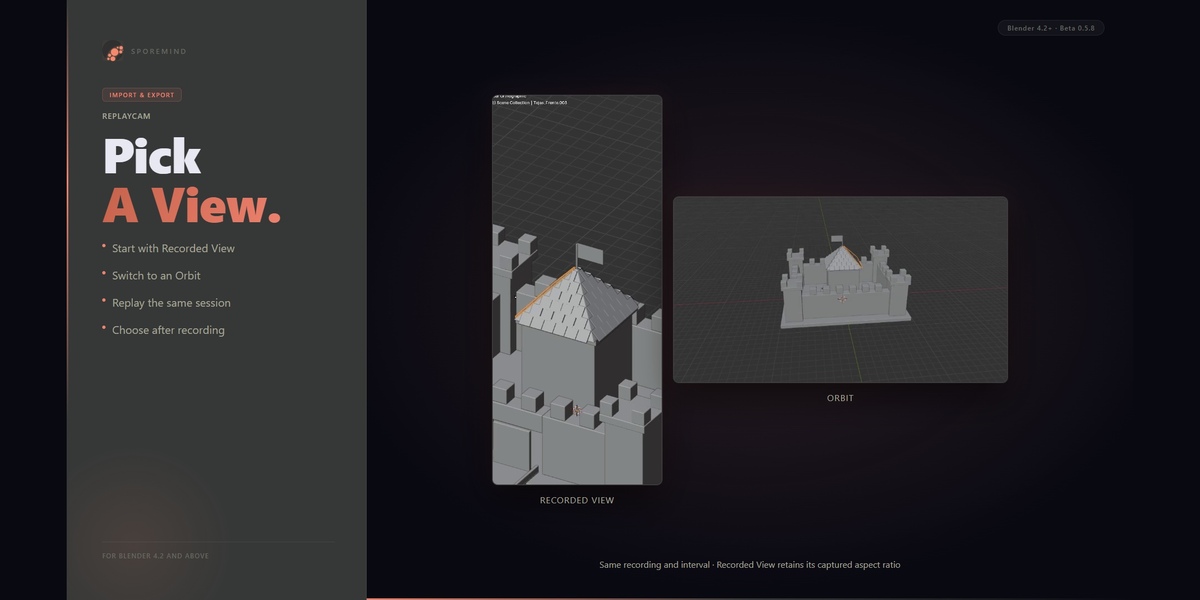
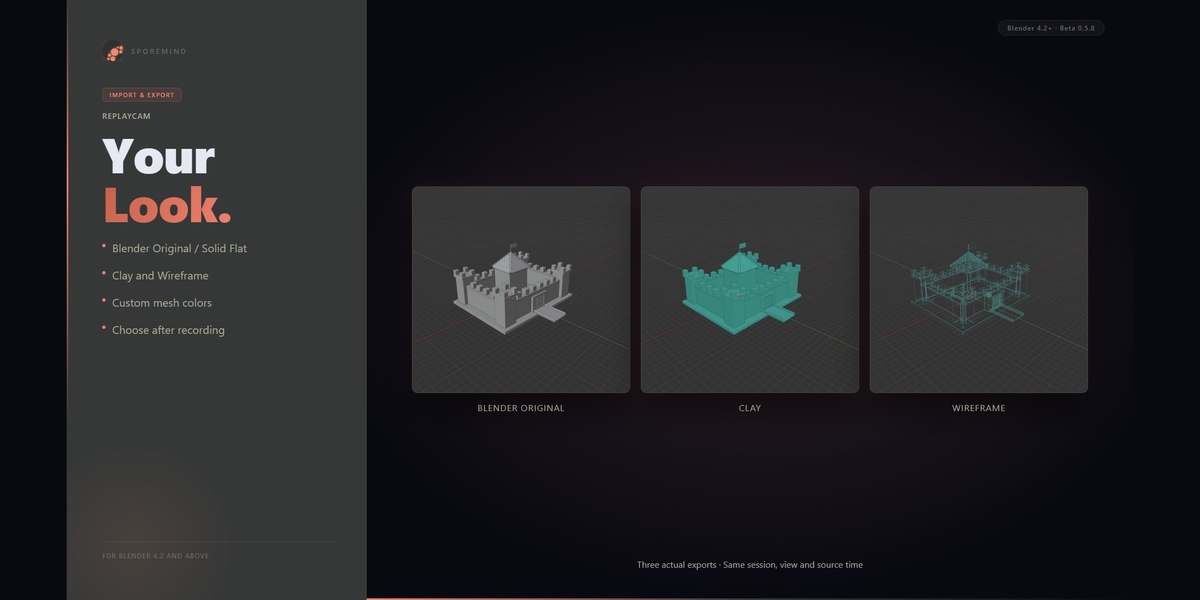
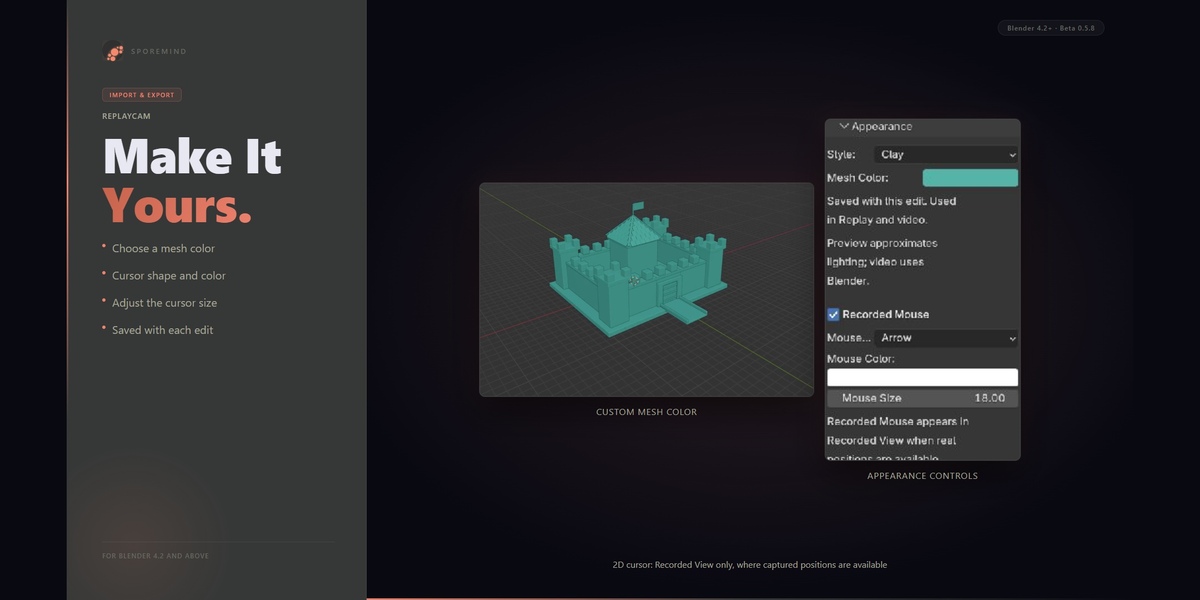
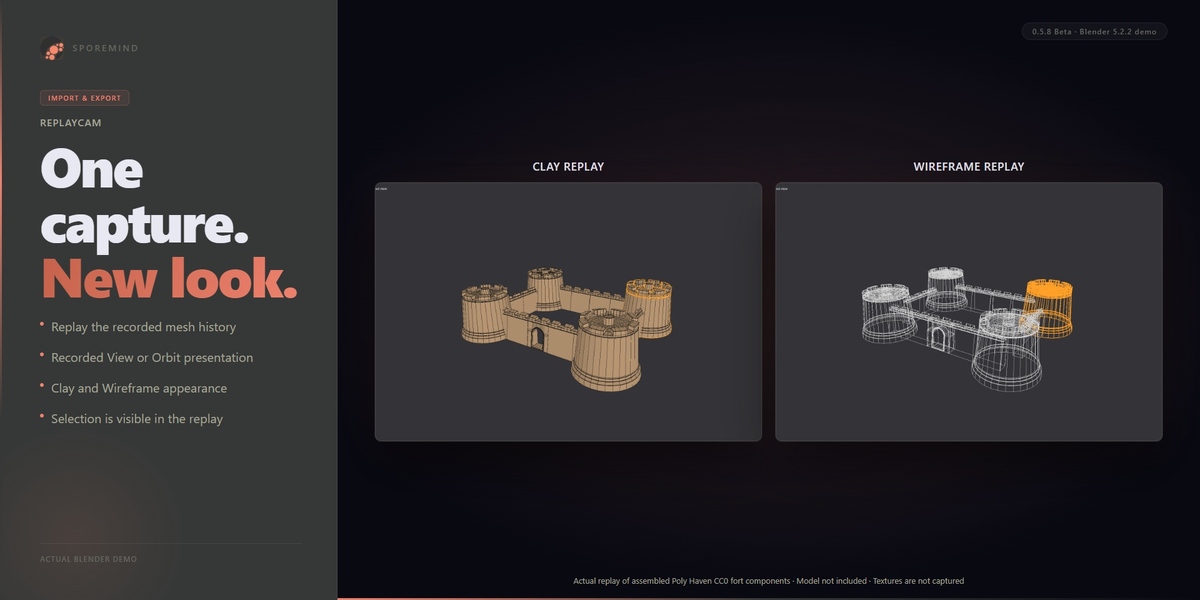
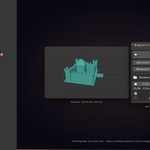
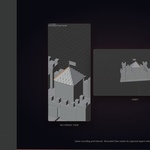
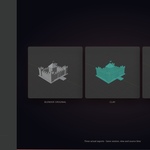
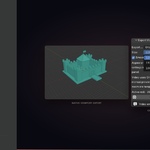
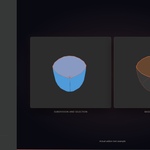
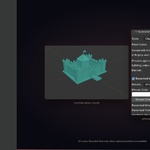
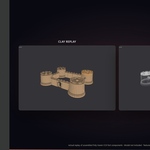
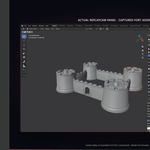
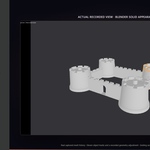
A: Yes. Choose Recorded View to follow a captured viewport or Orbit for an orbiting presentation. Choose Blender Original, Solid Flat, Clay or Wireframe, with mesh and cursor customization. Arbitrary scene cameras and material-texture or photorealistic render export are outside the current beta scope.
Q: Does recording have zero performance impact?
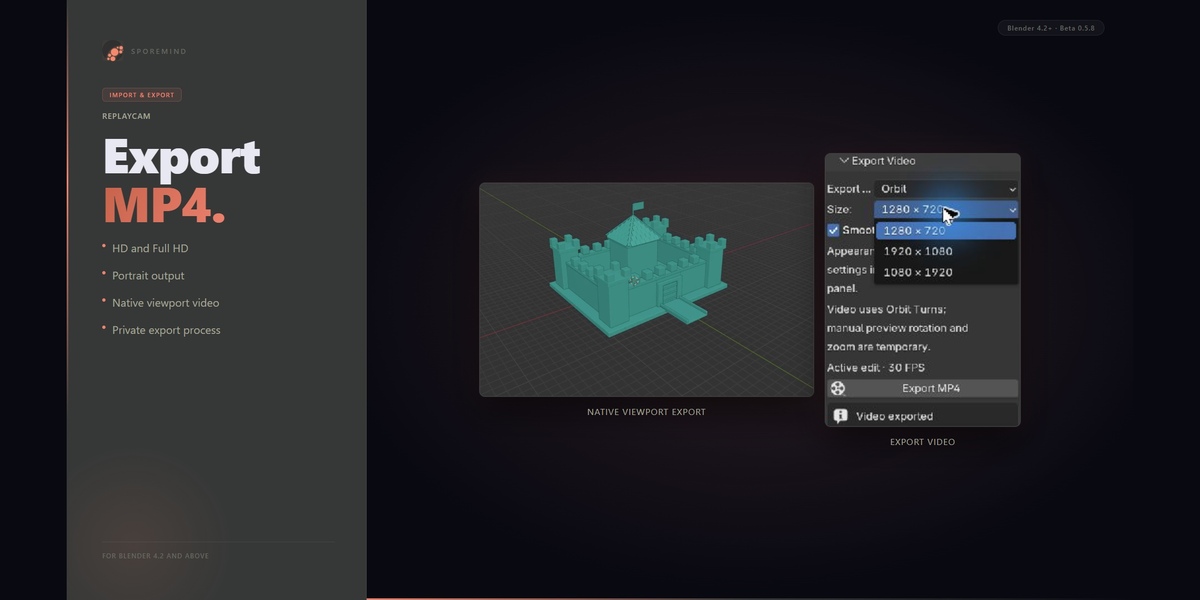
A: No. Video generation happens at export, so ReplayCam does not encode screen video while you model. Capture still uses CPU, memory and disk. Its cost depends on scene complexity, Geometry Rate, checkpoint saves and session length. Dense scenes can slow capture and use substantial storage.
Q: Are selections and modifiers visible in the replay?
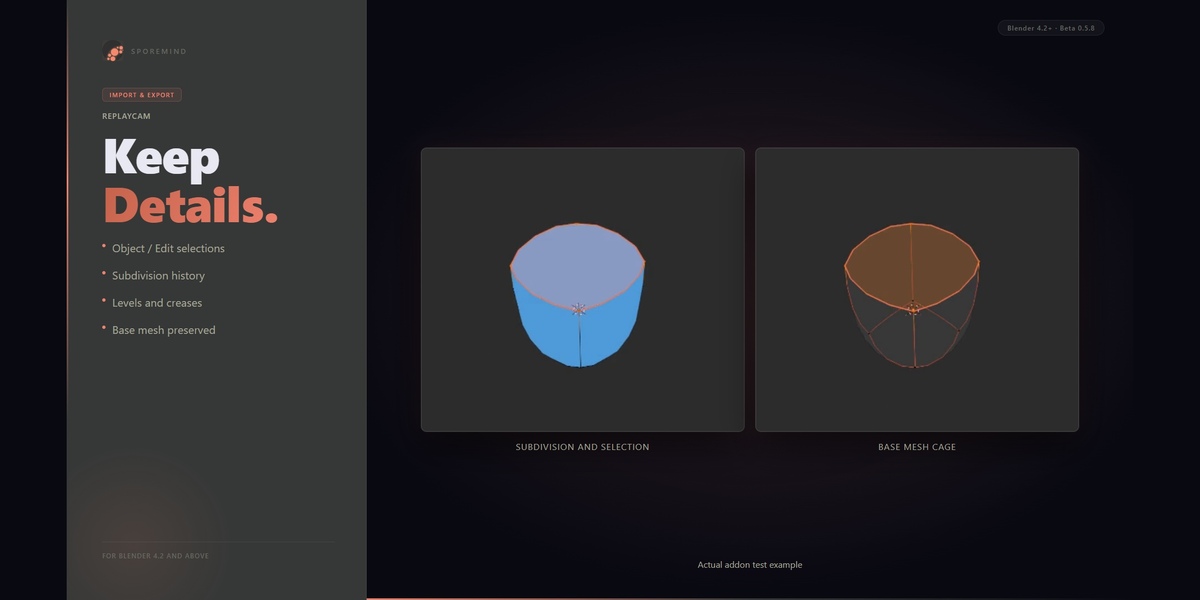
A: New recordings preserve supported Object/Edit selections and historical Subdivision Surface settings, including levels and creases. Some preview combinations fall back to the base mesh with a warning; native export reconstructs supported Subdivision stacks. Other active modifier types and uncaptured custom normals can block export. Older recordings do not acquire missing historical data automatically.
Q: Can I create several videos from one recording?
A: Yes. Keep the original session and save different replay edits, then export them with different timing, cuts, appearance and supported view choices. Your .rcedit contains saved directing decisions such as timing, cuts, orbit parameters and appearance; select Recorded View or Orbit in the replay/export controls.
Q: Is the replay timing based on real timestamps?
A: Yes. Recorded timestamps determine the timing. Speed 1, Max Pause 0 and no cuts preserve the captured pace within sampling and output frame-rate limits. Explicit recording pauses are excluded. Faster speed, compressed pauses and cuts create a shorter presentation.
Q: Does ReplayCam recover every action after a crash?
A: It can recover the latest complete verified recovery checkpoint, not every action since that checkpoint. The current save system keeps two verified recovery copies. Save your Blender project normally and leave Blender open until the session reports Saved.
Q: What footage and cursor data are supported?
A: The beta focuses on mesh modeling in Object and Edit Mode. It does not capture the full Blender interface, gizmos, toolbars, complete Sculpt workflows, material nodes or textures. A recorded 2D cursor requires Recorded View and available captured positions. The 3D pointer is a separate presentation overlay.
$10
 Included
Includes 12 months of
- Support from Sporemind
- Product updates
Extend this product’s Support Period +12 months: 50% of product price
Have questions before purchasing?
Login to message
| Blender Extension Compatible | Yes |
| Dev Fund Contributor | |
| Published | 4 days ago |
| Blender Version | 4.2 - 5.2 |
| Extension Type | Add-on |
| License | GPL |
Discover more products like this
camera Workflow recording non-destructive Import-Export mp4 modeling timelapse orbit replay viewport video export